
Release Timeline
-
Training Sites: April 6, 2026
-
Production Sites: May 4, 2026
Learn more about release enhancements by registering for the v3.115 Release Webinar! After registration, enrollment automatically continues for all future webinars—no re-registration is necessary! Although continued enrollment is automatic, attendance in every release webinar is not mandatory; please attend when scheduling allows.
Assessment Analysis By Course/Co-Curricular Learning Outcome
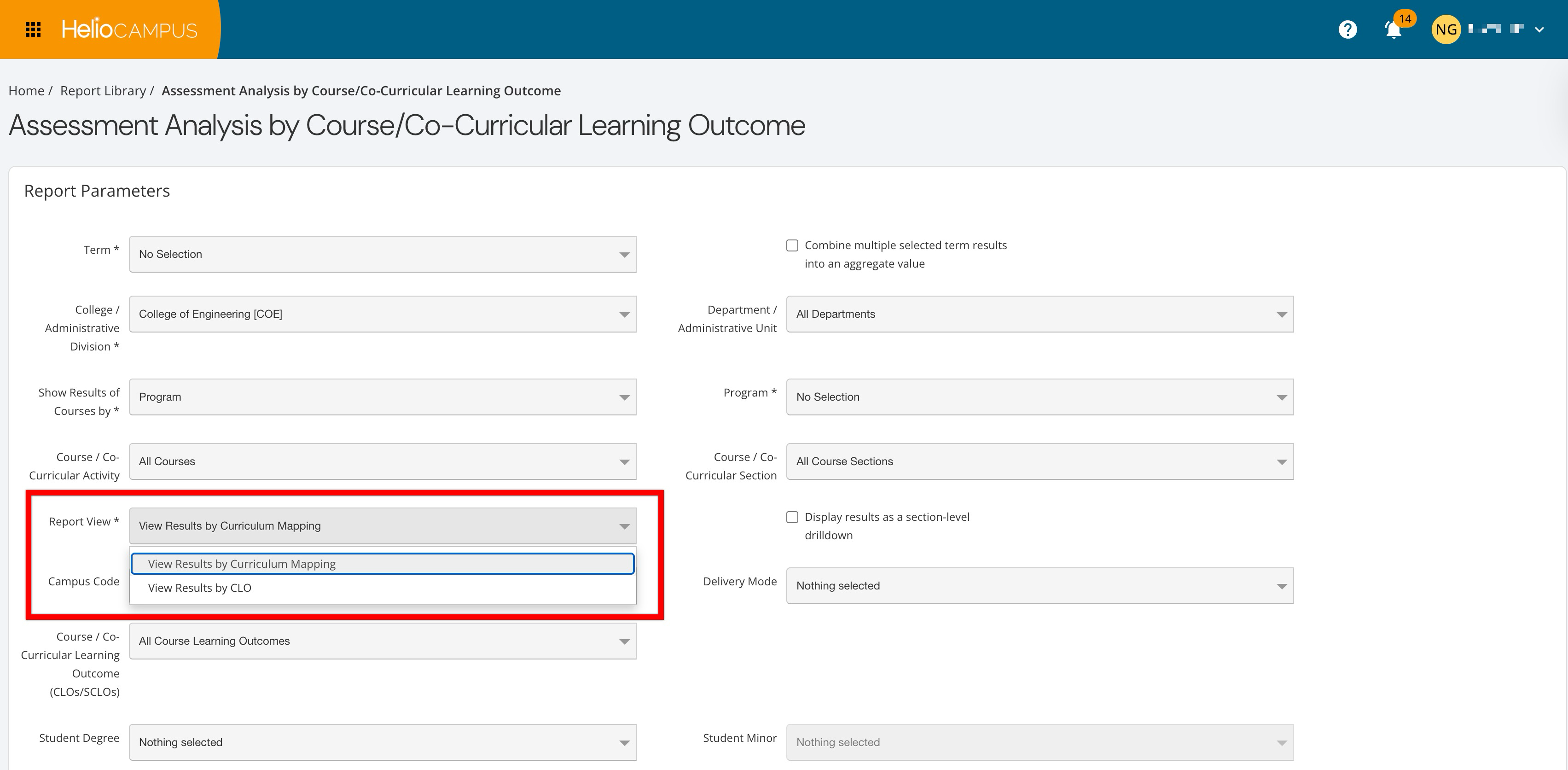
Enhancements have been made to the Assessment Analysis by Course Learning Outcome report to better align results with accreditation expectations and how CLO assessment is interpreted, with a new required parameter to configure how results are calculated. The new Report View parameter is required to define whether results are viewed by curriculum mapping or CLO. Learn more.
-
View Results by Curriculum Mapping (default): The report displays one row per CLO–PLO mapping (e.g., multiple rows per CLO when it maps to multiple PLOs).
-
View Results by CLO: Aggregates/averages results across all mappings for the same CLO and displays them as a single CLO row. If mappings for the same CLO use different proficiency scales, those results are not combined and are shown as separate rows by scale. The PLO Code is removed from the output in this view (but available in CSV/Excel exports), and averaged counts are rounded to whole numbers, avoiding inflated sample sizes caused by multiple mappings.
Assessment Reports
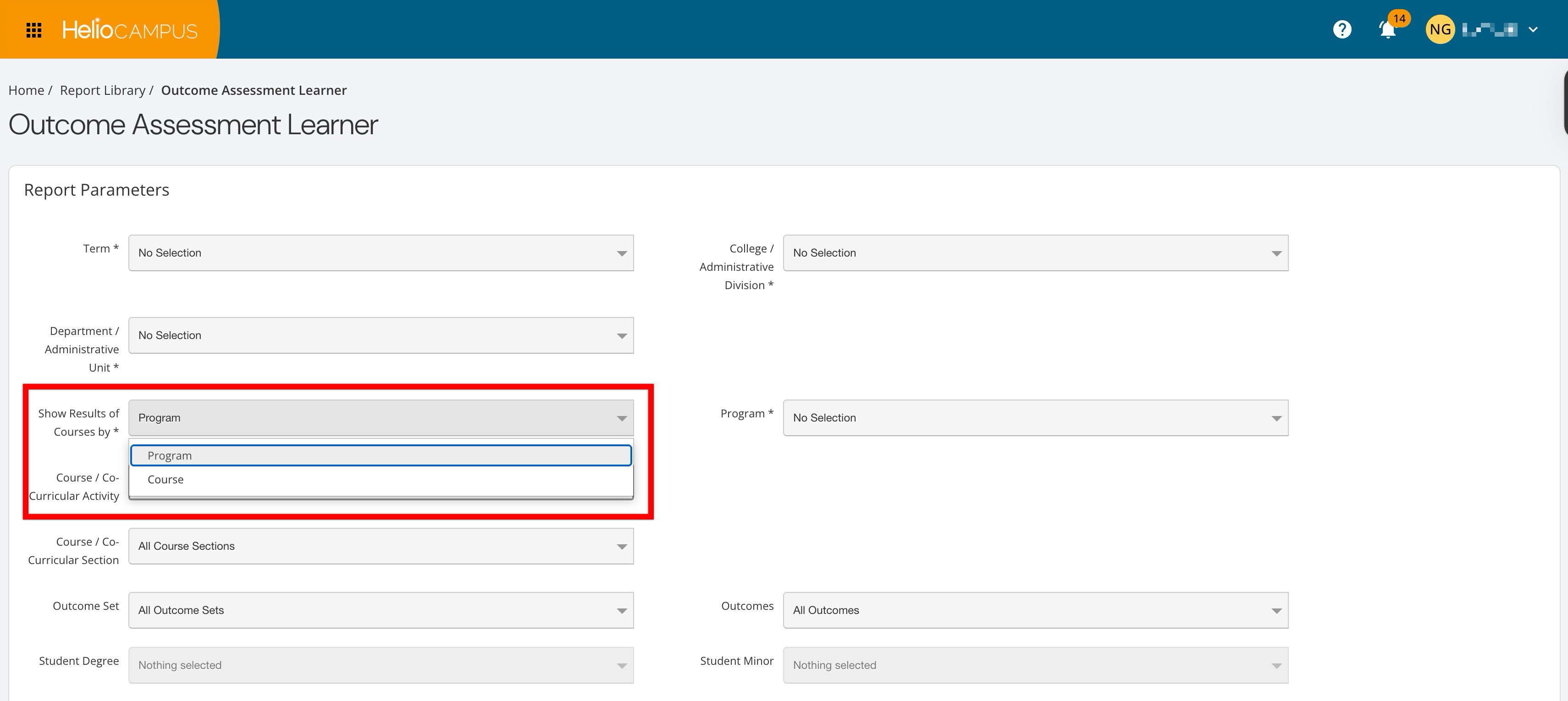
A new required Show Results of Courses By parameter has been added to the Outcomes Assessment Learner and Assessment Analysis by Course/Co-Curricular Learning Outcome reports. This allows users to run results either by course or by program, with available course selections automatically limited to courses aligned to the chosen program(s). Additionally, role-based behavior was updated to allow Program Coordinators to access these reports. These changes provide program-level access to assessment reporting while ensuring users only see courses and results aligned with their roles and programs. Learn more:
Assignment Reports
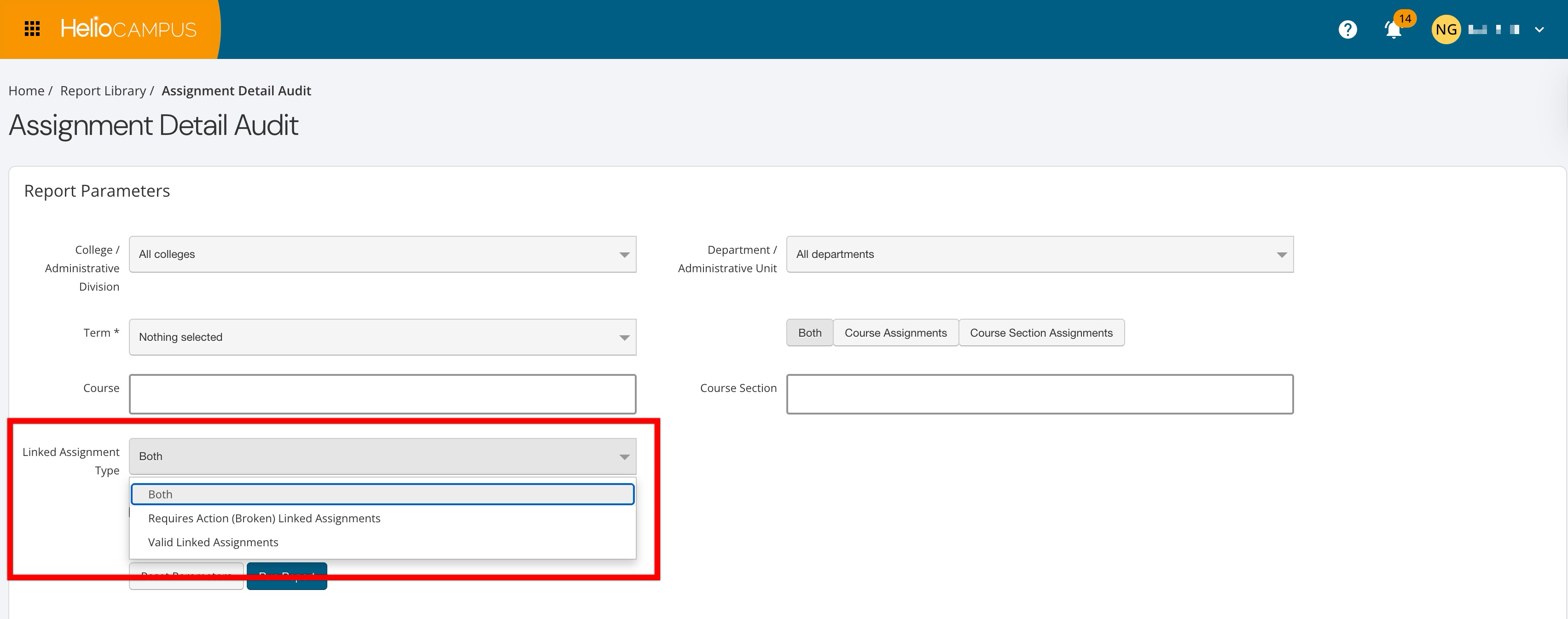
A new optional parameter has been added to both the Assignment Detail Audit and Assignment Analysis reports. The Linked Assignment Type parameter allows users to filter which assignments are included in the report output.
-
Requires Action (Broken) Linked Assignments: Shows only links that are broken or need attention.
-
Valid Linked Assignments: Shows only correctly configured links.
-
Both (Default): Shows all linked assignments regardless of status.
This enhancement makes it easier to quickly identify and act on broken or invalid assignment links across large course and program structures, without manually inspecting individual sections. Learn more:
Canvas Graded Discussions
Canvas-graded discussions with checkpoints are now supported through the HelioCampus Canvas LMS integration. When a discussion is configured as a graded assignment (with or without checkpoints and rubrics), HelioCampus can import the overall discussion score as well as rubric-level scores for those graded discussions and checkpoints. This applies to all graded discussion types, including those that use rubrics, with no additional configuration needed on the platform beyond standard assignment linking. Learn more.
Course Catalog Data File
Institutions can now optionally use the new Status column in the Course Catalog data file to control the course statuses Active and Archived during import; any other values in the Status column will be ignored, and the course will be unaffected.
-
Active: Upon import, if a course is in Archived status, it will be updated to Published status. If a course is already in Draft, In Revision, or Published statuses, its status will not change.
-
Archived: Upon import, the latest version of the course will be set to Archived status (or will remain archived if it already was).
When a course is first imported, it will be created in Draft status. Since this new column is optional, omitting entries in the Status column will still allow the import to proceed normally. Learn more.
CSV Exports
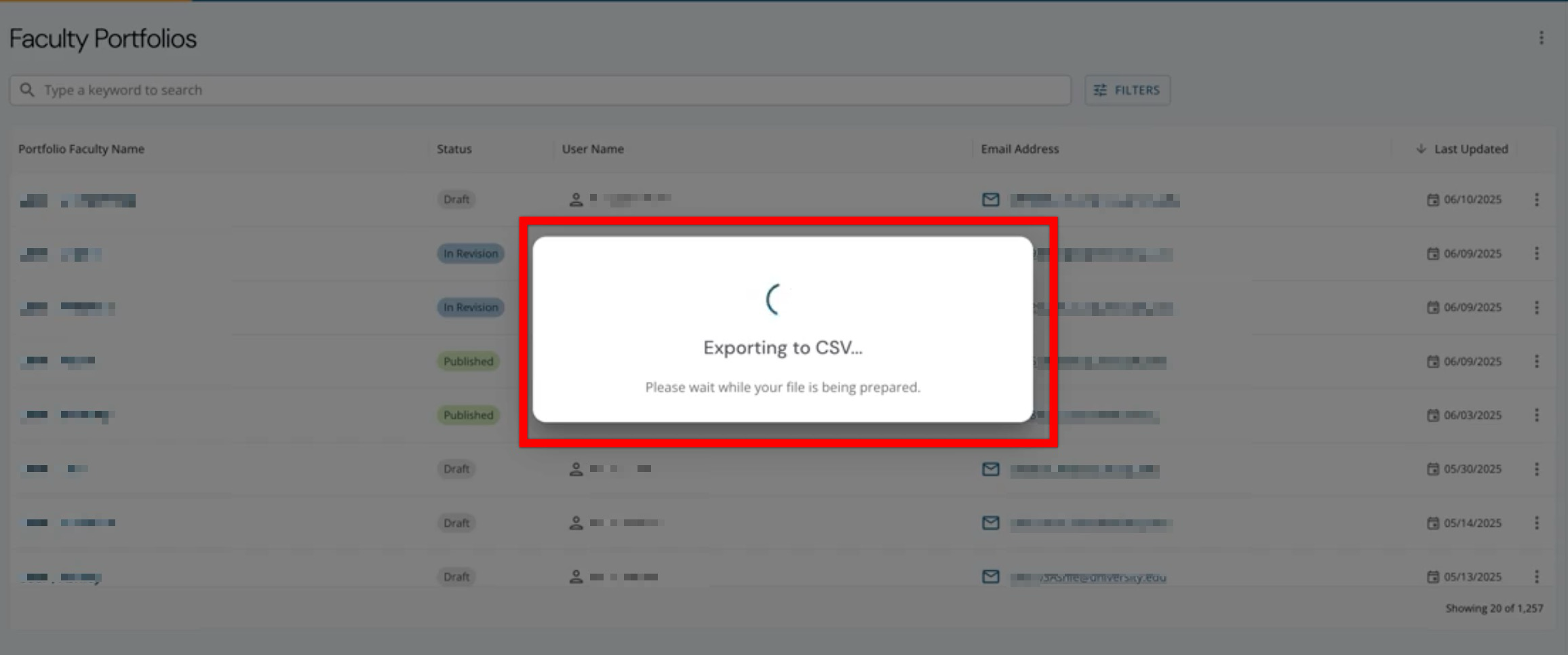
When users export data to CSV, the platform now displays a loading indicator until the file is ready. The confirmation dialog text has been updated to direct users to the My Document Requests dashboard widget to track status and download the file. Learn more.
Curriculum Map Report
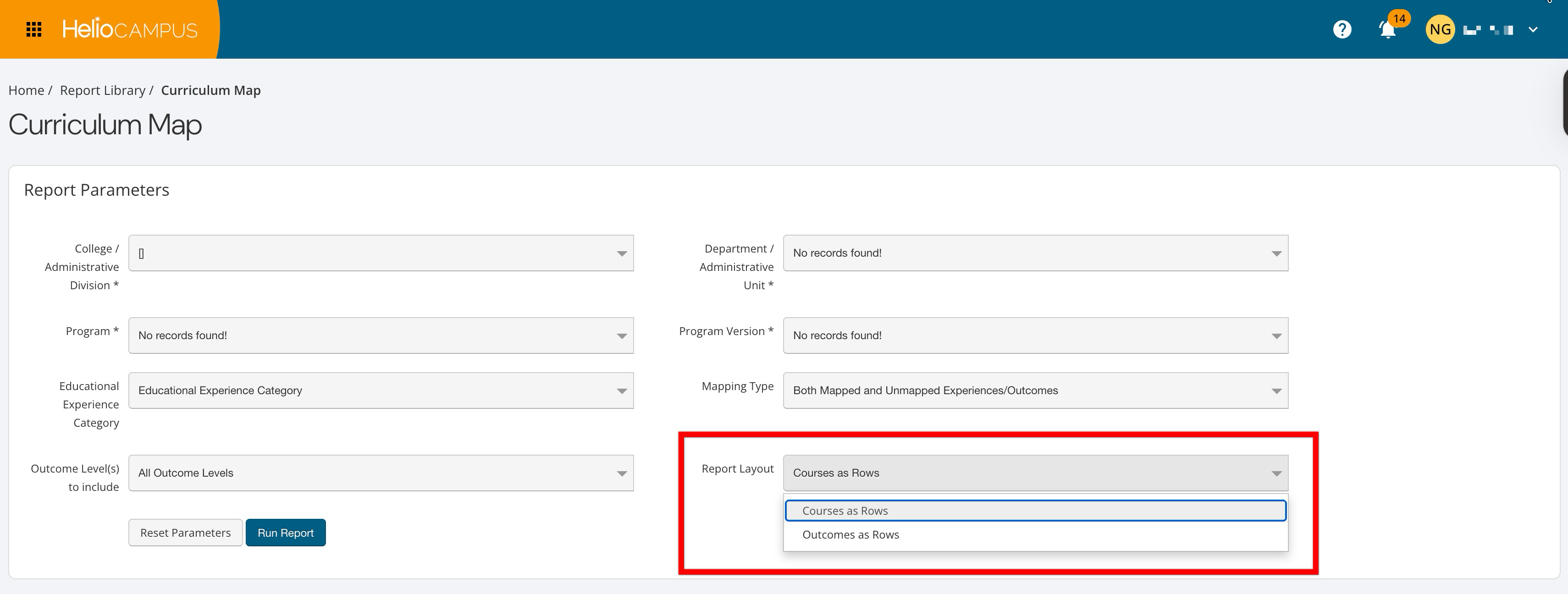
Enhancements were made to the Curriculum Map report to make it easier to filter, view, and export curriculum mapping data and to expand access for coordinators. New and updated logic is now in place for all parameters to improve the selection experience. The new optional Report Layout parameter can be used to pivot the report layout by choosing whether courses or outcomes appear as rows. Additionally, permissions have been updated so Program Coordinators can now run this report and see all experiences/courses associated with their programs. User role access for this report now includes the following. Learn more.
-
College Admins
-
Department Admins
-
Institution Admins
-
Program Coordinators
Data Collection Schedules
Data collection scheduling behavior has been enhanced to better align with academic years and terms, including those that have not yet started. Academic years now automatically move through statuses: Draft → Active → In Progress → Completed. By default, activation dates are set to June 1 (three months before the academic year start date); on the start date, status changes to In Progress; on the end date, status changes to Completed. When scheduling academic-year-based data collections, users can now select existing or future academic years in Draft, Active, or In Progress status. Behavior by status:
-
Active/In Progress Academic Years: Data collection instances are created when the schedule is published.
-
Draft Academic Years: Data collection instances are created automatically on the activation date.
Term-based data collection schedules now allow selection of current and future terms in Pending, Active, or In Progress statuses. Behavior by status:
-
Active/In Progress Terms: Instances are created when the schedule is published.
-
Pending Terms: Instances are created automatically on the term's activation date.
These changes provide Institutions with more control and predictability when planning data collections in advance, ensuring instances are created automatically at the appropriate point in each academic year or term’s lifecycle. Learn more.
Institution Program Settings
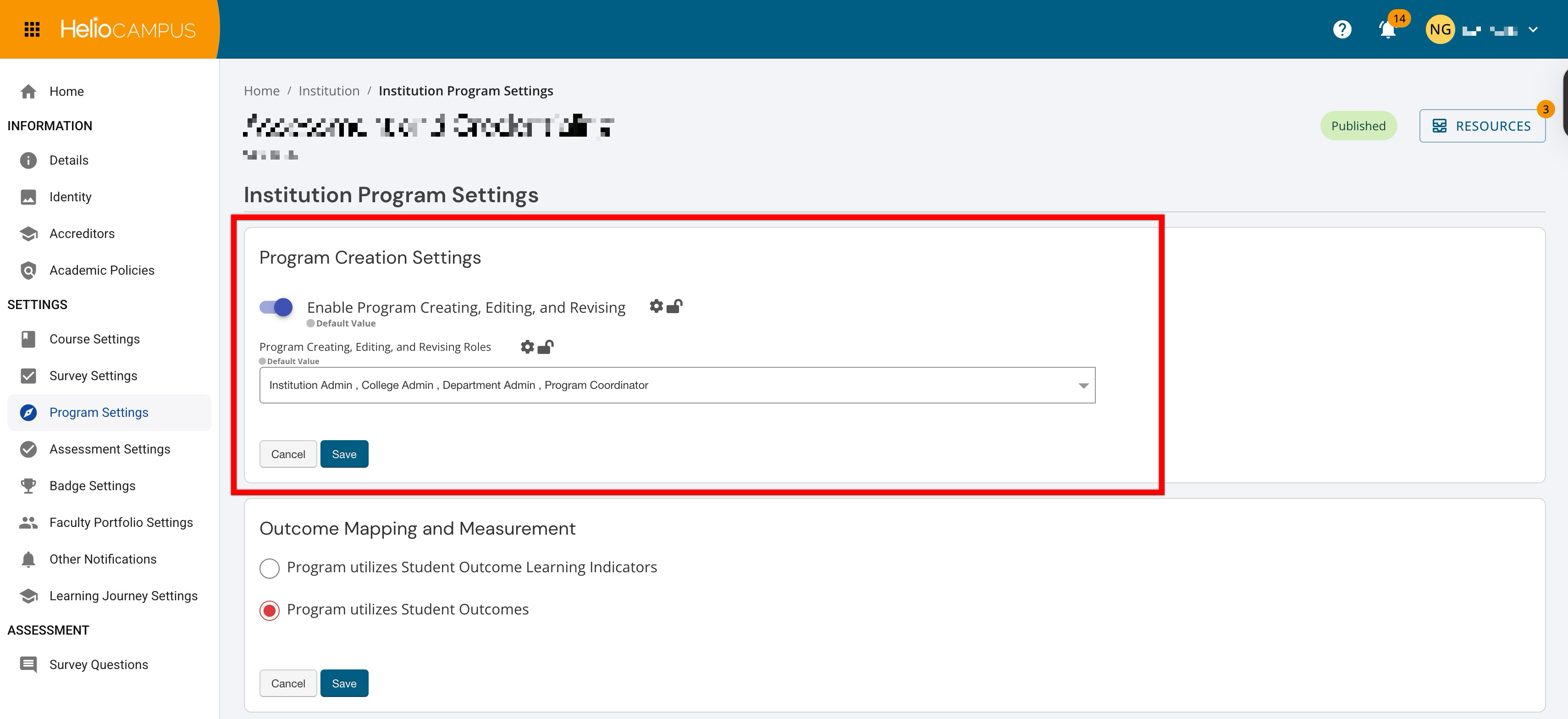
To provide Institutions with more precise control over who can manage program content, Program Settings have been expanded to enhance the Enable Program Creation setting. This setting has been renamed to Enable Program Creating, Editing, and Revising.
-
Enabled: Selected user roles will have permissions not only to create new programs, but also to edit or revise programs they are associated with.
-
Disabled: No users (including coordinators) can create new programs or edit or revise programs they are associated with.
The Program Creating, Editing, and Revising Roles dropdown menu is available when the Enable Program Creating, Editing, and Revising setting has been enabled. User roles selected in this menu will be the only roles with permission to create new programs and to edit or revise programs they are associated with. Learn more.
Juried Assessment Canvas Discussion Assignments
Canvas discussion assignments can now be used as artifacts in Juried Assessments when the following requirements have been met:
-
The discussion assignment has been graded
-
Checkpoints are disabled
-
Student posts include file attachment(s)
Plain text-only discussion posts and discussion assignments with checkpoints enabled are not supported as artifacts. Learn more.
Juried Assessment Scorebook
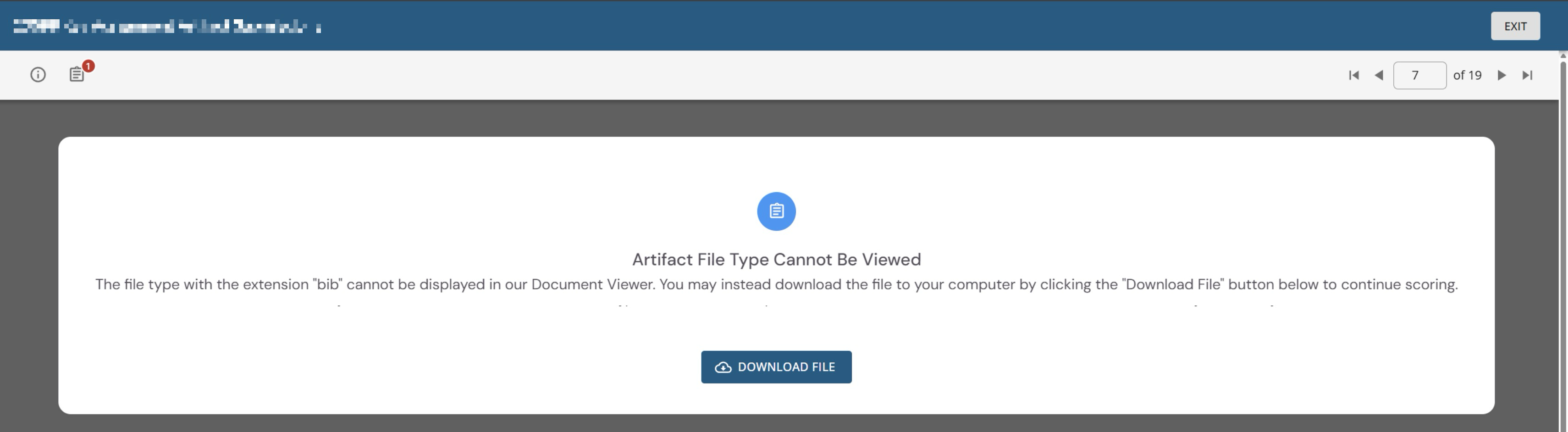
When an uploaded artifact file type cannot be displayed in the Juried Assessment Document Viewer, users now see updated messaging that explains the file cannot be viewed but can still be downloaded to continue scoring. Learn more.
Learning Journey PLOs
Learning Journey functionality has been enhanced to prevent duplicate skill displays when programs are revised or when students are assessed on the same outcome across multiple sections of the same course. Skills are now shown once per program, even if a program name changed during revision or a student was assessed on that outcome in more than one section of the same course.
The platform now links outcomes across program versions, so name changes or revisions no longer cause duplicate outcomes. When a PLO name is edited—whether in a published program or during revision—the Learning Journey now shows the updated outcome name, ensuring students and staff always see the latest label. Learn more.
Key Assignment Creation
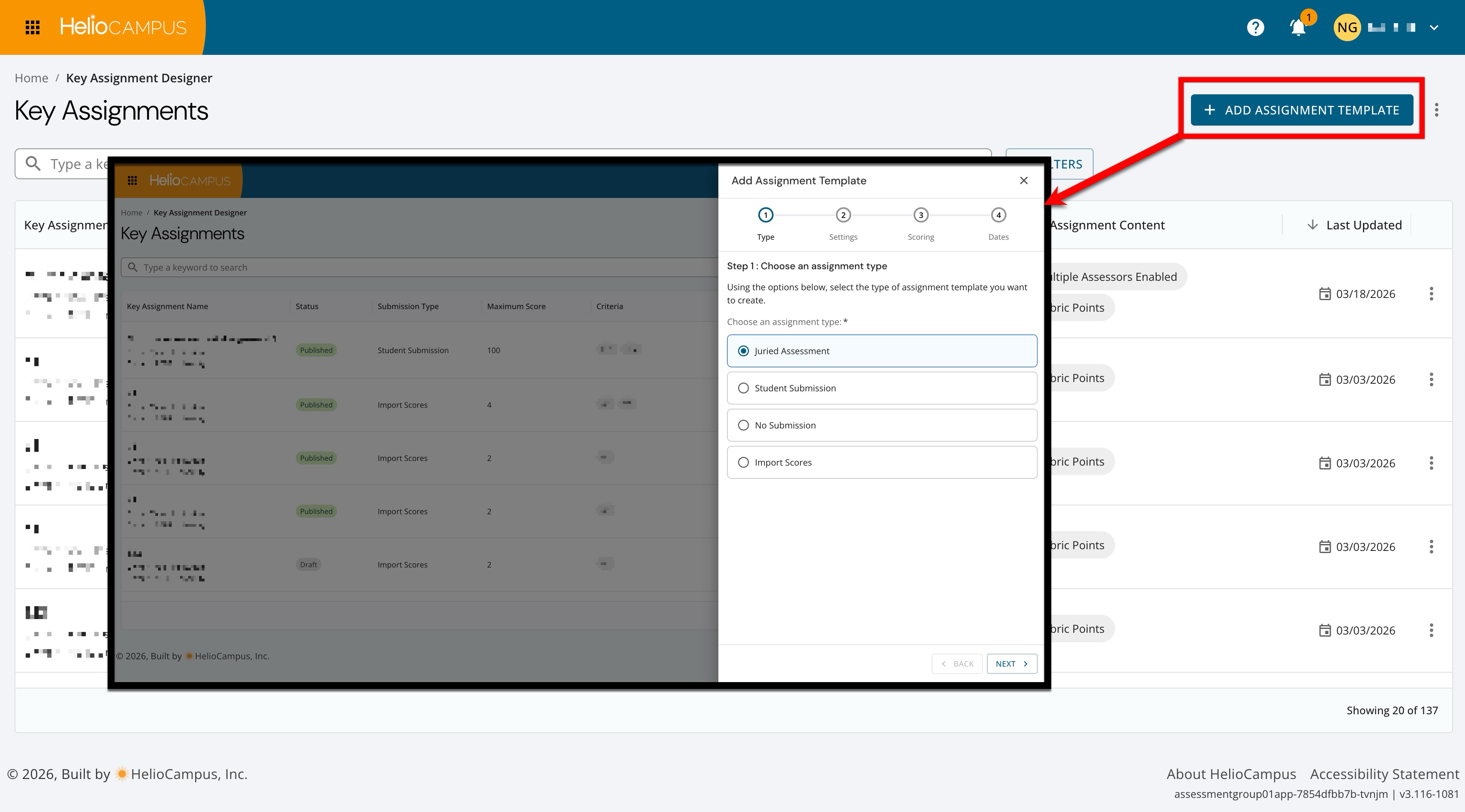
The key assignment template creation process has been enhanced to clarify and streamline creation steps. Now, with the new steps, Institutions can more easily configure key assignment templates based on the needs for each assignment type. Learn more.
-
Type: Select the assignment type.
-
Settings: Configure basic settings and details.
-
Scoring: Configure the rubric criteria scoring.
-
Dates: For some assignment types, configure the start, due, and scoring dates as applicable.
Learning Journey Performance Visualizations
Institutions can now choose how student stories are displayed in previews and public shares by selecting either experience-based or performance-based visualizations:
-
Experience-Based: Emphasizes the number of curated experiences. The skill cards show aggregate performance data for each included skill.
-
Performance-Based: Emphasizes assessment performance with a bar chart summarizing the student’s validated performance for the selected skills.
Main Menu Favorites
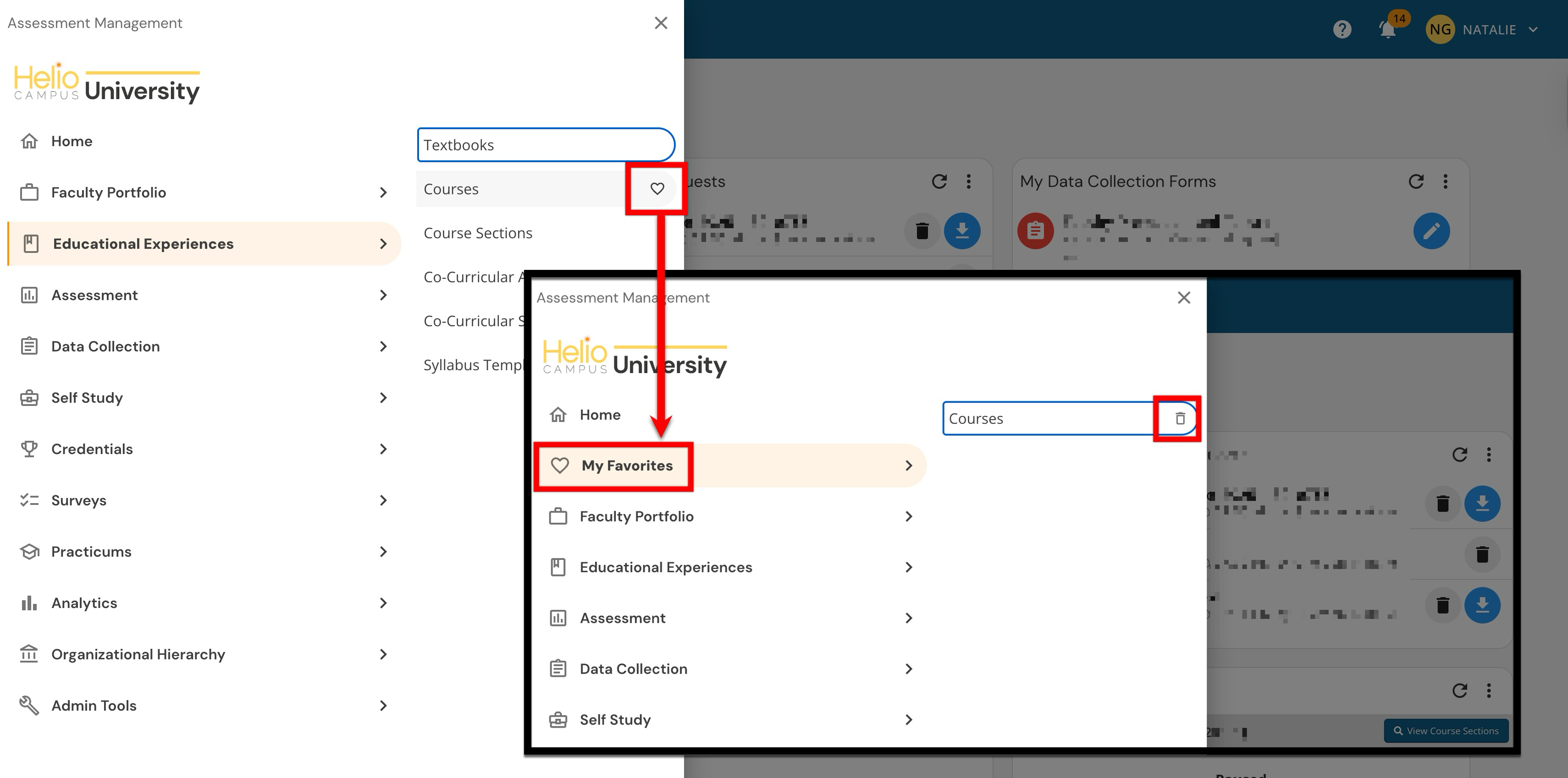
Users can once again favorite items in the platform’s Main Menu. From the Main Menu, users can mark sub-menu items as favorites, access them via a new My Favorites menu section, and remove them at any time. The My Favorites section appears only when at least one favorite exists. Learn more.
Publishing Programs
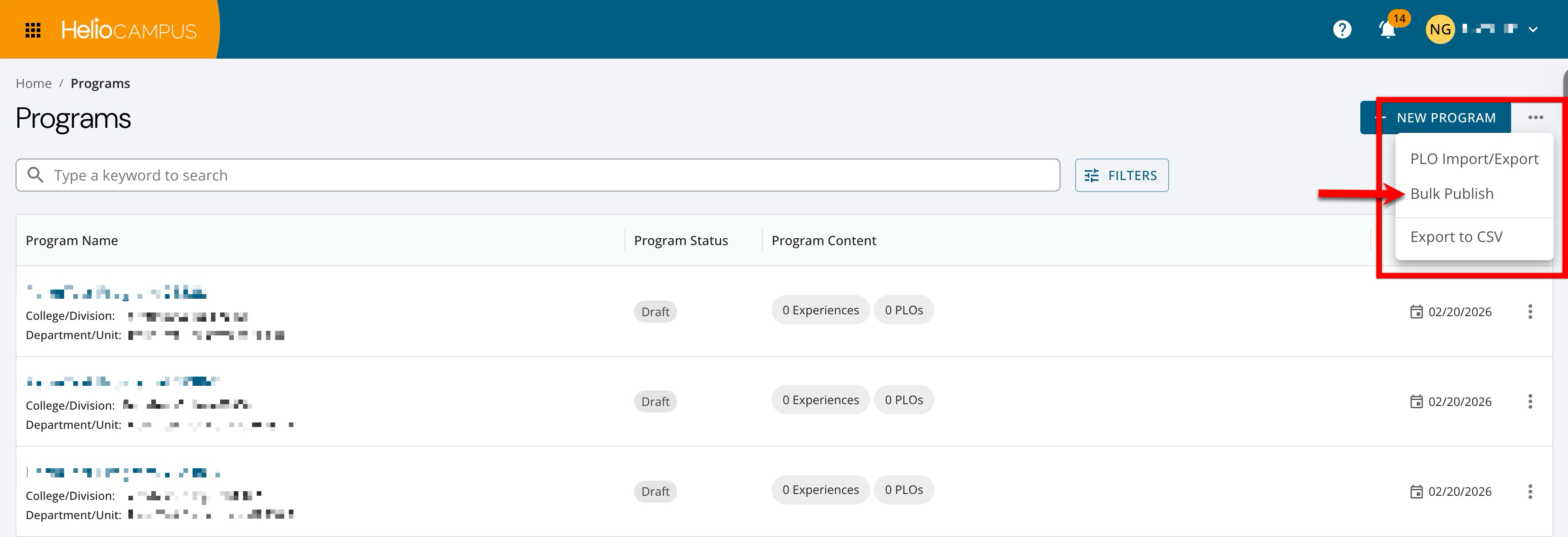
Program publishing has been optimized to handle high‑volume programs; programs can be published individually via the Program Homepage or in bulk. Previously, for programs with thousands of outcome mappings and assessment–syllabus links (such as General Education–style programs), publishing programs could take extensive platform processing time. This left programs stuck in Pending or In Revision status, making navigation and updates extremely slow. Now, high‑volume programs process more quickly to ensure new program versions are published and selected assessments are carried forward. Learn more.
Program Assessment Settings
The Assessment Settings page for published programs has been redesigned to display the full configuration in a clear, read‑only view, rather than a generic informational banner. All assessment-related toggles and options (e.g., enabling program assessments, term alignment, etc.) are visible but locked, and the save/cancel controls do not display. The Restore Previously Deleted Assessments setting is only available when a program is in In Revision status.
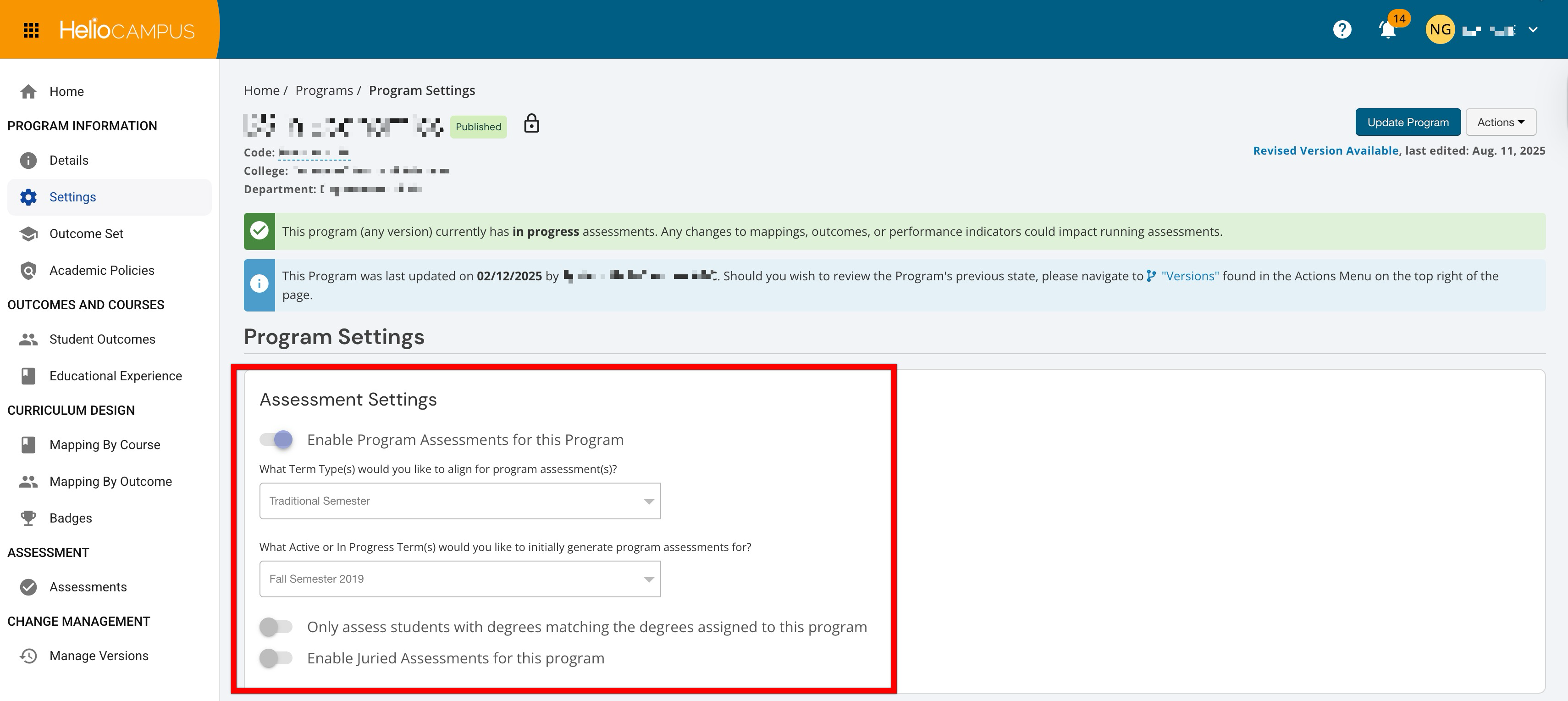
This enhancement makes the page more informative, and program owners and assessment faculty can now see exactly how assessments are configured for a published program—without risking accidental edits—supporting clearer audits, reviews, and conversations with stakeholders. At the same time, edit actions are reserved for Draft/In Revision statuses, reinforcing a safer, more predictable workflow for managing program assessment-related settings. Learn more.
Program Management and Assessment Reports
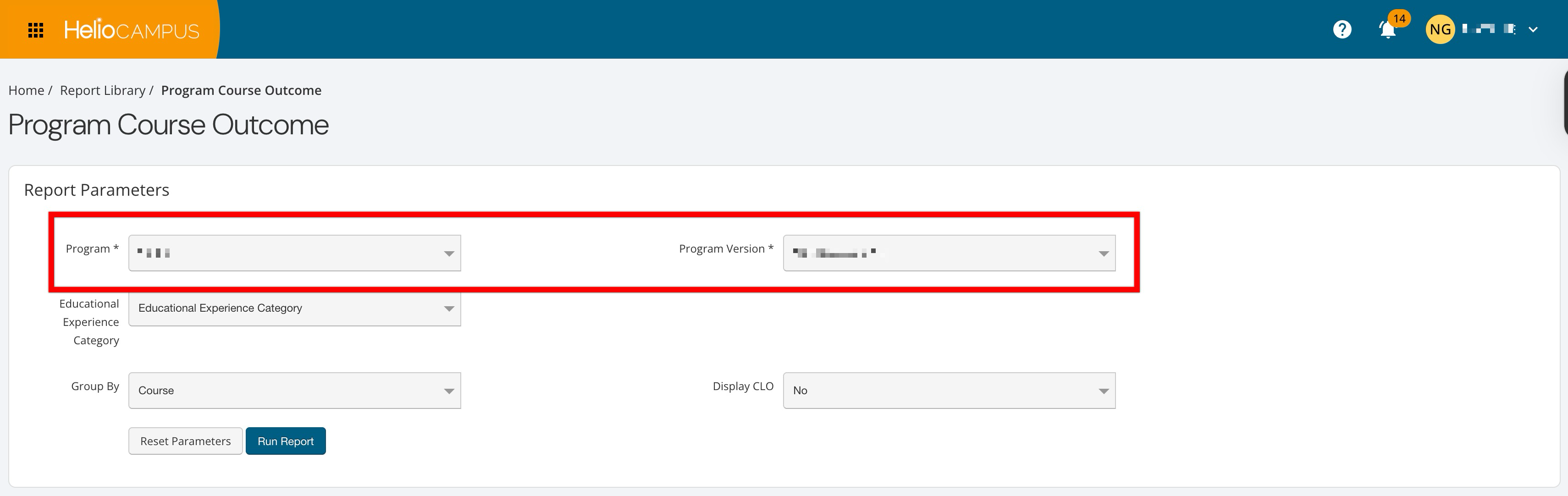
Performance has been enhanced when selecting programs and program versions during parameter configuration for all reports in the following categories:
-
Program/Course Assessment Reports
-
Program Management and Assessment Reports
The Program parameter has been improved to no longer include all versions of a program. Instead, the new Program Version filter can be used to select versions. These enhancements reduce long wait times previously experienced when configuring the Program parameter. Learn more.
Rollup Survey Questions
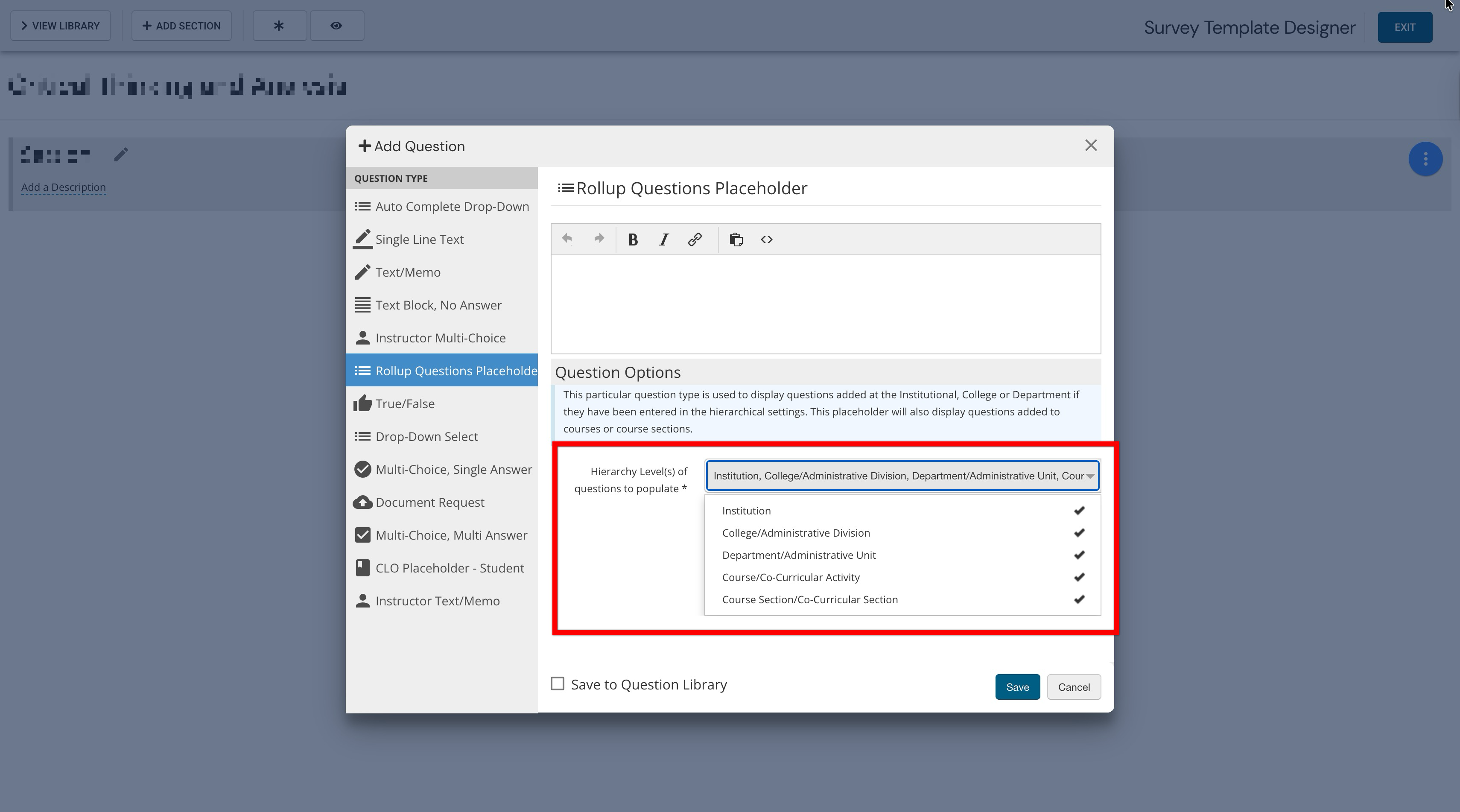
A new configuration option for the Rollup Question Placeholder in the Survey Template Designer is now available, letting admins explicitly choose which hierarchy levels contribute questions to a survey. By using the new Hierarchy Level(s) of Questions to Populate dropdown, all levels of the Organizational Hierarchy are available for selection, as are each experience type/level; a minimum of one selection is required. Only questions from the selected levels are included in student survey forms and previews; unselected levels are ignored, even if questions are added and published at those levels. For existing rollup placeholders configured by Institutions, all levels are selected by default to preserve the current behavior.
This enhancement allows Institutions to configure surveys that, for example, include only course section questions or specific combinations of institutional and local questions, providing more precise control over which hierarchical content students see. Learn more about surveys or about rollup survey questions.
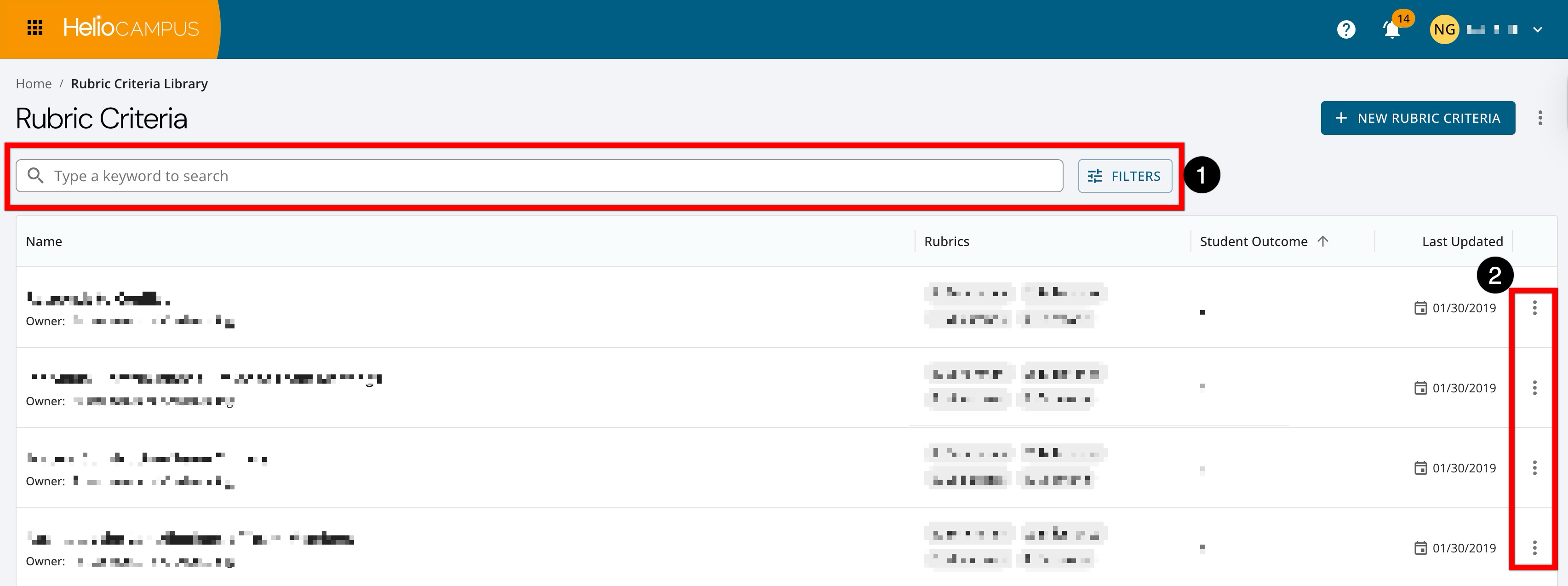
Rubric Criteria Library
The Rubric Criteria Library has been updated with an improved user interface. Search functionality is available, and clicking the Filters option enables filtering by status (1). Expanding the Action kebab (2) displays edit, copy, and delete options. Learn more.
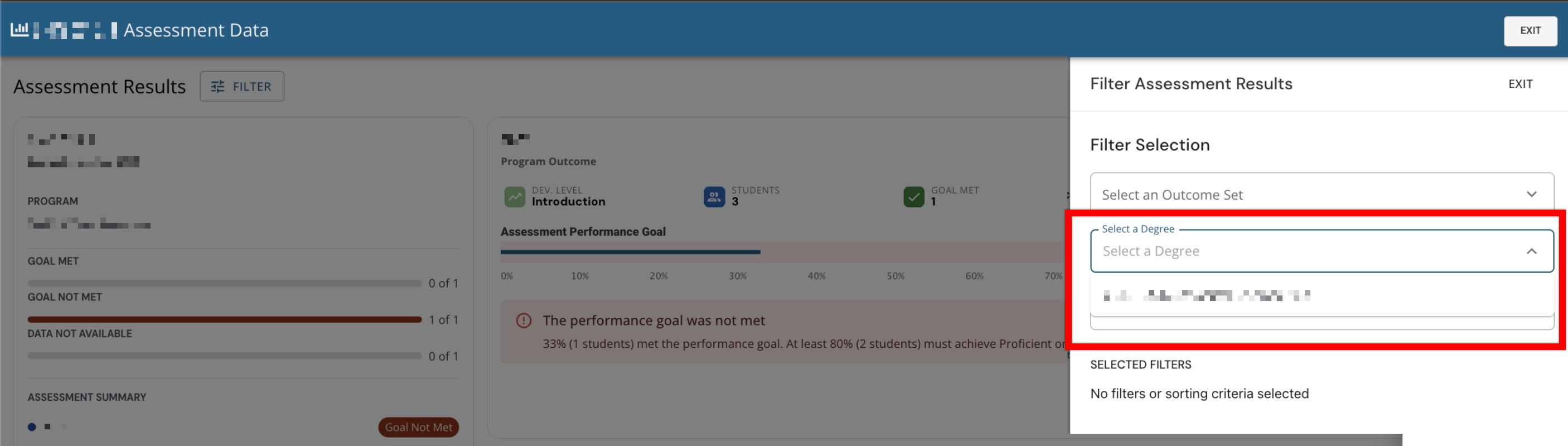
Section Aggregate Results Filtering
When viewing section aggregate results, Student Degree has been added as a filter option. Users can now filter to see only degrees associated with students in that section and view aggregate results for only students who match the selected degree(s).
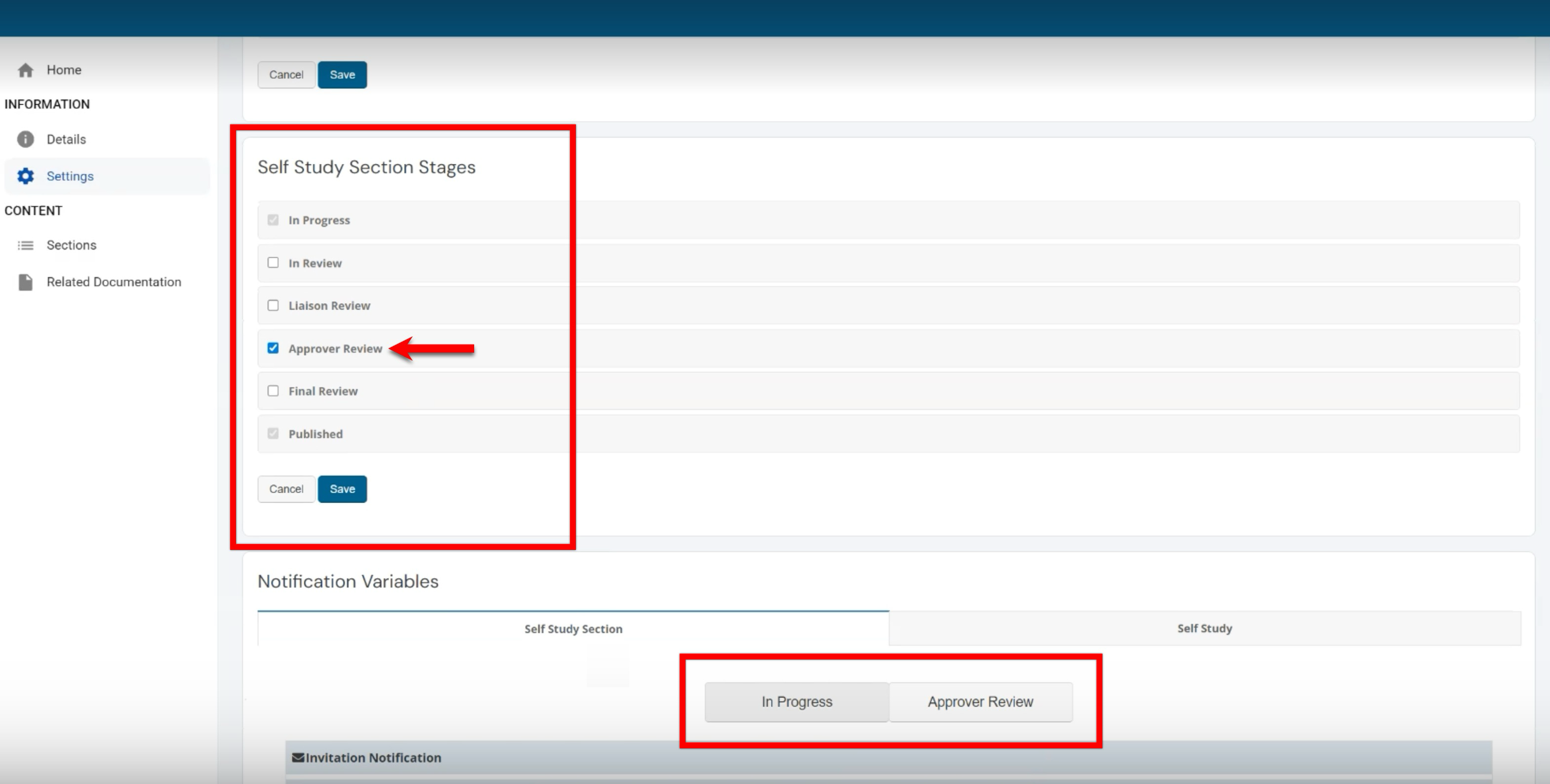
Self Study Notification Settings
Self study notification logic has been enhanced to automatically only tie to the stages that are in use. When an optional self study or self study section stage is not enabled, all notification settings for that stage are hidden/disabled and will not send any emails or alerts. When the stage is re-enabled, its notification settings reappear with any previously saved values intact. This reduces confusion by only showing notification settings that apply to active stages. Learn more.
Self Study Smart Content
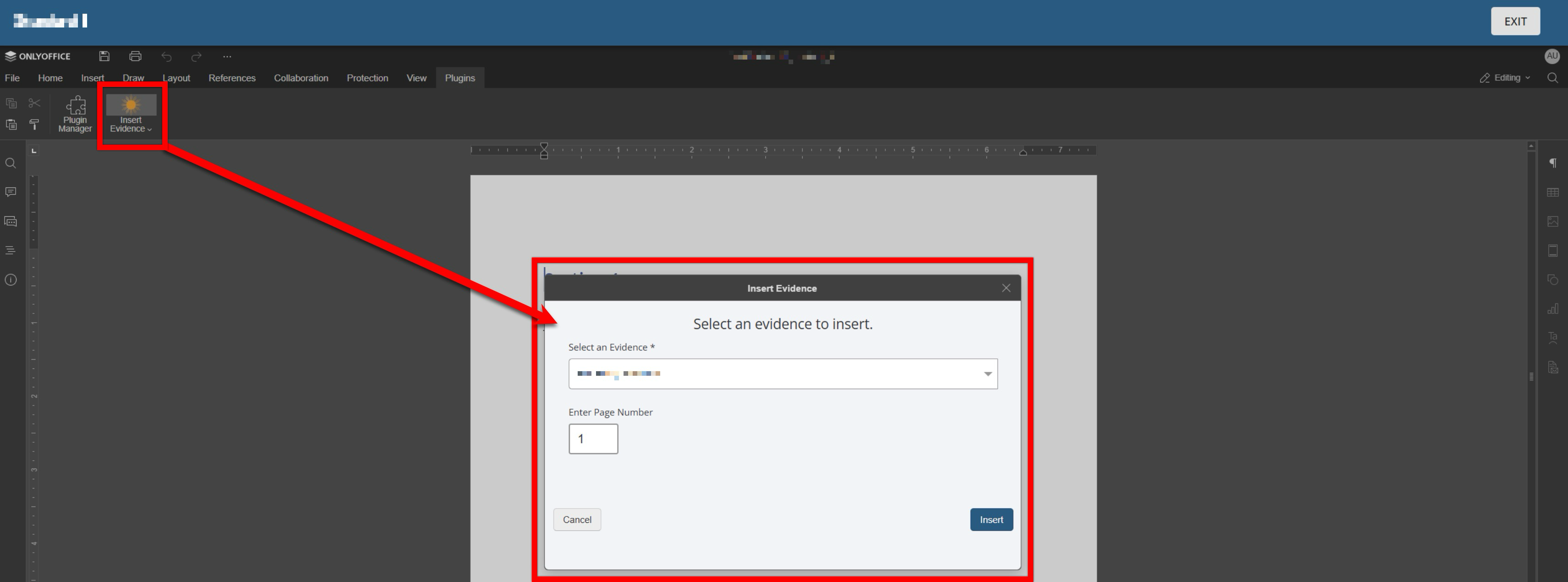
The OnlyOffice smart content plugin has been improved to reduce complexity and user error while preserving all existing functionality for evidence insertion. The AEFIS Smart Content plugin has been renamed to HelioCampus Smart Content. When the smart content plugin is used, evidence and evidence-related tags can be selected. Learn more.
Survey Reports
CSV/Excel exports for survey reports now include two additional columns for each question:
-
Hierarchical Level: Indicates which hierarchy level a question is associated with, for example, Institution, College, course, course section, etc. This displays at what level in the hierarchy the result is being reported.
-
Hierarchical Level Object: The specific object at that hierarchy level, e.g., the particular College, course, or section name/ID tied to the question/result. This displays exactly which entity at that level the data row belongs to.
CSV/Excel exports for the following survey reports have been enhanced to enable Institutions to better analyze results by Organizational Hierarchy:
-
Course Section Trend Analysis. Learn more.
-
Student Course Evaluation Results by Instructor. Learn more.
-
Course Evaluation Analysis. Learn more.
Scheduling Surveys
New optional filters are now available when scheduling surveys, enabling admins to precisely target which sections to include based on section metadata. The Optional Section Metadata Filter Method dropdown lets users choose a metadata type: Schedule, Session, or Delivery Mode; only options that exist in an institution’s data will be available for selection. Based on the type, the Filter Selections dropdown supports up to 40 metadata values (e.g., “Independent Study (INS)”, “Online (ONL)”). Selected values then limit which subject codes and courses are available in the Participants step. The chosen metadata filters are displayed as read-only values on the survey schedule Details page for reference.
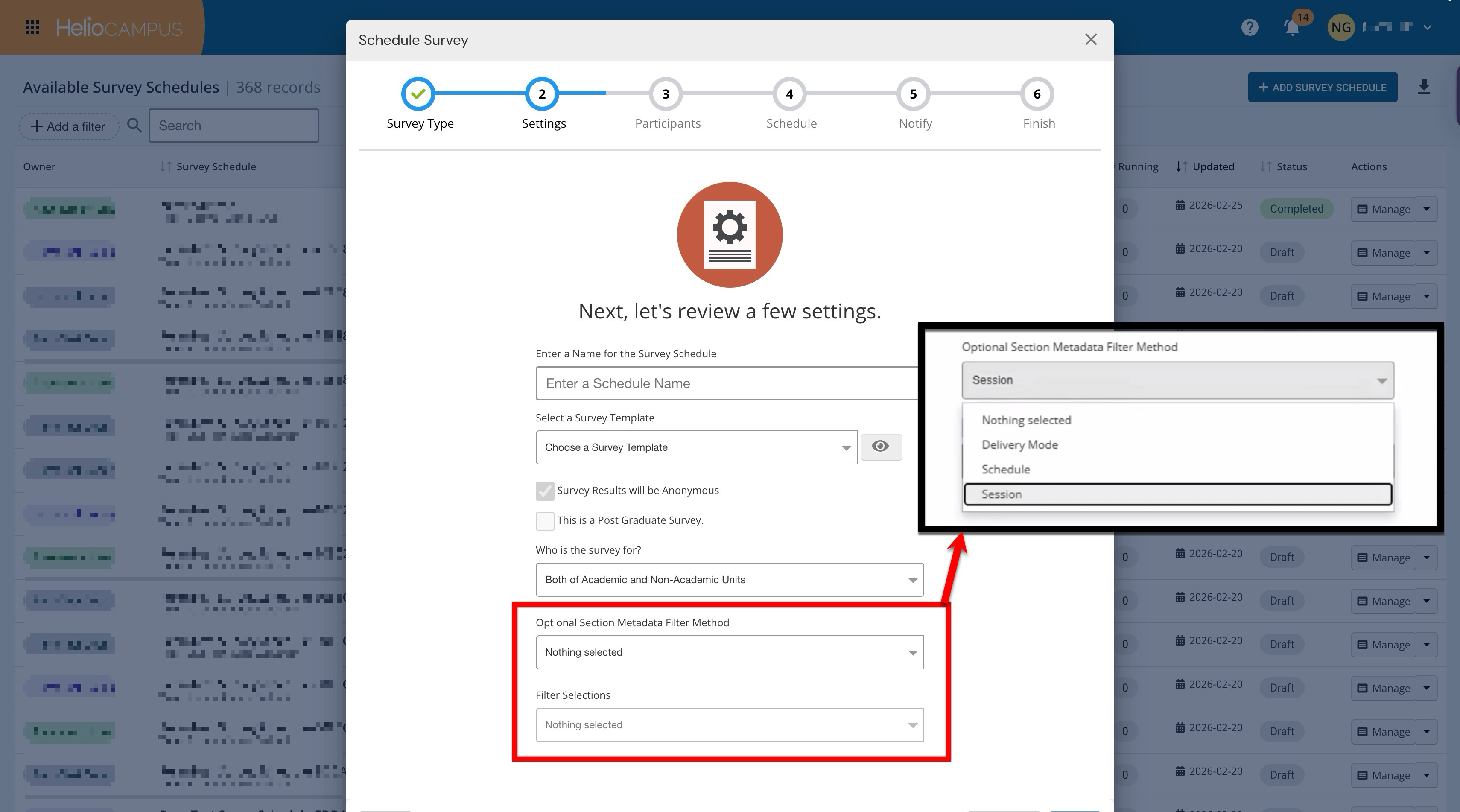
These new filters ensure that even when All Colleges/All Departments are selected, only course sections that match the chosen metadata values are assigned to a survey (for both include and exclude groups). The old Exclude Co-Curricular Sections checkbox has been removed, as the behavior is now driven solely by the existing Who is this survey for? setting (e.g., Academic/Non-Academic/Both). This enhancement allows Institutions to automate what previously required manual include/exclude configuration each term, reducing errors and setup time. Learn more.
Syllabus Compliance Monitoring Report
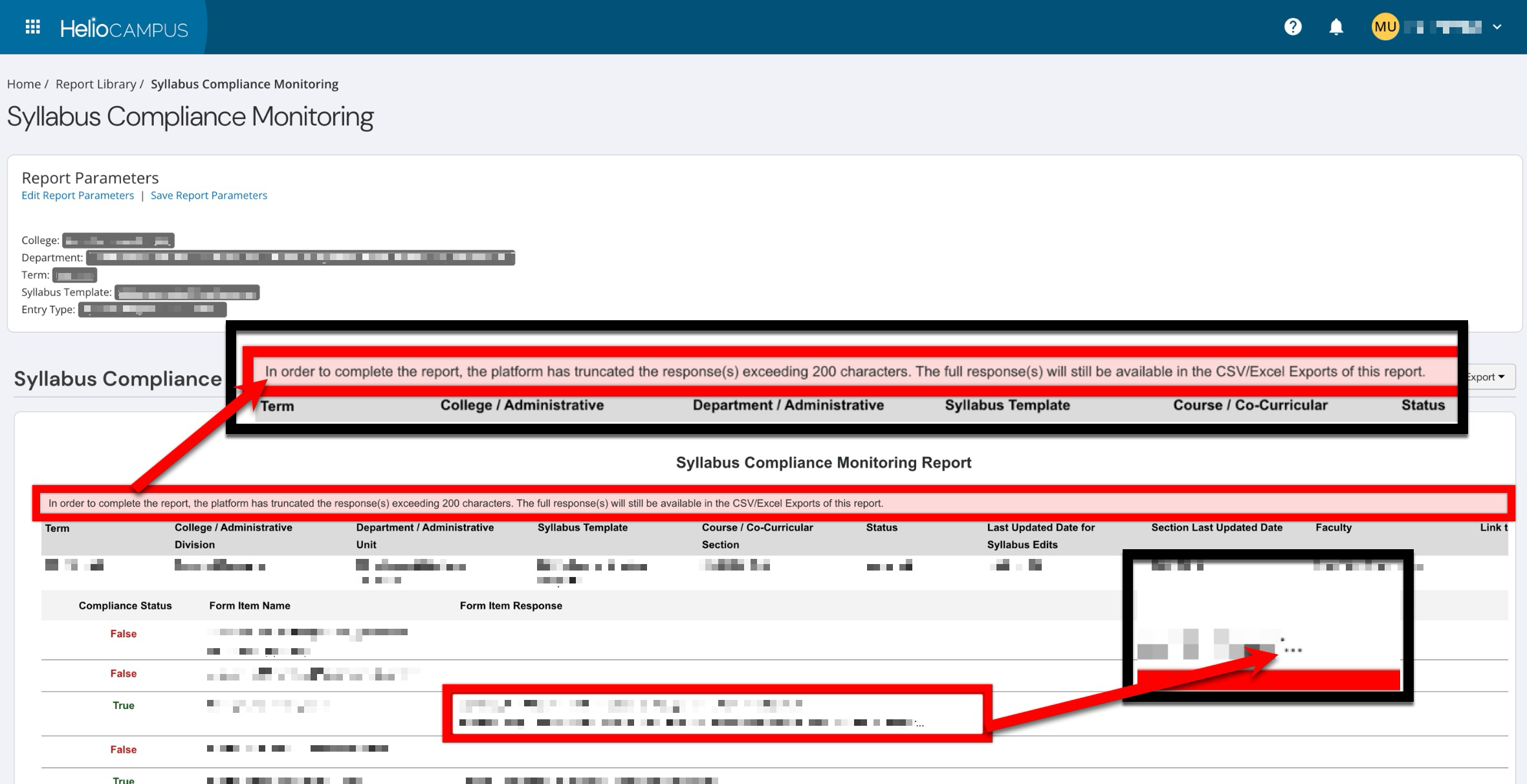
Form item content in the Syllabus Compliance Report is now limited to 200 characters in the results, with truncated text indicated by an ellipsis (“…”). A banner now explains that any responses over 200 characters are truncated in the in-platform report view, and that the full content remains available in all export formats. These changes significantly improve report performance and reduce timeouts when reporting across large quantities of data. Learn more.
User Roles-Based Permissions
College, Department, and Institution Survey Admins can now view evaluation results directly from the course and course section Evaluation Results pages. Role permissions were updated so these survey admin roles have consistent access to course and course-section-level evaluation results across the platform. Learn more.