Bulk actions available with the Course Section Manager require edit-level access to course sections. User roles with permissions to perform these actions include:
-
College Admin
-
College Course Designer
-
Course Designer
-
Course Section Course Designer
-
Department Admin
-
Department Course Designer
-
Institution Admin
Changing Statuses In Bulk
With the Course Section Manager, users can select multiple course sections and perform a bulk status change, which is commonly used to publish course sections in larger batches rather than updating each section one-by-one. The primary benefit is faster go-live for course sections, enabling them to be included in downstream processes such as survey-related workflows that depend on published sections.
Product Tip
In addition to manual bulk status changes via the Course Section Manager, Institutions can use automated publish functionality via Course Settings at the Institution, College, or Department Organizational Hierarchy levels. When the hierarchy-level setting Enable Auto Publish for Syllabi is enabled, sections in Faculty Pending or Approval Pending statuses will auto-publish based on a configured milestone date. Learn more:
-
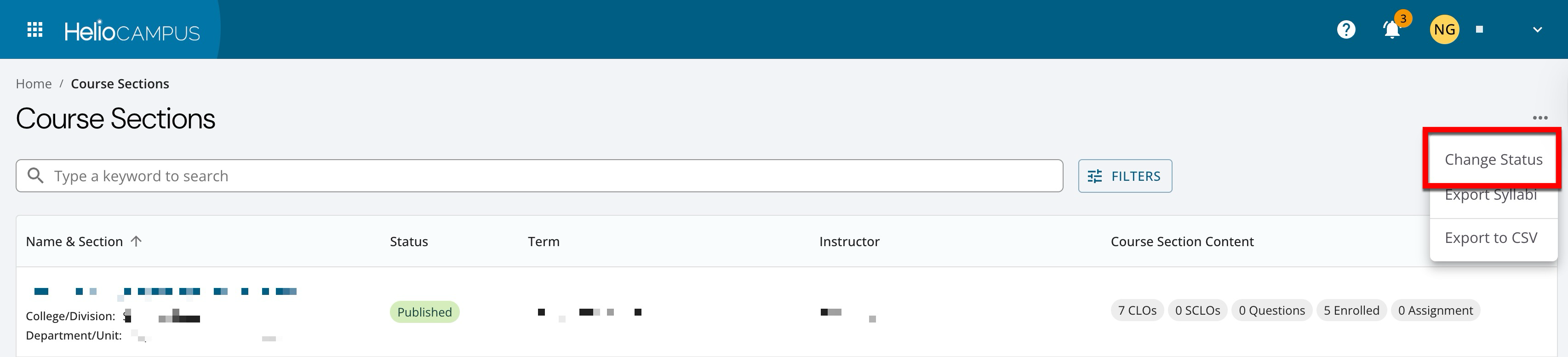
Navigate to the Course Section Manager. Expand the More Options menu and select Change Status.
-
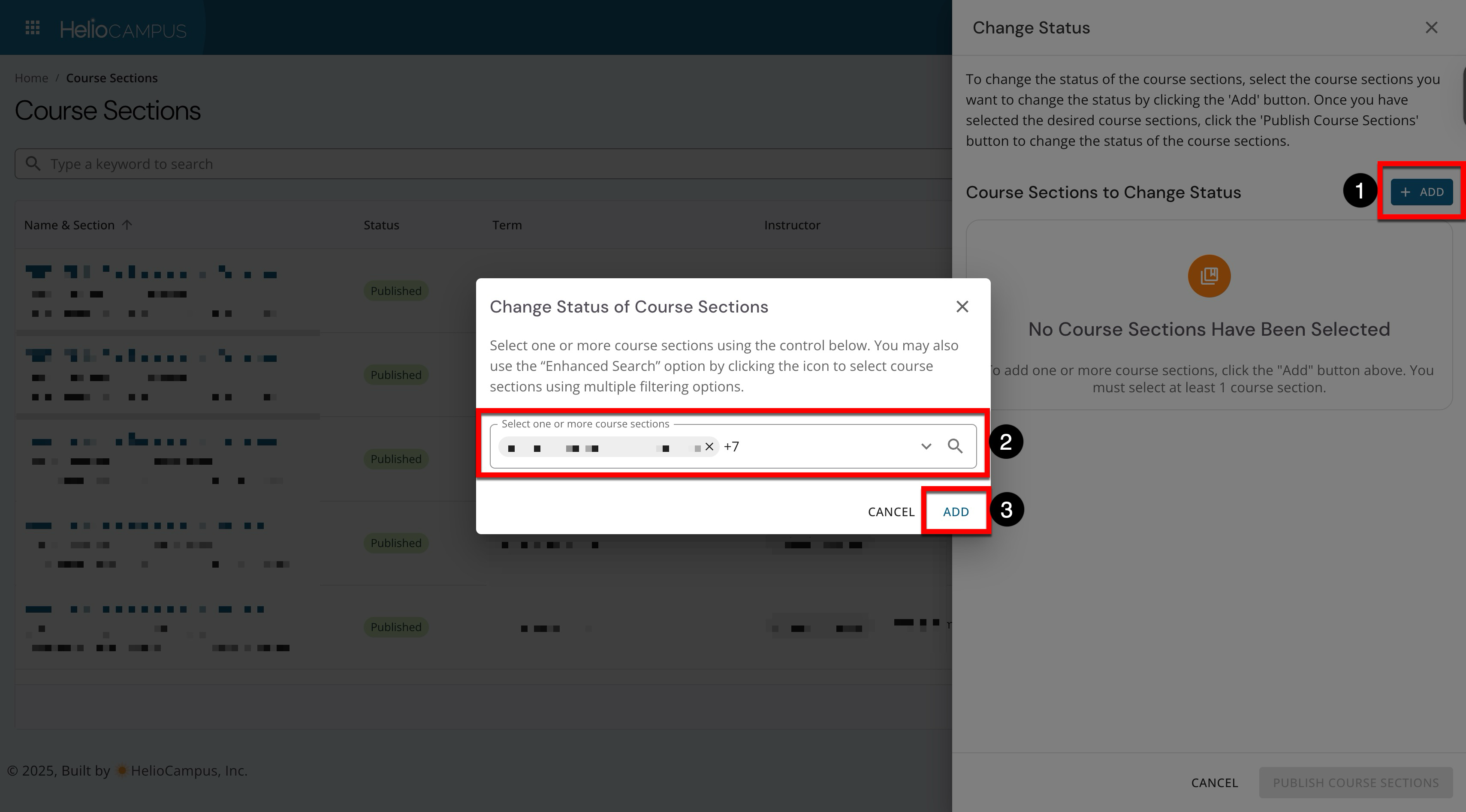
Click Add (1). Search for and select the course sections (2) and click Add in the pop-up (3). Clicking the magnifying glass (2) will open the enhanced search to apply filters to narrow search results.
-
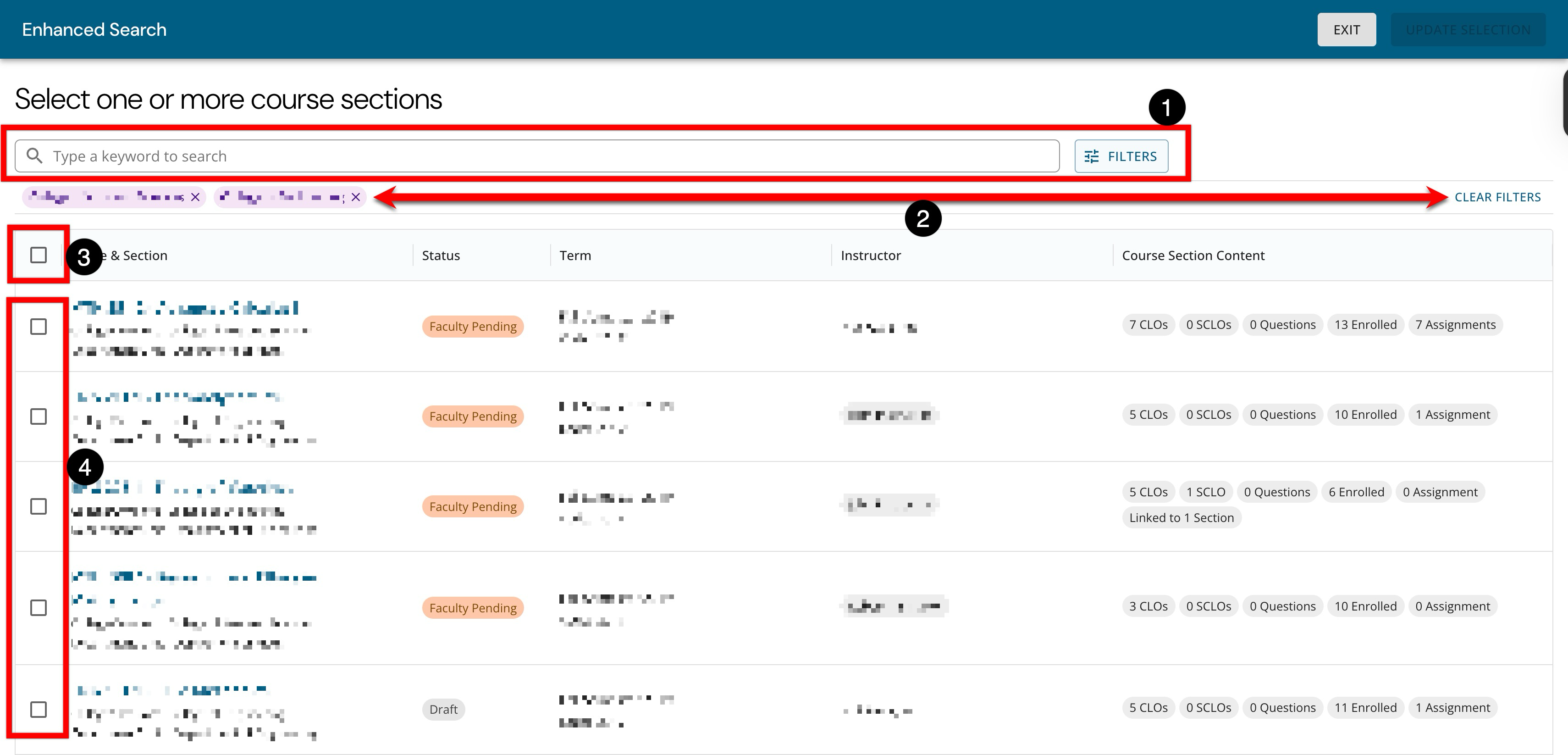
When using the enhanced search, search functionality is available, and by clicking the Filters option, specific filters can be applied (1). Once filters have been applied, they will display below the search bar and can be removed individually or in bulk (2). Course sections can be selected in bulk (3) or individually (4).
-
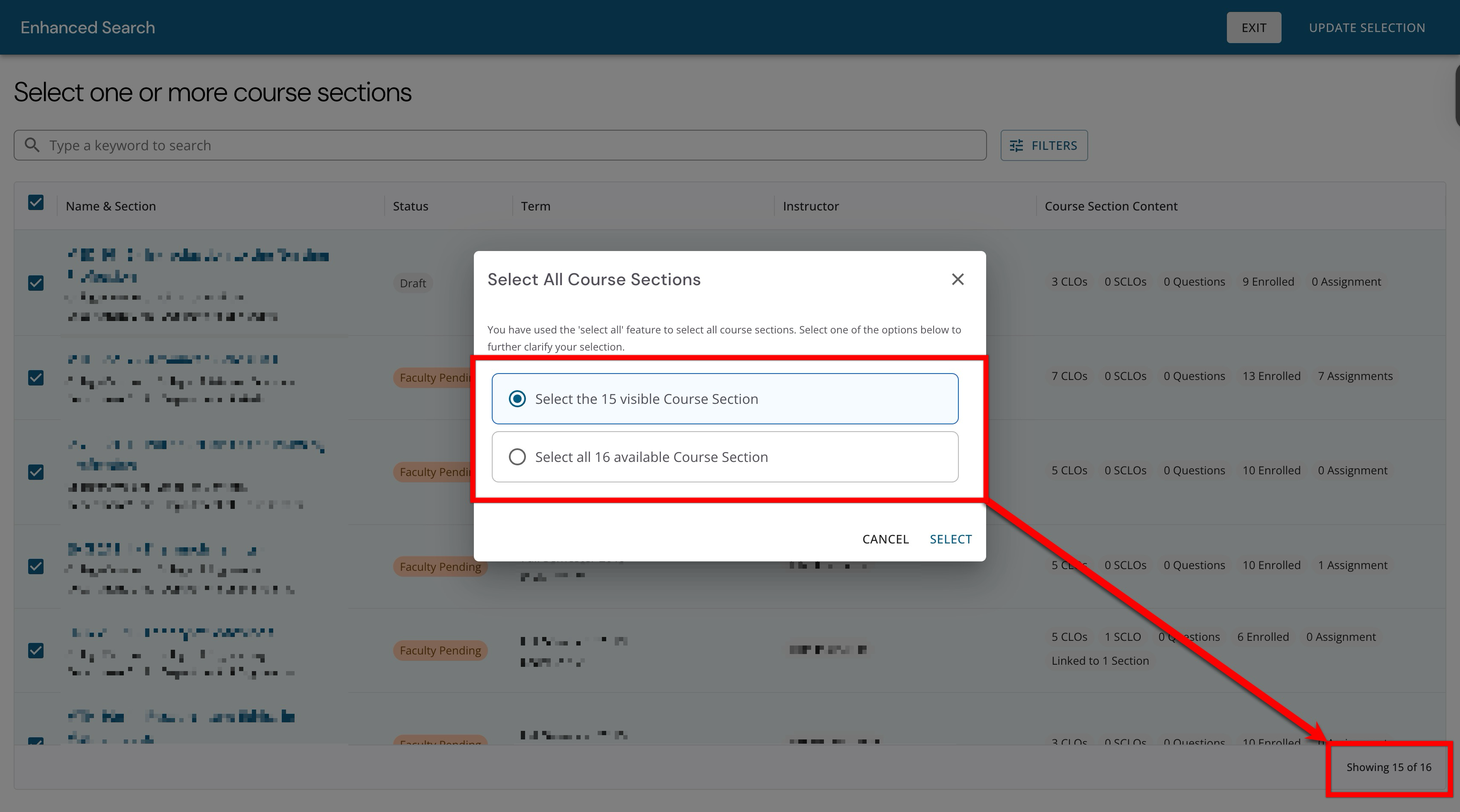
If course sections are selected in bulk, the scope of the bulk selection can be defined.
-
Select the ## visible Course Sections: This is the default option. This option limits the bulk selection to the rows currently loaded on the page, and only the 15 visible course sections will be selected.
-
Select all ## available Course Sections: This option expands the selection to every course section that matches the search and filter criteria, including results not currently visible on-screen. This option will select all 16 courses.
-
-
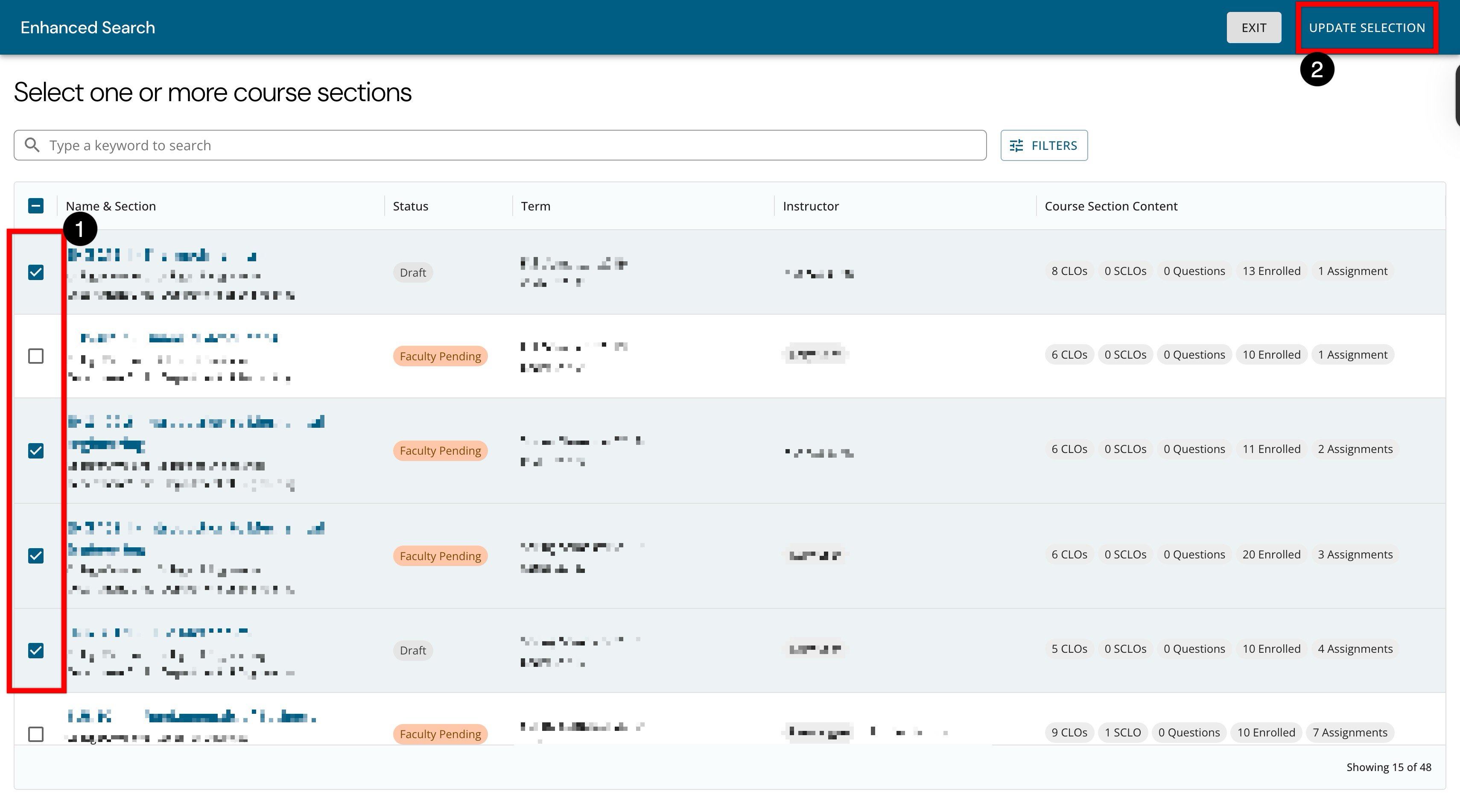
After selecting the sections (1), click Update Selection (2).
-
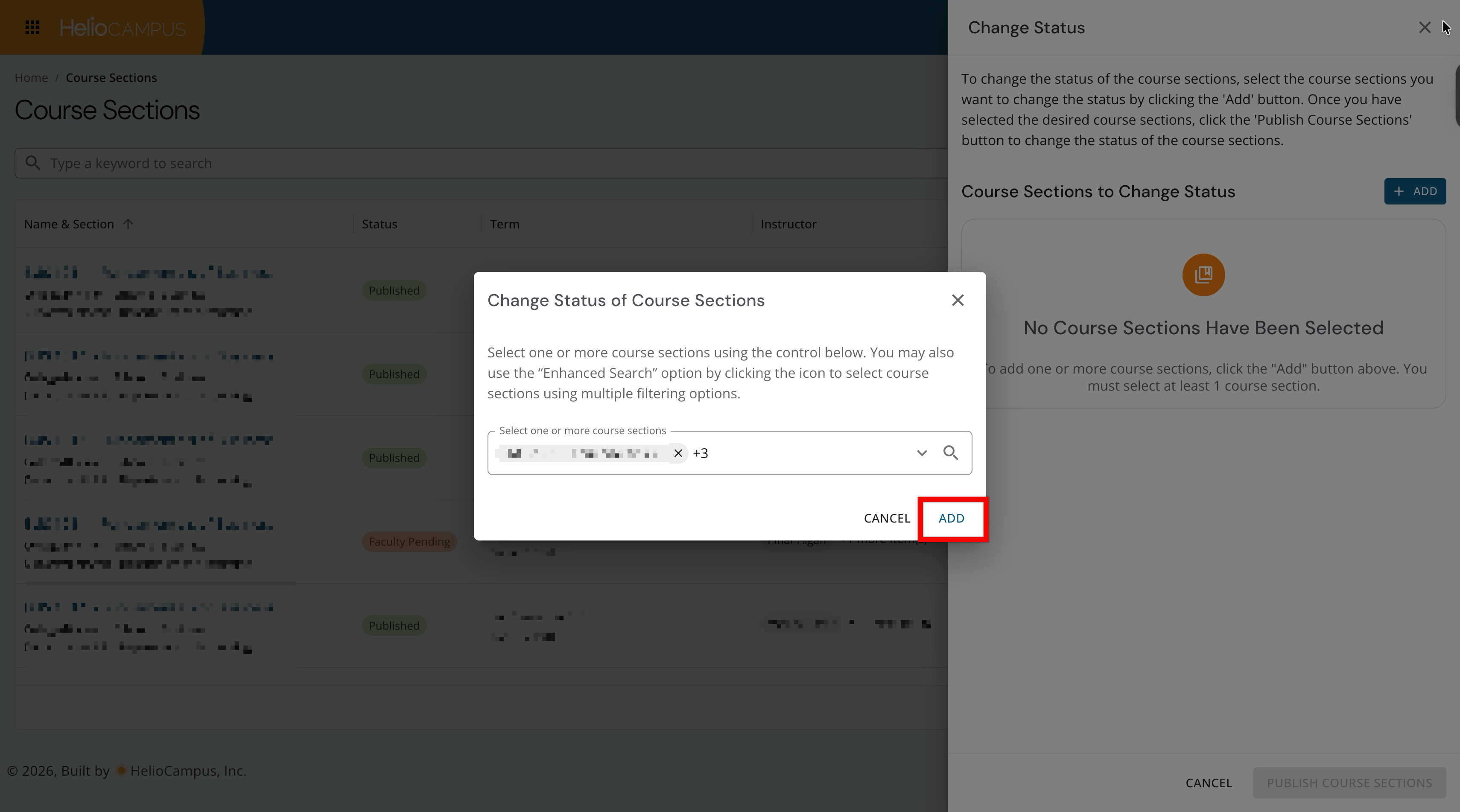
After the selections from the enhanced search have been updated, click Add.
-
-
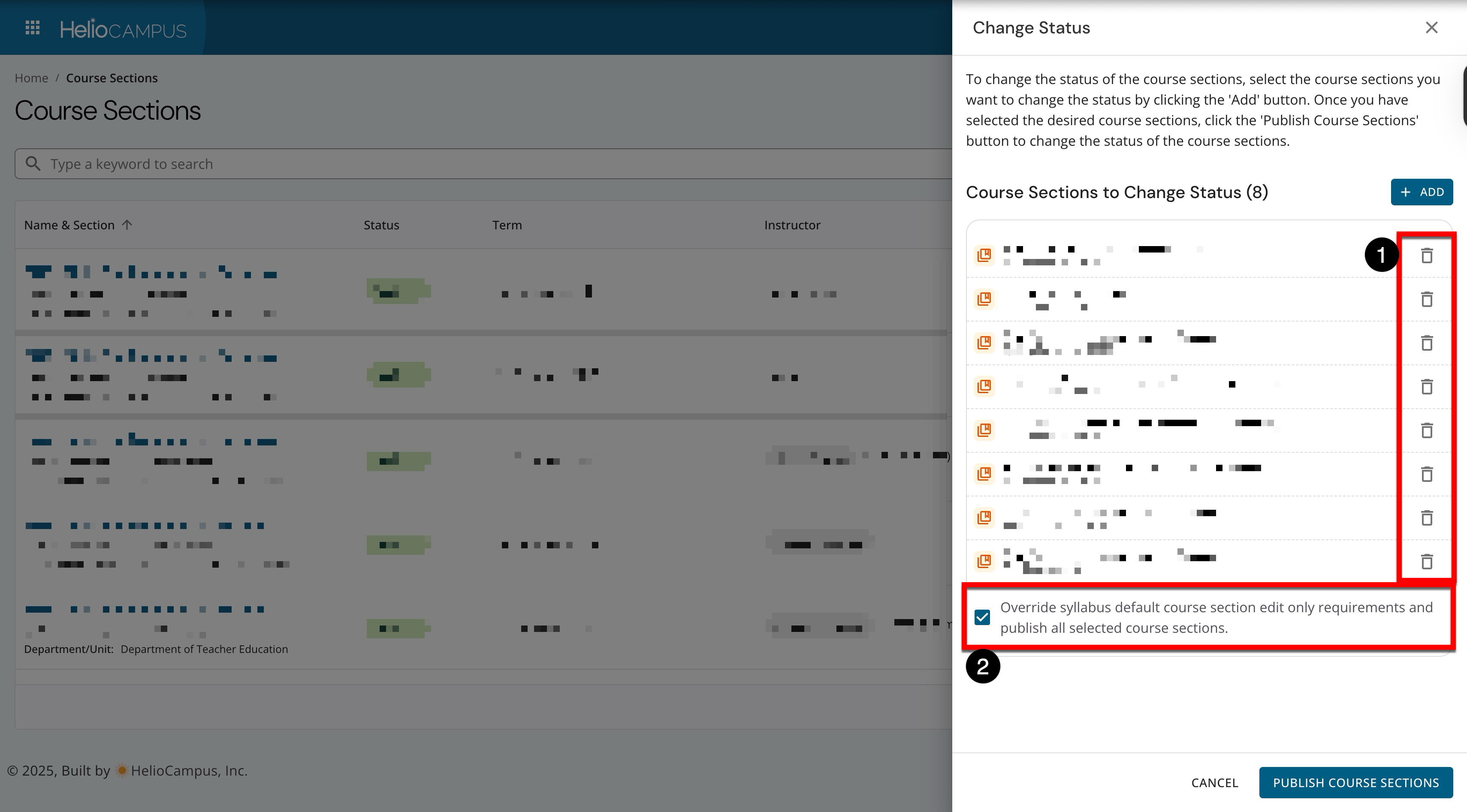
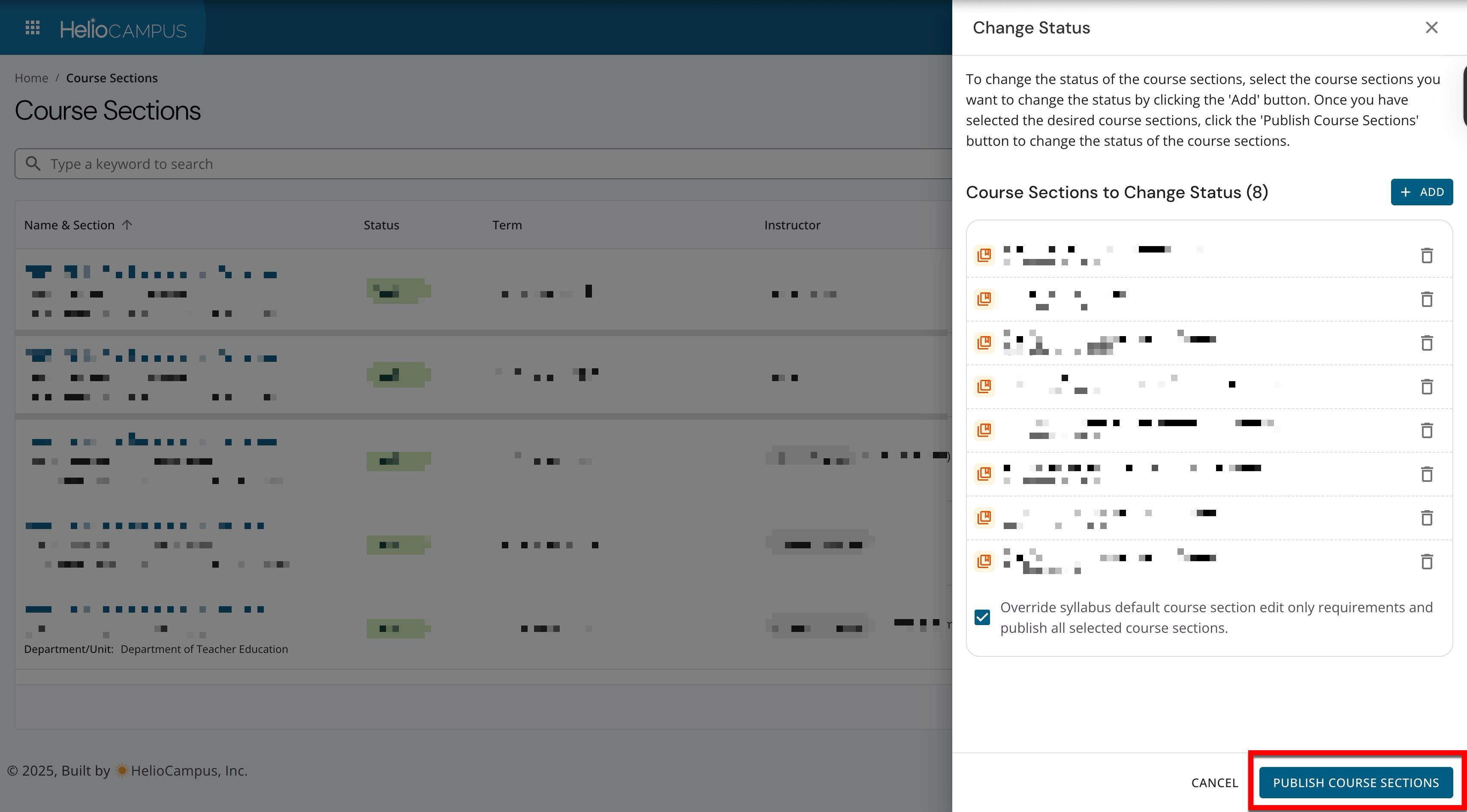
The selected sections will display and can be removed if any were selected in error (1). By default, syllabus‑related requirements that would normally keep a section from being published will be disregarded (2). For example, settings inherited from the associated course or org-hierarchy settings.
-
To complete the bulk status change, click Publish Course Sections.
Exporting Section Syllabi in Bulk
The Course Section Manager can be used to export syllabi for multiple course sections at once, including an option to export accreditor syllabi as a zip when applicable. Institutions can significantly reduce administrative time when preparing documentation for accreditors or internal review by generating exports for multiple sections at once rather than exporting each syllabus individually.
-
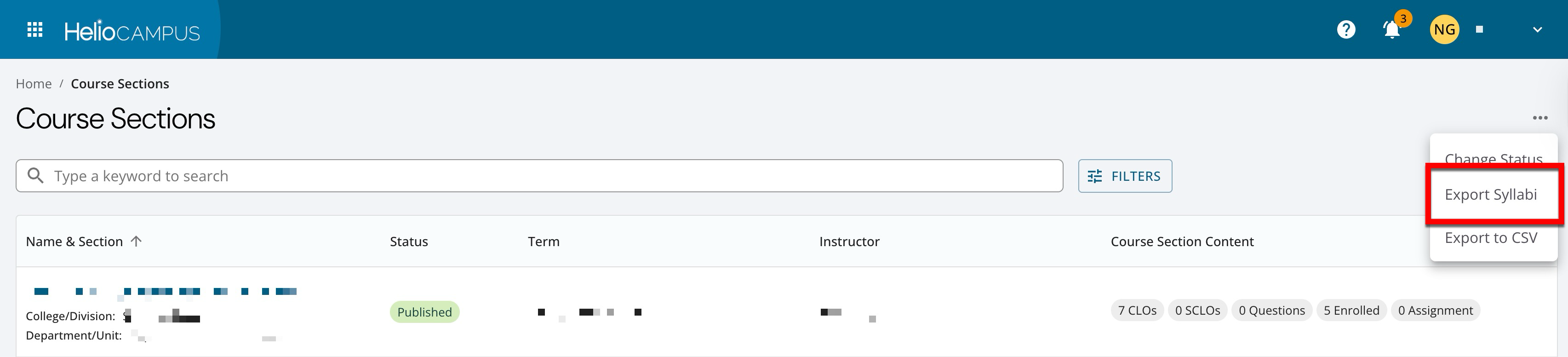
Navigate to the Course Section Manager. Expand the More Options menu and select Export Syllabi.
-
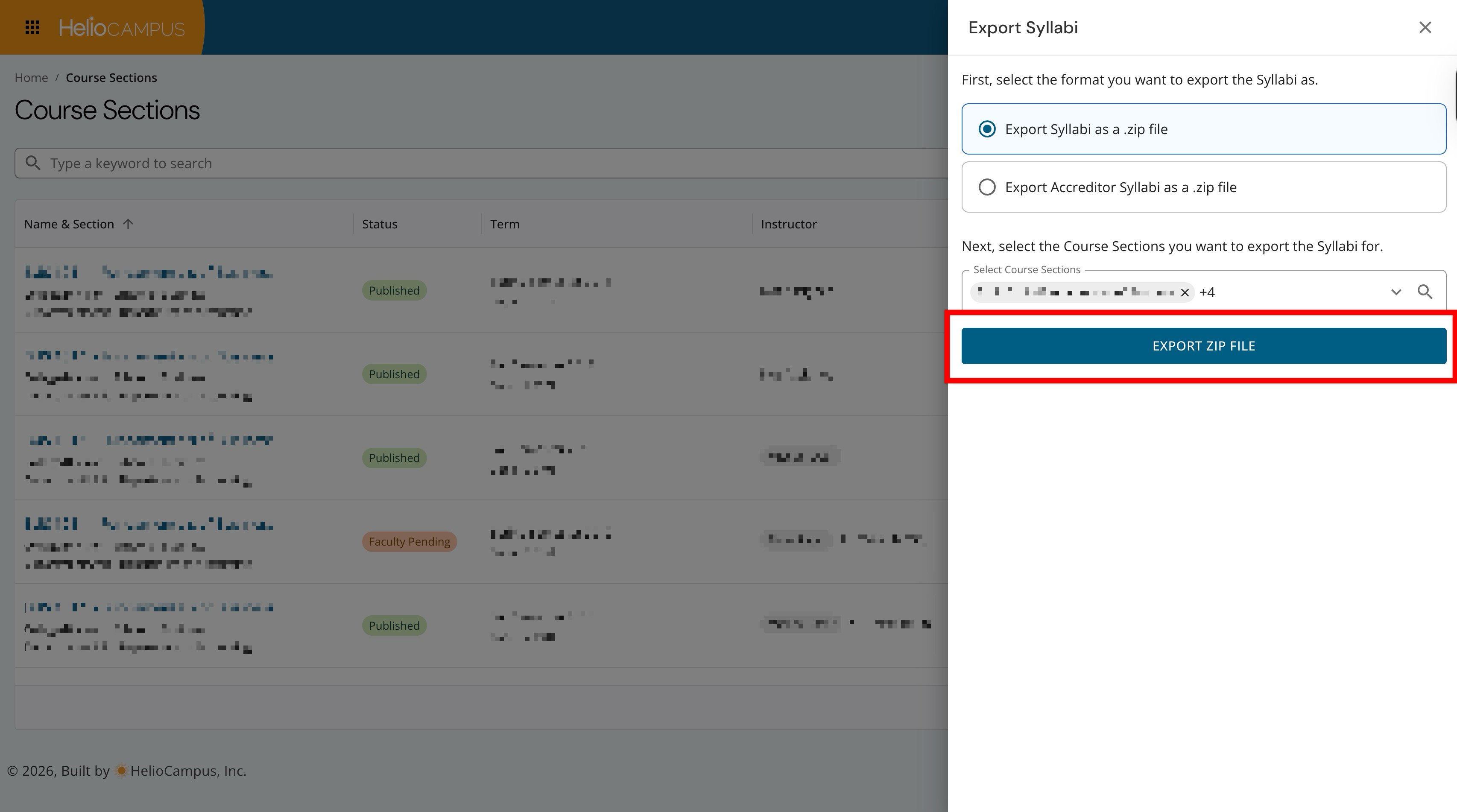
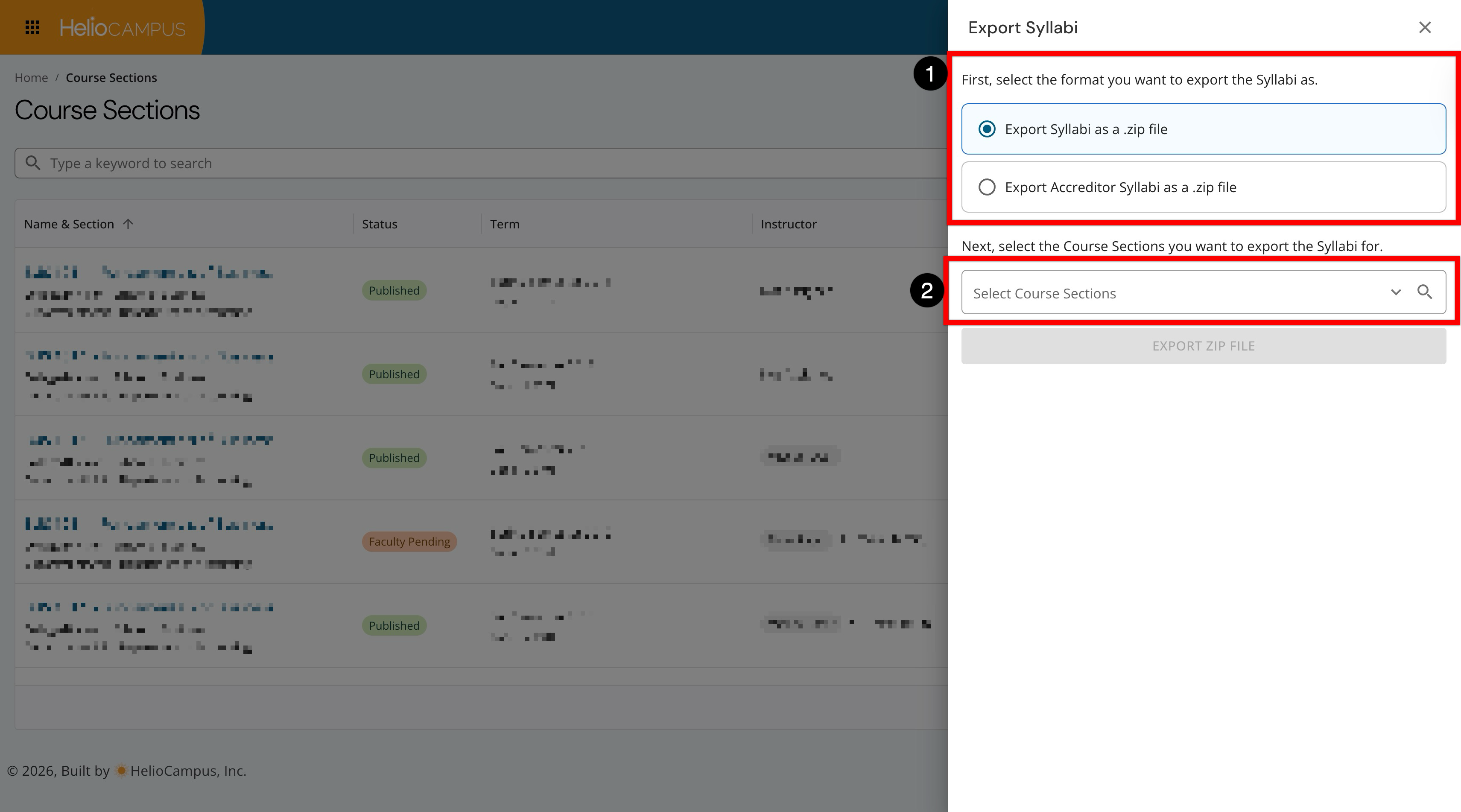
By default, the section syllabi will be exported to a zip file (1); alternatively, the section Accreditor Syllabi can be exported instead. Search for and select the course sections (2).
-
When using the enhanced search, search functionality is available, and by clicking the Filters option, specific filters can be applied (1). Once filters have been applied, they will display below the search bar and can be removed individually or in bulk (2). Course sections can be selected in bulk (3) or individually (4).
-
If course sections are selected in bulk, the scope of the bulk selection can be defined.
-
Select the ## visible Course Sections: This is the default option. This option limits the bulk selection to the rows currently loaded on the page, and only the 15 visible course sections will be selected.
-
Select all ## available Course Sections: This option expands the selection to every course section that matches the search and filter criteria, including results not currently visible on-screen. This option will select all 16 courses.
-
-
After selecting the sections (1), click Update Selection (2).
-
-
After selecting sections, click Export Zip File to begin an automatic download of the selected sections' syllabi or Accreditor Syllabi.