
The platform’s Course Section Manager is populated with course section information from the data files sent to HelioCampus. Course sections are individual offerings of a course in a particular term, utilizing the course as a base but adding term-specific information, such as instructor, schedule, and enrollment. More than one course section can be created for a course in the same term, each with its own schedule and instructor. Course sections can be viewed by navigating to Main Menu > Educational Experiences > Course Sections.
Instructors should ensure that their course sections and subsequent syllabi are complete prior to the start of class.
Video Resource: Learn about publishing course sections and their statuses by watching a quick walkthrough video!
Course Section Manager
|
|
|---|---|
|
1 |
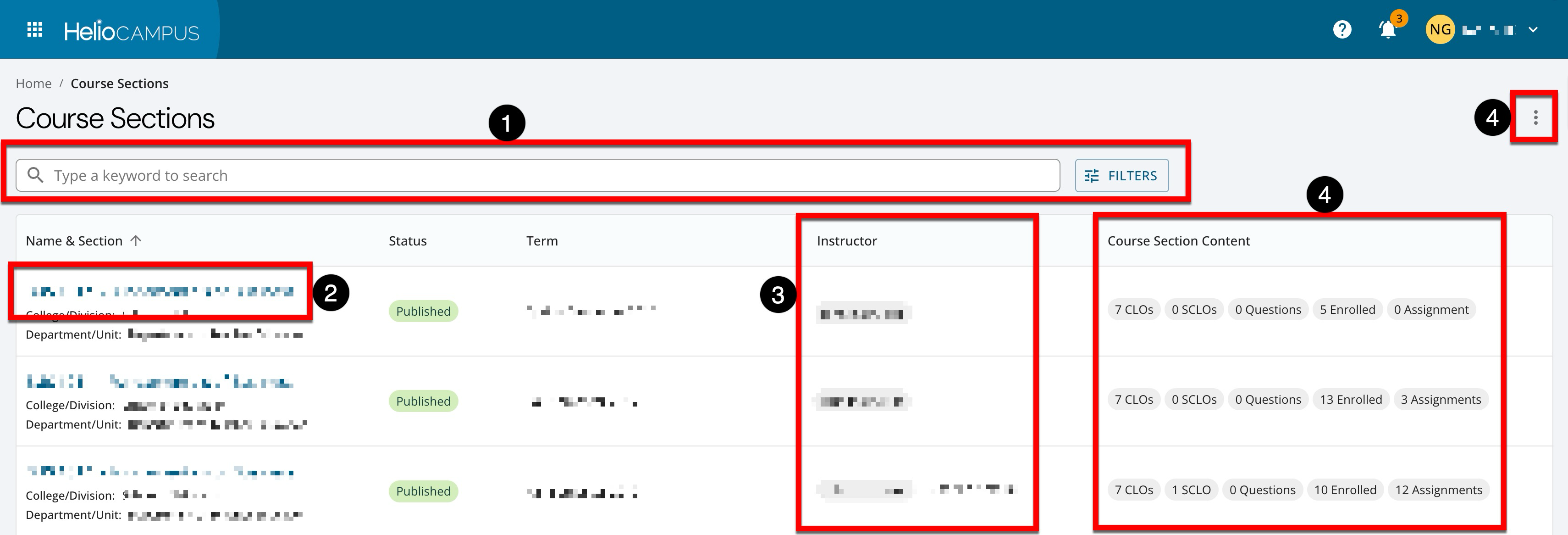
Search functionality is available, and clicking the Filters option allows specific filters to be applied. Once filters have been applied, they will display below the search bar and can be removed individually (1) or in bulk (2). 
|
|
2 |
Clicking a section’s name navigates to the Course Section Homepage. |
|
3 |
The instructor(s) assigned to the section. If no instructor has been assigned, this column will display Not Assigned. Instructors are assigned by navigating to the Course Section Instructors page from the Course Section Homepage. 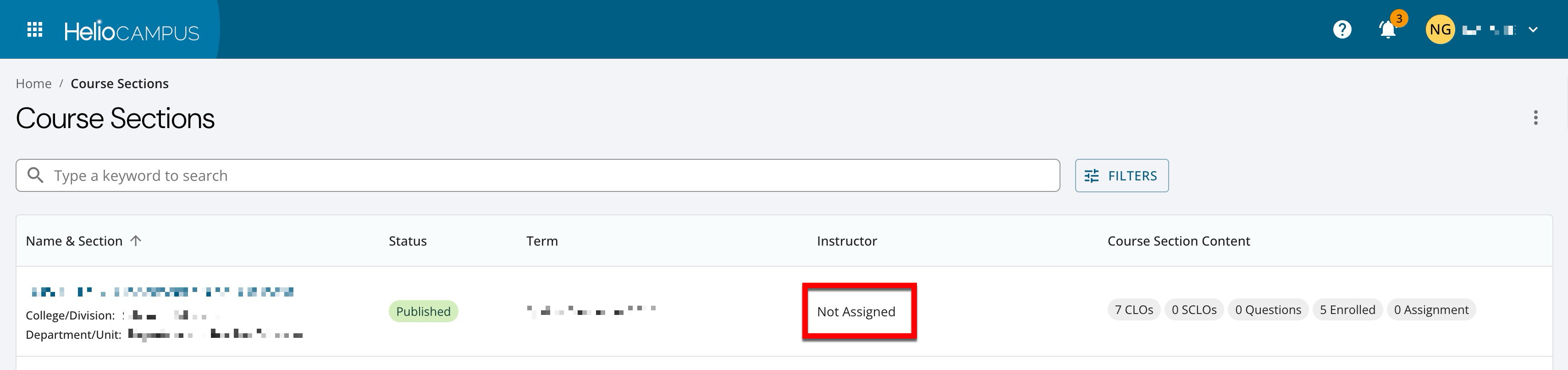
|
|
4 |
Displays quick glance section information without navigating to the Course Section Homepage. |
|
5 |
By expanding the More Options menu, section status can be changed in bulk, syllabi can be exported to a zip file in bulk, and the manager view can be exported to CSV. 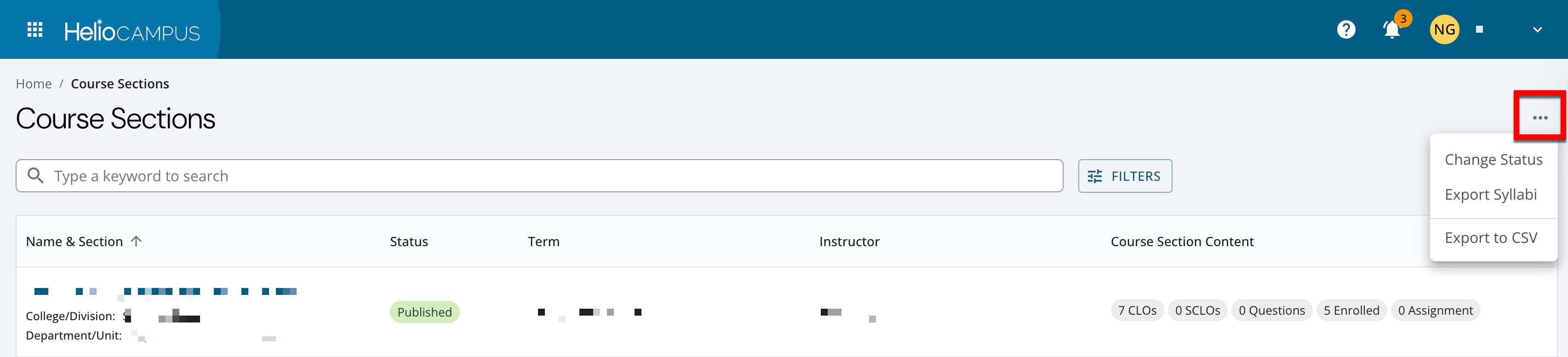
|
Course Section Statuses
|
Status |
Information |
|---|---|
|
Draft |
Course sections in this status have been received by HelioCampus via the Course Section data file. While available on the platform, these sections are often not ready for faculty or students and still require an instructor to be assigned by navigating to the Course Section Instructors page from the Course Section Homepage. |
|
Faculty Pending |
Course sections will be in this status once an instructor has been assigned; at that point, the section will be available to instructors via the My Course Sections & Syllabi dashboard widget and will be assigned to associated assessment schedules. In this status, faculty and coordinators can:
|
|
Approval Pending |
This status serves as an intermediate review option, primarily for institutions managing their syllabi through the platform. By this status, faculty should have prepared the section; an admin needs to approve it, and faculty respond to requested changes before it becomes fully published. If changes are necessary, admins can revert a section to Faculty Pending status via the Course Section Homepage. |
|
Published |
Once published, sections are fully active for their associated term(s) and can be associated with other platform functionality:
Sections can be published individually via the Course Section Homepage, in bulk via the Course Section Manager More Options menu, or auto-published if Enable Auto Publish for Syllabus is enabled on the associated courses' Course Syllabi Settings page or the institution, college, or department Course Syllabi Settings page. Admins can revert published sections to Faculty Pending or Approval Pending. Reverting after evaluations or assessments have started should be done with caution, as it can have downstream effects on surveys and reporting. |
Course Section Homepage
|
|
|---|---|
|
1 |
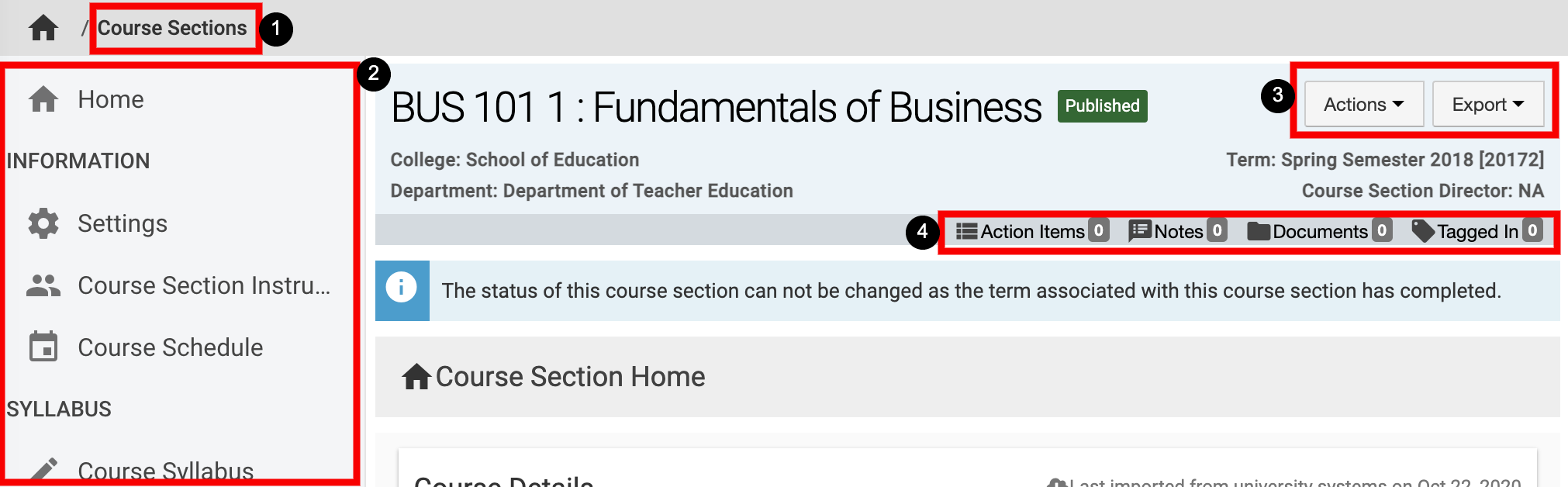
Course Sections can be clicked to return to the manager view to select a different Course Section. |
|
2 |
The lefthand menu can be utilized to navigate through various settings for a Course Section. |
|
3 |
The Actions and Export drop-down menus are available on all pages when viewing a Course Section:
|
|
4 |
The count of action items, notes, documents, and locations where the Course Section has been tagged are displayed. This information can be viewed in more detail by scrolling to the bottom of the Course Section Homepage. Users can click each tab to view existing items and click the Add button to attach new items, notes, documents, and tags. 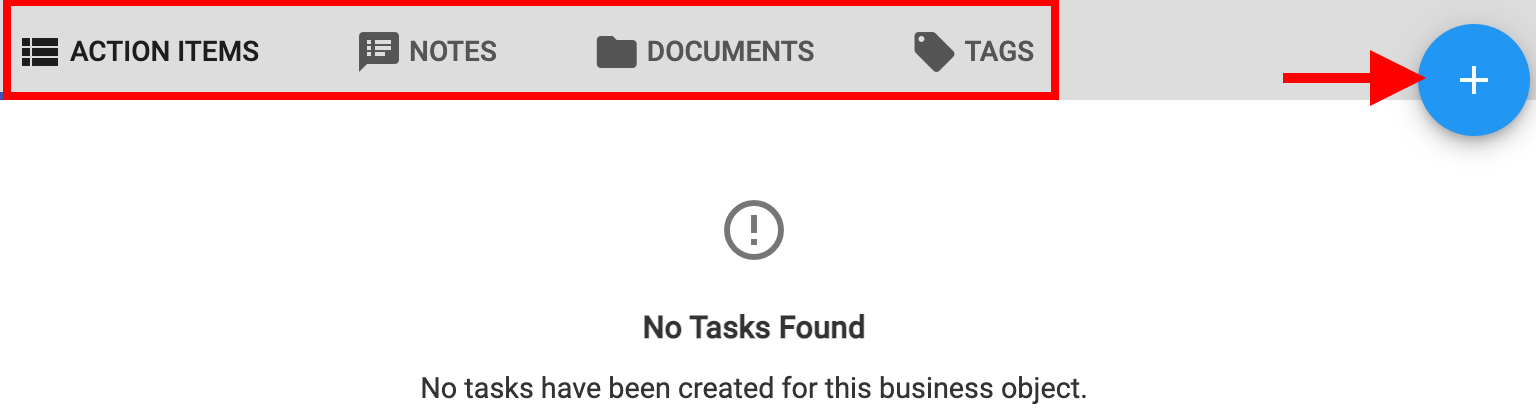
|
Course Section FAQ
Why are some course sections not populating in the platform even though they’re included in the data file for import?
If the course(s) associated with the course section is in Draft status, course sections will not import into the platform. Once the associated course(s) is published, course sections will be imported to the platform.
Can course sections be removed from the platform with the Course Section data file?
Yes. If course sections are removed from the Course Section Data File, upon import, the course sections that were removed will also be removed from the platform. Learn more about the Course Section Data File.
For example, historically, BUS 101 1, BUS 102 1, BUS 102 2, and BUS 103 1 have been imported to the platform with the Course Section Data File, but now, BUS 102 2 is no longer offered. When BUS 102 2 is removed from the Course Section Data File, upon import, it will no longer be available in the Course Section Manager.
Can course section details be updated with the Course Section data file?
Yes. Course section code and name can both be updated with the Course Section Data File. Learn more about the Course Section Data File.
Some course sections are in Faculty Pending status, should I publish them?
Depends; some platform functionality requires course sections to be in the Published status:
Course Evaluations/Surveys: Only course sections in Published status will be included in surveys.
Syllabus Availability to Students: For Institutions using the syllabus functionality, students can only view the syllabus once a section is in Published status
The Faculty Pending status also plays an important role in the course revision process in relation to downstream impacts due to revision. Learn more about course revision.
Course Section Troubleshooting
Why are some course sections missing from the Course Section Manager?
This is most often due to the associated course being in Draft status. Upon import of the Course Section Data File, sections that are associated with courses in Draft status will not be imported.
-
Check Course Publication Status: Via the Course Manager, ensure the course is in Published and not Draft status. Learn more about the Course Manager.
-
Verify the Course Section Data File: Confirm that the course sections are correctly included in the data file. Learn more about the Course Section Data File.
-
Wait for the Daily Import Process: If the course is in Published status and the associated course sections are correctly included in the data file, they will be imported during the nightly daily import process.
If the associated course is in Published status and the course sections are included in the Course Section Data File, the sections will be imported during the daily import process. After the daily import process, if expected course sections are not displayed in the Course Section Manager, please contact support.
📔 Additional Resources