Revising courses creates a new ‘in revision’ version that can be compared to the published course. This preserves an audit trail and makes significant changes visible for stakeholder review and reporting. Some examples of significant changes prompting a revision include:
-
Changing Learning Design or Outcomes: Adding or removing CLOs requires a revision, especially if they are part of a curriculum map or being assessed. CLO descriptions and tags can be edited without creating a new version. Learn more.
-
Assessment and Assignment Changes: Changing the assessment strategy for outcomes (for example, moving from multiple quizzes to a single project, or adding/removing high‑stakes assessments), or large‑scale changes to course-level assignment templates that will cascade to associated sections and alter what gets assessed.
-
Curriculum Structure or Content Changes: Adding or removing substantial content areas (e.g., dropping a whole set of topics, adding a new unit on data analysis, etc.), or changing the course expectations (e.g., increasing workload, depth, or expected performance level in a way that affects outcome thresholds).
-
Changes Impacting Reporting/Governance/Compliance: Revisions driven by program review, accreditation feedback, or institutional curriculum approval that must be documented for comparison, or changes that alter how course evidence appears in program assessment reports or in institutional planning/accreditation narratives.
Editing vs. Revising
|
Editing |
Edits are allowed in published courses. They are retroactive and will be applied to all historical versions of a course. In general, edits should be reserved for minor, non-substantive changes. Learn more. |
|
Revising |
Revisions create a new version of the course. Revisions are not retroactive, and historical versions of the course will be retained. Create a new version of the course when making substantive changes to outcomes, course structure, or curriculum. ⚠️ Edit-level changes made during revision are retroactive. For example, updating a CLO description will apply to all CLO associations, including both prior and active items, without affecting mappings. |
Course Versioning
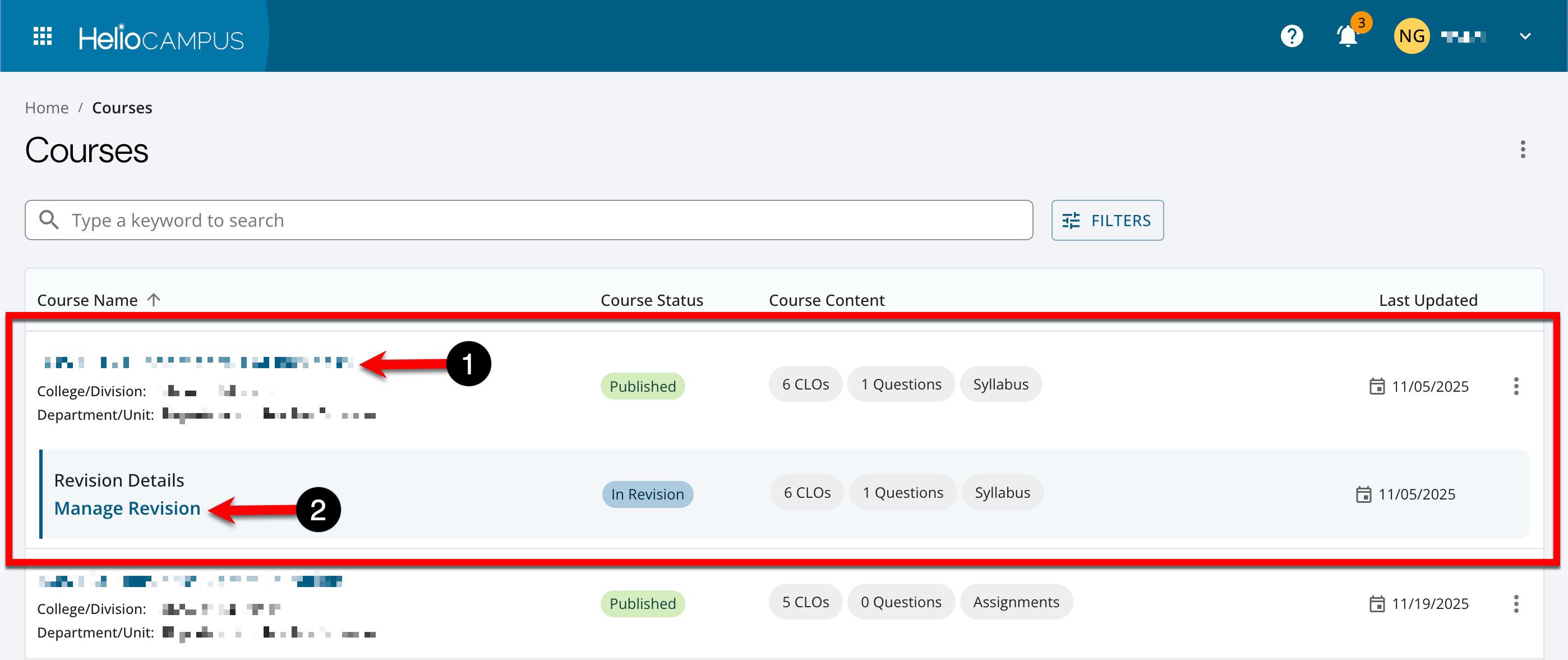
When a course is revised, a new version is created with each revision to maintain historical data within the platform. Courses in In Revision status will display indented beneath the associated version in Published status. Clicking the name of a course (1) will navigate to the course Homepage; clicking Manage Revision (2) will navigate to the homepage of the most recently revised version.
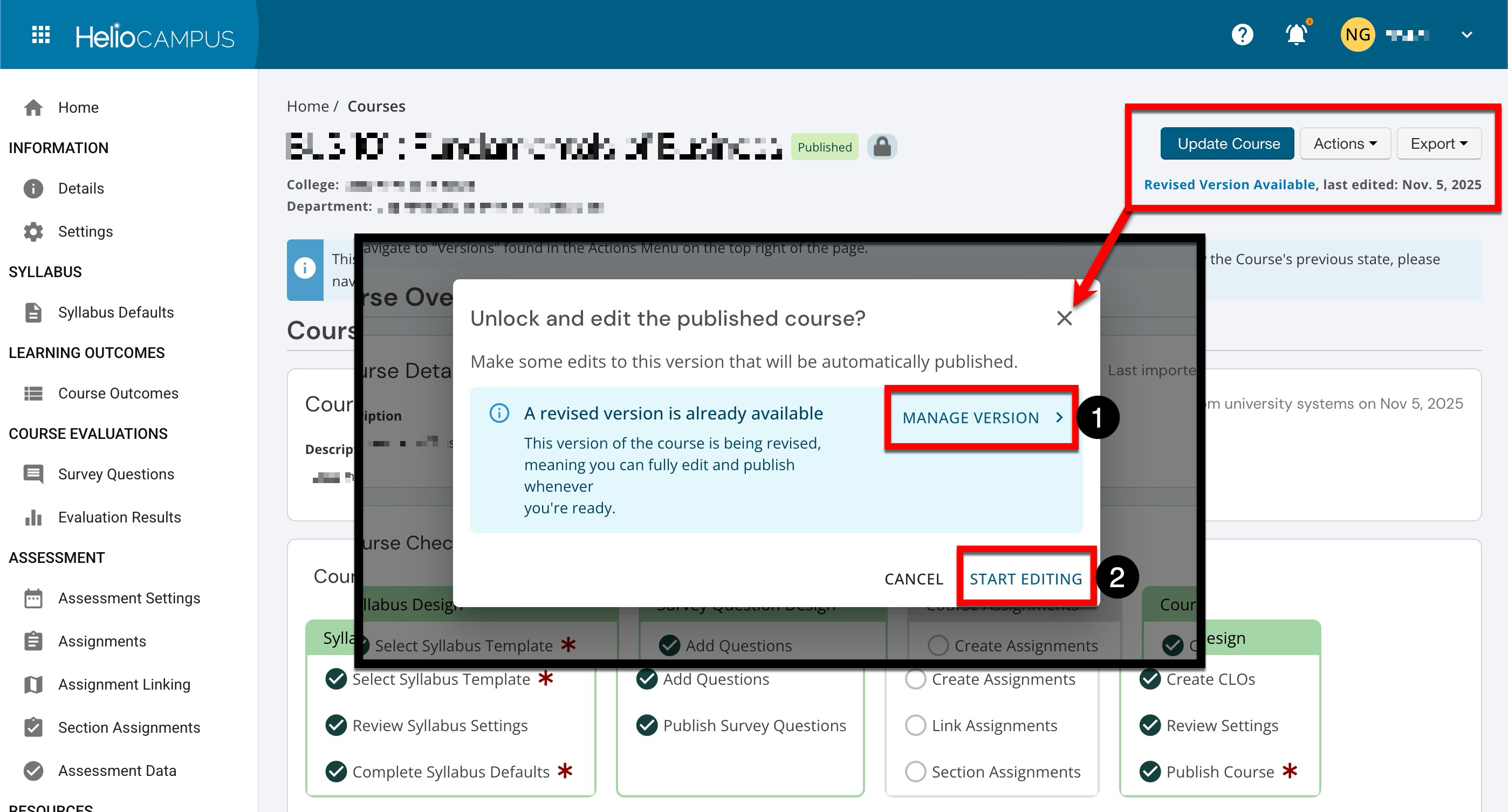
If an attempt is made to edit a published course while an in-progress revision is underway, the option to access and make changes to the revision (1) or continue editing the course for minor changes (2) is available. Learn more about editing courses.
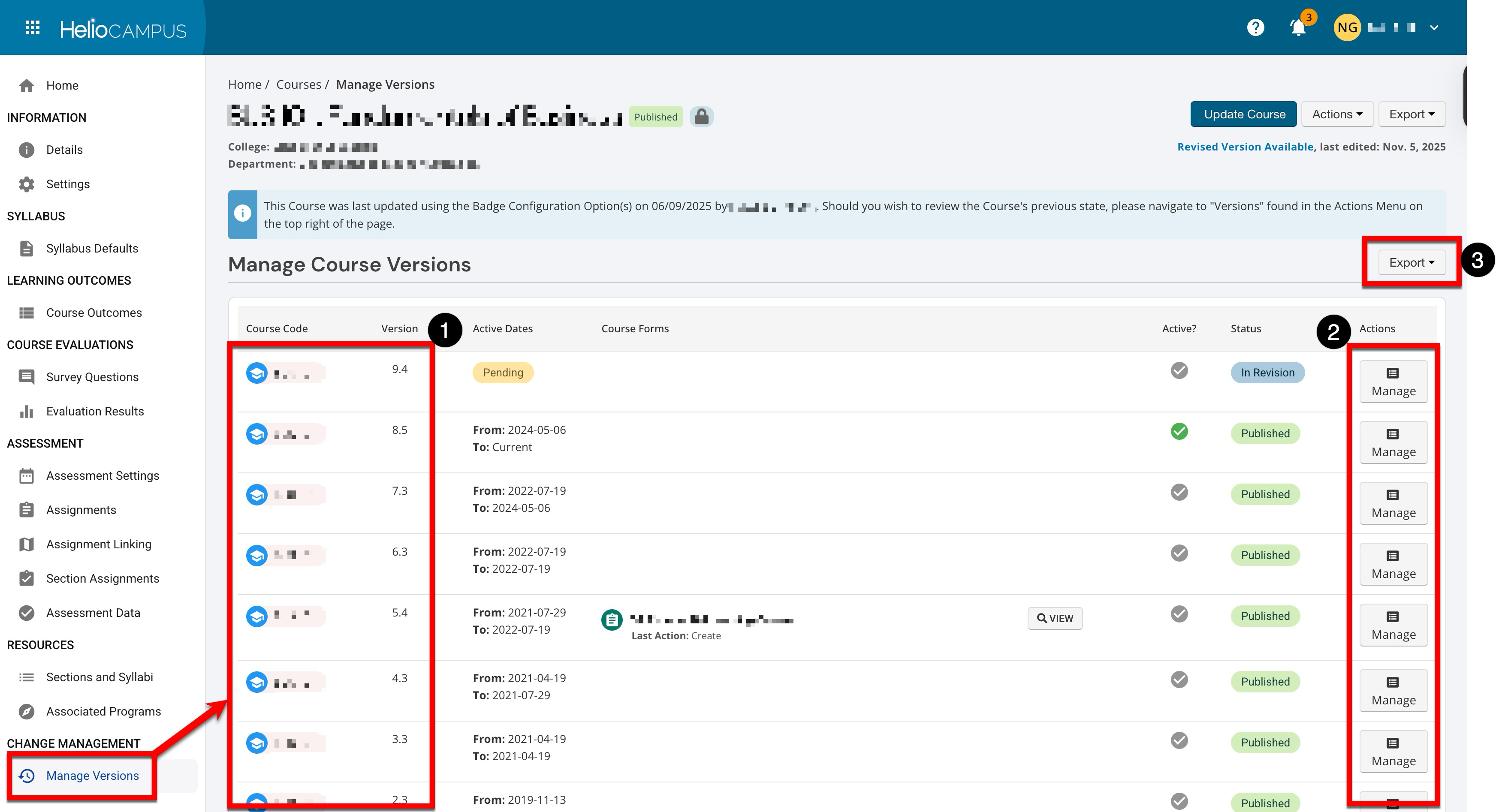
Course versions can be reviewed by accessing the Manage Versions page. The course code and version(s) are displayed (1), and clicking Manage (2) will navigate to the homepage for that version. The versions page can be exported to PDF format or printed (3).
Considerations
-
Course Section Versioning: Ensure all relevant sections are in their most up-to-date published versions.
-
Assessment/Survey Timing: Consider timing changes outside active assessment or data-collection periods to minimize complexity and ensure a smooth implementation. Changes may necessitate decisions on whether to carry open assessments forward or leave them unchanged.
-
Course Learning Outcomes: Editing or deleting learning outcomes can significantly impact curriculum mapping and reporting, and may require remapping.
-
Stakeholder Communication: Notify affected faculty, coordinators, and admins before major revisions.
Best Practices
-
Always review and update curriculum maps after course revisions to ensure alignment across courses, CLOs, and assessments.
-
Communicate upcoming revisions with stakeholders and consider running them during assessment/curriculum planning cycles.
-
Double-check which assessments, surveys, or data collections will be impacted. Make careful choices when prompted to align or migrate existing ones during publishing.
-
Develop a regular review and revision schedule (e.g., annually or on a cycle) for courses to maintain consistency.
-
Evaluate downstream reporting and analytics—ensure any required curriculum and outcome mapping is preserved and accurate post-revision.
-
Communicate with stakeholders throughout the creation process, especially before making significant changes or publishing a course. Notify relevant parties of substantive revisions.
-
Utilize platform features, such as revision logs and version comparisons, to track changes, review updates, and maintain transparency. Document the revision cycle for audit and reporting purposes.
How To Revise a Course
-
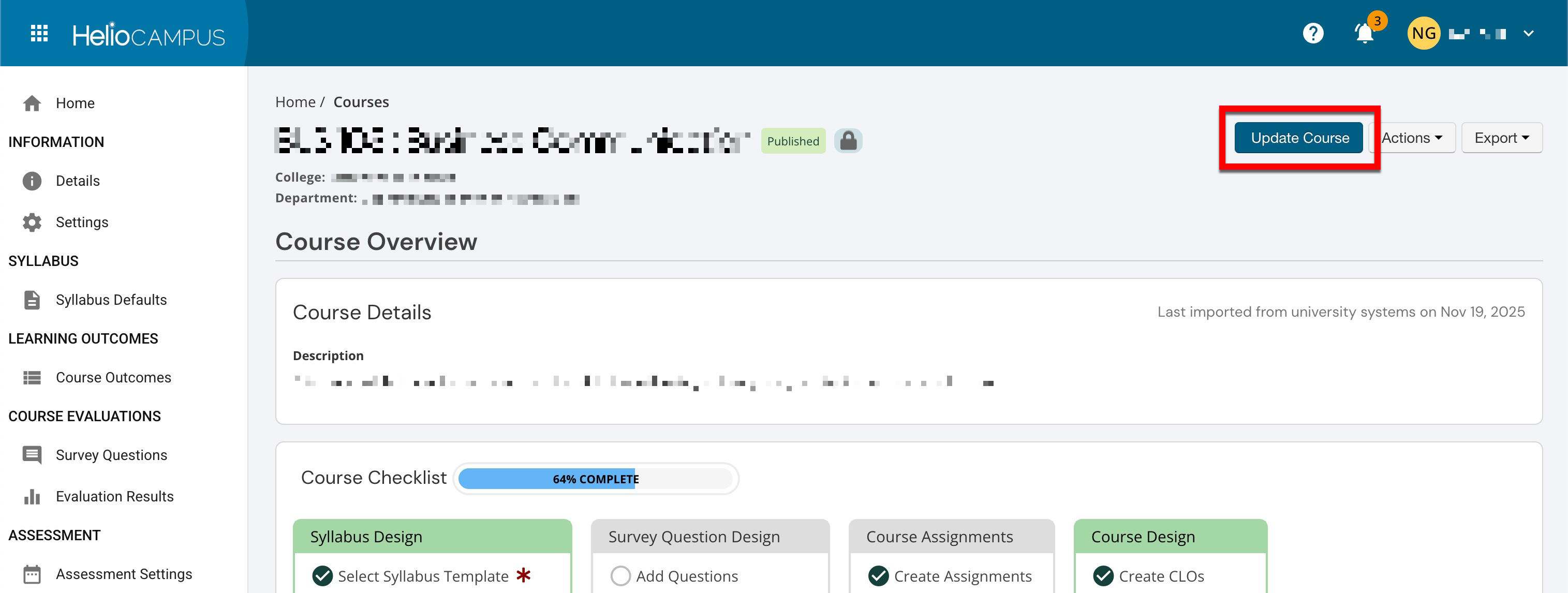
Navigate to the Course Homepage and click Update Course.
-
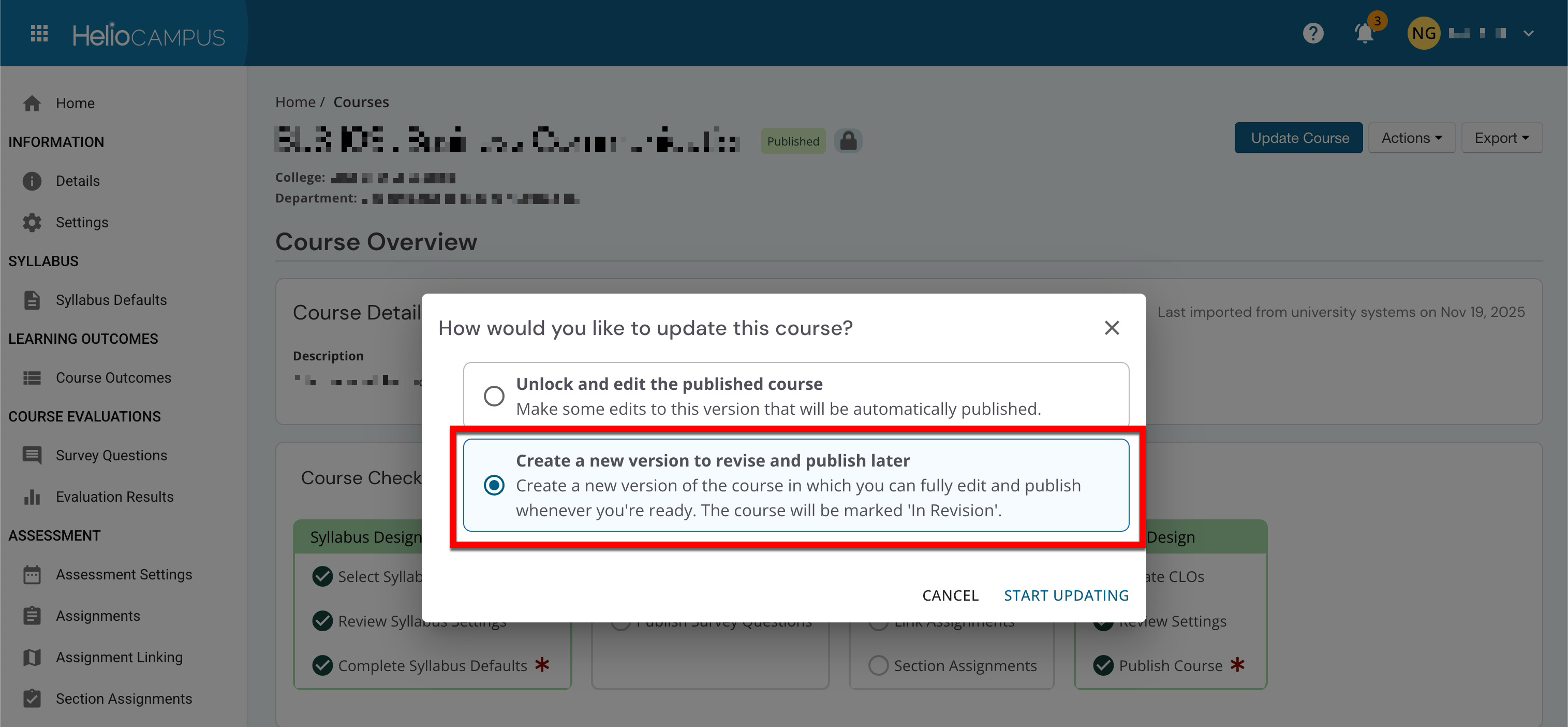
When prompted, select the create a new version and publish later option.
-
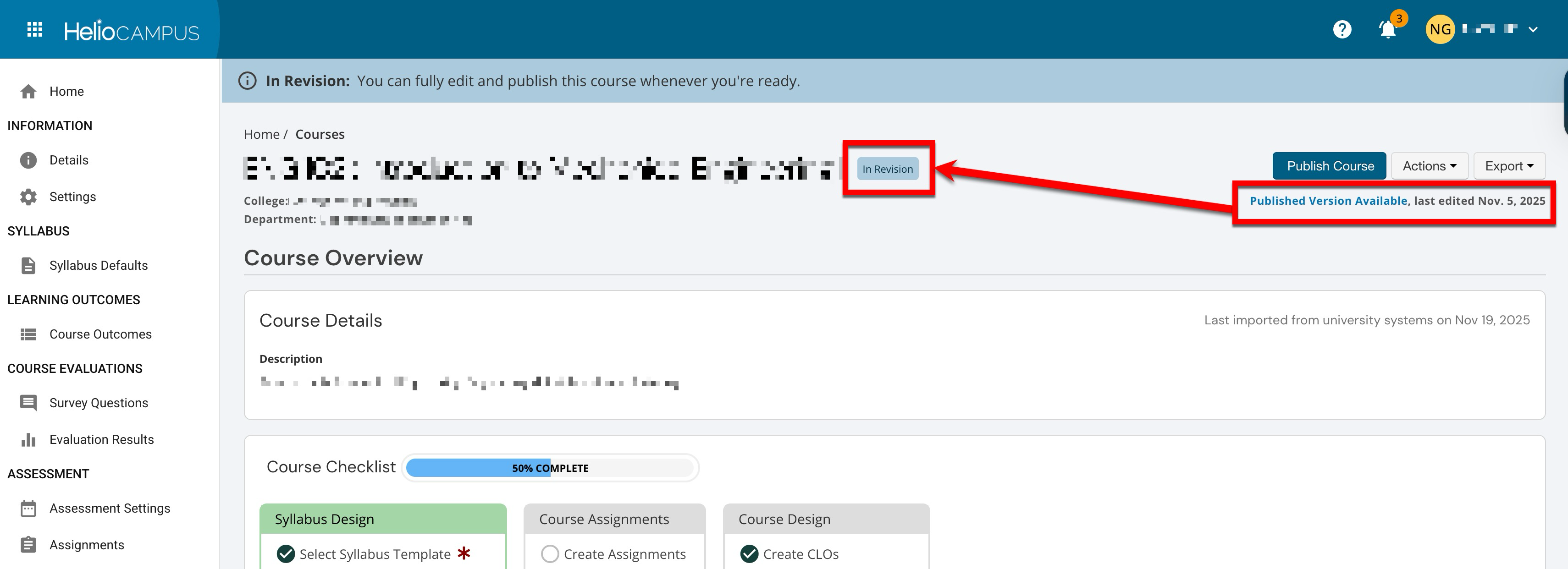
Once revised, the homepage will display that a published version is available, along with the date it was last edited. While in revision, all course configurations can be edited.
-
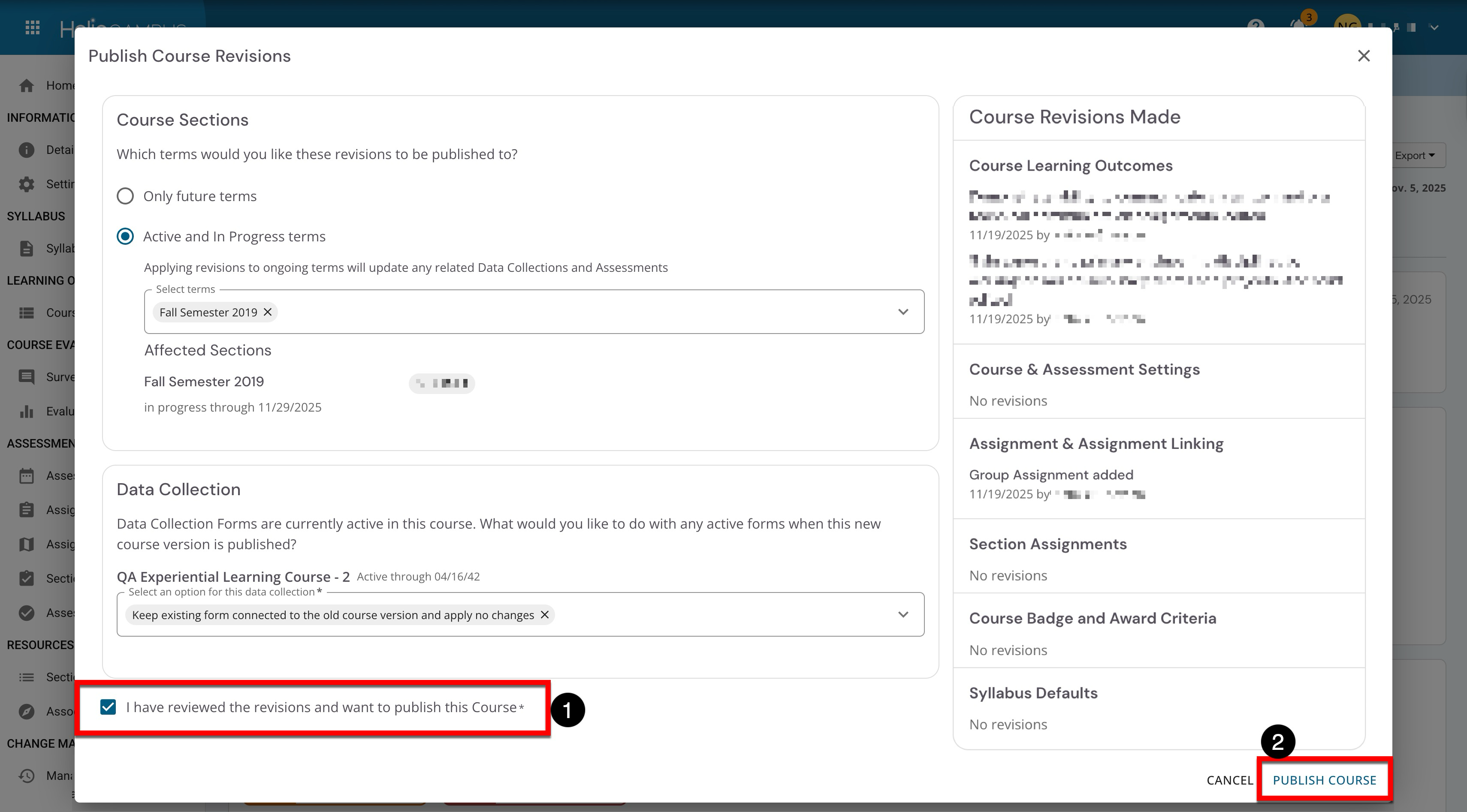
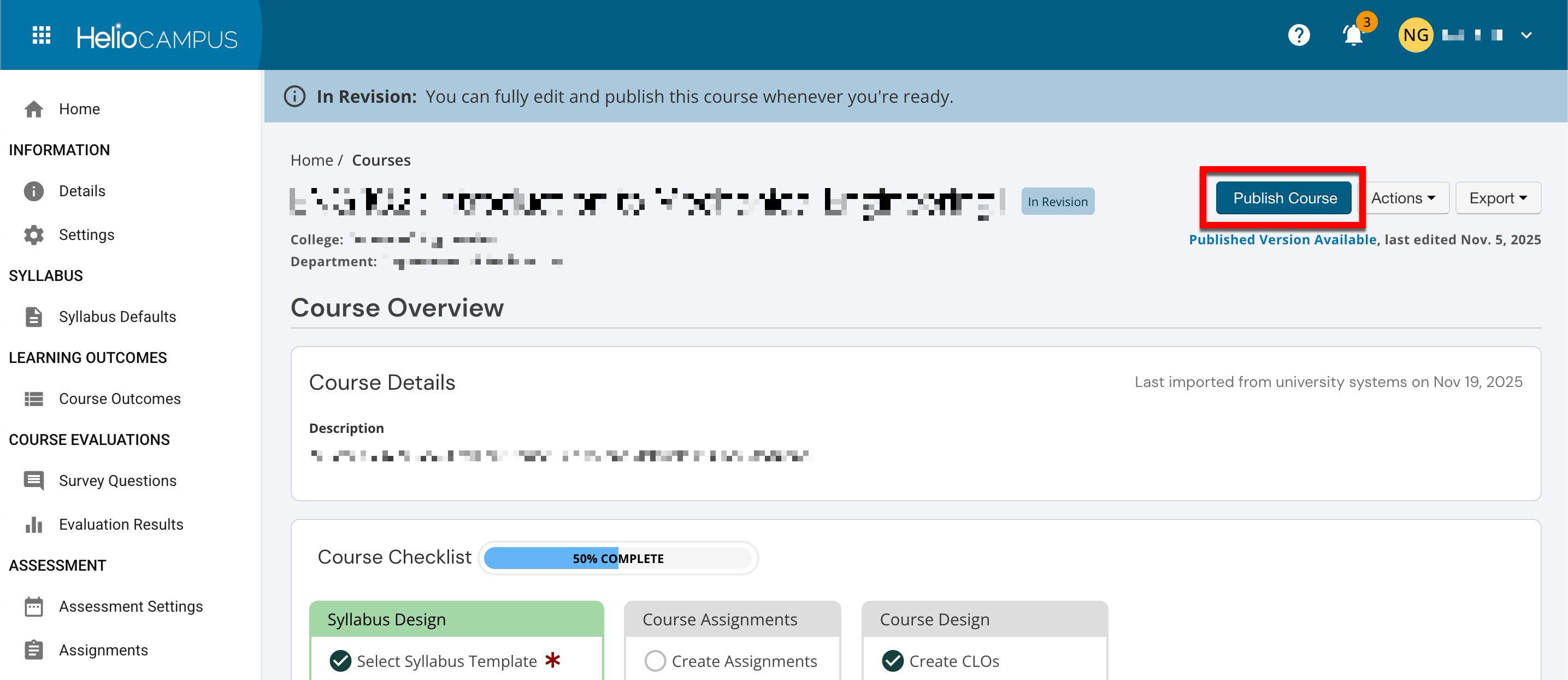
When revisions are complete, click Publish Course.
-
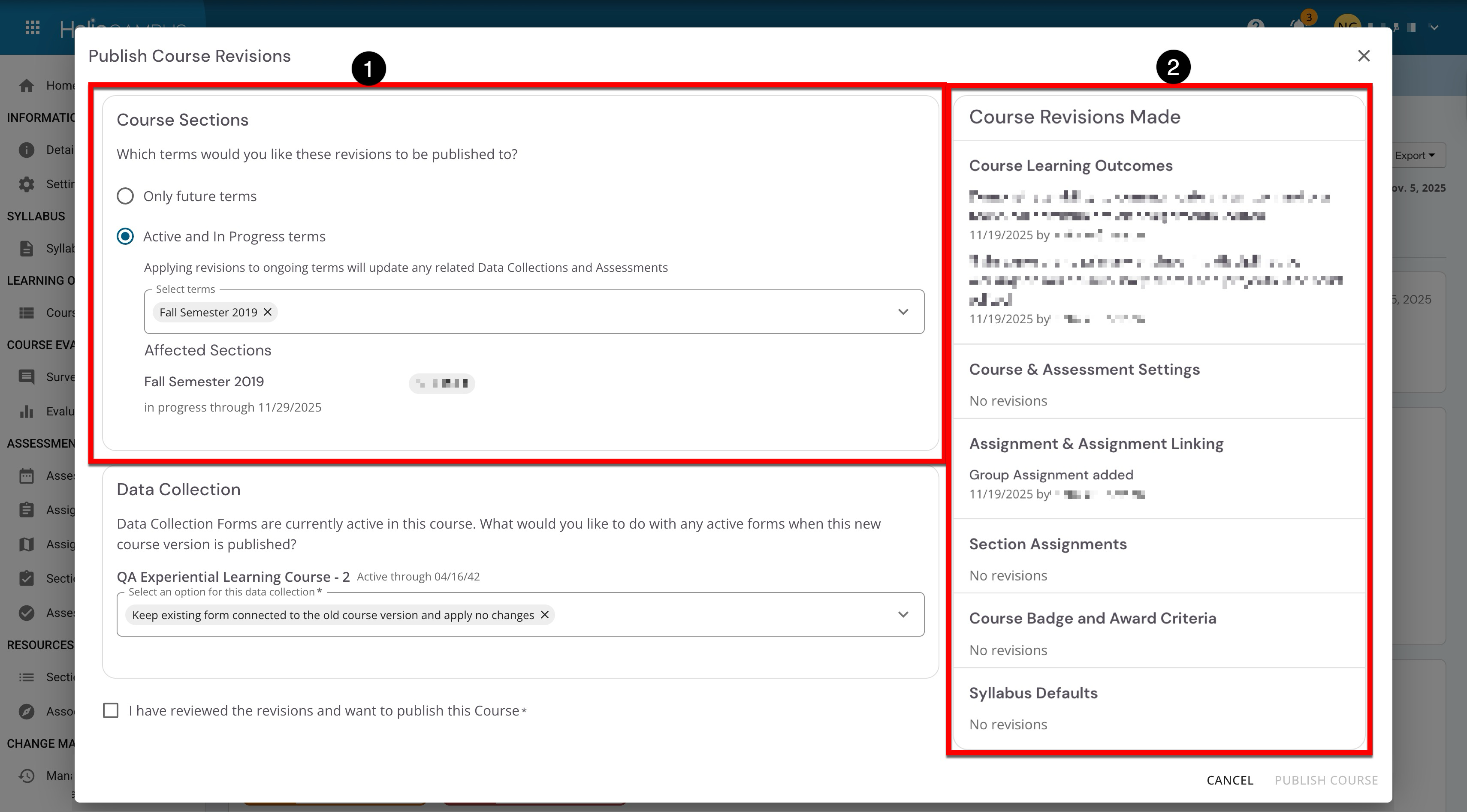
The revision log (2) displays the most recent edits made before publishing. During publication, choose which terms the course revisions should apply to (1).
-
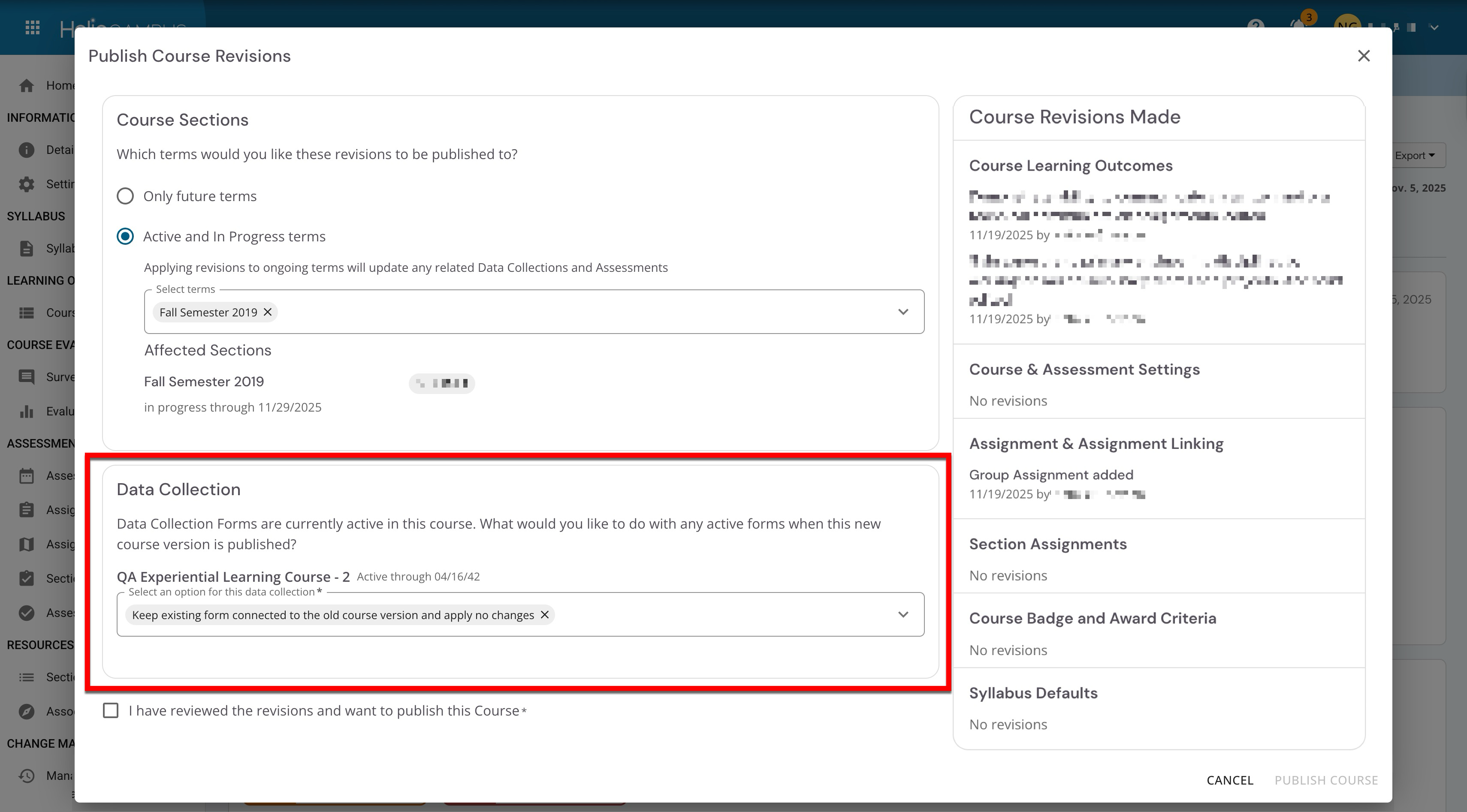
Additionally, the handling of active data collections can be configured
-
Keep the Form Connected to the Previous Version: Data collection forms will remain unaffected after publication.
-
Update the Form to This Version and Keep All Responses: Data collection forms will be updated to the new version of the course, and all historical responses will be retained.
-
Update the Form to This Version and Delete All Responses: Data collection forms will be updated to the new version of the course, and all historical responses will be deleted.
-
-
Once confirmation is provided (1), click Publish Course (2).