
📙 Knowledge Base Tip: Reviewing the Report Library article before utilizing any reports is recommended.
This report is used to review program assessment results data for student performance on program and higher‑level outcomes or standards to review the overall student performance at the outcome level. User roles with permissions to utilize this report include:
-
College Admin
-
Department Admin
-
Institution Admin
-
Program Coordinator
Product Tip
Users with Organizational Hierarchy roles (e.g., Institutions Admin, College Admin, etc.) will only see the business objects (colleges, departments, courses, etc.) they are associated with. For example, College Admins can configure report parameters and view report results only for the course sections associated with the colleges for which they are assigned the admin role.
Use Cases
|
Improving Program Effectiveness |
|
Institutions can use this report to disaggregate performance by student attributes and degree program to identify patterns and areas where students may struggle with certain learning outcomes. For example, if students with lower GPAs consistently perform poorly in certain outcomes, the Institution may implement targeted interventions, such as tutoring, additional resources, or curriculum adjustments, to help students succeed. |
|
Promoting Equity in Education |
|
By disaggregating data, Institutions can determine whether students are not meeting certain learning outcomes. Institutions can then introduce targeted support systems, diversity-focused teaching strategies, or mentorship programs to foster an equitable learning environment and improve outcomes for all students. |
Considerations
-
If multiple programs are included, and the proficiency scale has different levels, the report output will not be generated. In these cases, group programs with the same scale to configure parameters and generate report outputs for each group.
-
If multiple programs are included, the same proficiency scale with different performance goals (e.g., Mechanical Engineering and Chemical Engineering have 80% and General Engineering has 60%), then the report output will display each scale on separate rows to better determine which goals are met and which are not.
Parameters
|
Parameter |
Details |
|---|---|
|
Outcome Set Type |
Required. This parameter can help narrow the selections available in the Outcome Set parameter. |
|
Outcome Set |
Required. This parameter can help narrow the selections available in the Outcomes parameter. The available options depend on the selection(s) made via the Outcome Set Type parameter. Assessment data will only display for outcomes for which data has been collected. Multi-select, select all, and deselect all functionality is available. |
|
Outcomes |
Optional. This parameter helps narrow results. The available options depend on the selection(s) made via the Outcome Set parameter. Multi-select, select all, and deselect all functionality is available. |
|
Term |
Optional. When selecting terms, select the term(s) for which the data were collected. The available options depend on the selection(s) made via the Outcome Set parameter and the Outcomes parameter, if it has been configured. The adaptive search will auto-update search results as they are typed. Multi-select, select all, and deselect all functionality is available. |
|
Optional. These parameters are useful for narrowing results and more easily configuring the Course/Co-Curricular Activity and the Course/Co-Curricular Section parameters. |
|
Show Results of Courses By |
Required. Allows users to run results either by course or by program, with available course selections automatically limited to courses aligned to the chosen program(s) |
|
Program |
Optional. This parameter helps narrow results and more easily configure the Course parameter. The available options depend on the selection(s) made via the previous required parameters and any optional parameters that have been configured. Multi-select, select all, and deselect all functionality is available. |
|
Developmental Level |
Optional. Use this parameter to filter report results by the developmental level assigned to outcomes (for example, Introduced, Developed, or Mastered). When a developmental level is selected, the report displays only data for that level. |
|
Course |
Optional. This parameter helps narrow results. Multi-select, select all, and deselect all functionality is available. |
|
Hide Parameters in Report Results |
When enabled, the parameters configured for the report results will not be included in the report output. When disabled, parameters and their selections will be included in the report output. |
💡 Product Tip
Additional report parameters are available to configure student-specific data; to set up the utilization of these parameters, please contact support.
-
Age
-
Ethnicity
-
Gender
-
Home State
-
Highschool GPA
-
Cumulative GPA
-
Athletic Status
-
Number of Terms
-
Student Degree
-
Student Minor
-
Student Concentration
-
Class Level
-
ACT English Score
-
ACT Math Score
-
ACT Total Score
-
SAT Math Score
-
SAT Verbal Score
-
SAT Total Score
Report Output
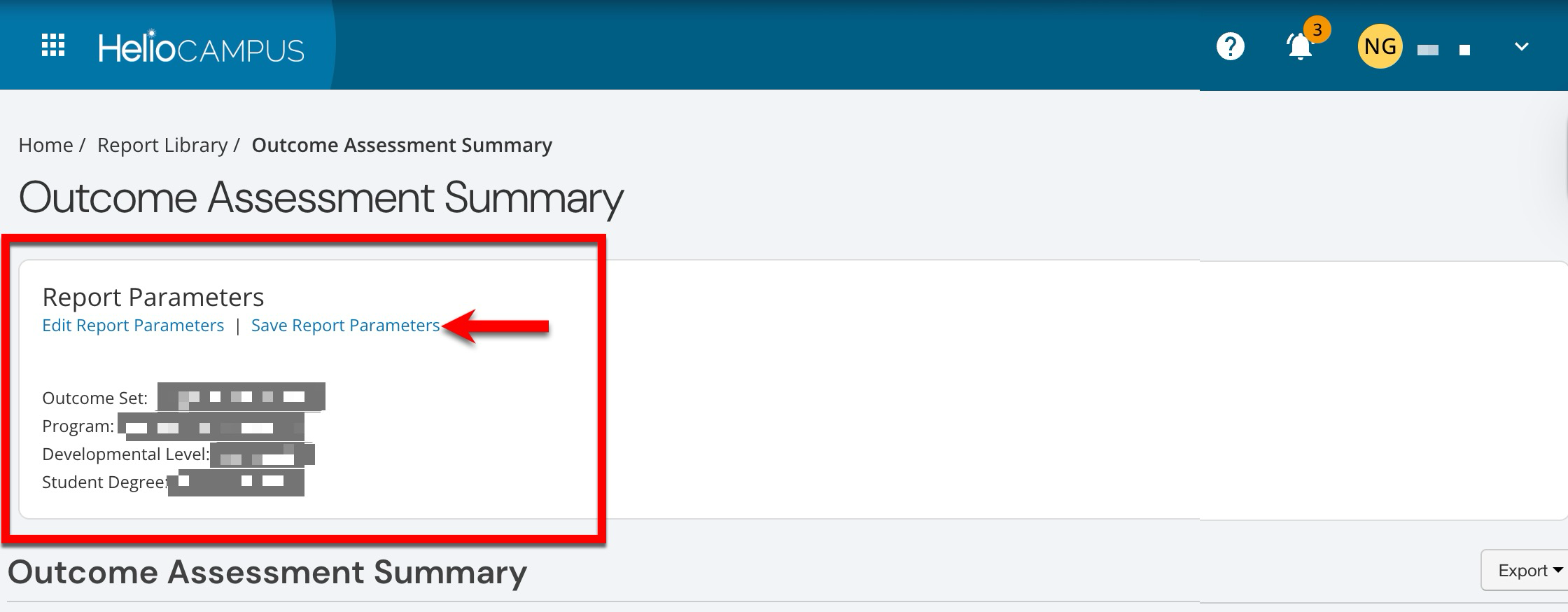
Once report parameters have been configured and Run Report has been clicked, the report output will display below the collapsed read-only view of the report parameters. Clicking Edit Report Parameters will reopen edit capabilities; once parameters have been edited, Run Report can be clicked again to re-generate the report output. Clicking Save Report Parameters will open the Create a New Saved Report pop-up, where the name and description of the new saved report can be entered. Once a report has been saved, it will be available via the My Saved Reports tab of the Report Library.
Once generated, the report displays outcome details, proficiency results, and performance goal achievement for the selected parameters. Each row represents an outcome included in the report. The outcome information section displays the associated program and outcome set information along with the number of students assessed for each reported outcome (1). These details provide context for the assessment results and identify the program and outcome structure associated with each row. The Proficiency Scale Distribution displays how assessment results are distributed across the proficiency levels (2). Each color-coded bar visually compares the distribution, while the legend shows the count and percentage for each proficiency level. The Performance Goal Analysis compares the percentage of results that meet or exceed expectations with the established performance goal (3). The column displays Goal Met or Goal Not Met indicators, and the achieved result combines the percentages for the Meets Expectations and Exceeds Expectations proficiency levels.
