📙 Knowledge Base Tip: Before utilizing any reports, it is recommended to review the Report Library article.
This report provides access to detailed course evaluation responses by the Instructor, featuring key metrics per question. This report is tailored to analyze specific feedback across Instructors or sections. It enables targeted reviews of faculty performance or feedback focus, displaying results by the chosen Instructor, section, and question without aggregating data. User roles with permissions to utilize this report include:
-
College Admin
-
College Survey Admin
-
Course Coordinator
-
Course Section Director
-
Dean
-
Department Admin
-
Department Survey Admin
-
Institution Admin
-
Institution Survey Admin
-
Instructor
-
Preceptor
-
Teaching Assistant
Product Tip
Users with Organizational Hierarchy roles (e.g., Institutions Admin, College Admin, etc.) will only see the business objects (colleges, departments, courses, etc.) they are associated with. For example, College Admins can configure report parameters and view report results only for the course sections associated with the colleges for which they are assigned the admin role.
Use Cases
|
Faculty Performance Review and Improvement |
|
An Institution wants to comprehensively review its Instructor's performance based on student evaluations. The goal is to identify strengths and areas for improvement in teaching methods, course content, and overall effectiveness. |
|
Curriculum Development and Improvement |
|
An Institution is working to enhance the quality of its courses and ensure that they meet educational standards and student expectations. The Institution aims to use detailed course evaluations to inform decisions about course design, instructional strategies, and overall curriculum effectiveness. |
|
Accreditation and Quality Assurance |
|
An Institution is preparing for an accreditation review, and the accreditation process requires demonstrating a commitment to educational quality and continuous improvement. The Student Course Evaluation Results by Instructor provides evidence of an Institution’s commitment to addressing student feedback and maintaining high instructional standards. |
Considerations
-
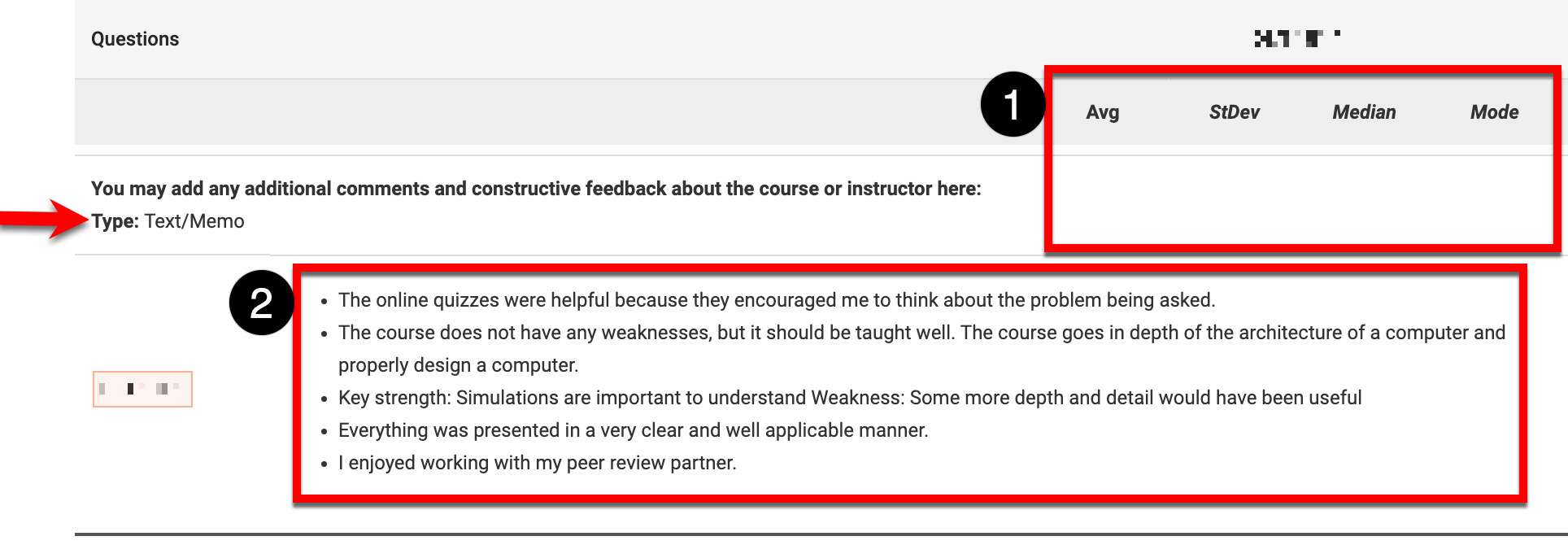
Text/Memo questions display submitted comments in the output rather than numeric statistics.
-
A double dash in the report output indicates that a value is unavailable or cannot be calculated from the available responses.
-
Open-ended questions display submitted comments instead of numeric statistics.
-
The report output displays survey results based on the user’s role and the Results Available date configured in Course Survey Settings.
|
If |
Then |
|---|---|
|
I am an Organizational Hierarchy level user (e.g., Institutions Admin, College Admin, etc.) |
The report output will display survey results for the business objects (colleges, departments, courses, etc.) I am associated with, regardless of whether the Results Available date has passed. |
|
I am a Course Section Director or Instructor |
Once the Results Available date has passed, the report output will display survey results for the business objects (colleges, departments, courses, etc.) I am associated with. |
-
For Text/Memo question types, survey metrics will be blank (1), and instead, the text response will be displayed (2)
Parameters
|
Parameter(s) |
Details |
|---|---|
|
Term |
Required. Multiple terms can be selected to compare the results of sections across terms. |
|
Optional. These parameters are useful for narrowing results and more easily configuring the Course Section parameter. |
|
One is required. One or more courses and/or one or more Instructors are required to be selected to configure the Course Sections parameter. |
|
Instructor Type |
Optional. This parameter is useful for narrowing results and making the configuration of the Instructor parameter easier. |
|
Course Section |
Required. Multiple course sections across multiple terms can be selected. |
|
Additional Parameters |
|
|
Optional. These parameters can further narrow down the results displayed after the Course Section parameter has been configured. |
|
Show Comments |
Optional. When enabled, comments will be included in the report output. |
|
Order Questions By |
Changes how questions are ordered in the report output:
|
Report Output
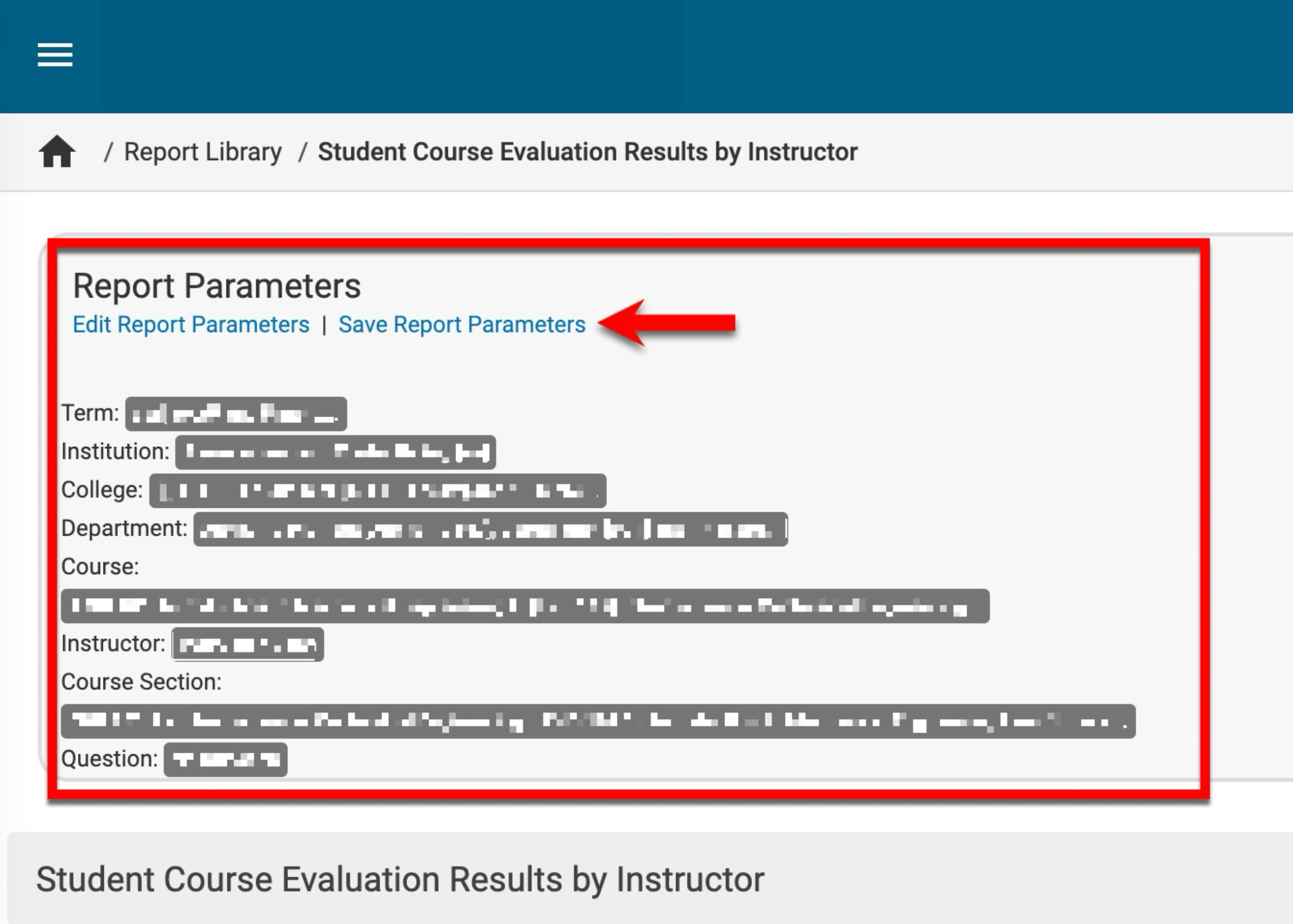
Once report parameters have been configured and Run Report has been clicked, the report output will display below the collapsed, read-only view of the report parameters. Clicking Edit Report Parameters will reopen the parameter editing capabilities. Once parameters have been edited, clicking Run Report again will regenerate the report output with the edited parameters. Clicking Save Report Parameters will open the Create a New Saved Report pop-up, where the name and description can be entered. Once a report has been saved, it will be available via the My Saved Reports tab in the Report Library.
Output Ordered Sequentially
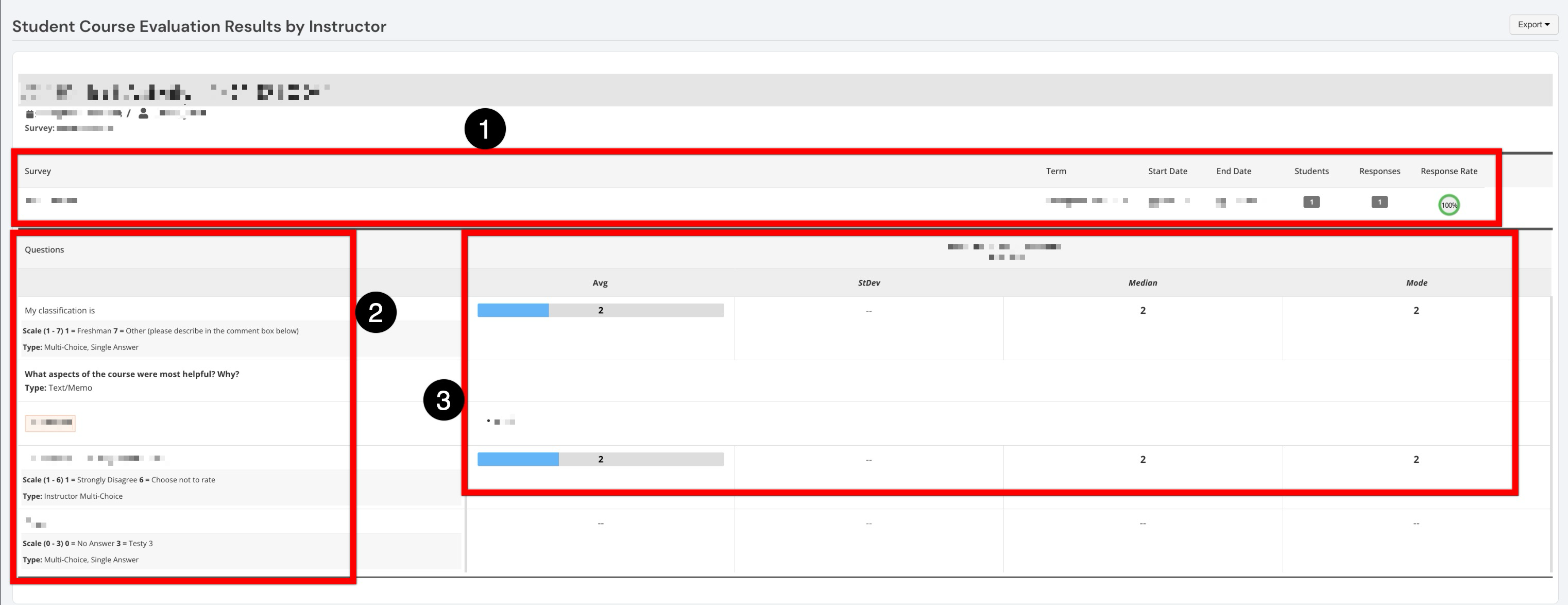
When the Order Questions By parameter is set to Sequential, the report displays questions in survey order rather than grouping them by category or question type. Each question appears alongside its corresponding results. The survey summary section identifies the survey information, the number of students and responses, and the overall response rate (1). This information provides context for the results and indicates the level of participation represented in the report. The Questions section lists each question in the order it appears on the survey (2). Depending on the question, the report may also display the response scale and question type, such as multiple choice, single answer, or text/memo. This makes it possible to interpret the reported values against the available response options. The results section aligns each question with its associated response data (3). Quantitative questions display a response-distribution bar and summary statistics including:
-
Avg: The average score; the sum of the responses divided by the total number of responses.
-
StDev: The standard deviation; a measurement of the variation in the response set.
-
Median: The median score; the value at the midpoint of the response frequency distribution.
-
Mode: The value that survey participants most commonly selected.
Output Ordered By Type
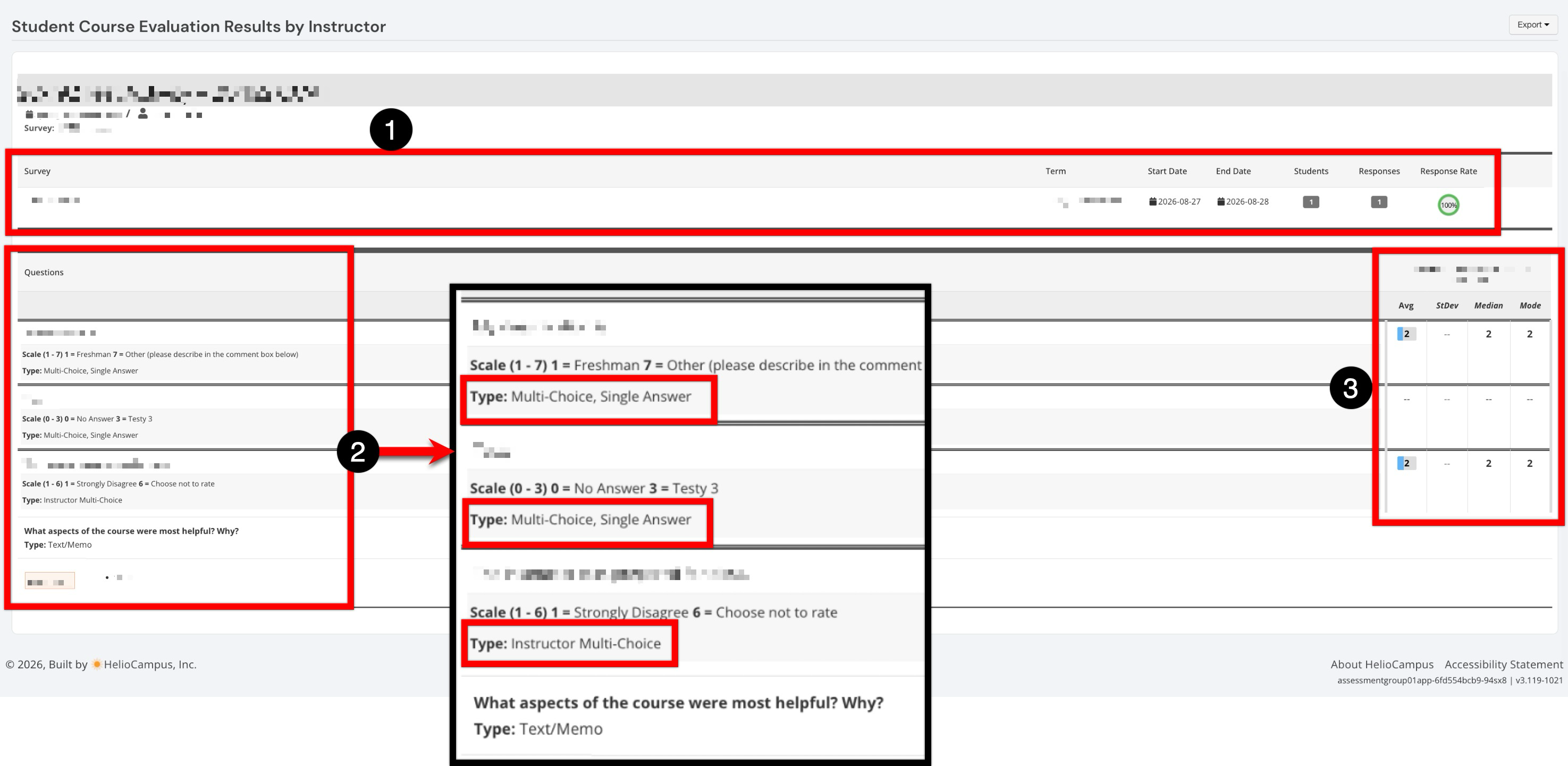
When the Order Questions By parameter is set to Type, the report organizes questions by question type rather than their original sequence in the survey. This grouping makes it easier to review similar response formats together. The survey summary section identifies the survey information, the number of students and responses, and the overall response rate (1). This information provides context for the results and indicates the level of participation represented in the report. The Questions section displays the question text, response scale when applicable, and question type (2). Questions are organized by types such as Multi-Choice, Single Answer, Instructor Multi-Choice, and Text/Memo, allowing quantitative and open-ended results to be reviewed by response format. Depending on the question, the report may also display the response scale and question type, such as multiple choice, single answer, or text/memo. This makes it possible to interpret the reported values against the available response options. The results section aligns each question with its associated response data (3). Quantitative questions display a response-distribution bar and summary statistics including:
-
Avg: The average score; the sum of the responses divided by the total number of responses.
-
StDev: The standard deviation; a measurement of the variation in the response set.
-
Median: The median score; the value at the midpoint of the response frequency distribution.
-
Mode: The value that survey participants most commonly selected.