
📙 Knowledge Base Tip: Reviewing the Report Library article before utilizing any reports is recommended.
This report provides comprehensive visibility into program enrollment data, enabling audits of students enrolled in experiences associated with a particular program. The Program Enrollment Audit enables Institutions to track and analyze student enrollment patterns across programs, supporting enrollment management and program planning activities. User roles with permissions to utilize this report include:
-
College Admin
-
Department Admin
-
Institution Admin
-
Program Coordinator
Product Tip
Users with Organizational Hierarchy roles (e.g., Institutions Admin, College Admin, etc.) will only see the business objects (colleges, departments, courses, etc.) to which they are associated. For example, College Admins can configure report parameters and view report results only for the course sections associated with the colleges for which they are assigned the admin role.
Use Cases
|
Program Viability and Resource Allocation Analysis |
|
A dean conducting annual program review uses the Program Enrollment Audit to assess enrollment trends across college programs over several years. The report reveals one program has steady growth with strong course enrollment and completion rates, while another shows declining enrollment with several low-enrollment sections. |
|
Student Degree Progress Verification and Advising Support |
|
A Program Coordinator runs the Program Enrollment Audit for the current term to verify students are enrolled in required program experiences. The report reveals three majors are not enrolled in any courses this term, suggesting they may have stopped out, and five junior-level students are only enrolled in lower-level prerequisites, indicating potential degree progress delays. |
|
Cross-Program Enrollment Pattern Research for Curriculum Design |
|
An institutional researcher supporting curriculum redesign runs the Program Enrollment Audit for three programs across multiple terms. The raw data export reveals 30% of the majors enroll in one course while 25% of majors take electives. The researcher cross-references student IDs to map enrollment patterns, and the findings support creating a new certificate from all three programs. |
Considerations
-
Students should have degree information populated in their records for complete reporting (the report may not count students without assigned degrees). If student degree information is not provided in the Student data file, the report output will not display degree information.
-
This report shows students enrolled in experiences (courses and co-curricular activities) associated with specific programs, not just students declared in those programs. Use this report for enrollment auditing and pattern analysis, not for official roster management.
-
Parent and child (linked) course sections display enrollment separately, showing the true source section of each enrollment.
-
Completion data may be blank for in-progress enrollments and will only show True/Success or False/Not Successful for completed courses.
Parameters
|
Parameter |
Details |
|---|---|
|
Term |
Optional. When selecting terms, select the term(s) for which the data were collected. Multi-select, select all, and deselect all functionality is available. |
|
Optional. These parameters are useful for narrowing results and more easily configuring the Program parameter. |
|
Program |
Optional. This parameter helps narrow results. The available options depend on the selection(s) made via the previous parameters. Multi-select, select all, and deselect all functionality is available. |
|
Hide Selected Parameters in Report Results (Default unchecked) |
When enabled, the parameters configured for the report results will not be included in the report output. When disabled, parameters and their selections will be included in the report output. |
Report Output
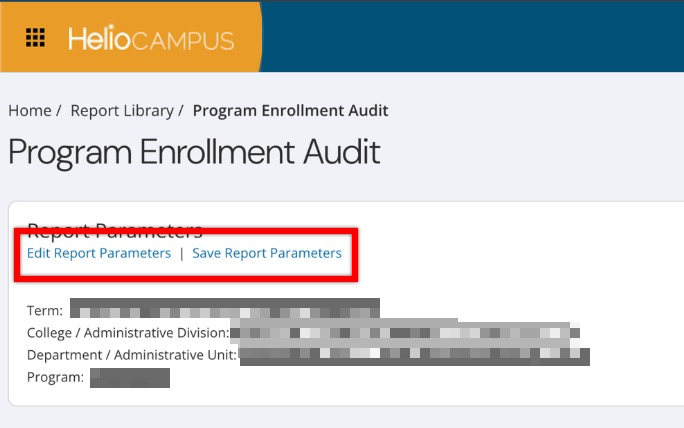
Once report parameters have been configured and Run Report has been clicked, the report output will display below the collapsed read-only view of the report parameters. Clicking Edit Report Parameters will reopen edit capabilities; once parameters have been edited, Run Report can be clicked again to re-generate the report output. Clicking Save Report Parameters will open the Create a New Saved Report pop-up, where the name and description of the new saved report can entered. Once a report has been saved, it will be available via the My Saved Reports tab of the Report Library.
|
|
|---|---|
|
1 |
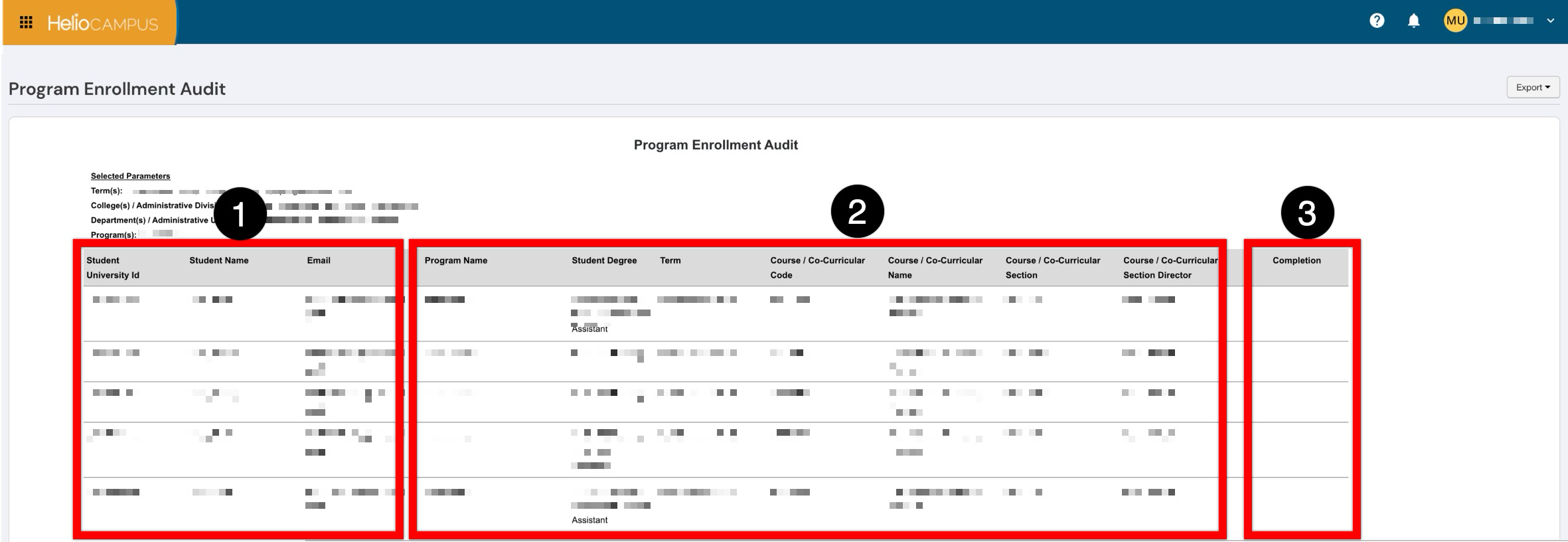
This section displays identifying information for each student enrolled in program experiences. Each row represents a unique student enrollment in a course or co-curricular activity associated with the selected program(s). |
|
2 |
This section provides context about the program and the specific experiences in which students are enrolled. If students have multiple degrees, they will appear comma-separated. Results are organized by term, program, course code, section code, and then by student last name and first name. |
|
3 |
This column shows whether students have completed the experience. If completion was successful, True/Success will display False/Not Successful if the completion record is false, or remains blank if no completion record exists (typically for in-progress enrollments). |