This report provides a comprehensive summary of assessment results across outcomes, aggregated by Organizational Hierarchy. This report displays outcome achievement results by selected aggregate level, such as hierarchy level or program, to support program review, accreditation, institutional effectiveness, and outcome-based reporting.
Product Tip
Users with Organizational Hierarchy roles, such as Institution Admin, College Admin, Department Admin, and Program Coordinator, will only see the business objects they are associated with. For example, College Admins can configure report parameters and view report results only for colleges and related organizational units for which they are assigned the admin role.
Use Case
|
Reviewing Outcome Achievement Across Organizational Levels |
|
Evaluate how students are performing against selected outcomes across a hierarchy level or program. This helps leadership and assessment teams understand achievement trends at the appropriate organizational level. |
|
Supporting Accreditation and Institutional Effectiveness Reporting |
|
Generate aggregate outcome results for selected terms and outcome sets to support accreditation narratives, program review, annual reporting, and institutional effectiveness documentation. Aggregated results reduce manual rollups and provide consistent evidence across hierarchy levels. |
|
Comparing Performance Across Programs or Units |
|
Use aggregate level results to compare outcome performance across colleges, departments, or programs. This helps identify units with strong performance, areas requiring additional review, and opportunities for curricular or assessment improvement. |
Considerations
-
This report is a standalone report designed to show aggregated outcome assessment results. The selected Outcome Set Type determines which Aggregate Level options are available. Aggregate Level cannot be higher than the selected Outcome Set Type, and available aggregate level options may also be limited by the user’s role permissions.
-
If program is selected as the aggregate level, each program displays separately because there is no lower organizational level to aggregate. If selected programs use different numbers of proficiency levels, those programs display separately because their proficiency levels cannot be meaningfully aggregated. Proficiency level colors display according to each program’s configured proficiency levels.
-
When multiple selected terms are combined into an aggregate value, results from those terms are aggregated together in the report output.
-
Entity code is not displayed in the Entity field in the report output. In raw data exports, the entity name and code display as separate fields.
Parameters
|
Parameter |
Details |
|---|---|
|
Outcome Set Type |
Required. Single-select parameter used to determine the type of outcome set included in the report. The selection of this parameter affects the options displayed via the Outcome Set, Outcomes, and Aggregate Level parameters. |
|
Outcome Set |
Required. Only outcome sets associated with the selected Outcome Set Type will display. The selection of this parameter affects the options displayed via the Outcomes parameter. |
|
Outcomes |
Optional. The adaptive search will auto-update search results as they are typed. Multi-select, select-all, and deselect-all functionality is available. Only outcomes associated with the selected Outcome Set parameter selections will display. |
|
Term |
Optional. Multiple terms can be selected to compare or aggregate assessment results across terms. |
|
Combine multiple selected term results into an aggregate value |
Optional. When enabled, results from multiple selected terms are combined into a single aggregate value in the report output. When disabled, results display separately by selected term. |
|
Aggregate Level |
Required. Single-select parameter used to determine the level used to aggregate report results. Available options depend on the selected Outcome Set Type and the user’s role permissions. |
|
Optional. Selections for this parameter are available based on the selected Outcome Set Type, Aggregate Level, and the user’s role permissions. |
|
Student Metadata |
Optional. Campus through High School GPA Parameters. Student metadata parameters are available when student metadata is provided to HelioCampus via data files. These parameters allow users to narrow report results by available student demographic, academic, or profile data included in their institution’s data feeds. |
|
Hide Selected Parameters in Report Results |
Optional. When enabled, the parameters configured for the report results will not be included in the report output. When disabled, parameters and their selections will be included in the report output. |
Report Output
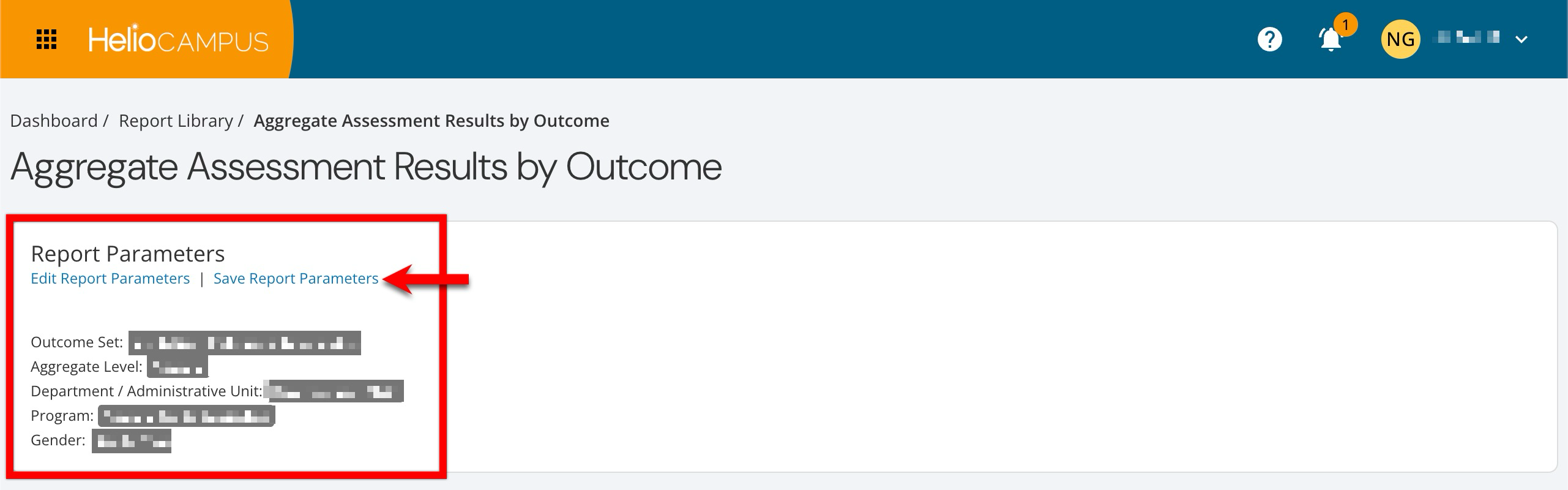
Once report parameters have been configured and Run Report has been clicked, the report output will display below the collapsed, read-only view of the report parameters. Clicking Edit Report Parameters will reopen the parameter editing capabilities. Once parameters have been edited, clicking Run Report again will regenerate the report output with the edited parameters. Clicking Save Report Parameters will open the Create a New Saved Report pop-up, where the name and description can be entered. Once a report has been saved, it will be available via the My Saved Reports tab in the Report Library.
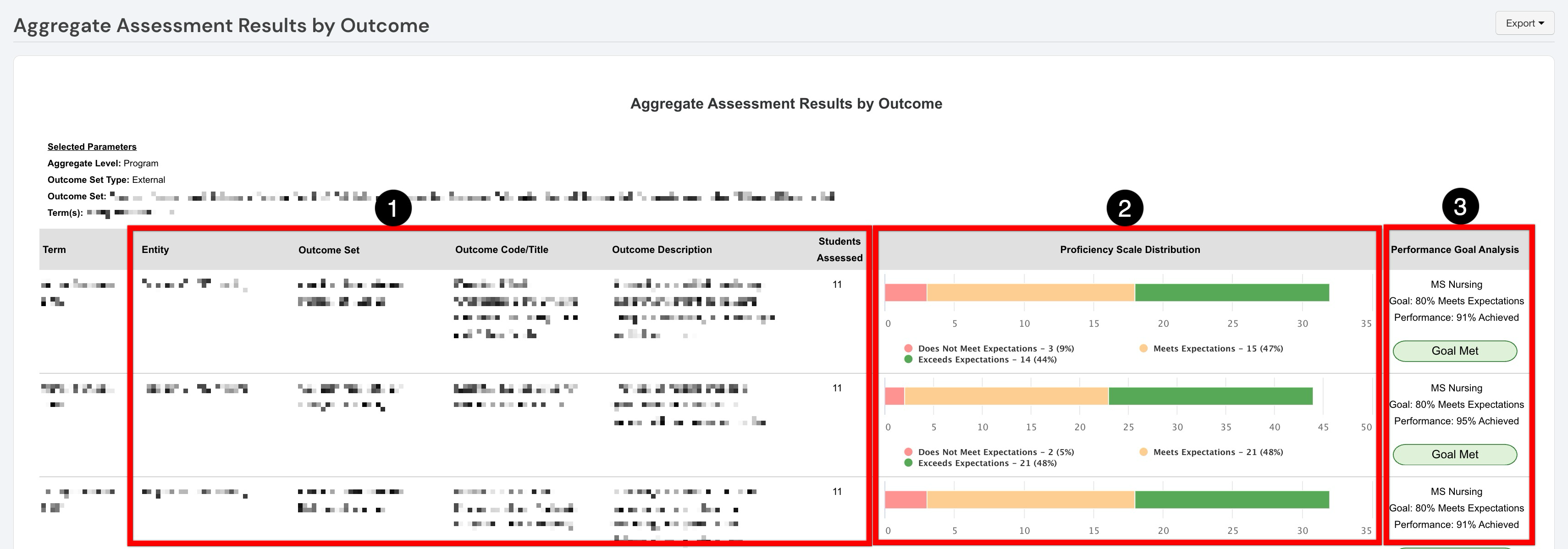
Once generated, the report displays aggregated outcome results for the selected terms, outcome set, and organizational level. Each row represents an outcome assessed for an entity included in the report. Depending on selected parameters, results may display by term or as a combined aggregate value across multiple selected terms. The outcome information section identifies the hierarchy association, outcome details, and the number of students assessed for each reported outcome (1). The Entity column reflects the organizational unit used for aggregation, such as a program, and provides context for where the reported outcome results were collected. The Proficiency Scale Distribution shows how assessment results are distributed across the Does Not Meet Expectations, Meets Expectations, and Exceeds Expectations proficiency levels (2). Each color-coded bar provides a visual comparison, while the legend shows the count and percentage for each proficiency level. The Performance Goal Analysis compares the entity’s aggregated performance with the established outcome goal (3). This section identifies the entity, displays the target percentage and percentage achieved, and indicates whether the result is Goal Met or Goal Not Met. The achieved percentage combines results categorized as Meets Expectations and Exceeds Expectations.