This report reviews student performance on outcomes across an academic year, with options to disaggregate by multiple outcome spaces and student degrees. The report provides a high-level view of program-level outcome assessment goals aggregated by course in a customizable table format.
Product Tip
Users with Organizational Hierarchy roles, such as Institution Admin, College Admin, Department Admin, and Program Coordinator, will only see the business objects they are associated with. For example, College Admins can configure report parameters and view report results only for colleges and related organizational units for which they are assigned the admin role.
Use Case
|
Reviewing Student Achievement by Outcome |
|---|
|
Use this report to evaluate how students performed against selected assessment outcomes. This helps instructors, assessment coordinators, and program leaders identify student-level achievement patterns and determine where additional review or support may be needed. |
|
Analyzing Developmental Level Progression |
|
Filter or review results by developmental level to understand student performance across the progression configured in the assessment. Developmental Level parameter values display in the same order they are configured within the assessment, from lowest to highest, rather than alphabetically. |
|
Supporting Program Review and Continuous Improvement |
|
Generate student outcome achievement evidence for selected assessments, terms, outcomes, and populations to support accreditation, program review, annual reporting, advising conversations, and continuous improvement planning. |
Considerations
-
The available Developmental Level parameter values are based on the selected assessment configuration. Values display in the configured assessment order, which supports progression-based labels such as Level 1, Level 2, and Level 3.
-
The ordering of Developmental Level parameter values affects display order only. It does not change report data, filtering logic, calculations, or the way achievement is determined.
-
Student metadata parameters are available only when student metadata is provided to HelioCampus via data files.
-
If no results display, confirm that the selected parameters align with available assessment results, that the selected outcomes were assessed, and that the user has permission to view the related organizational units and student data.
Parameters
|
Parameter |
Details |
|---|---|
|
Outcome Set |
Required. Select the outcome set whose achievement results to include. The selected outcome set narrows the options available in subsequent parameters. |
|
Program |
Required. Select the program associated with the results. When a College, Department, Institution, or External outcome set is selected, one or more programs may be available. When a Program outcome set is selected, its associated program will be selected by default. |
|
Academic Year |
Required. Select the academic year for the report. Only one academic year can be selected at a time. |
|
Educational Experience Category |
Optional. Narrows results to courses assigned to a selected educational experience category within the program. |
|
Developmental Level |
Optional. Narrows results to a specific developmental level when outcomes have been mapped to courses at multiple levels. |
|
Optional. Use these parameters to disaggregate results according to students’ academic programs. Multiple values may be selected. Availability depends on the student metadata provided to HelioCampus. |
|
Courses |
Optional. Determines which courses appear in the report.
|
|
Course Direction |
Optional. Controls the report output orientation.
|
|
Student Demographic Filters |
Optional. Student metadata parameters are available when student metadata is provided to HelioCampus via data files. These parameters allow users to narrow report results by available student demographic, academic, or profile data included in their institution’s data feeds. |
|
Hide Selected Parameters in Report Results |
Optional. When enabled, the parameters configured for the report results will not be included in the report output. When disabled, parameters and their selections will be included in the report output. |
Report Output
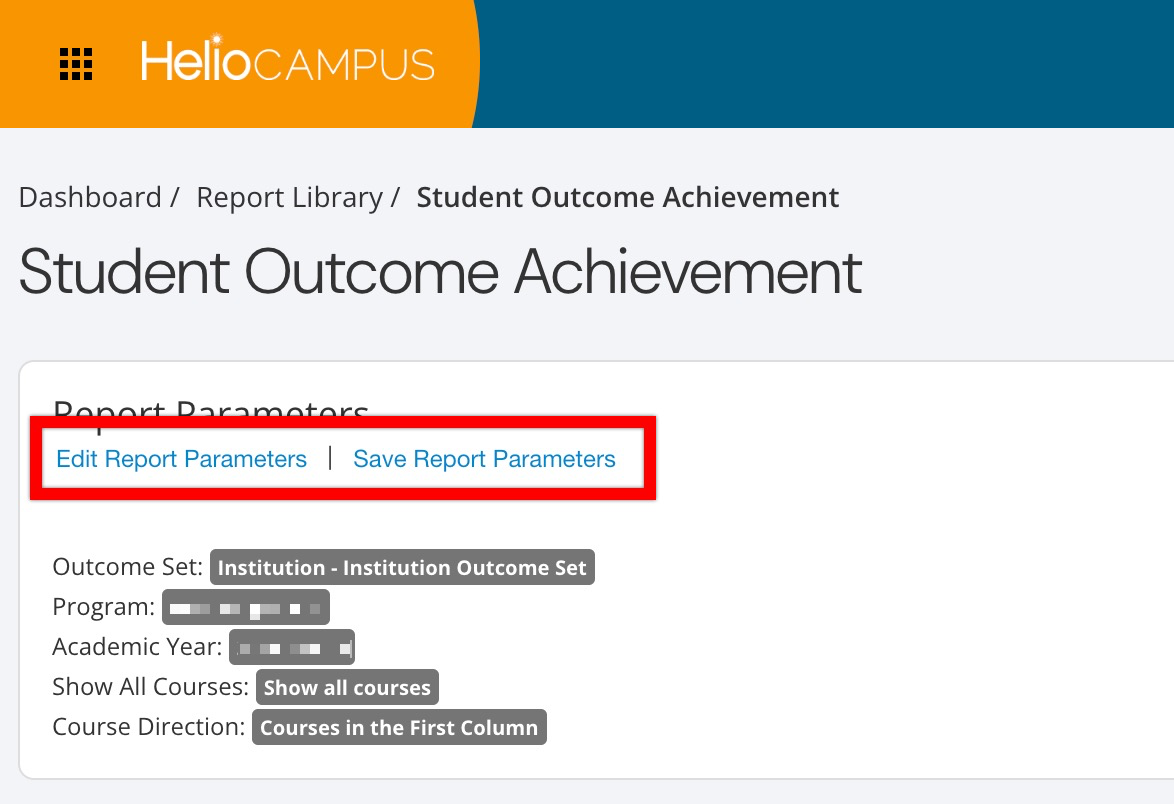
Once report parameters have been configured and Run Report has been clicked, the report output will display below the collapsed, read-only view of the report parameters. Clicking Edit Report Parameters will reopen the parameter editing capabilities. Once parameters have been edited, clicking Run Report again will regenerate the report output with the edited parameters. Clicking Save Report Parameters will open the Create a New Saved Report pop-up, where the name and description can be entered. Once a report has been saved, it will be available via the My Saved Reports tab in the Report Library.
Once generated, the report displays each row representing a student outcome result included in the selected report parameters. The output can be used to identify which students achieved the selected outcomes, review achievement patterns across developmental levels, and export student-level evidence for additional analysis or documentation. Developmental levels appear in the same configured order used by the assessment so users can interpret progression-based results consistently.
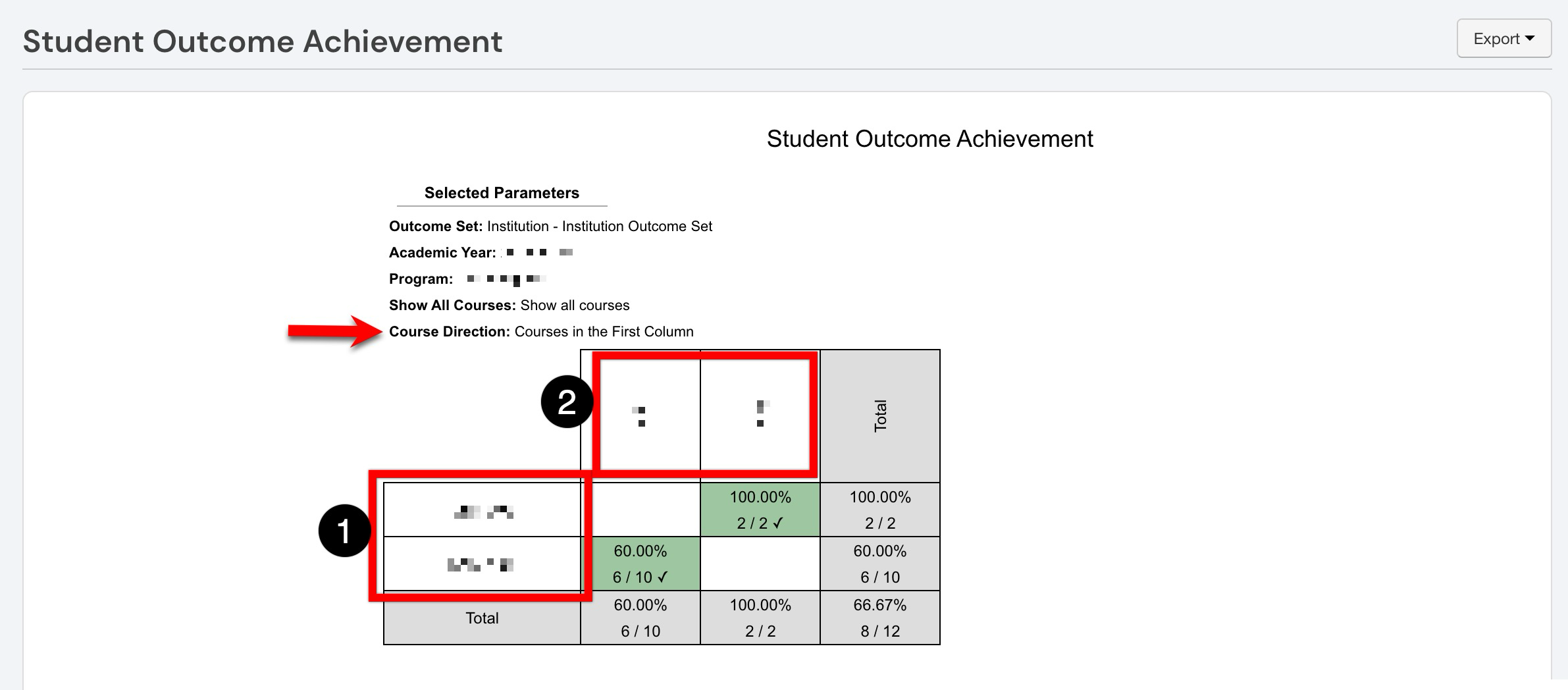
In this example, Course Direction is set to Courses in the First Row, so the selected courses are displayed horizontally across the top of the table (2), while the applicable outcomes are listed vertically along the left side (1). Selecting Courses in the First Column reverses this orientation. Each intersecting cell shows the percentage and number of students who met the proficiency goal for that course and outcome. For example, 6/10 indicates that 6 of the 10 assessed students met the goal, resulting in 60%. Cells highlighted in green indicate that the outcome’s established achievement goal was met. Blank cells indicate that no applicable assessment results are available for that course-outcome combination. The Total row and column aggregate the results across the displayed courses and outcomes.
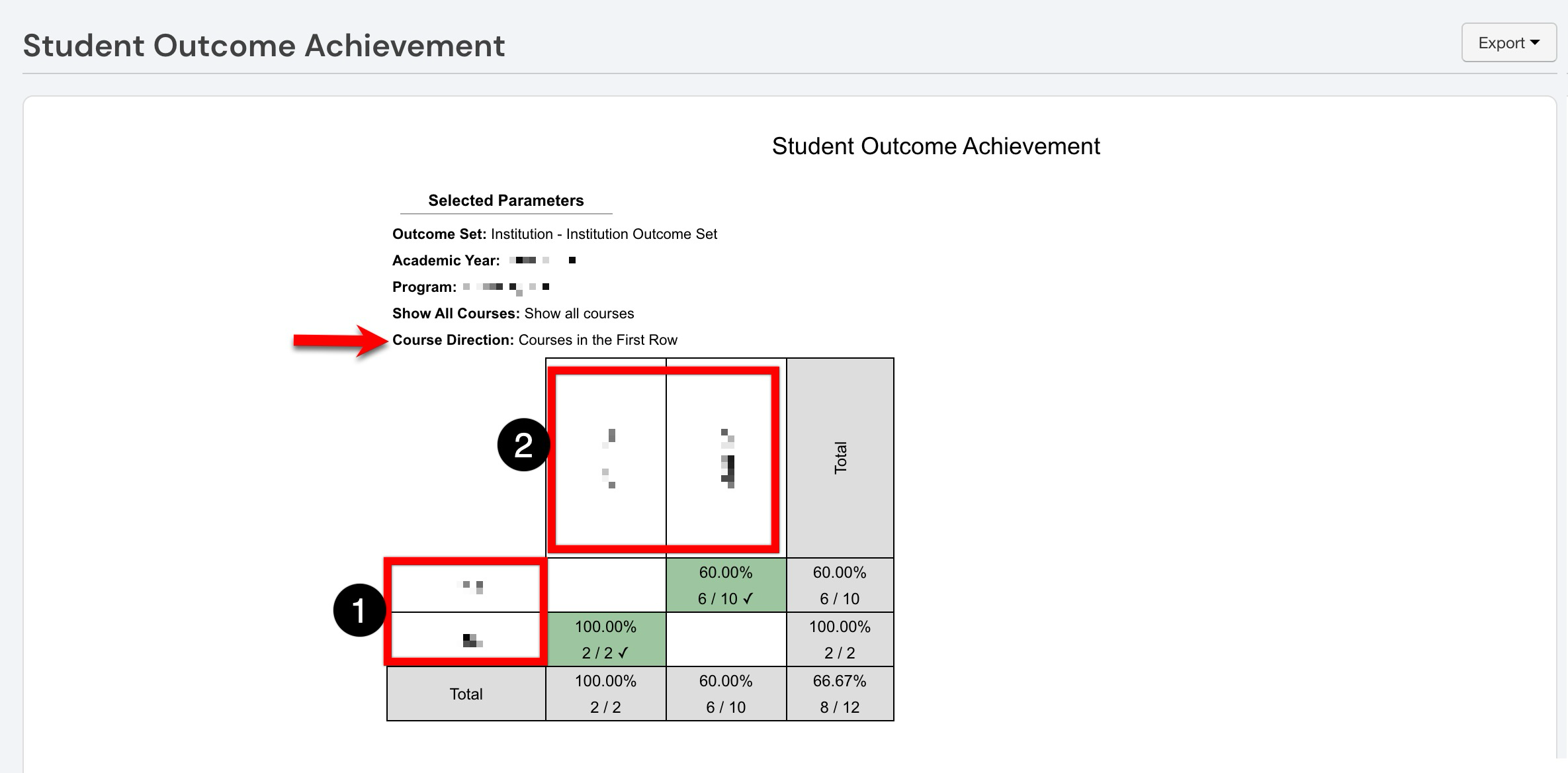
In this example, the Course Direction parameter is set to Courses in the First Column, so the selected courses are listed vertically along the left side of the table (1), while the applicable outcomes are displayed horizontally across the top (2).