
The Assignment Linking Audit facilitates the examination of outcome mappings and assignment linking in specific sections by term, detailing mapped outcomes, related outcomes, performance indicators, and assignment–outcome weightings. This report belongs to the Assignment Reports category and is accessible from Analytics > Report Library > Assignment Reports > Assignment Linking Audit Report.
User roles with permissions to utilize this report include:
-
College Admin
-
Course Coordinator
-
Course Designer - College
-
Course Section Director
-
Department Admin
-
Department Committee
-
Institution Admin
-
Instructor
Product Tip
Users with hierarchy roles (e.g., Institution Admin, College Admins, etc.) will only see the business objects (Colleges, Departments, courses, etc.) to which they are associated. For example, College Admins can configure report parameters and view report results for the course sections associated with the colleges for which they are assigned the admin role.
Use Cases
|
Identify Misaligned or Missing Outcome-To-Assignment Links |
|
During assessment reviews, it is common to discover that assignments are not properly linked to the expected outcomes. The "Broken Linked" selection highlights assignments where the expected outcome linkage is incomplete, while the "Valid Linked" selection confirms that mappings are properly configured. |
|
Review Assignment Weighting Relative To Outcomes |
|
Assessment committees need to verify that assignment weights and rubric criteria weights align with the intended emphasis on program outcomes. This report displays both assignment weight and rubric-criteria weight, along with outcome mappings. |
|
Compare Assignment Configurations Across Sections Of The Same Course |
|
When multiple sections offer the same course, coordinators can use this report to review whether assignment-outcome mappings are consistent across sections and instructors. |
Considerations
-
Assessment Type Selection Affects Outcome Display: Choosing Program shows only program-level outcome (PLO) mappings. Choosing CLO shows only course-learning-outcome mappings. Selecting Both displays all mappings. Select the appropriate type based on the level of analysis needed.
-
Result Type Controls Granularity: The Result Type parameter toggles between displaying data at the Outcome level or the Learning Indicator level. Choose based on the required granularity of analysis.
-
Shows Assignment Configuration and Mapping, Not Individual Student Scores: For student-level scoring data, use the Assignment Scoring Results report.
Best Practices
-
Use the Broken Linked parameter options as a data quality check before running assessment analyses that depend on outcome mappings.
-
Start with both assessment types for a comprehensive view, then drill down to program or CLO as needed.
-
Filter by specific programs to focus analysis on accreditation-relevant outcome mappings.
-
Export large result sets to CSV for further analysis in a spreadsheet tool.
Report Parameters
|
Parameter |
Required |
Description & Visibility Limitations |
|---|---|---|
|
Parameters are listed in alphabetical order |
||
|
Assessment Level |
Optional |
Controls which type of outcome mappings are displayed. Selecting a type filters the available Outcomes list. |
|
College / Administrative Division |
Optional |
Filters by college or administrative division. Selecting a college automatically filters the Department, Program, Course, and Course Section parameters. Multiple selections allowed. |
|
Course |
Optional |
Filters to specific courses. Filtered by the selected College, Department, and Program values. Selecting a course automatically filters the Outcomes, Course Section, and Instructor parameters. Multiple selections allowed. |
|
Course Section |
Optional |
Filters to specific course sections. Filtered by the selected Term, Course, Department, and College values. Selecting a section automatically filters the Instructor parameter. Multiple selections allowed. |
|
Department / Administrative Unit |
Optional |
Filters by department or administrative unit. Filtered by the selected College value. Selecting a department automatically filters the Program, Course, and Course Section parameters. Multiple selections allowed. |
|
Educational Experience Category |
Optional |
Filters by the educational experience category within a program. Filtered by the selected Program value. Selecting a category automatically filters the Course parameter. Multiple selections allowed. |
|
Hide Selected Parameters in Report Results |
Optional |
When checked, it hides the selected parameter summary section from the report output. |
|
Instructor |
Optional |
Filters by Instructor assigned to course sections. Filtered by the selected Course Section, Course, and Department selections. Multiple selections allowed. |
|
Linked Assignment Type |
Optional |
Filters by the linked status of assignments. Options:
|
|
Outcome Set |
Optional |
Filters by the outcome set/space. Selecting an outcome set updates the Program and Outcomes parameter. |
|
Outcomes |
Optional |
Filters to specific outcomes. The available options depend on the selected Assessment Type, Program, and Course parameter values. Multiple selections allowed. |
|
Program |
Optional |
Filters by program. Filtered by the selected College, Department, and Outcome Set values. Selecting a program updates the Outcomes, Course, and Educational Experience Category parameter. Multiple selections allowed. |
|
Result Type |
Optional |
Controls the level of outcome detail displayed. |
|
Term |
Required |
Filters by academic term. Multiple terms can be selected. Selecting a term updates the Program, Outcomes, and Course parameters. |
Report Output
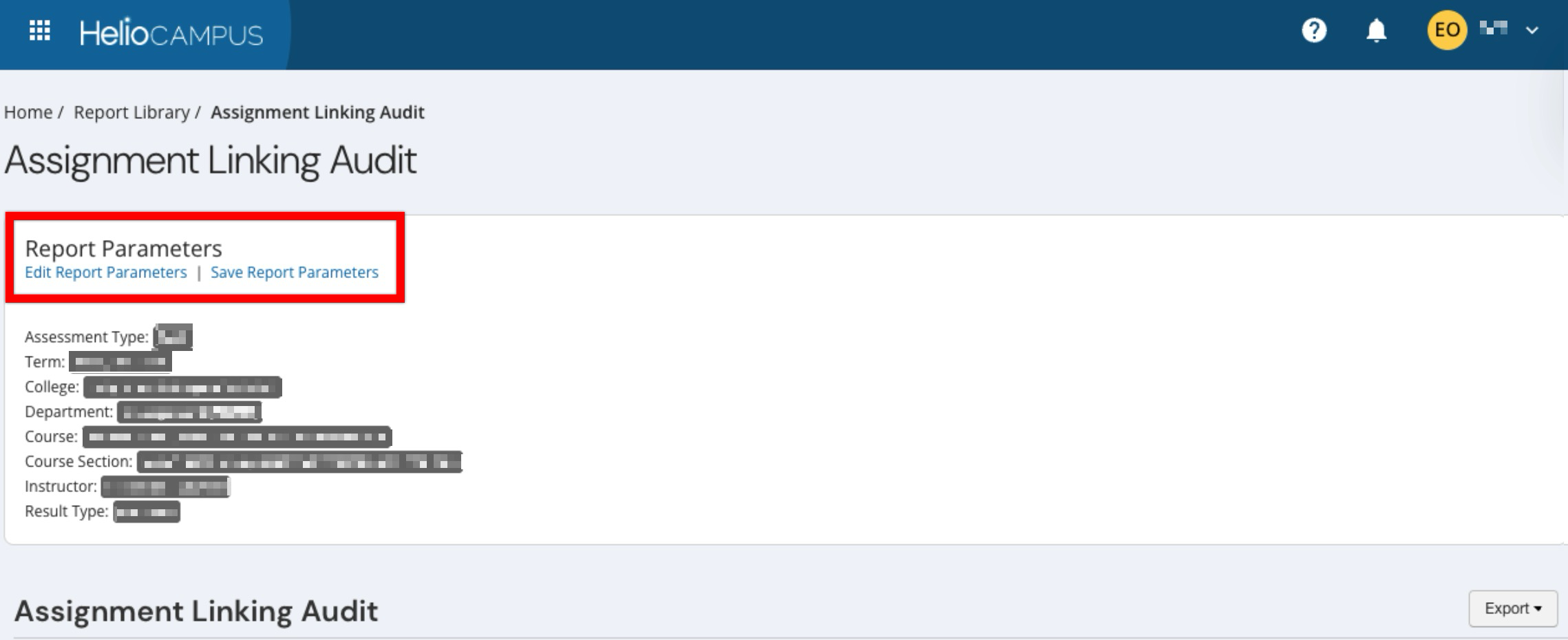
Once report parameters have been configured and Run Report has been clicked, the report output will display below the collapsed read-only view of the report parameters. Clicking Edit Report Parameters will reopen edit capabilities; once parameters have been edited, Run Report can be clicked again to re-generate the report output. Clicking Save Report Parameters opens the Create a New Saved Report pop-up, where the new saved report's name and description can be entered. Once a report has been saved, it will be available via the My Saved Reports tab of the Report Library.
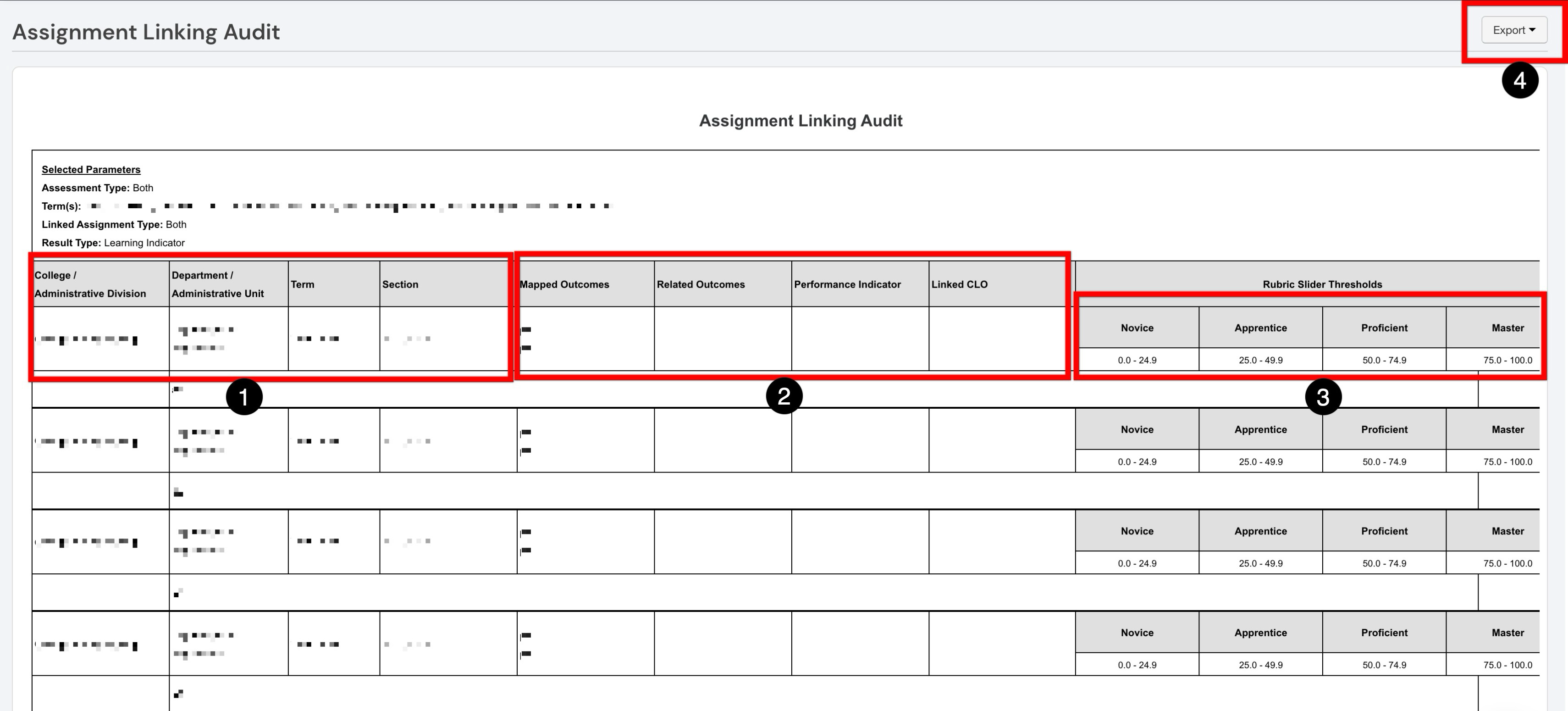
This report provides a detailed view of how assignments are connected to learning outcomes and rubric performance levels. Identifying information for each result is displayed (1), including the college/administrative division, department/administrative unit, term, and section. This helps users understand which academic area, term, and section each row of the report represents. Outcome-linking details for the assignment are provided (2) to help users review whether assignments are connected to the expected outcomes and whether those relationships are documented clearly for assessment purposes. Finally, the Rubric Slider Thresholds section used for the assignment (3) define the score ranges for each performance level. These ranges help users interpret how assignment performance is categorized in the report. The Export menu in the upper-right corner allows users to export the report results for review, sharing, or documentation outside the platform. The report output can be exported (4) to PDF, Excel, CSV formats, or printed. Selecting Save Report as PDF will display a PDF export in the My Document Requests dashboard widget once the request is processed.
If "No Data Returned" is displayed, verify that outcome mappings exist for the selected term, program, and course section combination, and that the Assessment Level and Linked Assignment Type parameters are not overly restrictive.
Frequently Asked Questions
Related Reports
|
Report |
Description |
|---|---|
|
Assignment Detail Audit |
Provides a configuration-focused view of assignments, including dates, enrollment, and rubric criteria setup. |
|
Assignment Scoring Results |
Tracks actual scoring results with statistical measures for each assignment. |
|
Curriculum Map Report |
Visualizes the full outcome mapping at the program level, providing context for the assignment-level mappings shown in this report. |