The Course/Co-Curricular Activity Learning Outcomes Audit provides a comprehensive view of course learning outcomes (CLOs) defined across courses and co-curricular activities within the Institution. It covers CLO presence, count, and status for courses organized by College and Department, enabling users to quickly identify which courses have CLOs defined and which do not. This report belongs to the Course and Course Section Audits category and is accessible from Analytics > Report Library > Course and Course Section Audits > Course Learning Outcomes Audit.
User roles with permissions to utilize this report include:
-
College Admin
-
Course Coordinator
-
Course Designer Roles
-
Course Section Director
-
Department Admin
-
Course Section Director
-
Institution Admin
-
Instructor
-
Survey Admin Roles
-
Teaching Assistant
Product Tip
Users with hierarchy roles (e.g., Institution Admin, College Admins, etc.) will only see the business objects (Colleges, Departments, courses, etc.) to which they are associated. For example, College Admins can configure report parameters and view report results for the course sections associated with the colleges for which they are assigned the admin role.
Use Cases
|
Verify CLO coverage before accreditation reviews |
|---|
|
Institutions preparing for accreditation visits may need to confirm that all active courses have defined course learning outcomes. This report enables administrators to filter by college or department and quickly identify any gaps in CLO documentation before review deadlines. |
|
Monitor CLO adoption across newly created courses |
|
When an Institution introduces new programs or courses, curriculum committees could require visibility into whether CLOs have been properly added. This report allows filtering by course status (e.g., Draft, Published) to track CLO adoption during curriculum development cycles. |
|
Audit departmental compliance with institutional CLO requirements |
|
Assessment offices often mandate that all published courses maintain at least one CLO. By filtering to specific departments and using the Without CLOs filter, administrators can generate targeted compliance reports to share with department chairs. |
|
Support curriculum review and revision processes |
|
During periodic program reviews, faculty committees need a snapshot of which courses in a program have defined learning outcomes. This report provides the baseline data to inform discussions about curriculum alignment and outcome mapping. |
Considerations
-
Course Status Matters: The report can filter by course status (Draft, In Revision, Published). Courses in certain statuses may not yet have CLOs assigned. Consider which statuses are relevant to your audit before running the report.
-
CLO Data Reflects The Course Catalog, Not Individual Sections: This report audits CLOs at the course level, not the course section level. To audit section-level outcomes (including inherited CLOs and section-specific SCLOs), use the Course Section Learning Outcomes Audit instead.
-
Parameter Selection Limits Apply: When parameter selections exceed the platform limit, the report cannot be generated. Narrowing the Term, College/Department, or Course filters to reduce the result set if this limitation is encountered.
Best Practices
-
Run this report at the start of each academic term to identify courses missing CLOs before sections are created.
-
Use the Without CLOs parameter to create a targeted action list for department chairs.
-
Export results to CSV for offline review or sharing with stakeholders who do not have platform access.
-
Combine this report with the Curriculum Map report to validate that CLOs are both defined and properly mapped to program outcomes.
Report Parameters
|
Parameter |
Required |
Description & Visibility Limitations |
|---|---|---|
|
Parameters are listed in alphabetical order |
||
|
College / Administrative Division |
Optional |
Filters courses by college or administrative division. Selecting a college automatically filters the Department / Administrative Unit and Course / Co-Curricular Activity dropdowns. |
|
Course / Co-Curricular Activity |
Optional |
Filters to specific courses using a type-ahead search. Filtered by the selected College and Department values. |
|
Department / Administrative Unit |
Optional |
Filters courses by department or administrative unit. Filtered by the selected College value. Selecting a department automatically filters the Course / Co-Curricular Activity dropdown. |
|
Hide Selected Parameters in Report Results |
Optional |
When checked, it hides the selected parameter summary section from the report output. |
|
Outcomes |
Optional |
Filters courses based on whether they have CLOs defined. Options: All (default), With CLOs, Without CLOs. |
|
Status |
Optional |
Filters courses by their catalog status. Options include: All (default), Draft, In Revision, Published. |
Report Output
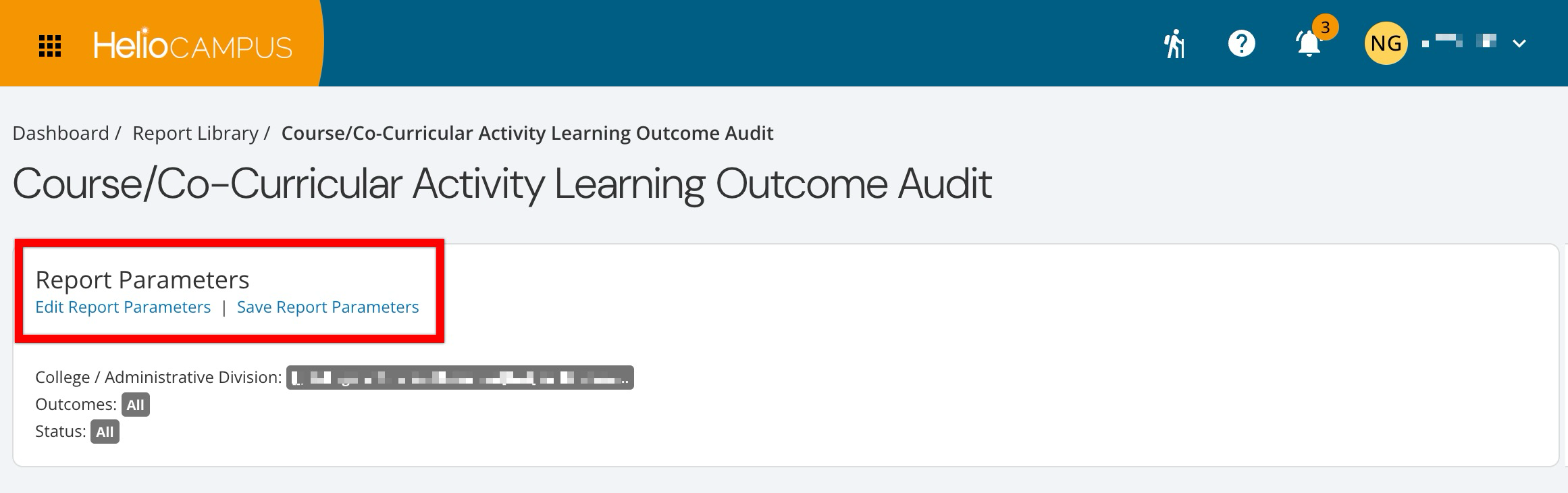
Once report parameters have been configured and Run Report has been clicked, the report output will display below the collapsed read-only view of the report parameters. Clicking Edit Report Parameters will reopen edit capabilities; once parameters have been edited, Run Report can be clicked again to re-generate the report output. Clicking Save Report Parameters opens the Create a New Saved Report pop-up, where the new saved report's name and description can be entered. Once a report has been saved, it will be available via the My Saved Reports tab of the Report Library.
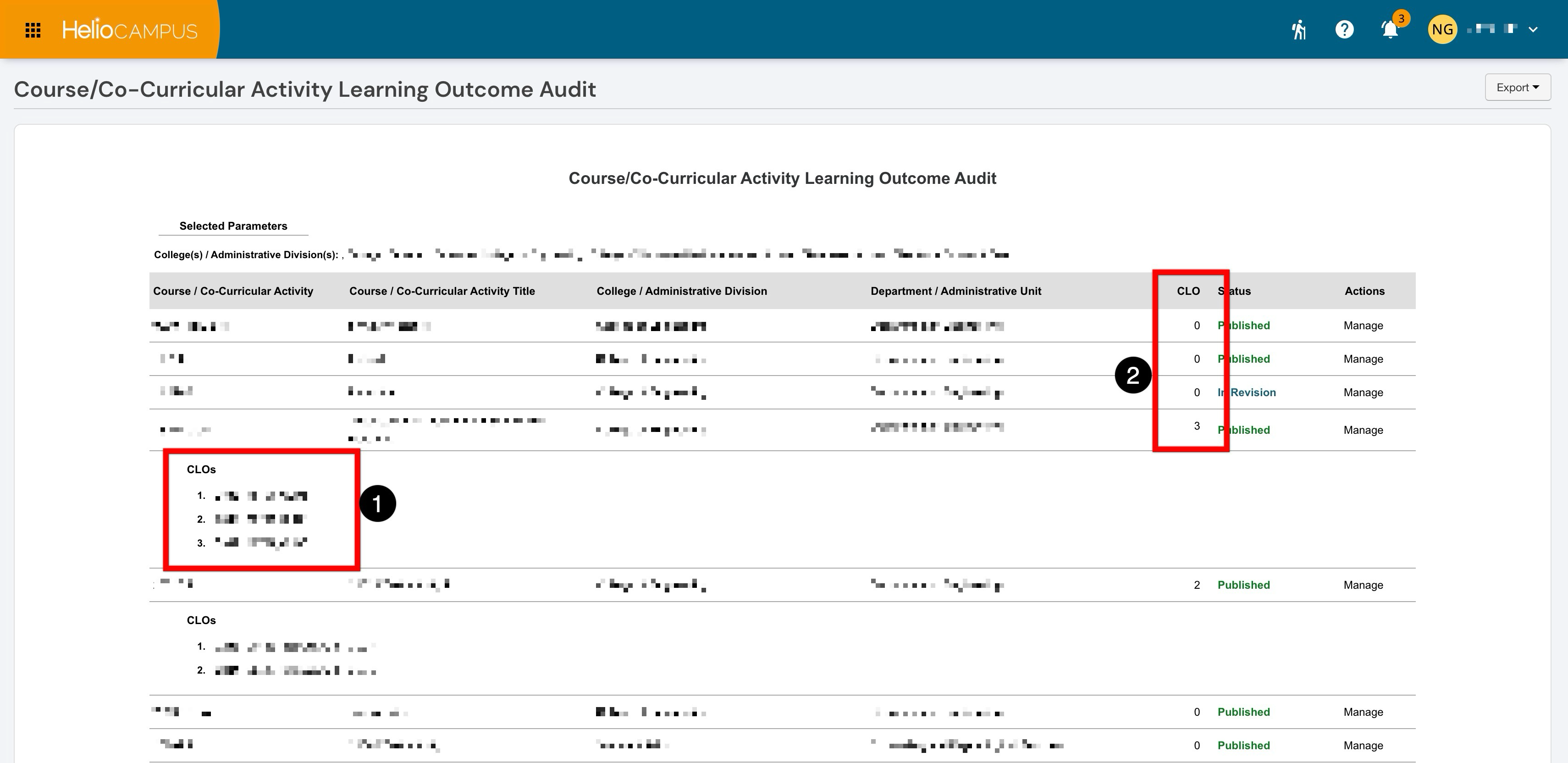
The expanded course/co-curricular activity details (1) display the CLOs associated with the selected item. The CLOs area lists the course learning outcomes connected to that course or co-curricular activity. The CLO column on the right shows the number of course learning outcomes associated with each course or co-curricular activity. When exported to CSV or Excel, the report includes additional detail columns:
-
clo_code: Providing the full text of each individual CLO per section row.
-
clo_description: Providing the full text of each individual SCLO per section row.