
The Assignment Detail Audit is used to view all key details associated with assignments created in HelioCampus Assessment or pulled from the Learning Management System (LMS). This audit includes status, maximum score, start date, end date, scoring due date, enrollment, and assignment rubric criteria. This report belongs to the Assignment Reports category and is accessible from Analytics > Report Library > Assignment Reports > Assignment Detail Audit.
User roles with permissions to utilize this report include:
-
College Admin
-
Course Coordinator
-
Course Designer - College
-
Course Section Director
-
Department Admin
-
Department Committee
-
Institution Admin
-
Instructor
Product Tip
Users with hierarchy roles (e.g., Institution Admin, College Admins, etc.) will only see the business objects (Colleges, Departments, courses, etc.) to which they are associated. For example, College Admins can configure report parameters and view report results for the course sections associated with the colleges for which they are assigned the admin role.
Use Cases
|
Audit Assignment Readiness At the Start of a Term |
|---|
|
Assessment offices need to verify that assignments are properly configured across sections before the scoring period begins. This report enables filtering by term and department to identify assignments that are missing key attributes, such as max scores or rubric criteria. |
|
Identify Broken LMS Assignment Links |
|
When assignments are synced from an LMS, connection issues can result in incomplete data. The Broken Linked assignment type parameter selection highlights assignments where the LMS link is present but critical data (such as max score or LMS data) is missing, enabling targeted troubleshooting. |
|
Review Rubric Criteria Attached to Assignments |
|
Curriculum committees and assessment coordinators need to verify that assignments have appropriate rubric criteria configured. This report displays rubric criteria details (name, description, levels, and points) nested under each assignment. |
Considerations
-
Assignment Level Distinction: This report distinguishes between course-level assignments (templates that propagate to sections) and course-section-level assignments (created directly on a section). The Assignment Level parameter controls which type is included in the report output.
-
LMS-Originated Assignments: Assignments pulled from the LMS will display "LMS Assignment” as the type if no submission type is set. These assignments require a valid LMS link to display complete data.
-
Broken vs. Valid Linked Assignments: Broken Linked identifies assignments where either the max score is zero/missing, or the LMS link exists but LMS data is absent; Valid Linked shows the complement. The Linked Assignment Type parameter and these selections are useful for data quality audits.
-
Permission Scoping: The report automatically scopes results to course sections the user has permission to view based on their role assignment. Results may vary between users even with the same parameter selections.
Best Practices
-
Run this report at the beginning of each assessment cycle to confirm assignments are fully configured.
-
Use the Broken Link parameter option after LMS sync operations to identify and resolve integration issues.
-
Filter by assignment level to separately review course-level templates and section-specific assignments.
-
Export to CSV for large result sets to facilitate offline review and sharing with faculty.
Report Parameters
|
Parameter |
Required |
Description & Visibility Limitations |
|---|---|---|
|
Parameters are listed in alphabetical order |
||
|
Assignment Level |
Optional |
Controls whether the report includes course/co-curricular activity-level assignments, course/co-curricular section-level assignments, or both. |
|
College / Administrative Division |
Optional |
Filters assignments by college or administrative division. Selecting a college automatically filters the Department/Administrative Unit and Course parameters. |
|
Course/Co-Curricular Activity |
Optional |
Filters to specific courses/activities using a type-ahead search (up to 15 selections). Filtered by the selected College and Department parameter selections. |
|
Course/Co-Curricular Section |
Optional |
Filters to specific sections using a type-ahead search (up to 15 selections). Filtered by the selected Term and Department parameter selections. |
|
Department / Administrative Unit |
Optional |
Filters assignments by department or administrative unit. Filtered by the selected College parameter selection. Selecting a Department automatically filters the Course dropdown. |
|
Hide Selected Parameters in Report Results |
Optional |
When checked, it hides the selected parameter summary section from the report output. |
|
Linked Assignment Type |
Optional |
Filters by the linked status of assignments. Options include:
|
|
Term |
Required |
Filters assignments by academic term. Multiple terms can be selected. |
Report Output
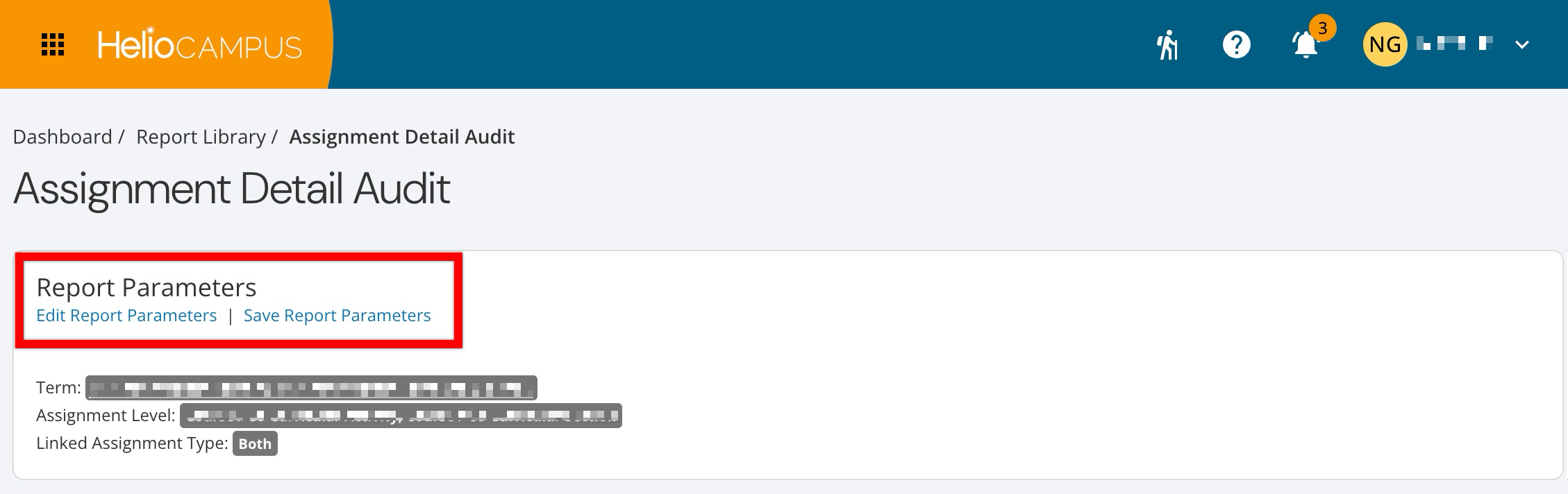
Once report parameters have been configured and Run Report has been clicked, the report output will display below the collapsed read-only view of the report parameters. Clicking Edit Report Parameters will reopen edit capabilities; once parameters have been edited, Run Report can be clicked again to re-generate the report output. Clicking Save Report Parameters will open the Create a New Saved Report pop-up, where the name and description of the new saved report can be entered. Once a report has been saved, it will be available via the My Saved Reports tab of the Report Library.
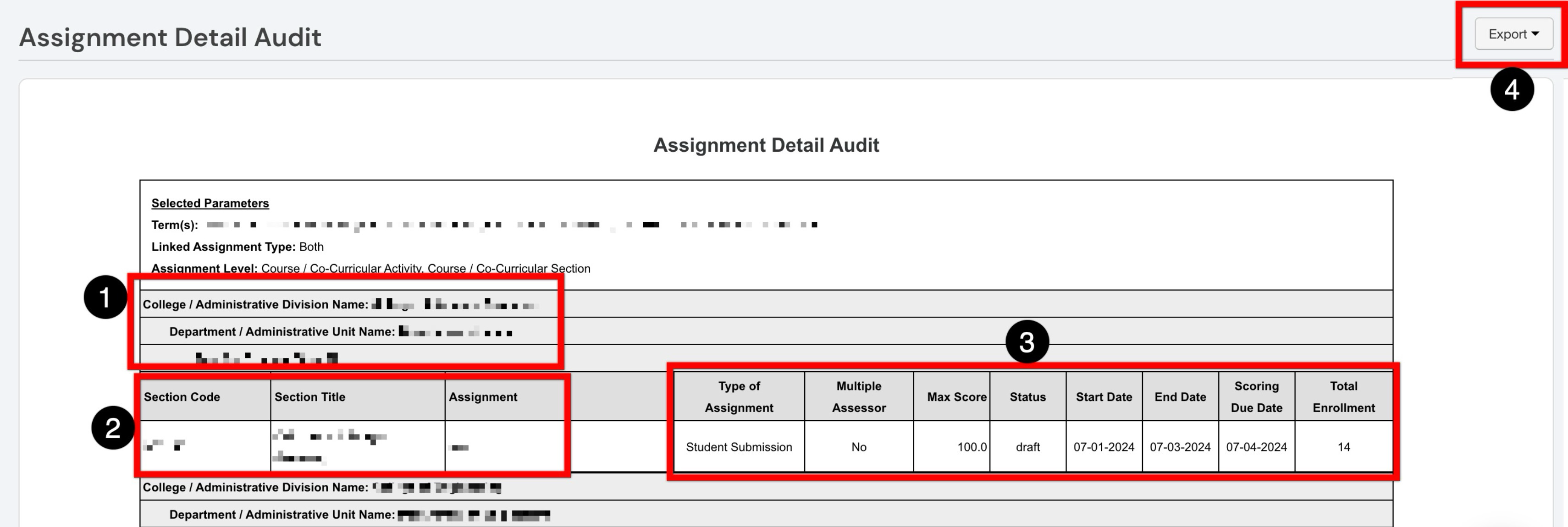
The report output is grouped by college/administrative division, then department/administrative unit, then term and course/co-curricular activity name (1). Identifying information for each assignment (2), including assignment name, and the course/co-curricular activity or section with which it is associated. Configuration details are also available for each assignment (3), including assignment type, status, start date, end date, due date, assessment method (single vs. multiple assessors), and maximum score. If "No Data Returned" is displayed, verify that assignments exist for the selected term and that the Assignment Level and Linked Assignment Type filters are not overly restrictive.
The report output can be exported (4) to PDF, Excel, CSV formats, or printed. Selecting Save Report as PDF will display a PDF export in the My Document Requests dashboard widget once the request is processed.
For assignments with rubric criteria, a nested detail section appears below the assignment row, showing:
-
Rubric Criteria: The name and description of each rubric criterion.
-
Rubric: The rubric level name.
-
Level: The rubric level value.
-
Points: The point value for the rubric level.