
Assess student performance on Course Learning Outcomes (CLOs) collected as a part of Course or Program Assessment(s). This report offers a high-level view of student achievement on CLOs for selected terms. User roles with permissions to utilize this report include:
-
College Admin
-
Course Coordinator
-
Department Admin
-
Institution Admin
-
Program Coordinator
Product Tip
Users with Organizational Hierarchy roles (e.g., Institutions Admin, College Admin, etc.) will only see the business objects (colleges, departments, courses, etc.) to which they are associated. For example, College Admins can configure report parameters and view report results only for the course sections associated with the colleges for which they are assigned the admin role.
Use Cases
|
Program Improvement |
|
Identify which CLOs are underperforming within a program or specific course to drive targeted instructional changes. Filtering by term and program and comparing CLO achievement across recent terms can help identify CLOs consistently below the benchmark. Program and Course Coordinators can use this data to develop an action plan for each CLO, with aligned changes to assignments, rubrics, or instructional support, and to follow up in the next term’s run. |
|
Course Coordinator Review of Student CLO Performance |
|
Demonstrate evidence of student learning at scale and document continuous improvement for accreditation or external review. Using this report, institution-wide CLO achievement summaries across selected terms can be reviewed to highlight improvements since previous cycles. This provides an accreditation-ready narrative with high-level CLO achievement and variability across. |
Considerations
-
Data Scope and Quality:
-
Note differences in rubrics, performance levels, and scoring scales that can affect comparability.
-
Document when CLOs, rubrics, or mappings changed so trend comparisons are fair.
-
-
Aggregation: Understand whether results aggregate by course, section, and how cross-listed or multi-section courses are combined.
Parameters
|
Parameter |
Details |
|---|---|
|
Term
|
Required. When selecting terms, select the term(s) where the data was collected. |
|
Combine Multiple Selected Term Results Into An Aggregate Value |
Optional. When enabled, the report output combines the results from all selected terms into a single aggregated value to show overall performance across multiple terms in a single row. |
|
Required. These parameters are useful for narrowing results and more easily configuring the Course/Co-Curricular Activity and the Course/Co-Curricular Section parameters. |
|
Show Results of Courses By |
Required. Allows users to run results either by course or by program, with available course selections automatically limited to courses aligned to the chosen program(s) |
|
Program |
Required. This parameter helps narrow results and more easily configure the Course/Co-Curricular Activity and Course/Co-Curricular Section parameters. The available options depend on the selection(s) made via the previous required parameters and any optional parameters that have been configured. Multi-select, select all, and deselect all functionality is available. |
|
Optional. Multiple selections can be made. Selections in the Course/Co-Curricular Activity will determine the available options for the Course/Co-Curricular Section parameter. |
|
Report View |
Required.
|
|
Display Results as a Section-Level Drilldown |
Optional. When enabled, the report output separates results by individual course/co-curricular instead of showing only aggregated values. This can make it easier to compare performance and review section-level differences. |
|
Optional. The primary campus code and delivery mode code; these are the same codes provided in the Course Section data file . |
|
Course/Co-Curricular Learning Outcome (CLOs/SCLOs) |
Optional. Use this parameter to choose which specific CLOs/SCLOs to include in the report. Selections will depend on the configuration of the Course/Co-Curricular Activity and Course/Co-Curricular Section parameters. When outcomes are selected, the report output filters its results to show assessment data only for those CLOs/SCLOs. |
|
Hide Parameters in Report Results |
When enabled, the parameters configured for the report results will not be included in the report output. When disabled, parameters and their selections will be included in the report output. |
Product Tip
When student metadata is provided to HelioCampus via data files, additional report parameters are available to configure student-specific data:
-
Age
-
Ethnicity
-
Gender
-
Home State
-
Highschool GPA
-
Cumulative GPA
-
Athletic Status
-
Number of Terms
-
Student Degree
-
Student Minor
-
Student Concentration
-
Class Level
-
ACT English Score
-
ACT Math Score
-
ACT Total Score
-
SAT Math Score
-
SAT Verbal Score
-
SAT Total Score
Report Output
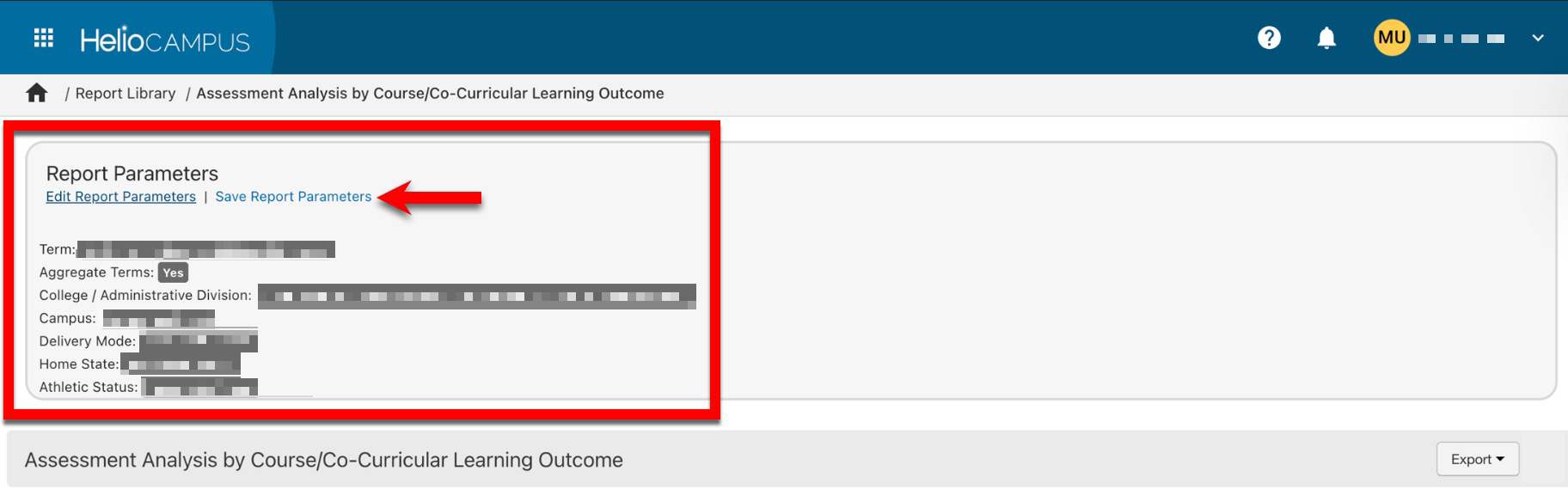
Once report parameters have been configured and Run Report has been clicked, the report output will display below the collapsed read-only view of the report parameters. Clicking Edit Report Parameters will reopen edit capabilities; once parameters have been edited, Run Report can be clicked again to re-generate the report output. Clicking Save Report Parameters will open the Create a New Saved Report pop-up, where the name and description of the new saved report can be entered. Once a report has been saved, it will be available via the My Saved Reports tab of the Report Library.
|
|
|---|---|
|
1 |
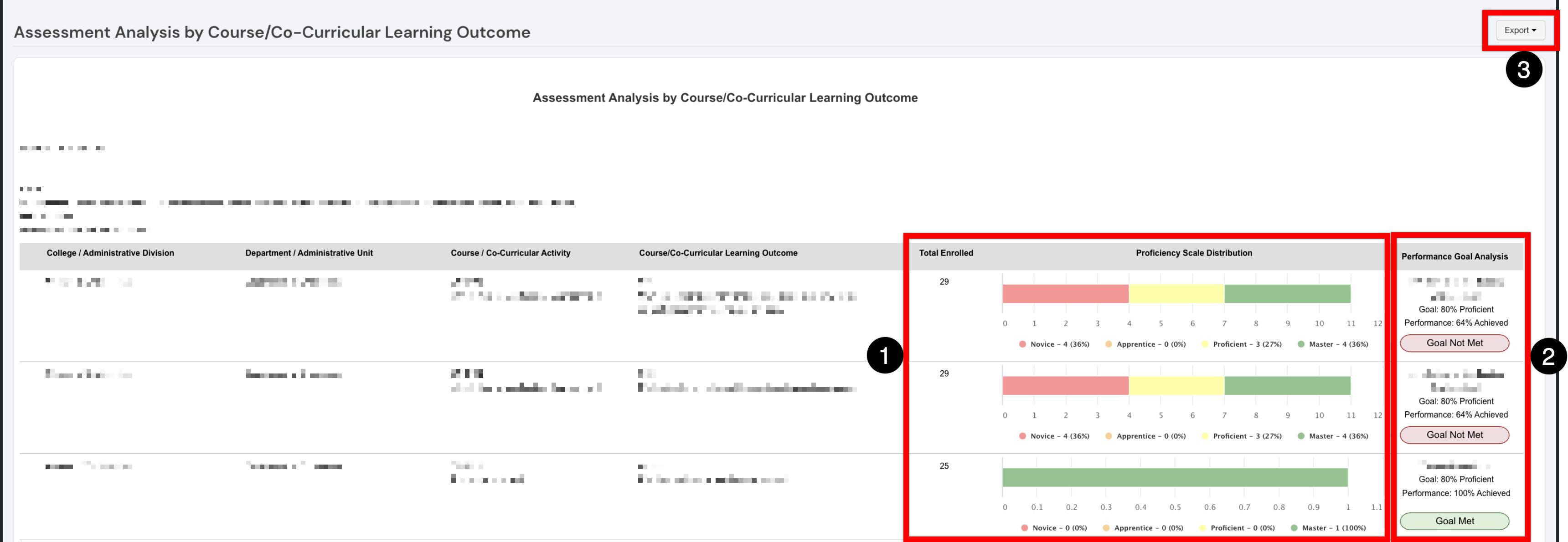
The total number of students enrolled and a visual representation of how student performance is distributed across different proficiency levels. The enrolled count may differ from the distribution count. The Total column displays the total number of students enrolled in the section(s), whereas the distribution column displays the total number of enrolled students who were assessed. |
|
2 |
This column displays the expected performance goal for each outcome and compares it to the achieved performance result. A Goal Met indicator displays when the achieved result meets or exceeds the configured goal, while Goal Not Met displays when the result falls below the goal. |
|
3 |
The report output can be exported to PDF, CSV, Word, or Excel formats or printed. |