
The Assignment Scoring Results report tracks the scoring of Heliocampus and Learning Management System (LMS) Assignments. LMS Assignments appear only when linked to an outcome within the platform, and their scoring details are pulled directly from the LMS site. The report includes assignment details such as scoring by multiple assessors, assignment status, maximum score, minimum and maximum points, mean, median, standard deviation, mode, number of submissions, total enrollment, number of scored submissions, and a breakdown of rubric criteria. This report belongs to the Assignment Results category and is accessible from Analytics > Report Dashboard > Assignment Results > Assignment Scoring Results. User roles with permissions to utilize this report include:
-
College Admin
-
Course Coordinator
-
Course Designer - College
-
Course Section Director
-
Department Admin
-
Department Committee
-
Institution Admin
-
Instructor
Product Tip
Users assigned to hierarchy-based roles can only view report data within the areas of the Organizational Hierarchy where their role assignment provides access. Report results may vary based on the user’s role, assigned college or administrative unit, department or administrative division, course, or course section.
Use Cases
|
Monitor Scoring Progress Before Deadlines |
|
Institutions can use this report to identify assignments with submissions that have not yet been fully scored. Departments managing many course sections can review scoring completion at scale rather than checking assignments individually. The report helps academic leaders determine where follow-up may be needed before using results for assessment analysis. |
|
Review Assignment Performance Trends |
|
Institutions can use this report to understand how students performed on individual assignments across selected courses, course sections, or terms. Score statistics help reviewers identify patterns in student achievement. These results can support conversations about assignment design, rubric expectations, and learning outcome performance. |
|
Compare LMS and HelioCampus Assignment Results |
|
Institutions that use both HelioCampus-created assignments and LMS-synced assignments can use this report to review scoring data in one reporting workflow. LMS assignments are included when they are linked to outcomes in HelioCampus, allowing assessment teams to use LMS activity as part of outcomes assessment. The report supports Institutions where the LMS is the scoring source of truth, while HelioCampus is used for assessment reporting and analysis. |
Considerations
-
Outcome-Linked LMS Assignments: LMS assignments display in the report when they are linked to an outcome in HelioCampus. If expected LMS assignment data does not appear, confirm that the assignment is linked to an outcome and that scoring data is available from the LMS.
-
Role-Based Visibility: Report data is scoped by the user’s permissions and hierarchy role assignment. A user may not see all colleges, departments, courses, or course sections available to other users.
-
Course-Level Versus Section-Level Output: The report can display results for course assignments, course section assignments, or both. The selected assignment level determines how broadly results are grouped.
Best Practices
-
Run the report before major assessment deadlines to identify assignments that still need scoring.
-
Use term, college, department, course, and course section filters together when reviewing large volumes of assignment data. Select Both when a review needs to include assignment activity at both the course and course section levels.
-
Compare submission and scored counts to distinguish between missing student submissions and incomplete scoring.
-
Review rubric criteria details alongside summary statistics to better understand the distribution of student performance.
Report Parameters
|
Parameter |
Description |
|---|---|
|
Assignment Level |
Required. Controls whether the report displays course-level assignment results, course section-level assignment results, or both formats. |
|
Optional Filters report results by one or more Organizational Hierarchy levels. |
|
Optional Filters report results by one or more courses. Users can search for courses by name or code. |
|
Term |
Required Filters report results by one or more academic terms. |
|
Hide Parameters in Report Results |
Optional Controls whether selected report parameters appear in the report output. When enabled, configured parameters are hidden from the output. When disabled, parameters and selected values are included in the output. This setting affects display only and does not change which data is returned. |
Report Output
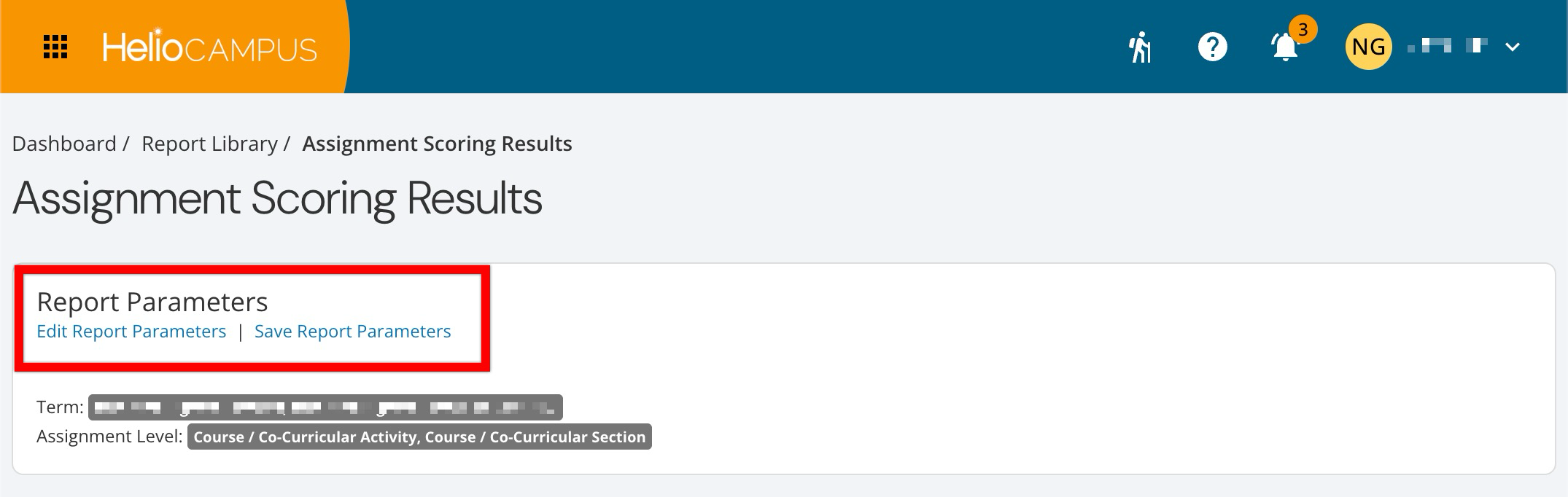
Once report parameters are configured and Run Report is clicked, the report output displays below the collapsed, read-only view of the report parameters. Clicking Edit Report Parameters reopens edit capabilities; after parameters have been edited, clicking Run Report again regenerates the report output. Clicking Save Report Parameters opens the Create a New Saved Report pop-up, where the new saved report's name and description can be entered. Once a report is saved, it will be available in the My Saved Reports tab of the Report Library.
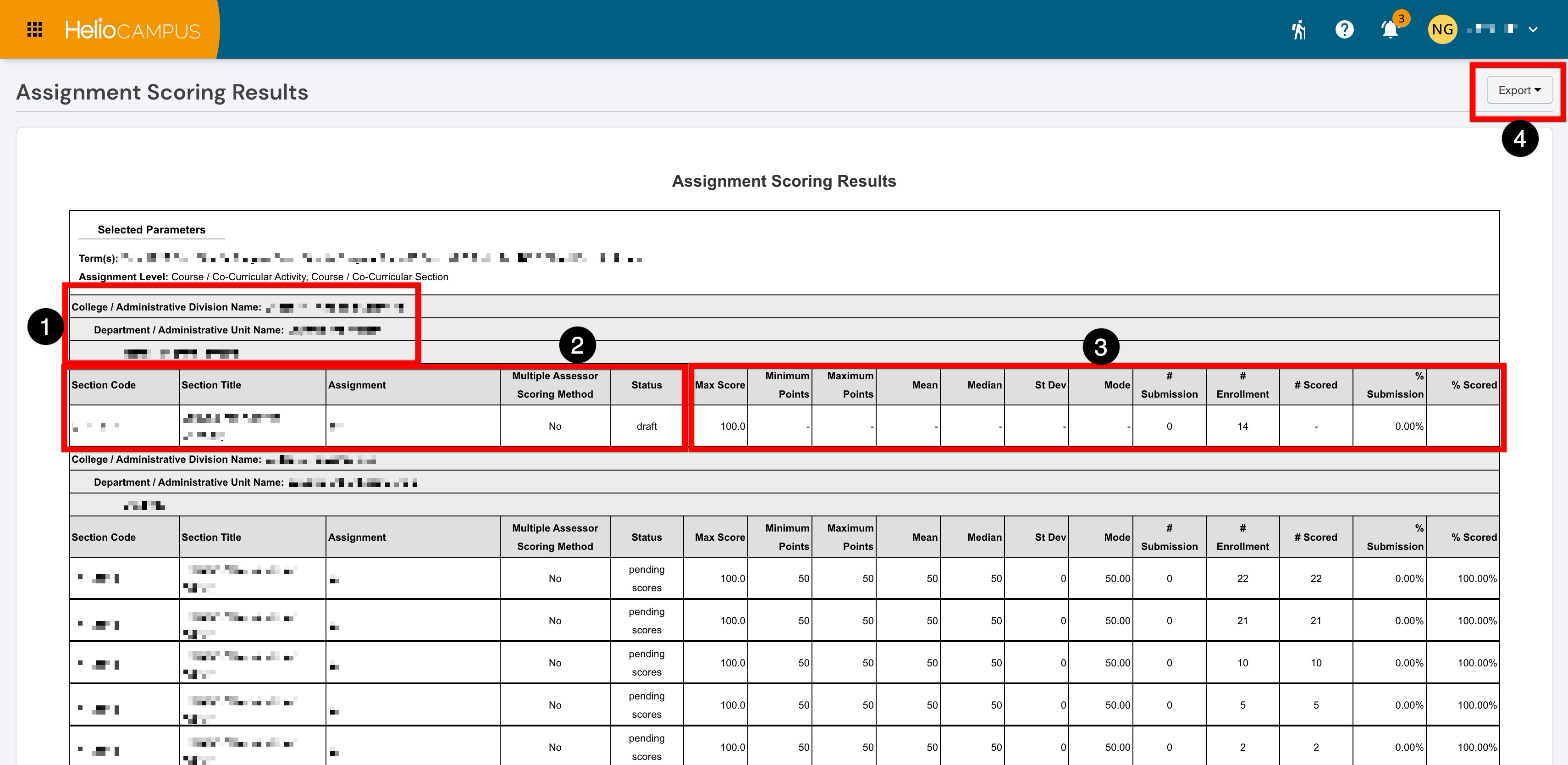
The output displays in a tabular format, with each assignment represented alongside scoring progress and performance summary data. The report output is grouped by the selected assignment level and the selected academic or hierarchy filters (1). The assignment identification columns (2) display the assignment name and related course or course section context based on the selected parameters, as well as the scoring configuration and status details. Scoring summary statistics columns (3) display score-related fields to help users understand the distribution of student performance on the assignment. The report output can be exported (4) to PDF, Excel, or CSV formats, or printed. Selecting Save Report as PDF will display a PDF export in the My Document Requests dashboard widget once the request is processed.
If No Data Returned is displayed, the selected parameters did not identify assignment scoring results available to the user. To troubleshoot, confirm that the selected term, hierarchy, course, or course section contains assignments with scoring data. For LMS assignments, confirm that the assignment is linked to an outcome in HelioCampus and that scoring details are available from the LMS. Users should also confirm that their role assignment provides access to the selected hierarchy area.
For assignments with rubric criteria, a nested detail section appears below the assignment row, showing:
-
Rubric Criteria: The name and description of each rubric criterion.
-
Rubric: The rubric level name.
-
Level: The rubric level value.
-
Points: The point value for the rubric level.