
The Assignment Linking Results report reviews all assessment results for the course or co-curricular sections, including detailed information about the assignments and their mean, mode, median, and standard deviation. This helps assessment and academic leaders confirm that assignments are linked appropriately before collecting, analyzing, or reporting results.
Product Tip
Users with organizational hierarchy roles (e.g., Institution Admin, College Admin, etc.) will only see the business objects (colleges, departments, courses, etc.) they are associated with. For example, College Admins can configure report parameters and view report results only for the course sections associated with the colleges for which they are assigned the admin role.
Use Cases
|
Validate Assignment Linking Before Assessment |
|
Institutions can use this report to confirm that assignments have been linked to the correct outcomes before assessment results are collected or reviewed. This is especially useful when multiple departments, courses, or sections are preparing for a reporting cycle and need a consistent way to identify linking gaps. Reviewing linking results early helps teams correct configuration issues before they affect outcome reporting. |
|
Monitor Coverage Across Courses and Sections |
|
Assessment leaders can review assignment linking across selected courses, co-curricular activities, or sections to understand where outcome coverage exists and where additional linking may be needed. This supports recurring assessment governance by making it easier to verify that expected learning outcomes are represented in instructional activities. The report can also help identify sections that may require follow-up with instructors or coordinators. |
|
Troubleshoot Missing or Unexpected Results |
|
When assessment reports return incomplete, unexpected, or no results, institutions can use this report to verify whether assignment linking is contributing to the issue. The report helps distinguish between configuration gaps and data availability issues by showing the relationship between assignments and outcomes. This can reduce support investigation time and guide users toward the specific courses, sections, or assignments that need attention. |
Considerations
-
Confirm Assignments Are Available: Assignment linking results depend on assignments that have been created in the platform or synced from the institution’s LMS.
-
Verify outcome alignment before running the report. If outcomes are not associated with the expected program, course, or assignment structure, the report may return incomplete or unexpected results.
-
Use the report before results analysis. Running the report before assessment scoring or results review can help identify missing assignment links early enough for correction.
Best Practices
-
Run the report at the start of each assessment cycle to confirm that assignment links are in place before scoring or data collection begins.
-
Review results by academic structure, such as college, department, course, and section, to identify whether linking gaps are isolated or widespread.
-
Use the report as a validation step before sharing outcome results with program reviewers, accreditors, or institutional stakeholders.
-
Save commonly used parameter sets when the same report configuration is reviewed on a recurring basis.
Report Parameters
|
Parameter |
Details |
|---|---|
|
Assessment Type |
Optional. Selects the assessment scope for the report. Options shown are Both, Program Assessment, and CLO Assessment; the default selection shown is Both. |
|
Term |
Required. Filters the report by term. The field shows Nothing selected until a term is chosen. |
|
Optional. Filters results by college or administrative division. The default selection shown is All Colleges. |
|
Optional. Filters results by course or co-curricular activity. The field defaults to All Courses and may be disabled until at least one related parent parameter is selected. |
|
Instructor |
Optional. Filters results by instructor. Users can select up to 10 instructors. |
|
Outcomes |
Optional. Filters results by selected outcomes. The field shows Nothing selected until outcomes are chosen and may depend on prior selections. |
|
Optional. Filters results by student degree. The field shows Nothing selected until degrees are chosen. |
|
Result Type |
Optional. Selects the result type included in the report. Options shown are Outcome and Learning Indicator; the default selection shown is Outcome. |
|
Only Assessed Assignment Results |
Optional. When selected, limits the report to assignment results that have been assessed. |
|
Hide Selected Parameters in Report Results |
Optional. When enabled, parameters configured for the report results will be excluded from the report output. When disabled, parameters and their selections will be included in the report output. |
Report Output
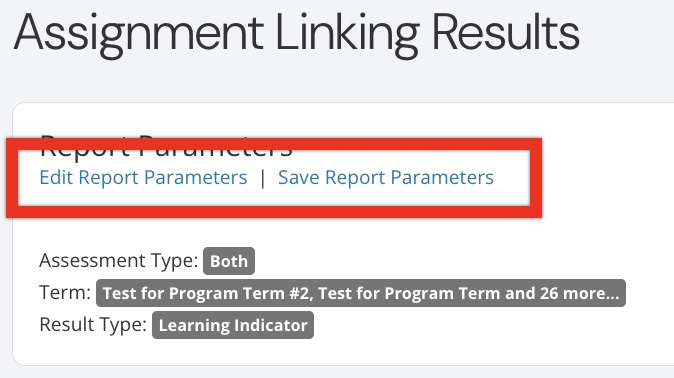
Once report parameters have been configured and Run Report has been clicked, the report output will display below the collapsed read-only view of the report parameters. Clicking Edit Report Parameters will reopen edit capabilities; once parameters have been edited, Run Report can be clicked again to re-generate the report output. Clicking Save Report Parameters opens the Create a New Saved Report pop-up, where the new saved report's name and description can be entered. Once a report has been saved, it will be available via the My Saved Reports tab of the Report Library.
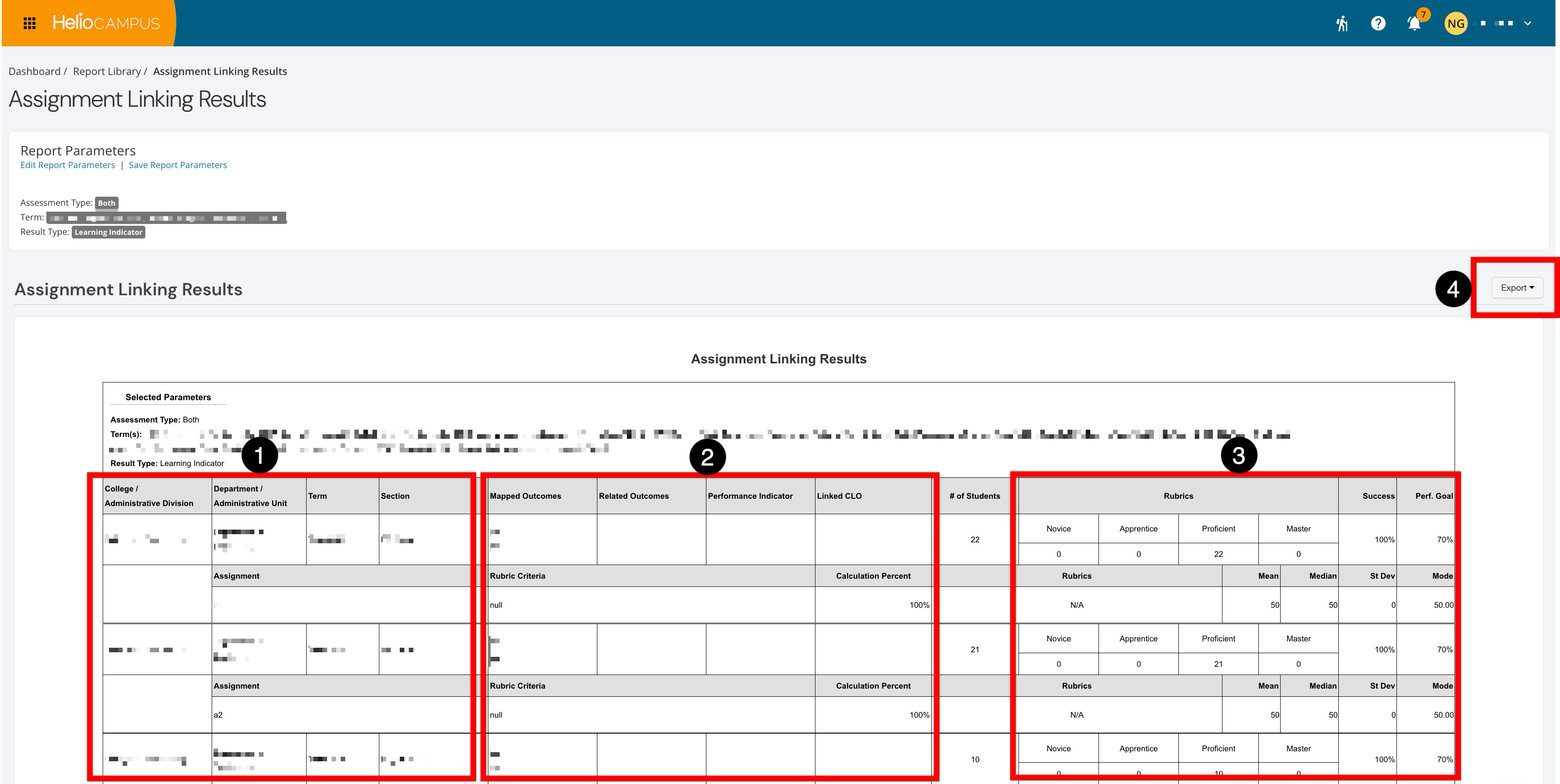
The report output displays assignment linking information in a tabular format so users can review which assignments are associated with selected outcomes and academic structures. Depending on selected parameters and available data, output may include identifying information such as program, college, department, course/co-curricular activity, section, instructor, assignment, outcome, and linking status or related result details. The report output can be exported to available formats for further review, documentation, or sharing with stakeholders.
If no records match the selected parameters, the report may return a No Data Returned message. This can indicate that assignments have not been linked to outcomes for the selected criteria, that the selected hierarchy does not contain matching data, or that the user does not have access to the relevant business objects. To troubleshoot, broaden the parameter selections, confirm assignment and outcome configuration, and verify hierarchy role access.