
This audit helps institutions review survey assignment records and confirm that surveys are assigned to the expected courses, sections, users, or other applicable business objects before survey administration begins. It supports survey planning, quality assurance, and troubleshooting by giving survey and assessment leaders a centralized way to identify assignment gaps, unexpected assignments, and records that may need follow-up. It is especially useful before a launch window, during an active survey cycle, or after assignments have been updated through manual configuration or integration processes. User roles with permissions to utilize this report include:
-
College Admin
-
Department Admin
-
Institution Admin
Product Tip
Users with Organizational Hierarchy-level roles will only see business objects and records (e.g., colleges, departments, courses, etc.) that they are associated with. For instance, College Administrators can configure report parameters and view results only for sections related to the colleges they are associated with.
Use Cases
|
Validate Survey Assignments Before Launch |
|
Institutions can use this report to confirm that surveys have been assigned to the correct courses, sections, instructors, students, or other target populations before a survey cycle opens. This is especially useful when survey assignments are created at scale and need to be verified across multiple colleges, departments, terms, or survey projects. Reviewing assignments early helps teams correct missing or unexpected records before survey invitations are distributed. |
|
Monitor Assignment Coverage Across Academic Areas |
|
Survey and assessment leaders can review assignment coverage by hierarchy, term, course, or section to understand whether expected survey participation opportunities are represented. This supports recurring survey governance by making it easier to verify that assignment rules or manual selections produced the intended records. The report can also help identify academic areas that may require follow-up before the survey window closes. |
|
Troubleshoot Missing or Unexpected Survey Access |
|
When users report that a survey is missing, unavailable, or assigned unexpectedly, institutions can use this report to review the underlying assignment records. The report helps distinguish between assignment configuration issues, hierarchy access limitations, and timing-related availability concerns. This can reduce support investigation time and guide administrators toward the specific survey, course, section, or person record that needs attention. |
Considerations
-
Confirm Surveys Are Available: Results depend on surveys, survey projects, and related assignment records being created or synced in the platform.
-
Review Assignments Before Invitations: Running the report before a survey launch helps identify assignment issues while there is still time to update configuration or assignment rules.
Best Practices
-
Run the report before each survey administration window to confirm assignments are in place before survey invitations or reminders are distributed.
-
Review results by academic structure, such as college, department, course, and section, to identify whether assignment gaps are isolated or widespread.
-
Use the report after large assignment imports, rule updates, or hierarchy changes to confirm that generated assignments match expectations.
-
Save commonly used parameter sets when the same survey assignment configuration is reviewed on a recurring basis.
Report Parameters
|
Parameter |
Details |
|---|---|
|
Optional. Filters results by term and hierarchy level. Available values may be limited by the user’s hierarchy role access and by other selected report parameters. |
|
Optional. Filters results by course, co-curricular activity, or section. These fields depend on previously configured parameters. |
|
Instructor Type |
Optional. Filters results by specific role type associated with the selected course or section records. |
|
Optional. Filters results to one or more selected surveys and schedules. These fields depend on previously configured parameters. |
|
Display Assignments |
Optional. Controls which assignment records are included in the report output based on assigned or unassigned sections. |
Report Output
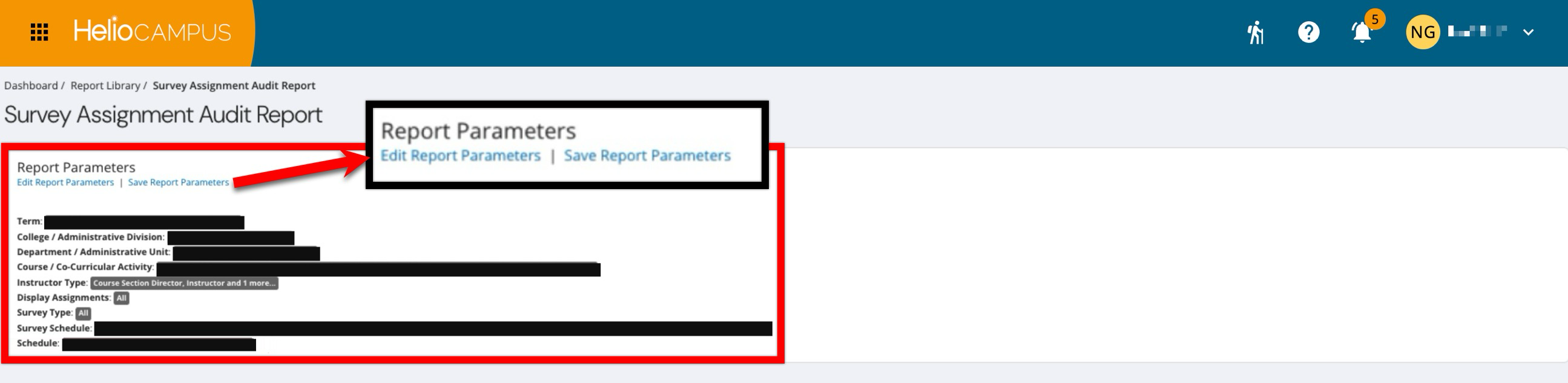
The report output will appear below a collapsed read-only view of the report parameters. To modify the parameters, click on Edit Report Parameters, make the necessary changes, and then click Run Report again to regenerate the report output. To save the parameter configuration, click Save Report Parameters to enter a name and description for the new saved report. Saved reports are accessible through the My Saved Reports tab of the Report Library.
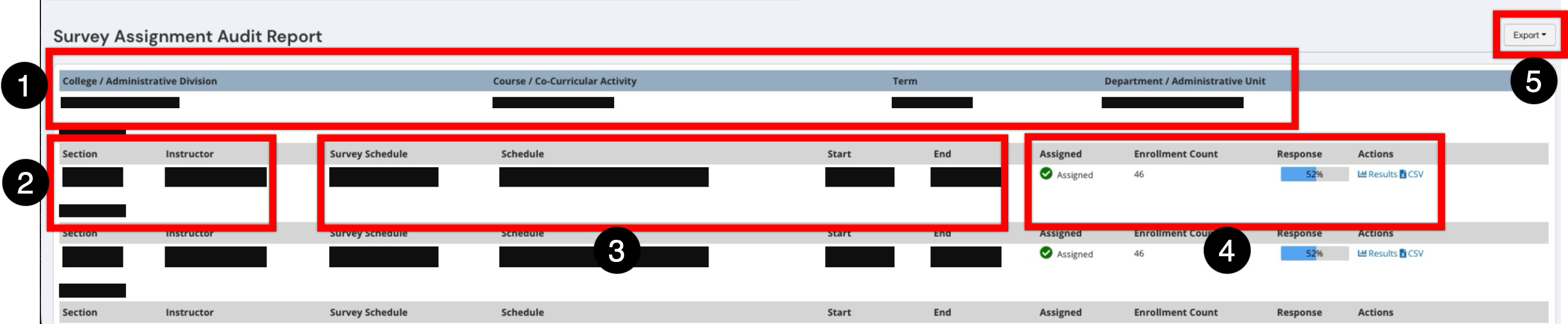
Each result displays identifying information, including hierarchy details and term information to help users understand which academic area each row represents (1). Each result displays the section and Instructor associated with the survey assignment to help users identify which course section each row represents (2). The survey schedule data show the schedule name and the active survey window, including the survey start and end dates (3). Assignment status and participation details are provided to help users confirm whether the survey has been assigned, review the section enrollment count, and monitor the current response rate (4). Available actions let users view survey results or download a CSV for the selected row (4). Report outputs can be exported or printed (5); selecting Save Report as PDF will add a PDF export to the My Document Requests dashboard widget once the request is processed.
If no records match the selected parameters, the report may return a No Data Returned message. This can indicate that survey assignments have not been created for the selected criteria, that the selected hierarchy does not contain matching survey data, or that the user does not have access to the relevant business objects.