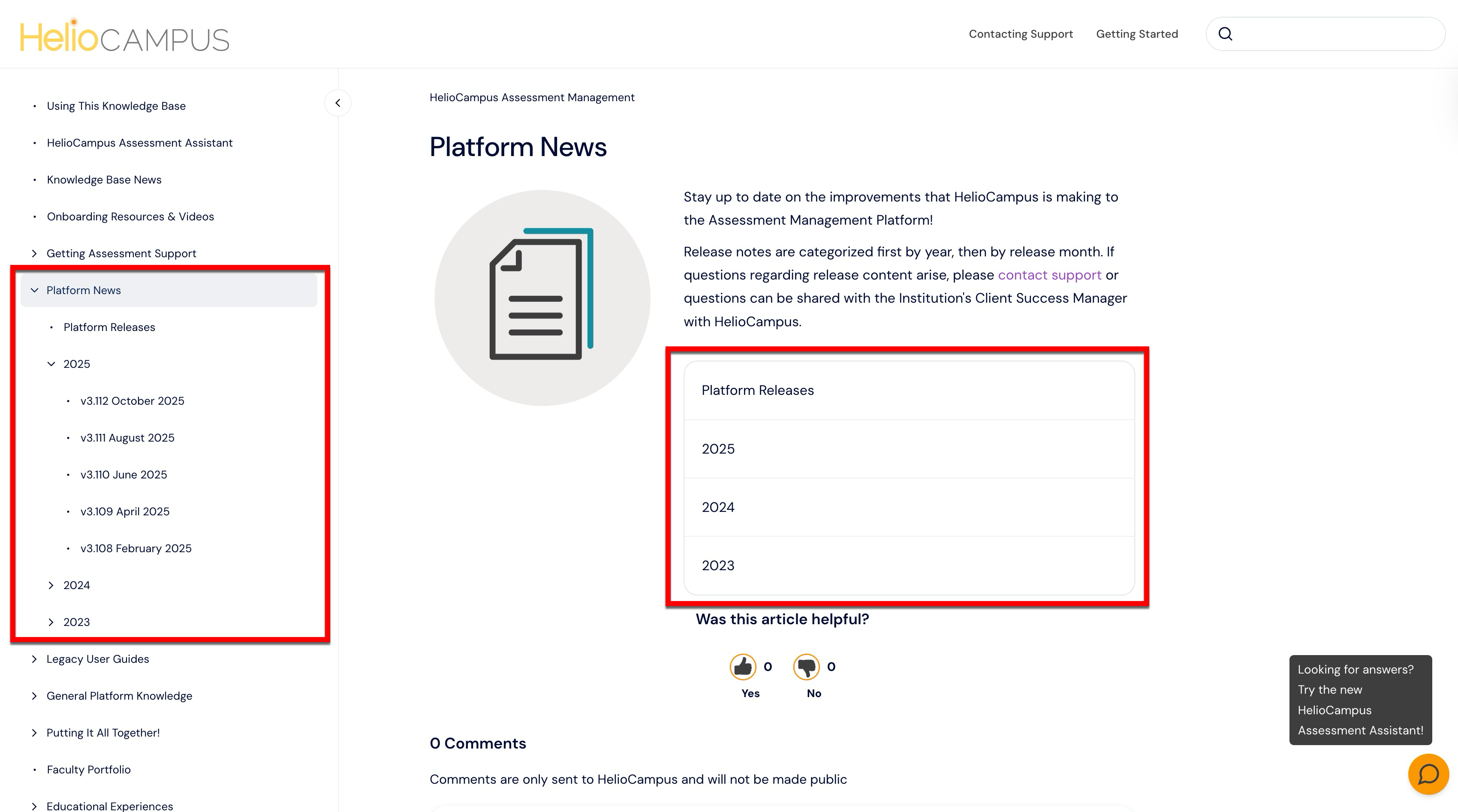
This guide shows how to navigate the knowledge base, find release notes, use the table of contents, and search effectively. Within the knowledge base, there are two primary libraries accessed from the Knowledge Base Homepage or via navigation links within a knowledge library.
Knowledge Base Library: Tutorials, best practices, and product support content.
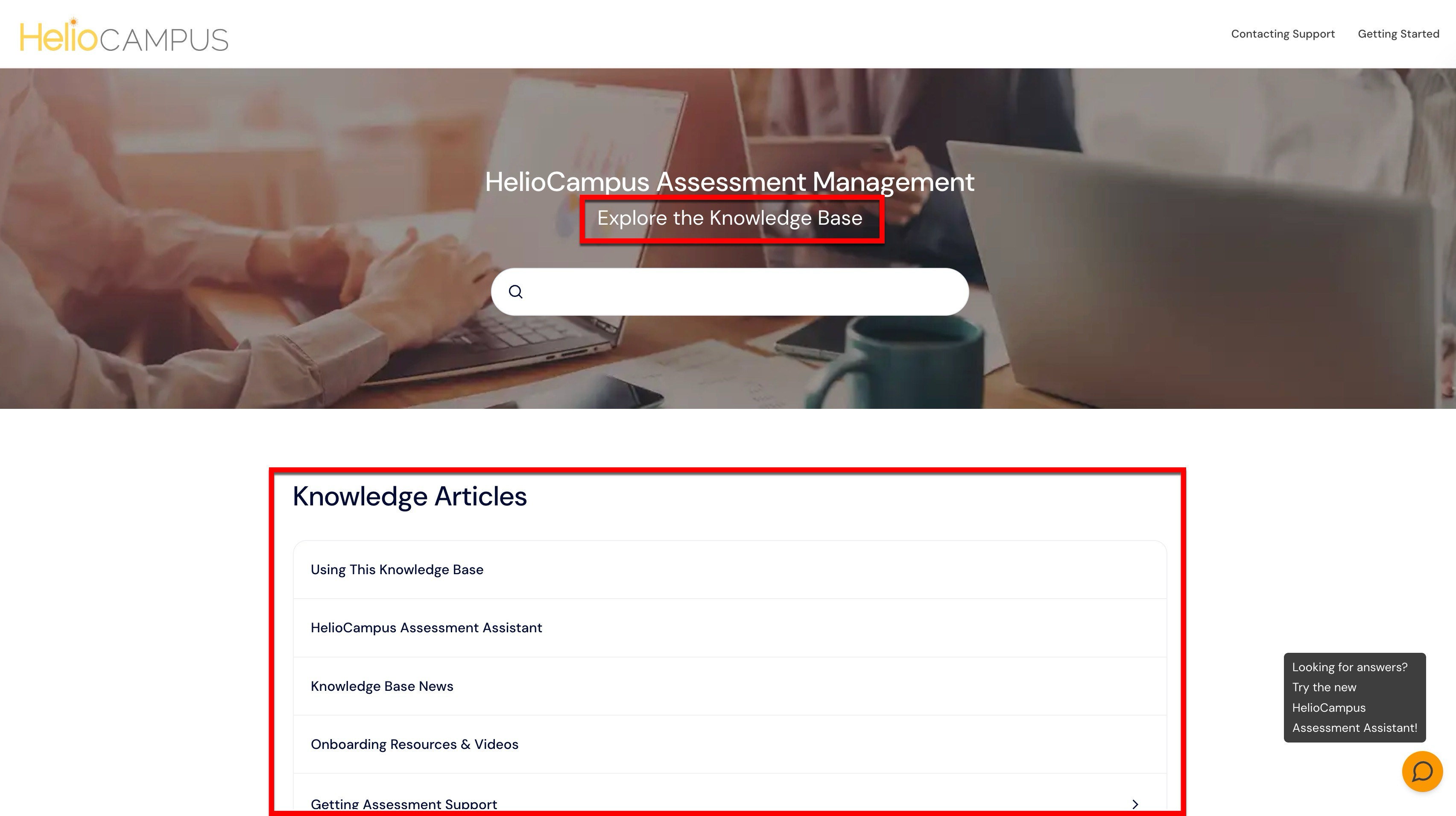
Technical Implementation Library: Implementation guides, integration references, and technical documentation.
These articles can also be reviewed to further enhance the use of both the product and this knowledge base:
Knowledge Base Homepage
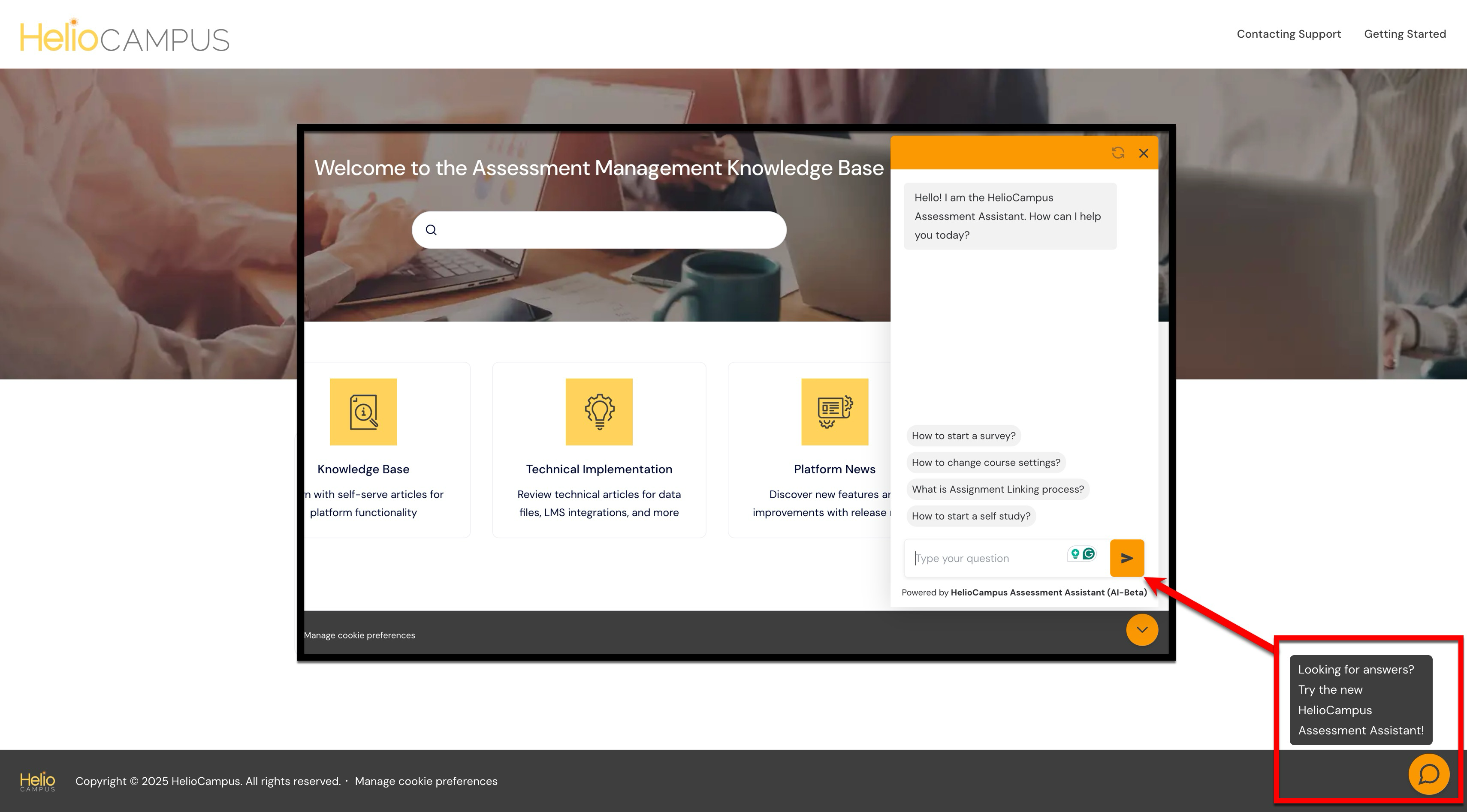
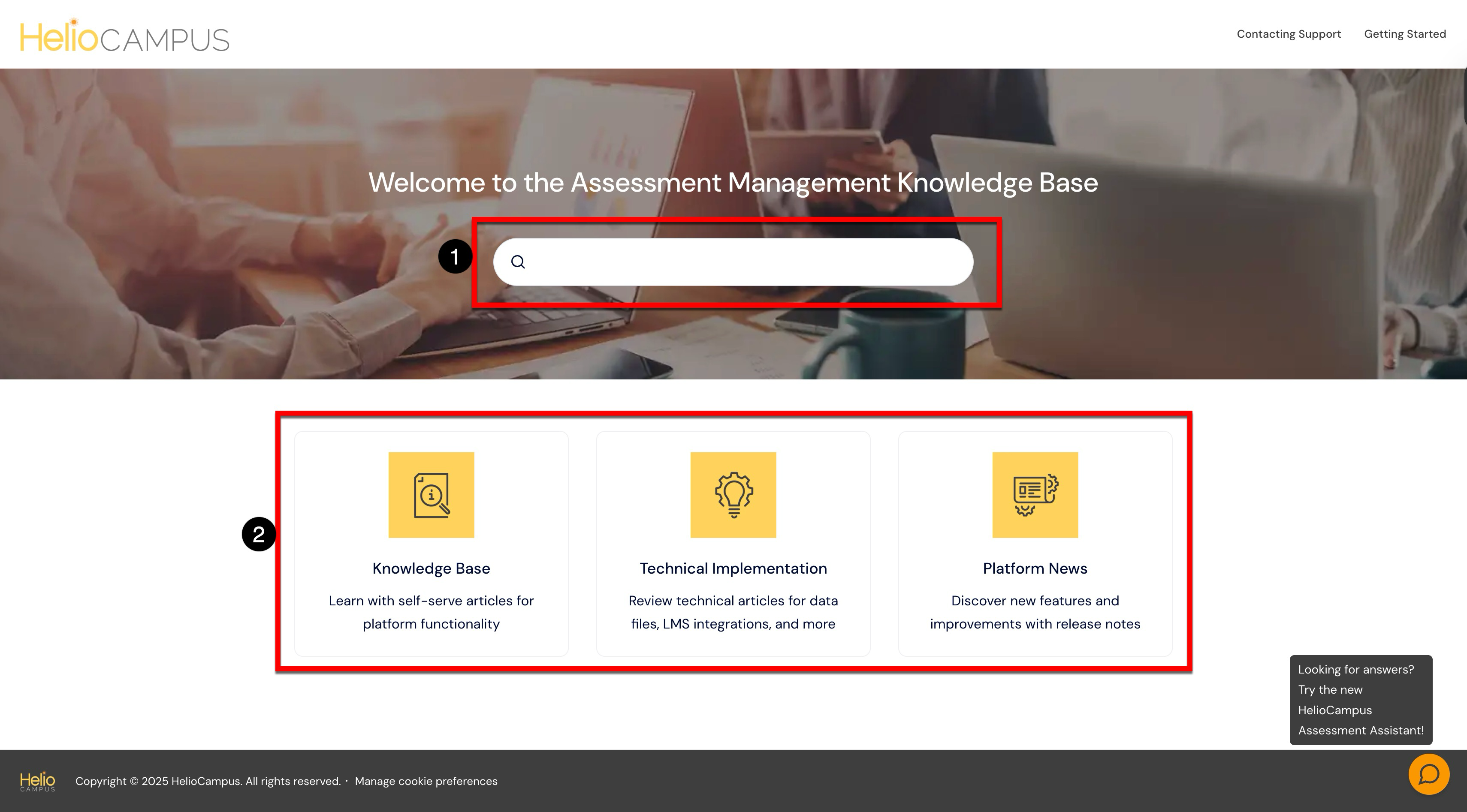
This homepage is a quick path to answers and can be quickly navigated to by clicking HelioCampus from all pages in the knowledge base (1). Also available on all pages are knowledge base quick links (2). Contacting Support will open the Getting Assessment Support article for instructions on accessing the Assessment Support Portal, and Getting Started will open this article for help with the knowledge base. From the homepage, the search bar (33) accepts plain‑language terms and takes users straight to the right article. When searching, plain-language terms are natural words typed to get help, like “create rubric,” “invite a reviewer,” or “connect Canvas.”.
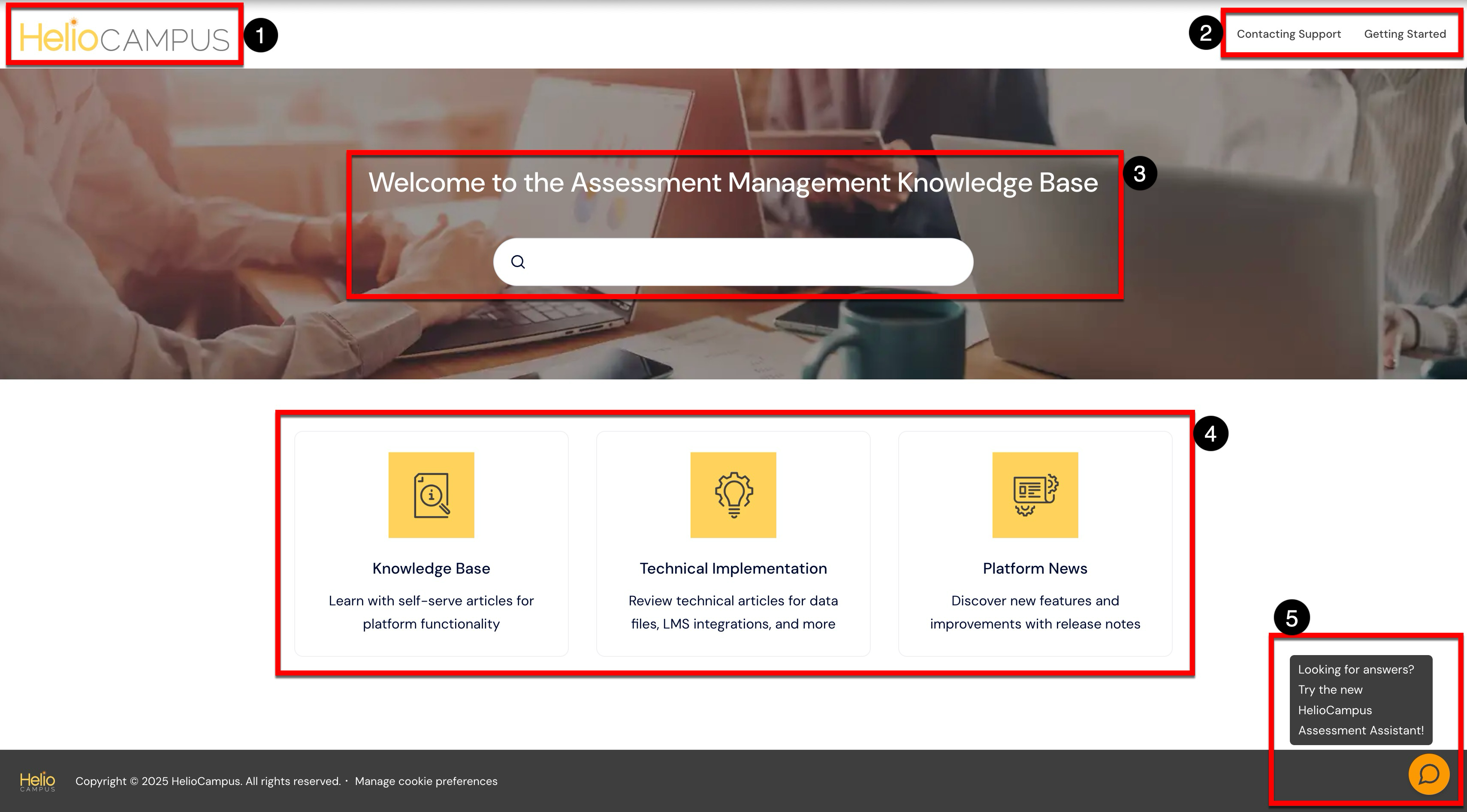
The three options below the search bar (4) each serve a different need:
-
Knowledge Base explains how to use the product with clear, step‑by‑step guides to get things done quickly. Take a look at the knowledge base.
-
Technical Implementation turns “setup” into simple instructions to connect systems or prepare files. Learn about technical articles.
-
Platform News stays up to date on what’s new and improved, allowing Institutions to take advantage of fresh features as soon as they’re available. Review release notes.
Get answers faster with the HelioCampus Assessment Assistant powered by the Assessment Knowledge Base (5). Ask questions about assessments, credentialing processes, platform usage, and more. The Assessment Assistant will guide readers to the right articles and steps. Learn more about the HelioCampus Assessment Assistant.
Reading Knowledge Articles
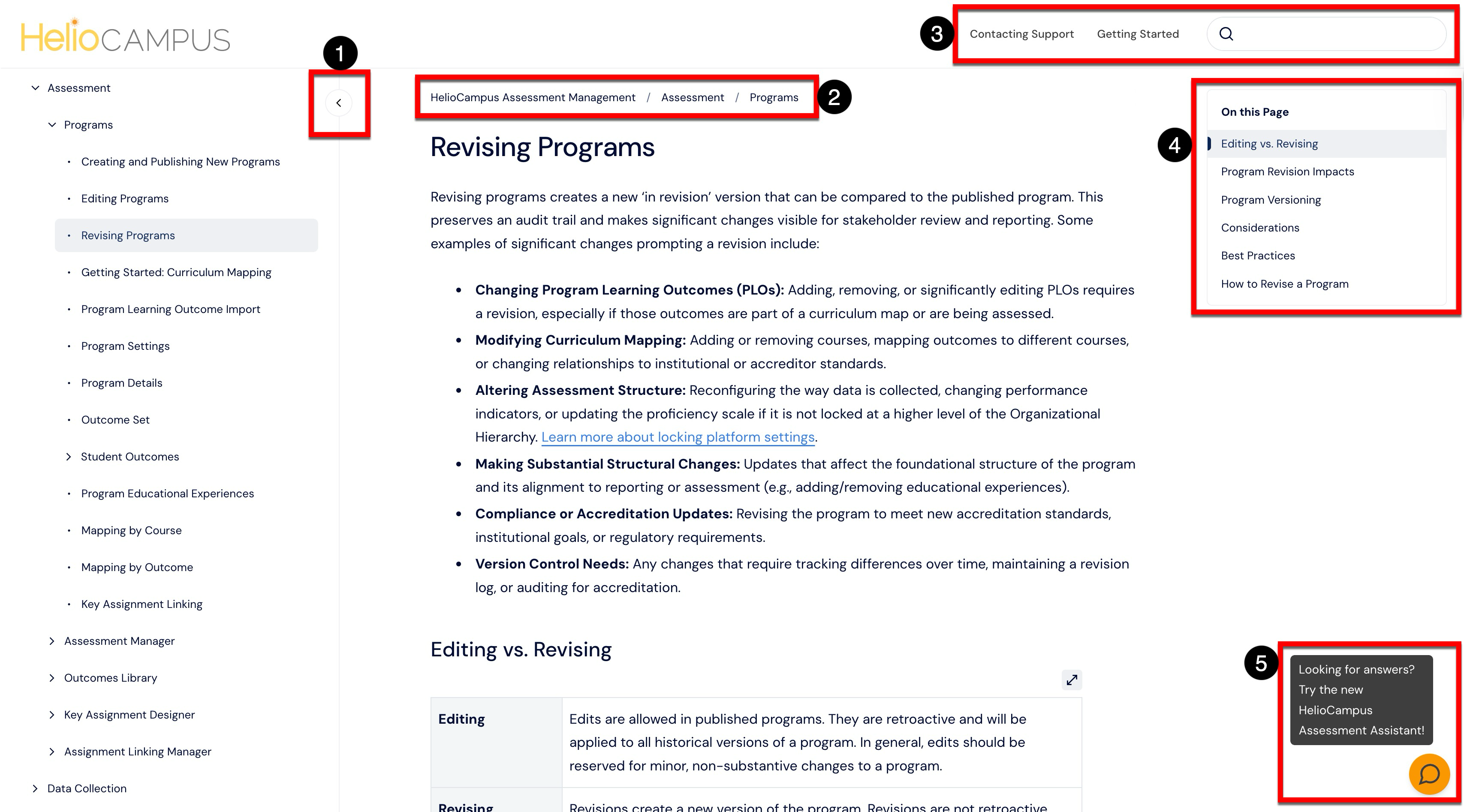
Knowledge articles help users find answers quickly and stay oriented. The left sidebar is the knowledge base library table of contents (TOC), which can open and close as needed (1). The library TOC lists the current article location, nearby related topics, and helps users browse related guidance without losing place. A breadcrumb trail at the top confirms where the article sits within the knowledge base, making it easy for readers to step back a level when broader context is needed (2). In the top right (3), quick links for Contacting Support and Getting Started provide fast routes to help for urgent issues or first-time setup, and the site search lets users jump to a different topic immediately. On the right side of articles, there is an in-article table of contents (4), serving as a handy map that lets readers jump straight to a section. Available on all articles in the HelioCampus Assessment Assistant (5) to assist in guiding readers to the right articles and steps. Learn more about the HelioCampus Assessment Assistant.
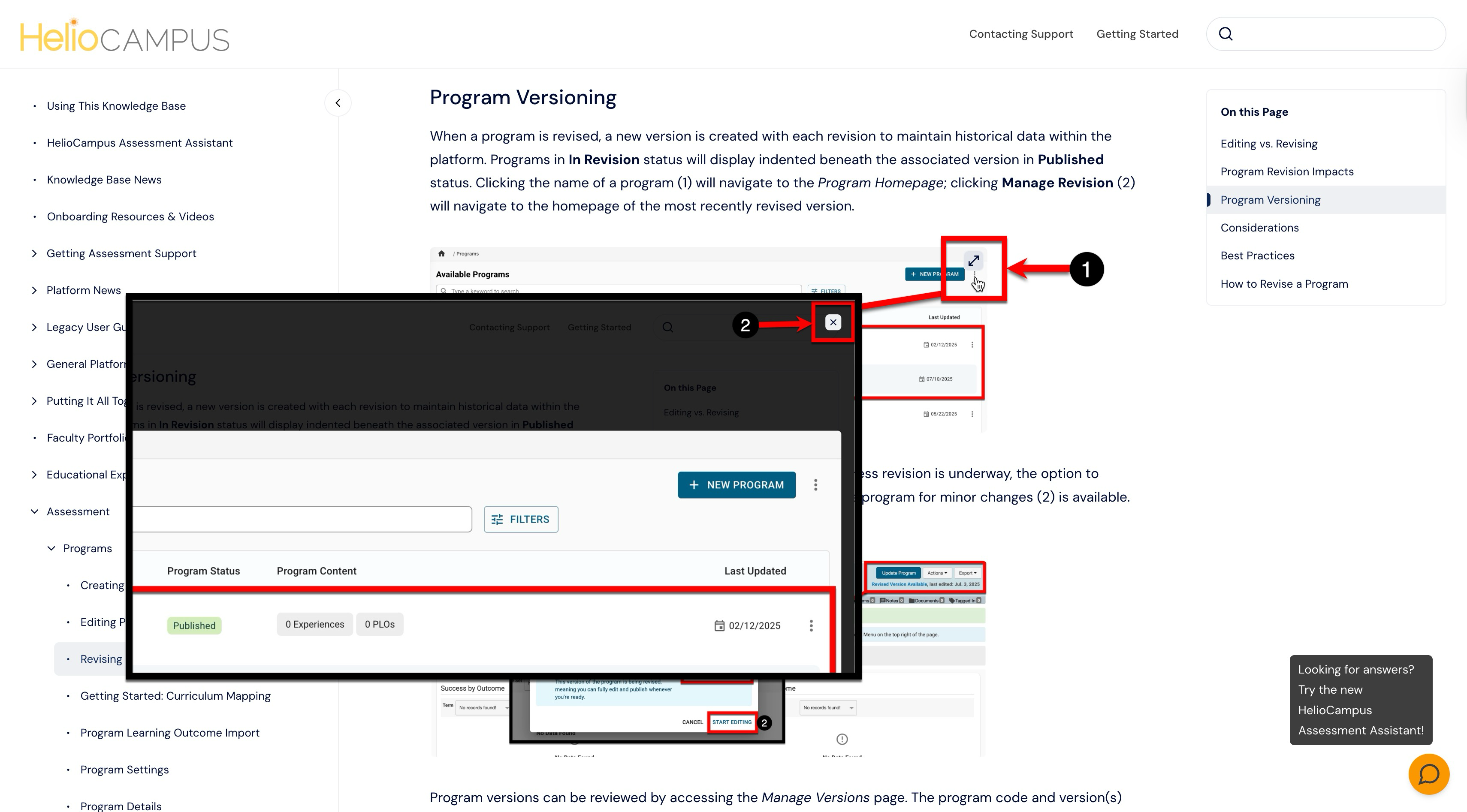
When images or tables are included in an article, they can be opened (1) and closed (2) to be made bigger for easier review.
Giving Knowledge Base Feedback
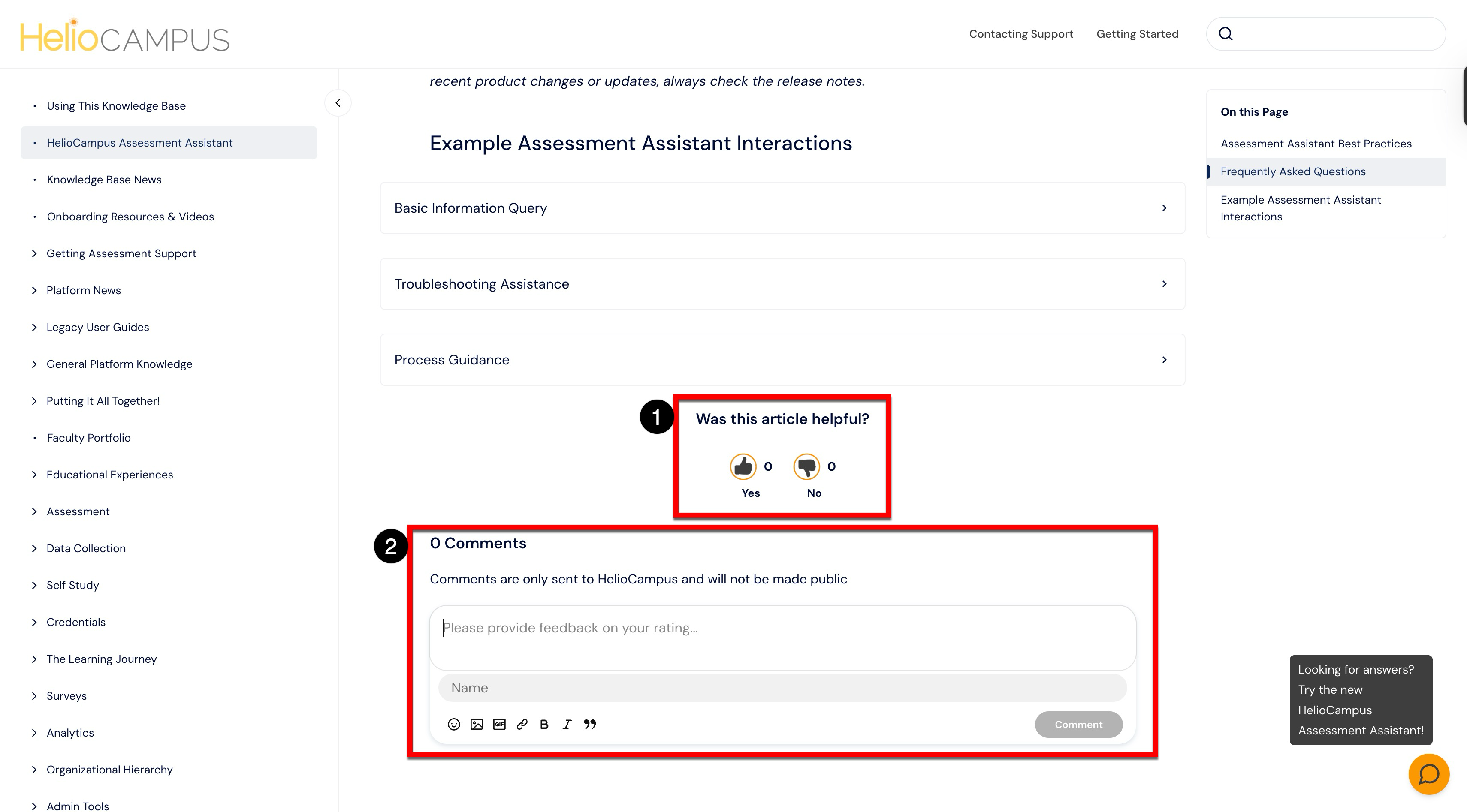
Sharing a quick thumbs‑up or thumbs‑down (1) helps HelioCampus improve knowledge base content over time. Below the reactions, a comments box is available (2) to send HelioCampus-specific feedback or suggestions to refine the article.
Searching
Searching can occur from two places - the entire knowledge base, e.g., all libraries, or a specific knowledge library. Both search engines accept plain‑language terms and take users straight to articles. Plain-language terms are natural words typed to get help, like “create a rubric,” “invite a reviewer,” or “connect Canvas.”. As guidance when searching:
-
Common Words: Use common words instead of jargon. Example: “log in” instead of “authenticate.”.
-
Simple Phrases: Keep phrases short and direct. Example: “reset password” instead of “password credential lifecycle.”.
-
Specific Words: Prefer specific words over vague ones. Example: “grades,” “courses,” “files” rather than “submissions.”.
-
Write As Speech: Write how people would ask or say it. Example: “add a course,” “find release notes,” “download a report.”
-
No Acronyms: Avoid acronyms unless they’re widely known. If needed, spell them out on first use.
Knowledge Base Search
Use the search field to scan across the entire Knowledge Base. This search will include the three libraries shown on the homepage (2).
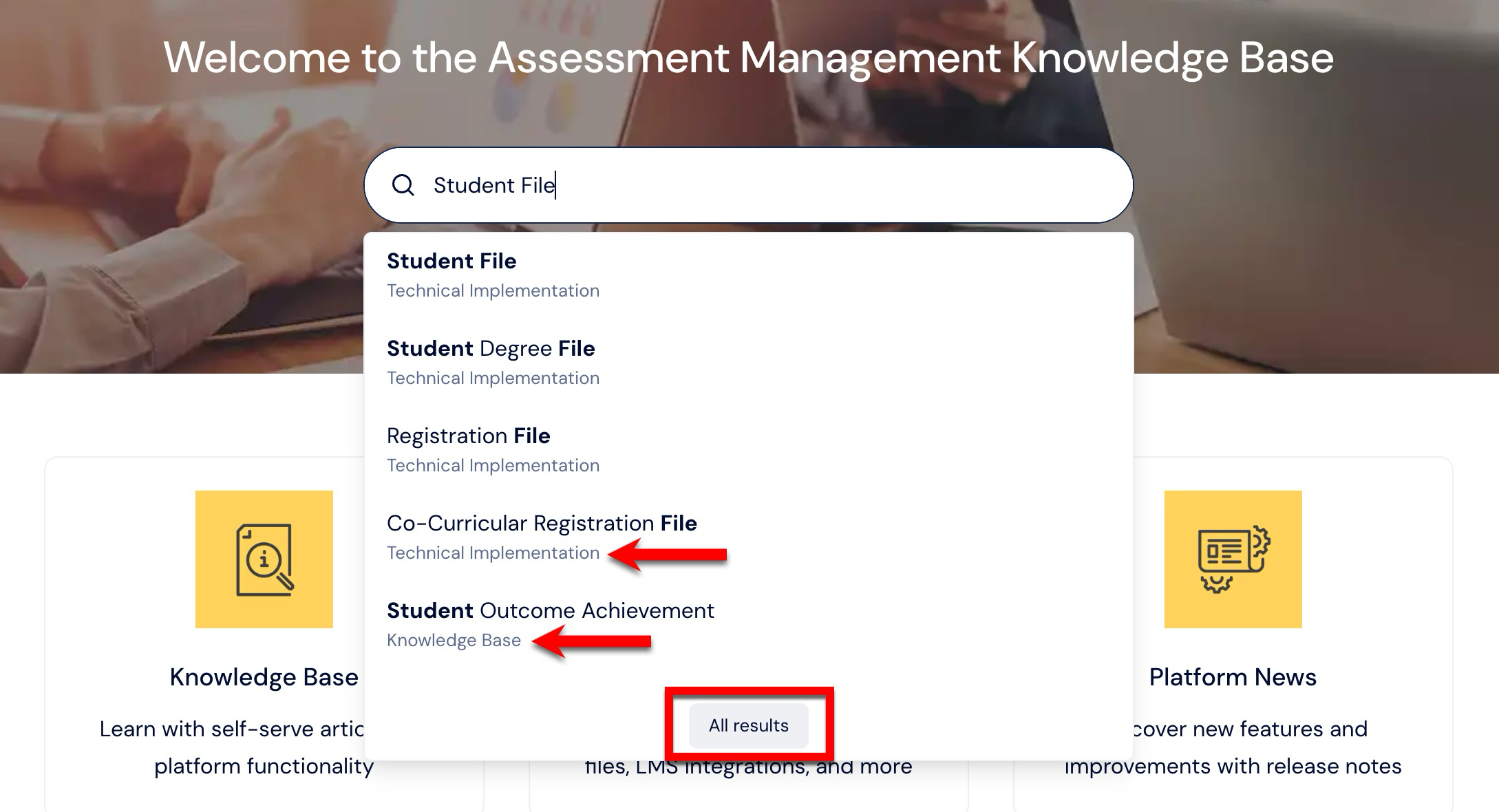
As a search is typed, a panel appears with matches from article titles and article bodies. Because this search is for the entire knowledge base, search results will include articles from the Knowledge Base, Technical Implementation, and Platform News libraries. The top search results are shown first, and clicking All Results will show the remaining locations where the search is found.
Knowledge Library Search
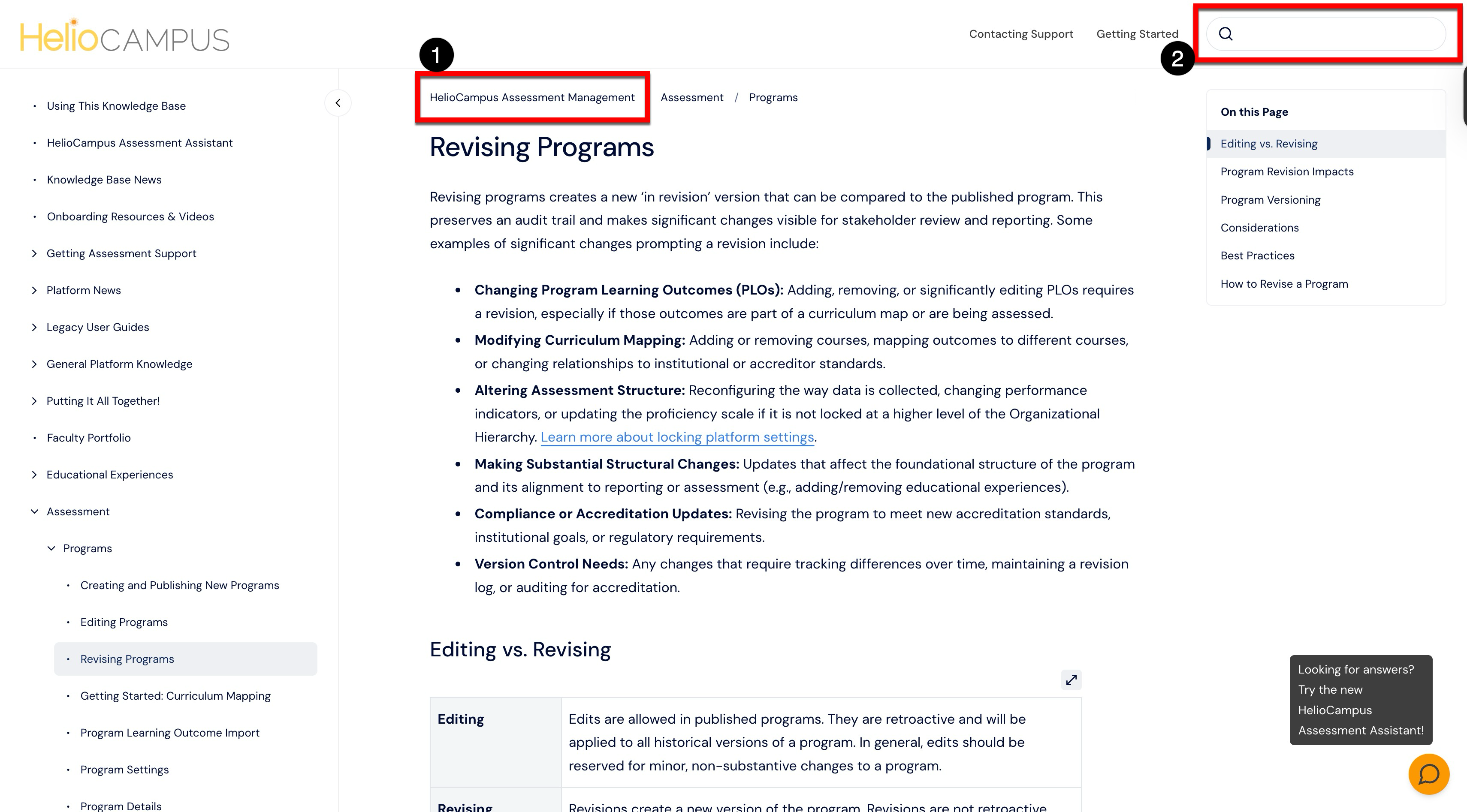
When viewing an article, the knowledge library can be seen in the article breadcrumb trail (1). Use the search field above the in-article table of contents (2) to find other articles in the same library without leaving the current article.
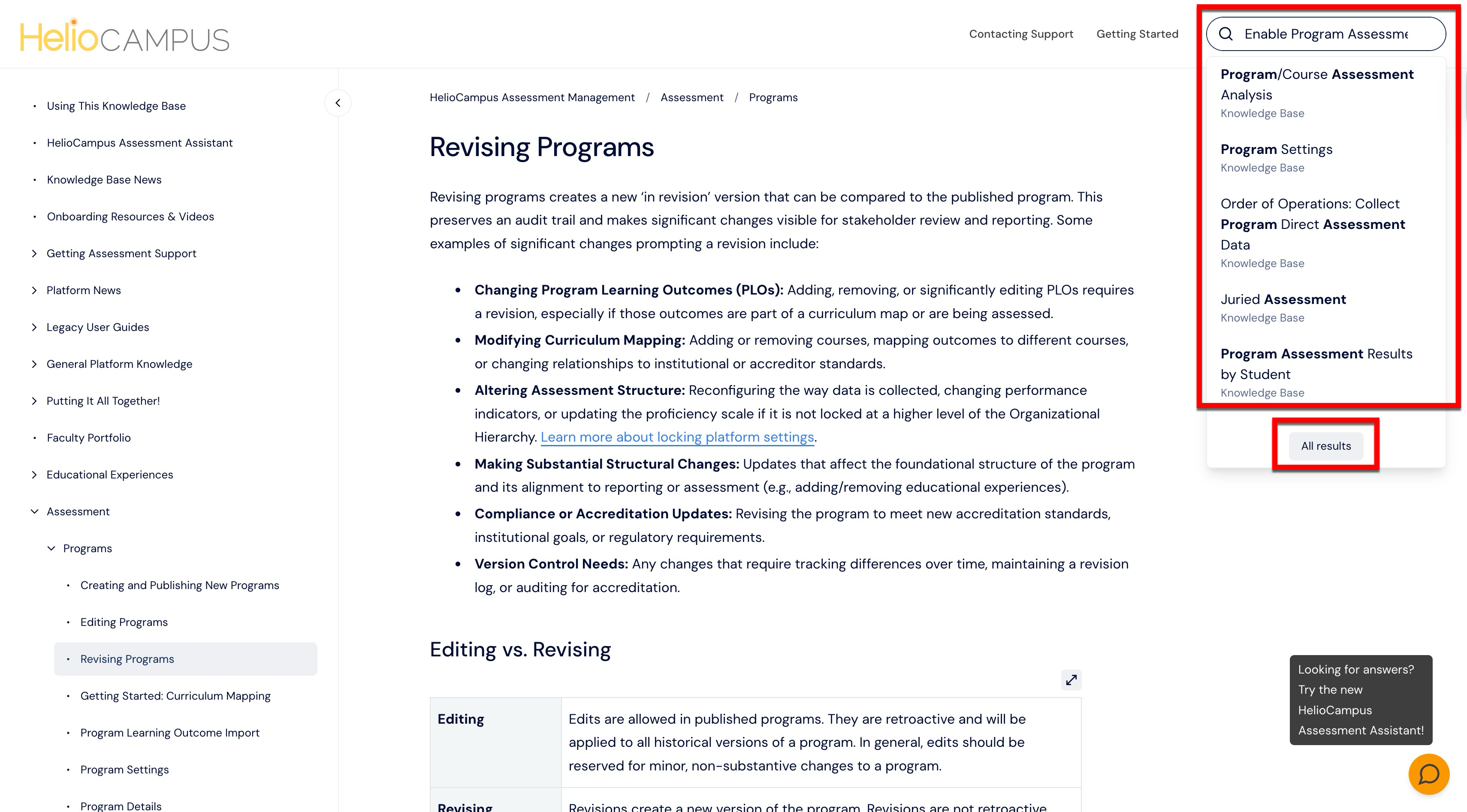
As a search is typed, a panel appears with matches from article titles and article bodies. Because this search is for the currently accessed library, the search results will only include articles from that library. The top search results are shown first, and clicking All Results will display the remaining locations within the same library where the search was found.
Finding Release Notes
Release notes highlight new features, improvements, and fixes. Release notes are organized by year, month, and release version for easy browsing. The Platform Releases article provides the essentials for planning around releases: when training and production updates occur, how to opt out of training data refreshes, expected downtime, and more. Learn more about releases and release notes.