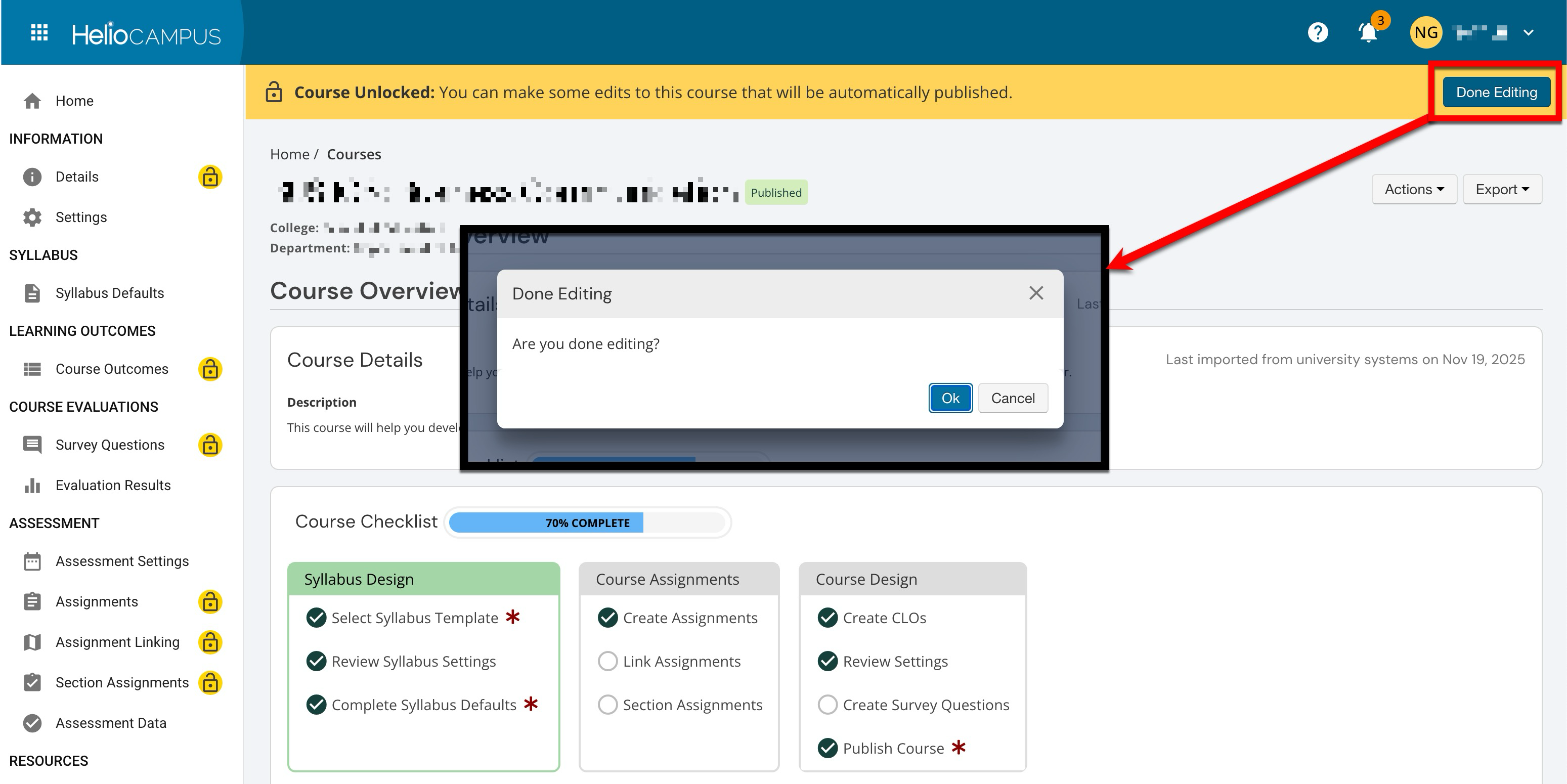
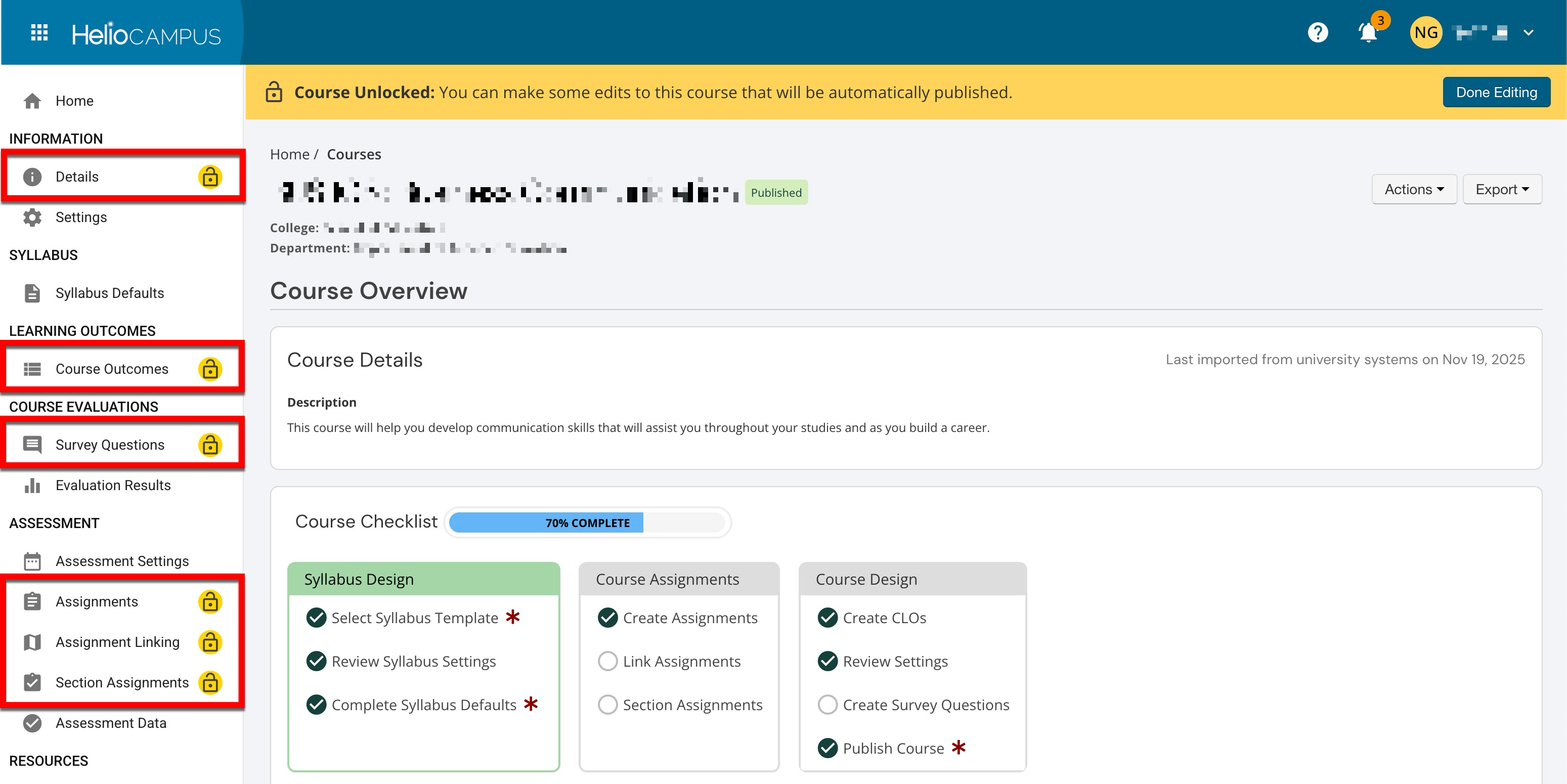
Published courses display a padlock to indicate they are locked and cannot be edited. After a course has been published, specific changes can be made to the pages below without prompting a new version of the course.
-
Details
-
Course Outcomes
-
Survey Questions
-
Assignments
-
Assignment Linking
-
Section Assignments
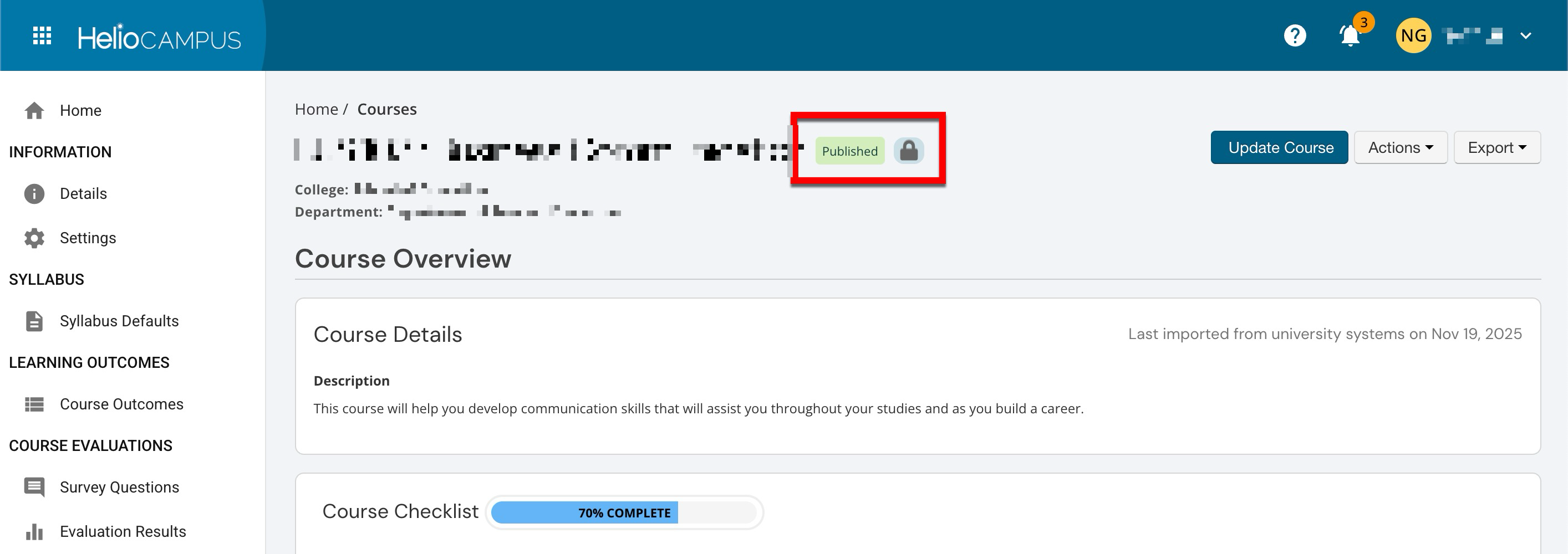
Courses should be edited only when minor, non-structural changes are needed. Some examples of these types of edits include:
-
Course Learning Outcomes: Correcting a typo in a CLO description.
-
Changing Rollup Placeholder Questions: Clarifying question text or response options without changing the overall survey design.
-
Updating Course Assignment Linking: Updating links to continue to map correctly to outcomes, without redesigning the curriculum map.
These types of changes do not trigger a new course version. Edits are retroactive and will affect historical records and running assessments.
Editing vs. Revising
|
Editing |
Edits are allowed in published courses. They are retroactive and will be applied to all historical versions of a course. In general, edits should be reserved for minor, non-substantive changes. |
|
Revising |
Revisions create a new version of the course. Revisions are not retroactive, and historical versions of the course will be retained. Create a new version of the course when making substantive changes to outcomes, course structure, or curriculum. Learn more. ⚠️ Edit-level changes made during revision are retroactive. For example, updating a CLO description will apply to all CLO associations, including both prior and active items, without affecting mappings. |
When editing a course, only specific configurations can be changed:
-
Details:
-
Badges that have not been awarded can be edited to change the badge alignment.
-
New badges can be created and aligned.
-
-
Course Learning Outcomes:
-
CLO description and tags.
-
If Topic Objectives are enabled, the objective can be changed.*
-
-
Survey Questions:
-
Clarify question text or response options.
-
-
Assignments:
-
Assignment templates used in associated course sections
-
-
Assignment Linking:
-
Relationships between key assignments, learning and accreditation outcomes, and competencies.
💡 Product Tip: Assignment linking functionality is also available via the Assignment Linking Manager, and at the co-curricular activity and course/co-curricular sections. Learn more.
-
-
Section Assignments:
-
Assignments that are used across the associated course’s sections for assessment.
-
*Only if Topic Objectives are enabled for the course or an associated level of the Organizational Hierarchy.
Considerations
-
Governance and Approvals: Before editing, confirm who owns the course and which leaders or committees must be notified or approve changes.
-
Downstream Dependencies: Review where the course is used: as a prerequisite, in curriculum maps, and in assessment plans or cycles. Any change may require updates to associated program maps, degree plans, and accreditation or self-study documentation.
-
Active and Upcoming Sections: Check whether there are current or upcoming sections with syllabi, assignments, or evaluations already set up.
How to Edit a Course
-
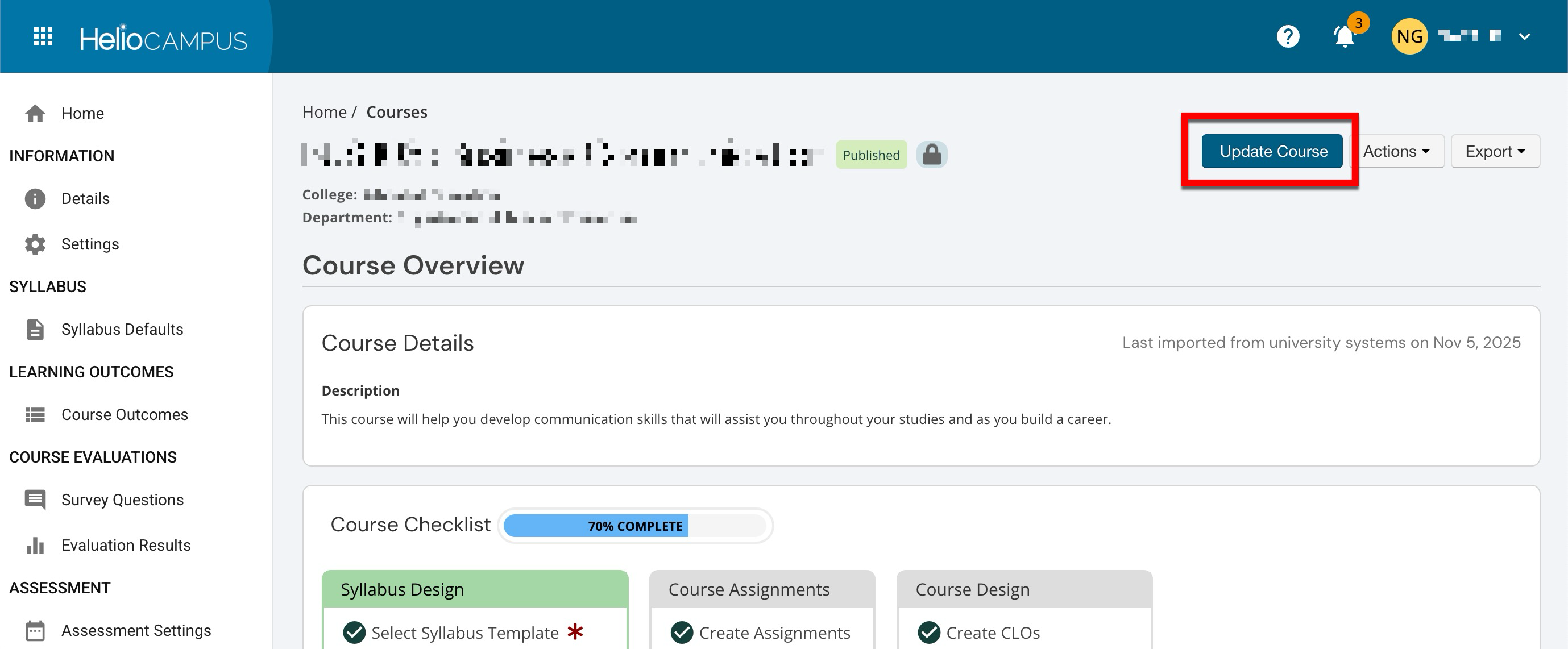
Navigate to the Course Homepage and click Update Course.
-
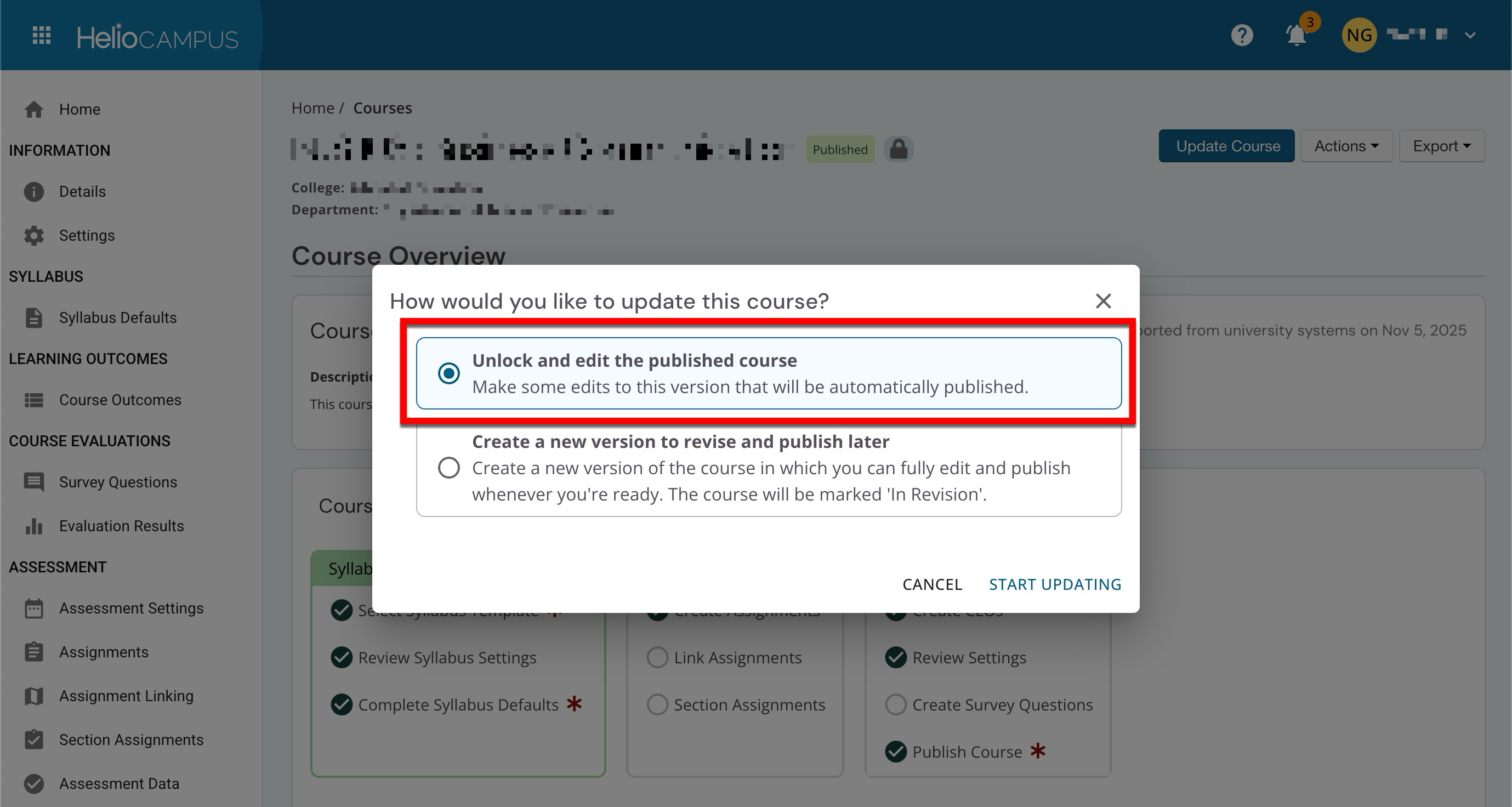
When prompted, select the unlock and edit option to unlock the course for minor changes.
-
With the course now unlocked, information and configurations on select pages can be changed.
-
-
When editing is complete, click Done Editing, then click OK when prompted.