Release Timeline:
December 1, 2025: Released to training sites
January 2026: Released to production sites
Learn more about release enhancements by registering for the v3.113 Release Webinar! After registration, enrollment automatically continues for all future webinars; no re-registration is required. Please join every release webinar, as scheduling allows.
Assignment Submission Comments
Criteria-level comments are now displayed for completed HelioCampus Assignments. This change enhances the grading and feedback experience, especially for ‘No Submission’ type assignments and observation-based assessments.
Course Section Manager
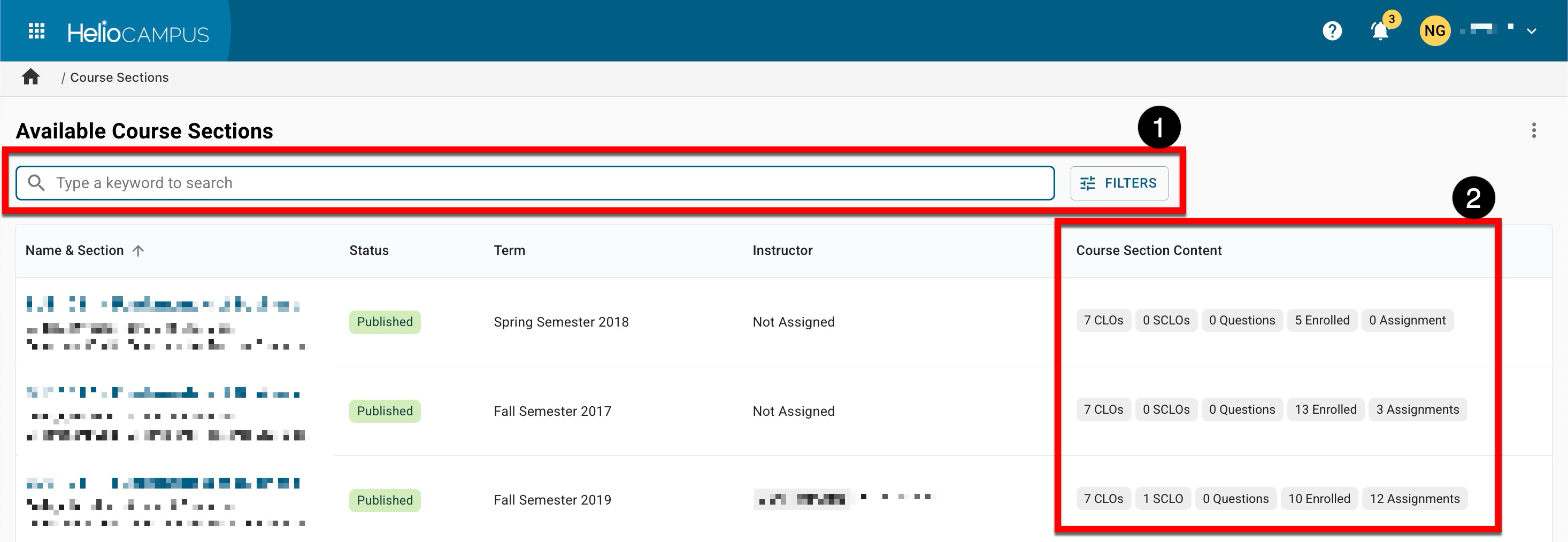
The Course Section Manager has been updated with an improved user interface. Search functionality is available, and clicking the Filters option allows specific filters to be applied (1). Quick-glance content (2) displays useful information without navigating to the Course Section Homepage. Learn more about the Course Section Manager.
Co-Curricular Activities Manager
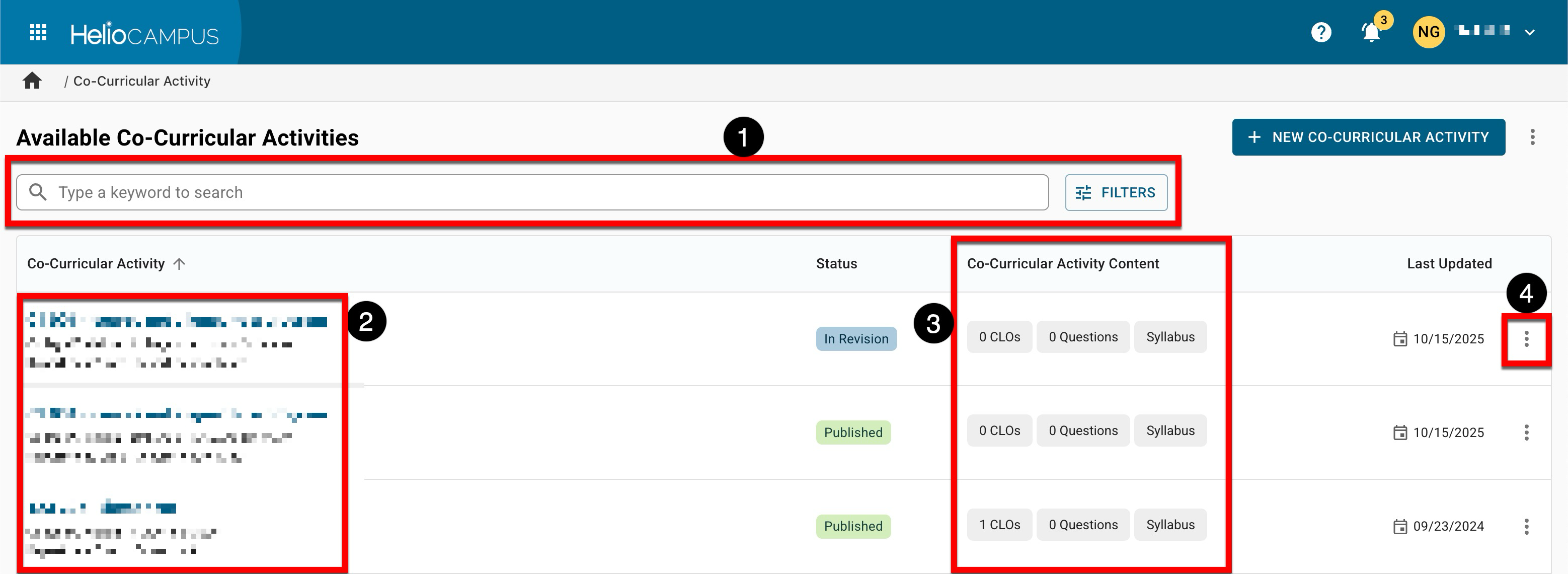
The Co-Curricular Activities Manager has been updated with an improved user interface. Search functionality is available, and clicking the Filters option allows specific filters to be applied (1). The name, owning college/division, and department/unit (2); clicking the name will navigate to the Survey Form Homepage. Quick-glance content (3) displays useful information without navigating to the Co-Curricular Activity Homepage. Expanding the Action kebab (4) displays quick-glance details including CLOs, assignments, and syllabi information. Learn more about the Co-Curricular Activities Manager.
Courses
New revision functionality is now available for courses in Published status. Now, some course information can be edited without creating a new version. This enhancement affects fields and configuration points on the following course pages:
-
Details
-
Course Outcomes
-
Survey Questions
-
Assignments
-
Assignment Linking
-
Section Assignments
|
Editing |
Edits are allowed in published courses. They are retroactive and will be applied to all historical versions of a course. In general, edits should be reserved for minor, non-substantive changes. |
|
Revising |
Revisions create a new version of the course. Revisions are not retroactive, and historical versions of the course will be retained. Create a new version of the course when making substantive changes to outcomes, course structure, or curriculum. |
Learn more:
|
Details |
|
By editing a course:
Once badges have been aligned, a new version of the course will be required to make changes to the alignment of the awarded badges. Learn more. |
|
Course Learning Outcomes |
|
By editing a course:
To add or delete CLOs, a new version of the course will be required. Learn more. |
|
Survey Questions |
|
By editing a course: Rollup placeholder questions can be changed to serve as course-wide survey questions that will cascade to subsequent course sections. Learn more. |
|
Assignments |
|
By editing a course: Assignment templates used to score students on rubric criteria in associated course sections can be changed. . |
|
Assignment Linking |
|
By editing a course: Assignment linking can be changed to create relationships between key assignments, learning and accreditation outcomes, and competencies.. 💡 Product Tip: Assignment linking functionality is also available via the Assignment Linking Manager, and at the co-curricular activity and course/co-curricular sections. Learn more. |
|
Section Assignments |
|
By editing a course: How assignments are used across associated course sections for assessment can be changed. |
Course Section Enrollment Audit Report
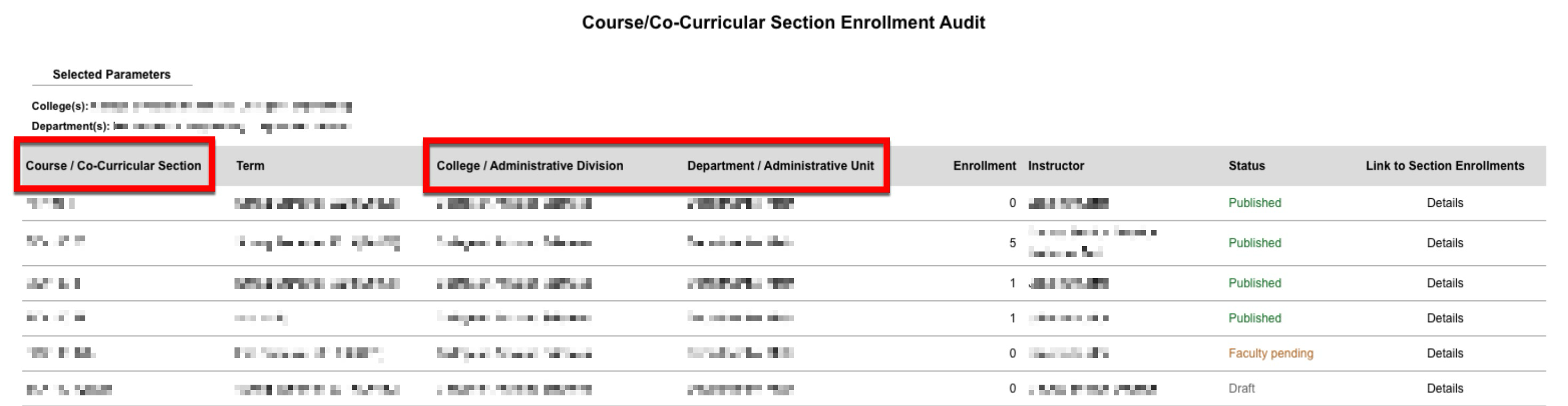
This report now features a refreshed user interface and has been renamed Course/Co-Curricular Section Enrollment Audit. To accurately encompass both courses and co-curricular activities, the report category was changed to Course/Co-Curricular Audits. Additionally, the Course parameter is now labeled Course/Co-Curricular Activity, and the description now clarifies that this report audits both course and co-curricular section enrollments and statuses, ensuring accurate listings based on SIS data or manual updates.
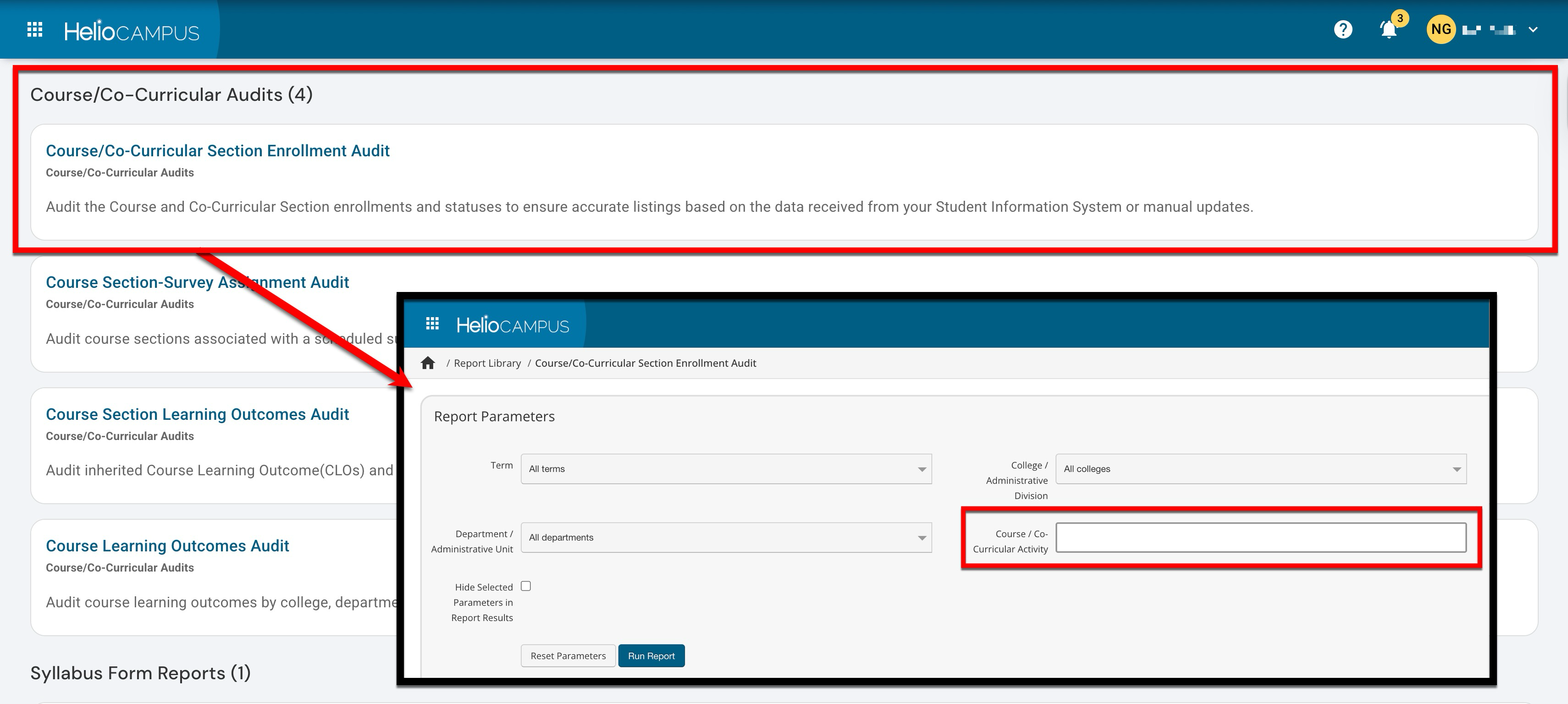
The output for this report was also updated to ensure that co-curricular sections are now included and displayed correctly. The following changes can be seen in the report output:
-
The Course Section column has been renamed to Course/Co-Curricular Section.
-
The College column has been renamed to College/Administrative Division.
-
The Department column has been renamed to Department/Administrative Unit.
Data Sets
The Program Assessment Results by Student data set has been enhanced to support automated student metadata. When provided to HelioCampus via the Student data file, the student metadata included below will be included in the data set.
-
Age
-
Number of Terms
-
Highschool GPA
-
Cumulative GPA
-
Student Citizenship
-
Student Class Type (BOT)
-
Student Home State
-
Student GPA
-
Student Athlete
The column previously labeled student_majors has been renamed to student_major_codes for clarity, and a new column, student_major_names, has been added. This new column displays a comma-separated list of each student’s full major name (combining the major description and degree). Learn more about the Program Assessment Results by Student data set.
Direct Assessment Graphs Report
The Direct Assessment Graphs Report now orders bars by the term start date, with an alphabetical fallback on term code when start dates are the same. This produces a clear, chronological progression across terms. Institutions can now more easily see trends over time without manually reinterpreting out-of-order bars.
Email Queue Manager
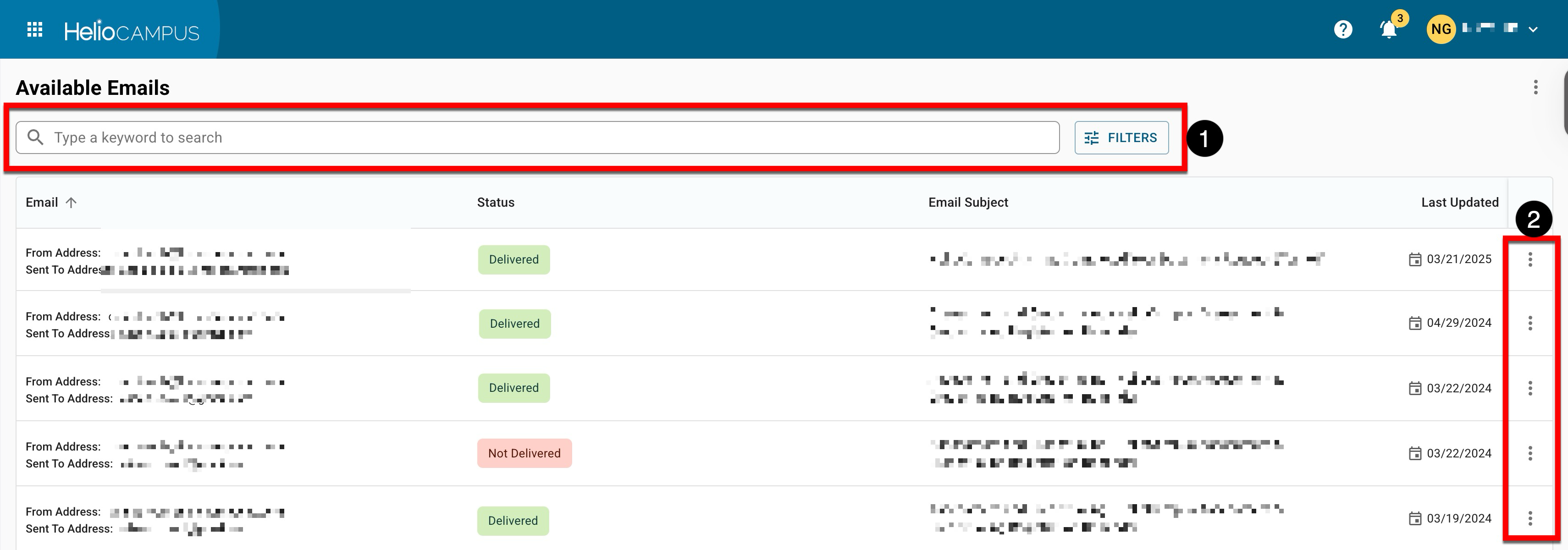
The Email Queue Manager has been updated with an improved user interface. Search functionality is available, and clicking the Filters option allows filtering by status (1). Expanding the Action kebab (2) will open the Preview Email drawer, where email details and content can be reviewed. Learn more about the Email Queue Manager.
External User Groups
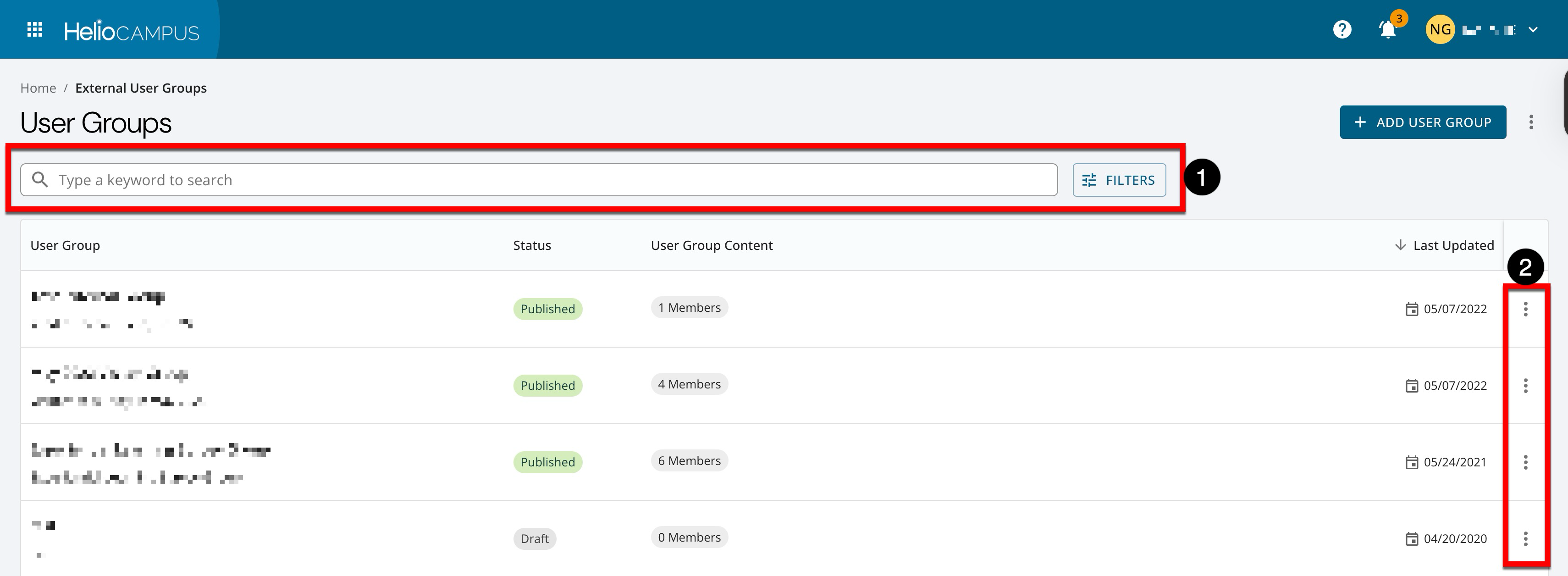
The External User Groups page has been updated with an improved user interface. Search functionality is available, and clicking the Filters option allows filtering by status (1). Expanding the Action kebab (2) displays the option to edit, copy, or delete a user group. Learn more about External User Groups.
Key Assignment Designer
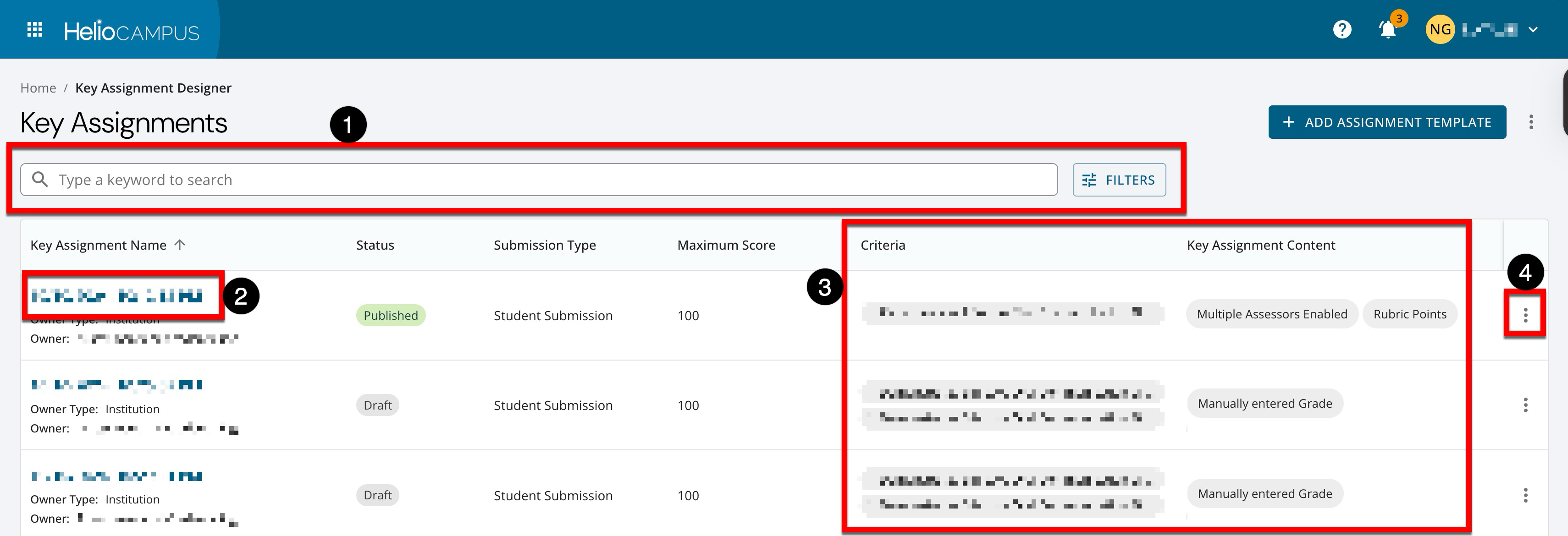
The Key Assignment Designer has been updated with an improved user interface. Search functionality is available, and clicking the Filters option allows specific filters to be applied (1). The name, owner type, and owner name (2); clicking the name will navigate to the Key Assignment Homepage. Quick-glance content (3) displays associated criteria and content information without navigating to the Key Assignment Homepage. Expanding the Action kebab (4) displays functionality to copy assignments. Learn more about the Key Assignment Manager.
Learning Journey Experience Search
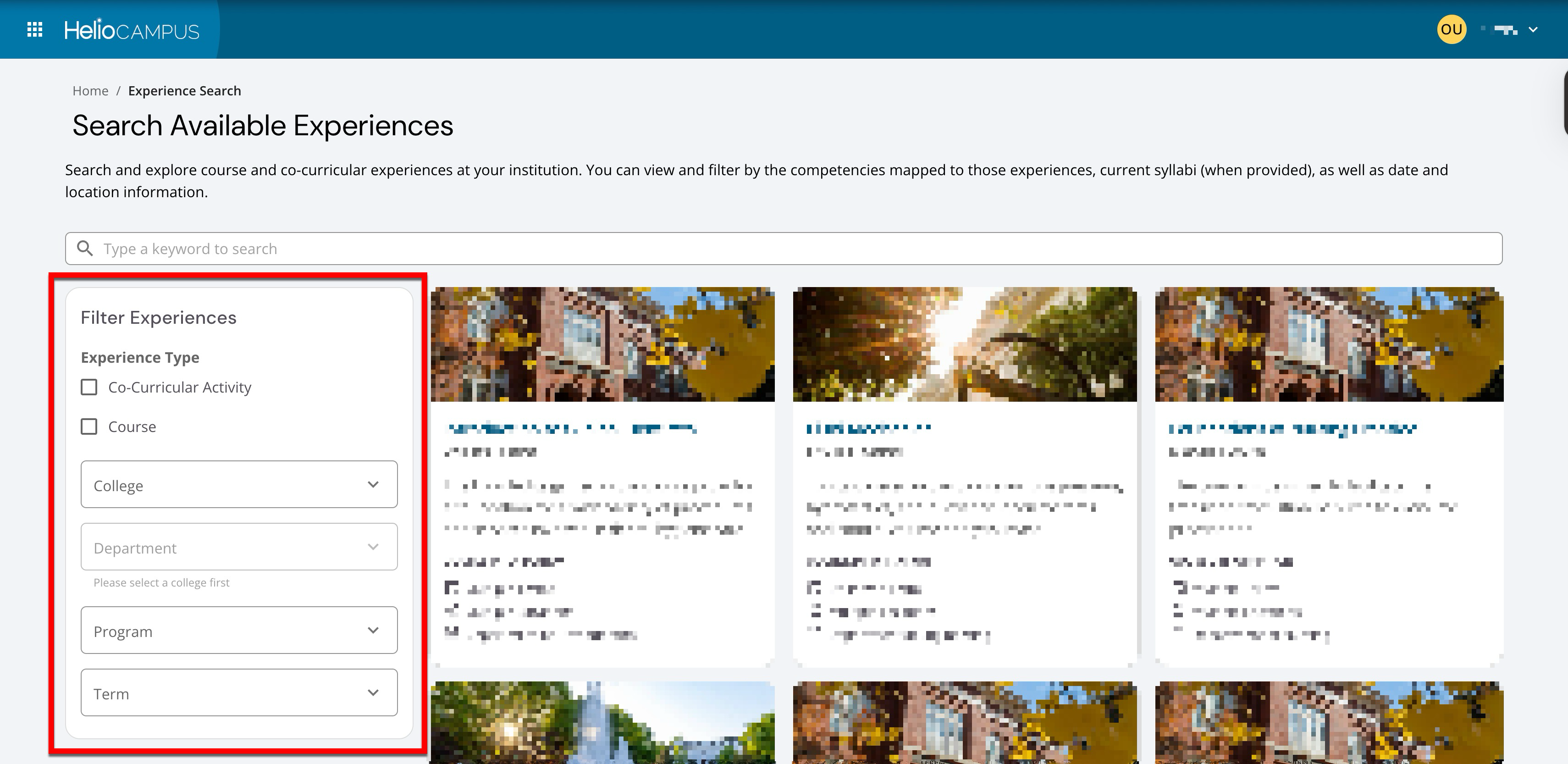
Experiences can now be located more easily with enhanced search filters. Multi-select filters for college, department, program, and term are now available. Cascading filter behavior allows department and college options to reflect associations with selected programs and terms. Term filtering now includes terms in Pending, In Progress, Active, and Completed for broader coverage. Learn more about searching for experiences.
Learning Journey Skills
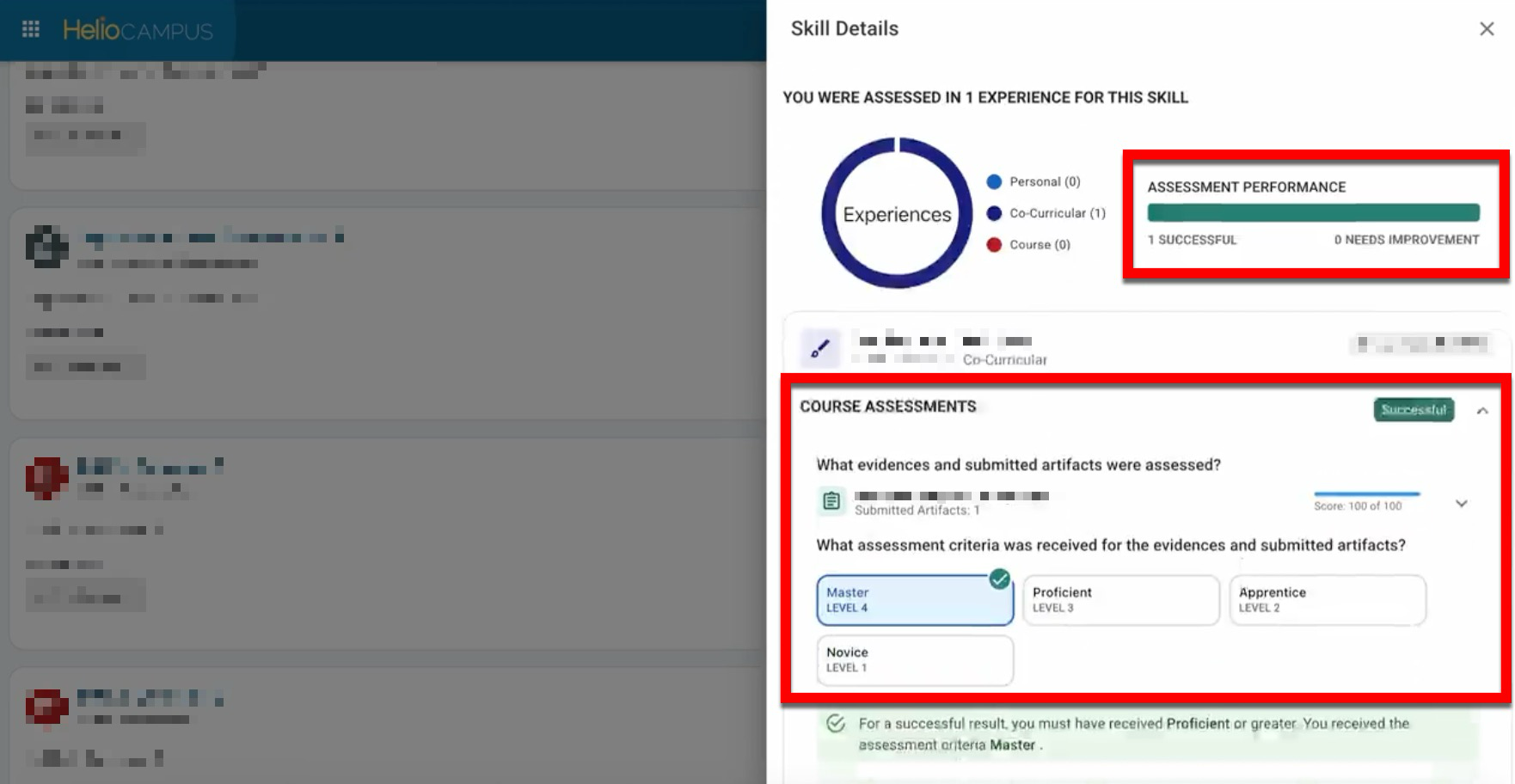
Assessment data for Learning Journey skills now appears as soon as HelioCampus receives it, providing students with earlier visibility. Skill assessment data can be seen by opening the Skill Details drawer. Learn more about Skills.
Main Menu
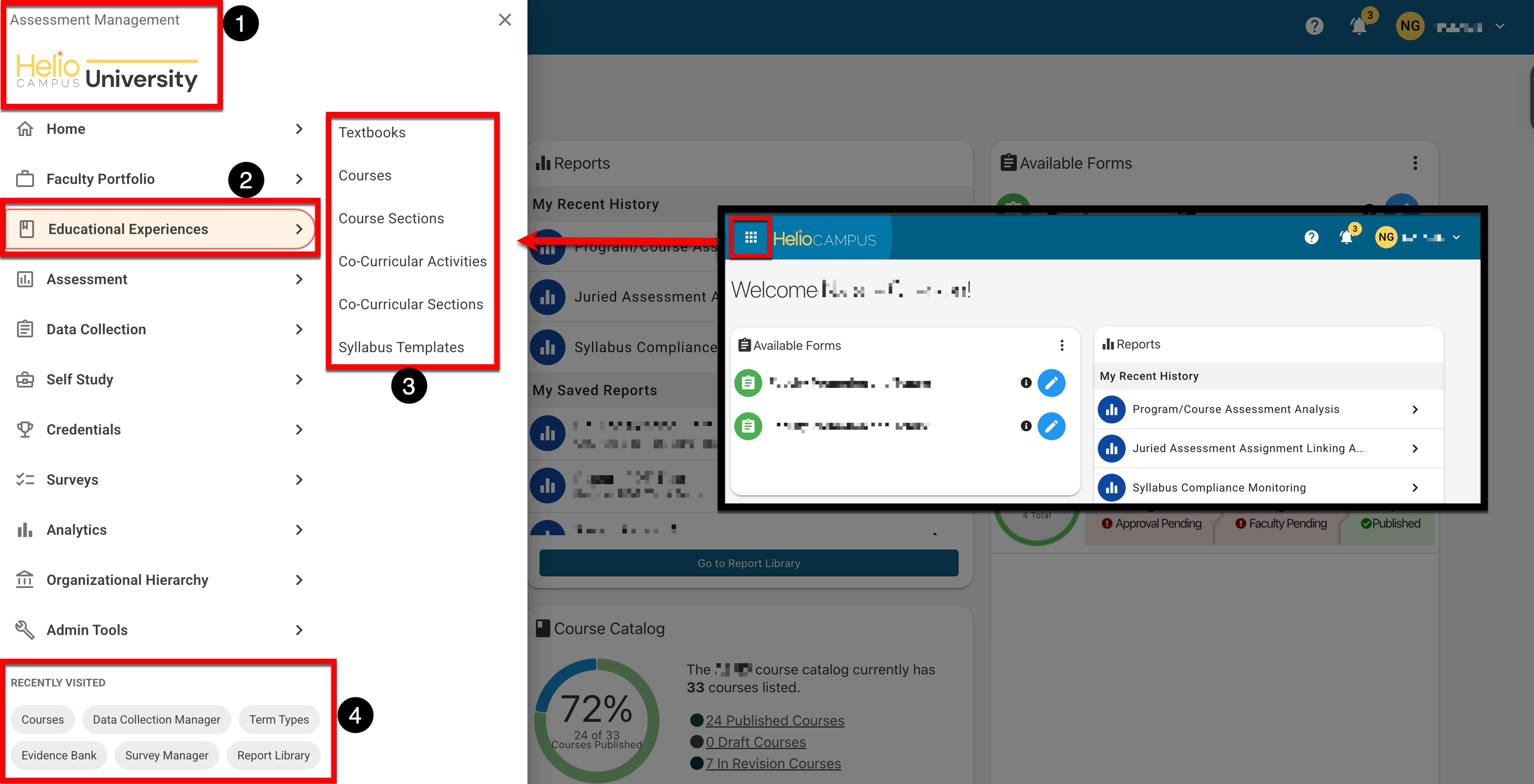
HelioCampus is introducing an improved two‑level global navigation to make accessing what’s needed quicker. The new main menu continues to open from the header, displaying institution branding (1). Parent categories make platform features clear and easy to locate (2), and clicking a parent category displays related functionality (3). With polished interactions using smooth transitions, this new design is responsive on computers and mobile with full‑width views for easy drill‑in, and recently visited pages are still easy to access (4). Learn more about the main menu and other menus within the platform.
Outcomes Assessment Summary Report
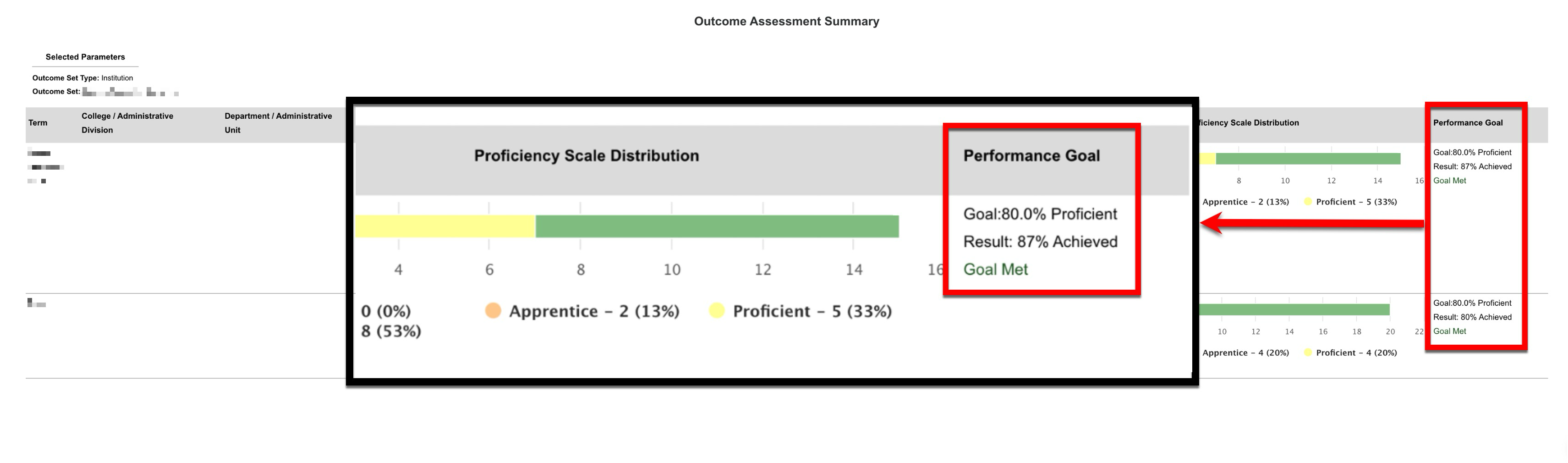
The Outcomes Assessment Summary Report now provides clearer information about performance goals. Administrators can easily see the program’s performance goal (e.g., “80% of students are proficient or better”), the percentage of students who met that goal, and a visual indicator showing whether the goal was met. This enhancement helps users quickly understand how student achievement relates to set goals. Learn more about the Outcomes Assessment Summary report.
Program-Owned Syllabus Templates
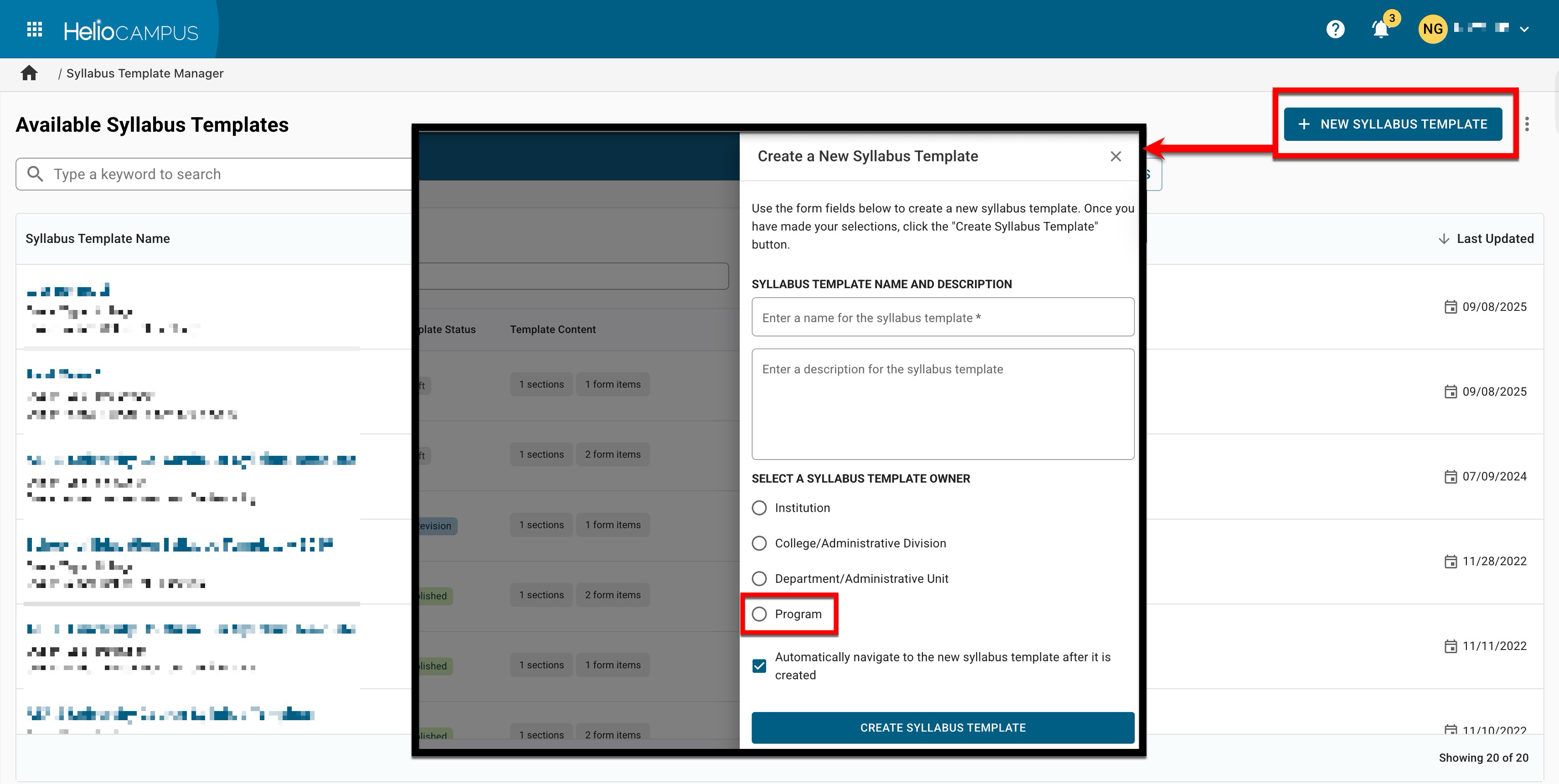
Program Coordinators can now create, edit, and revise syllabus templates owned by their associated programs. This enhancement provides programs with greater autonomy and flexibility to manage their own syllabus templates, similar to how colleges and departments manage theirs.
Previously, when creating or editing a syllabus template, users could assign ownership to only an Institution, College, or Department. Now, Program is an additional ownership option during creation or editing, prompting the selection of which program the template belongs to. Templates and their owners are only editable while in Draft or In Revision status. Learn more about creating syllabus templates.
To support the new program-owned syllabus template functionality, a new Syllabus Form Settings section has been added to the program Settings page. These settings can be edited by admins and Program Coordinators for programs in Draft or In Revision status:
-
Program-Specific Syllabus Template: Administrators can now select a program-specific syllabus template. Only templates owned by the program are listed, ensuring only relevant options are available.
-
Public Syllabus URL: There is now a checkbox to enable or disable a public URL for the syllabus, making it easier to share syllabi externally if desired.
-
Instructor Editing Permissions: Another checkbox allows administrators to permit Instructors to edit the syllabus even after a course section has been published, supporting ongoing updates and flexibility.
It should be noted that these settings can be locked at higher levels of the Organizational Hierarchy and, if locked, are not editable at the program level. Learn more about Program Settings.
Program Performance Goal
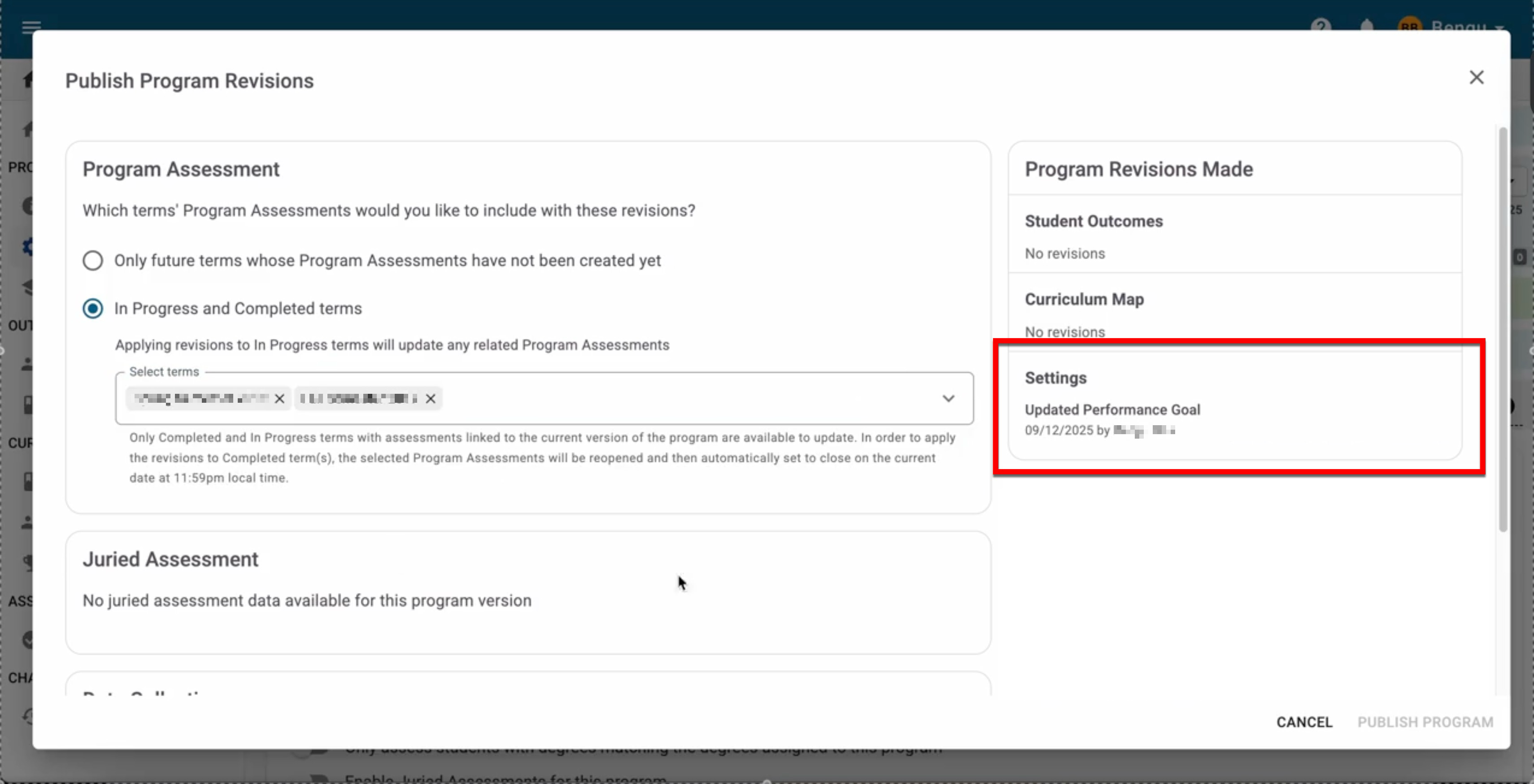
A program’s performance goal can now be updated. When a program is in revision, users can update the performance goal percentage and level via Program Settings > Performance Goal. The revised program publishing behavior matches the existing versioning rules.
-
Future Terms: Existing assessments will remain unchanged. New assessments will be associated with the new program version and goal.
-
In Progress Terms: The assessment’s performance goal is updated to associate with the new program version’s goal.
-
Completed Terms: Selecting completed terms will temporarily reopen assessments to In Progress status, apply the new performance goal, and then reclose them overnight to return them to Completed status.
Learn more about revising programs and program Settings.
⚠️ If the performance goal percentage and level are locked at a higher level of the Organizational Hierarchy, revisions will not be possible. Learn more about locking platform settings.
Question Types
The user interface for survey and data collection matrix question types has been enhanced. Key improvements include:
-
Removal of bold/dark border lines in favor of subtle grey lines for a cleaner look.
-
Increased padding in radio buttons and question cells to improve readability and alignment.
-
Enhanced consistency and modern appearance, addressing previous issues with spacing and outdated styling.
These updates provide a more user-friendly and visually appealing experience when interacting with matrix questions in surveys and data collections. Learn more about question types.
Report Library
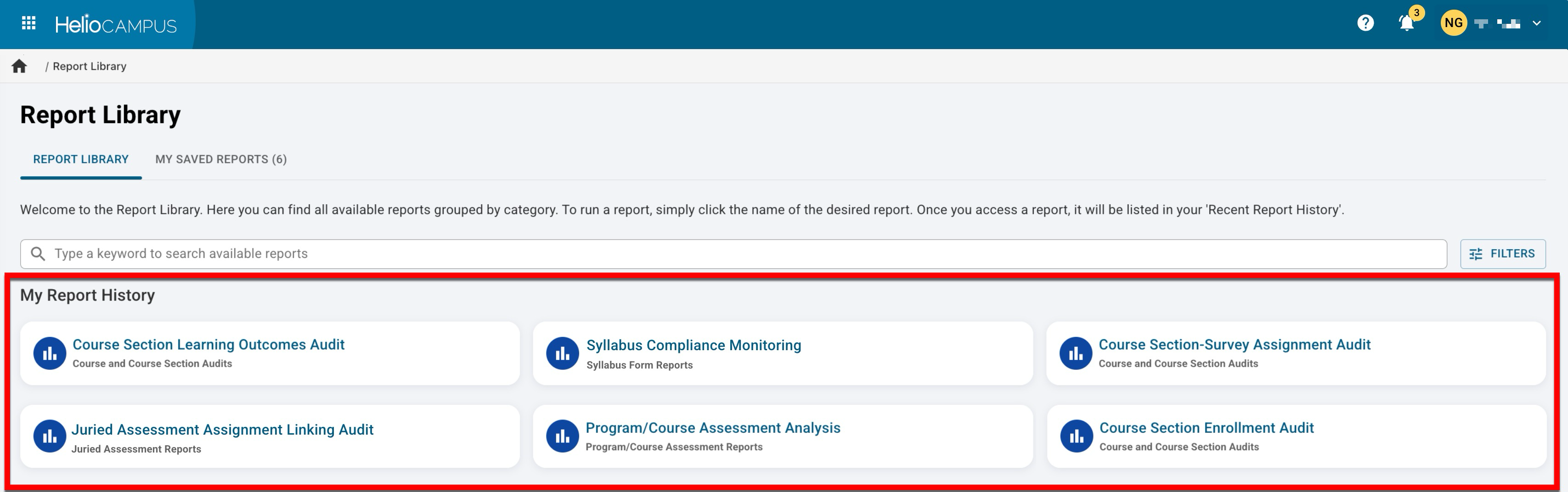
The threshold for the number of recently viewed reports displayed in My Report History has been increased from five to six. This change ensures consistency with the enhanced Report Library interface. Learn more about the Report Library.
Self Study Workflows
Workflow steps can now be customized in each self study and its sections during the initial creation process (while the self study is still in Draft status). This improvement allows institutions to tailor the review and approval process. When creating a self study, new configuration is available to select which statuses are included for both the overall self-study and its sections. Mandatory statuses (Draft, Pending, In Progress, Published) are locked and cannot be removed; optional steps (In Review, Liaison Review, Coordinator Review, Final Review) can be toggled on or off.
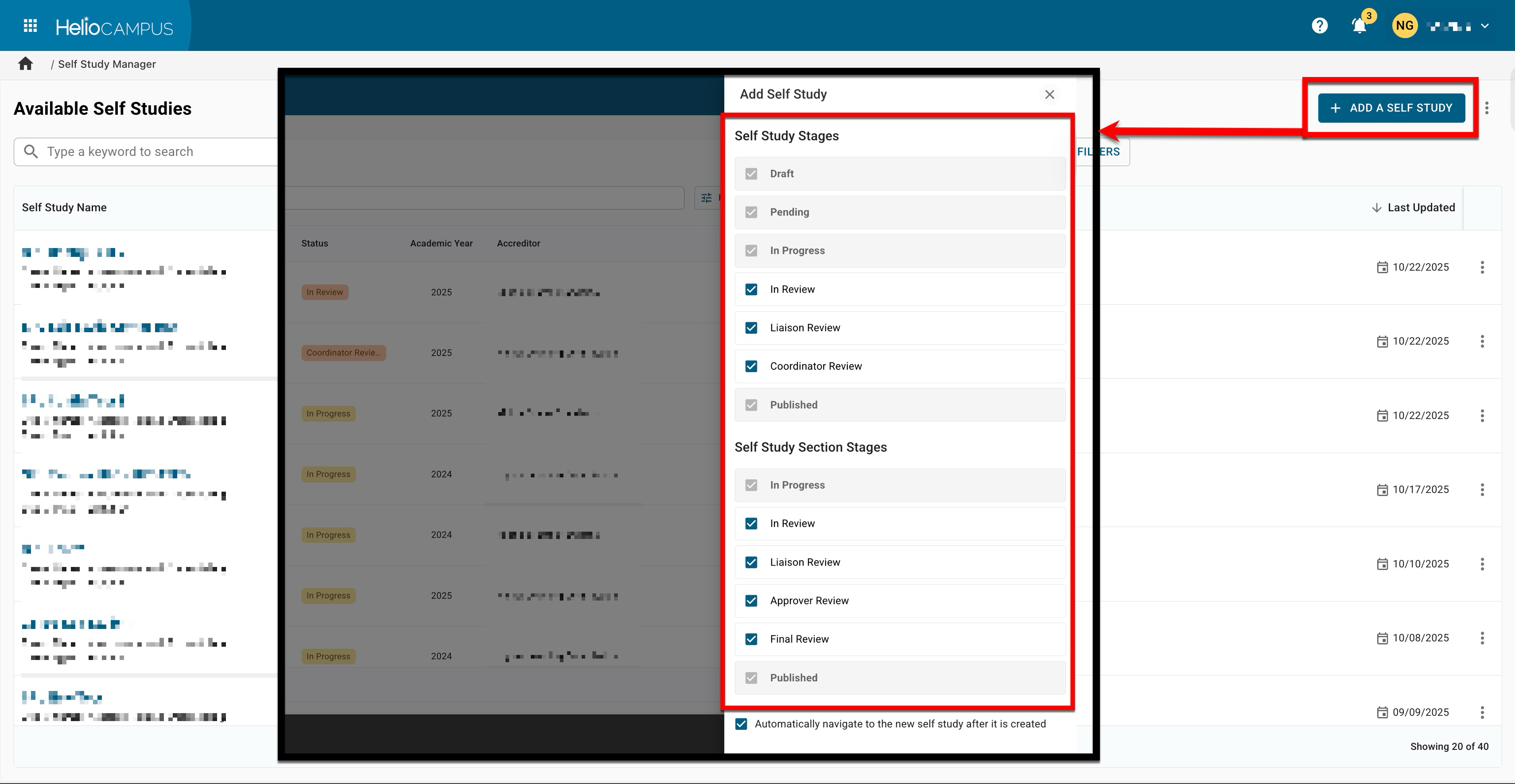
This new configuration is also available in the Self Study Settings page and remains editable while a self study is in Draft status. Once a self study moves to In Progress status, all workflow settings become locked. This enhancement provides more flexibility to align a self study process with institutional requirements, ensuring only relevant review steps are included. Learn more about Self Study.
Survey Form Designer
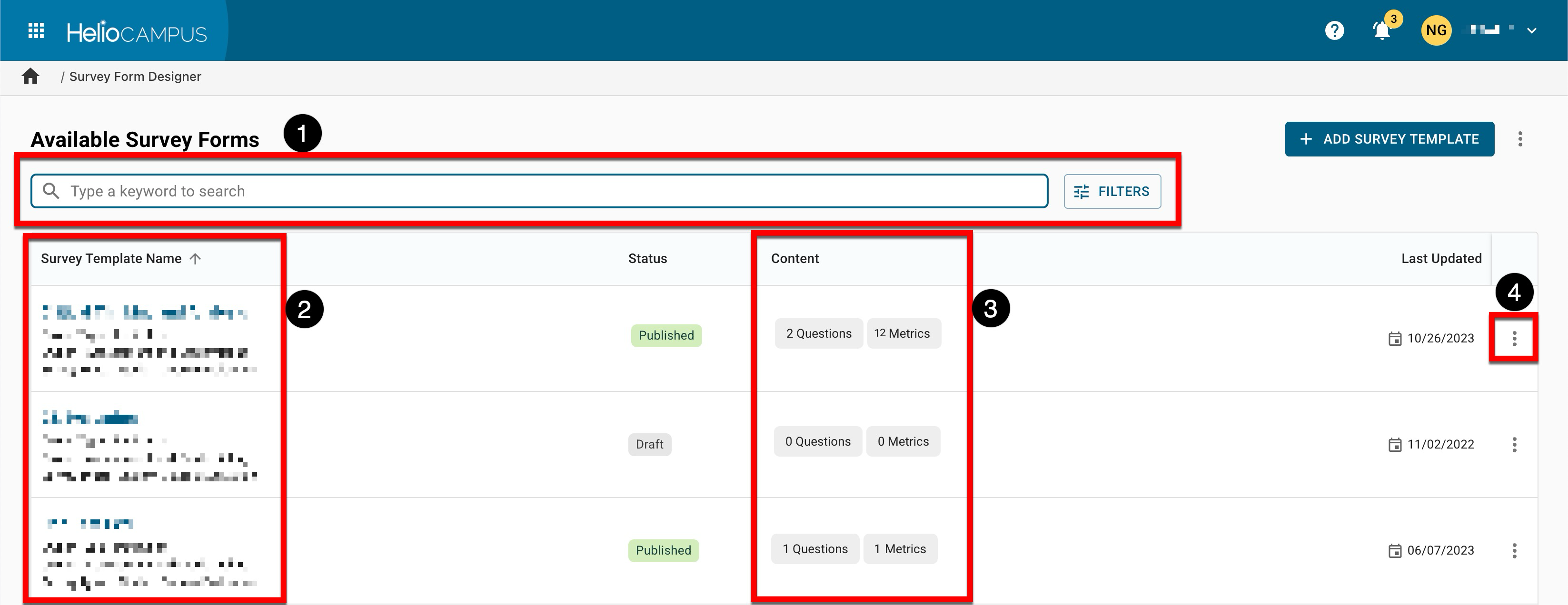
The Survey Form Designer has been updated with an improved user interface. Search functionality is available, and clicking the Filters option allows specific filters to be applied (1). The name, owner name, and type, and the survey type (2); clicking the name will navigate to the Survey Form Homepage. Quick-glance content (3) displays useful information without navigating to the Survey Form Homepage. Expanding the Action kebab (4) displays copy and preview functionality. Learn more about the Survey Form Designer.
Survey Results
The Survey Results page has been optimized to address performance issues, enabling faster data loading and a better user experience across all roles. Previously, loading the results page could trigger up to 10,000 requests, resulting in slow response times for users with various roles (such as Course Section Directors and Instructors). Learn more about survey results.
Syllabus Compliance Monitoring Report
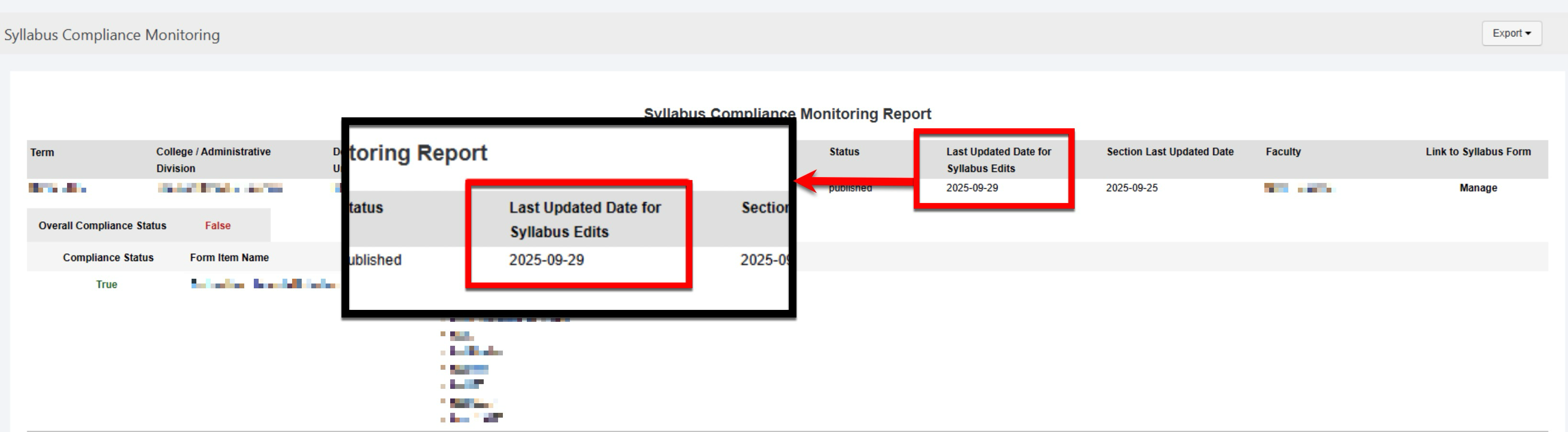
The Syllabus Compliance Monitoring Report has been enhanced to use section‑level last-updated data to show the true last edit for each syllabus, delivering more accurate and actionable compliance monitoring. Learn more about the Syllabus Compliance Monitoring Report.
Syllabus Template Form Items
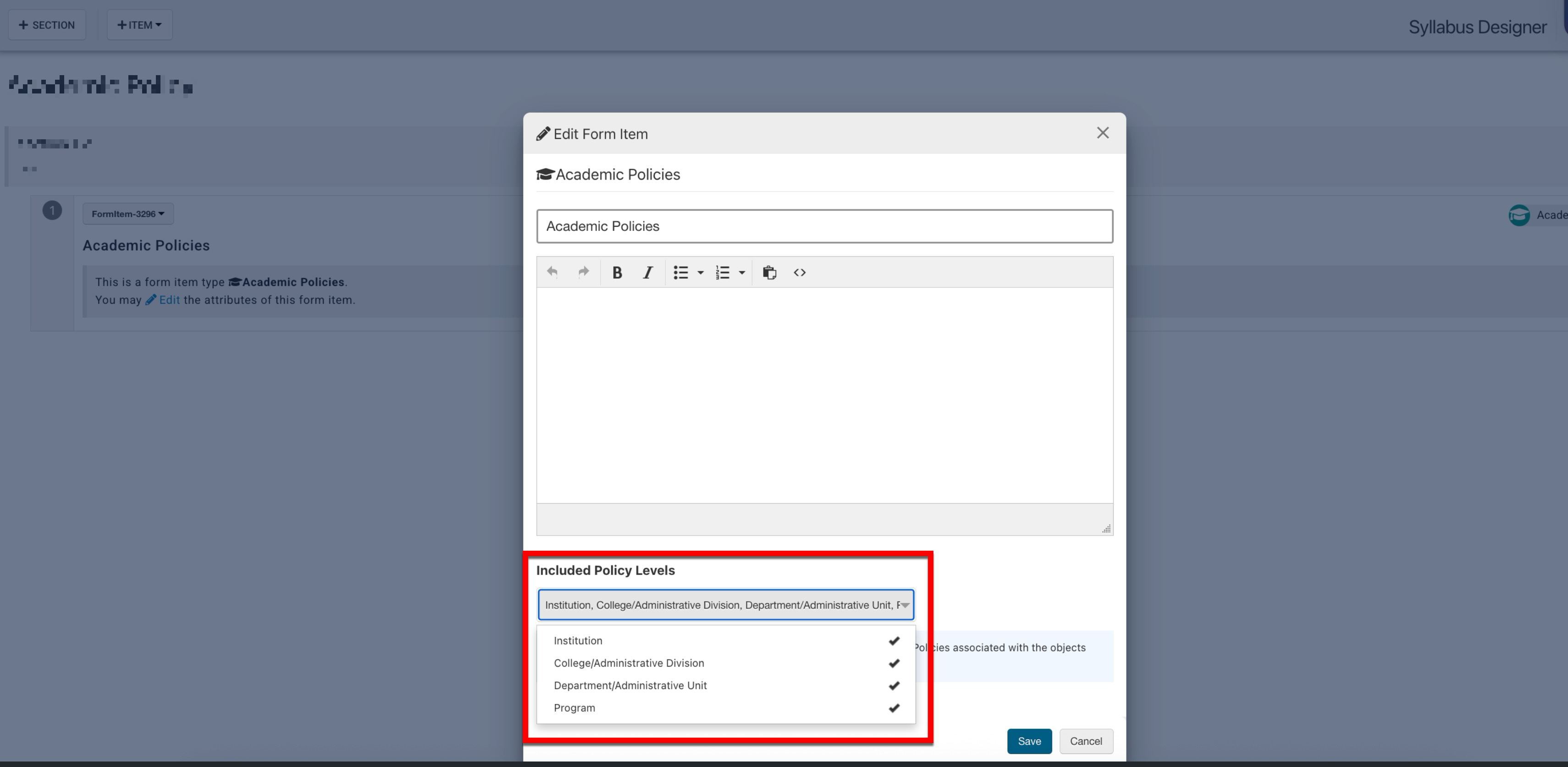
With the newly released program-level academic policy functionality, the Academic Policies syllabus template form item has been enhanced to include Program as a policy-level option. By default, all levels are selected, but users can customize which levels are shown. This enhancement provides greater flexibility and control over which policies are visible based on their associated level. Learn more about syllabus template form items.
Syllabus Template Manager
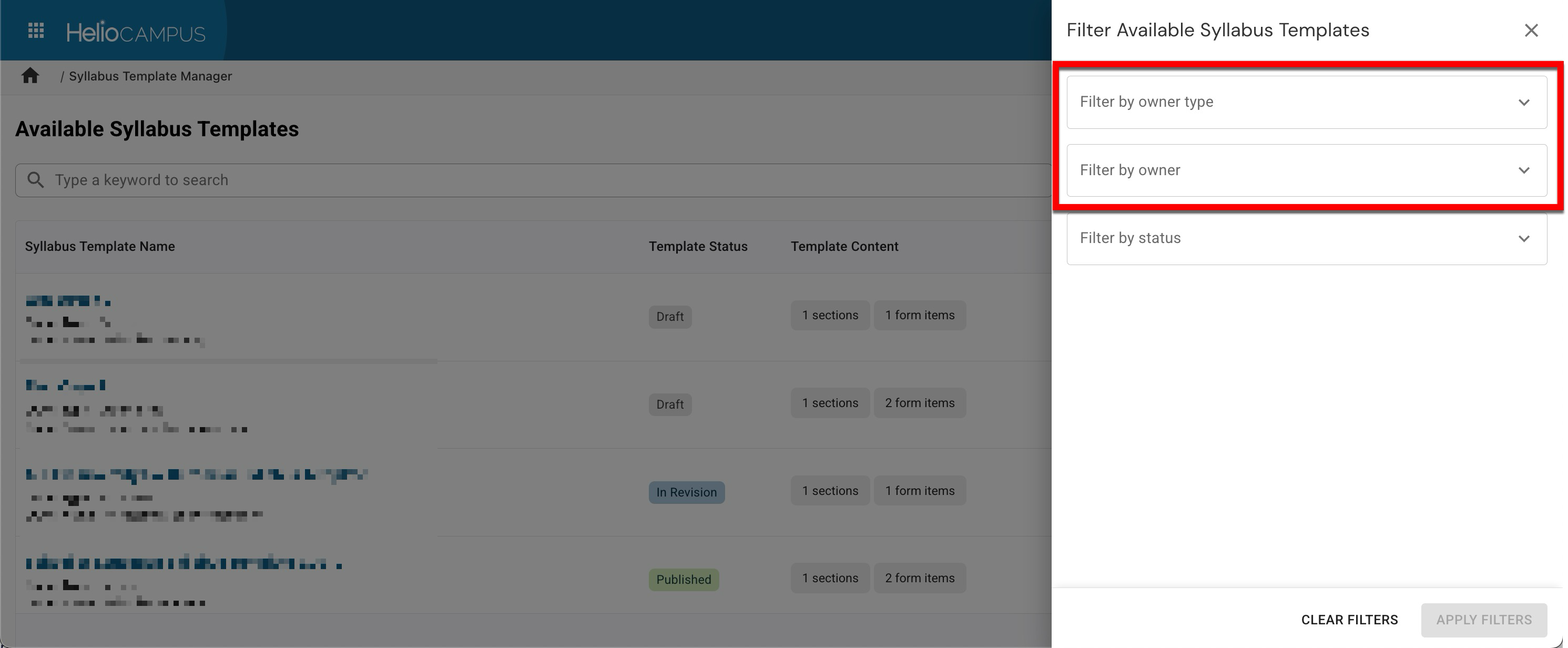
The Syllabus Template Manager now features enhanced filtering options. The previous College/Department quick filter has been replaced with two new filters: Owner Type and Owner. Users can now filter templates by selecting just an owner type (such as institution, college, department, program, course, or user) or by specifying both an owner type and a specific owner (e.g., college and College of Engineering). Learn more about the Syllabus Template Manager.