Release Timeline
-
Training Sites: February 2, 2026
-
Production Sites: March 2, 2026
Learn more about release enhancements by registering for the v3.114 Release Webinar! After registration, enrollment automatically continues for all future webinars—no re-registration is necessary! Although continued enrollment is automatic, attendance in every release webinar is not mandatory; please attend when scheduling allows.
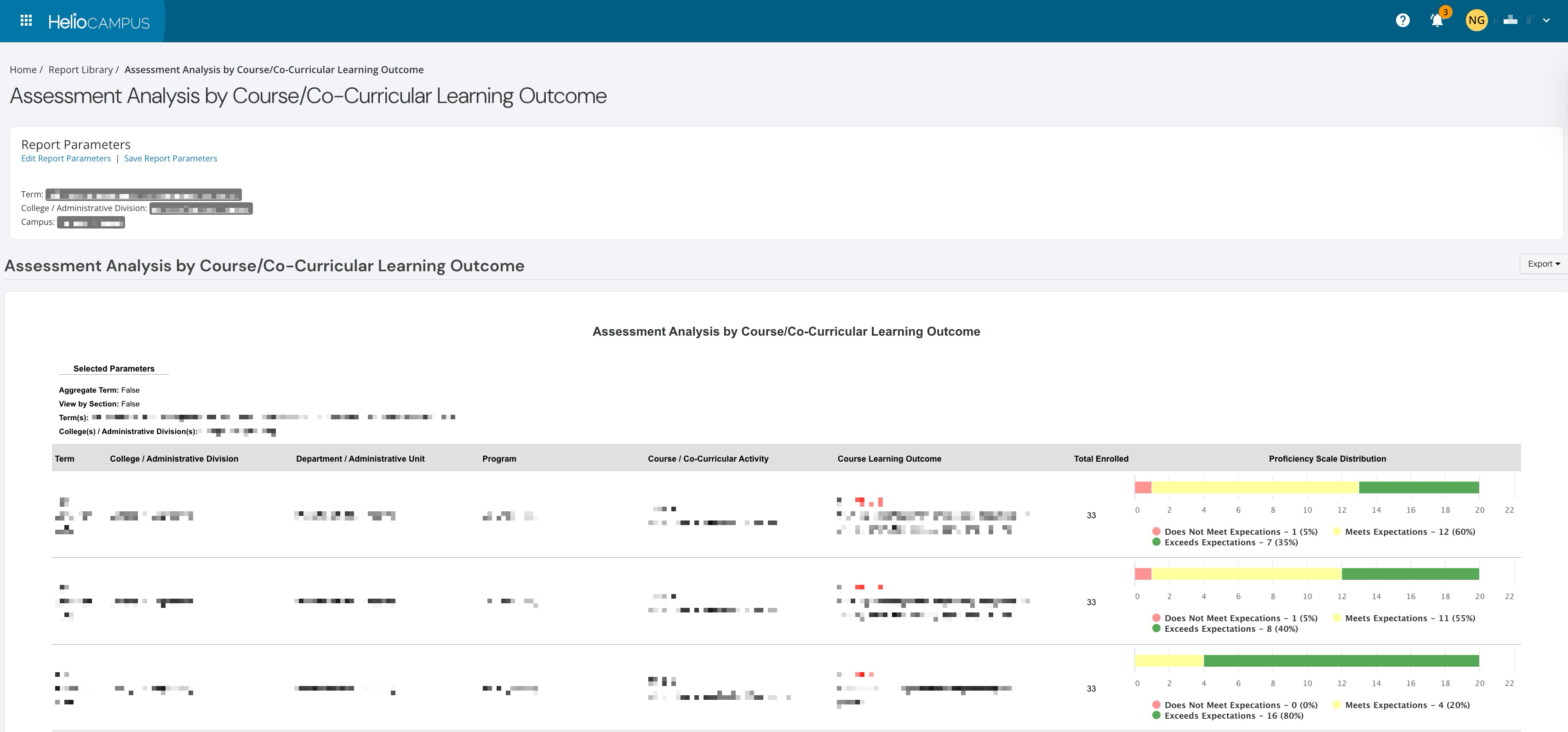
Assessment Analysis by Course/Co-Curricular Learning Outcome
A new report is now available to assess student performance on Course Learning Outcomes (CLOs) collected as a part of Course or Program Assessment(s). The Assessment Analysis by Course/Co-Curricular Learning Outcome report offers a high-level view of student achievement on CLOs for selected terms. This new report is available to Institution, College, and Department Administrators, as well as Course and Program Coordinators. Learn more about the Assessment Analysis by Course/Co-Curricular Learning Outcome report.
Data Collection - Assessment Data
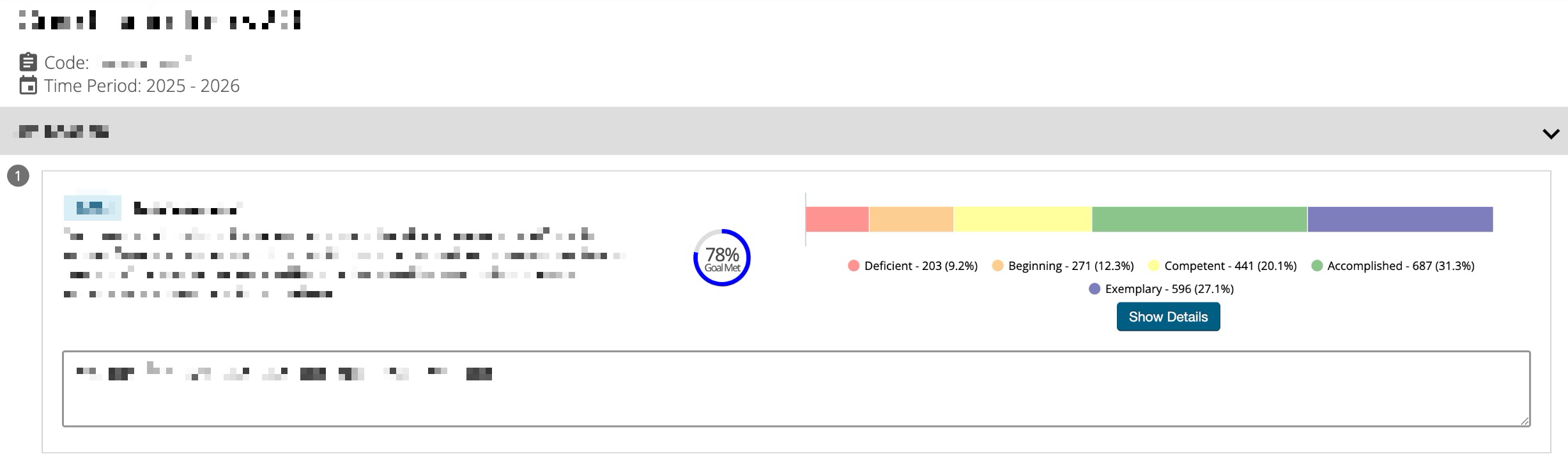
The assessment results display has been redesigned to improve readability and data interpretation. Bar charts are now available at all levels, including the course and Course Learning Outcome (CLO) levels, and now display legends rather than hover tooltips for easier reference. The visual presentation has been optimized with better alignment and spacing, making the performance data more prominent. Additionally, the platform now provides clearer messaging to distinguish between outcomes with no data, those with data where the performance goal was met, and those where it wasn’t met, helping users better understand their assessment results at a glance. Learn more about Data Collection functionality.
Data Collection Form Exports
Data collection form exports to CSV and Excel have been improved to ensure all cell values are fully populated, eliminating the need for manual data manipulation. Previously, when exporting data collection results that included relational data or form sections with multiple entries, the export logic left cells blank rather than repeating duplicate values across rows. Export logic now automatically duplicates field values across all relevant rows in the export, ensuring that each row contains complete information even when multiple entries share the same parent data. This enhancement applies to exports from multiple locations, including individual form views, submitted forms, and the Data Collection Detail Audit report, streamlining the data export process and enabling users to immediately use exported data for strategic planning reports and other institutional analysis without additional manual processing. Learn more about Data Collection functionality.
Data Collection Forms
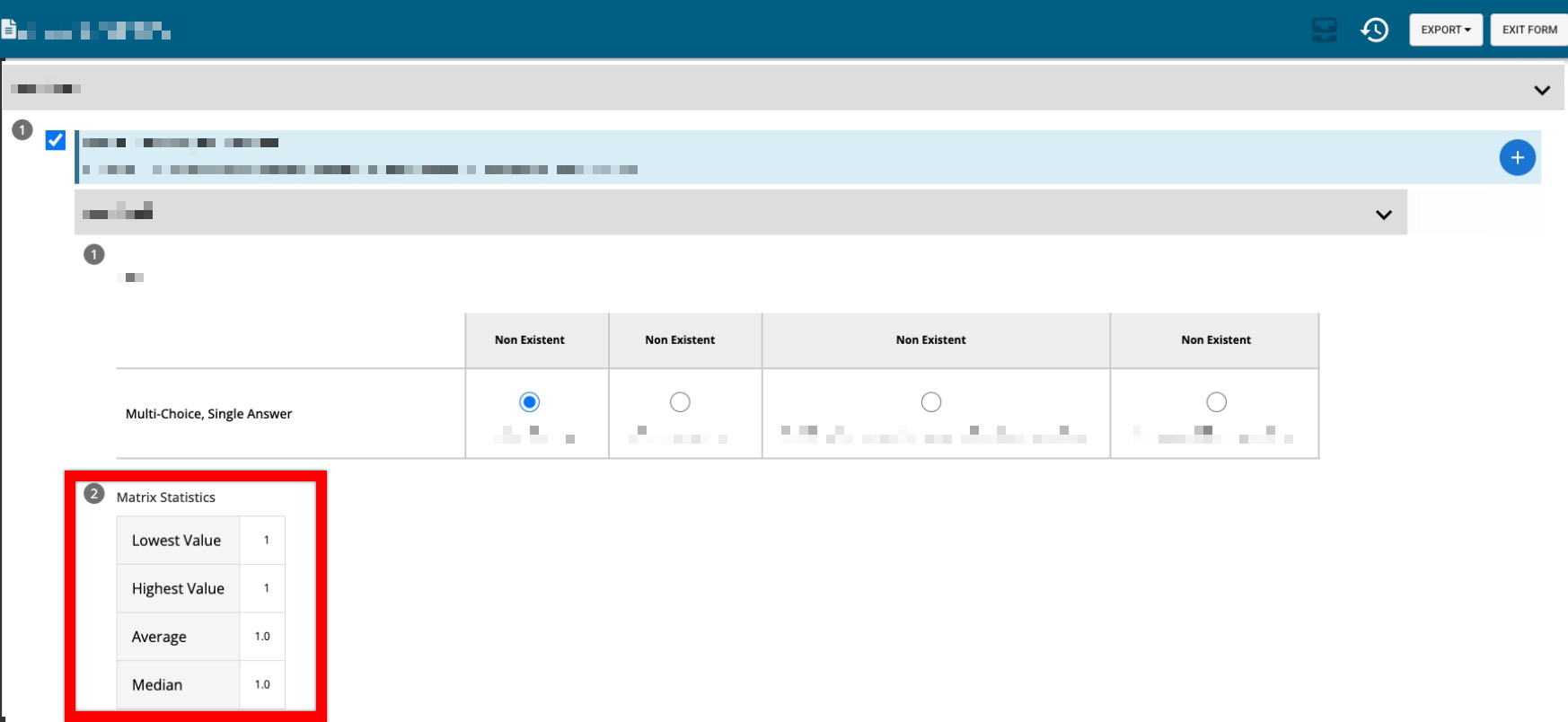
Data collection forms now display the data collection name, along with the associated term or academic year, at the top of the form, whereas previously only the schedule name was displayed. Additionally, a new form item type is now available for data collection forms, enabling automated calculation of statistical values based on selections made in a matrix question. This new functionality expands data collection capabilities, enabling more sophisticated assessment and data-gathering workflows.
The new Matrix Statistics form item provides advanced options for collecting and analyzing matrix-style statistical values within data collection forms, expanding the types of assessment data that can be gathered. This form item is available for all form types and includes a comment field. During configuration of this form item, users can choose a matrix to provide a statistical analysis on and can select one or more statistical values to display:
-
Sum: Sum total of all numerical values of matrix selections.
-
Lowest Value: Lowest numerical value selection out of all rows in the matrix.
-
Highest Value: Highest numerical value selection out of all rows in the matrix.
-
Average: Average value out of all numeric value selections in the matrix.
-
Median: Median value out of all numeric value selections in the matrix.
-
Mode: Most frequently selected numeric value selection in the matrix.
-
Standard Deviation: Standard deviation of selected numeric value selection in the matrix.
In the output for this question in the form, if no selections are made in the matrix, the value will display as N/A. If one or more selections are made, the displayed statistical values will be recalculated to reflect those selections. Learn more about Data Collection functionality.
Enrollment
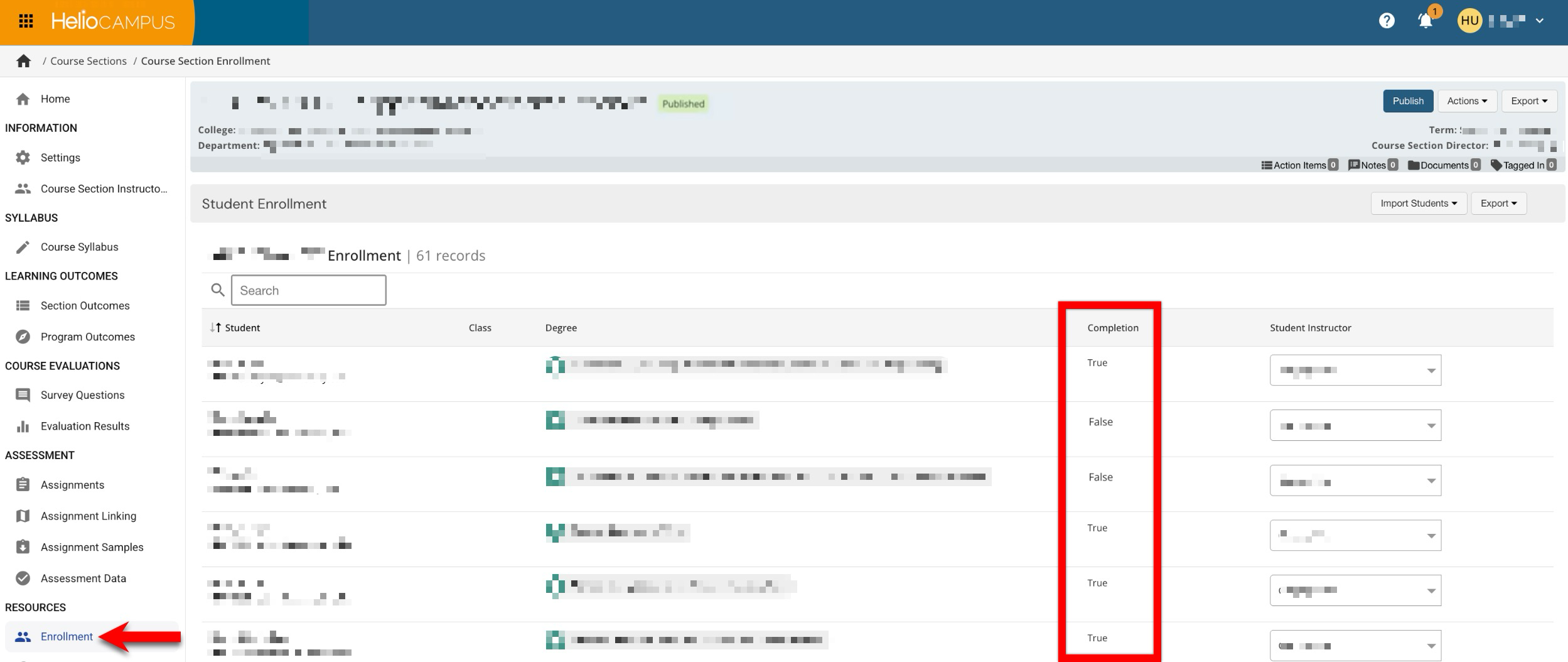
Completion data is now visible directly from the Enrollment page, eliminating the need to navigate to separate pages to view student completion information. A new Completion column is now displayed on the Enrollment page of sections. Until a section is completed, the column will be blank; when a section is completed, this column will display True. If completion does not occur, this column will display False. This enhancement streamlines workflows for users who need to review both enrollment and completion status, improving efficiency in student progress monitoring. Learn more about course section enrollment, or about co-curricular section enrollment.
Environment Identification
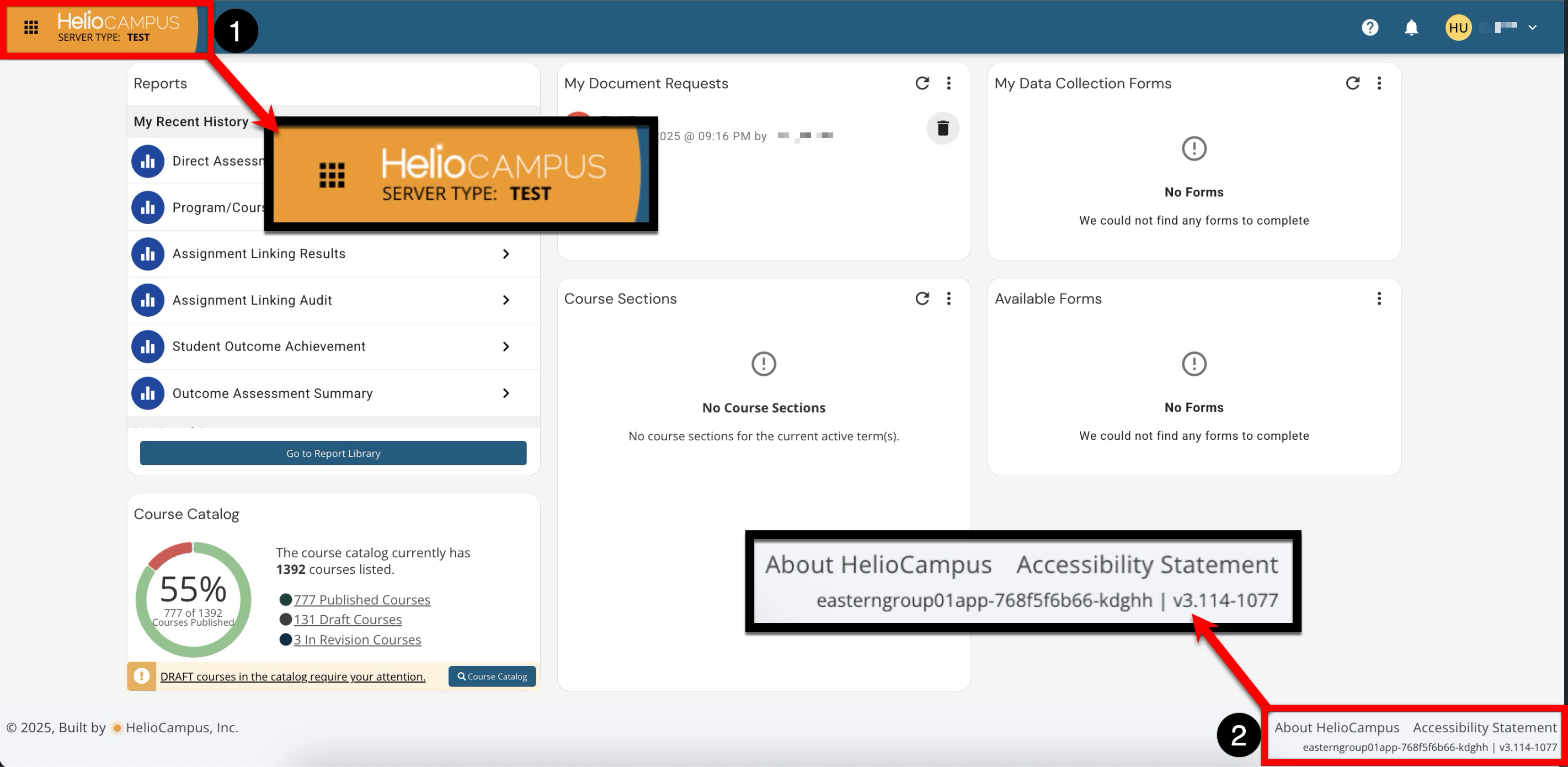
A persistent environment identifier has been added to non-production sites to help users clearly distinguish between their training and production environments. An environment label now appears in the blue header bar next to the logo on all non-production sites (1), providing a constant visual indicator that remains visible across all pages. Additionally, server information has been added to the platform footer next to the version number (2), while the orange chip previously displayed in the main menu has been removed. This enhancement addresses a need for a more prominent way to identify which environment is being worked in, particularly when institution URLs for training and production sites are similar. Production sites intentionally do not display an environment label, maintaining a clean interface for live institutional use. Learn more about production and test environments.
Evidence Versioning
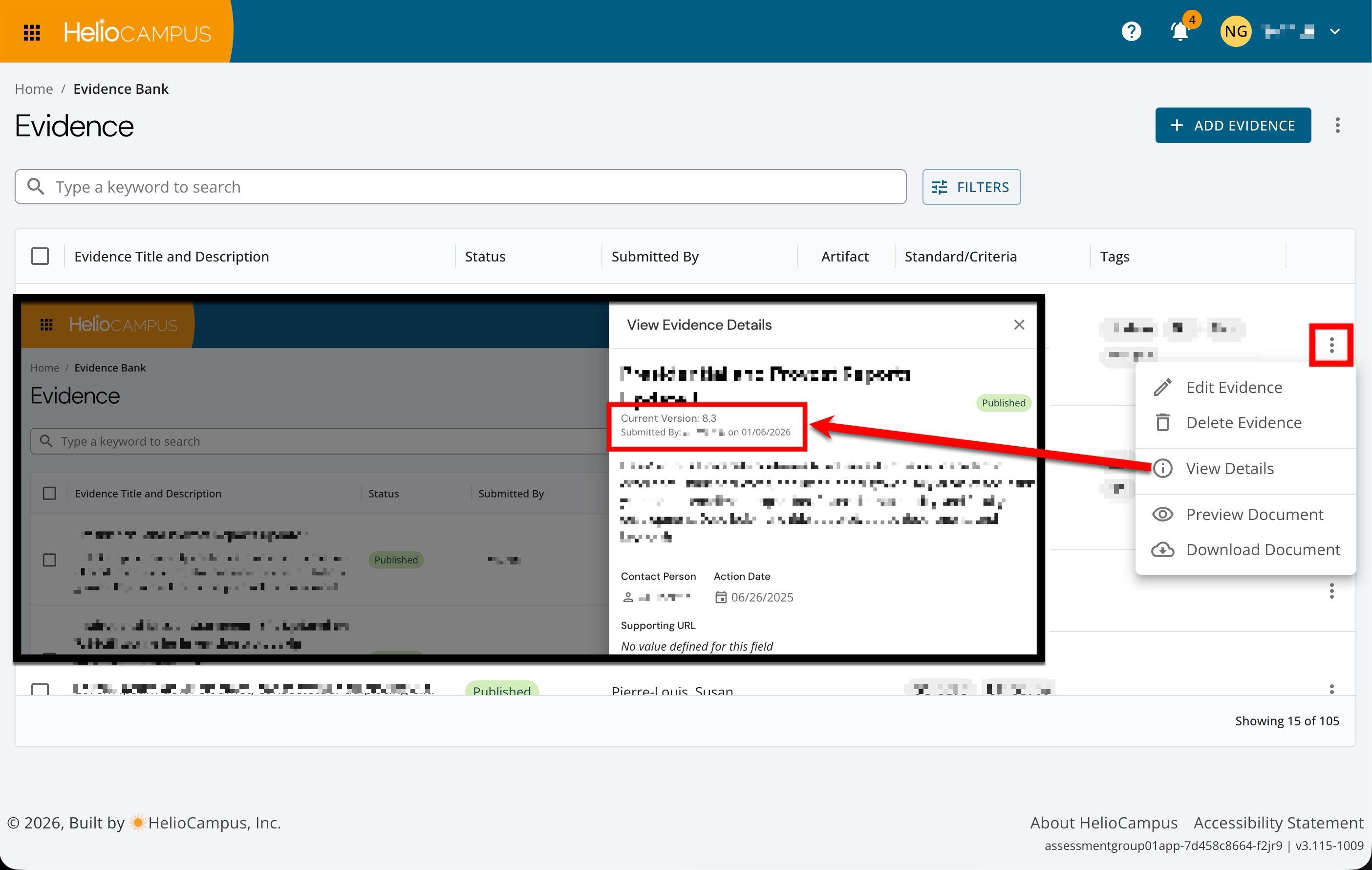
Previously, version numbers were only displayed for evidence imported from the Evidence Bank, but version information is now also visible for evidence created directly within a self study through the Related Documentation page. The version number appears in the Evidence Details drawer in the Evidence Bank and is also reflected in the Evidence Usage Report, providing a complete version history and tracking across all evidence types. This enhancement provides consistent version management across all evidence sources, improving transparency and audit trails for self study documentation. Learn more about self study and about the Evidence Bank.
Juried Assessment Data Sets
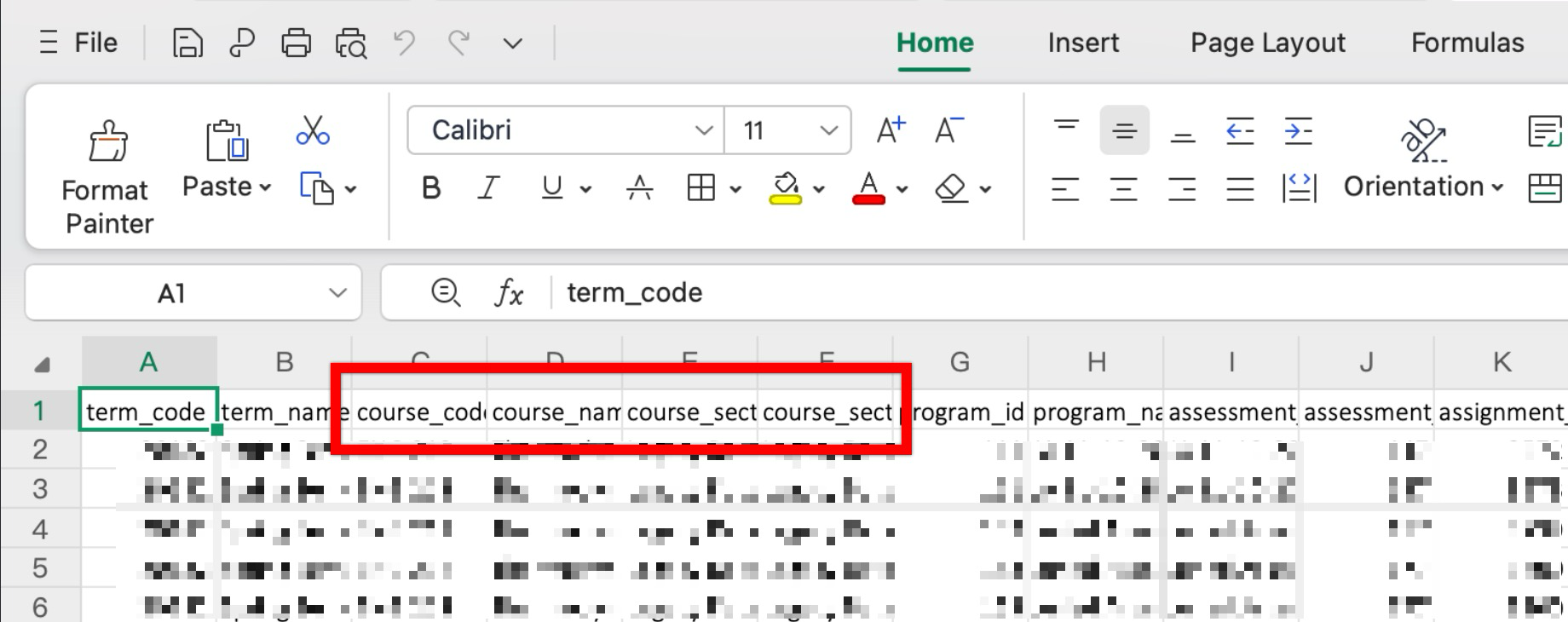
Juried Assessment data sets previously displayed ‘Contains Legacy Data’ for external artifacts or when the data was collected prior to course section-related information being made available in the platform. Now this field will display the name(s) and code(s) of associated courses and co-curricular activities. If an artifact is externally uploaded, no section code or name will display, and the columns will instead show ‘External Artifact’. For older artifacts that predate this enhancement, these columns will display 'Legacy Data’. This enhancement improves data accuracy and provides additional context for analyzing juried assessment results. Learn more about the Assessor Scoring Progress or the Assessor Scores data sets.
Learning Journey Settings
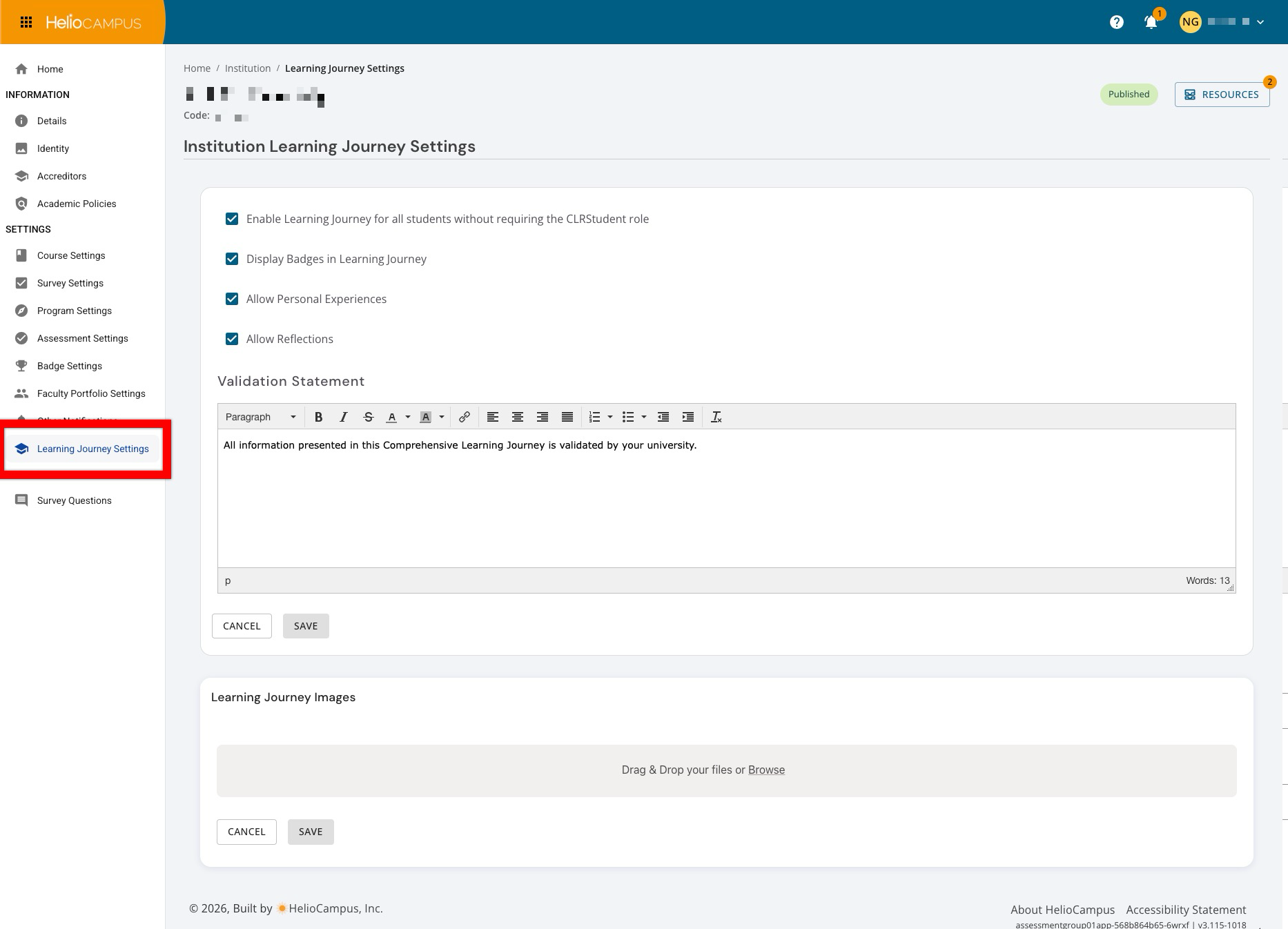
A new centralized Learning Journey Settings page has been added under Institution > Settings to provide Institution Administrators with a single, convenient location to manage all Learning Journey configurations. Previously, settings were distributed across multiple locations within the platform, requiring administrators to navigate to different areas to configure various aspects of the feature.
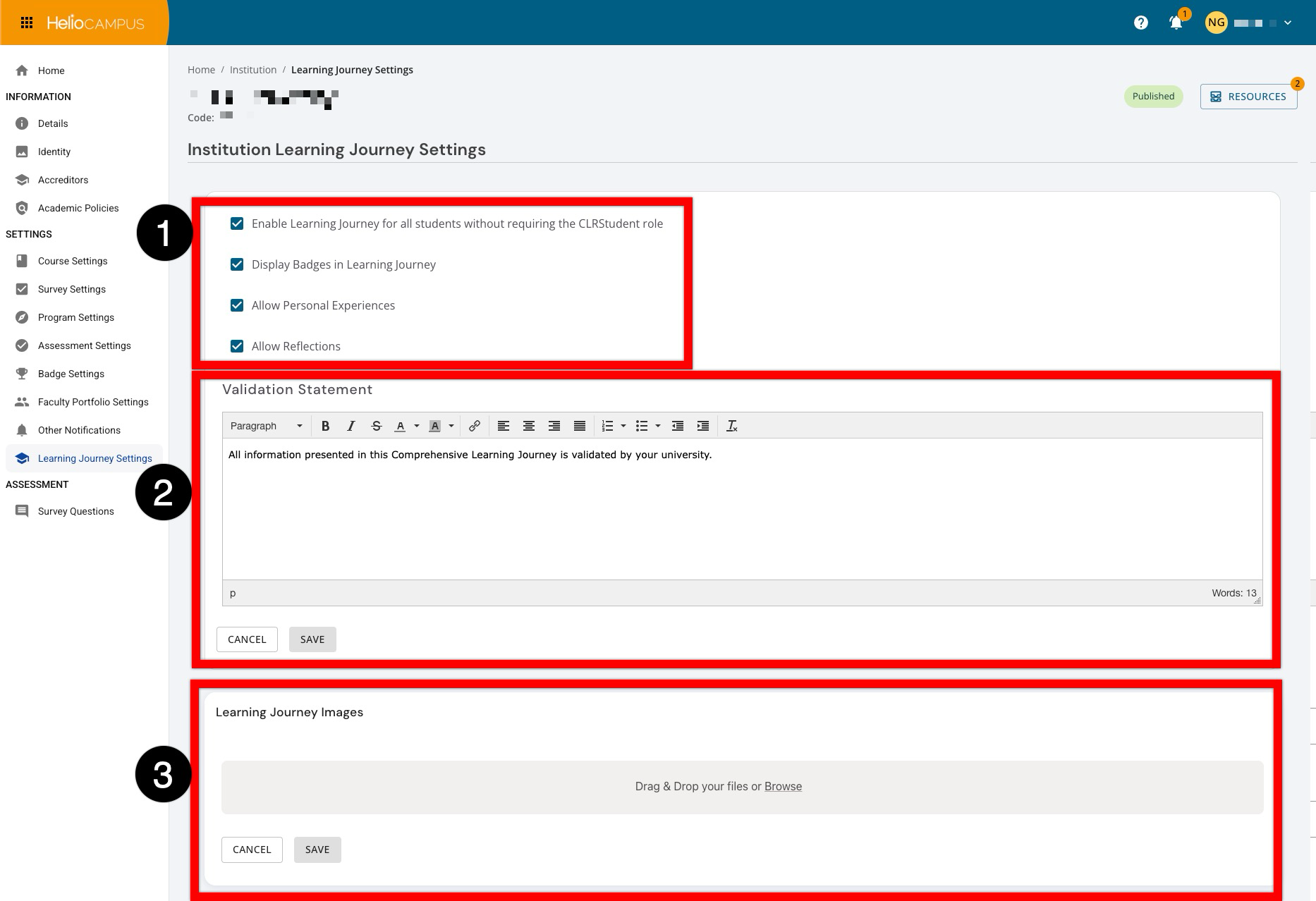
Administrators can now enable the Learning Journey for all students, toggle badge display in the Learning Journey, control whether students can create and view personal experiences, and manage whether students can add reflections at the outcome or experience level (1). The new page also includes a validation statement field (2) where Institutions can create a custom statement confirming the validity of the Comprehensive Learning Journey shareable artifact and stories, thereby adding Institutional credibility to student-shared content. Also available is the option to upload a Learning Journey image (3). These enhancements streamline administrative workflows by centralizing settings and provide Institutions with more granular control over which Learning Journey features are available to their students. Learn more about Learning Journey Settings.
Learning Journey Experiences
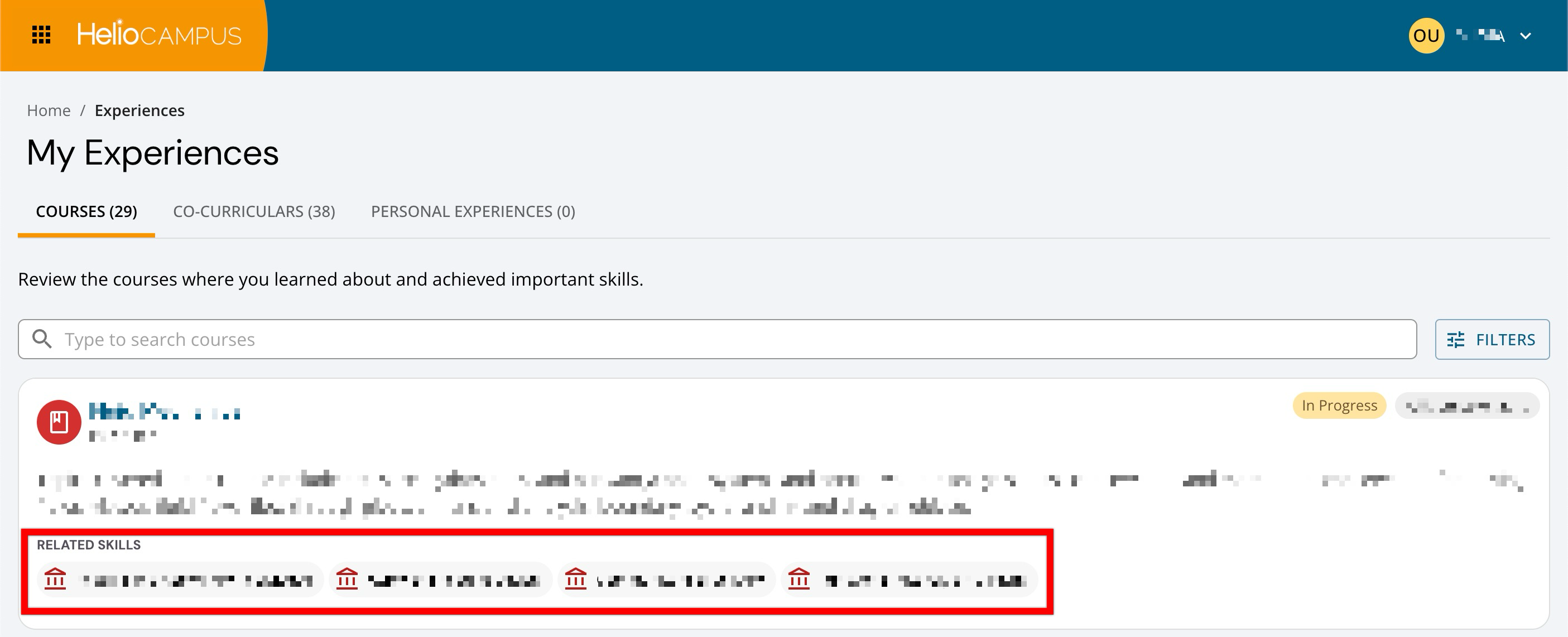
The Experiences page has been improved to display related skills on experience cards at all times, regardless of whether assessment data is available. Previously, students would see only the skills associated with their courses and co-curricular experiences after assessment data had been recorded. Now, all skills mapped to an experience are immediately visible, providing students with clarity about the competencies and outcomes connected to their coursework and activities from the start. Learn more about Learning Journey experiences.
Organizational Hierarchy
The homepages for all hierarchy levels have been updated with a new header to consolidate functionality and provide a unified experience for managing tasks, notes, and files associated with hierarchy levels. By clicking the new Resources button, users can now access all attachments in a centralized drawer with organized tabs for tasks, notes, and files (1) with options to view, edit, or delete, as applicable, by resource type (2) This enhancement reduces the number of clicks required to organize and maintain resource materials, improving efficiency for users who regularly work with attached resources across multiple organizational levels.
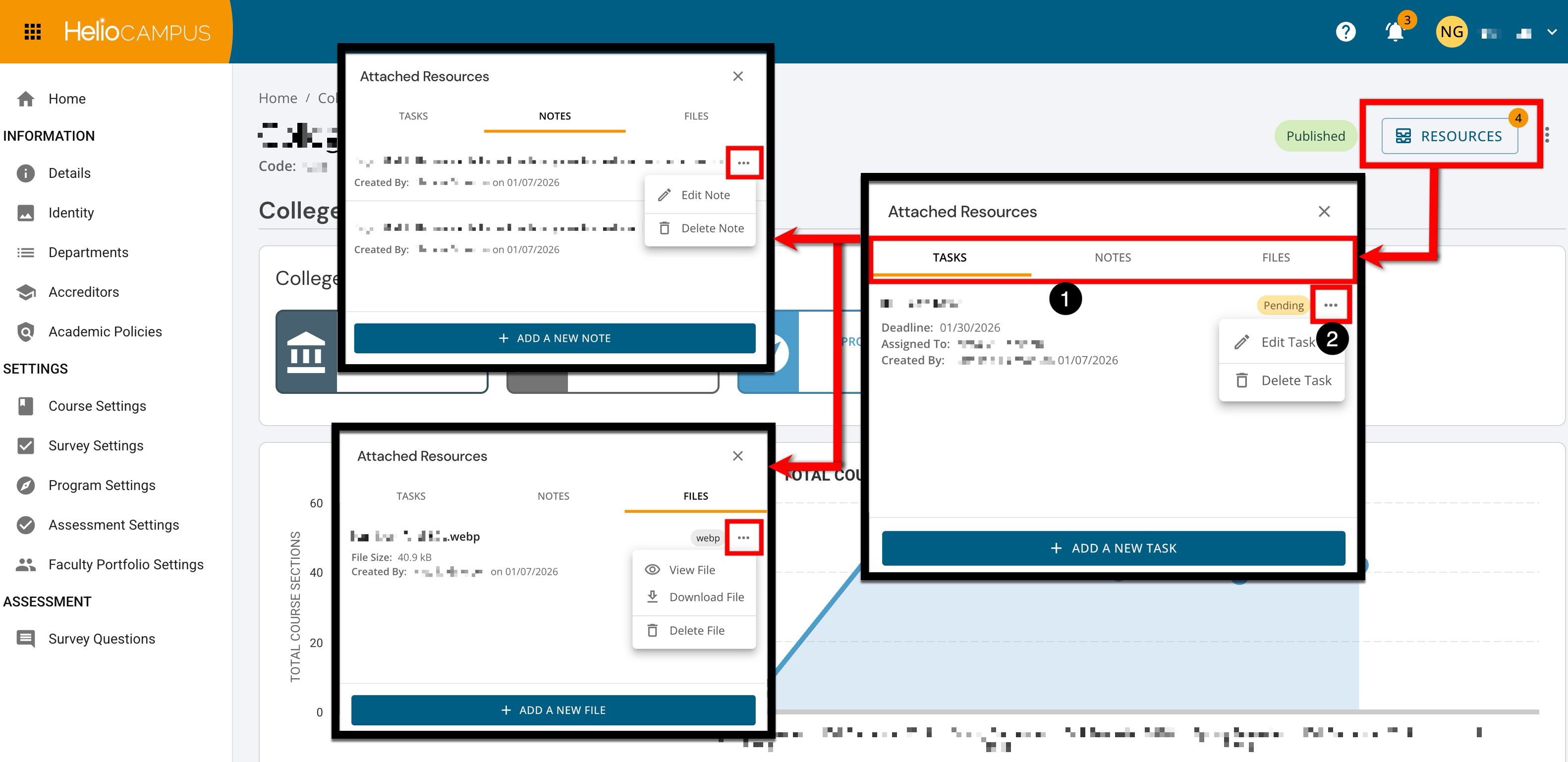
The Tasks tab displays tasks assigned to the selected hierarchy level, with creation and assignment details, due dates, status indicators to track progress, and options to edit or delete tasks. The Notes tab provides quick access to all associated notes with timestamps and creation details, with options to edit or delete notes. The Files tab displays all attached documents and media, with options to view, download, or delete them as needed. New resources can be added quickly through the action buttons at the bottom of each tab. Users can add new tasks, notes, or files without closing the Attached Resources drawer, streamlining workflow for managing multiple resource types. Learn more about the Organizational Hierarchy.
Outcomes Assessment Learner Report
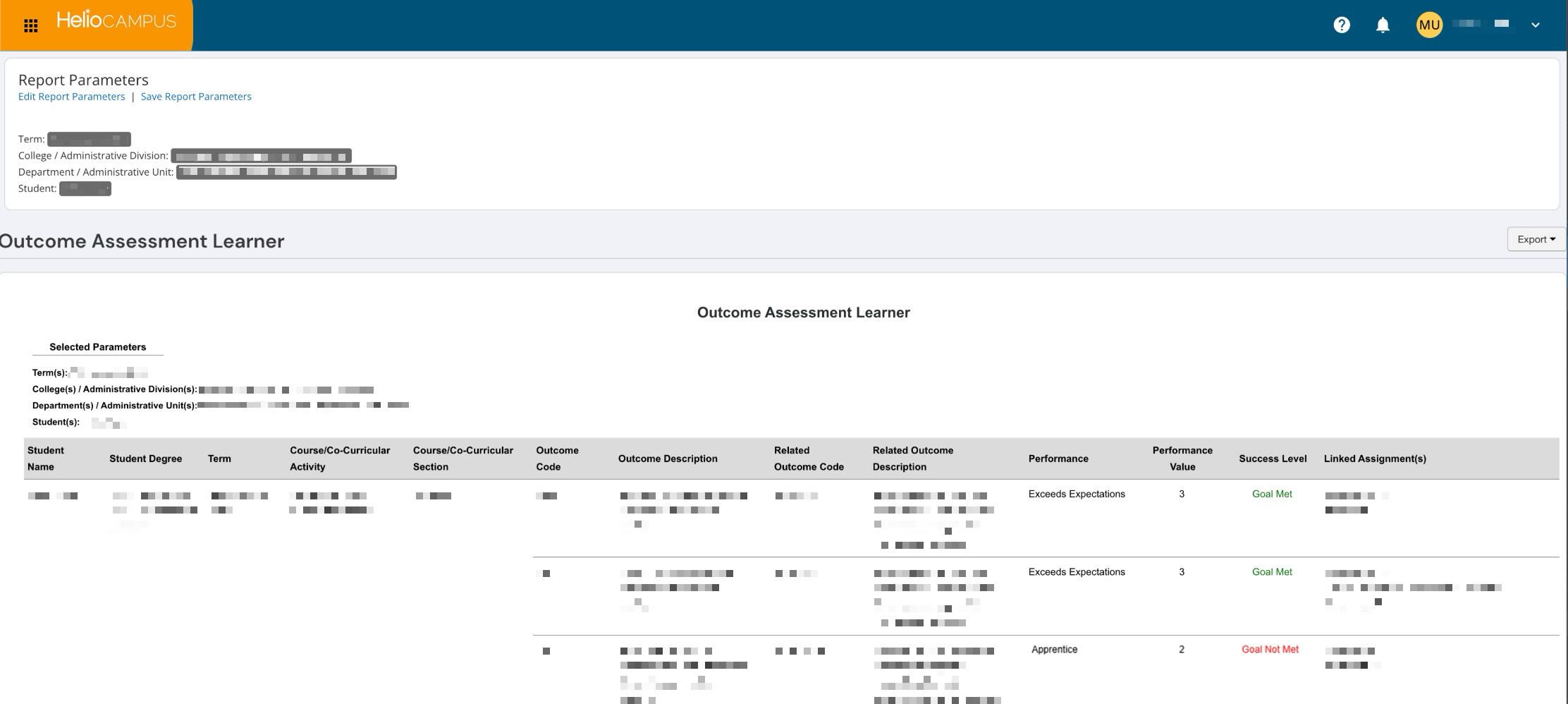
A new report has been added to the Program and Course Assessment Reports category, providing detailed assessment results organized by individual student. The Outcomes Assessment Learner report combines data from both course- and program-level assessments, displaying each student's performance on learning outcomes, whether they met the established goals, and the specific assignments used as evidence for those outcomes. Results are sorted by student last name, and then by course section code. Learn more about the Outcomes Assessment Learner report.
Outcomes Assessment Summary Report
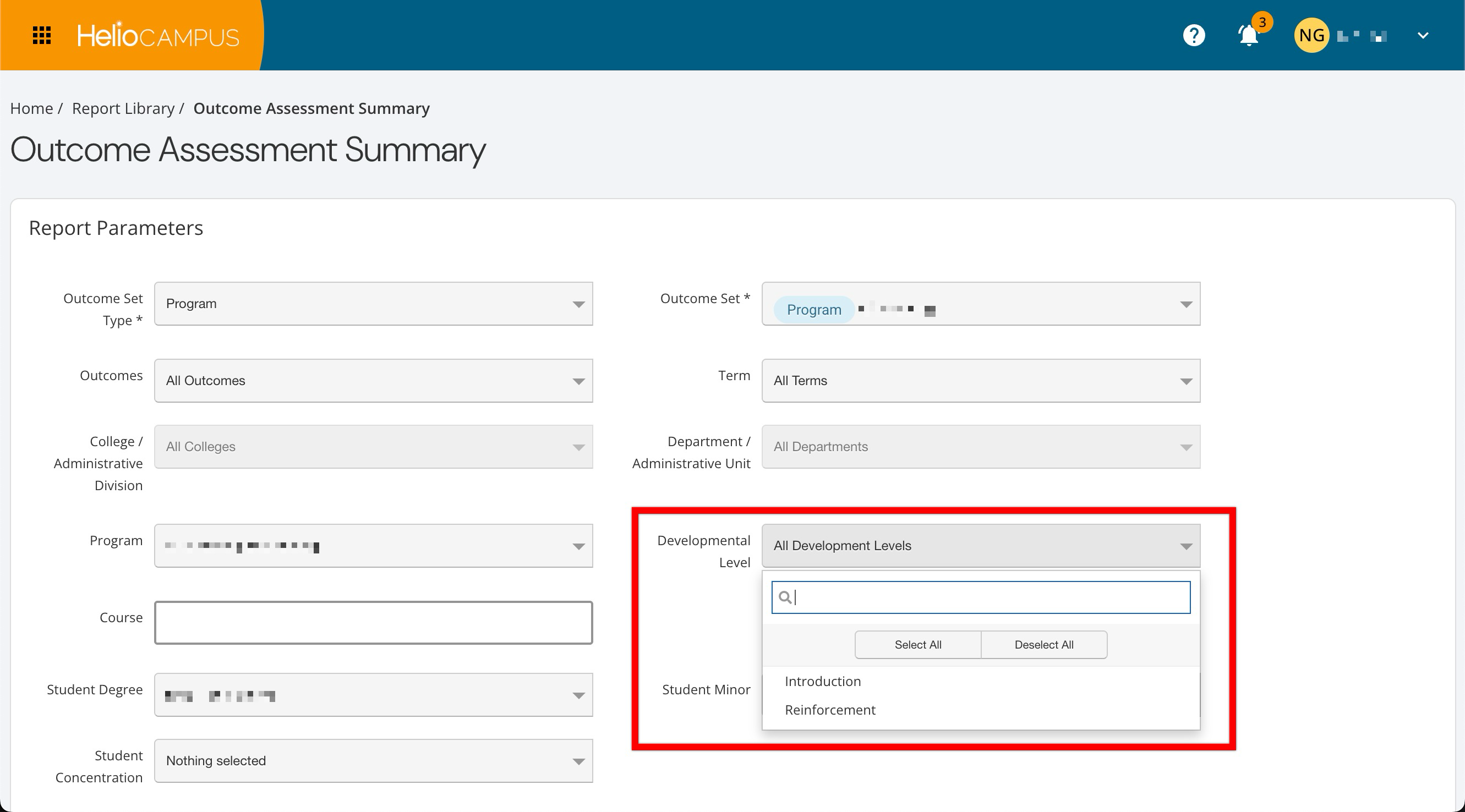
Parameter configuration has been enhanced to provide a more intuitive and efficient experience. Selections made with the Developmental Level parameter will no longer display the program name and version. Now, only the unique developmental level verbiage and value (e.g., 1 - Introductory) will be shown. This improvement streamlines the configuration of report parameters, making it easier to generate the necessary assessment data. Learn more about the Outcomes Assessment Summary report.
Outcomes Library
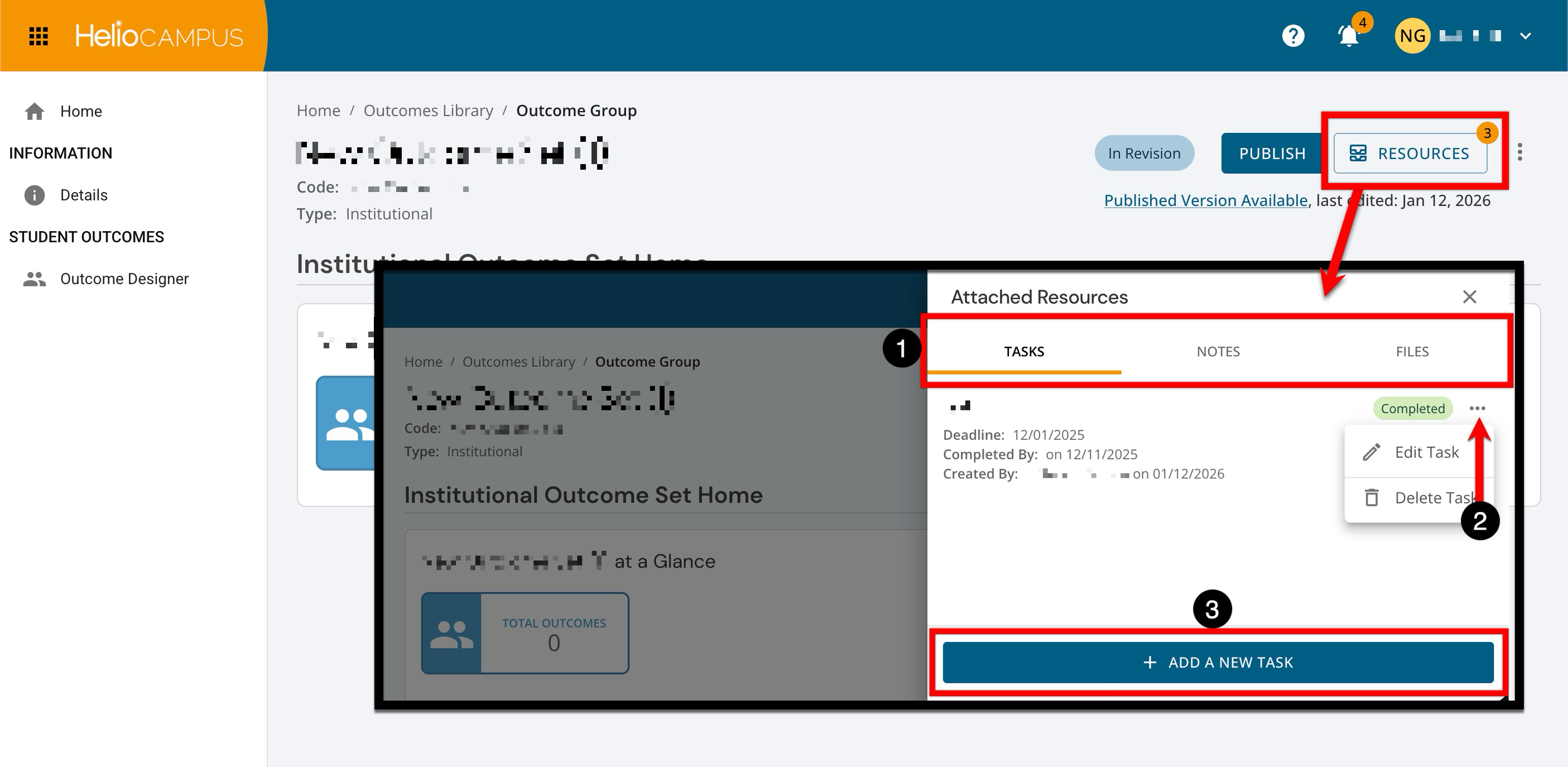
The homepage for outcome sets has been updated with a new header to consolidate functionality and provide a unified experience for managing versions, tasks, notes, and files associated with an outcome set. By clicking the new Resources button, users can now access all attachments in a centralized drawer with organized tabs for tasks, notes, and files. This enhancement reduces the number of clicks required to organize and maintain attached resources, improving efficiency for users who regularly work with them.
Tabs display tasks, notes, and files assigned to the selected outcome set (1), with details and options to view, edit, or delete, as applicable, by resource type (2). New resources can be added quickly through the action buttons at the bottom of each tab (3) without closing the Attached Resources drawer, streamlining workflow for managing multiple resource types.
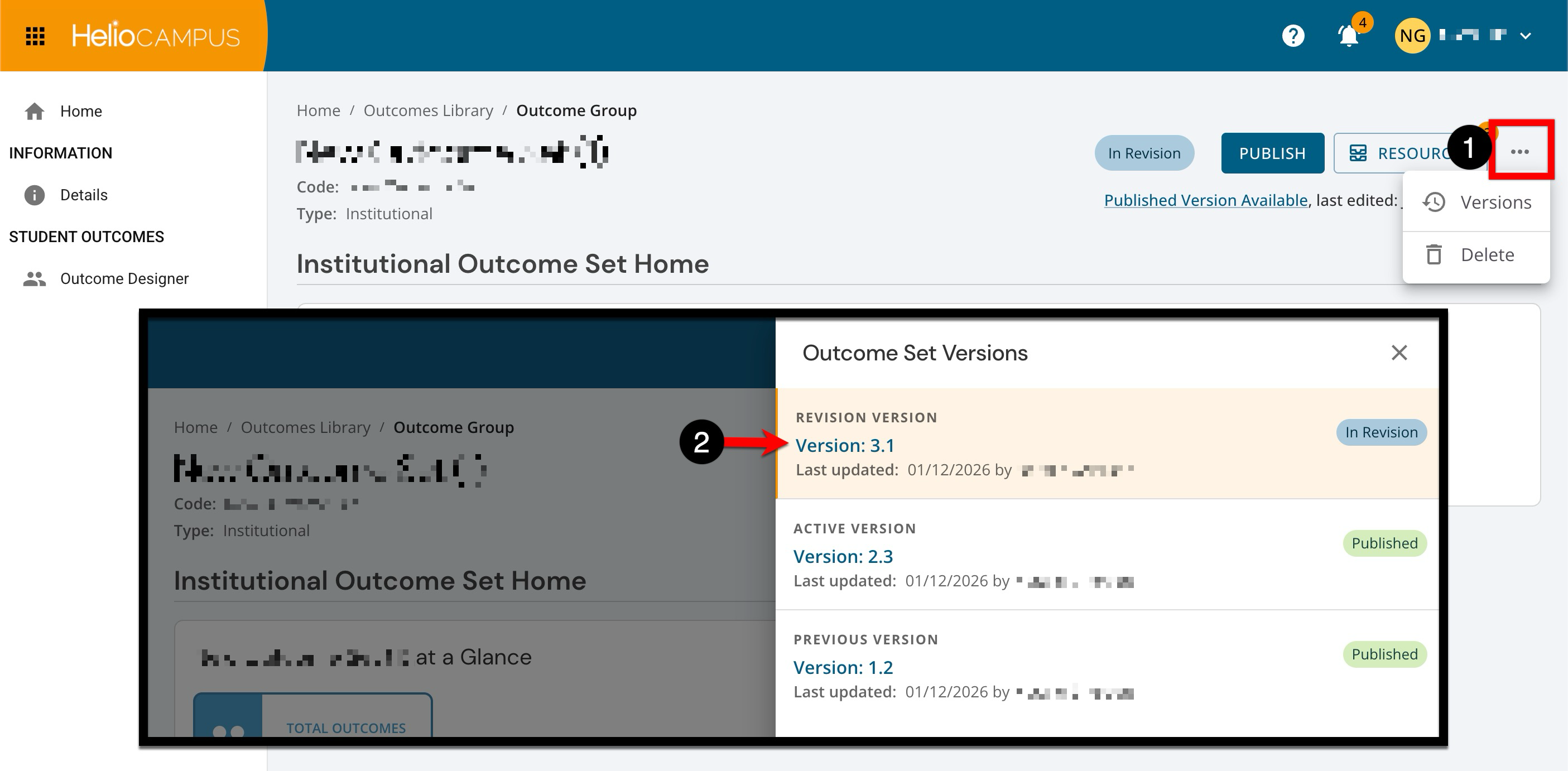
Easy access to version history is available by expanding the kebab menu and selecting Versions (1). The Outcome Set Versions drawer provides key information for each version, including whether it is the active version, a revised version, or a previous version, along with status indicators, last updated date, and the user who made the update (2). The currently viewed version is highlighted for easy identification, and users can click on any version to navigate directly to it. Learn more about the Outcomes Library.
Partial Term Survey Results
Functionality for when partial term survey results are available in the platform has been improved to properly respect partial term timelines. This improvement ensures consistent, predictable behavior when partial term survey results become available to faculty. Institutions that use a Results Available Date per partial term will now see a new status for each partial term and primary term in course evaluations. The new Pending Results status helps users understand whether partial term results are still pending or ready to view, reducing confusion and support inquiries about survey result availability. Learn more about parent and partial terms.
Program Enrollment Audit
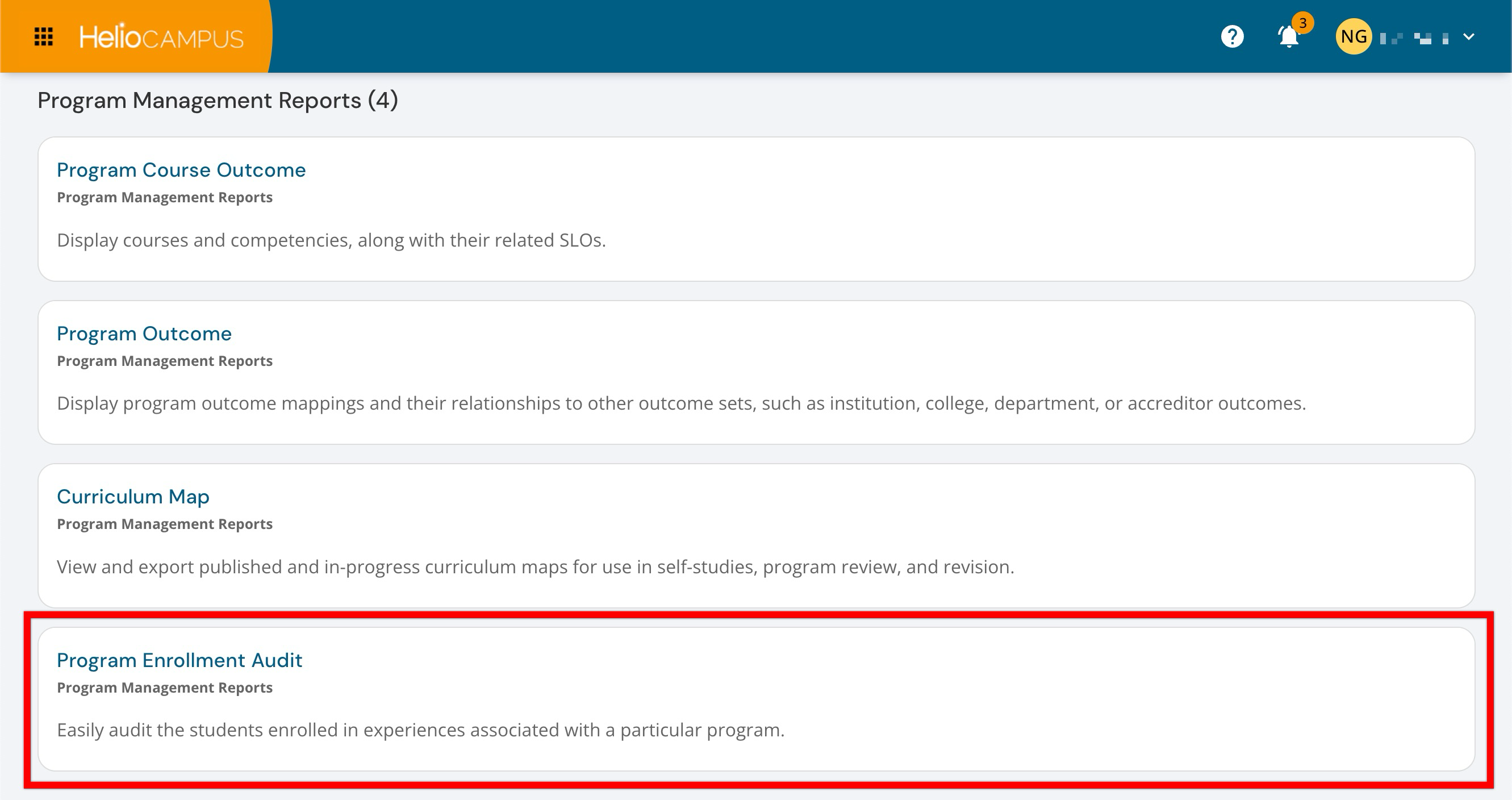
A new report is now available to provide comprehensive visibility into program enrollment data, enabling audits of students enrolled in experiences associated with a particular program. The Program Enrollment Audit enables Institutions to track and analyze student enrollment patterns across programs, supporting enrollment management and program planning activities. Learn more about the Program Enrollment Audit.
Program Revision
When a published program is edited, users can no longer enable or disable Program Assessments, Juried Assessments, and the related term selection fields. To change assessment-related settings, published programs should be revised instead. When a revised program is republished, assessments are then created/updated correctly based on the newly revised and republished settings. This change in platform functionality ensures a more reliable experience while still allowing full assessment configuration when a program is revised. Learn more about programs:
Report Library
Report descriptions have been updated to improve consistency. This enhancement ensures that all report descriptions provide clear, consistent guidance for selecting and generating reports, improving the overall user experience. Learn more about the Report Library.
Rollup Survey Questions
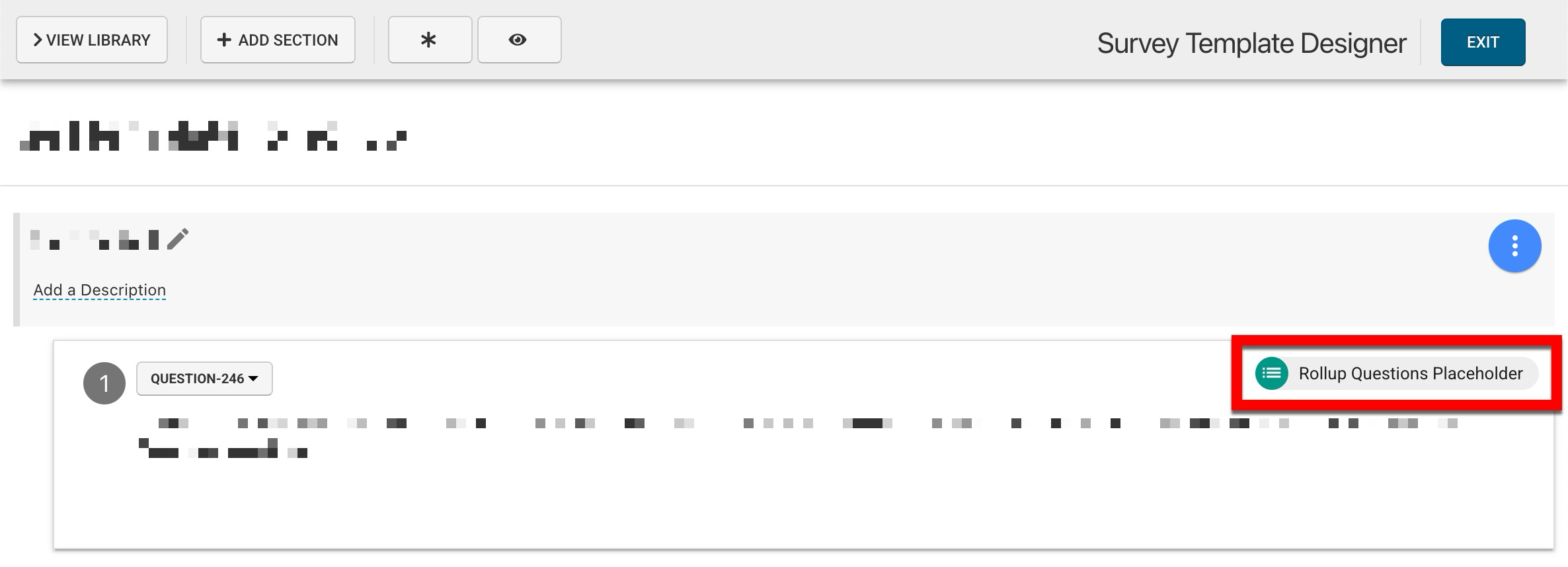
Survey form display logic has been improved to provide a cleaner experience for students completing surveys. The platform now automatically hides survey form sections that contain only a Rollup Questions Placeholder form item with no questions applicable to the individual student, as well as any sections that contain no questions at all. Previously, when a survey form template included a section with only a Rollup Questions Placeholder form item and a student had no applicable hierarchy questions to populate it, the empty section header would still appear on the survey form. This enhancement ensures that students see only relevant sections when completing their survey forms, creating a more streamlined, less confusing survey-taking experience. Learn more about surveys or about rollup survey questions.
Self Study Preview
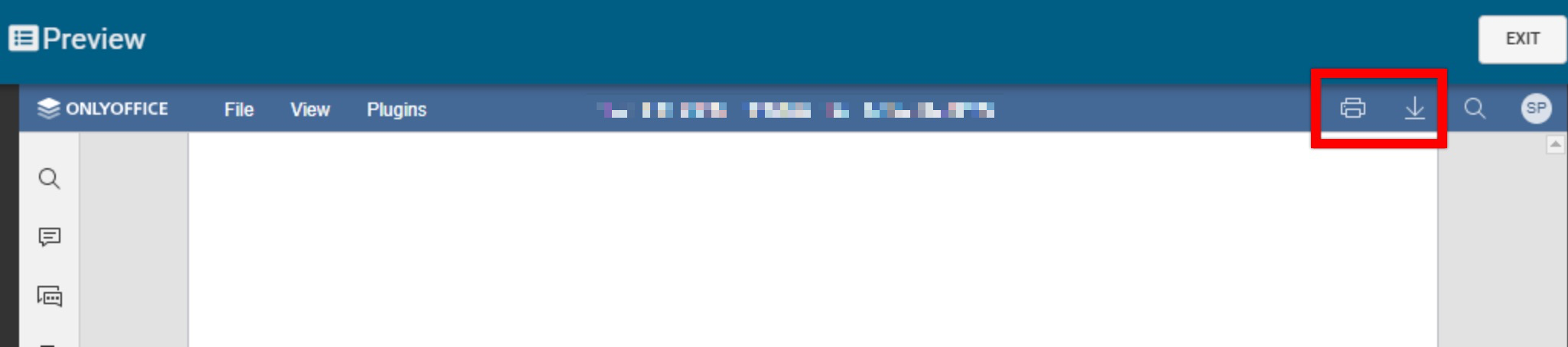
Preview functionality has been updated to remove the download and print options when previewing or editing self study documents. This improvement supports privacy and accreditation requirements. Learn more.
Student Data File
The import logic for the Student data file has been enhanced to accept entries of ‘nan’. Previously, the data import logic was unable to accept ‘nan’ as an entry, resulting in an import error. Learn more.
Student Outcomes
Student outcomes can be created on the Student Outcomes page for a program or in the Outcomes Library. When pasting content into outcome description fields, HTML tags are now automatically removed to ensure clean, formatted text. This improvement prevents formatting issues and maintains data consistency when users copy content from external sources, such as web pages or documents, into outcome descriptions. Learn more about program-level student outcomes, or about the Outcomes Library.
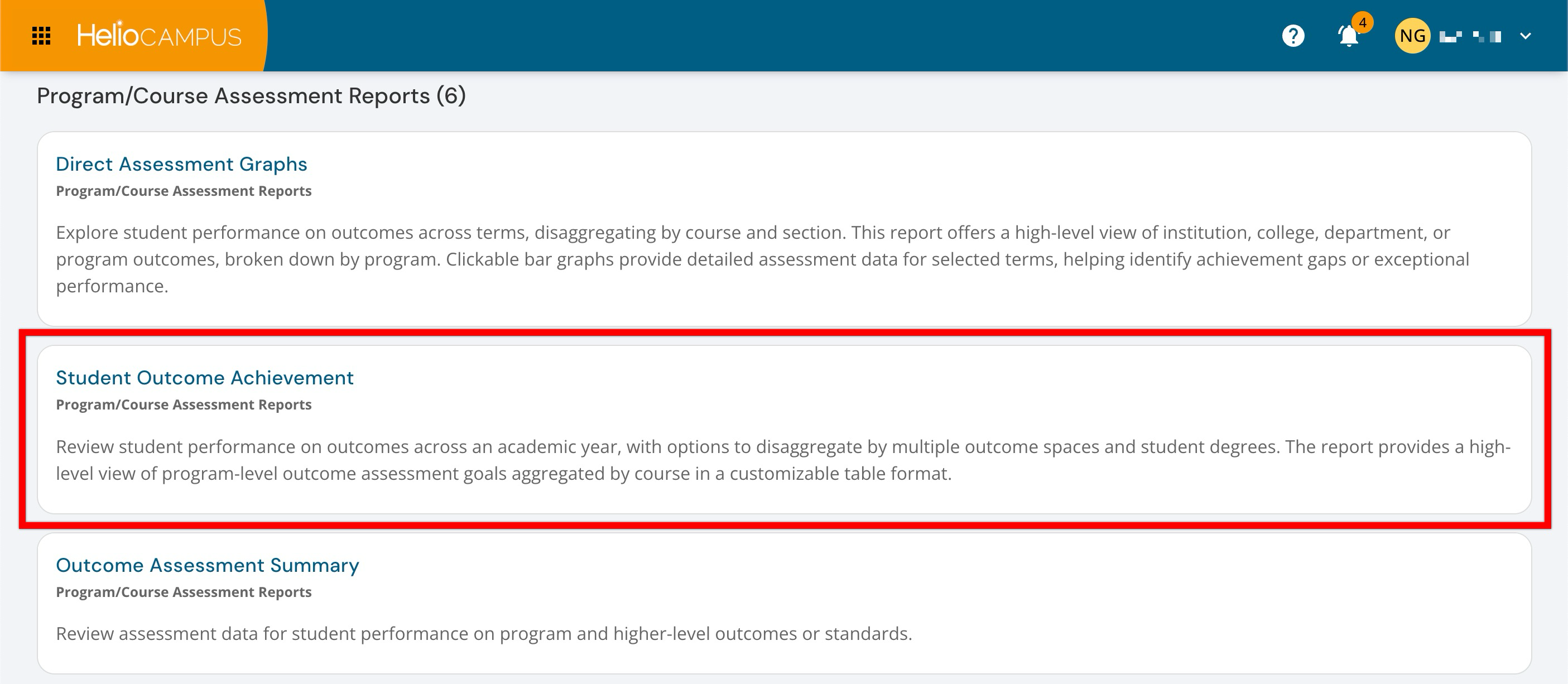
Student Outcome Achievement Report
Improvements have been made to eliminate duplicate course entries caused by inconsistent course code formatting across different course versions. Previously, when a course code was modified across later versions (e.g., from a space-separated format to a non-space-separated format), the report would display the same course multiple times, resulting in duplicate data. The platform now groups courses by their unique identifier rather than by course code, ensuring that each course appears only once in the report, regardless of formatting variations. When displaying course information, the report uses the course name and code from the most recent version, ensuring users receive current, accurate course data. This enhancement streamlines reporting capabilities by removing confusing duplicate entries and presenting a cleaner, more accurate view of outcome achievement across courses.