
The Learning Journey Settings page provides Institution Administrators with a centralized location to configure and manage Learning Journey functionality for their Institution. Only users with the Institution Administrator user role can access this page and modify the configuration options.
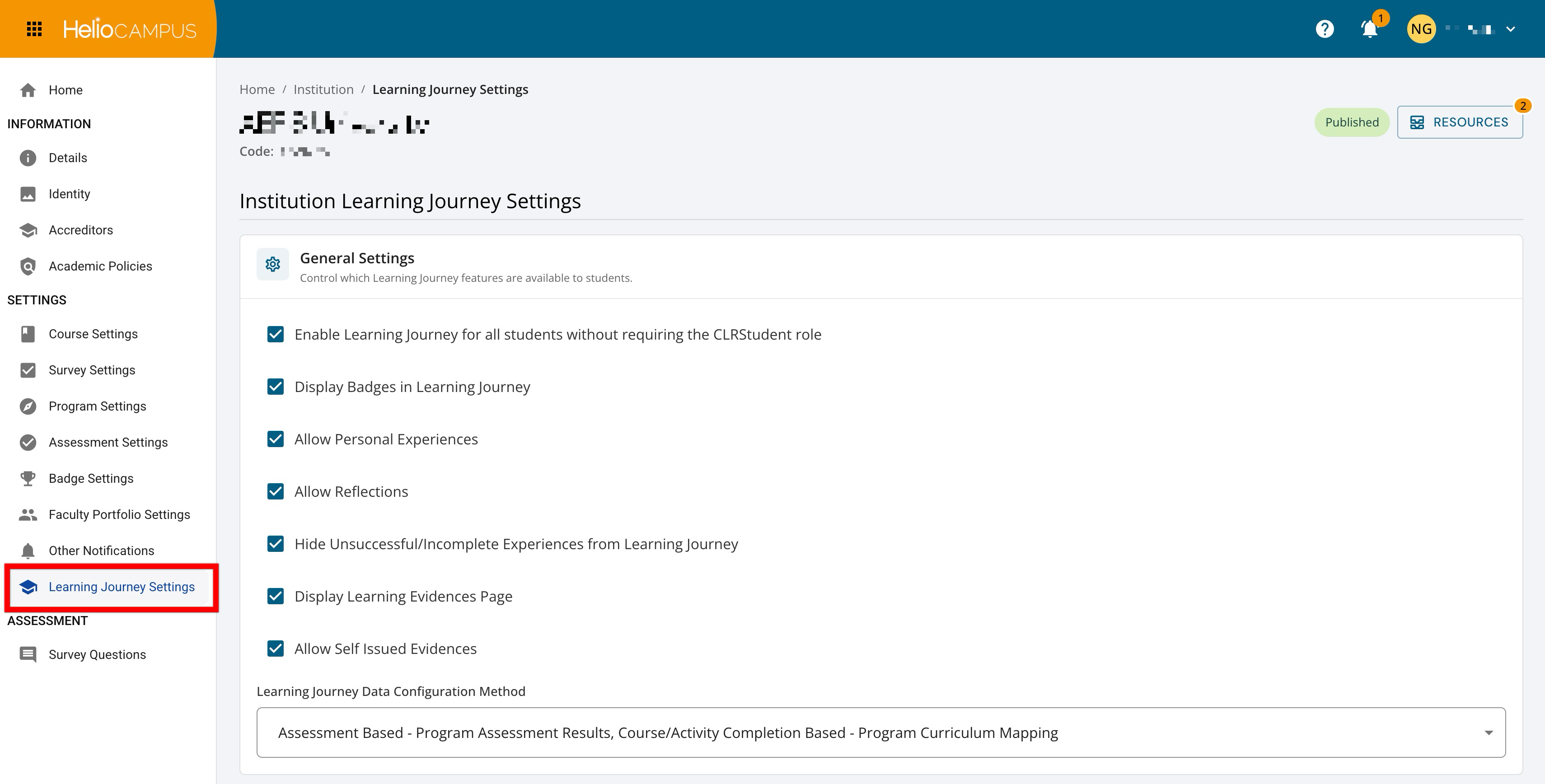
Located under Institution > Settings, this page consolidates Learning Journey configuration options, providing Institutions with greater flexibility to customize the Learning Journey experience for their students. By enabling or disabling specific features such as badges, personal experiences, and reflections, Institutions maintain control over which capabilities are available to their students while ensuring that the features support their broader assessment and student success initiatives.
Prerequisites and Considerations
-
The Learning Journey feature must be enabled for your Institution before this page is accessible. Contact Support to learn more about enabling the Learning Journey.
-
Review existing student data and experiences already captured in the platform to understand how changing these settings may affect the data.
-
Consider the timing of changing these settings, particularly if students are actively working on shareable artifacts or portfolios during busy academic periods.
-
Communicate planned changes to relevant stakeholders, including faculty, program coordinators, and students who actively use the Learning Journey feature.
Best Practices
-
Before adjusting individual settings, develop a comprehensive plan for how the Learning Journey will support your Institution's assessment, credentialing, and student engagement objectives.
-
Involve assessment coordinators, faculty, and student affairs professionals in decisions, as these groups often have valuable insights about student needs and Institutional goals.
-
If using validation statements, work with registrar and academic affairs teams to develop language that accurately represents Institutional verification while remaining clear and professional for external audiences.
-
When making changes to settings, preview the student experience in the Institution’s test environment to verify that the changes produce the intended results.
-
Maintain internal documentation about which settings are enabled and why, along with the date changes were implemented, to support Institutional knowledge transfer and future decision-making.
Enable Learning Journey for All Students
This setting determines whether the Learning Journey feature is available to all students at the Institution. By default, this setting is disabled, and students must be assigned the CLR Student user role to access Learning Journey functionality. Enabling or disabling this setting does not delete existing Learning Journey data; it only controls visibility and access. Experiences, outcomes, and other assessment data continue to be collected regardless of this setting, but students cannot access the Learning Journey interface when this setting is disabled.
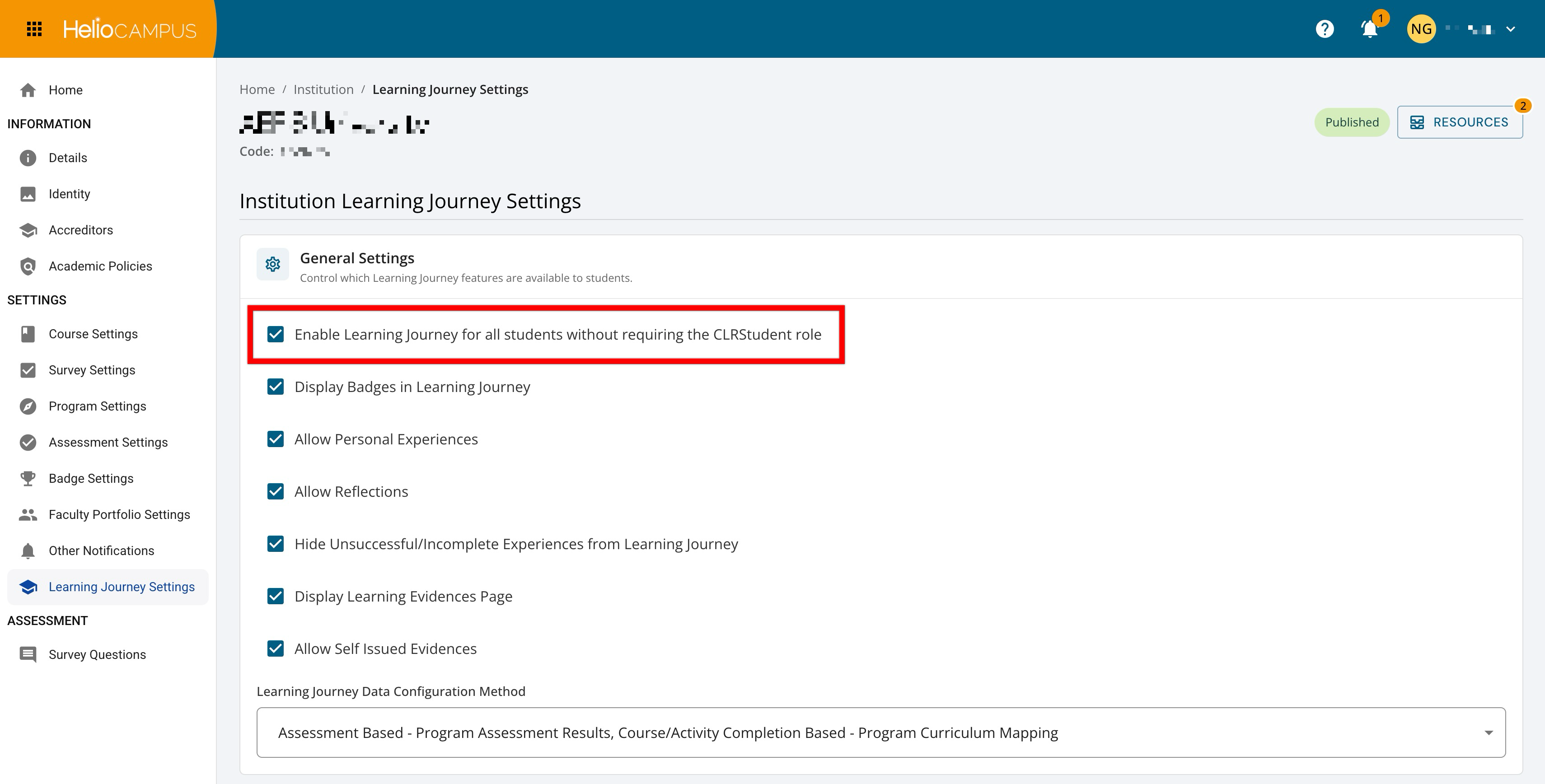
|
Enabled |
All students can view and interact with the Learning Journey interface without. Assigning the CLR Student user role will not be required for students to access the Learning Journey interface. |
|
Disabled |
Students can only access the Learning Journey if the CLR Student user role is assigned to them. Without the CLR Student role, students can’t access the Learning Journey interface, even if they have existing data and experiences recorded in the platform and associated with Learning Journey functionality. |
Display Badges in Learning Journey
This setting controls whether students' awarded badges are displayed in their Learning Journey. By default, this setting is disabled, and badges are hidden unless it is enabled. This setting only affects visibility in the Learning Journey; badges may still be visible to students in other areas of the platform, depending on the Institution’s Credentials feature configuration.
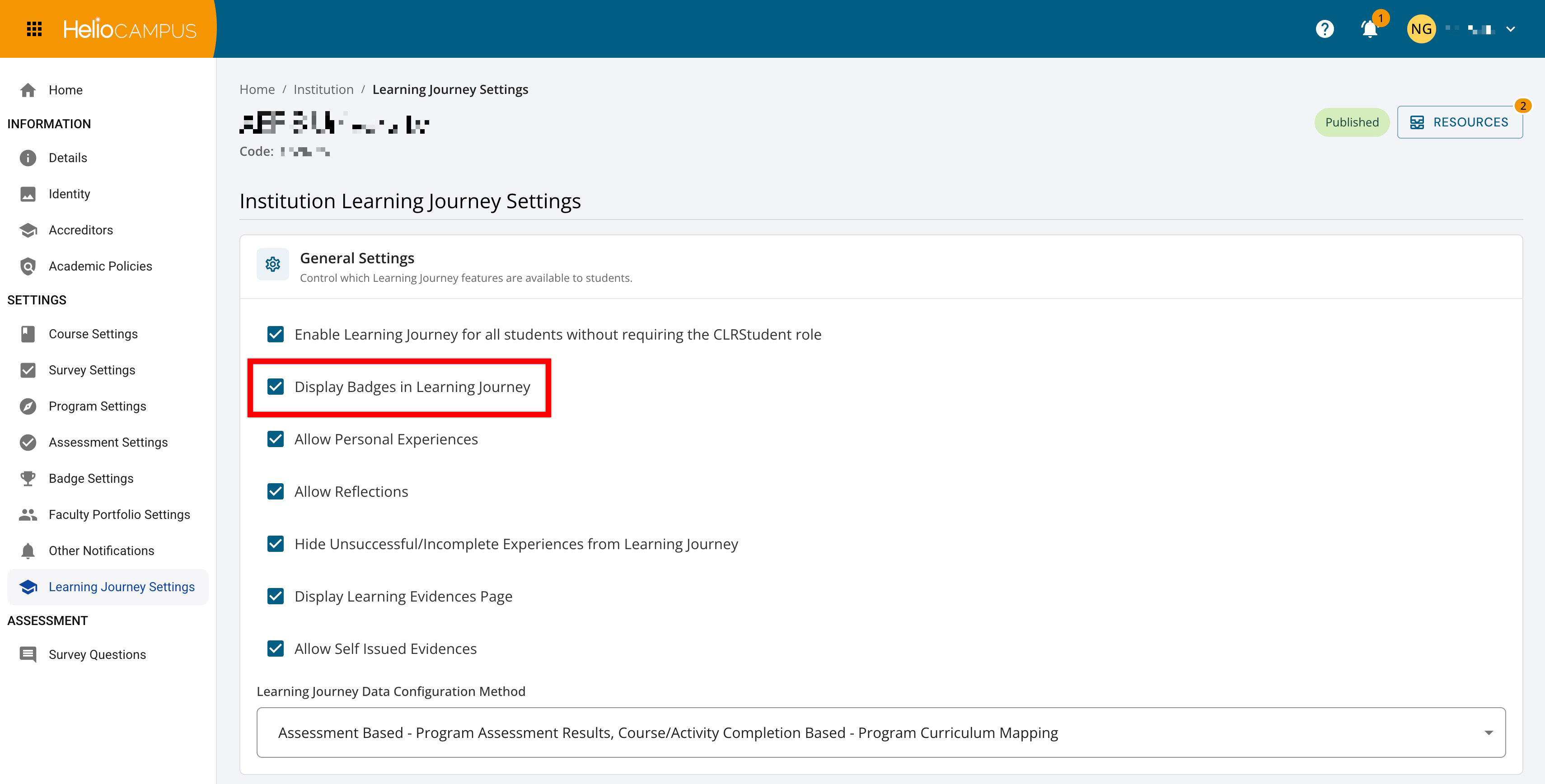
|
Enabled |
Students can view badges they have been awarded within the Learning Journey interface. |
|
Disabled |
Badges are hidden in the Learning Journey interface, but are not deleted from the platform. Students cannot include badges in their shareable Learning Journey artifacts when this setting is disabled. |
Allow Personal Experiences
This setting determines whether students can create and display personal experiences within their Learning Journey. Personal experiences are self-reported activities, accomplishments, or learning experiences that students add independently. By default, this setting is enabled, allowing students to self-report personal experiences. Enabling or disabling this setting does not delete existing Learning Journey data or previously reported personal experiences; it only controls visibility and access. When configuring this setting, consider the Institutional philosophy about self-reported versus Institution-verified experiences.
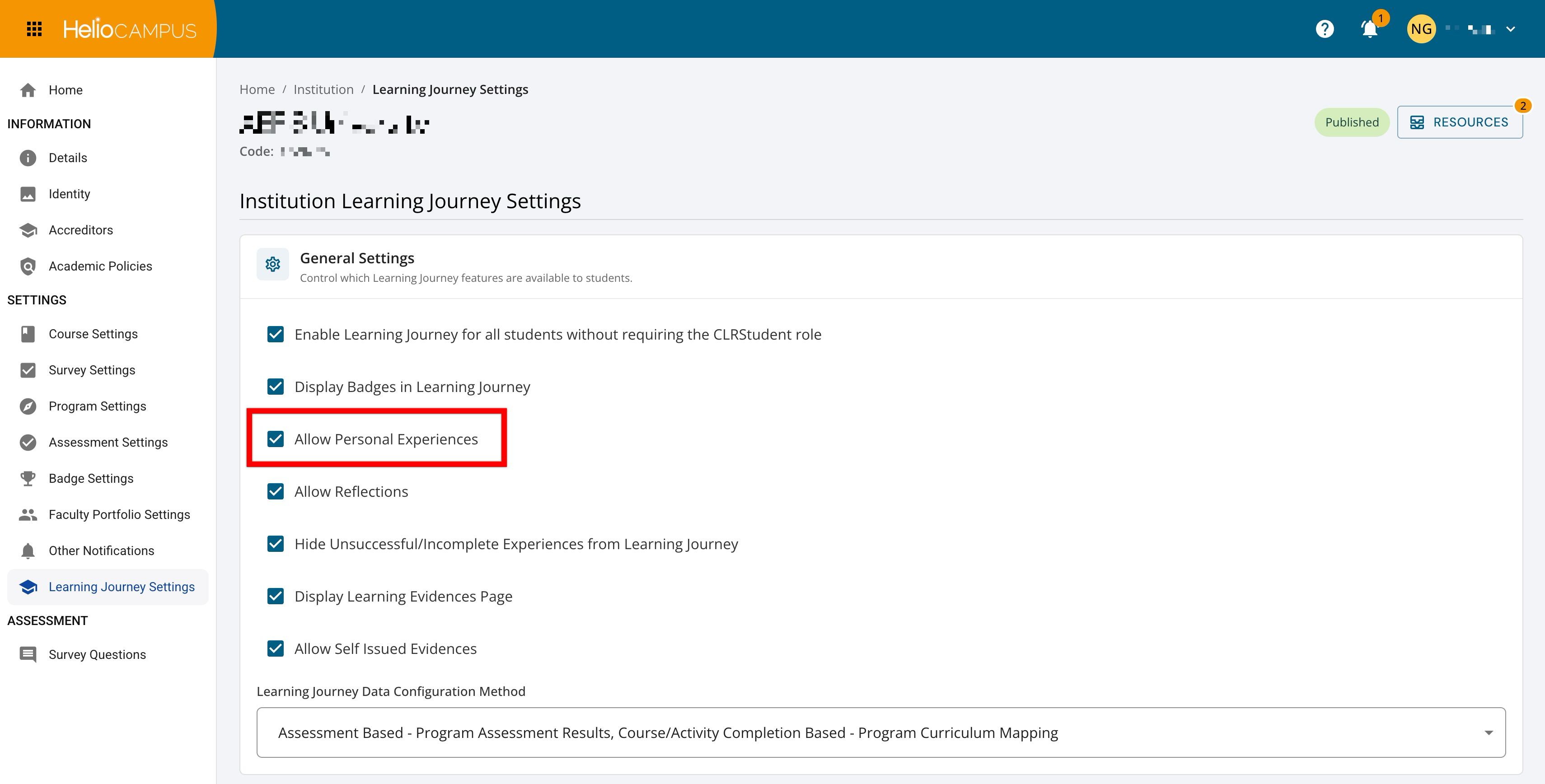
|
Enabled |
Students can self-report new personal experiences and view all previously reported personal experiences in the Learning Journey interface. |
|
Disabled |
Students cannot self-report new personal experiences, and existing personal experiences (if present) are hidden from view in the Learning Journey interface. Students cannot include personal experiences in shareable Learning Journey artifacts when this setting is disabled. |
Allow Reflections
This setting controls whether students can create and display reflections within their Learning Journey. By default, this setting is enabled, allowing students to add reflections at both the outcome and experience levels. Enabling or disabling this setting does not delete existing Learning Journey data or previously added reflections; it only controls visibility and access.
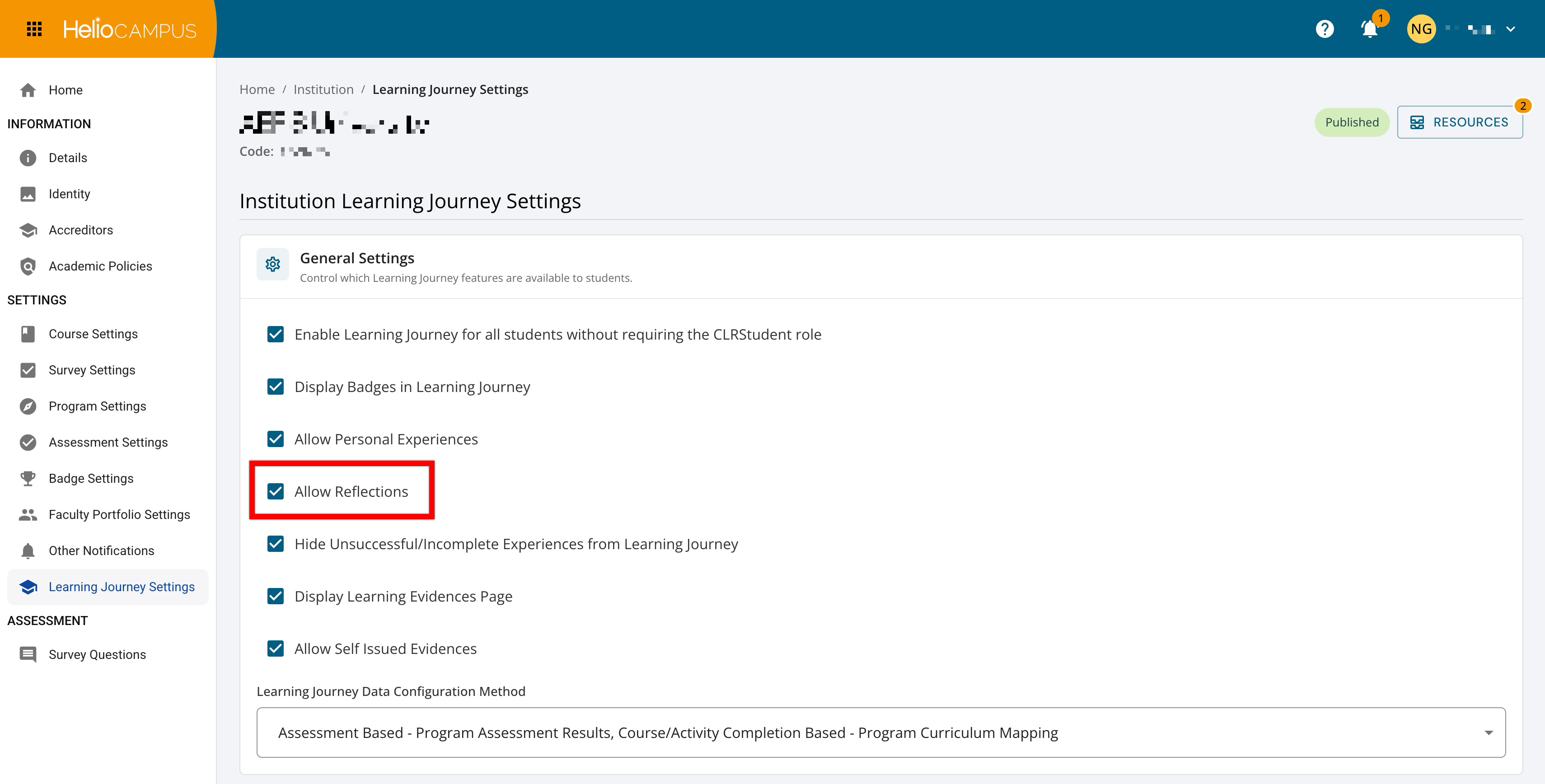
|
Enabled |
Students can add reflections to outcomes and experiences, and view all previously added reflections in the Learning Journey interface. |
|
Disabled |
Students cannot add reflections, and existing reflections (if present) are hidden from view in the Learning Journey interface and the Stories functionality. Students cannot include reflections in shareable Learning Journey artifacts when this setting is disabled. |
Hide Unsuccessful/Incomplete Experiences
This setting controls whether experiences with unsuccessful or incomplete results are visible to students in the Learning Journey. By default, this setting is disabled. When enabled, experiences that are not successfully completed are hidden from the student-facing Learning Journey interface. This allows Institutions to display only completed or successfully achieved experiences in the student’s record.
Enabling or disabling this setting does not delete any experience data from the platform. It only controls whether unsuccessful or incomplete experiences appear in the Learning Journey.
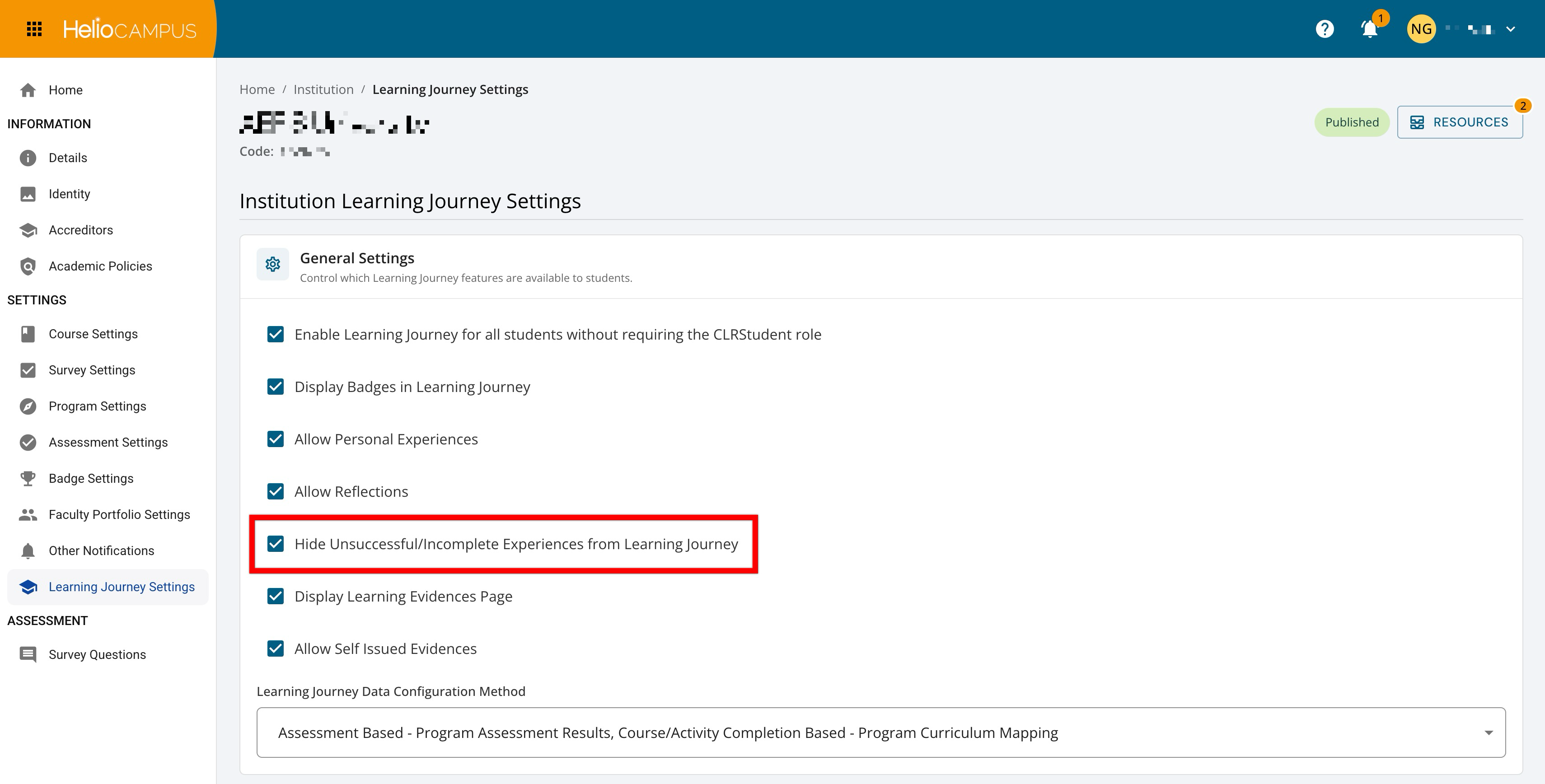
|
Enabled |
Unsuccessful experiences are hidden from the Experiences, Skills, Stories, and Comprehensive Learning Journey pages and dashboard widgets, ensuring that only successful or in-progress experiences are visible to students. |
|
Disabled |
All experiences, regardless of completion status, are displayed across all Learning Journey locations. |
Display Learning Evidences Page
Product Tip
This setting can work in conjunction with the Allow Self Issued Evidences setting.
This setting controls whether the Learning Evidence page is available to students in the Learning Journey. When enabled, students can access the page to view evidence associated with their assessed coursework. Additionally, if Allow Self-Issued Evidence is also enabled, Students may also use the Learning Evidence page to submit self-issued evidence. Learn more.
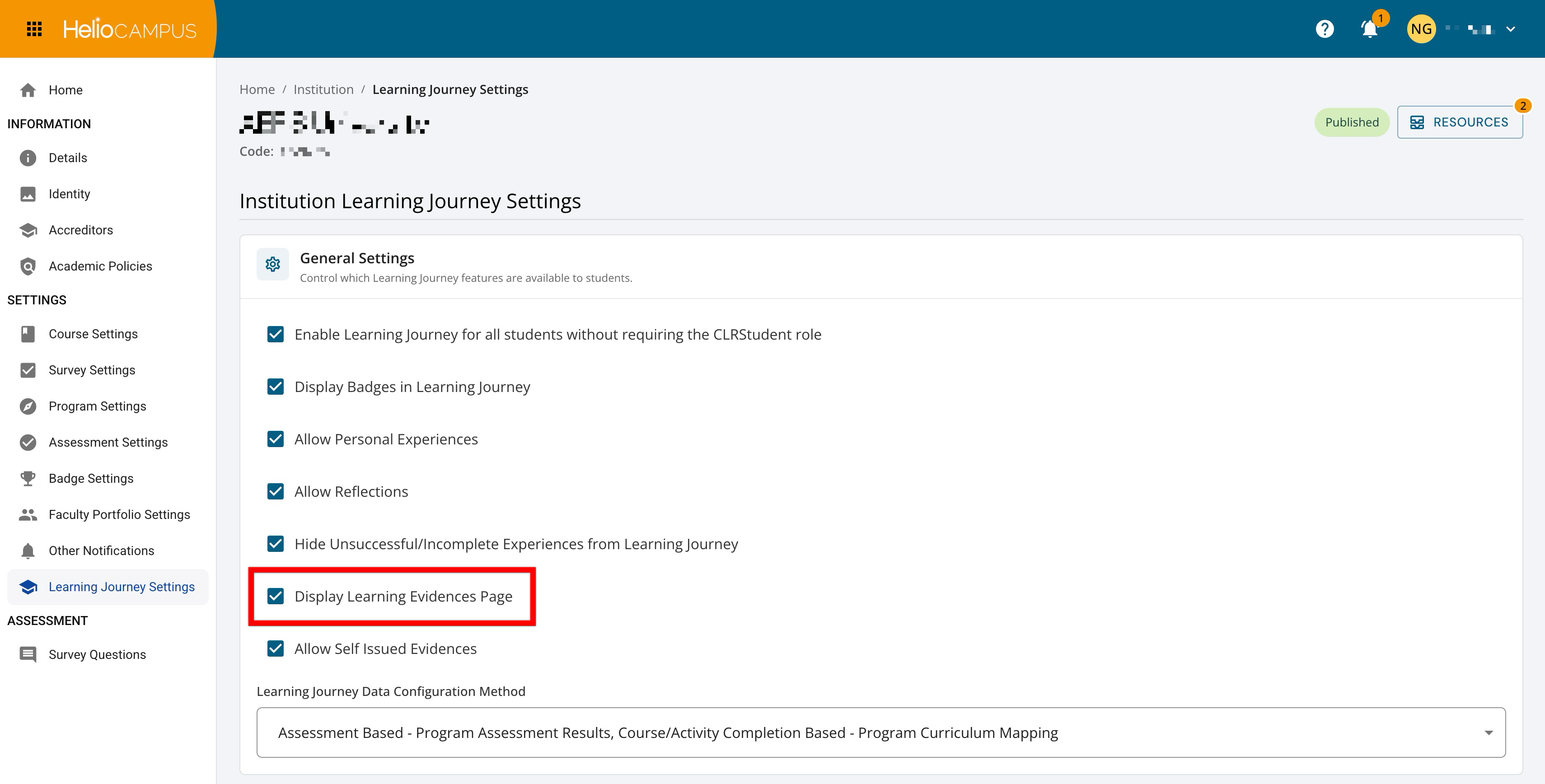
|
Enabled |
The Learning Evidence page will display in the student’s Learning Journey. Students can view submitted evidence included as part of Program Assessment and submit self-issued evidence, depending on the enablement of the Allow Self-Issued Evidence setting. |
|
Disabled |
The Learning Evidence page will not display in the student’s Learning Journey. Students will not have access to view learning evidence or submit self-issued evidence. |
Allow Self-Issued Evidences
Product Tip
This setting works in conjunction with and is only available when the Display Learning Evidences Page setting is enabled.
This setting controls whether students can submit self-issued evidence via the Learning Evidences (when enabled) page in the Learning Journey. Self-issued evidence allows students to add their own evidence outside of submitted course assignments. Learn more.
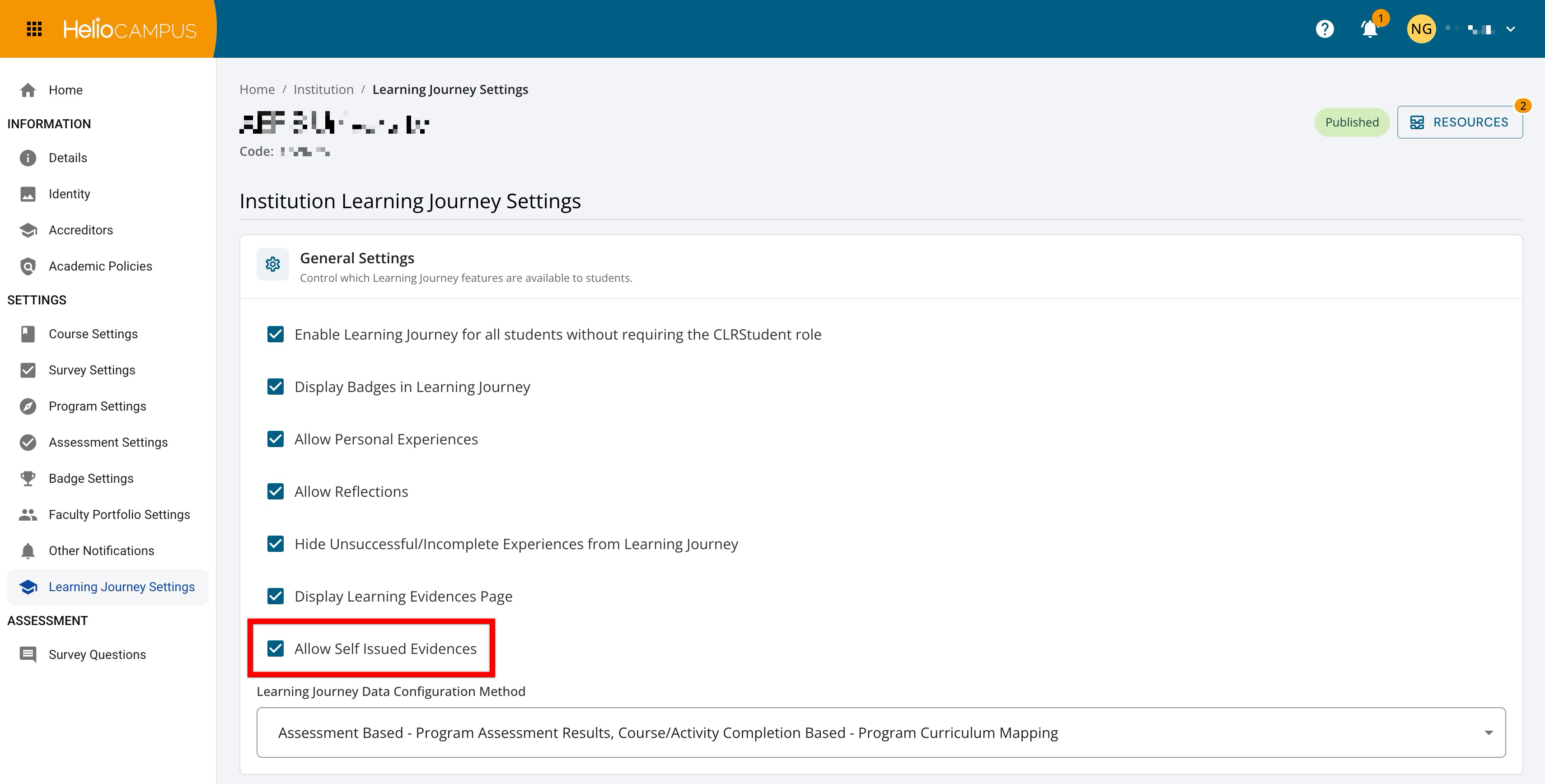
|
Enabled |
When the Learning Evidences page is enabled to display for Students, they can submit self-issued evidence to the Learning Journey. |
|
Disabled |
The Learning Evidences page is not enabled, and Students cannot add self-issued evidence to the Learning Journey. |
Learning Journey Data Configuration Method
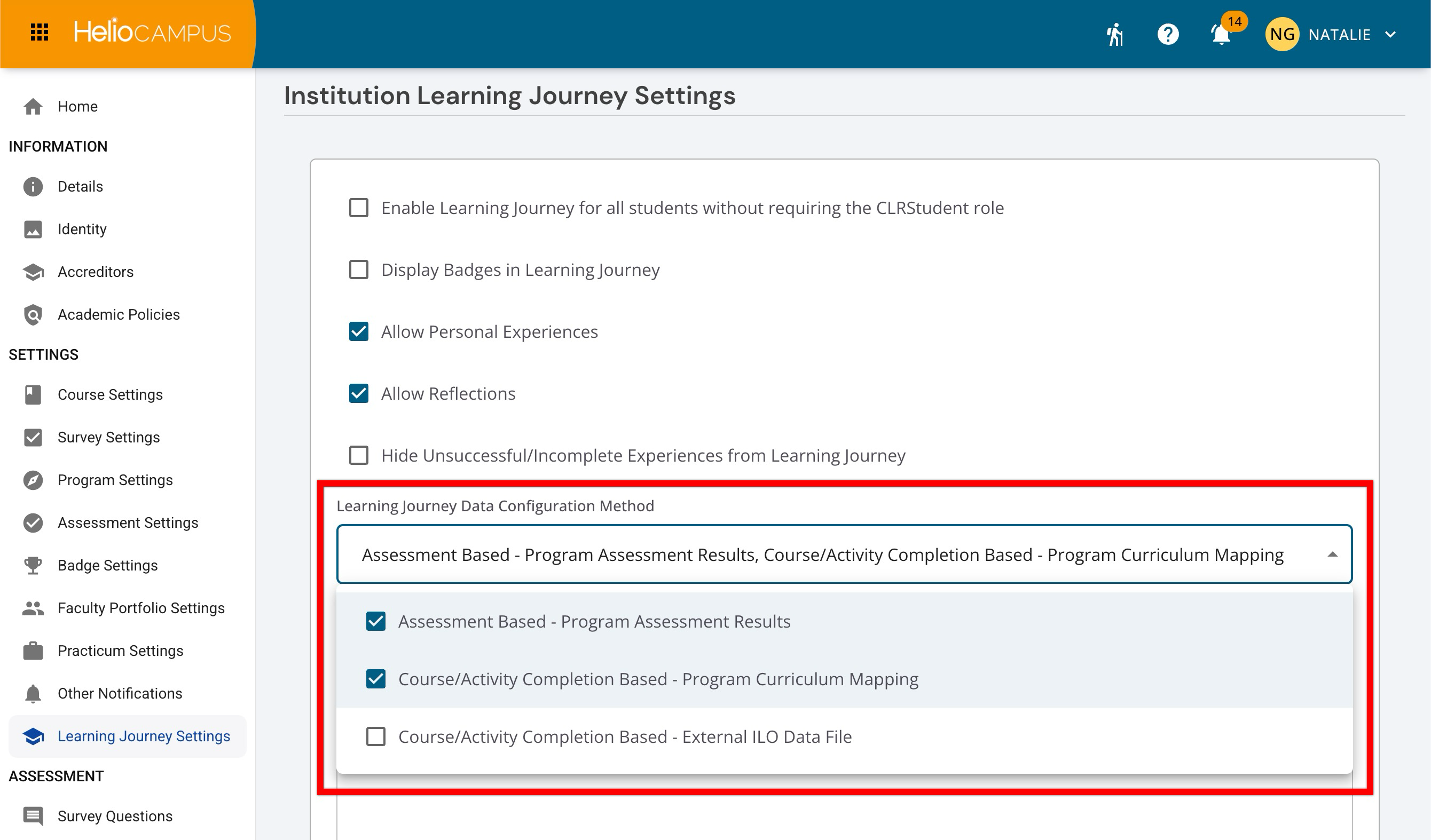
This setting controls where the Learning Journey gets its data and, as a result, what “progress” means in the student’s Learning Journey view. Use this dropdown to choose one or more methods to use to build Learning Journey progress and completion information. When multiple methods are selected, the Learning Journey can be built from multiple data sources. This is useful when Institutions want a fuller story: students completed the experiences, and students demonstrated learning.
-
Assessment-Based – Program Assessment Results: This option means the Learning Journey will use assessment results (scores/ratings tied to outcomes) to determine progress. In practice, a student’s Learning Journey reflects how the student is performing against outcomes based on the program assessment evidence and results captured in the platform. Choose this when the definition of progress is “students are demonstrating proficiency,” not just “students completed a course.” It’s especially useful when the Learning Journey is used to show achievement (how well outcomes are met), support outcomes-based conversations, and provide stronger evidence for continuous improvement.
-
Course/Activity Completion-Based – Program Curriculum Mapping: This option means the Learning Journey will use completion of mapped coursework or activities (based on the program curriculum mapping) to determine progress. In other words, progress is determined by whether students have completed the learning experiences that the curriculum map identifies as contributing to a pathway/outcome—not necessarily by how well they scored on that outcome. Choose this when the Learning Journey is intended to represent a pathway or checklist-like experience (what students have done/finished), and when completion data is the most reliable or most meaningful indicator to display.
-
Course/Activity Completion Based – External ILO Data File: This option means the Learning Journey will use completion/progress data from an external file for ILO-related tracking, rather than relying entirely on completion or results already captured within the platform. Choose this when the Institution tracks progress in another system (or has a custom definition of completion), and when the Learning Journey reflects that authoritative external source.
Validation Statement
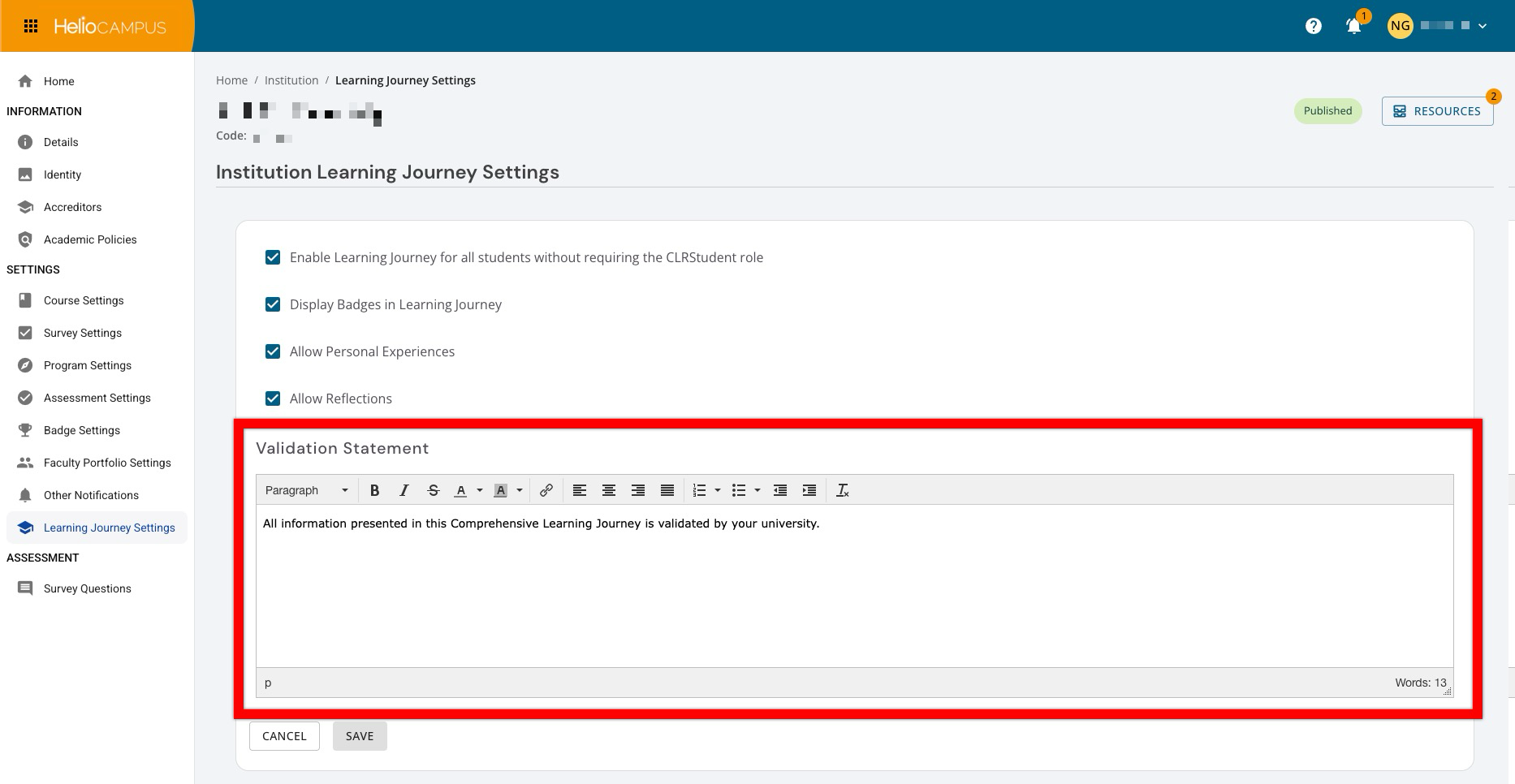
A validation statement is custom text that appears on shareable Learning Journey artifacts and Stories to indicate Institutional verification or context about the content. This field is prefilled with generic content that can be customized using the rich text formatting options. If this field is left blank, no validation statement will display on shareable artifacts. Consider legal and registrar guidance when crafting language, as this statement represents an Institutional claim about the student's work. The statement should be carefully worded to accurately represent what the Institution is verifying or attesting to.
Example validation statements:
-
This learning record has been verified by [Institution Name] and represents officially recorded student achievements as of [date].
-
The experiences and outcomes reflected in this document are based on verified Institutional records maintained by [Institution Name].
-
[Institution Name] attests that the learning experiences, academic achievements, and competencies documented in this comprehensive learning record are drawn from official Institutional data and have been authenticated through our registrar's office.
-
Official comprehensive learning record issued by [Institution Name]. The contents of this document reflect verified Institutional data as maintained in our student information system. Generated on [date].
Learning Journey Images
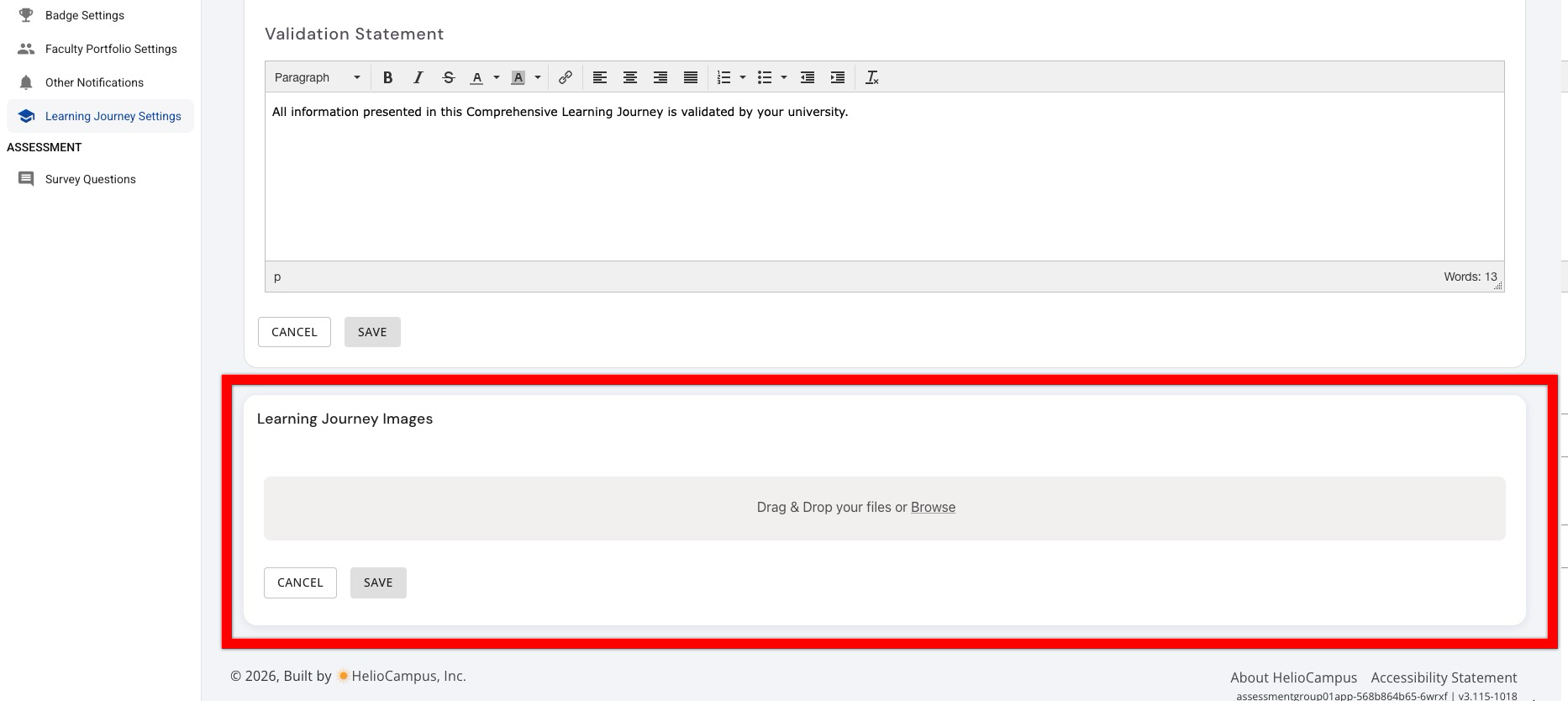
This section allows administrators to upload custom images that define the visual appearance of the Learning Journey for students. When uploaded, the image will display as the header image for experiences on the Search For Experiences page; the image will not display in the Comprehensive Learner Record. Custom branding helps create a cohesive Institutional experience and reinforces an Institution's identity. To upload images, either drag and drop the image file directly into the upload area or click Browse to search for and select a file with the computer’s file explorer.
FAQ
Can students see setting changes immediately?
Yes, changes to Learning Journey settings take effect immediately for all students. Consider communicating with students before making significant changes that affect their experience.
What happens to existing data when I disable a feature?
Disabling features such as badges, personal experiences, or reflections does not delete any existing data. The data is hidden from view in the Learning Journey interface, but remains in the platform. If re-enabled later, all existing data will become visible again.
Can different programs have different Learning Journey settings?
No, Learning Journey settings apply Institution-wide. All students at the Institution experience the same configuration of enabled and disabled features. When the Learning Journey is enabled for an Institution via Support and via Institution > Learning Journey Settings, the functionality can then be enabled or disabled at a more granular level for individual programs. Learn more.
Do I need to enable all features for Learning Journey to work?
To provide specific students access to the Learning Journey interface, the CLR Student user role can be assigned and only students with that user role with have access to the Learning Journey interface. To provide access to all students, Institution-wide, the Enable Learning Journey for All Students setting can be enabled and all students will have access to the Learning Journey interface even if the CLR Student user role has been assigned. Regardless of whether the CLR Student user role is assigned to select students, or student access is enabled Institution-wide, other features such as enabling reflections or personal experiences can be enabled or disabled independently based on Institutional needs.