
Upon logging in to the platform, users will see the Dashboard page and the Action Items drawer. The Action Items drawer is displayed to each user upon login unless disabled; disabling it is not recommended. The Actions Items drawer displays any tasks that require attention. Examples of items that could display here include, but are not limited to:
-
Assignments that faculty need to score.
-
Data collection form tasks that faculty need to complete.
-
Assignments or surveys for Students to complete.
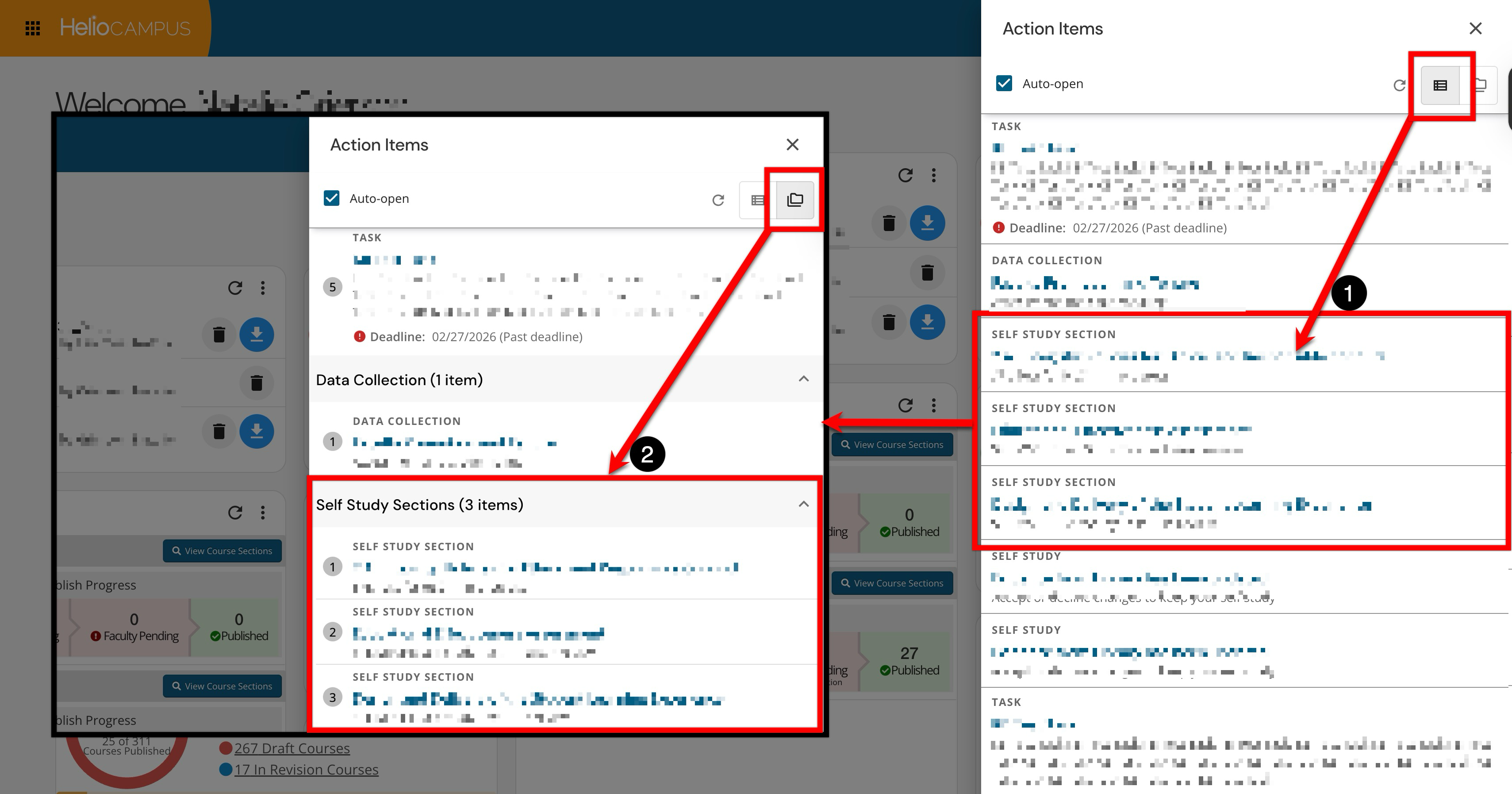
Action items can be arranged individually (1) or grouped by feature/functionality (2). If all action items have been completed by the logged-in user, the drawer will display a congratulatory message.
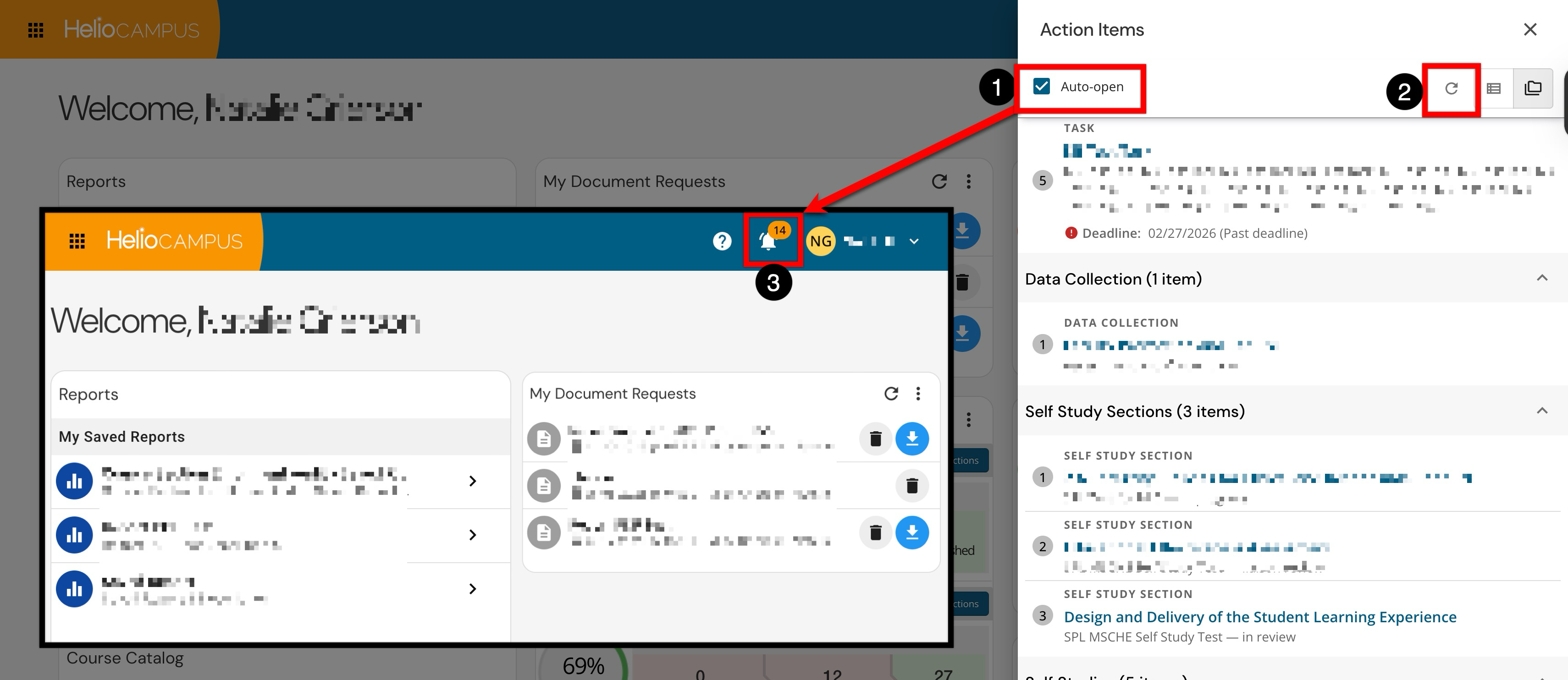
Additionally, while this drawer is enabled by default to auto-open upon login, the preference checkbox can be disabled (1). When disabled, the Action Items drawer will not automatically display upon logging in to the platform. The list view can be refreshed by clicking the Refresh icon (2). Refreshing the list view can also be accomplished by closing the Action Items drawer and then reopening it by clicking the Open Action Items icon (3).
Display Logic
|
Action Item Section |
Display Logic |
|---|---|
|
Assignments |
|
|
Course Assessments |
Course Assessments will first be ordered by term, then alphabetically by course section. |
|
Course Evaluation Results |
Course Evaluation results will display in order of which results became available first. If multiple results are available on the same date, they will be ordered alphabetically by subject code. |
|
Data Collections |
Data Collections will display alphabetically by the data collection name (e.g. ‘2023 Assessment Plan & Report’ will appear before ‘2023 Program Review’), then alphabetically based on step number (e.g. Step 1 will display before Step 2), and finally ordered alphabetically based on the business object name (e.g. for program data collections, the ‘Accounting, BS’ form will appear before ‘Biology, BS’ form). |
|
Program Assessments |
Program Assessments will first be ordered by term, then alphabetically by course section, and finally by program name. |
|
Surveys |
Surveys with the closest end date will display first, followed by those with subsequent end dates, with the furthest end date displaying last. If multiple surveys are configured with the same end date, they will be ordered alphabetically based on survey name. |
|
Tasks |
Tasks with the closest deadline will display first, with later deadlines subsequently displaying. If multiple Tasks have the same deadline, they will be ordered alphabetically by task title. |