
Access to AI functionality is controlled through Institution enablement and role-based permissions. To learn more and enable AI functionality, please contact Support.
Track progress, support data analysis, and help users interpret responses more efficiently. Ask AI helps users work with data by analyzing it, including responses and other information displayed in the platform. With the Ask AI functionality, users can quickly interpret inputs, identify themes and gaps, and summarize large amounts of data.
Ask AI is currently supported for the following features:
-
Evidence Bank: Answers questions using evidence metadata and can read and analyze attached documents to answer questions.
-
Self Study: Answers questions about self study narrative content, analyzes metadata from files in Related Documentation, and reads and analyzes section-level info.
-
Data Collections: Analyzes data to help users interpret submissions, identify themes and gaps, and summarize what has been provided across participants and workflow steps.
Evidence Bank
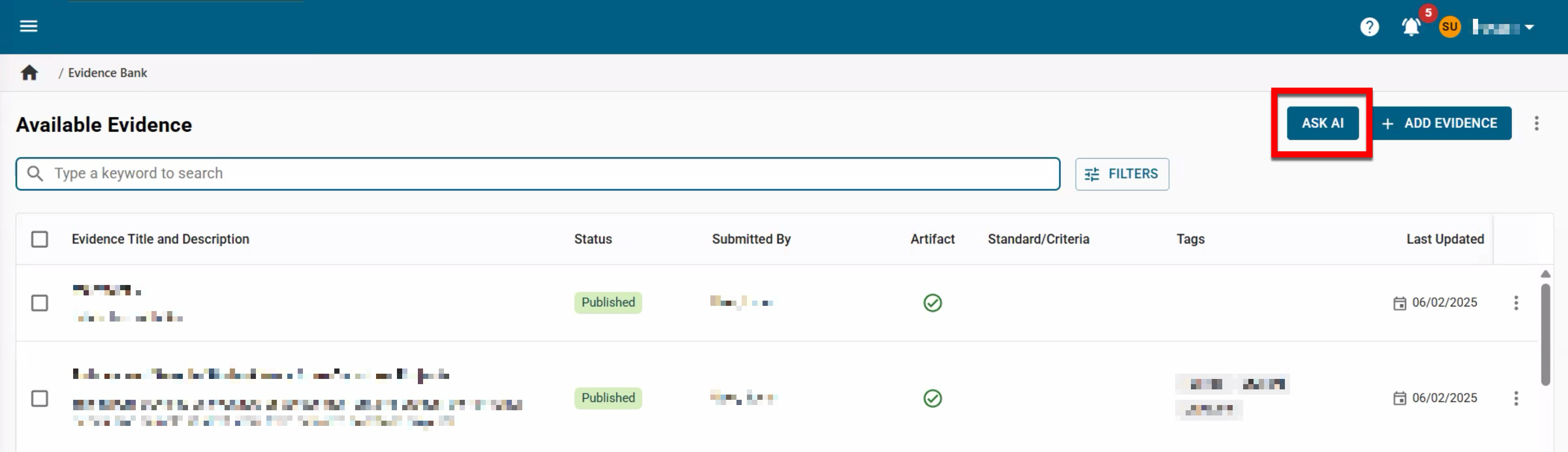
Once enabled and role-based access has been granted, the AI is available by clicking Ask AI. The Ask AI accounts for evidence metadata, including titles and descriptions, submission information, standards/criteria, keywords, contact persons, dates, and versions. The AI can also read and analyze evidence documents to provide insights and answer both general questions and statistical questions about evidence data.
Product Tip
The AI only processes attached documents, not URL-based evidence. Entries containing URLs and/or no file attachments will result in incomplete AI responses.
Self Study
Once enabled and role-based access has been granted, the AI is available on all self study pages by clicking Ask AI. The same AI experience is also available at the section level by clicking the same Ask AI when viewing/editing sections (2).
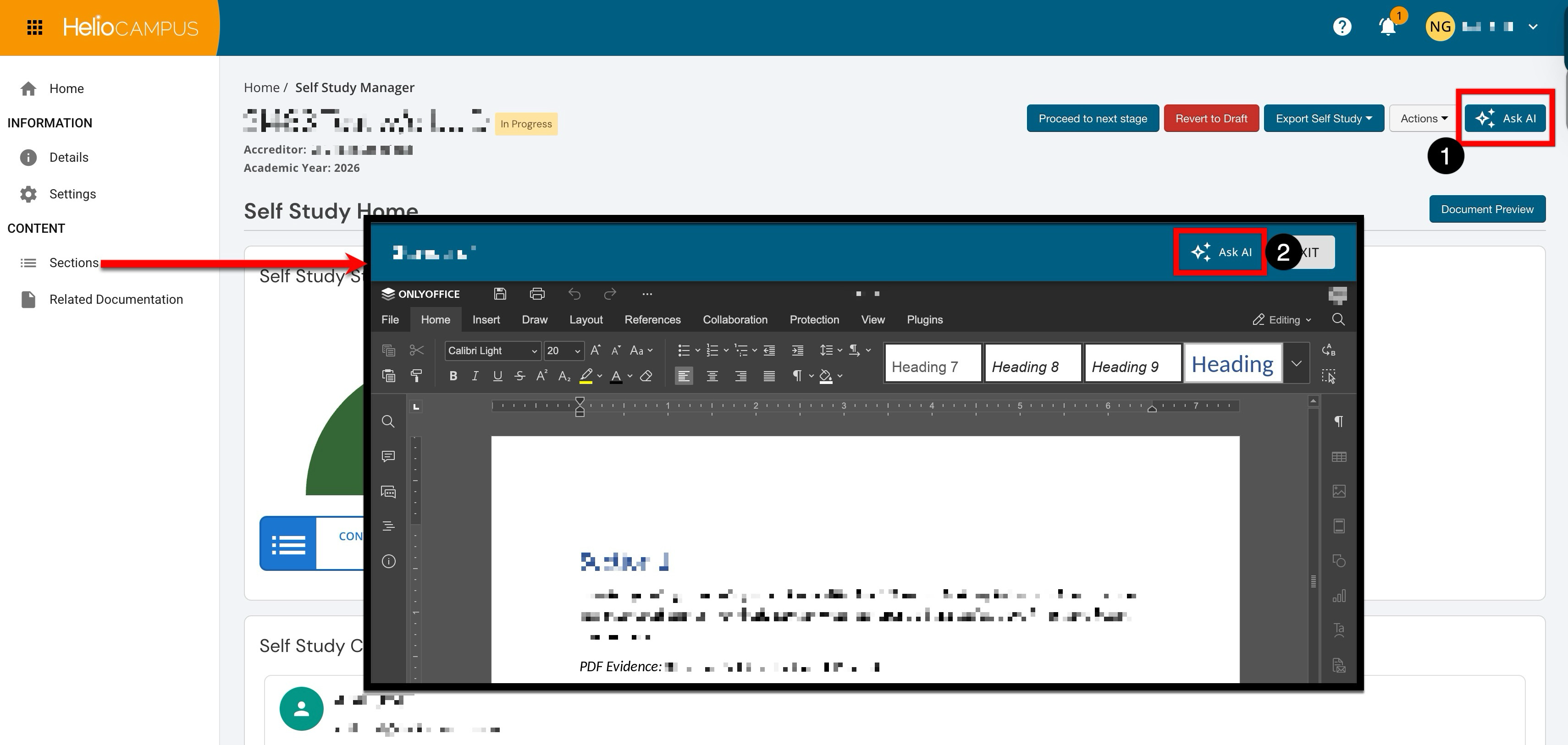
The AI analyzes self study content to provide insights and answer both general and statistical questions about self studies.
-
Metadata Analysis: Analyzes metadata in files within the Related Documentation page.
-
Self Study Content Analysis: Answers questions about the text entered into the self study itself.
-
Statistical Questions: Answers statistical questions about self study data.
-
Section Information: Queries information displayed on self study Sections pages, including content titles, statuses, editors, approvers, rubric scores, feedback, update history, and more.
Product Tip
The AI can read documents and self study content, but cannot read images or videos. Entries containing images and/or videos will result in incomplete AI responses.
Data Collection
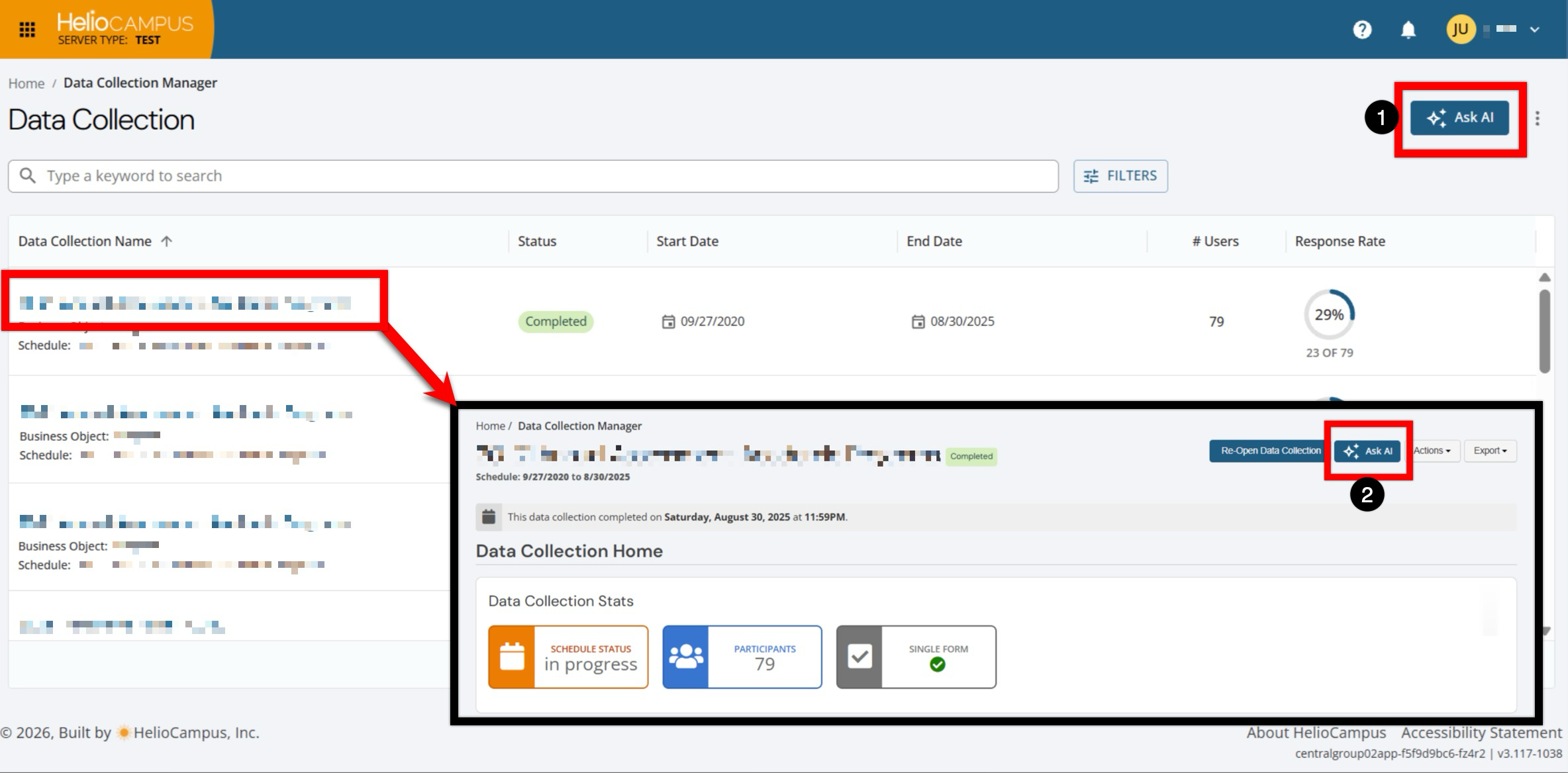
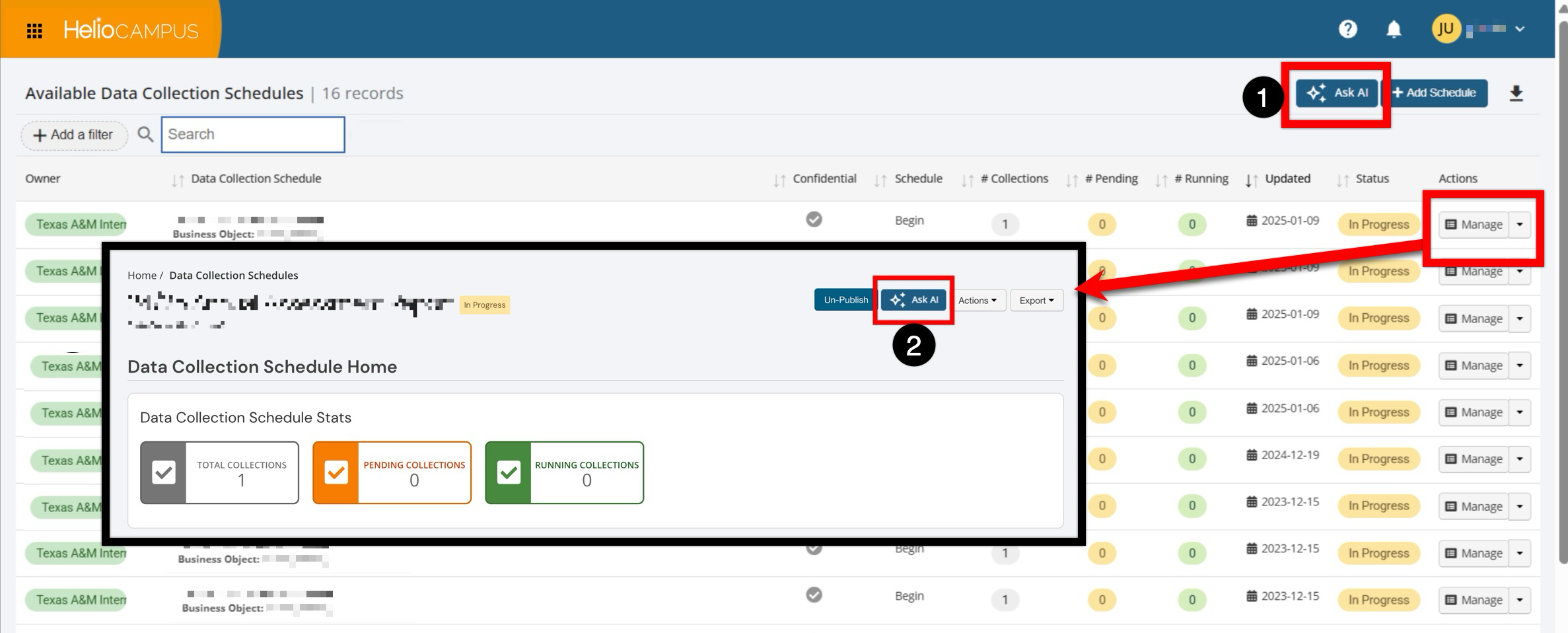
Once enabled and role-based access has been granted, the AI is available for both data collection instances and data collection schedules. The AI analyzes information collected through a data collection experience so users can more quickly interpret submissions, identify themes and gaps, and summarize what has been provided across participants and workflow steps. Ask AI for data collection can be used from the following locations:
-
Data Collection Manager (1) and instance homepage (2)
-
Data Collection Schedule Manager (1) and schedule homepage (2)
Enabling Ask AI
-
Submit a support ticket to request that Ask AI be enabled for the Institution. Learn about contacting support.
-
To activate and use HelioCampus AI features, Institutions must first sign an AI Addendum. This contractual agreement covers specific terms for data handling and acceptable use related to AI-powered functionality. It is required because AI features entail additional data-processing obligations not covered by an Institution’s standard Master Services Agreement (MSA), ensuring that both parties agree to the appropriate terms before any AI-generated outputs are surfaced to end users.
-
Enabling this functionality requires HelioCampus to process an Institution's data to prepare it for the AI. Depending on the amount of data to be processed, this may take multiple days, and Support will notify Institutions when processing is complete.
-
-
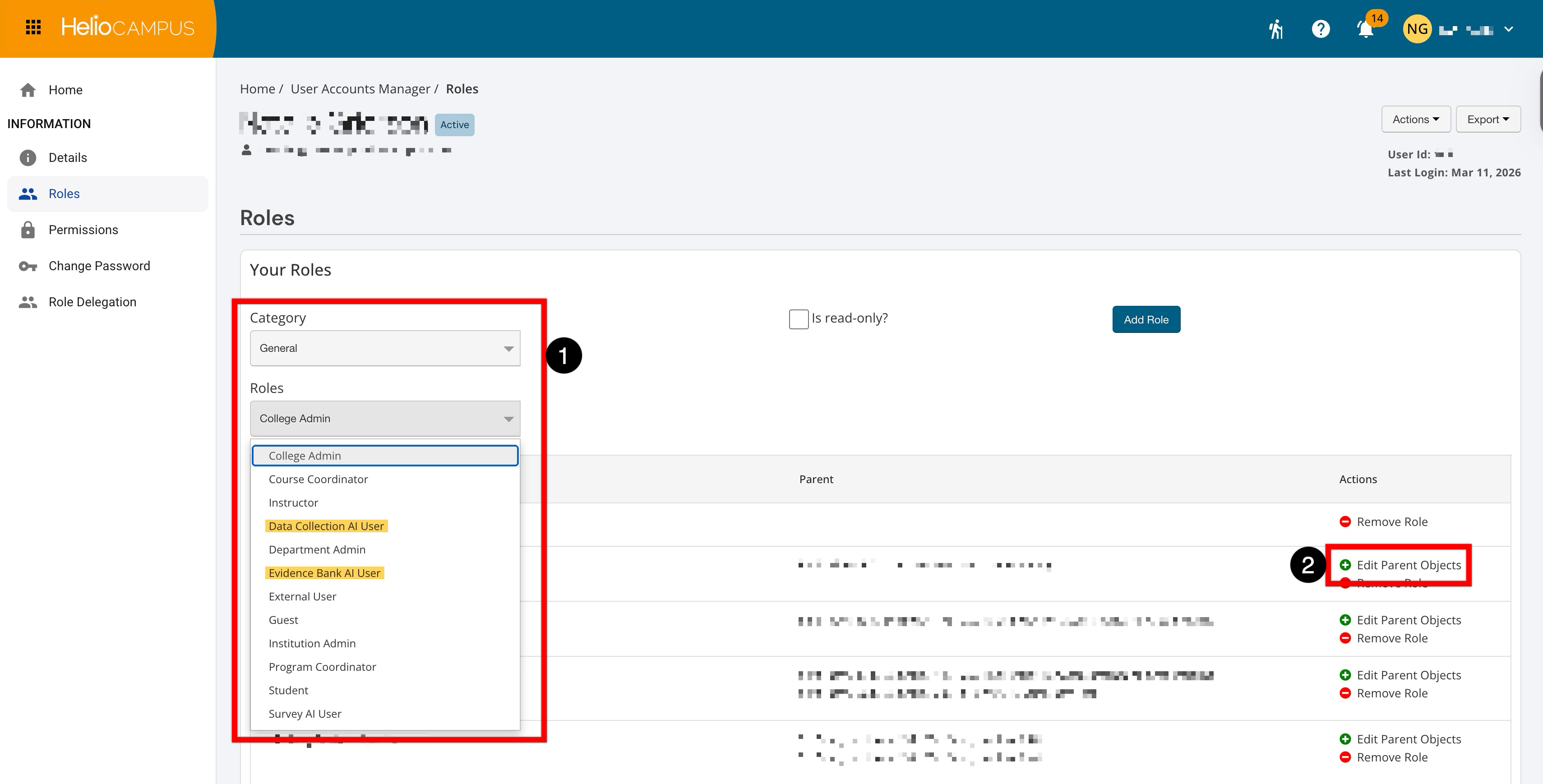
Once Ask AI has been enabled, Institutions must provision role-based access for users to use the functionality. Users should be assigned the appropriate AI role from the General category (1) when provisioning access, and parent objects should be added as applicable (2). The AI role works alongside existing roles, and assigning an AI user role will not, by itself, provide access to features or functionality.
-
Evidence Bank AI User: Grants access to the Self Study and Evidence Bank Ask AI functionality.
-
Data Collection AI User: Grants access to the Data Collection Ask AI functionality.
⚠️ AI-specific user roles can only be added individually per user or in bulk via the platform interface. These roles cannot be assigned in bulk via the template export/import process. Learn how to add roles to individual users or in bulk via the platform interface.
-
-
After an AI user role is assigned, the Ask AI functionality will become available to the user upon logging out and back in to the platform.
Using Ask AI
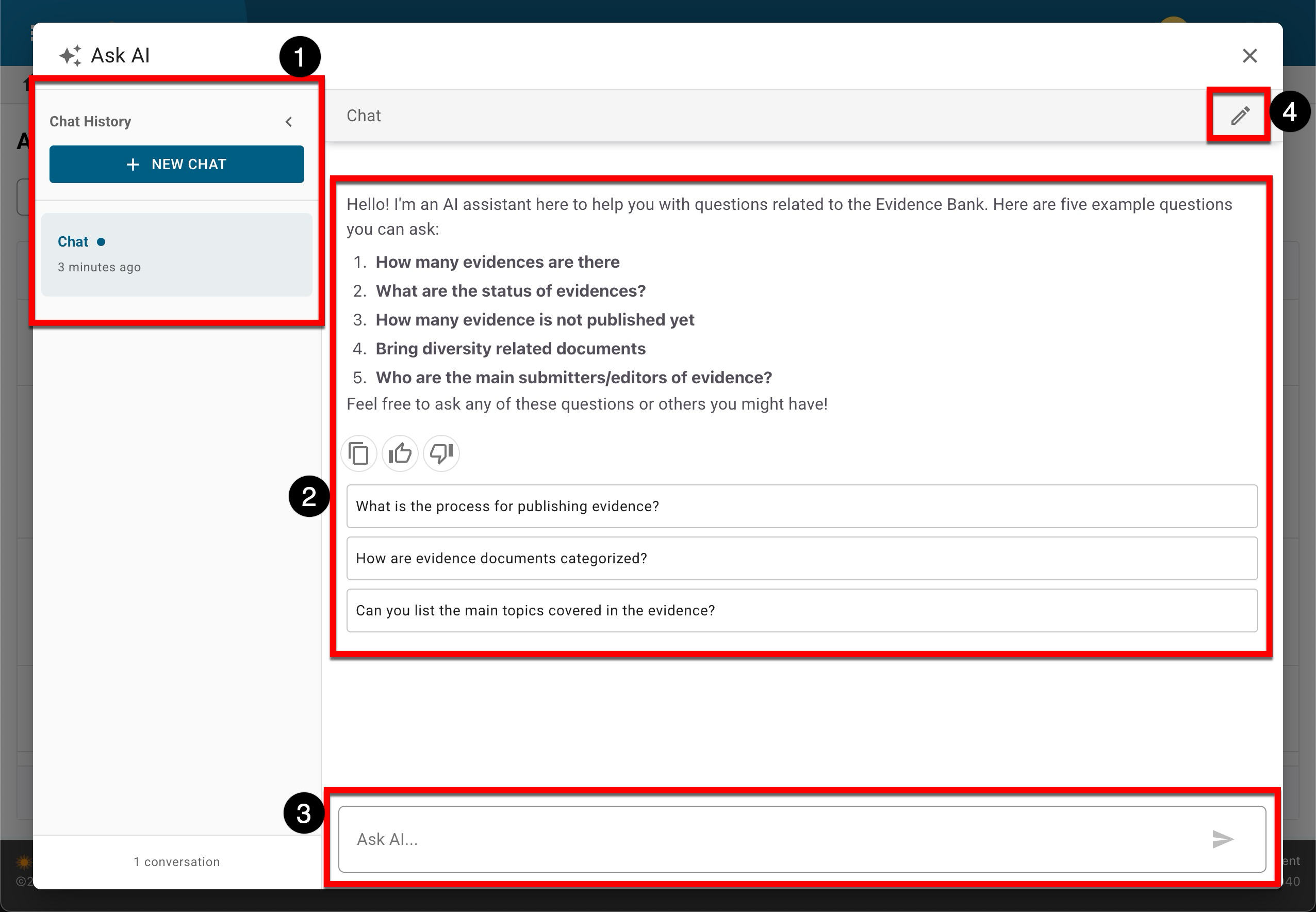
Once HelioCampus has enabled the Ask AI feature and the applicable AI user role has been assigned, the functionality is available by clicking Ask AI to open the AI chat. If a user has previously used Ask AI, chat history will be displayed (1). Clicking New Chat will save the existing chat/topic and open a new chat (1). Ask AI displays guidance for its use and example questions, as well as some suggestions of what to ask (2). The AI can be asked questions about data already available in the platform (3). Chats are automatically named after enough context is provided to the AI; to personalize chats for easier location in chat history, they can be renamed by editing the title (4).
💡 Product Tip: As a best practice, a new chat should be started for new topics to ensure the AI has the appropriate context.
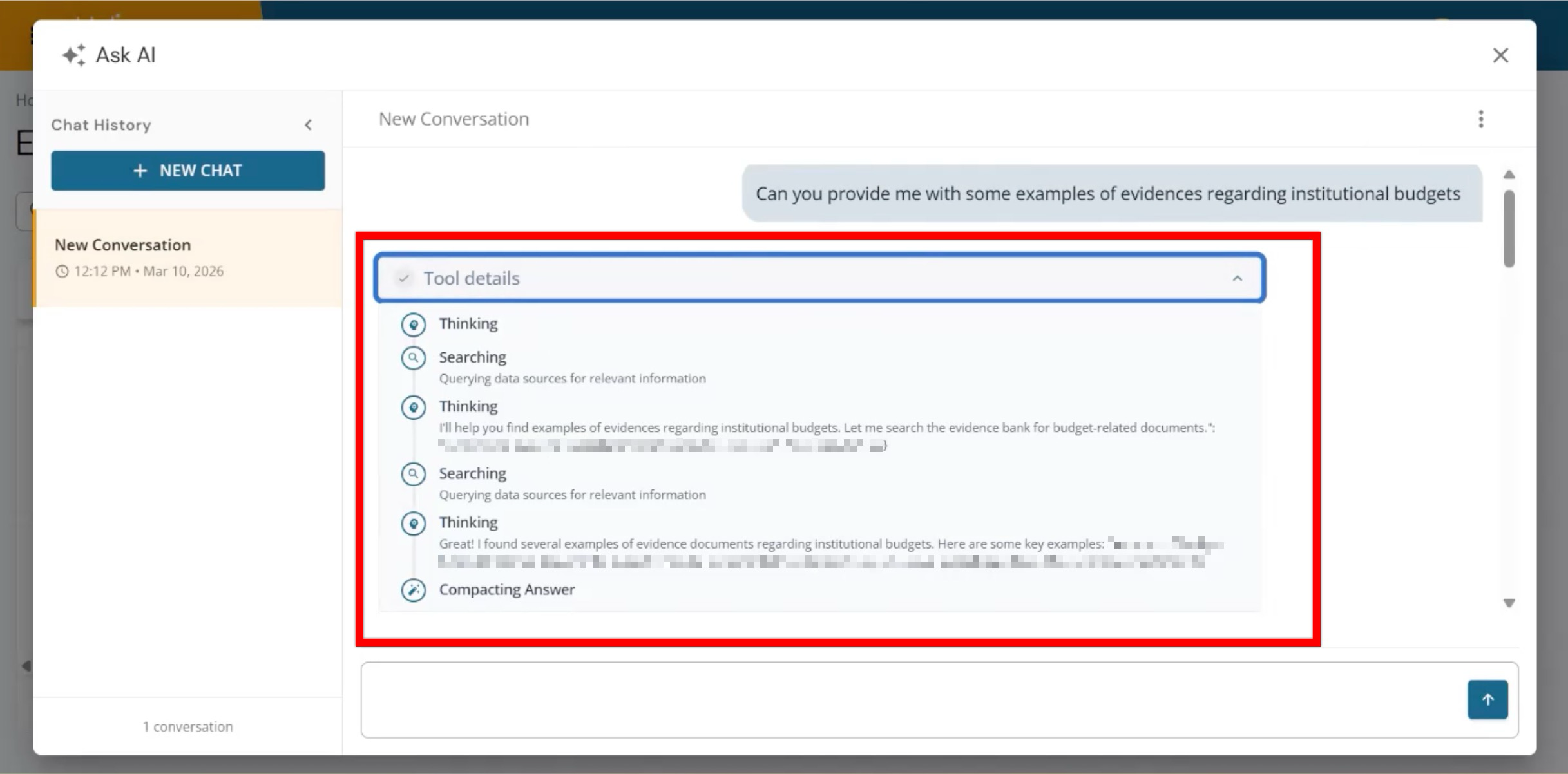
After asking a question, the Tool details section can be expanded to show what the AI is doing behind the scenes as it generates an answer. When expanded, it displays a step-by-step activity trail (for example, Thinking, Searching, and Compacting Answer) to understand how the AI response was produced. As the AI works, multiple rounds of “thinking” and “searching” may occur, which indicates that the assistant is iterating to gather relevant information and refine the result. After the AI compiles its findings, the Compacting Answer step is the point where it turns those intermediate steps into a clear, readable response.
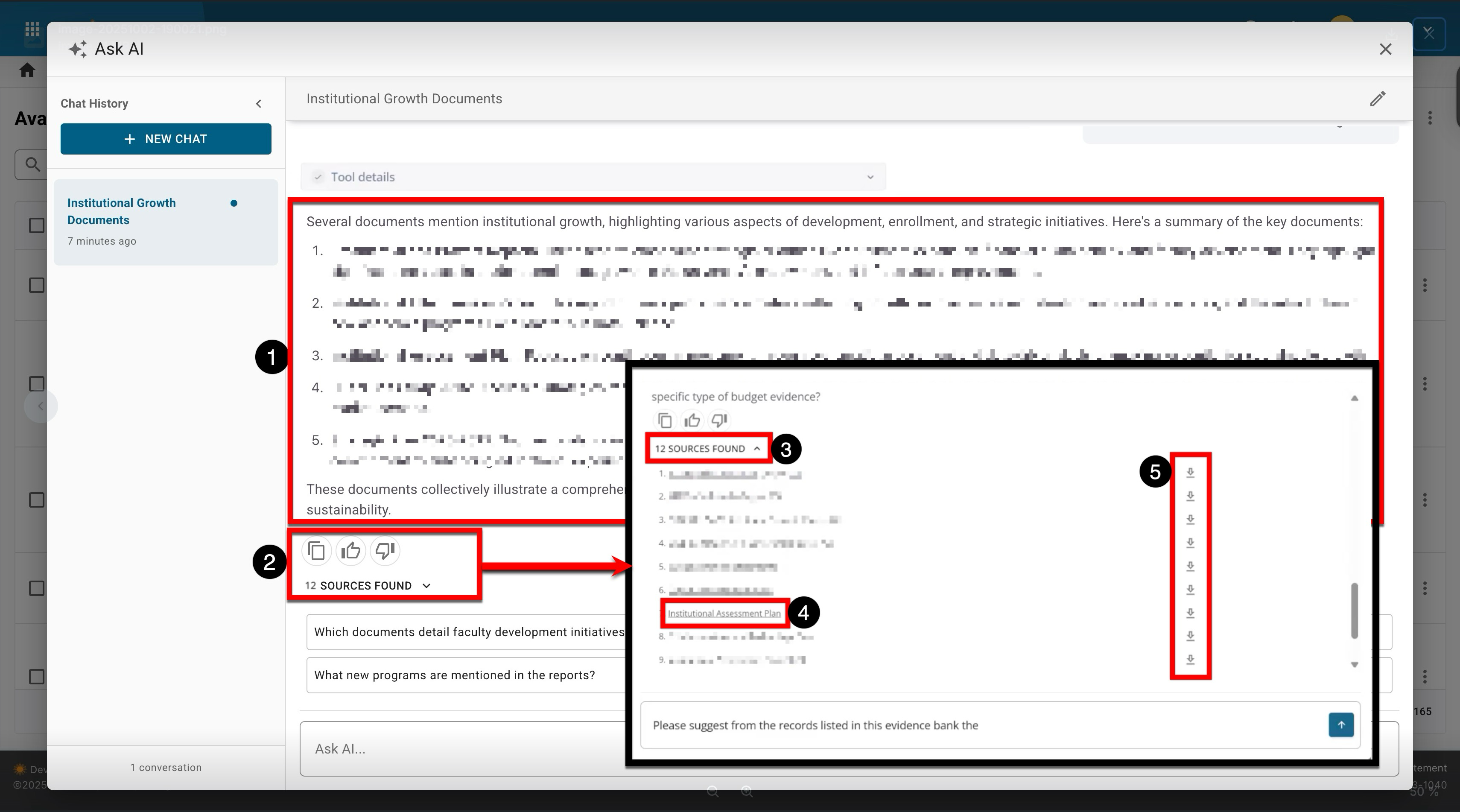
The AI provides its response directly below the question (1). In the example below, a multi‑item list and a concluding sentence about the listed documents collectively illustrate an approach to the question of institutional growth and sustainability. Providing feedback via the thumbs-up/thumbs-down (2) options helps to identify AI responses that are not satisfactory and contributes to overall AI generation. Sources used in the answer can be reviewed by expanding the sources dropdown (3), and each source utilized in the answer can be previewed (4) or downloaded (5).
Frequently Asked Questions