Access to AI functionality is controlled through Institution enablement and role-based permissions. To learn more and enable AI functionality, please contact Support.
HelioCampus offers Sentiment Analysis AI to help Institutions understand open-ended feedback on course evaluations. After HelioCampus enables the feature and users are provisioned with the appropriate role-based access, AI insights and themes are available.
-
AI Insights: AI insights are a high-level combination of quantitative metrics (from multiple-choice questions) and qualitative insights (from open-ended responses) to spot trends and potential problem areas.
-
AI Themes: A theme is a qualitative grouping and summary of open-ended student comments for a specific question. Sentiment Analysis AI generates themes for eligible text-response question types with 30 or more responses.
Enabling Sentiment Analysis AI
-
Submit a support ticket to request that Sentiment Analysis AI be enabled for the Institution. Learn about contacting support.
-
To activate and use HelioCampus AI features, Institutions must first sign an AI Addendum. This contractual agreement covers specific terms for data handling and acceptable use related to AI-powered functionality. It is required because AI features entail additional data-processing obligations not covered by an Institution’s standard Master Services Agreement (MSA), ensuring that both parties agree to the appropriate terms before any AI-generated outputs are surfaced to end users.
-
Enabling this functionality requires HelioCampus to process an Institution's data to prepare it for the AI. Depending on the amount of data to be processed, this may take multiple days, and Support will notify Institutions when processing is complete.
-
-
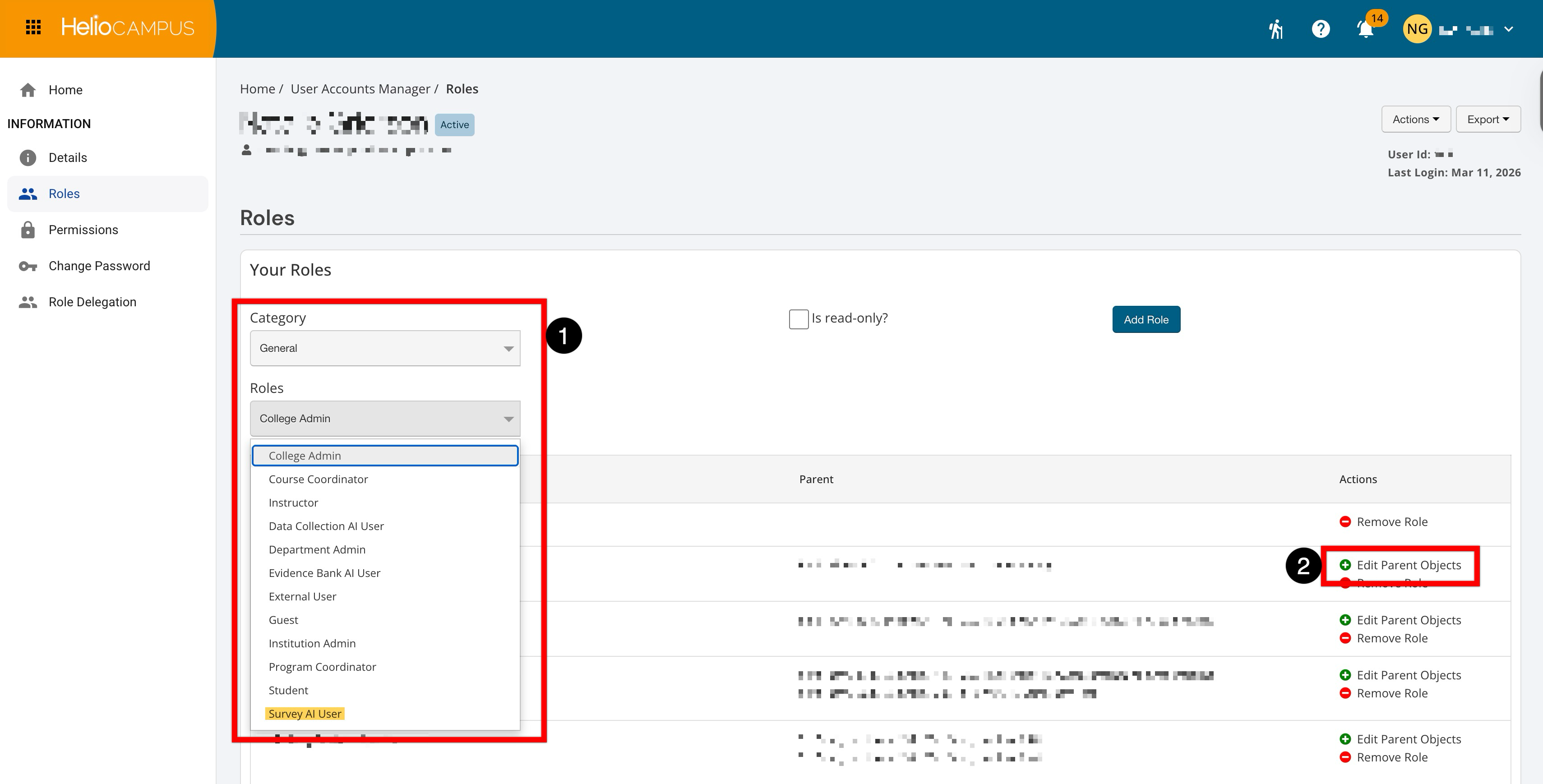
Once Sentiment Analysis AI has been enabled, Institutions must provision role-based access for users to use the functionality. Users should be assigned the Survey AI User role from the General category when provisioning access (1), and parent objects should be added as applicable (2). The AI role works alongside existing roles, and assigning an AI user role will not, by itself, provide access to features or functionality.
-
After the Survey AI User role is assigned, Sentiment Analysis AI will be available to the user within 12 hours due to platform processing time.
Generating AI Summary Themes
Each theme includes an overall sentiment range, and the underlying responses are grouped to generate that theme. Themes can be generated for the following question types that have 30 or more responses:
-
Text/Memo questions
-
Instructor Text/Memo questions
-
Single Line Text questions
-
Questions configured with text boxes for additional comments for non-text/memo questions
-
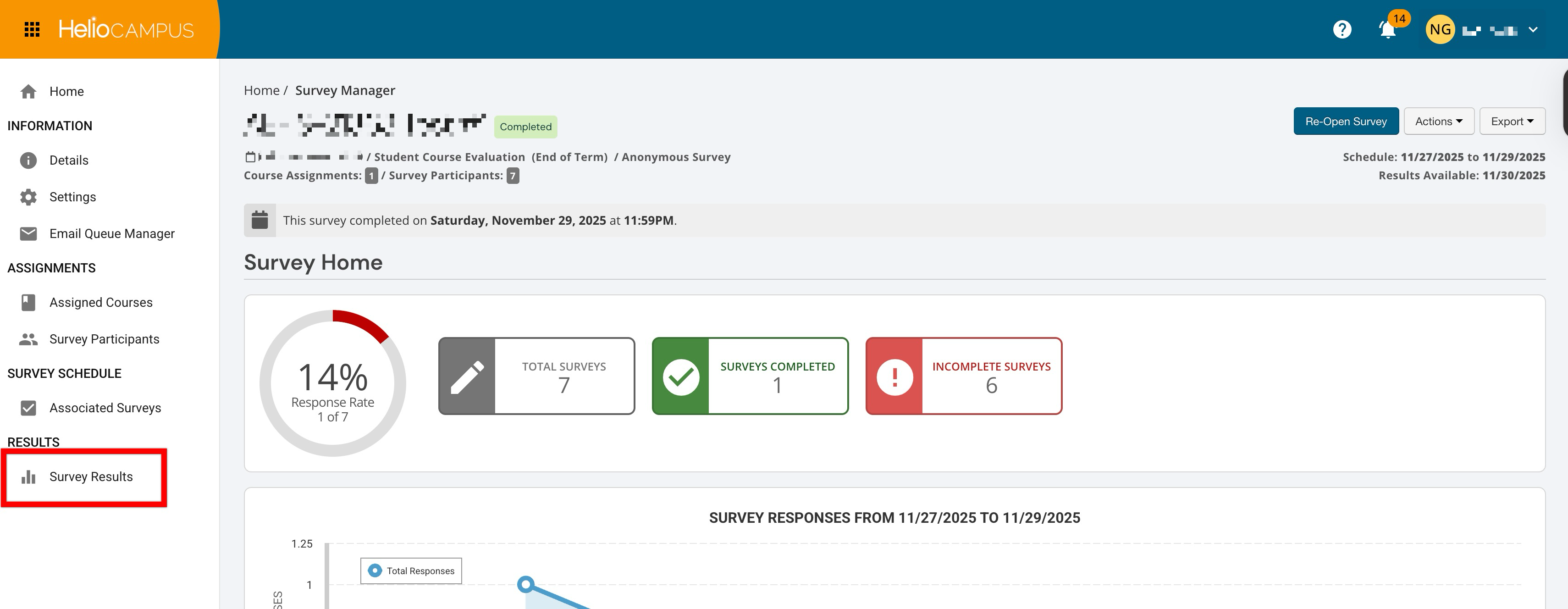
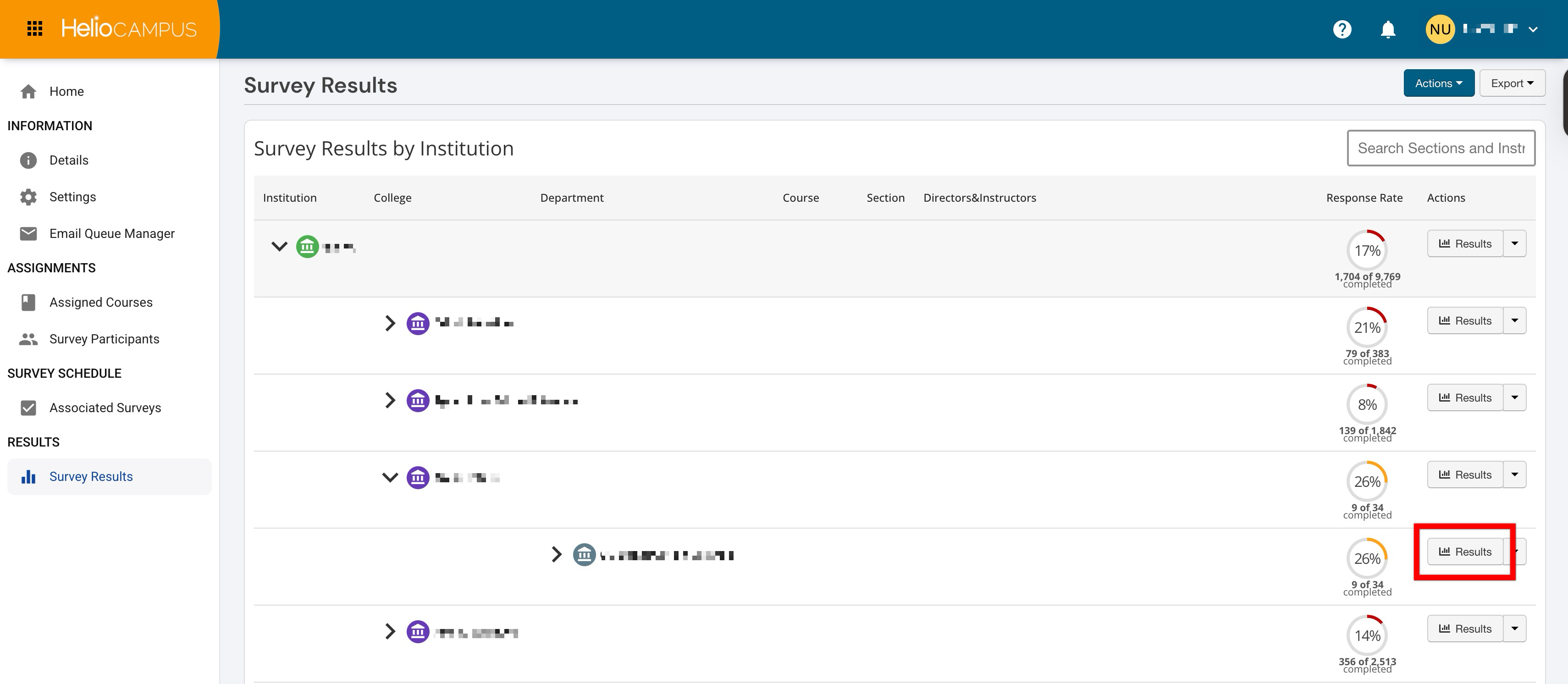
From the Survey Homepage, select the Survey Results page from the left-hand menu.
-
Locate the level to view the results at, then click Results.
-
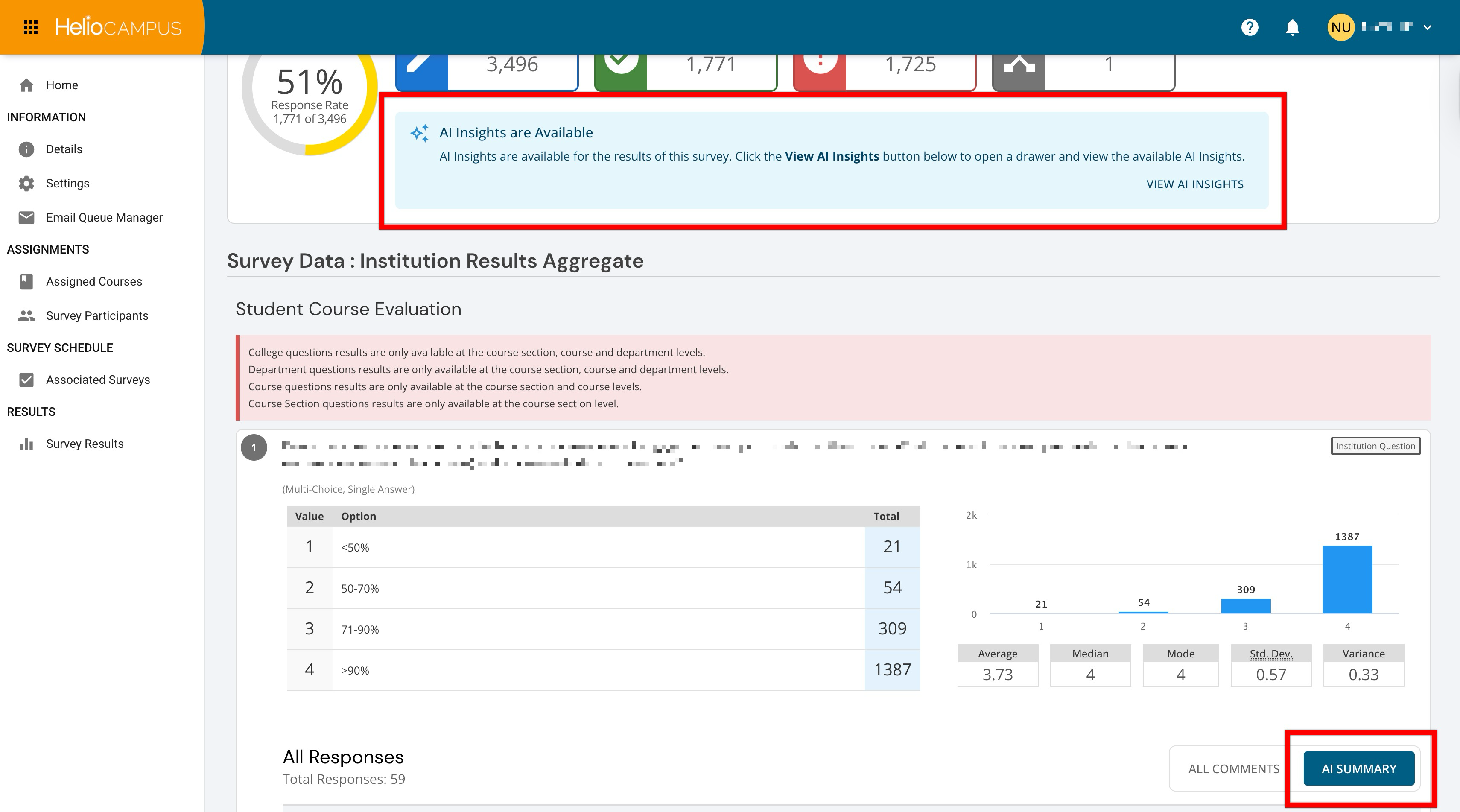
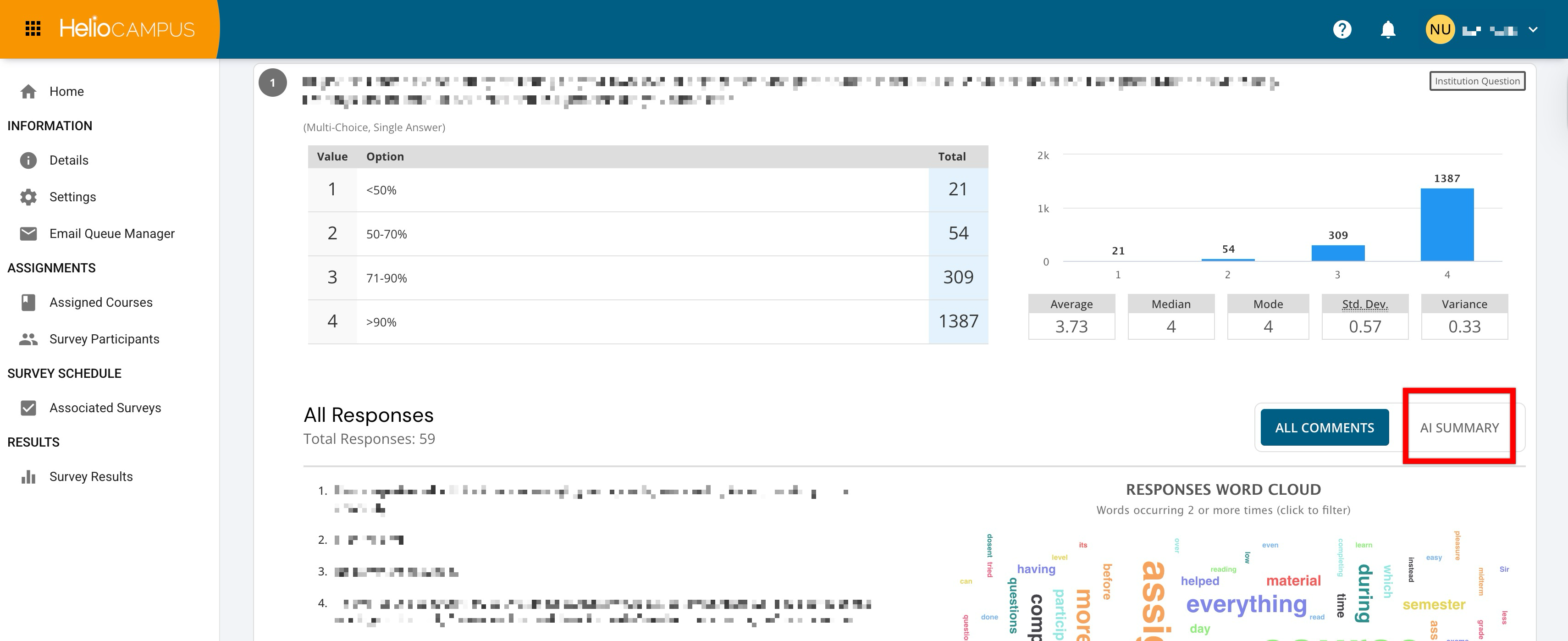
Locate the question and click AI Summary to generate themes.
-
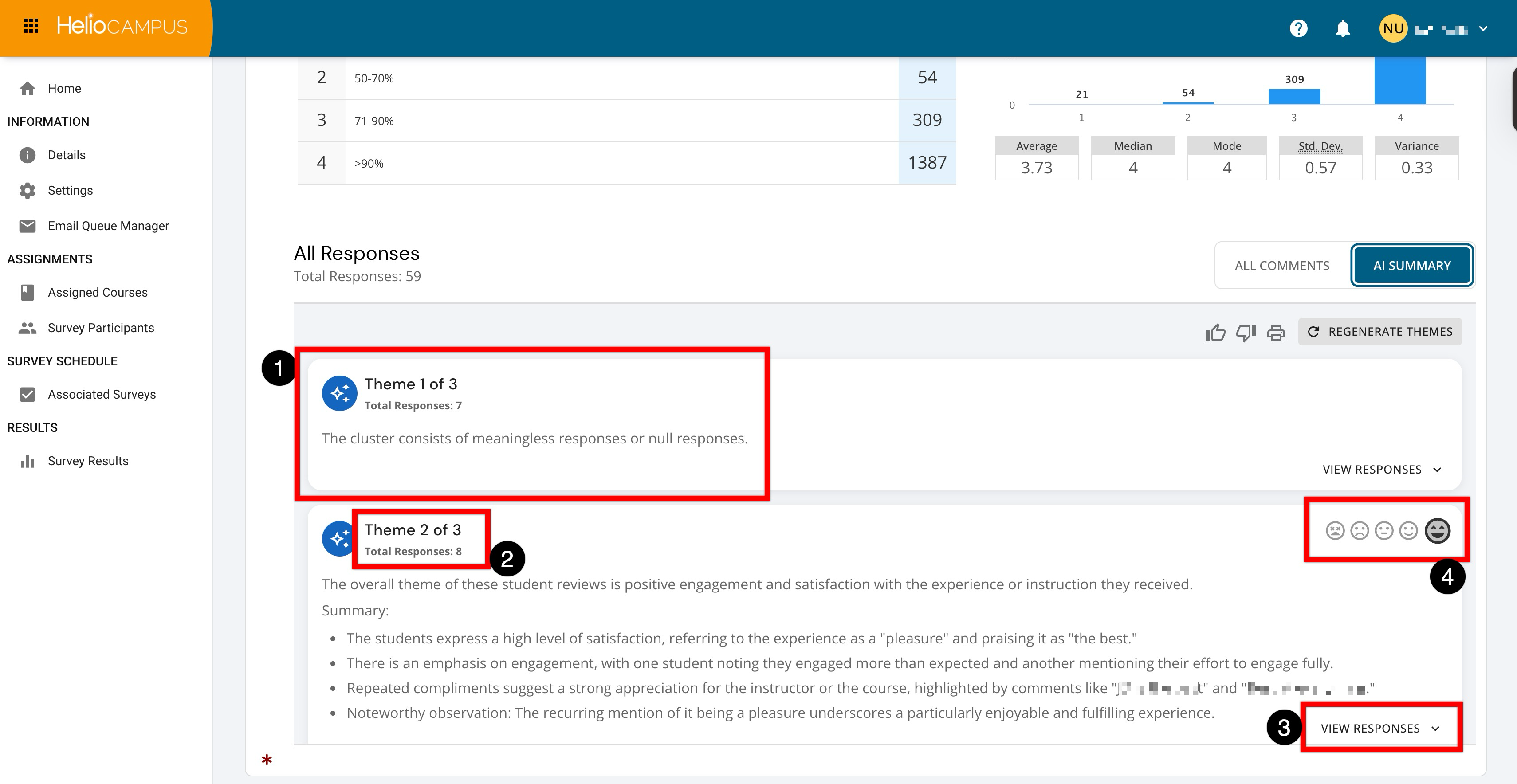
Responses that are not applicable will be consolidated into a theme with no summary, indicating that they are null or not applicable to the analysis (1). Displayed directly below the theme number is the total count of survey responses that contributed to the theme analysis (2); these responses can be viewed by clicking View Responses (3). For each theme, the overall impression is shown on a ‘very negative' to ‘very positive’ scale (4); hovering over the impression displays the assigned range.
-
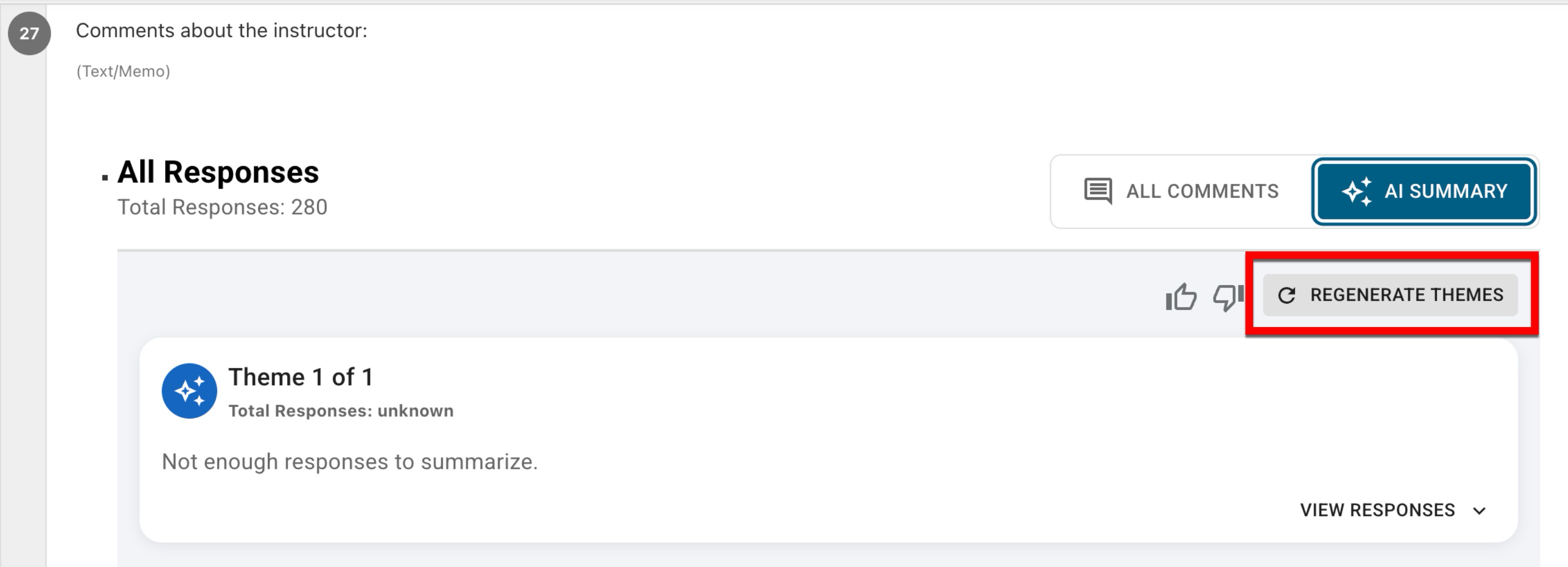
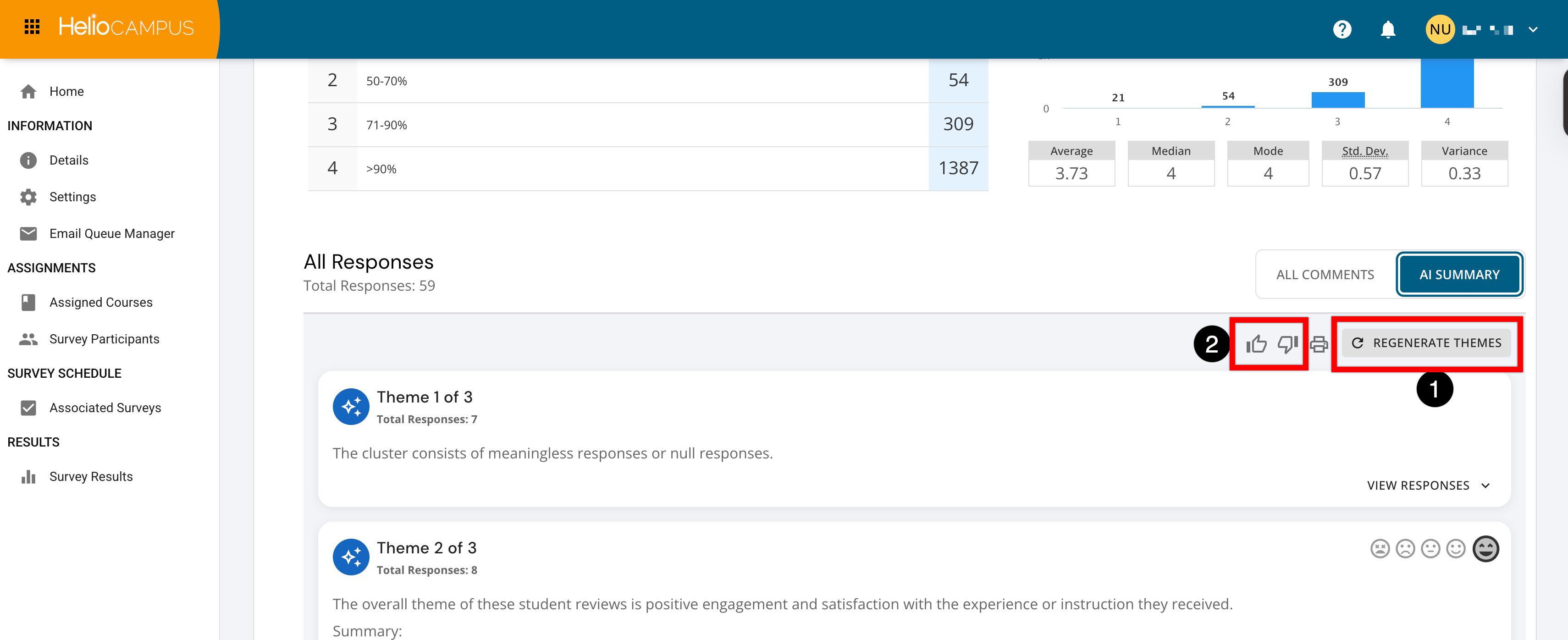
Once generated, if themes are unsatisfactory, clicking Regenerate Themes (1) will prompt the AI to create new themes. Providing feedback via the thumbs-up/thumbs-down (2) options helps identify unsatisfactory AI responses and contributes to overall AI generation.
Viewing AI Analysis Insights
AI insights combine quantitative metrics (from multiple-choice questions) and qualitative insights (from open-ended questions) to surface Institution-level findings and trends.
-
From the Survey Homepage, select the Survey Results page from the left-hand menu.
-
Locate the level to view the results at, then click Results.
-
AI results can be viewed by clicking View AI Insights to open the AI Quantitative Analysis drawer.
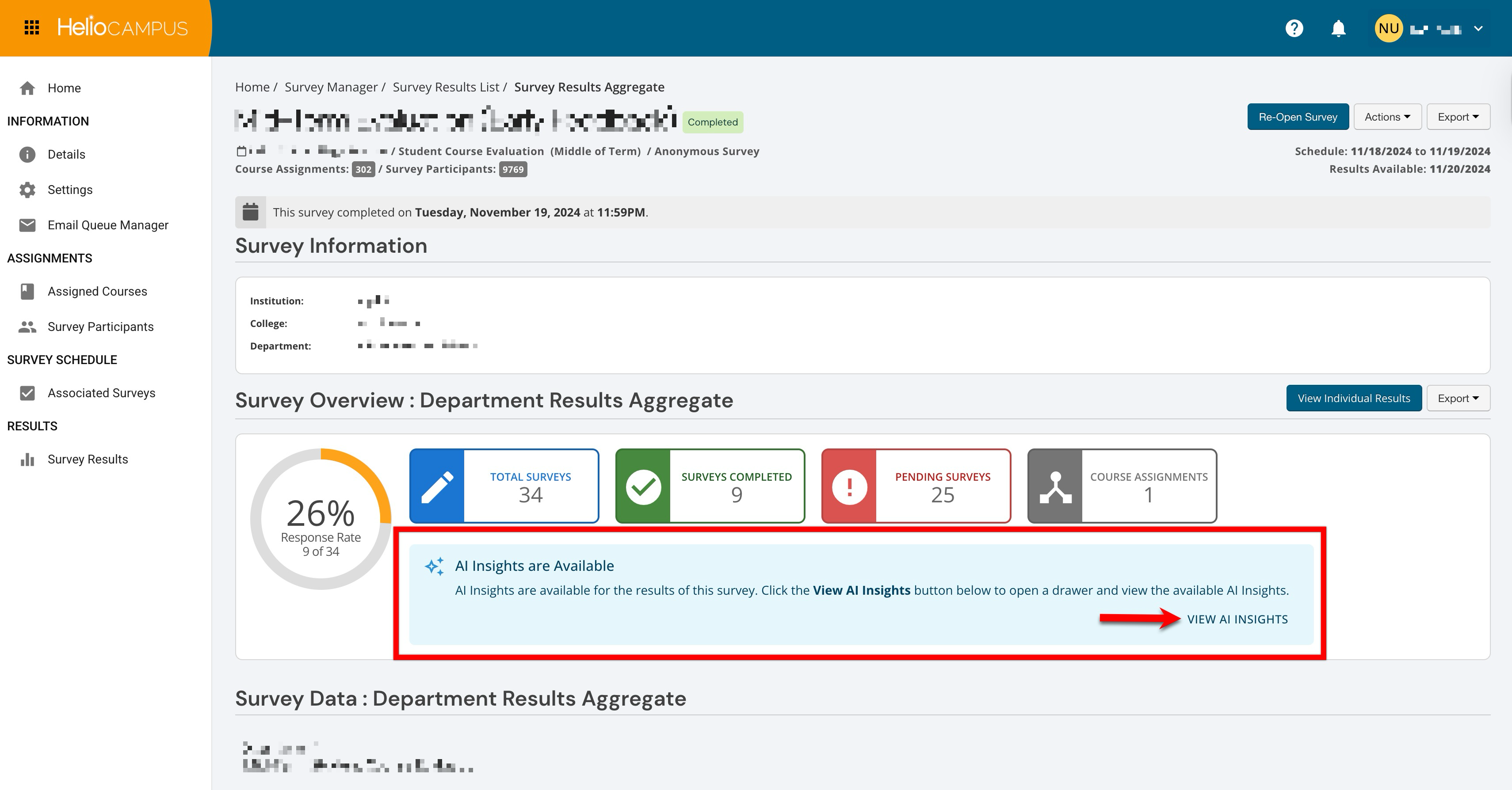
-
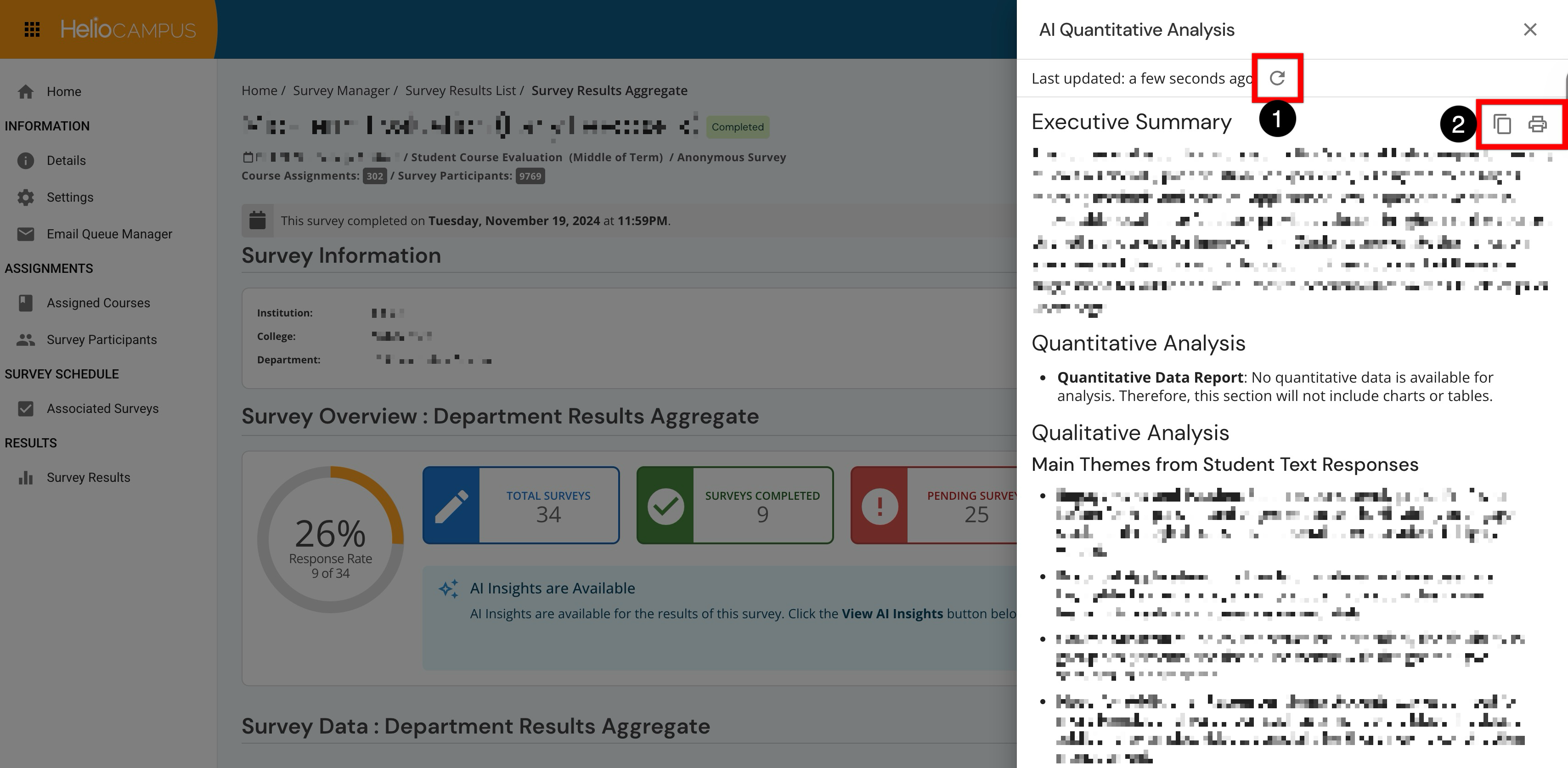
The AI Quantitative Analysis drawer displays quantitative and qualitative analysis results. The AI analysis can be refreshed (1) as well as copied or printed (2).
-
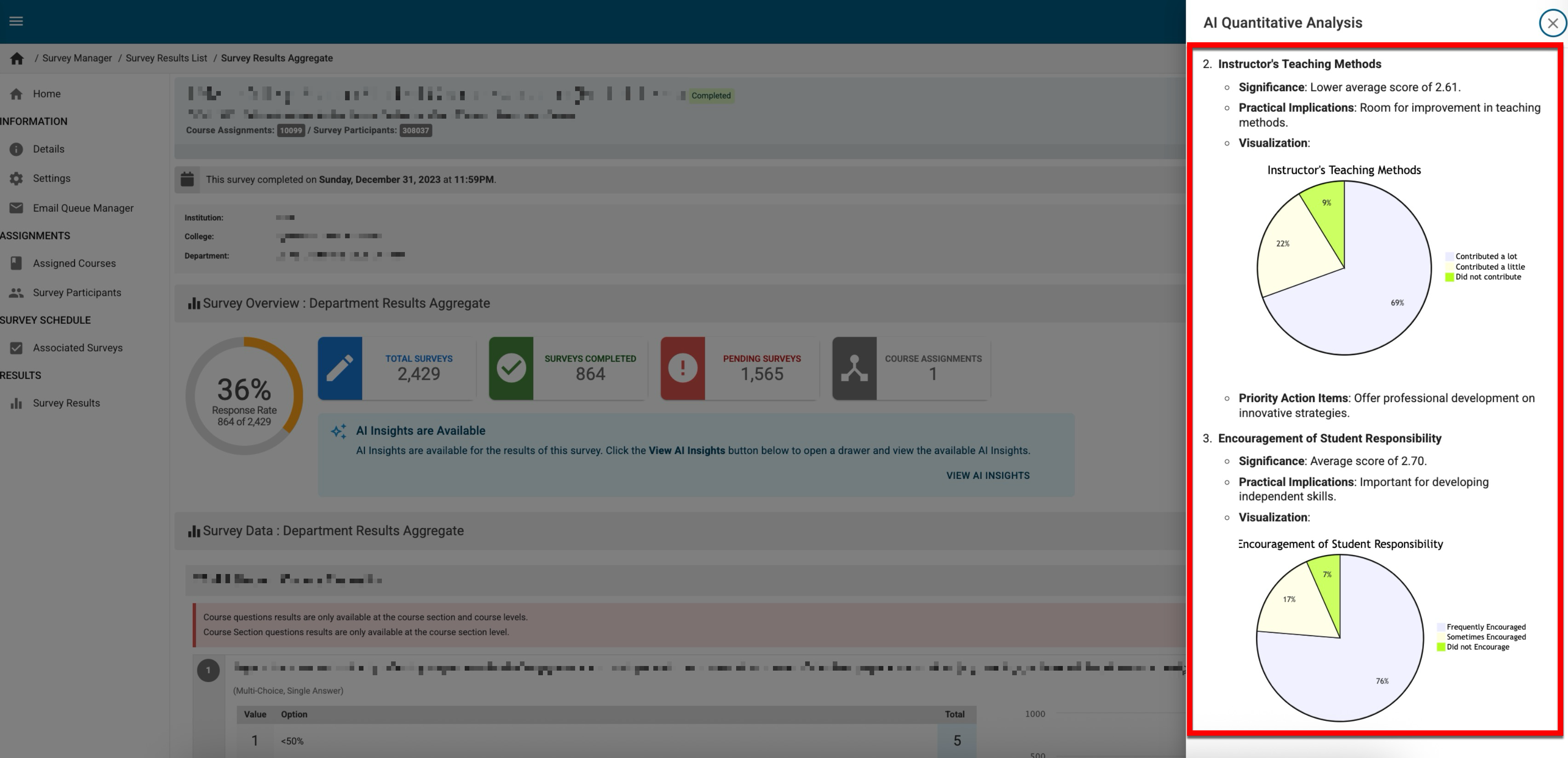
Institutions that need a fast, high-level read on educational quality can view quick-glance information via metrics charts as part of the AI analysis.
Frequently Asked Questions
Troubleshooting
My survey is in progress, and I have received enough text responses; however, when I click on AI Summary, no themes are generated.
Although it’s ideal to generate themes once the survey closes, in in-progress surveys, clicking Regenerate Themes creates themes based only on the responses received so far. If additional responses are received after generating themes, click Regenerate Themes again. Because course evaluation results for Sentiment Analysis AI are automatically refreshed every Saturday, it is recommended to regenerate themes after the Saturday following the submission of the additional responses.