
A guest account is a limited-access platform user created to support workflows where someone needs to complete a task without being a fully provisioned user (for example, an external survey participant or a badge recipient). In practice, a guest account is often created automatically by the platform when an email address is provided for a person who does not already have an account.
-
Very Limited Access: Guest accounts typically only have access to the specific experience they were created for (for example, a survey form link, a public/preview view, or a badge-related action).
-
Guests Generally Cannot Log In Like Normal Users: If an account has only the Guest role, that user typically cannot sign in to the platform via the standard login flow. Instead, they use direct links for the specific experience (commonly survey links).
-
Used as a "Minimum Role" When an Account Must Have at Least one Role. In some admin workflows, a user must retain at least one role to save changes. In those cases, Guest may be used as a placeholder role before a user is disabled.
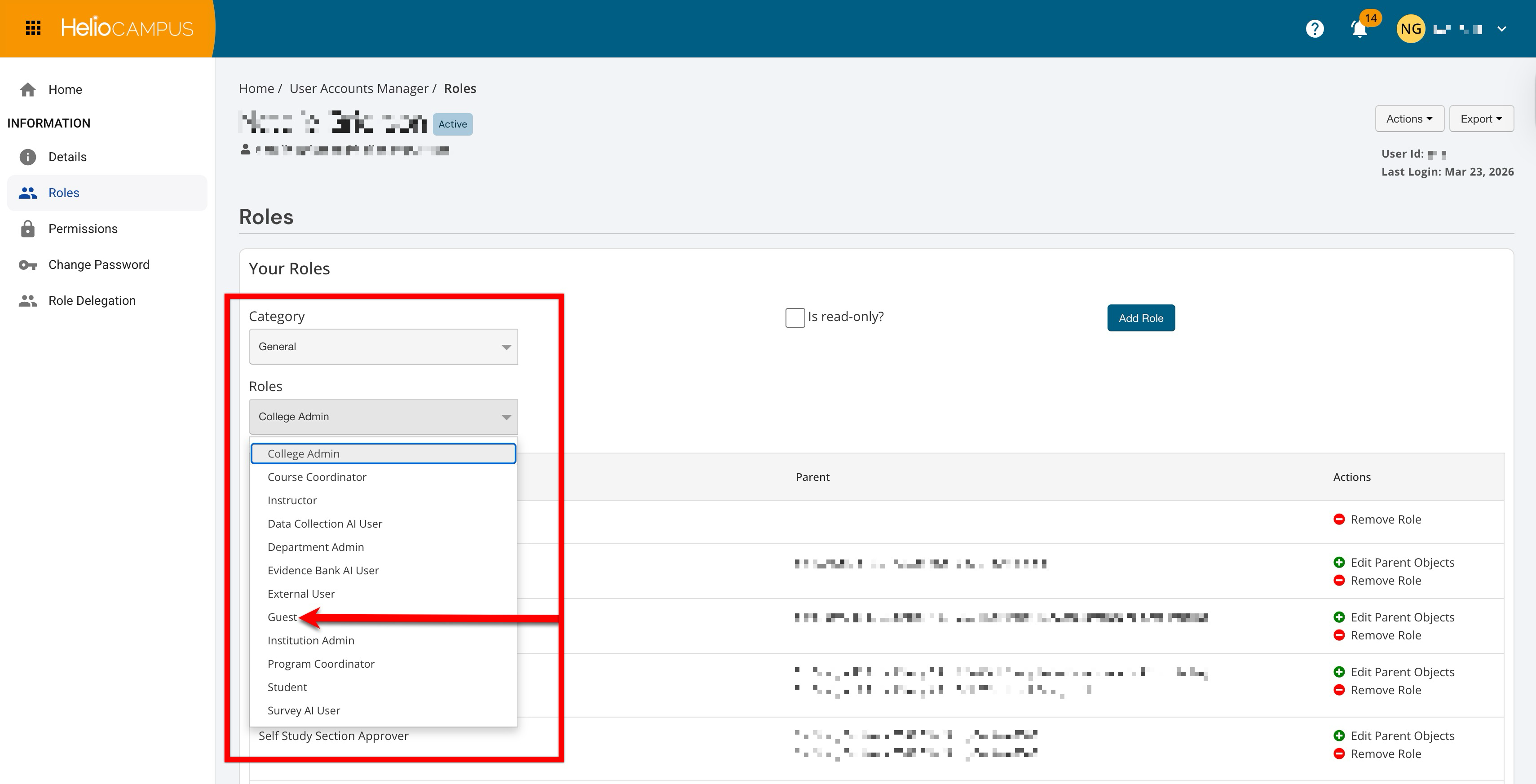
Admins see Guest listed among available roles in the General category when adding or updating user roles. Guest accounts can also be created automatically in workflows when the platform receives an email address for someone who does not yet have a user account. The following roles have role-based permission to create guest users in the platform:
-
College Admin
-
Department Admin
-
Institution Admin
Product Tip
A guest account is not a replacement for Student/Instructor/admin roles. If someone needs normal platform access, they must be assigned an appropriate non-guest role. For Student or Instructor roles specifically, they must be included in the Institution's data feeds so the role is reflected correctly.
Common Use Cases
|
External User Group Surveys |
|
When external users are added to a user group for an external survey, and they do not already have accounts, the platform creates guest accounts and sends direct links so they can access the survey without logging in. |
|
Public Syllabus Access |
|
When someone views public syllabi without an account, the platform creates a guest account, and they are treated as a guest user for viewing public syllabi. |
|
External Section Enrollment |
|
If external students are enrolled via templates and do not have existing platform accounts, the platform creates guest accounts to support that enrollment pathway. A guest account may also be created if the student's unique identifier in an import template does not match an existing platform account during enrollment workflows. |
|
Badge Assertions |
|
If badge recipient email addresses are provided for people who do not already have platform accounts, the platform creates guest accounts to support badge delivery and related actions, especially for non-SSO recipients. |
Auto-Creation of Guest Accounts
In some workflows, the platform automatically creates guest accounts when it receives an email address for someone who does not already have a platform account. A common example is external participation flows (e.g., external surveys), where the user accesses a direct link rather than logging in to the platform. New guest user accounts do not have to be created when a platform feature workflow is designed to provision external participants' access and deliver a direct link. The platform automatically creates guest user accounts for the following feature workflows:
-
External User Group Surveys
-
Public Syllabi
-
Section enrollment (external students via templates)
-
Badge assertions
Assign the Guest Role to a New User
-
Navigate to Main Menu > Admin Tools > User Account Manager and create a new user. Learn more.
-
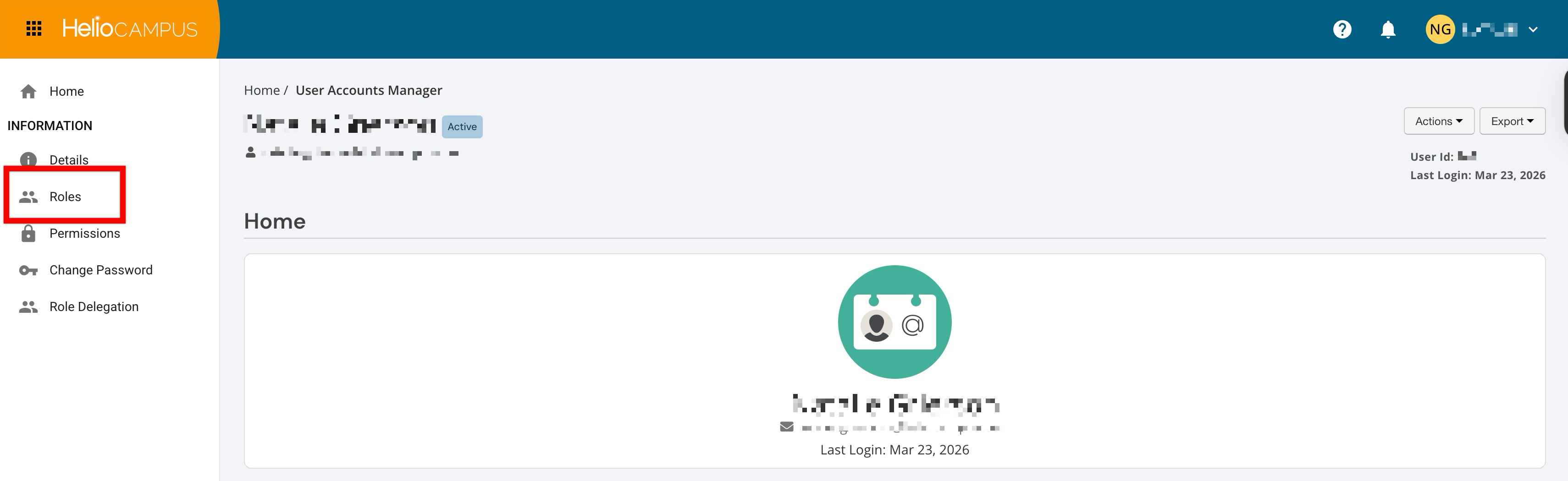
Once created, navigate to the user account's Roles page. Learn more.
-
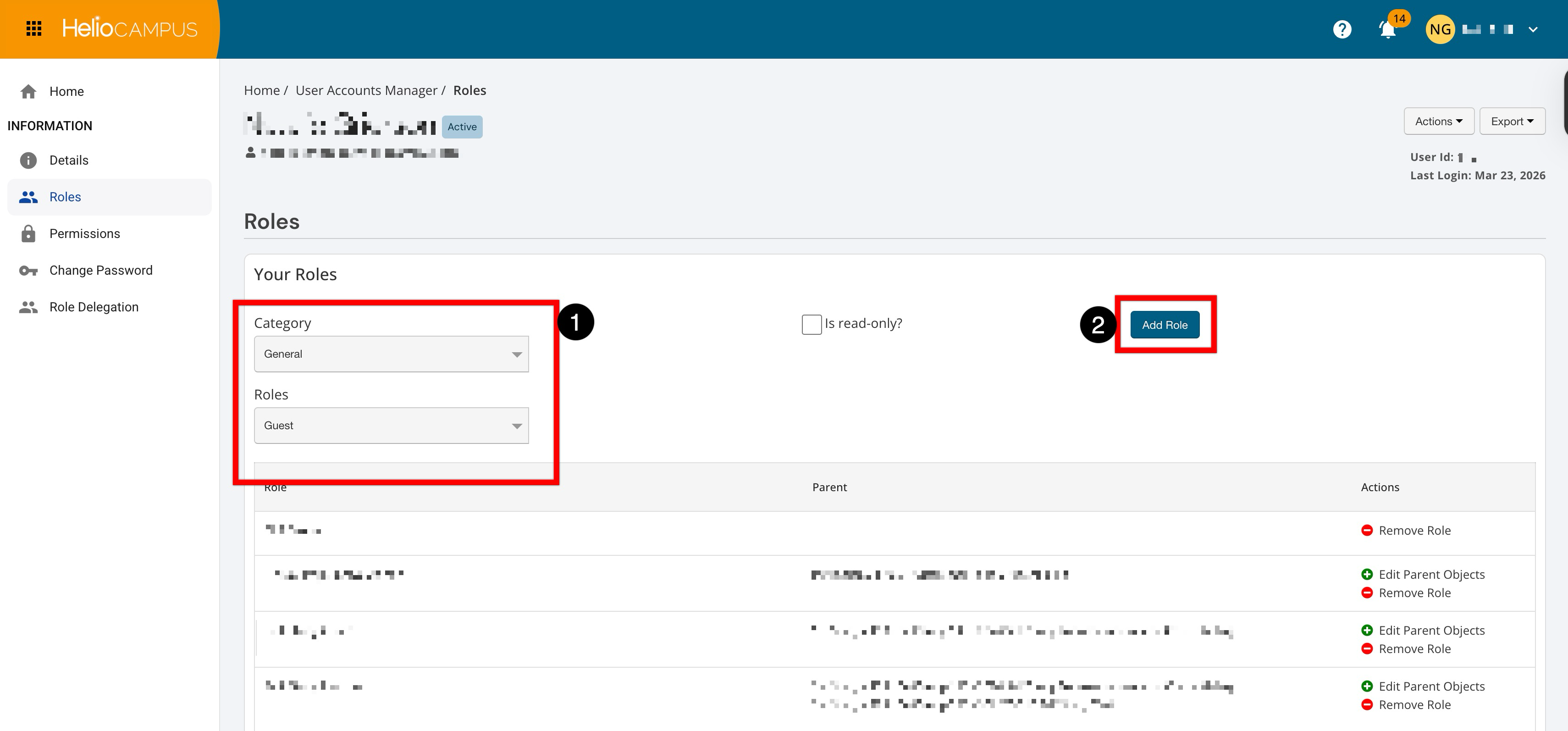
Select the Guest role from the General category (1), and click Add Role (2).
-
-
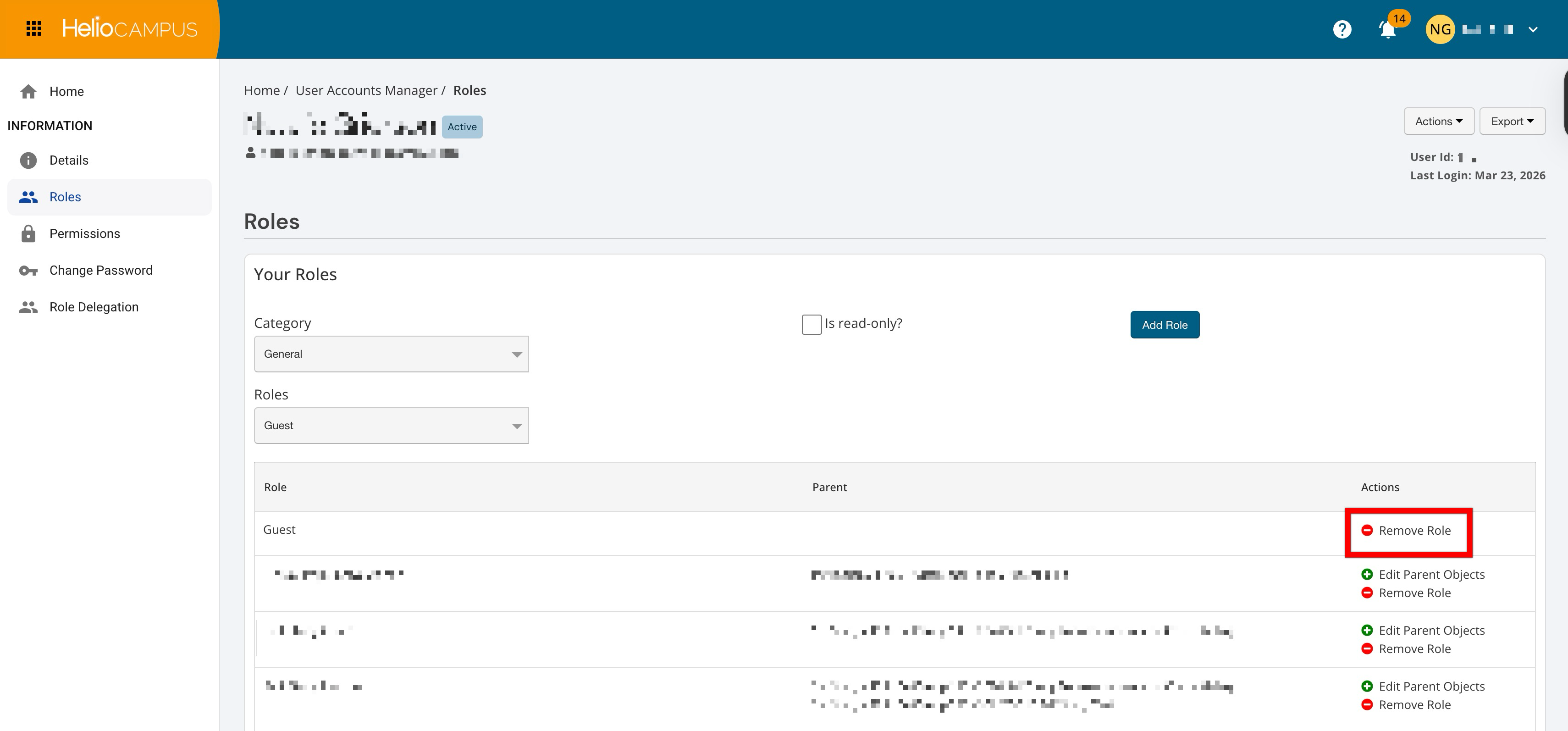
Once a Guest role has been added, it can be removed via the Actions column.
Add The Guest Role To An Existing User
-
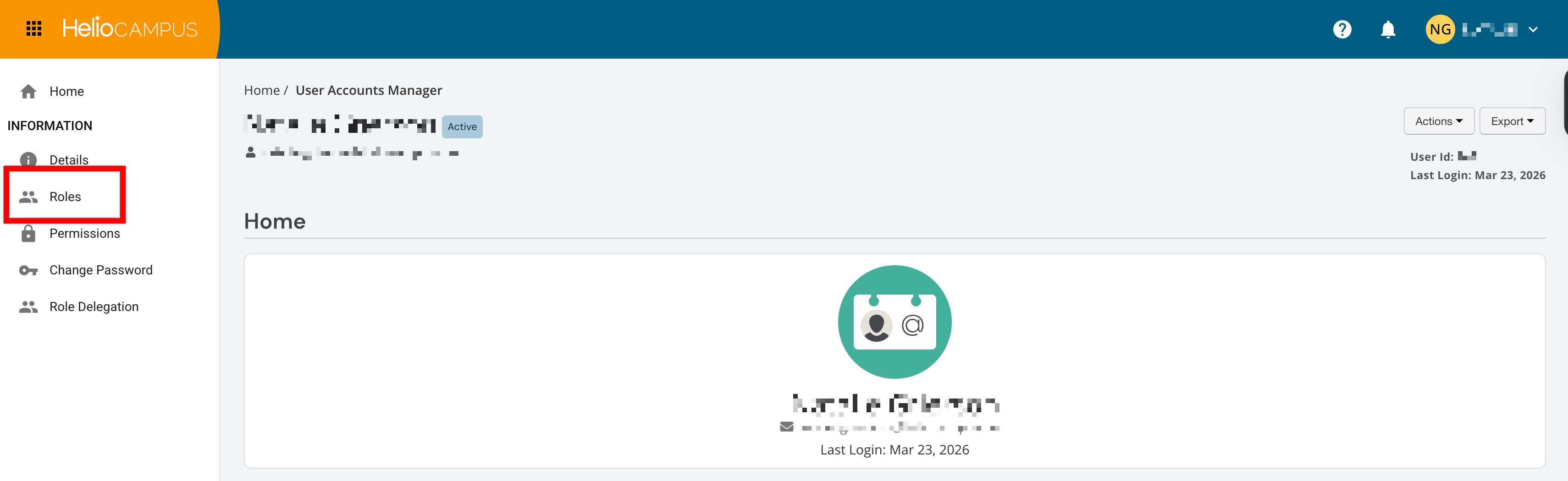
Navigate to User Account Homepage > Roles. Learn more.
-
Select the Guest role from the General category (1), and click Add Role (2).
-
-
Once a Guest role has been added, it can be removed via the Actions column.