
The Rubric Criteria Library can be used to create and manage standardized rubric criteria that can be reused across rubrics for consistent scoring and reporting. Centralizing criteria helps Institutions align language, reduce duplicate setup work, and support more reliable assessment results across programs, courses, and terms. The Rubric Criteria Library is accessed by navigating to Main Menu > Assessment > Rubric Criteria Library. The following user roles have permissions to create and edit rubric criteria:
-
College Admin
-
Department Admin
-
Institution Admin
-
Program Coordinator
|
|
|
1 |
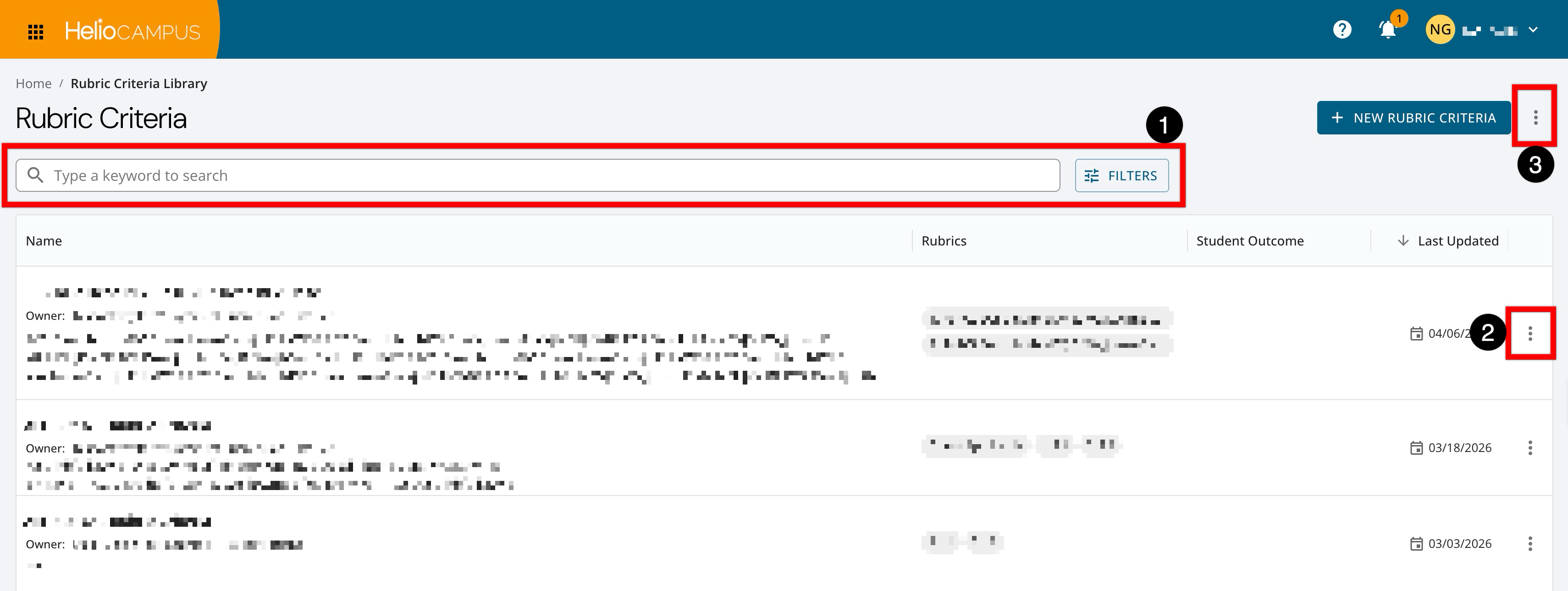
Search functionality is available, and clicking the Filters option to apply filters. Once filters have been applied, they will display below the search bar and can be removed individually (1) or in bulk (2). 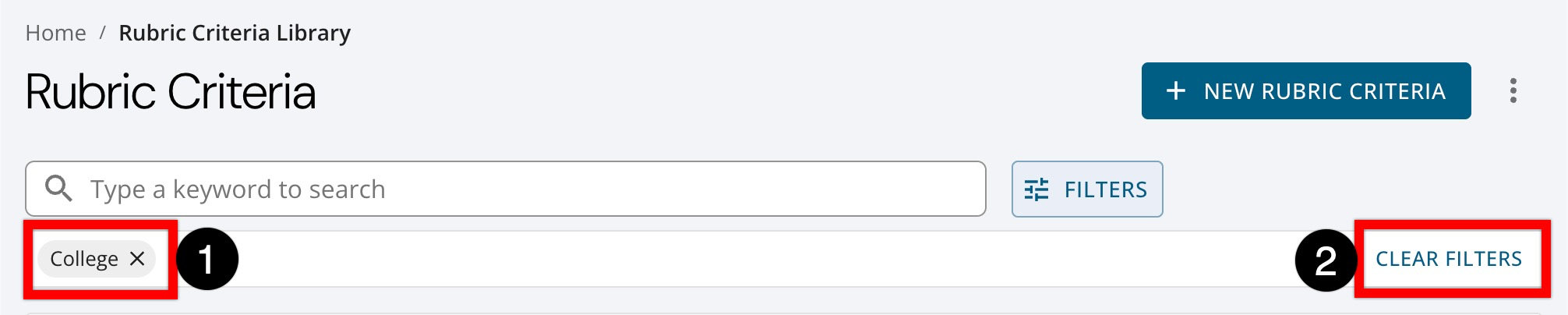
|
|
2 |
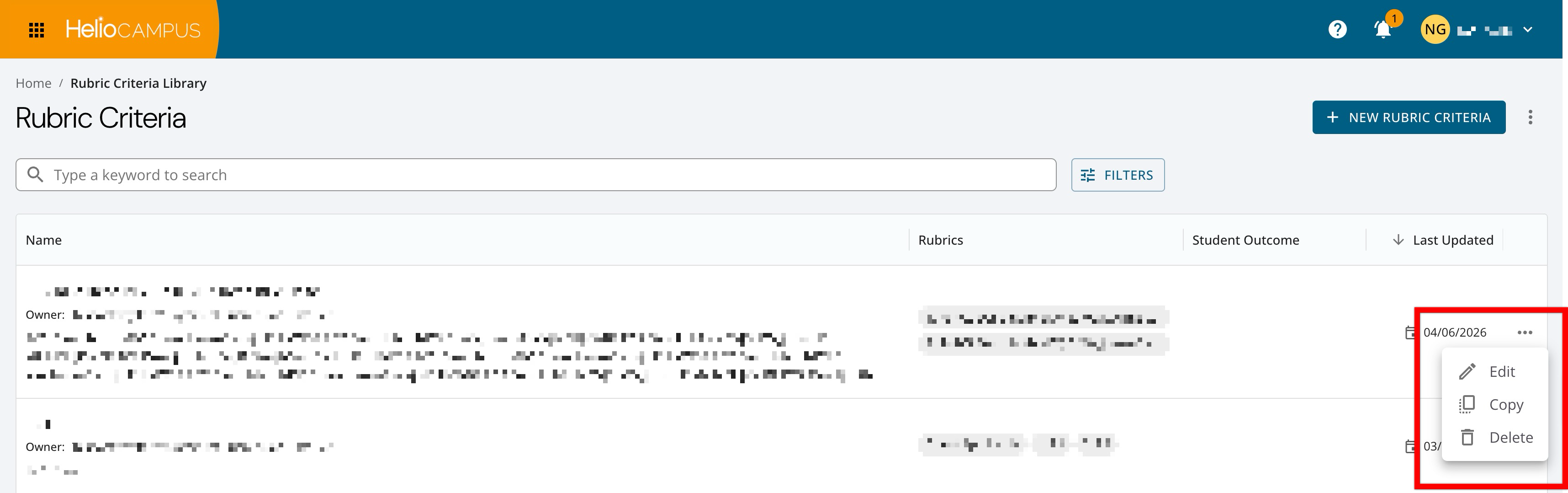
The Actions menu can be expanded to access common management actions for a criterion, such as editing details, copying, or deleting. |
|
3 |
By expanding the More Options menu, the Rubric Criteria Library can be exported to CSV format. |
Deleting Rubric Criteria
A criterion can be deleted by navigating to the Rubric Criteria Library and selecting Delete from the Actions menu. Before deleting, confirm whether the criterion is actively used in current-term rubrics. If the criterion is needed for future use but requires different wording, consider duplicating it and revising the duplicate so historical scoring language remains intact.
Deleting primarily affects future availability and governance, not historical results, though it also has cross-platform impacts on rubric building and standardization.
-
Rubric Building: Deleted criteria will no longer be available for selection when creating new rubrics.
-
Current Term: Rubrics and assessment results that have already been used with the criterion will retain historical data for scoring and reporting.
-
Reporting: Reporting will continue to include historical assessment data that uses the criterion.
Frequently Asked Questions