
The Juried Assessment Rubrics page is used to create and manage Juried Assessment rubrics in a centralized location. Using standardized rubrics makes it easier to organize and maintain consistent scoring language across Juried Assessments. The Juried Assessment Rubrics page is accessed by navigating to Main Menu > Assessment > Juried Assessment Rubrics. The following user roles have permissions to create and edit Juried Assessment rubrics:
-
College Admin
-
Department Admin
-
Institution Admin
-
Program Coordinator
|
|
|---|---|
|
1 |
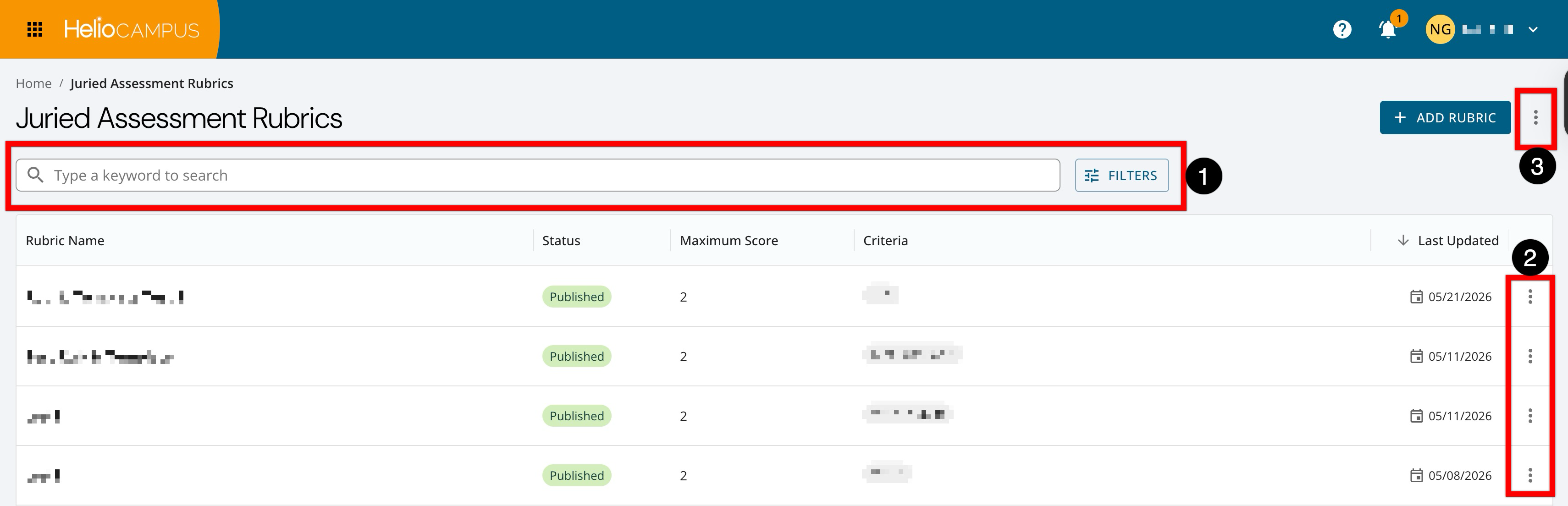
Search functionality is available, and clicking the Filters option allows users to apply filters. Once filters have been applied, they will display below the search bar and can be removed individually (1) or in bulk (2). 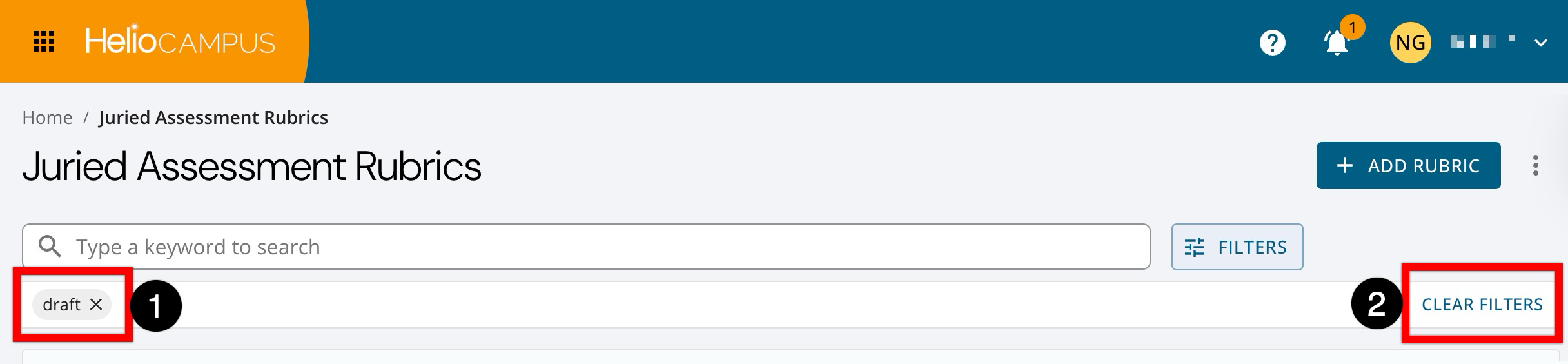
|
|
2 |
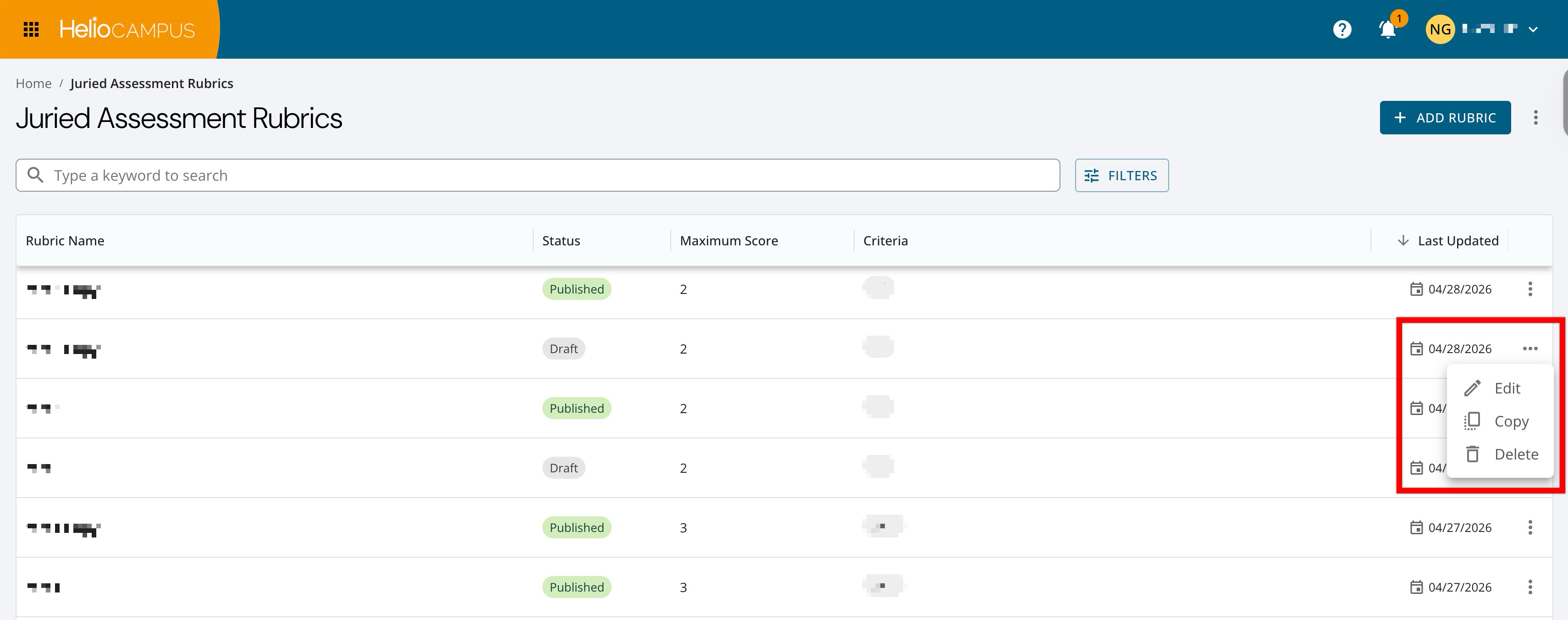
The Actions menu can be expanded to access common management actions for a rubric. Rubrics in Draft status can be edited, copied, or deleted, while ones in Published status may be copied. |
|
3 |
By expanding the More Options menu, the Juried Assessment Rubrics list can be exported to CSV format. |
Adding a Rubric
-
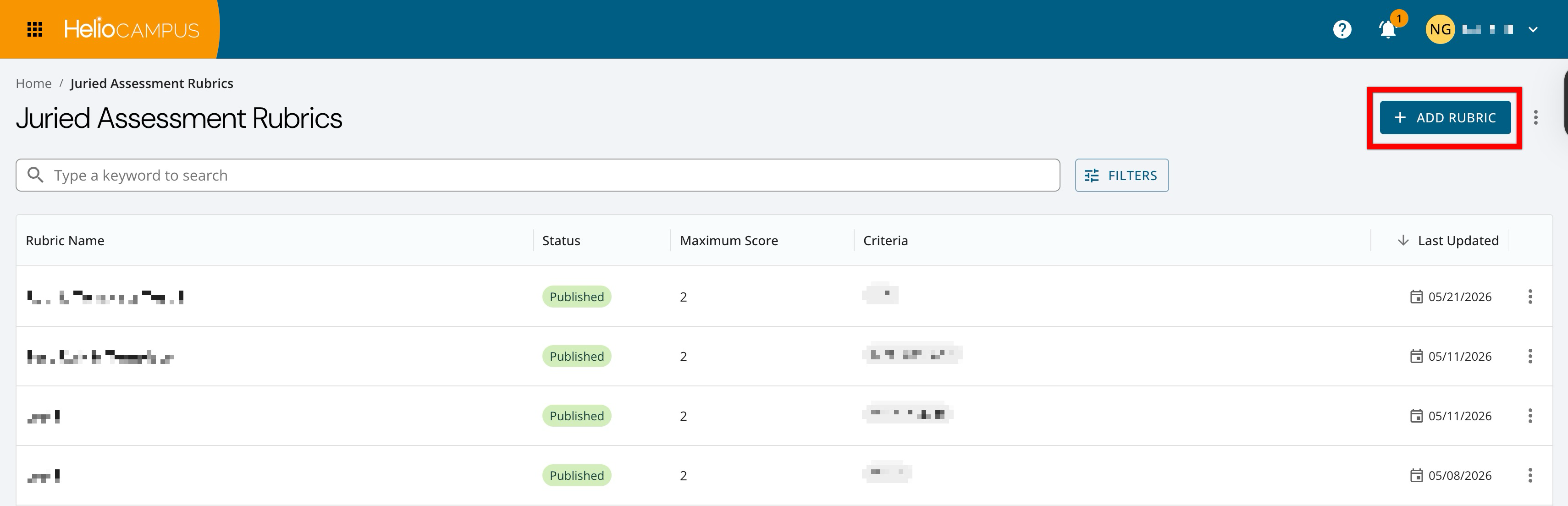
To add a Juried Assessment rubric, navigate to Main Menu > Assessment > Juried Assessment Rubrics and click Add Rubric.
-
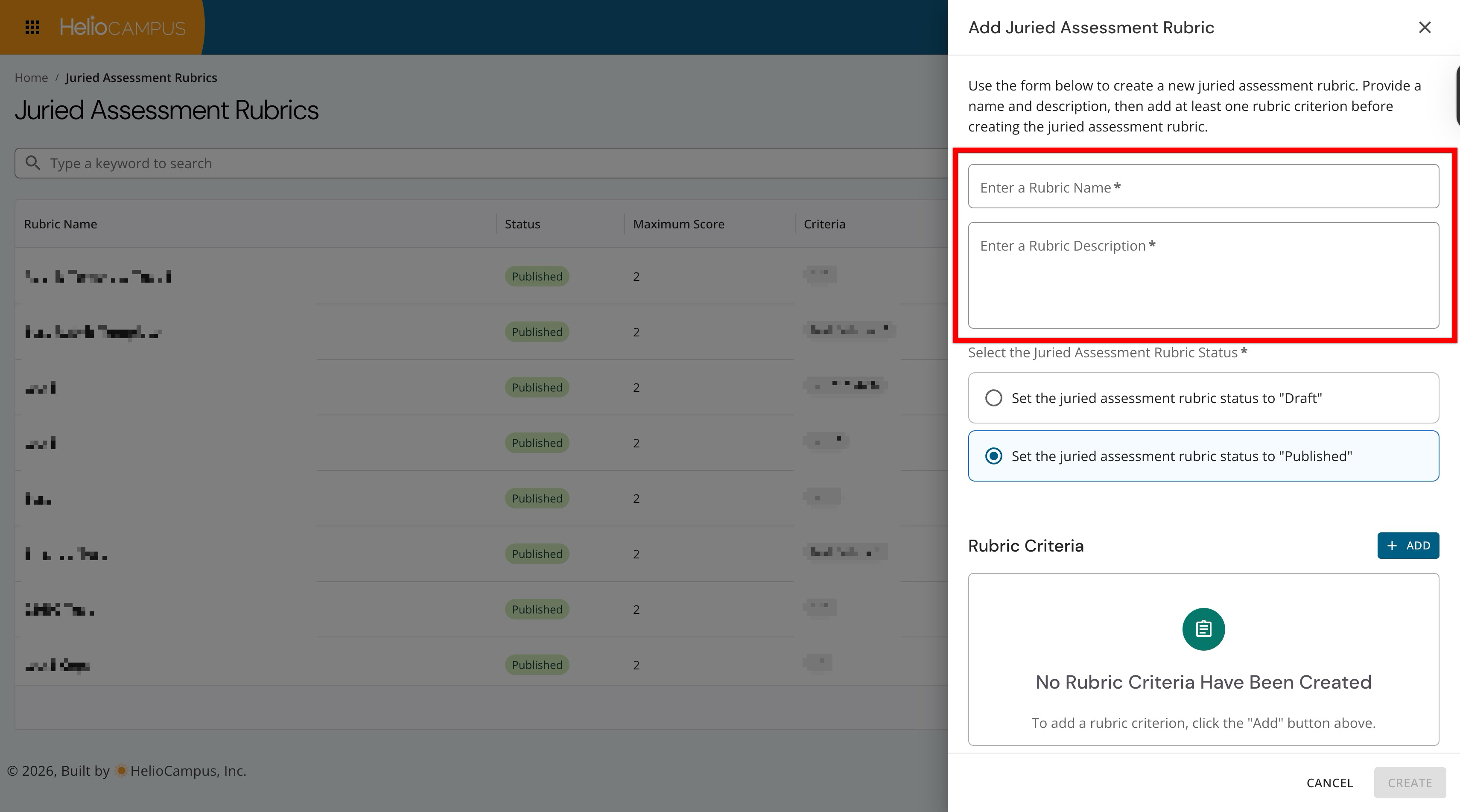
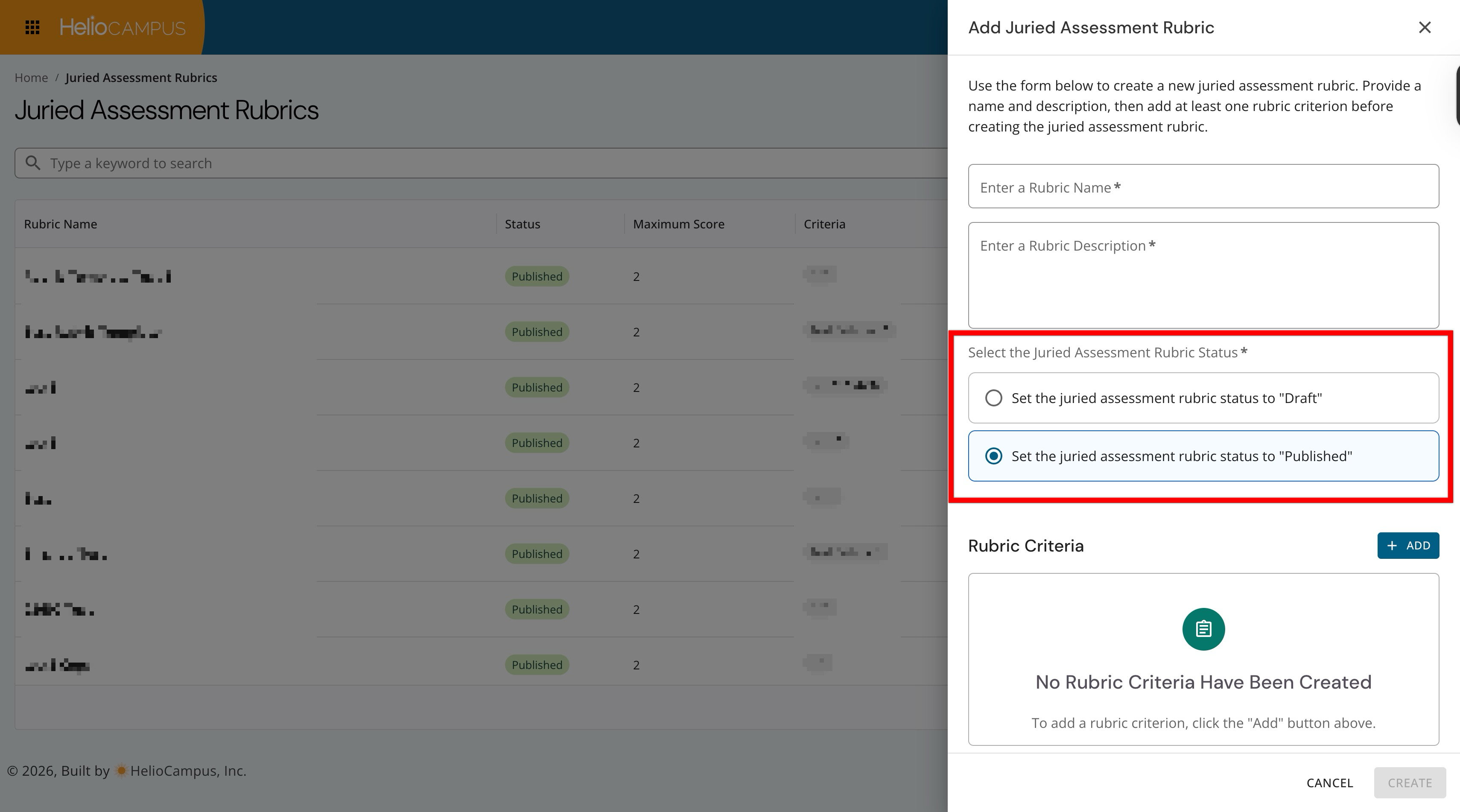
Start by adding a name and description; both are required fields.
-
Determine whether the rubric should be added in Draft or Published status:
-
Draft: Once added, edits can still be made until the rubric is published. Draft rubrics can be copied and also deleted.
-
Published: Published rubrics can be used in Juried Assessments. To retain historical data, edits cannot be made to published rubrics; instead, they can be copied, and the copy can then be edited.
-
-
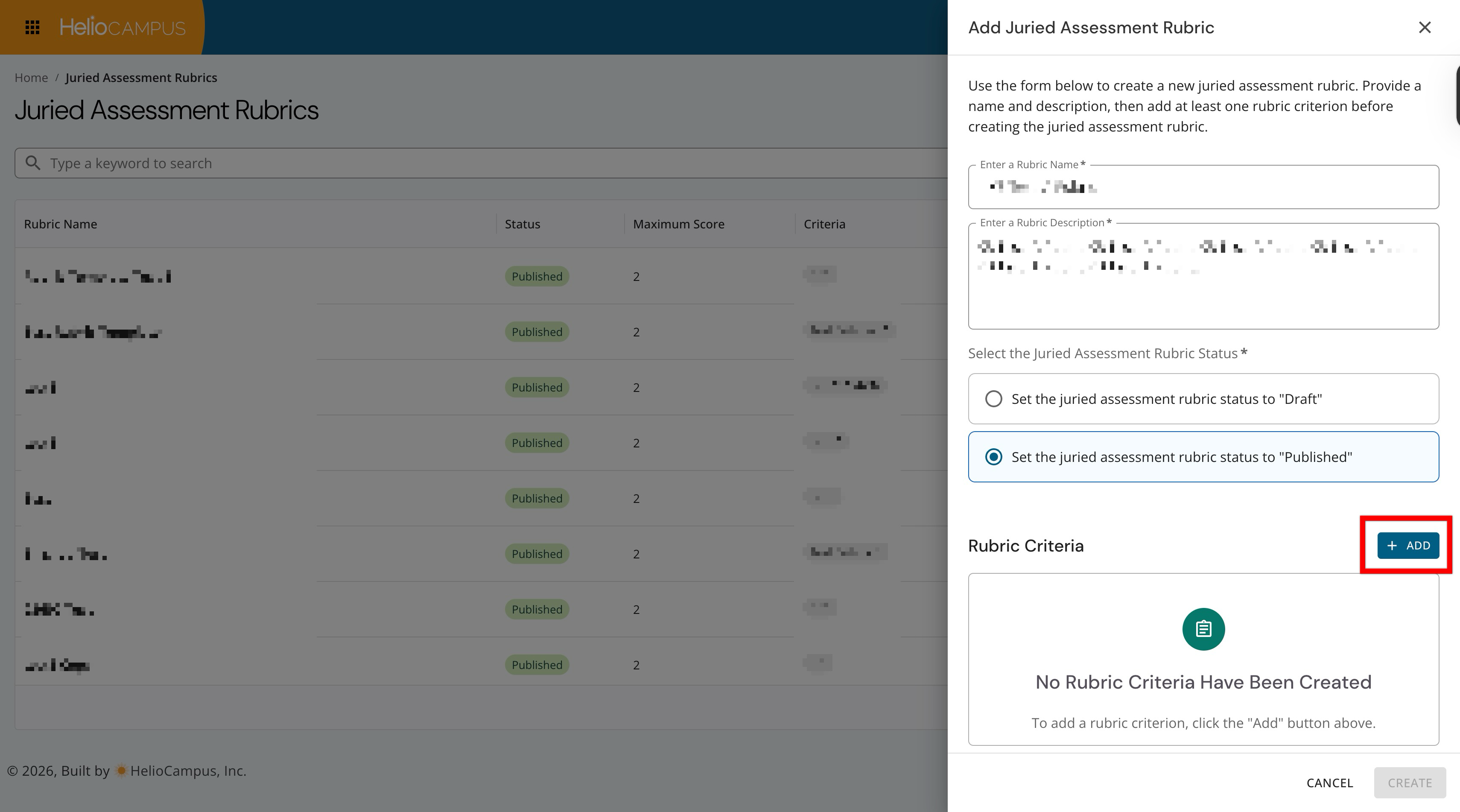
Click Add to create a rubric criterion. At least one criterion is required to proceed.
-
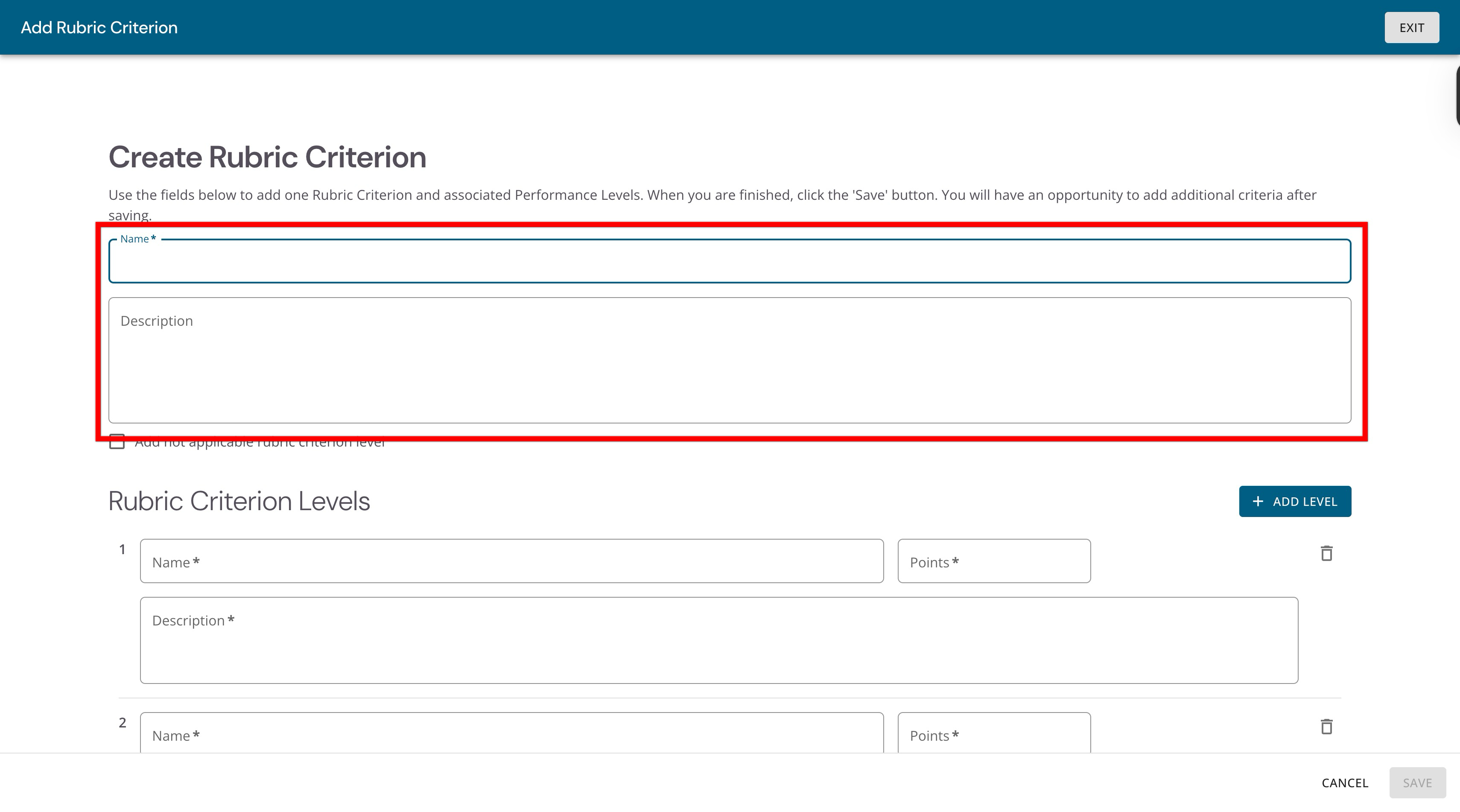
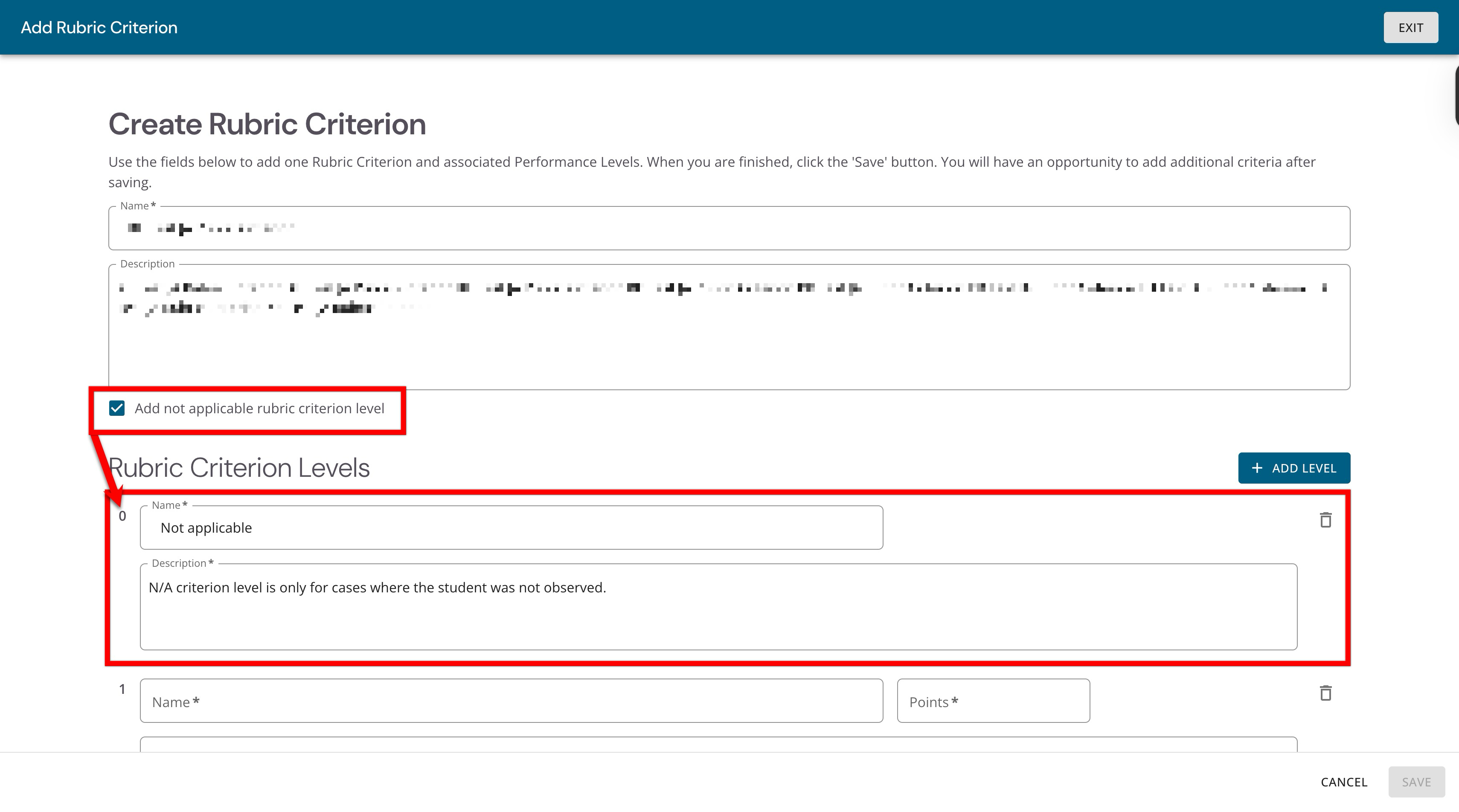
Enter a name; optionally, add a description.
-
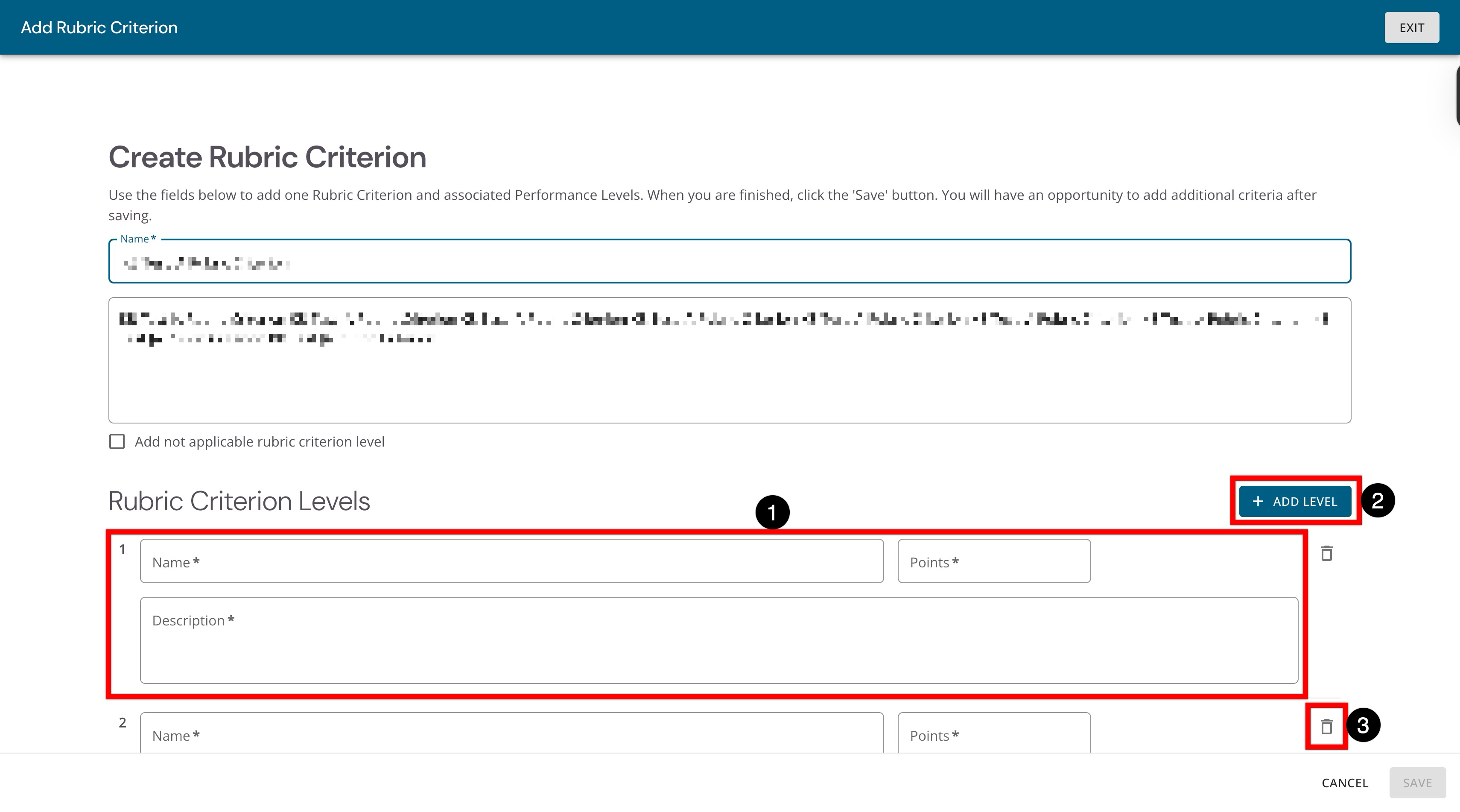
At least two levels are required for each criterion; by default, two levels are available. The name, description, and points are all required fields for each level (1). Additional criterion levels can be added (2) or deleted (3) as needed.
-
When Add Not Applicable Rubric Criterion Level is enabled, a zero-point criterion level will be added for when scorers need a valid way to mark a criterion as not scorable for a student/artifact, instead of forcing an inaccurate score.
-
-
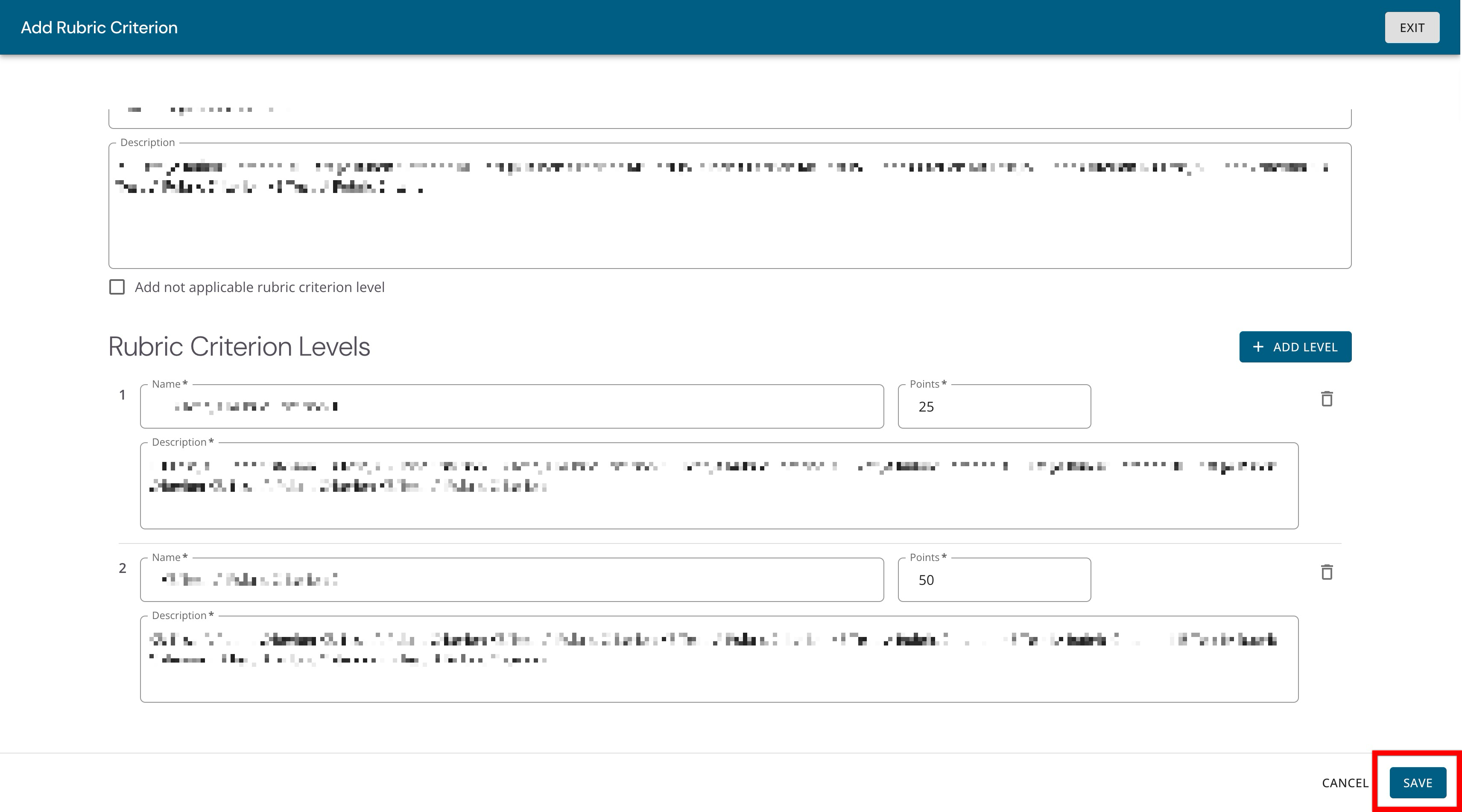
Once the rubric criterion and its levels have been configured, click Save.
-
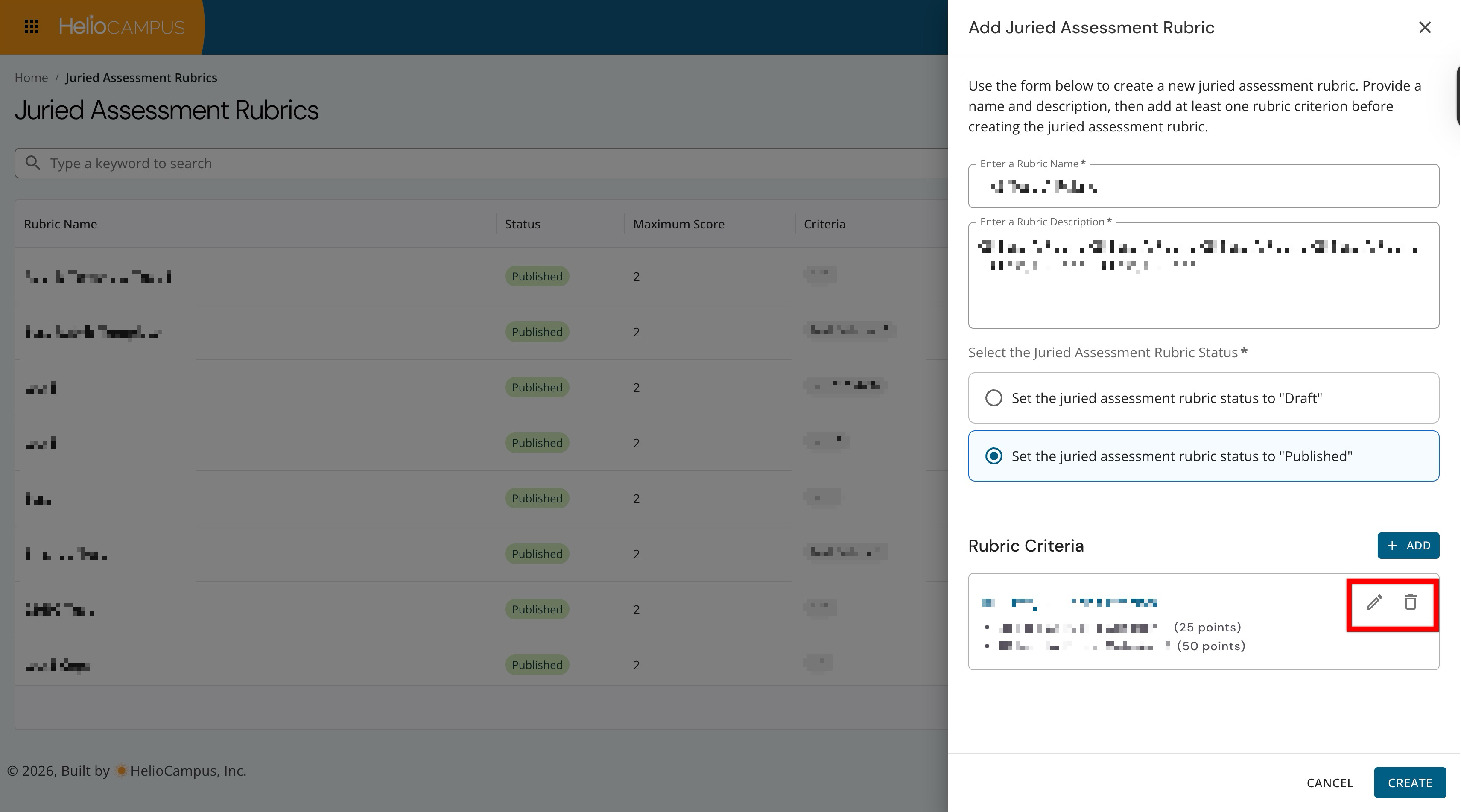
Additional criteria can be added as needed; criteria can also be edited or deleted until the rubric is created and in Published status.
-
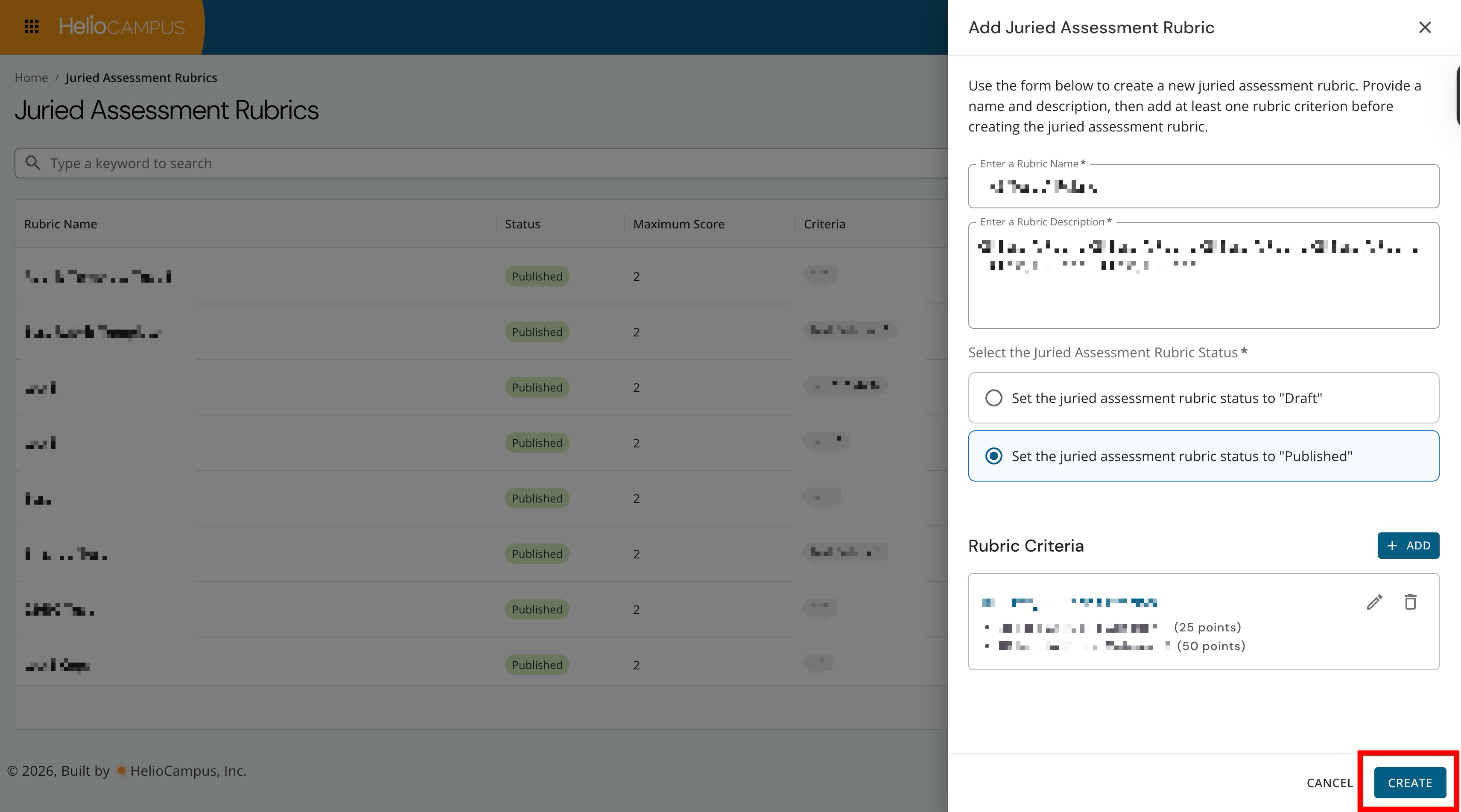
After the rubric details and levels are complete, click Create. If the rubric is being created in Draft status, it will not be available for use in Juried Assessment until it is published.
-
Copying a Rubric
Rubrics can be copied and used as templates for new rubrics. Rubrics in both Draft and Published status can be copied, and a copy is a complete recreation of the selected rubric, including its status; for example, if a rubric in Draft status is copied, the copy will be created in Draft status. Rubrics are generally copied (rather than starting from scratch) to preserve structure and consistency, and only administer changes to the copy. Some reasons to copy a rubric include:
Same Structure, Different Context: Running a new Juried Assessment for a different term or course, but the rubric layout and criteria remain mostly the same.
Save Setup Time: Copying preserves the existing criteria, performance levels, point values, and ordering, reducing manual creation and mismatches in level wording or points.
Maintain Historical Usage: When meaningful edits are necessary (new criteria, reworded levels, point changes), it’s often better to copy and modify the copy so previous assessments remain tied to the original rubric design and language.
-
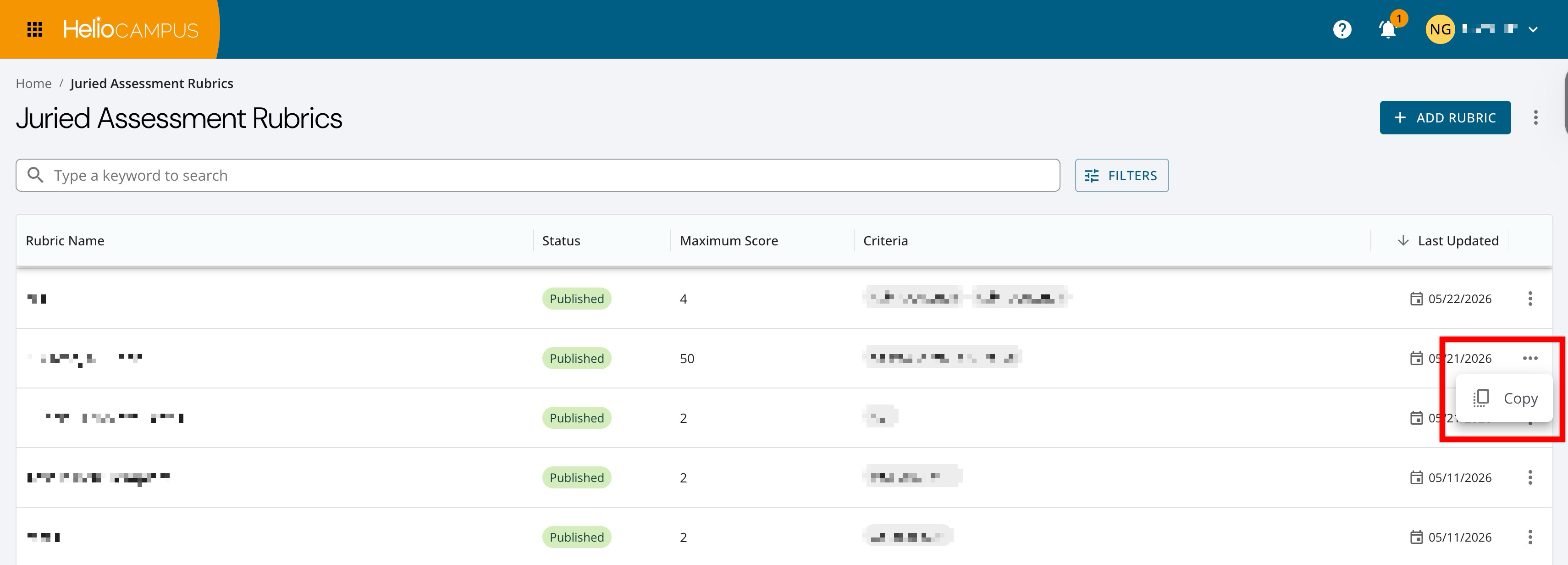
To copy a Juried Assessment rubric, navigate to Main Menu > Assessment > Juried Assessment Rubrics and select Copy from the expanded Action menu for a rubric.
-
A name for the new rubic will be automatically generated as the name of the copied rubic appended with ‘Copy’ (1). The auto-generated name can be edited until the rubric is published; once published, changes cannot be made to the rubric name. For reference, the rubric selected for copy is provided (2).
💡 Product Tip: If the rubric being copied is in Published status, the copy will also be created in Published status and the name cannot be changed.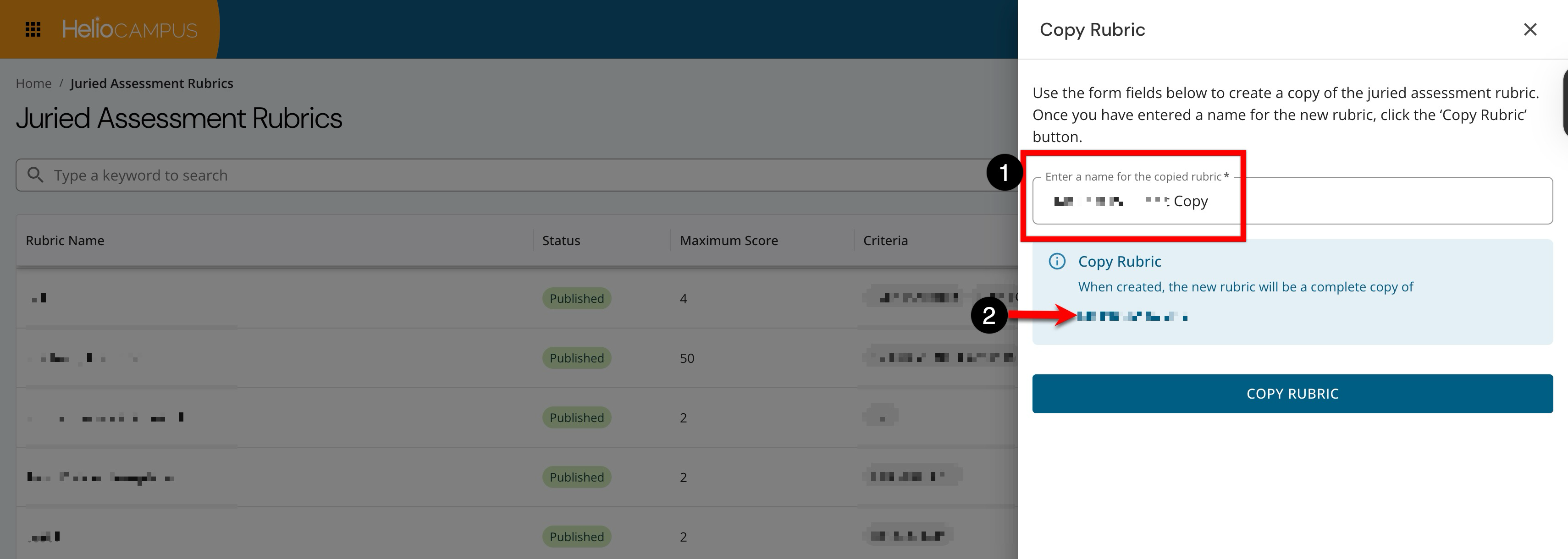
-
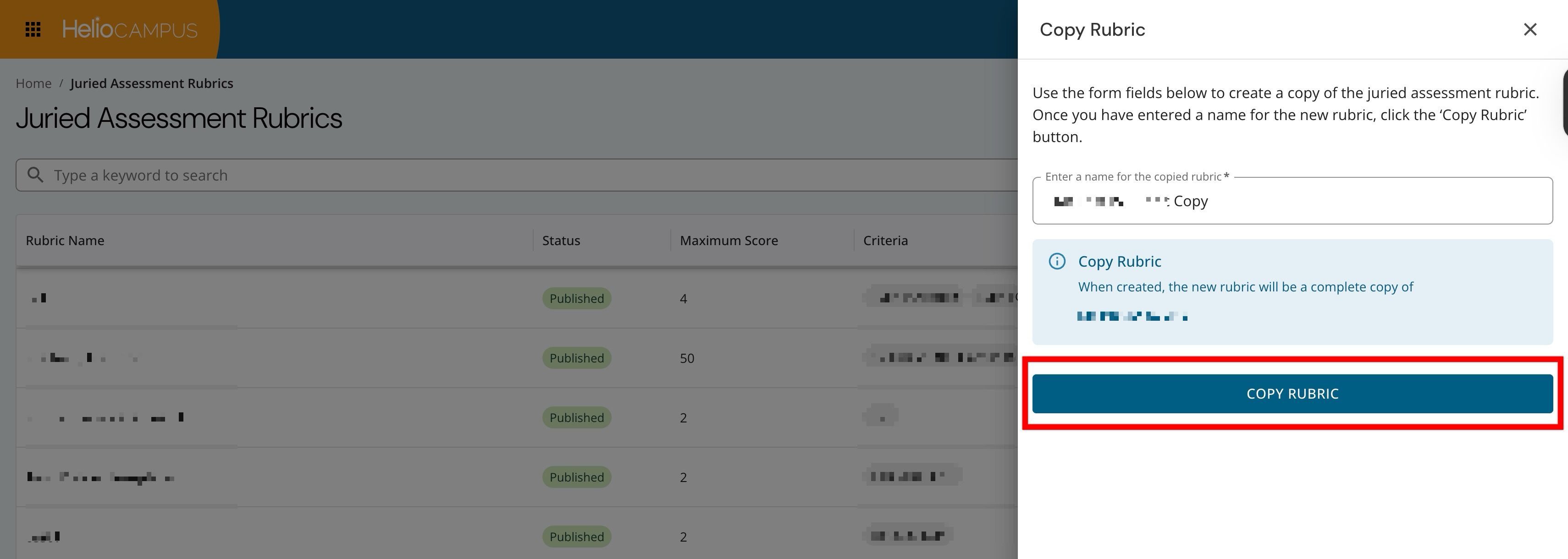
After reviewing and confirming the name, click Copy Rubric.
-
Publishing Draft Rubrics
Rubrics will not be available for use in assessments until they are in Published status.
-
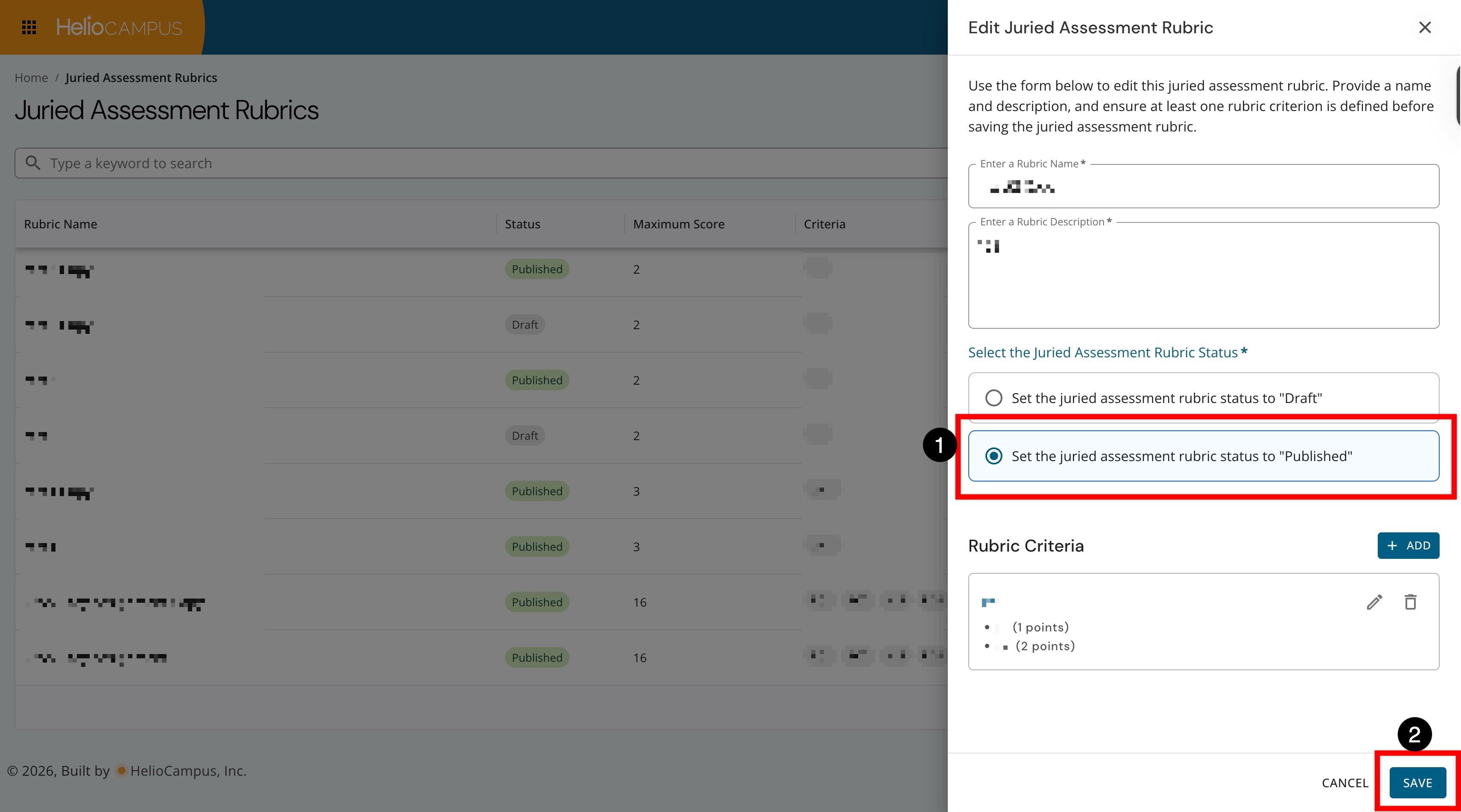
To publish draft rubrics, navigate to Main Menu > Assessment > Juried Assessment Rubrics and select Edit from the expanded Action menu for a rubric.
-
Configure the rubric to Published status and click Save (2).
-
Deleting Draft Rubrics
Rubrics in Draft status can be deleted. To ensure potential historical data is retained, rubrics in Published status cannot be deleted
-
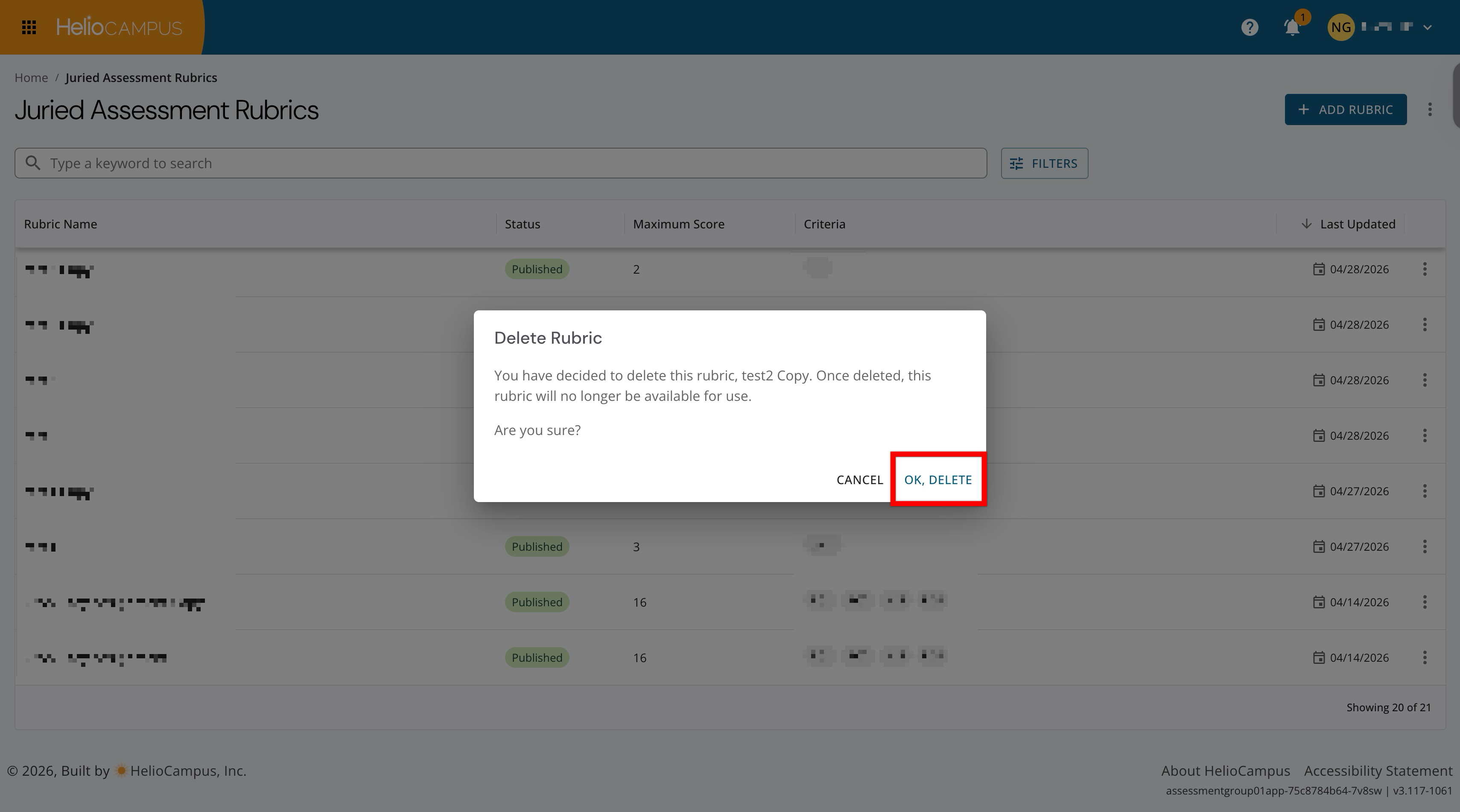
To delete draft rubrics, navigate to Main Menu > Assessment > Juried Assessment Rubrics and select Delete from the expanded Action menu for a rubric.
-
When prompted, click Ok, Delete.
-