Learn more about these enhancements by watching the 3.118-3.119 Release Webinar and reviewing the supporting slide deck.
Release Timeline
-
Training Sites: October 5, 2026
-
Production Sites: November 2, 2026
Learn more about release enhancements by registering for the bi-monthly webinar series. After registering, enrollment continues automatically for all future webinars, and no re-registration is necessary! Although enrollment continues automatically, attendance at every release webinar is not mandatory; please attend when scheduling allows.
Assessment Reports
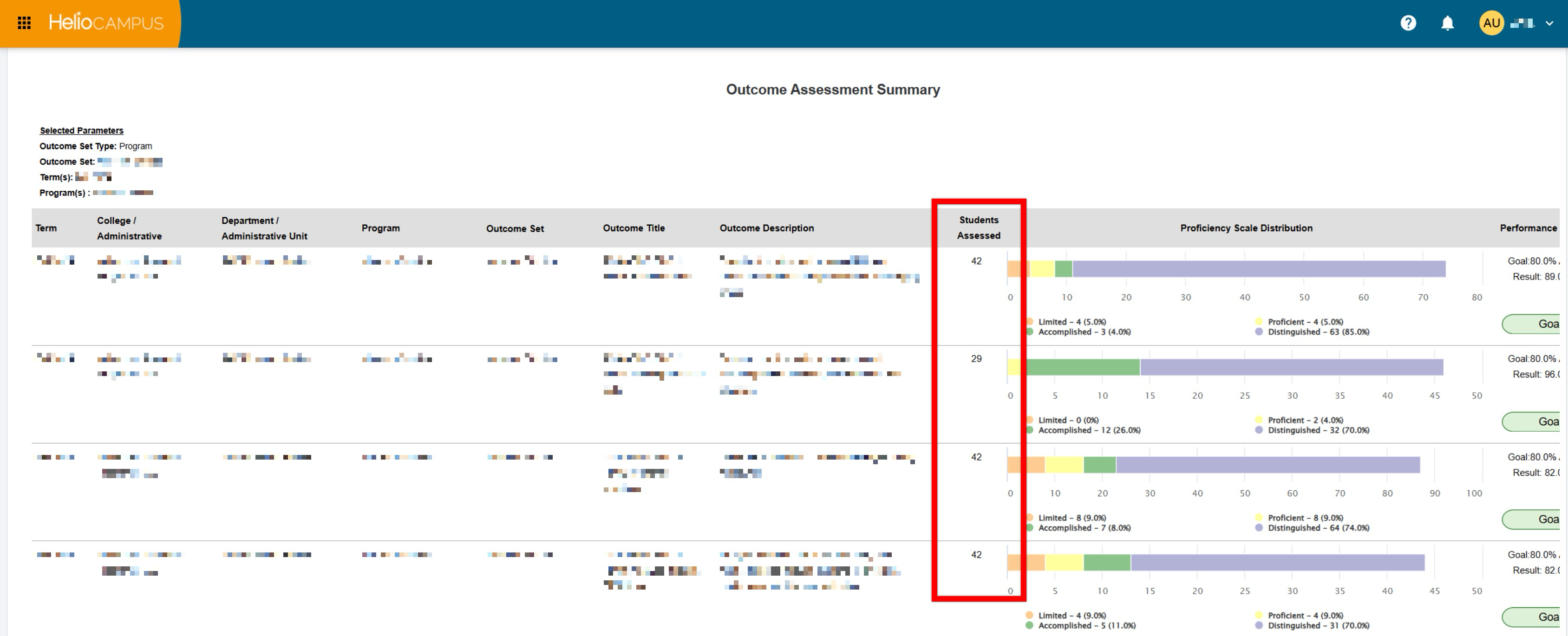
The Outcome Assessment Summary and Aggregate Assessment Results by Outcome reports now more clearly distinguish between students who were assessed and students enrolled in assessed sections. The report output now uses Students Assessed in place of the previous Total Enrolled column. This value represents the number of unique students with a proficiency value for the outcome, term, and related report context, helping prevent duplicate counts when a student is assessed more than once for the same outcome.
CSV and Excel exports now also include a new Students Enrolled column next to Students Assessed. This export-only value reflects students enrolled in sections assessed for the outcome, including students without a proficiency value, while excluding sections not part of the assessment. These updates give Institutions more accurate context when reviewing outcome achievement and participation in exported assessment results. Learn more:
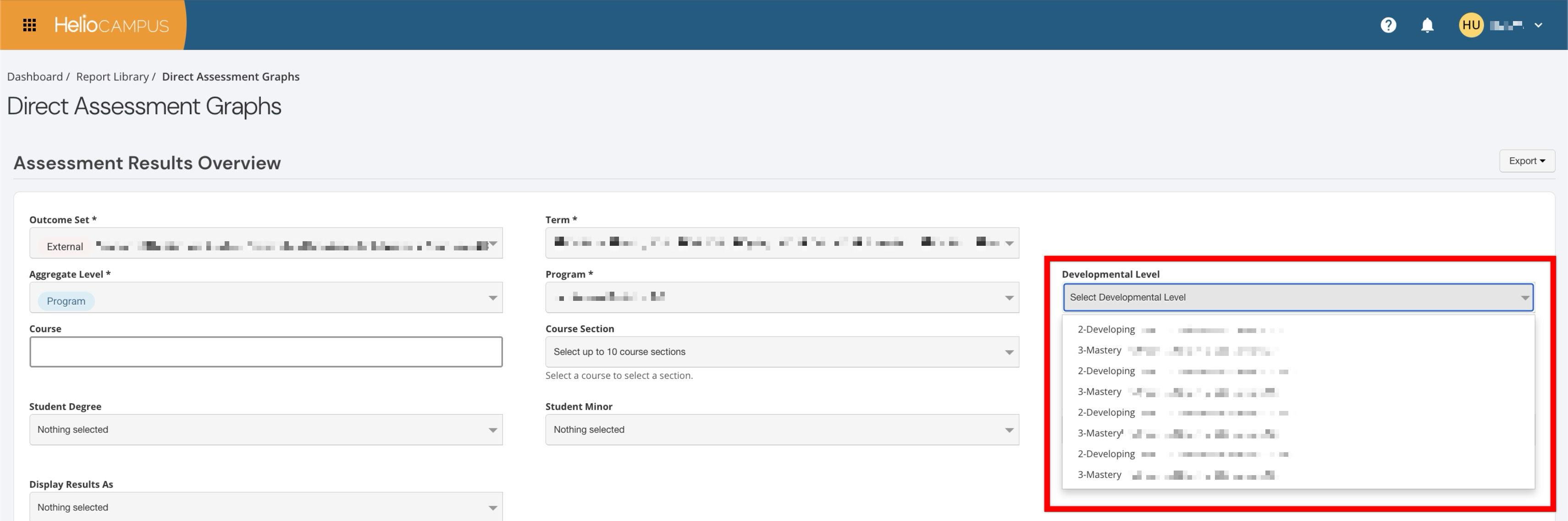
Assessment report filters that include developmental levels now display those values in the same order used in the assessment, from the lowest level to the highest level, rather than alphabetically. The improved ordering makes performance-level filtering easier to interpret and better aligned with how Institutions define their assessment scales. This update applies across the reports below.
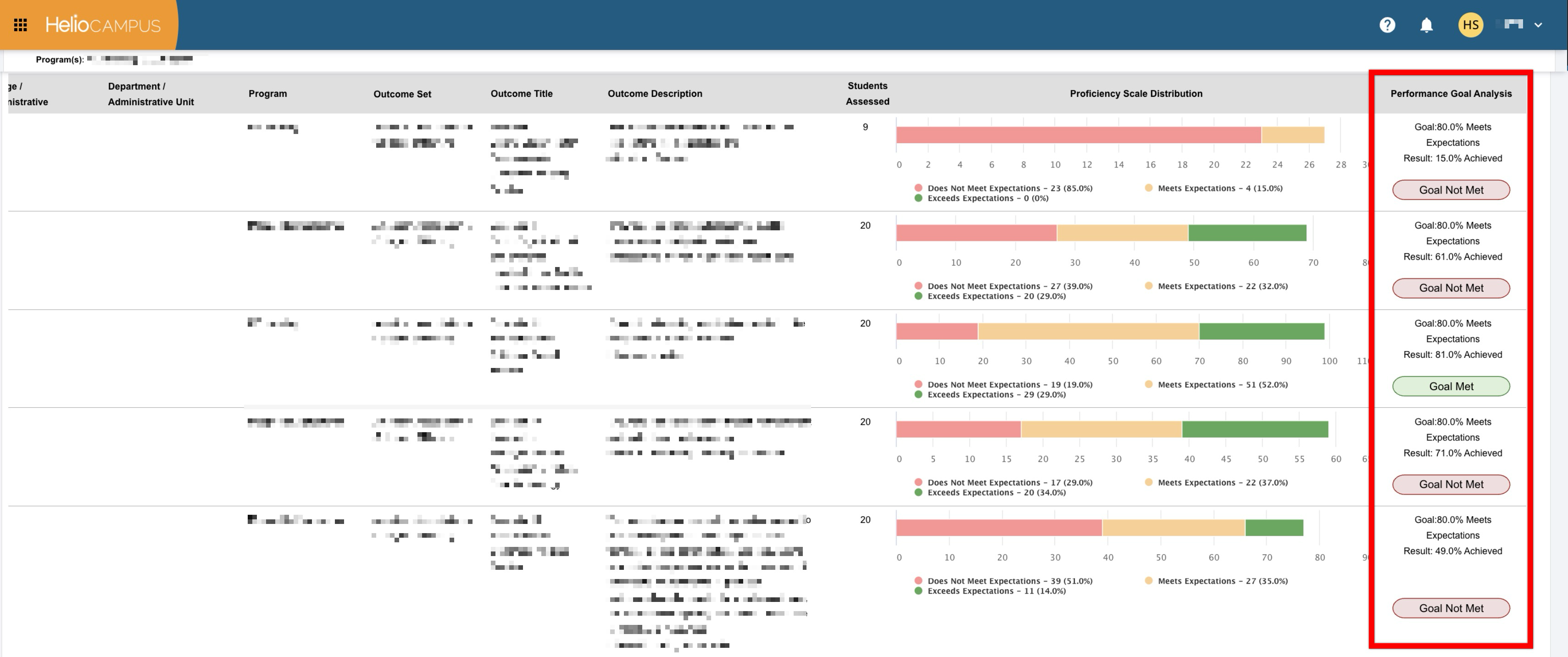
Additional assessment report improvements include Goal Met and Goal Not Met values as visual status indicators where a performance goal column is available. The new indicators make it easier to quickly identify whether reported results meet the configured performance goal while reviewing assessment outcomes. This update applies across the reports below.
Business Object Headers
The homepages for courses, co-curricular activities, external standard sets, and the portfolio form designer now have a modernized header interface and standardized action menus. Previously, these business objects utilized legacy header structures with inconsistent action menus and styling across the platform. With this update, these pages are aligned with the modern business object design pattern (matching Program Home), providing users with a unified layout, streamlined actions, and clearer visual status indicators:
-
Course Home: The course header now uses the modern banner layout, updated action menus, and standardized status indicators. Supported actions have been updated for improved responsiveness and consistency. In-revision and edit-mode status banners now clearly communicate the course state. Learn more.
-
Co-Curricular Activity Home: Co-curricular activity headers now mirror the standardized layout, providing intuitive access to key actions and attachment options with standardized breadcrumbs and terminology. Learn more.
-
External Standard Set Home: Standard set homepages now feature the updated business object header, streamlining access to versions and standard attachment actions. Learn more.
These enhancements deliver a more cohesive, accessible, and intuitive navigation experience across core academic and administrative workflows.
Data File Support For User Data
The platform now supports an optional Preferred First Name field across core user data import files. Institutions can now include this user data within the following standard automated import files:
When an import file includes a preferred first name, the platform will automatically overwrite the standard first name with the preferred value upon import. The platform then populates this preferred name across user accounts and displays it throughout all relevant areas, including user profiles, course section rosters, assessment workflows, surveys, and reporting. Using the preferred first name column is optional, and existing data import files without this field will continue to process without interruption. This update enables Institutions to honor chosen names and align platform displays with institutional identity and SIS/HR source data.
Document Validation
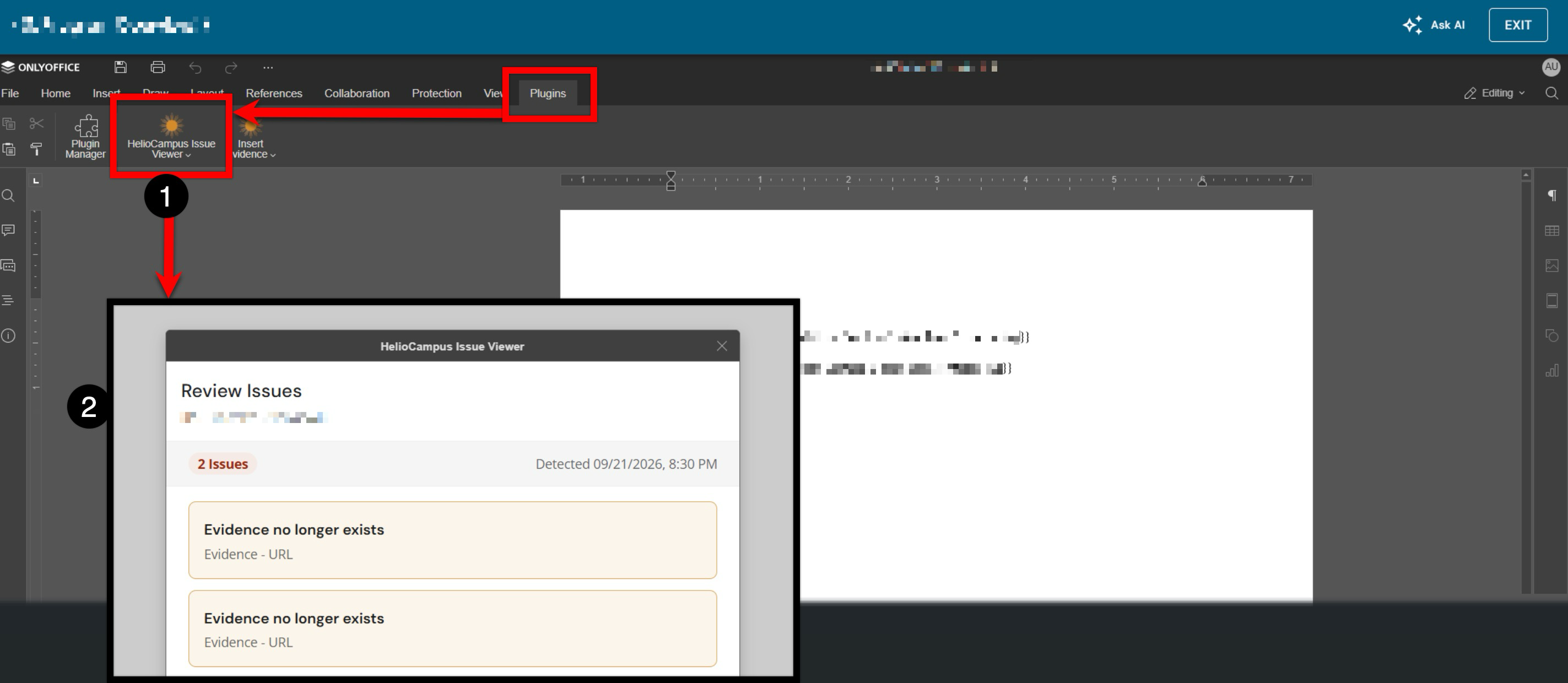
The Self Study Document Editor has been updated with an enhanced document validation designed to identify and surface document issues. Previously, syntax errors, missing evidence references, or formatting inconsistencies within self-study sections could cause export failures or unexpected document behavior without clear diagnostic feedback. The new HelioCampus Issue Viewer plugin (1) identifies problems with evidence referenced in the document. The Review Issues window displays the number of detected issues and the date and time the document was checked (2). With this enhancement, the platform evaluates self-study templates and individual section content and captures validation errors in a structured validation record. Learn more.
Form, Survey, and Syllabus Descriptions
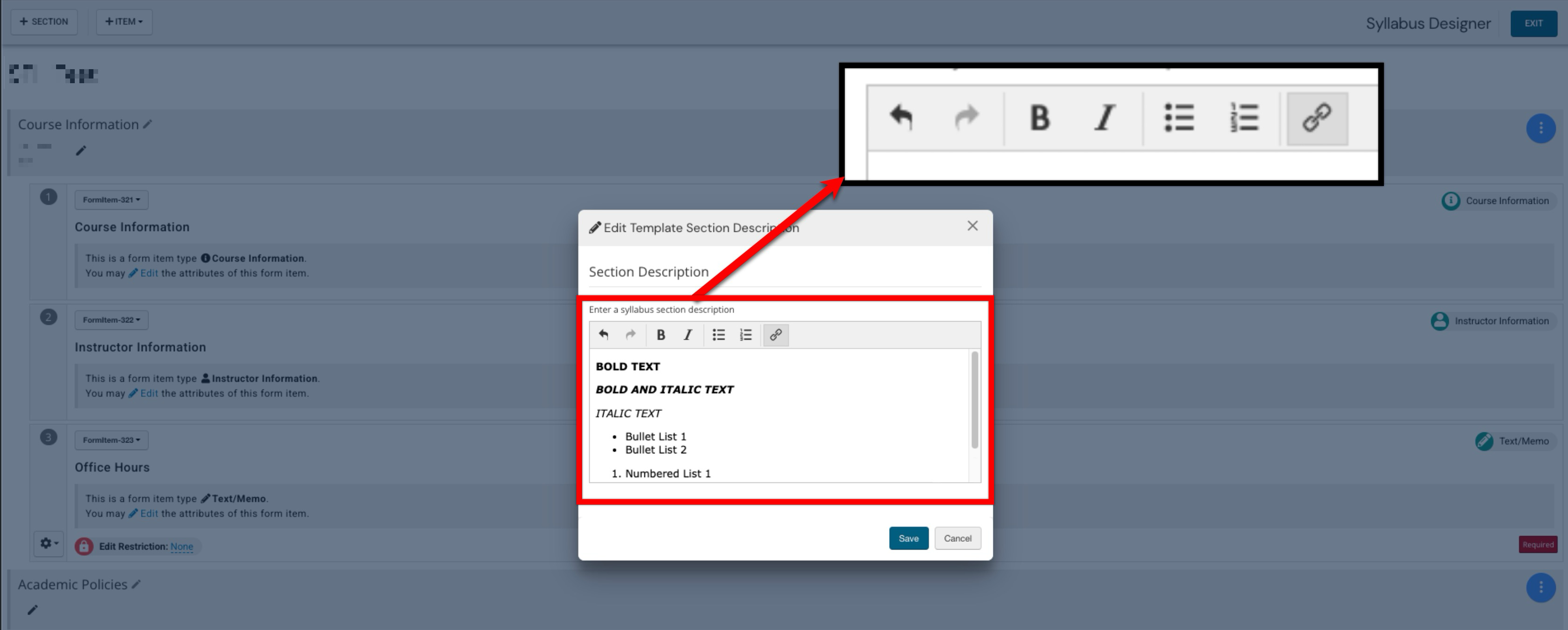
Rich text formatting is now supported for description fields across key collection forms, survey template, and syllabus form design experiences. Users can apply formatting such as bold, italics, numbered lists, bulleted lists, undo/redo actions, and hyperlinks. This enhancement gives Institutions more flexibility when writing instructional context, prompts, and supporting guidance within forms, surveys, and syllabi. By supporting richer formatting in descriptions, content authors can make important information easier to scan and understand without relying on source-code editing.
Institution Survey Settings
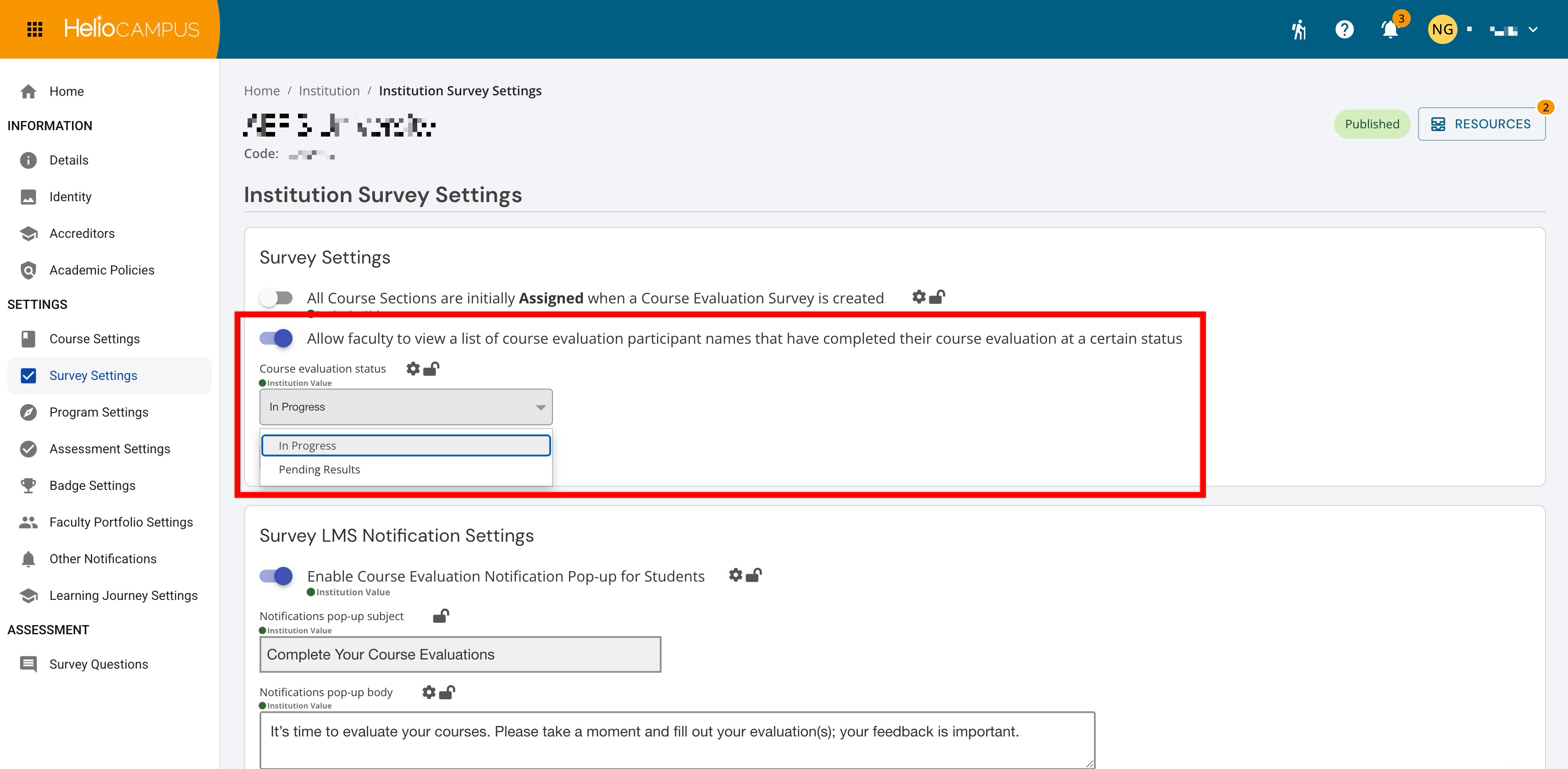
The survey setting that controls whether faculty can view completed participant names now has clearer wording and a more intuitive configuration experience. The setting now uses a toggle labeled to indicate whether faculty can view the names of course evaluation participants who have completed their evaluations at a selected status. When the setting is enabled, administrators can choose the applicable course evaluation status from the dropdown. When the setting is disabled, the secondary status dropdown is hidden. This update makes the setting easier to understand and helps administrators configure participant-name visibility more confidently. Learn more.
Learning Journey
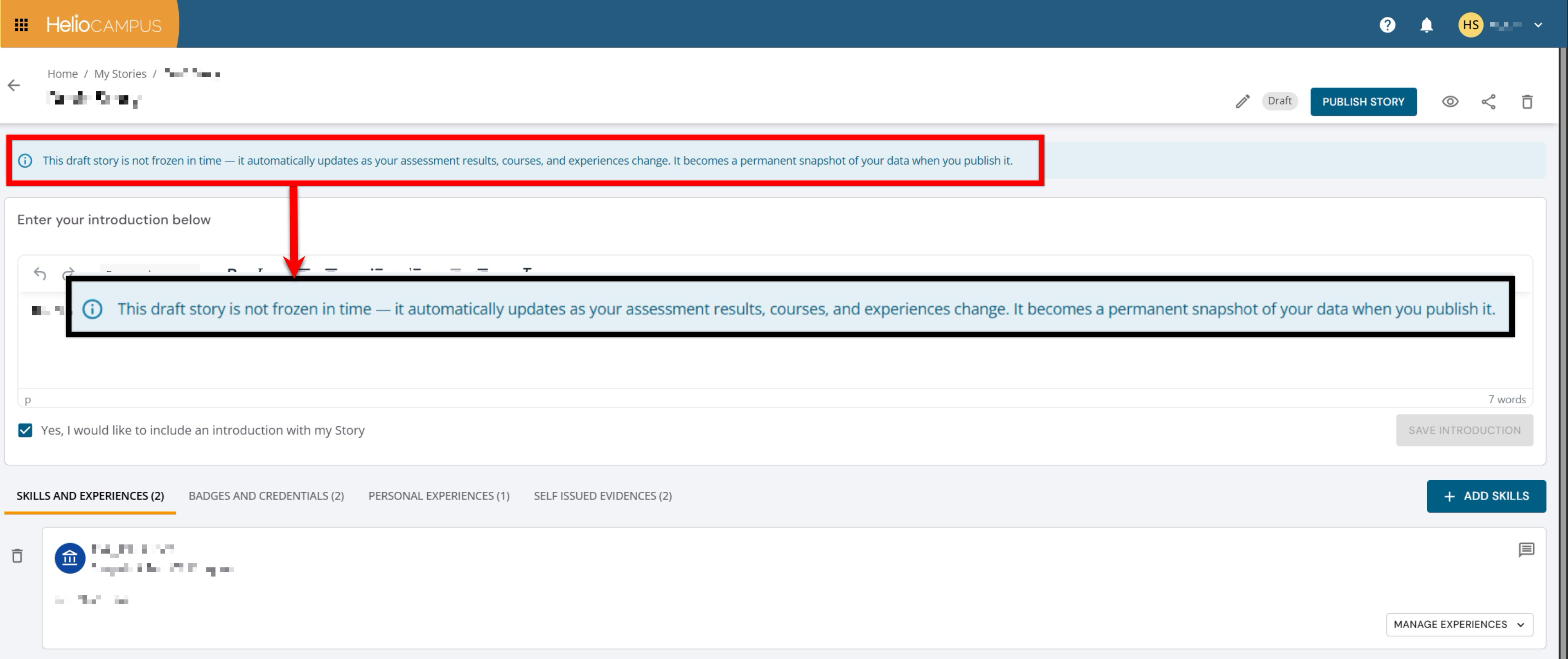
Learning Journey stories now more clearly distinguish draft work from published artifacts. Draft stories still reflect updates to the underlying Learning Journey data, including related skills, experiences, evidence, badges, assessment results, completion data, course information, and outcome information. Messaging has been added to help users understand that draft stories are not frozen and may continue to change as the source data changes.
When a story is published, it now becomes a static snapshot of the Learning Journey data as it existed at the time of publication. Published stories no longer update automatically when underlying data changes after publication. This enhancement helps ensure shared stories remain reliable records of a student’s progress and achievements at the time of publication. Learn more:
Learning Journey Self-Issued Evidence
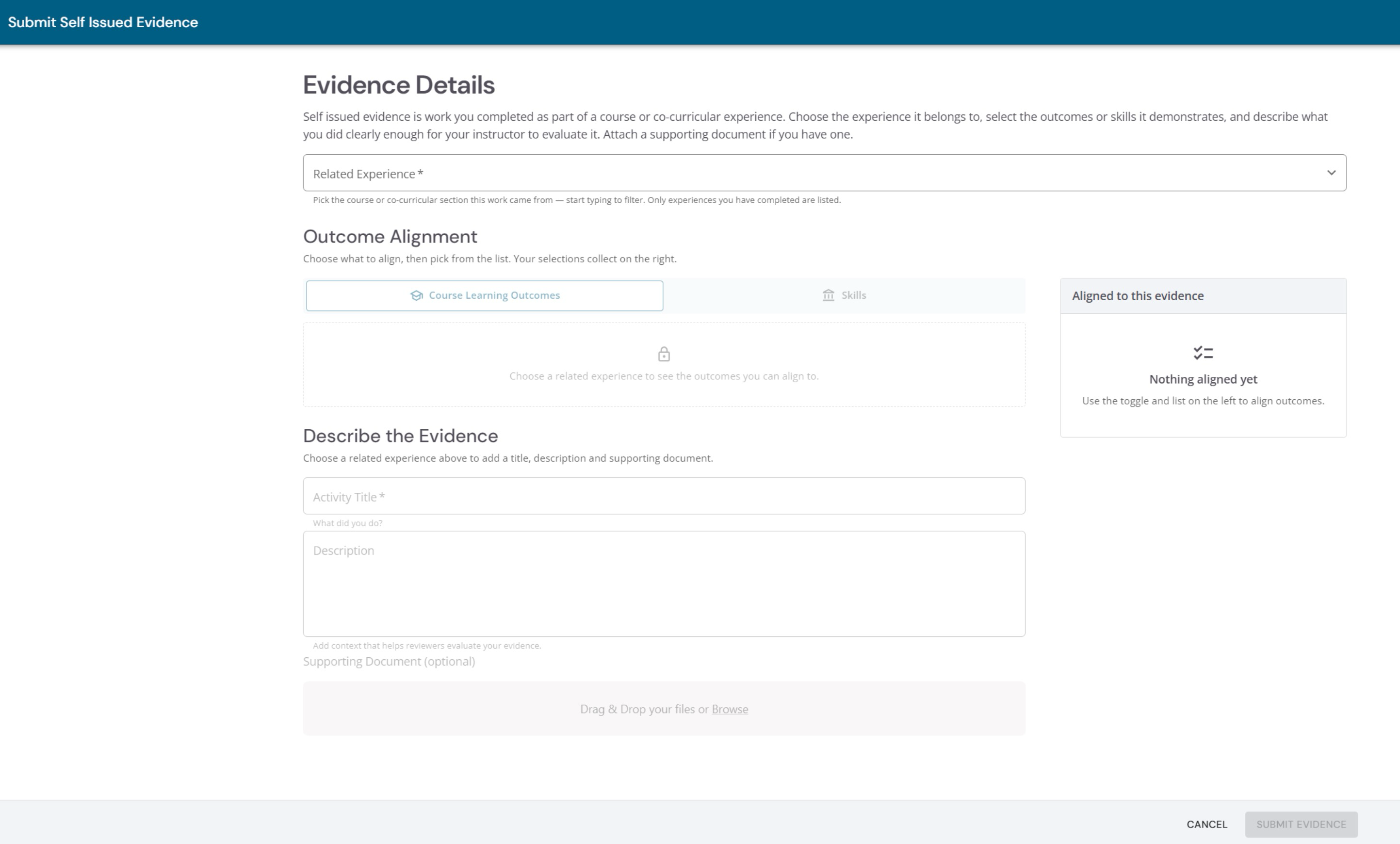
The Self-Issued Evidence workflow within the Learning Journey has been redesigned to deliver a modernized user interface, improved submission workflows, and enhanced accessibility. The submission form has been updated from a side-drawer panel to a dedicated full-page layout. Previously, adding self-issued evidence occurred within a narrow side drawer, which limited visibility when aligning multiple learning outcomes or attaching supporting documentation. With this enhancement, the full-page layout provides learners with an expanded workspace and a structured submission workflow. This update also introduces comprehensive accessibility enhancements aligned with WCAG 2.2 Level AA standards, ensuring accessible dialog focus management, proper screen reader live region announcements, and enhanced contrast across all status chips and card elements. Learn more.
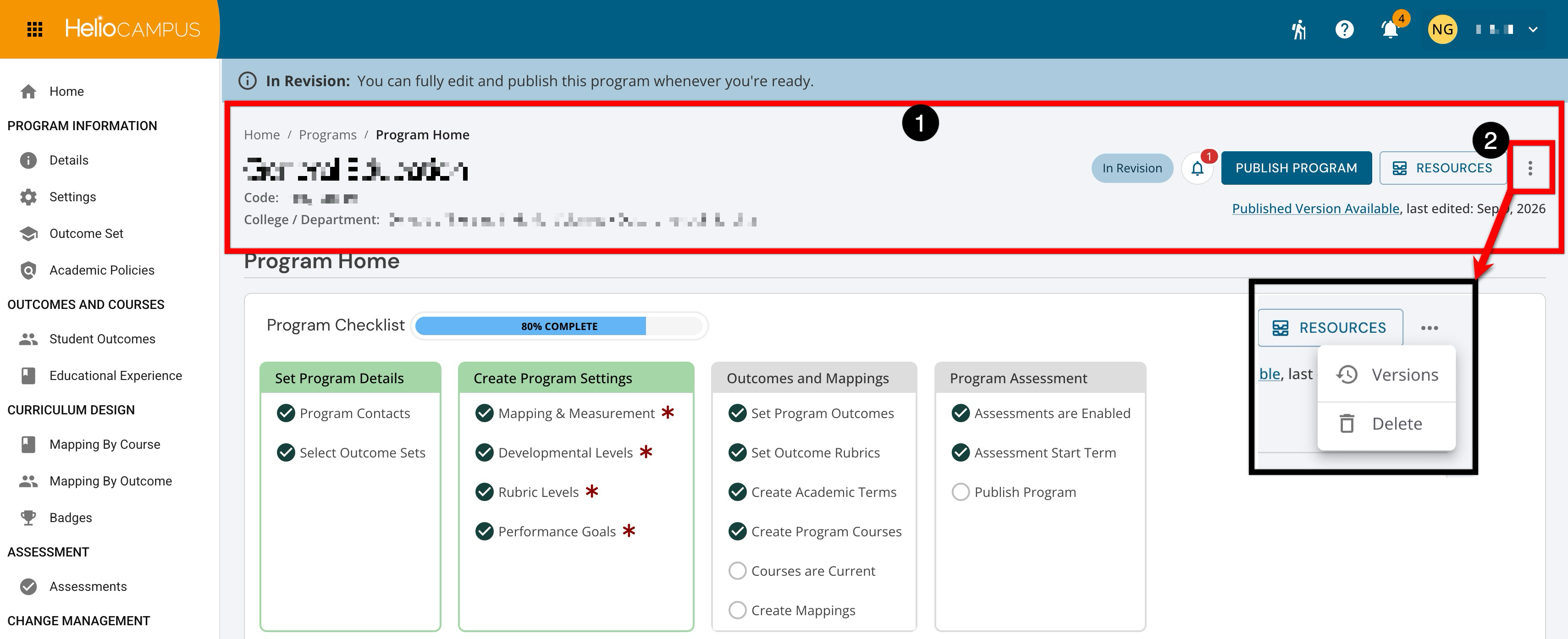
Programs
The program Homepage now has a modernized header interface (1) and standardized action menus (2). Previously, this business object utilized the legacy header structure. With this update, the Homepage is now aligned with the modern business object design pattern, providing users with a unified layout, streamlined actions, and clearer visual status indicators.
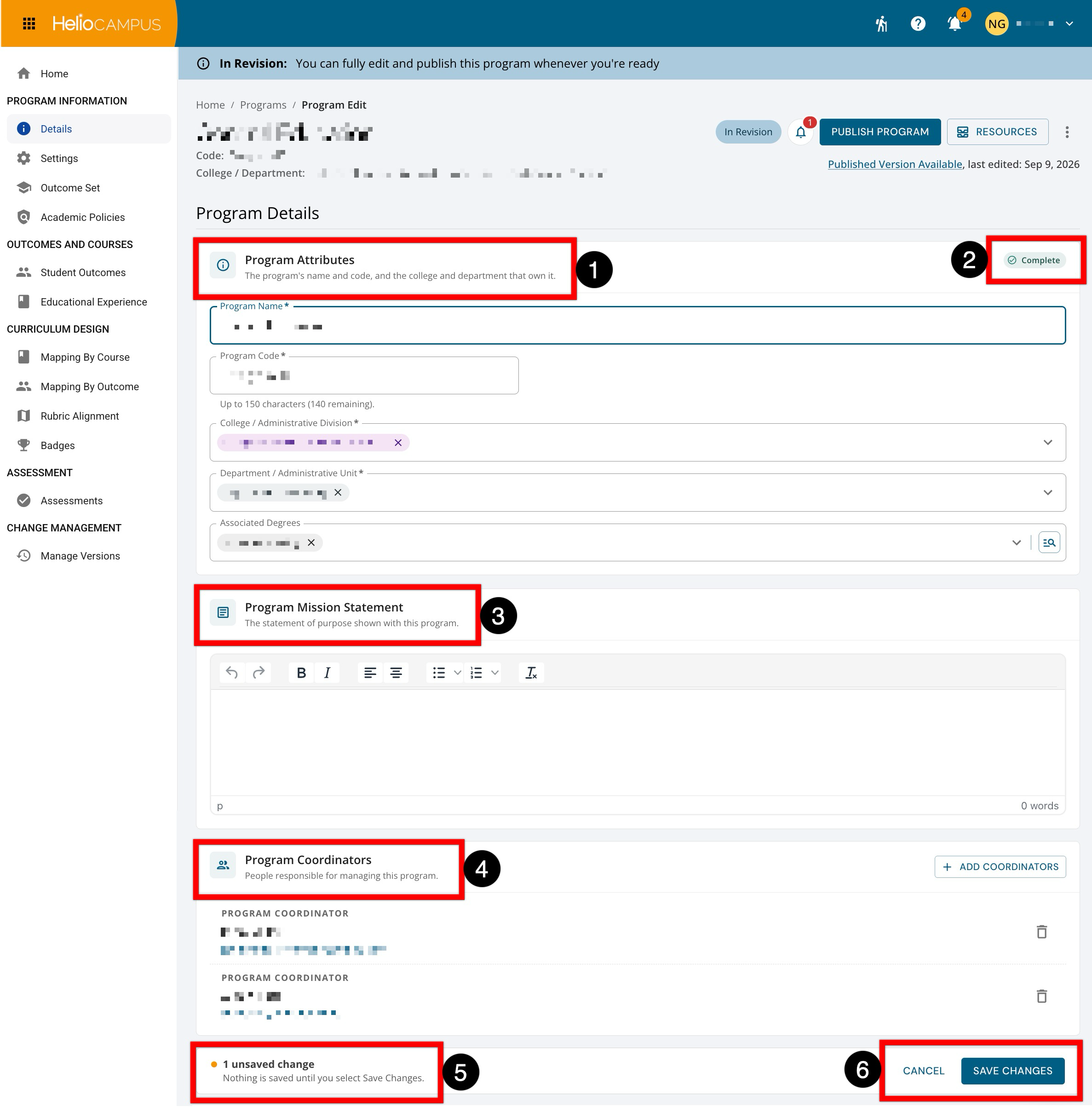
Additionally, multiple program inner pages were updated with an improved user interface. The updated pages deliver a streamlined program management experience. The Details page now has a clearer, more guided layout for editing program information. The page now separates editable information into focused sections where users can review and update program attributes (1), confirm completion status (2), edit the program mission statement (3), and manage program coordinators (4). When edits are made, an unsaved changes indicator appears (5), and users can cancel, save, or publish their updates using the persistent action buttons at the bottom of the page (6). Learn more.
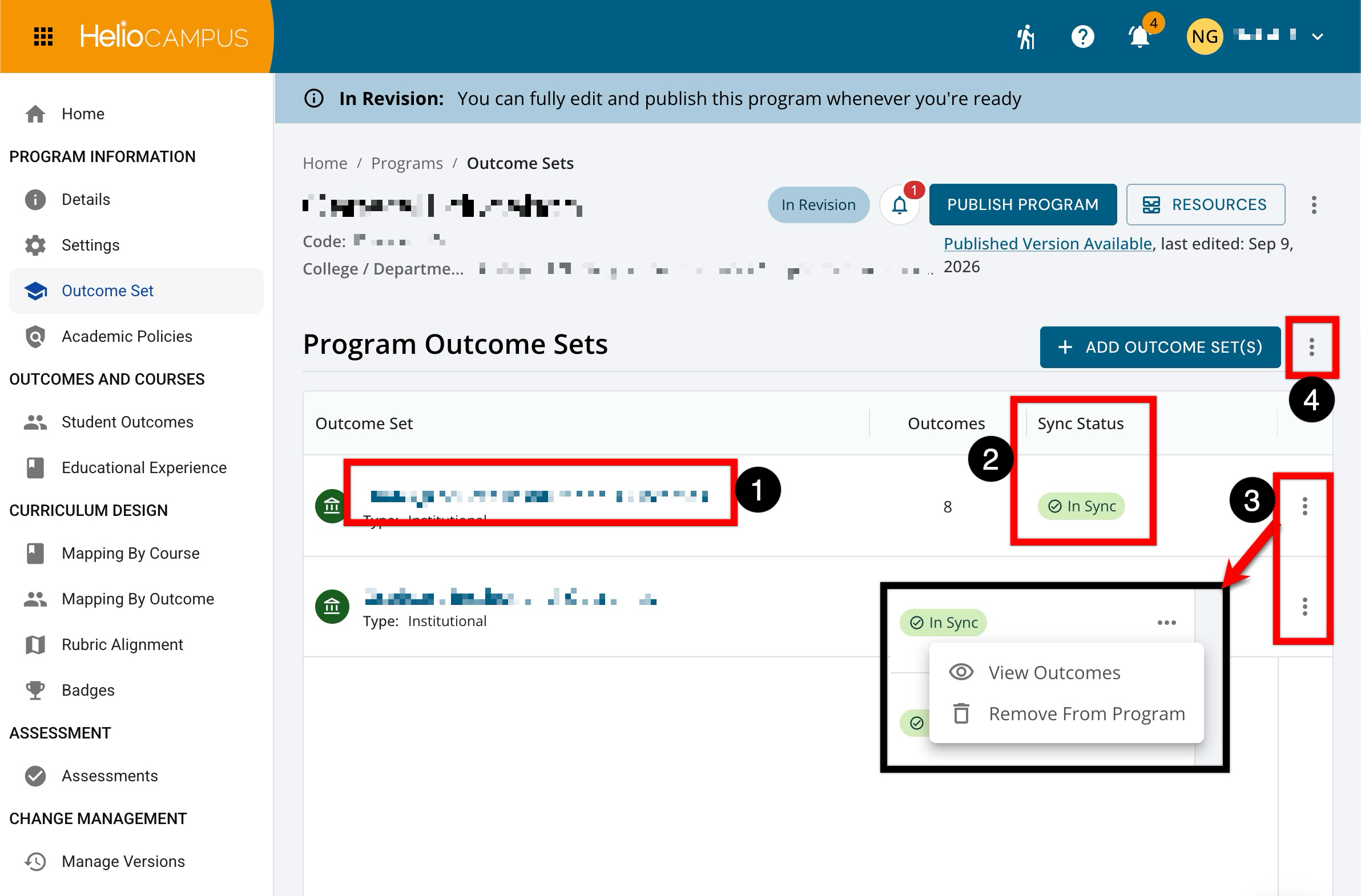
The Outcome Set page now has a more guided layout for managing outcome set information. Each row displays the outcome set’s clickable name and type to open it and review its details (1). The Sync Status column (2) shows whether the program’s outcome set is synchronized with its source. An In Sync status indicates that the associated outcomes match the current version of the outcome set. Use the More Options menu for an individual outcome set (3) to View Outcomes or Remove From Program. The page-level More Options menu (4) provides additional actions for managing the program’s outcome sets; available actions may vary based on permissions and the program’s status. Learn more.
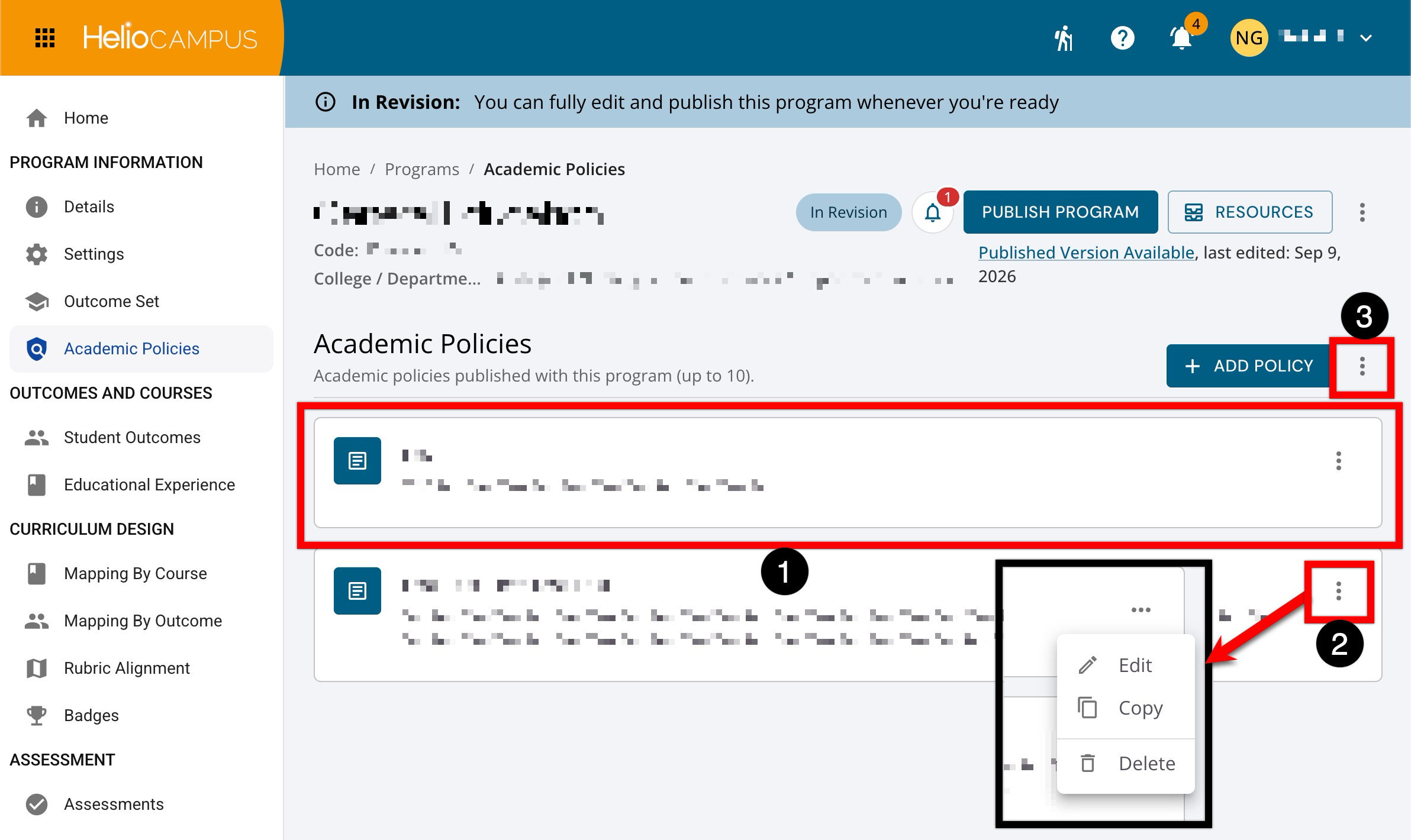
The Academic Policies page now has a more guided layout for managing program policies. Each policy appears on a separate card showing its title and description (1). Use the More Options menu for an individual policy (2) to manage that policy. The page-level More Options menu (3) provides additional actions for managing the program’s policies. Learn more.
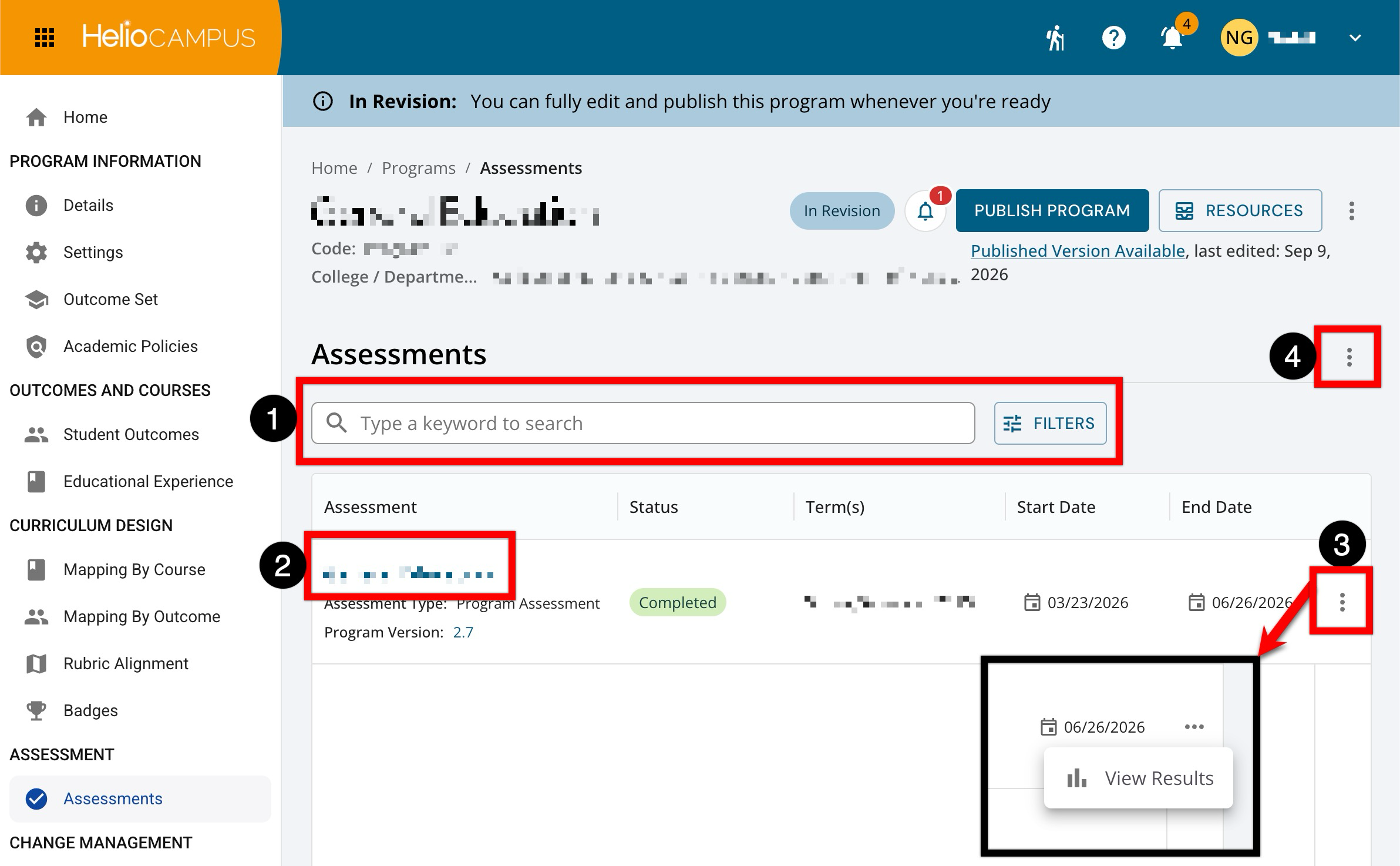
The Assessments page now has a more guided layout for managing associated programs. Use the keyword search and Filters (1) to locate assessments or narrow the list based on available criteria. Each assessment row (2) displays the assessment name and type; selecting the assessment name opens its details for review. Use an assessment’s More Options menu (3) to access available actions. The page-level More Options menu (4) provides export functionality for the assessments page. Learn more.
Related Documentation
Self Study Section Editors and Section Approvers can now add, edit, and delete supporting evidence directly within the Related Documentation page of their assigned self-study sections. Previously, adding evidence to a self study was restricted to Self Study Chairs and Liaisons, requiring section contributors to coordinate with administrative leads to upload and align necessary documentation. With this enhancement, section contributors can independently attach and manage evidence for the specific sections they oversee. When working within the Related Documentation page, the workflow includes the following role-based permissions and boundaries:
-
Adding Evidence: Section Editors and Approvers can upload new evidence directly. When configuring section alignments, users can select only the section(s) they are assigned to.
-
Editing & Deleting Evidence: Section users can edit or delete evidence items that are aligned to at least one of their assigned sections. If an evidence item is aligned exclusively to sections outside their assignment, editing and deletion actions remain disabled.
-
Evidence Bank Protection: Options to Add from Library and Save Evidence to Evidence Bank remain restricted exclusively to Self Study Chairs and Liaisons, preventing unauthorized global library modifications.
-
Restricted Evidence Visibility: Section contributors cannot view restricted evidence unless they are assigned to an aligned section. Standard unrestricted evidence remains visible across the self study.
This enhancement empowers distributed faculty and section leads to curate and align evidence directly to their narrative sections, reducing administrative bottlenecks on Self Study Chairs while preserving institutional data governance and section-level access boundaries.
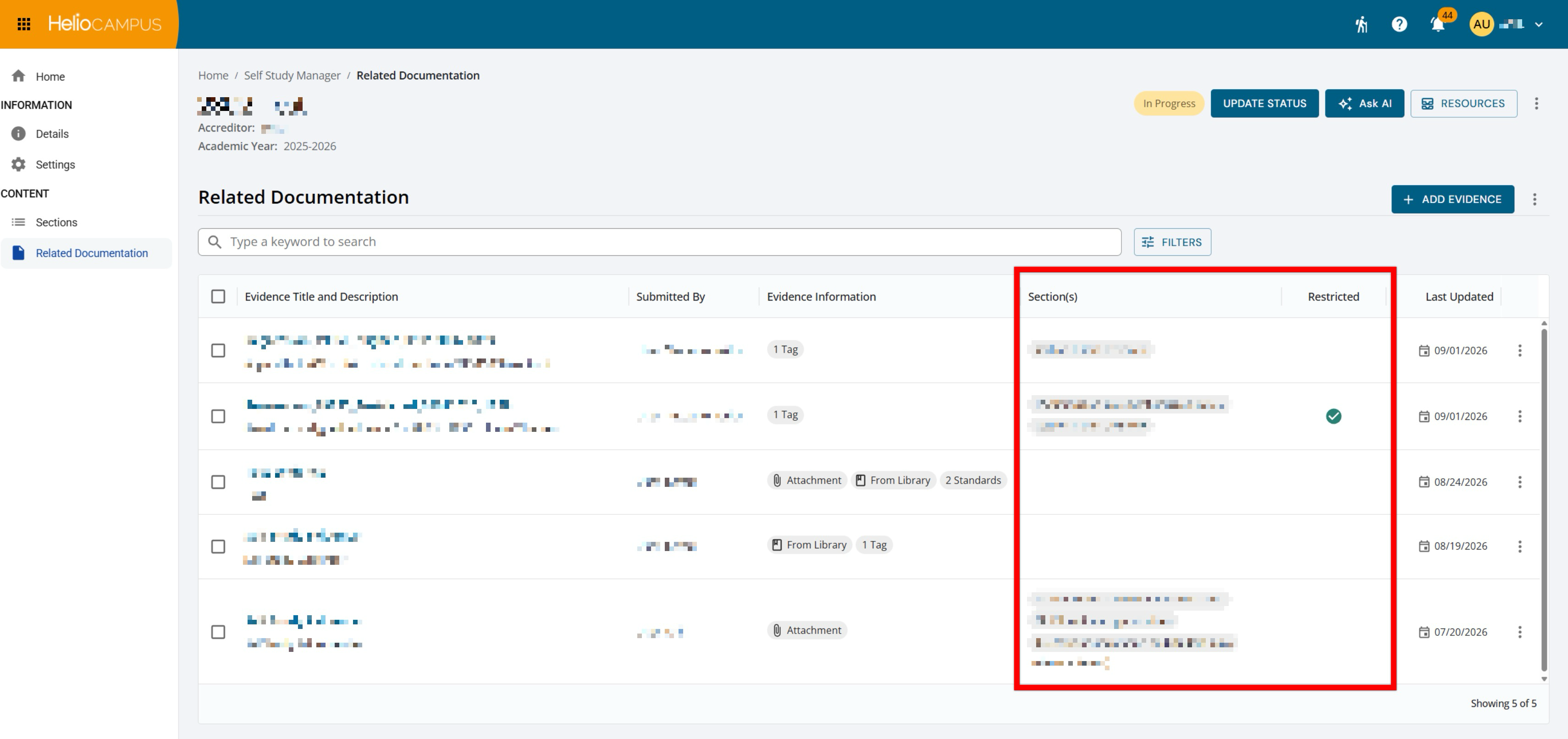
To support the new role-based access for adding, editing, and deleting evidence, the Related Documentation page has been updated to provide clearer evidence alignment and access information directly in the documentation list and details drawer. A new Sections column displays the section(s) associated with each evidence item, helping users quickly identify where documentation is used within the self study. A new Restricted column and quick filter have also been added, making it easier to identify evidence with restricted access. The details drawer now includes section alignment information and indicates whether the evidence is restricted.
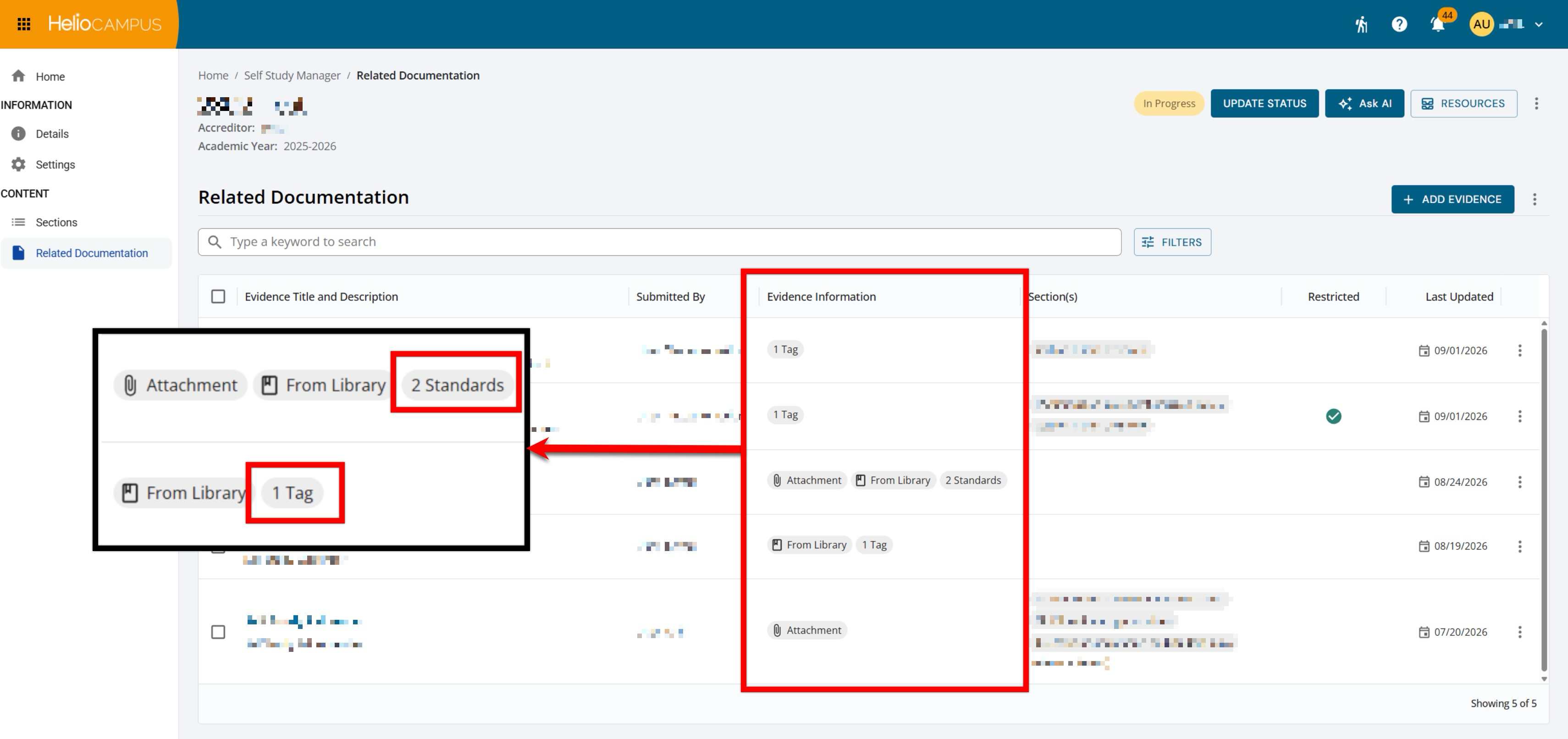
The previous Tags and Standards columns have been removed. Users can now view associated standards and total tag counts at a glance via compact chips in the Evidence Information column and the Details drawer. These updates support more efficient review and management of self study evidence, especially as Institutions organize documentation by section independent of standards. Learn more.
Self Study Evidence
Supporting evidence can now be copied directly from the Related Documentation page of one self study to one or more destination self studies. Previously, documentation needed to be uploaded or imported separately into each individual self study, creating repetitive manual effort for institutions managing multiple self-study reports with shared institutional artifacts. With this enhancement, administrators and self-study leads can select one or more pieces of evidence and use the Copy Evidence(s) to Self Study workflow to efficiently duplicate documentation across active reports.
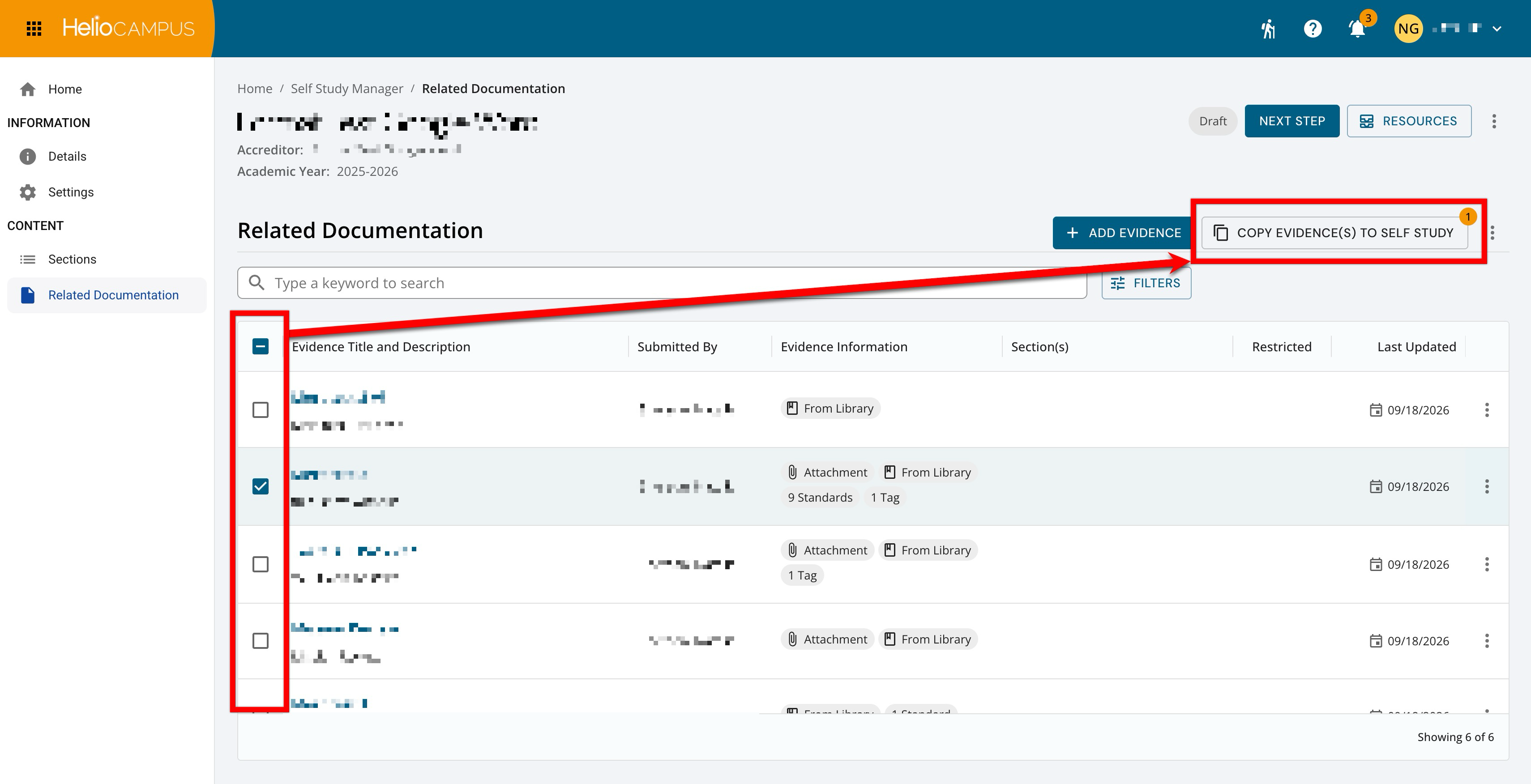
When copying evidence between studies, only self studies currently in In Progress status are available as destinations, and users can choose whether to carry over organizational and tag data. Standards and criteria alignments copy only when the destination self study uses the same accreditor standard set, and matching section-level alignments and restrictions are preserved only if the destination self study shares the exact same document template. This update streamlines institutional accreditation and program review preparation by allowing teams to easily distribute shared institutional evidence while preserving strict permission boundaries and metadata accuracy. Learn more.
Self Study Section Editing
The Self Study workflow has been enhanced to provide greater flexibility during collaborative review cycles by allowing authorized users to access the Edit Content action across all review stages prior to finalization and publication. Previously, editing self study section content was restricted once a section moved forward into subsequent review states, requiring workflows to be sent backward to make necessary textual updates or narrative adjustments. With this enhancement, users assigned to a section can now continue refining and updating content throughout active review stages. The Edit Content action is now accessible across the following self study section stages:
-
-
In Progress
-
In Review
-
Liaison Review
-
Approver / Coordinator Review
-
Final Review
-
This update streamlines the self study drafting and review process, reducing administrative friction by eliminating the need to revert review workflows just to make minor corrections or additions. Learn more.
Student Course Evaluation by Instructor Report
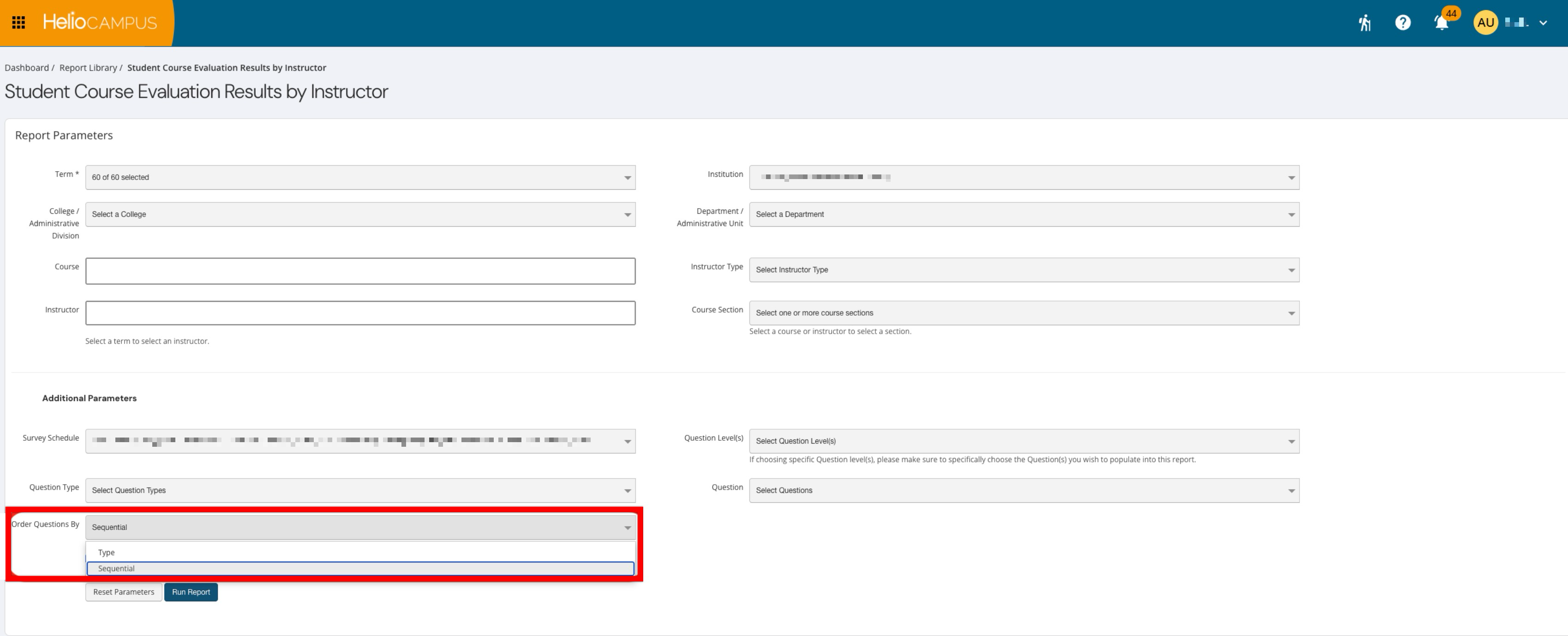
The Student Course Evaluation by Instructor report now includes an Order Questions By parameter. Users can choose to view questions in the same sequential order they appear on the survey form or grouped by question type. Sequential ordering helps preserve the structure of the original survey experience, including numeric questions and related comments, while the type-based view continues to support the existing grouped report format. This update gives Institutions more flexibility when reviewing course evaluation results, allowing users to choose the organization that best supports their analysis and reporting needs.
Survey Details
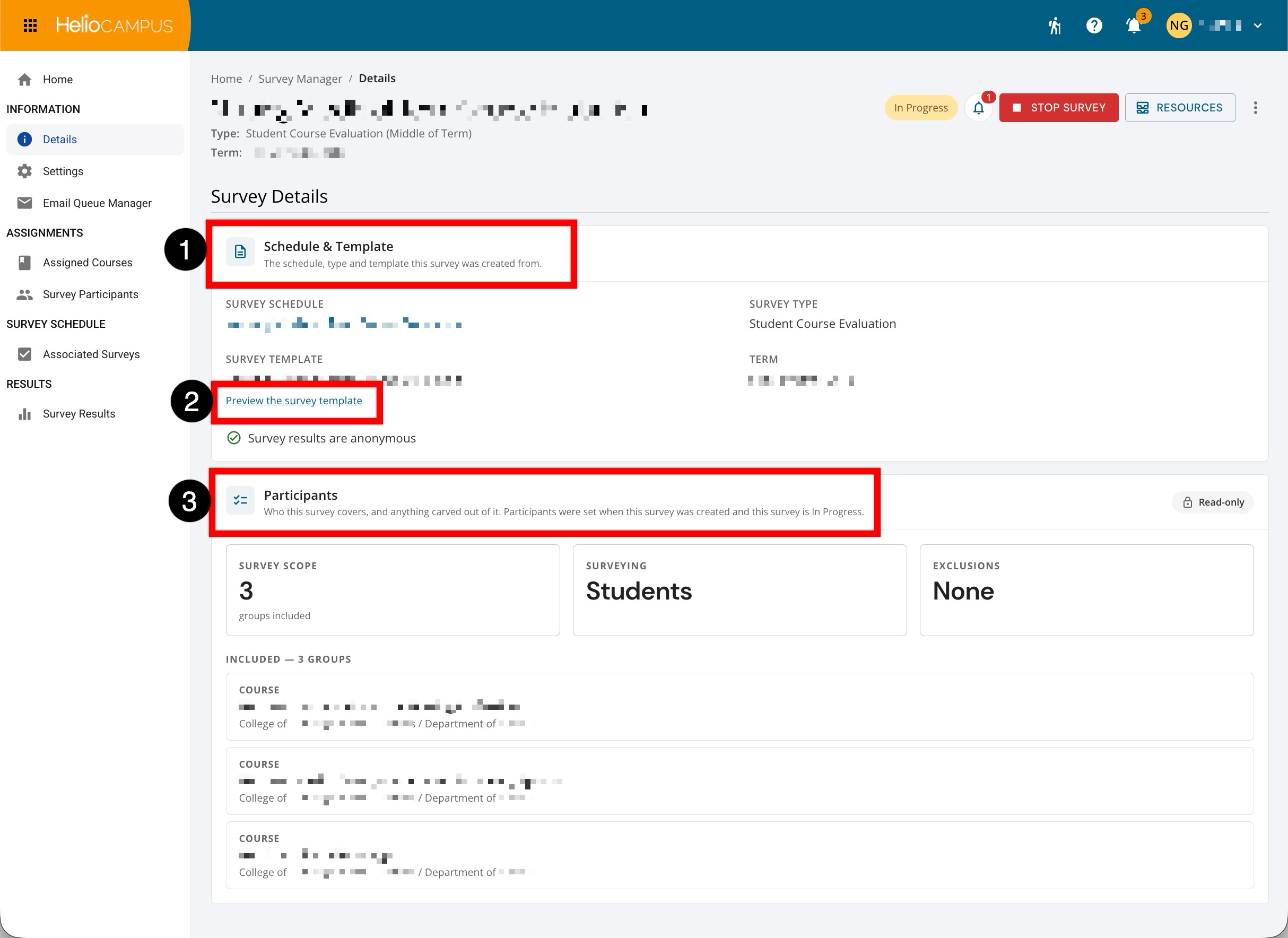
The survey Details page has been updated with a clearer, more guided layout to provide a clearer view of how a survey was created and who it surveys. It first displays the originating survey schedule, survey type, template, and term, along with whether results are anonymous (1). A Preview the survey template link lets users review the participant-facing form directly from the survey (2). The enhanced Participants section summarizes the survey scope, the population being surveyed, and any exclusions, followed by details for each included group (3). Learn more.
Survey Participant Groups
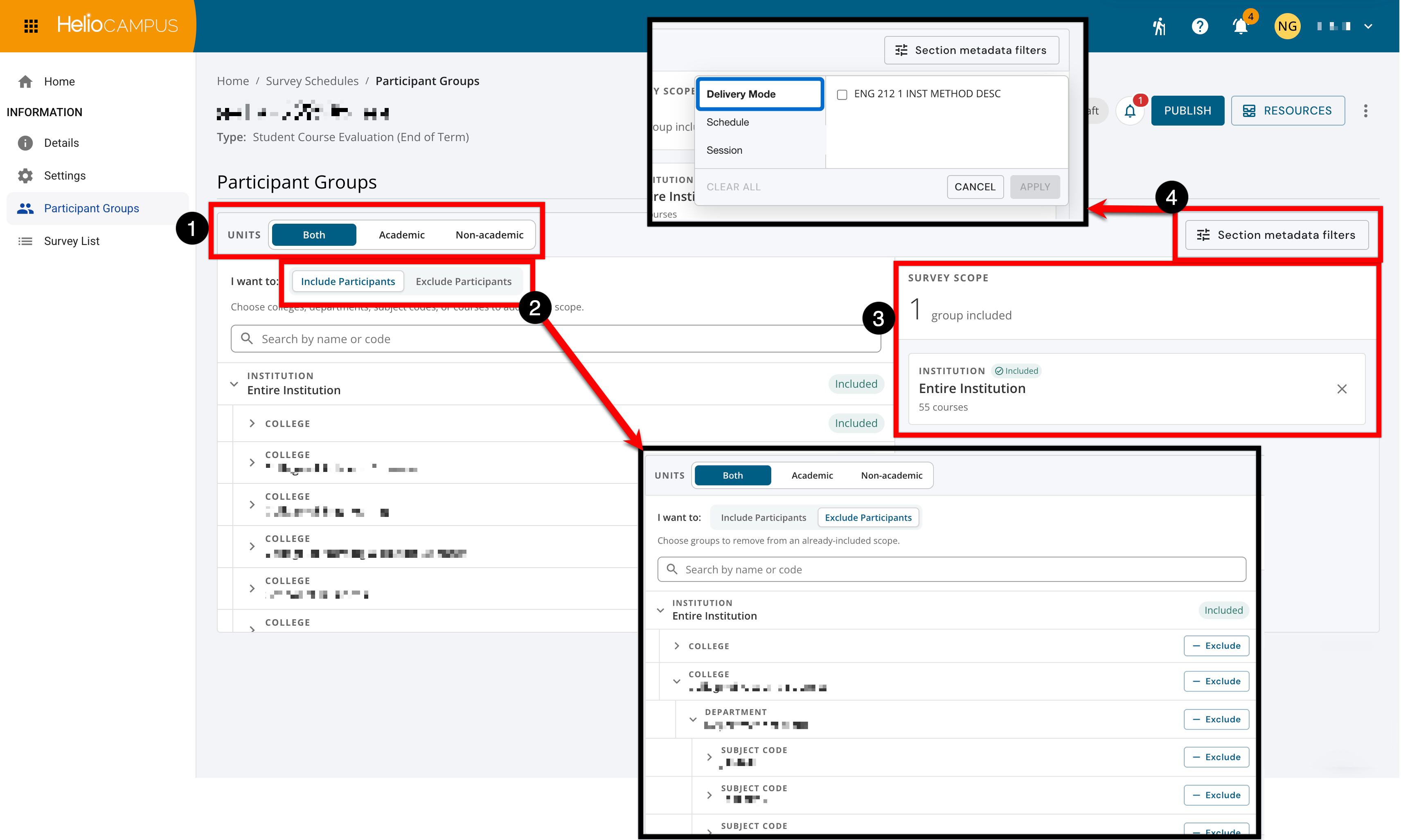
The survey schedule Participant Groups page now has an improved user interface. This improvement provides a more consistent experience across survey schedule management. By using the Units options (1), Academic, Non-academic, or Both, types of units can be viewed. This selection determines which organizations and courses are available when configuring the participant group. Use Include Participants or Exclude Participants (2) to configure the survey population. Include Participants adds selections to the survey scope. Exclude Participants removes specific groups from an included scope. The Survey Scope (3) summarizes the groups currently included in or excluded from the schedule. Each card identifies the selected organizational group, its inclusion status, and the number of associated courses. Use Section metadata filters (4) to further narrow the included sections. These filters refine the survey scope without requiring individual sections to be added or excluded manually. Learn more.
Survey Schedules
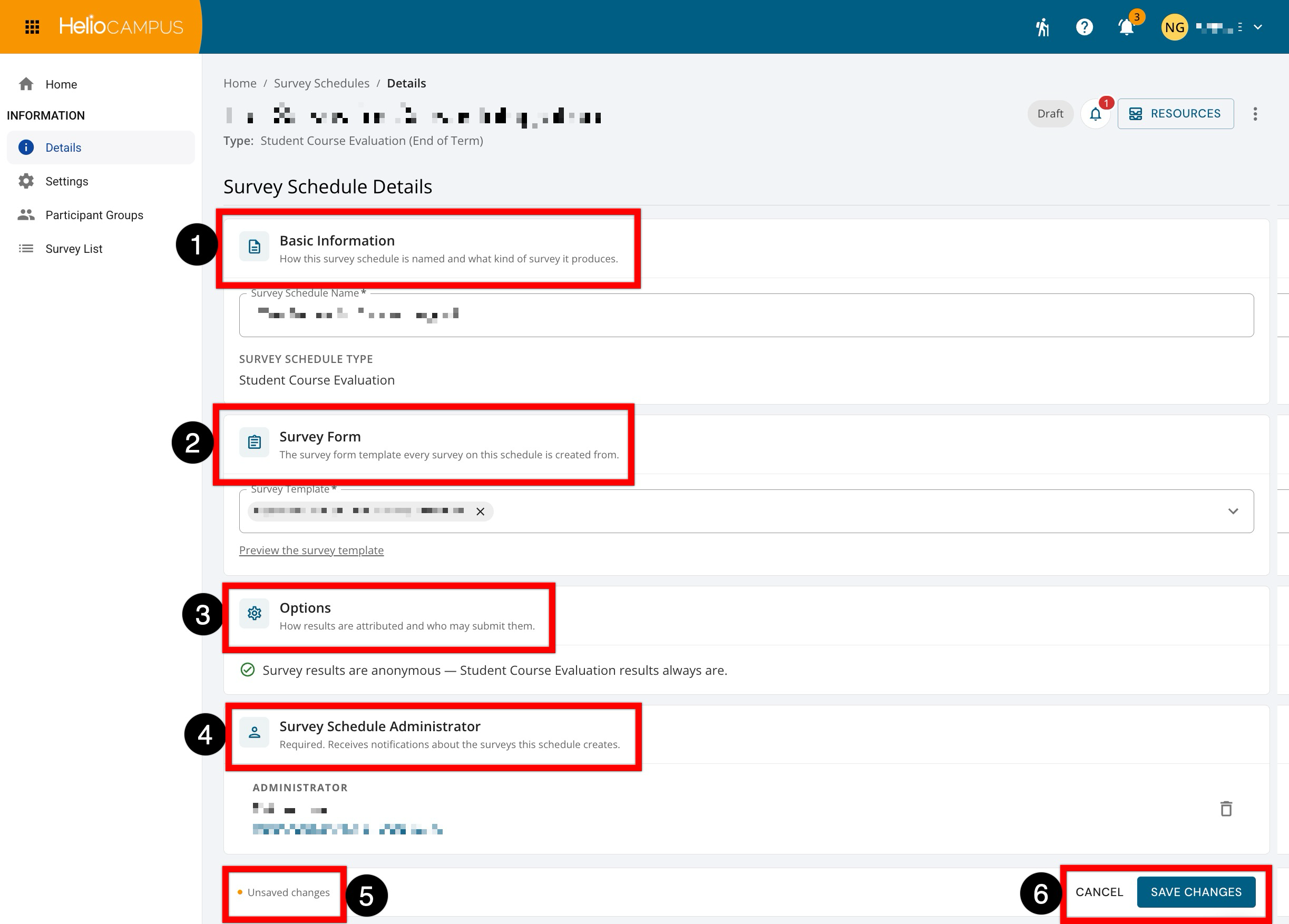
The survey schedule inner pages now have an improved user interface. These improvements provide a more consistent experience across survey schedule management pages and make it easier to locate and review the surveys associated with a schedule. The schedule Details page now has distinct sections that organize Basic Information, including the schedule name and type (1); the Survey Form used to create surveys (2); an Options section that defines result attribution and submission behavior (3); and the required Survey Schedule Administrator section for adding the user who will receive notifications about surveys generated by the schedule. When users make edits, an unsaved changes indicator appears (5), and they can cancel or save their updates using the persistent action buttons at the bottom of the page (6). Learn more.
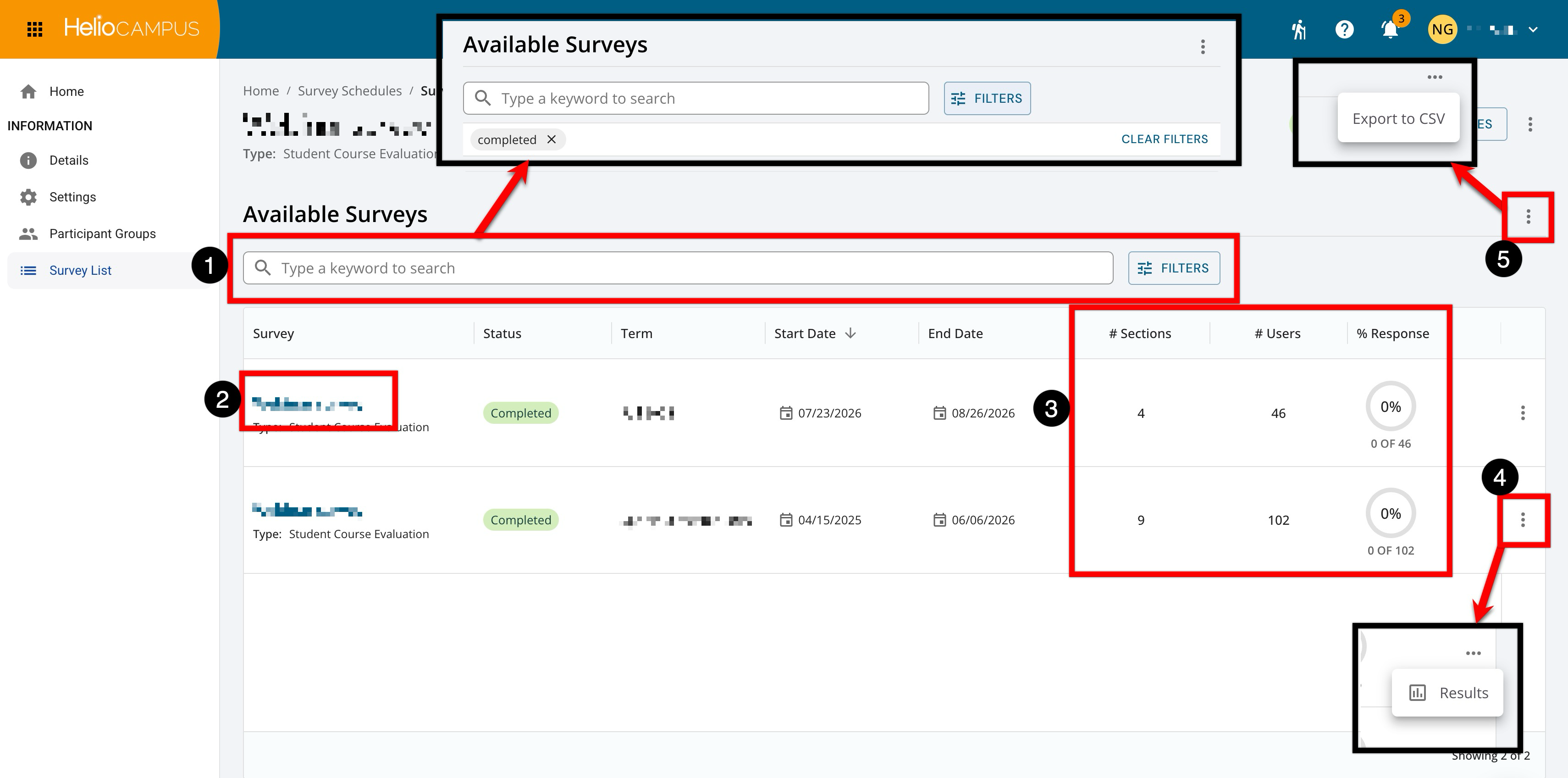
The schedule Survey List page has also been updated with a modernized interface and enhanced to make surveys easier to find and review. Search functionality is available, and clicking the Filters option enables filtering by status (1). Survey names are now clickable, providing direct access to an individual survey (2). The list also shows the number of Sections and Users associated with each survey, along with its response rate (3). The survey's row-level actions menu can be expanded to access its results (4). By expanding the page-level actions menu, the list can be exported to CSV (5). Learn more.
Survey Templates
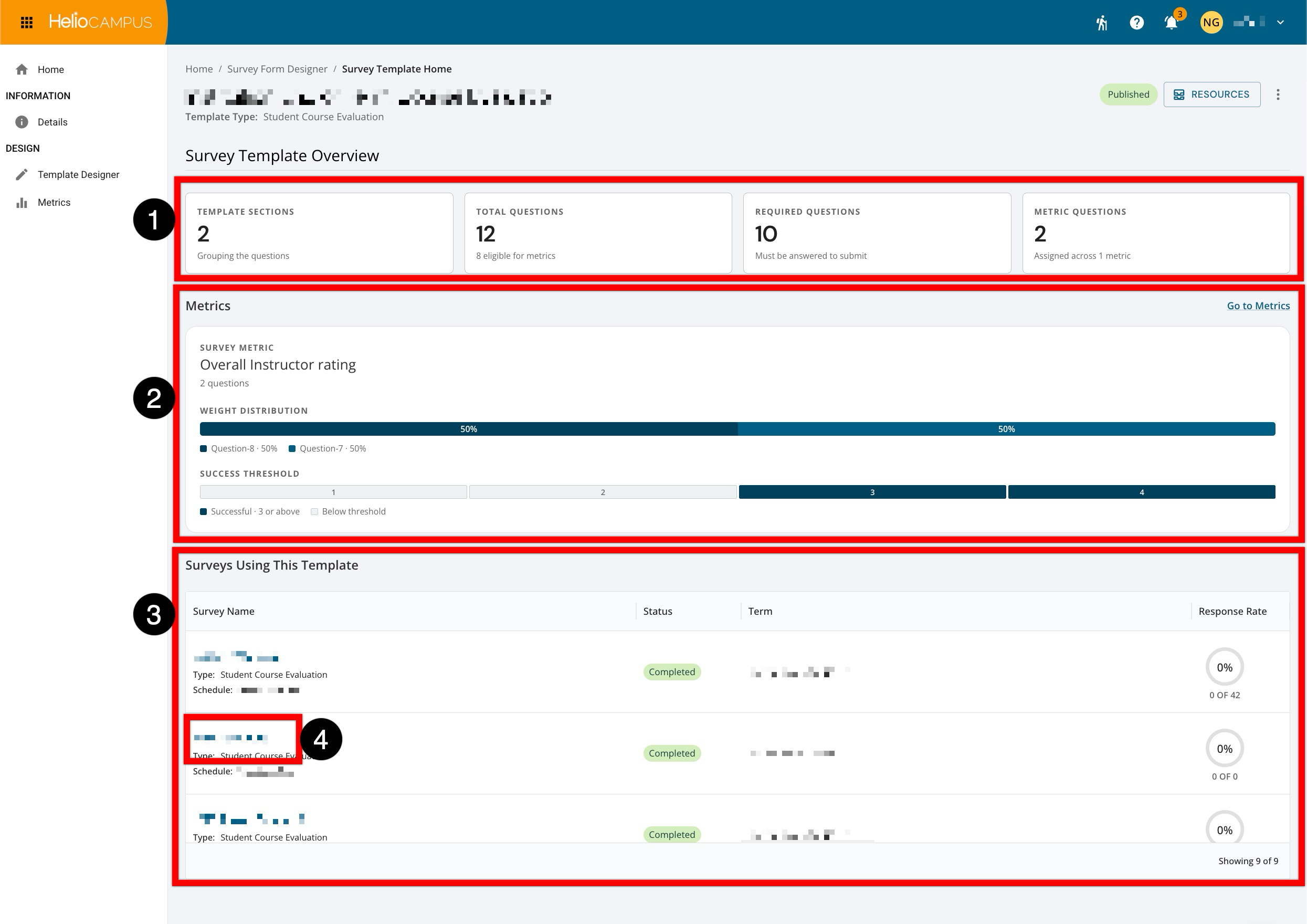
The Survey Form Designer inner pages have been updated with an improved user interface. The updated pages deliver a streamlined experience for managing survey templates. The new Homepage provides an at-a-glance overview of key metrics for quick review. Summary cards include the number of sections and questions (1). A new Metrics section displays each survey metric, its associated questions and weight distribution, and the success threshold used to evaluate responses (2). The Surveys Using This Template section lists surveys created from the template, including each survey's status, term, schedule, and response rate (3). Survey names are hyperlinked for quick access to the corresponding survey (4). Learn more.
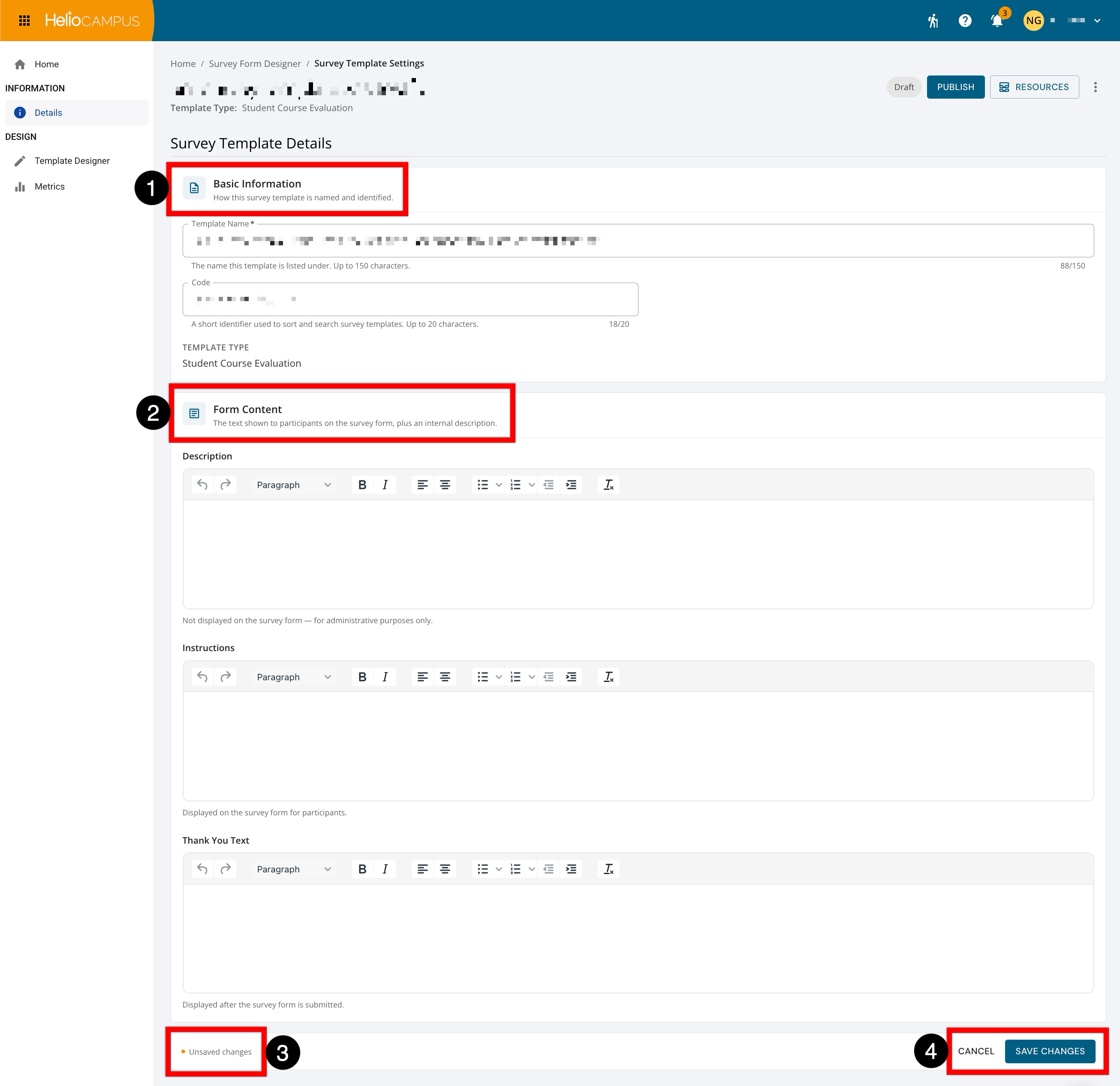
The Details page has been reorganized to clarify template configuration. The Basic Information section contains the template name, code, and template type, with character limits and guidance provided for editable fields (1). The new Form Content section brings together the template's customizable text fields (2). This section includes a Description to record internal administrative information not displayed on the survey form, Instructions to guide participants when completing the survey, and Thank You Text to customize the message displayed after submission. Learn more.
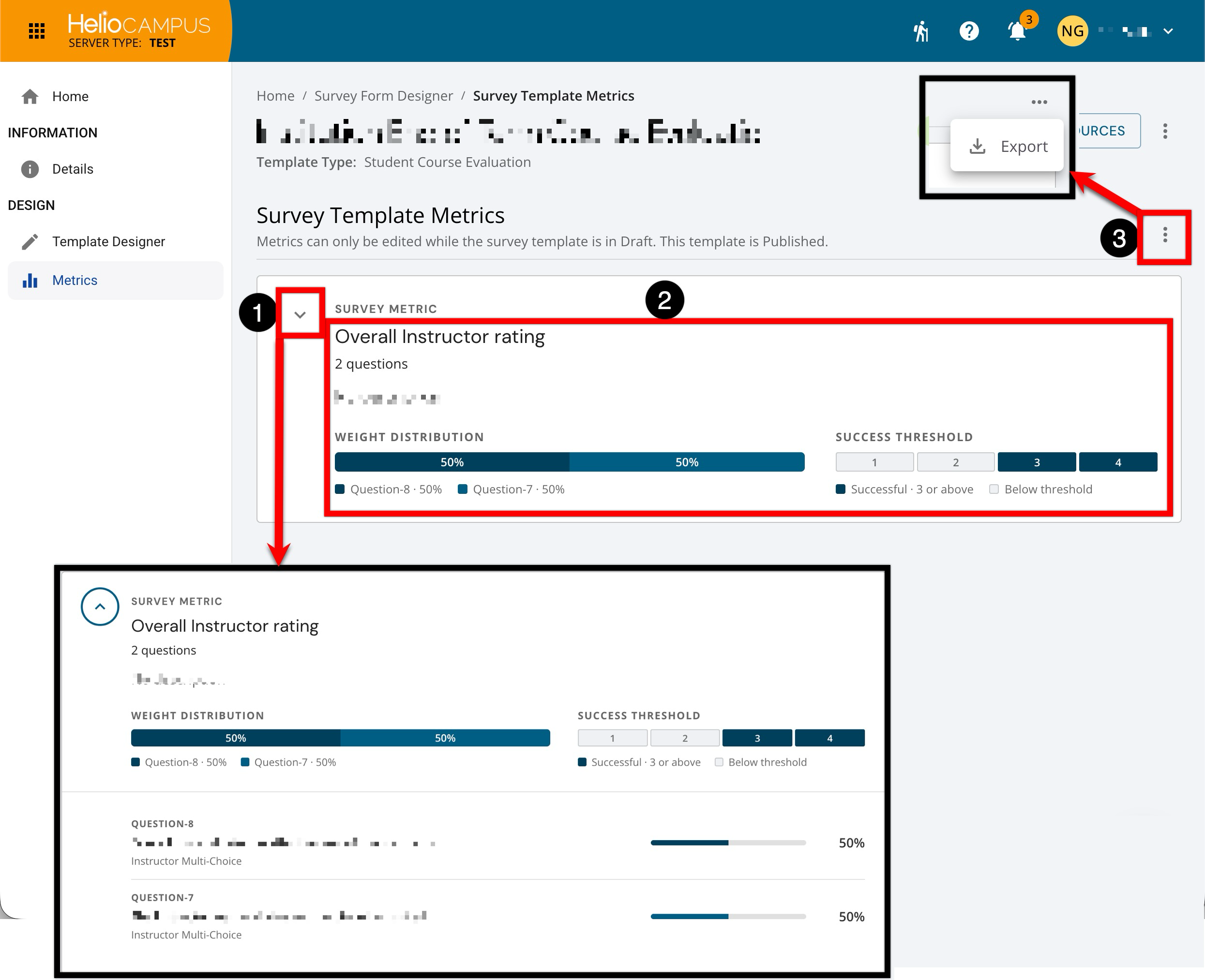
The template Metrics page now includes expandable metric cards, making it easier to review metric details while keeping the page organized. Expanding a metric shows its assigned questions and each question's contribution to the overall weight distribution (1). Each metric also displays its configured success threshold, clearly distinguishing successful response values from those below the threshold (2). To download the template's metrics, expand the page-level Actions menu (3). Learn more.