Release Timeline
-
Training Sites: September 7, 2026
-
Production Sites: October 5, 2026
Learn more about release enhancements by registering for the bi-monthly webinar series. After registering, enrollment automatically continues for all future webinars, and no re-registration is necessary! Although continued enrollment is automatic, attendance at every release webinar is not mandatory; please attend when scheduling allows.
Action Items
The Action Items drawer has been optimized to resolve timeout errors that could occur for users with a high volume of assigned notifications. Previously, users with approximately 250 or more active notifications could experience a timeout when opening the Action Items drawer, preventing access to pending tasks. With this improvement, the platform now retrieves notification and form data more efficiently by returning only the required properties and sourcing task status information. This enhancement ensures uninterrupted access to action items for all users, including those with large volumes of assigned forms and permissions. Learn more
Ask AI
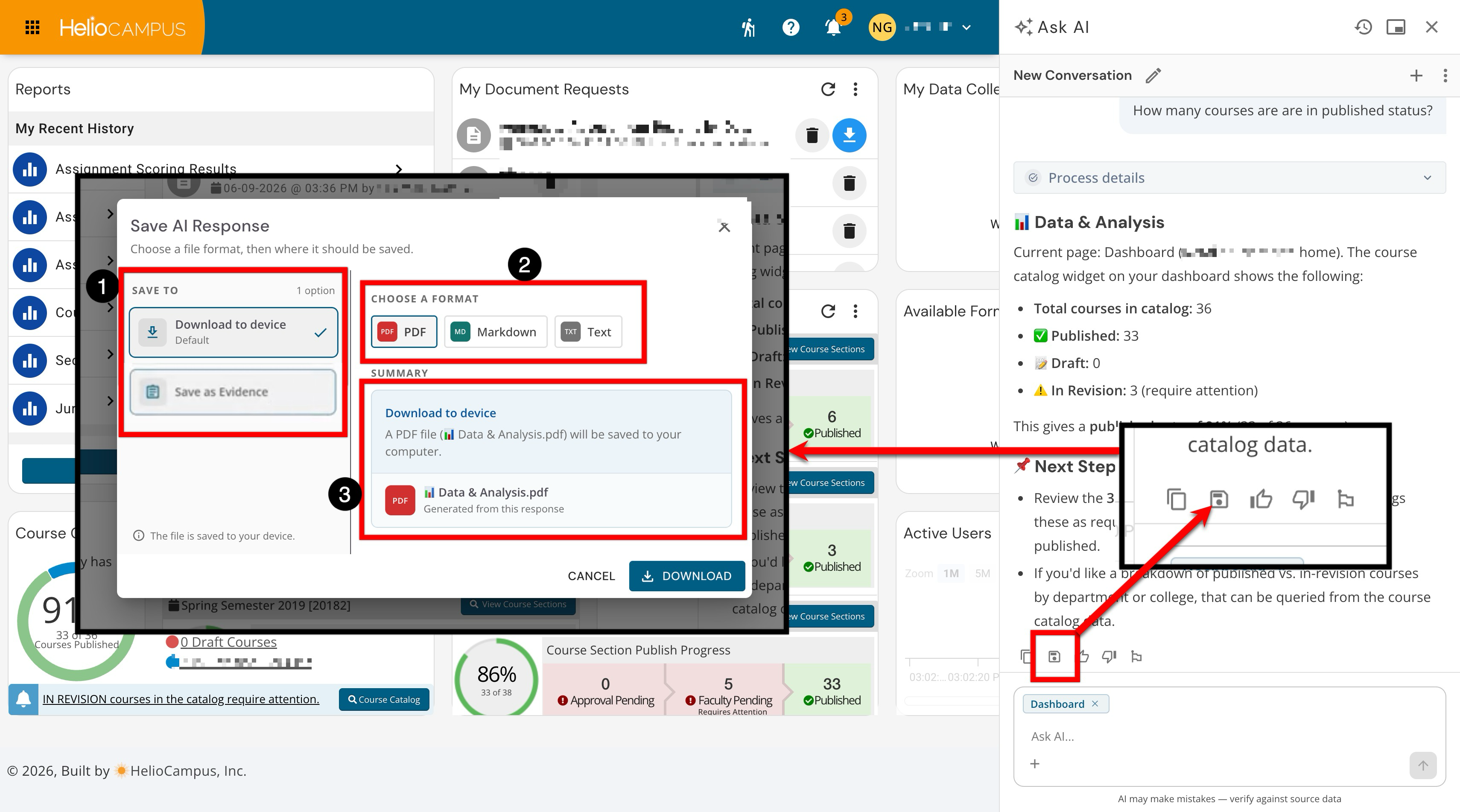
Users can now save and download responses generated by Ask AI directly to the Evidence Bank or the Related Documentation page of a designated self study. A new Save action is now available below AI responses. When selecting Save, a modal launches with options to Download to Device or Save to Evidence Bank. This enhancement provides Institutions with a more cohesive and accessible AI experience across the platform, ensuring that AI-assisted analysis and interaction are available wherever users are working while maintaining a clean, uninterrupted interface. Learn more.
Assessment Reports
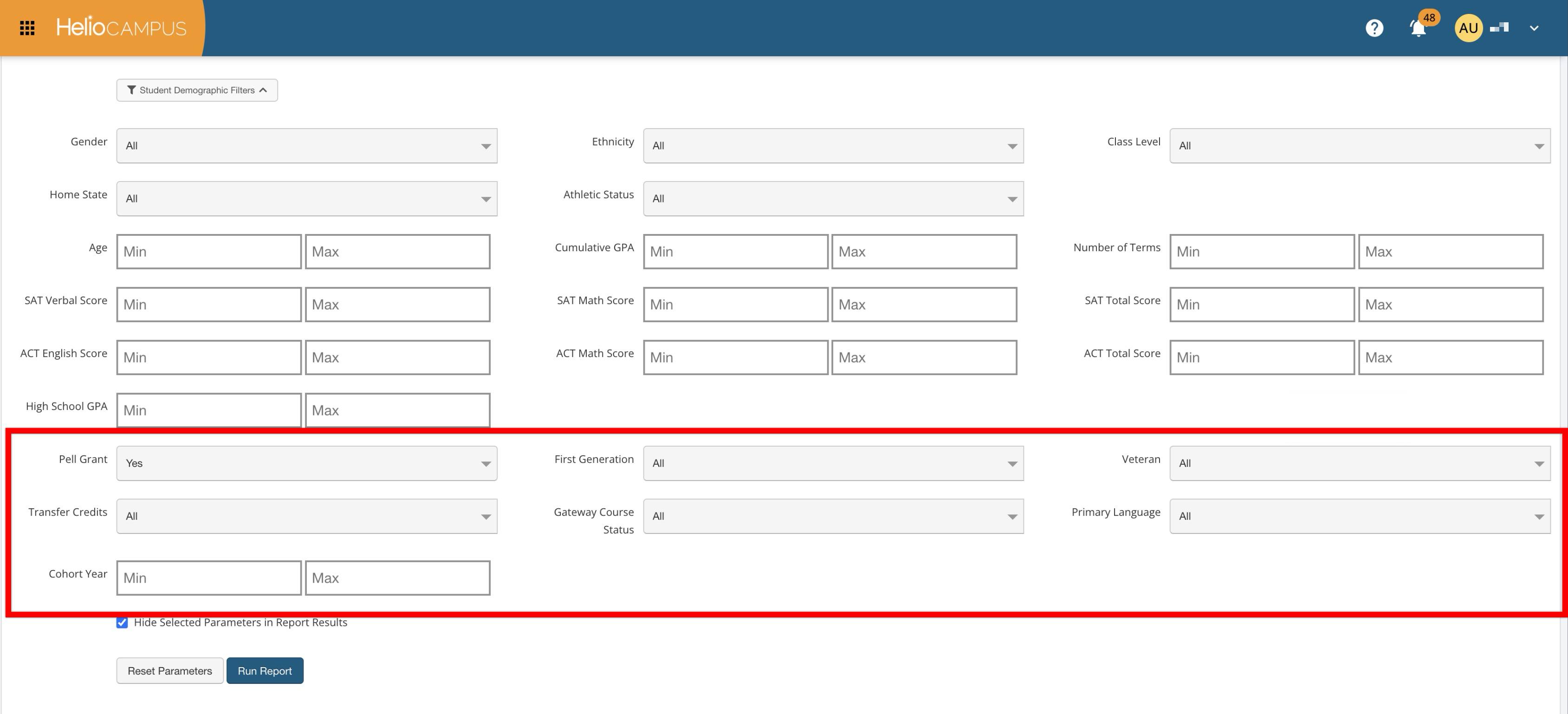
Assessment reports now include additional student demographic parameters, enabling more granular disaggregation of assessment results by student population attributes. The following new parameters are available for all reports in the Program/Course Assessment Reports category:
-
Pell Grant
-
First Generation
-
Veteran
-
Transfer Credits
-
Gateway Course Status
-
Primary Language
-
Cohort Year
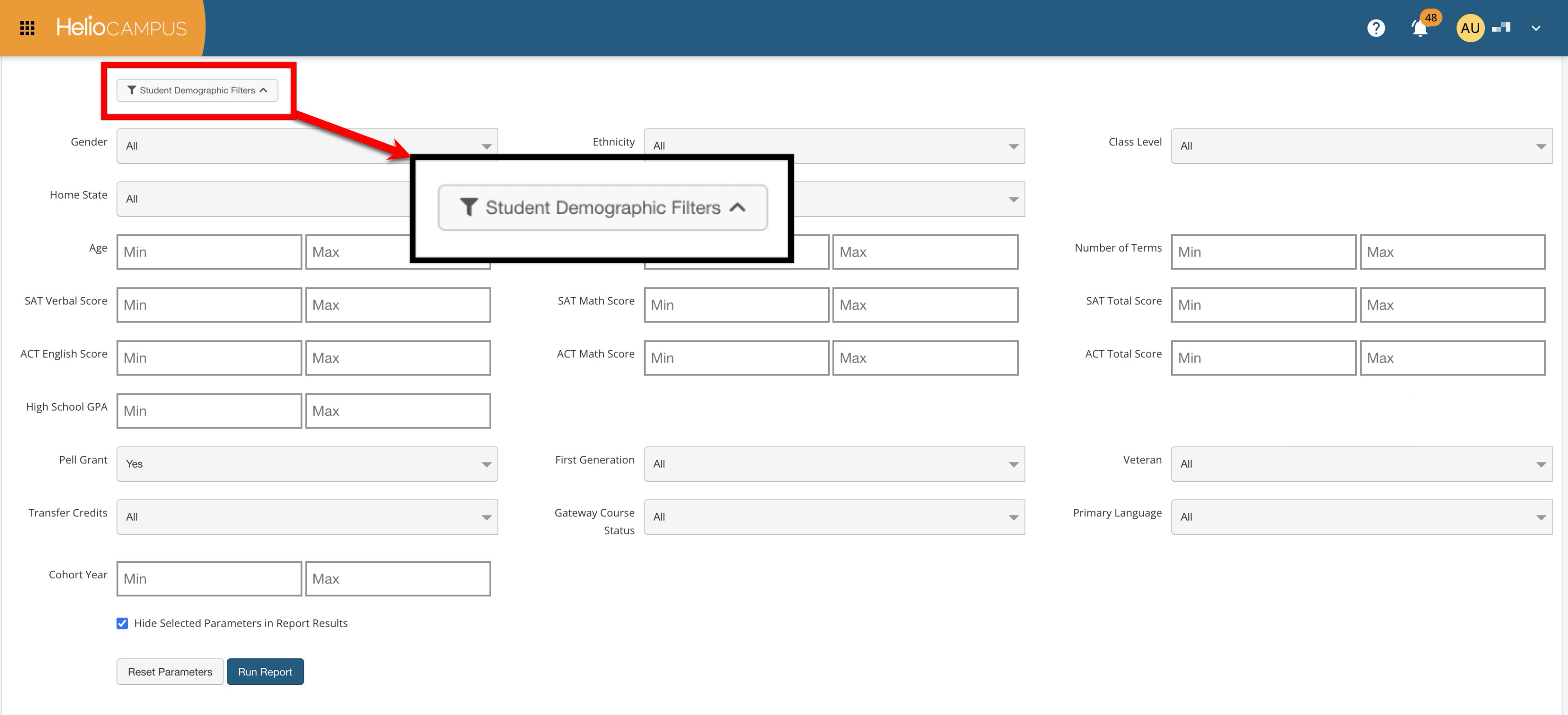
To manage the student demographic parameters, a new Student Demographic Filters toggle has been added to each assessment report. Demographic parameters are hidden by default and can be revealed on demand by enabling the Student Demographic Filters toggle. Learn more.
Assignment Detail Audit
The Assignment Detail Audit has been improved for consistency and simplified terminology. The audit description has been updated to the following:
View all the key details associated with assignments either created in HelioCampus Assessment or pulled from the Learning Management System (LMS). This audit includes status, maximum score, start date, end date, scoring due date, enrollment, and assignment rubric criteria.
Additionally, the audit has been updated with simplified terminology for consistency:
-
The Tab parameter has been renamed to Assignment Level and converted to a multi-select dropdown. Parameter options have been updated:
-
Course Assignments has been renamed to Course/Co-Curricular Activity
-
Course Section Assignments has been renamed to Course/Co-Curricular Section
-
-
The Course parameter has been renamed to Course/Co-Curricular Activity
-
The Course Section parameter has been renamed to Course/Co-Curricular Section.
-
In the report output, the Course Section column has been split into two separate columns, providing more granular detail without requiring users to parse a combined field:
-
Section Code (e.g., BIO 100 001)
-
Section Title (e.g., Introduction to Biology)
-
-
In the raw data export, column naming has been updated to mirror the previously mentioned changes, separating Course Section into two distinct columns consistent with the report output.
These changes deliver a more consistent and intuitive experience when working with this audit. Learn more.
Assignment Linking Audit
The Assignment Linking Audit description has been updated to the following:
Facilitate the examination of outcome mappings and assignment linking in specific sections by term, detailing mapped outcomes, related outcomes, performance indicators, and assignment–outcome weightings.
Additionally, the report has been updated for improved consistency and simplified terminology for consistency:
-
The Tab parameter has been renamed to Assignment Level and converted to a multi-select dropdown. Parameter options have been updated:
-
Course Assignments has been renamed to Course/Co-Curricular Activity
-
Course Section Assignments has been renamed to Course/Co-Curricular Section
-
-
In the report output, selected parameters now match the updated parameter labels, and column header updates include:
-
College has been renamed to College/Administrative Division
-
Department has been renamed to Department/Administrative Unit
-
Course Section has been renamed to Section
-
-
The raw data export mirrors all column header changes.
These updates bring the Assignment Linking Audit into full alignment with the standardized terminology used across the Assignment Reports category. Learn more.
Assignment Linking Results Report
The Assignment Linking Results report description has been updated to the following:
Review all assessment results for the course or co-curricular sections, including detailed information about the assignments and their mean, mode, median, and standard deviation.
Additionally, the report has been updated for improved consistency and simplified terminology for consistency:
-
In the report output, selected parameters now match the updated parameter labels, and column header updates include:
-
College has been renamed to College/Administrative Division
-
Department has been renamed to Department/Administrative Unit
-
Course Section has been renamed to Section
-
-
The raw data export mirrors all column header changes.
These changes ensure the Assignment Linking Results Report uses uniform terminology and structure, fully aligned with the standardized terminology used across the Assignment Reports category.
Assignment Scoring Results Report
The Assignment Scoring Results report has been updated for improved consistency and simplified terminology for consistency:
-
The Tab parameter has been renamed to Assignment Level and converted to a multi-select dropdown. Parameter options have been updated:
-
Course Assignments has been renamed to Course/Co-Curricular Activity
-
Course Section Assignments has been renamed to Course/Co-Curricular Section
-
-
In the report output:
-
The Course Section column has been split into two separate columns, providing more granular detail without requiring users to parse a combined field:
-
Section Code (e.g., BIO 100 001)
-
Section Title (e.g., Introduction to Biology)
-
-
Selected parameters now match the updated parameter labels, and column header updates include:
-
College has been renamed to College/Administrative Division
-
Department has been renamed to Department/Administrative Unit
-
Course Section has been renamed to Section
-
-
-
The raw data export mirrors all column header changes.
These changes align the report with the naming conventions now used across all Assignment Reports, improving consistency for users who work across multiple reports. Learn more.
Canvas LMS Integration
Use of this new functionality is enabled by HelioCampus. To learn more, please contact Support.
Institutions utilizing Canvas LMS can now leverage Canvas Data 2.0 (CD2) via the Canvas Data Access Platform (DAP) Query API for Canvas New Quizzes and assignment data ingestion. This update modernizes and resolves data ingestion exceptions associated with Canvas New Quiz structures. Learn more.
Concurrent Program and Juried Assessment
Institutions can now administer both a Juried Assessment and a Program Assessment for the same program, version, and term concurrently. Previously, the platform restricted programs to a single assessment type per term, preventing both assessment workflows from running simultaneously for the same term. With this update, administrative workflows and underlying data linking managers have been enhanced to allow both assessment types to co-exist seamlessly without conflict
On the Program Settings page, administrators can toggle on both Enable Juried Assessment and Enable Program Assessment for the same program version. When a program is published, the platform automatically generates the corresponding Program Assessment instances based on the selected terms and term types while still allowing flexible Juried Assessment creation. Administrators and Program Coordinators can create Juried Assessments for one or more terms, even if Program Assessments already exist for those same terms. Linking structures have been upgraded to maintain distinct mappings, data relationships, and scoring workflows for each assessment type operating in the same term.
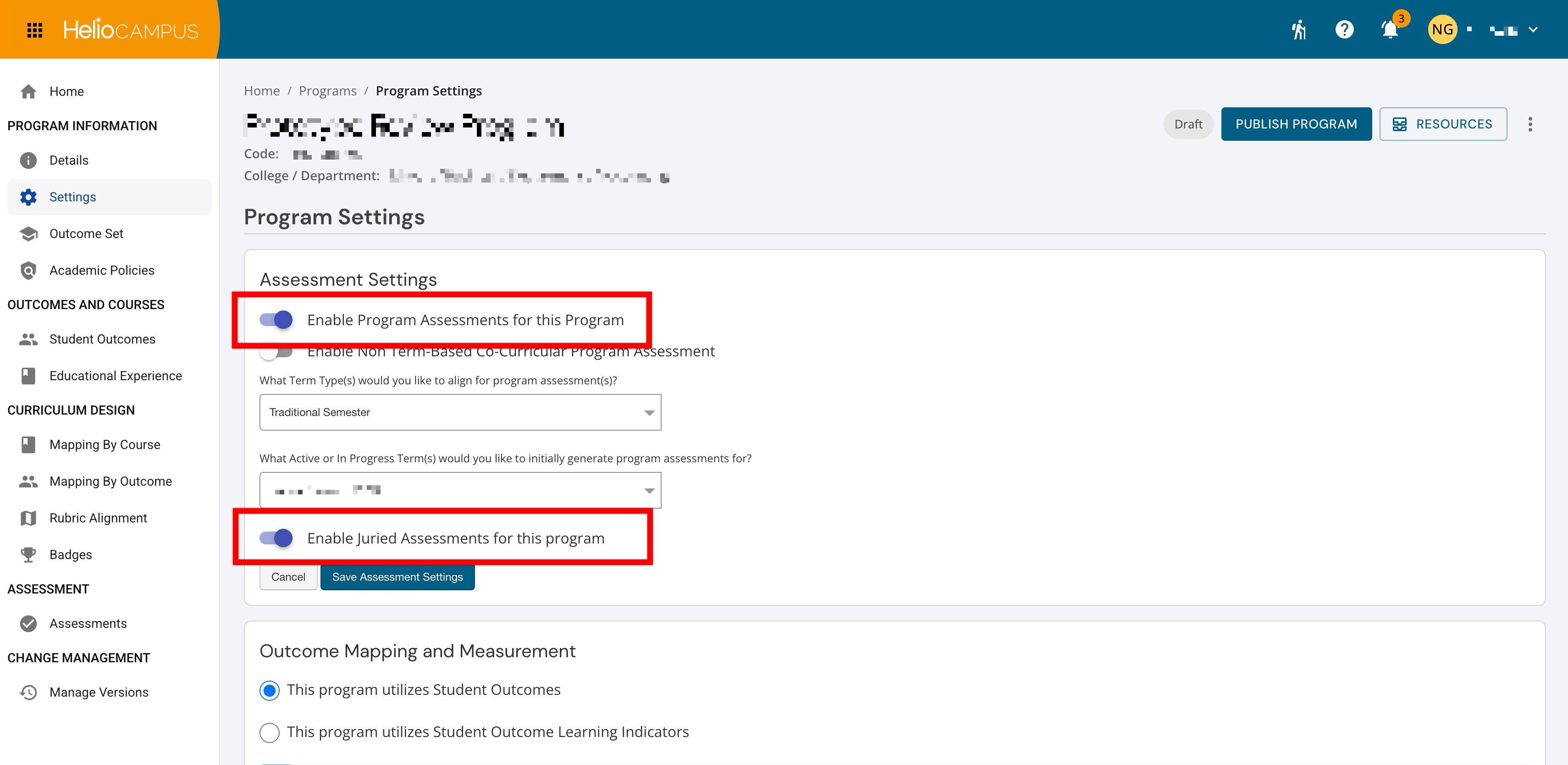
This improvement gives assessment leadership greater operational flexibility, allowing institutions to run direct artifact-based juried evaluations alongside broader program outcome assessments within the same academic term. Learn more:
Course/Co-Curricular Activity Learning Outcome Audit
The Course/Co-Curricular Activity Learning Outcome Audit report has been updated with simplified column terminology for consistency.
-
In the report output, selected parameters now match the updated parameter labels, and column header updates include:
-
Course Learning Outcomes has been renamed to CLOs.
-
College has been renamed to College/Administrative Division
-
Department has been renamed to Department/Administrative Unit
-
Course Section has been renamed to Section
-
-
The raw data export mirrors all column header changes in addition to the following:
-
course_learning_objective_code has been updated to clo_code
-
course_learning_objective_description has been updated to clo_description
-
These changes align the report's language with the abbreviated conventions now used across all related audit reports, reducing ambiguity and making exports easier to work with in external analysis tools. Learn more.
Course/Co-Curricular Section Enrollment Audit
The Course/Co-Curricular Section Enrollment Audit report has been updated to improve consistency and expand data availability. Selected parameters now accurately match the labeling used within the report itself.
-
In the report output, selected parameters now match the updated parameter labels, and column header updates include:
-
College has been renamed to College/Administrative Division
-
Department has been renamed to Department/Administrative Unit
-
Course Section has been renamed to Section
-
A new Degree-Count column displays each degree associated with students in a given section, along with the count of enrolled students per degree. This provides Institutions with a clearer picture of degree-level enrollment distribution within individual sections without requiring a separate data pull.
-
-
The raw data export mirrors all column header changes in addition to the following:
-
New Columns:
-
Course/Activity ID
-
Course/Activity
-
Section ID
-
-
Course / Co-Curricular Section has been renamed to Section
-
Degree-count data is now available in the raw export as a comma-separated list
-
These changes improve alignment across audit reports and support more efficient downstream analysis.
Course Section Learning Outcomes Audit
The Course Section Learning Outcomes Audit has been renamed to Section Learning Outcomes Audit to better reflect its inclusive scope across both course and co-curricular sections. The report description has been updated to the following:
Audit inherited Course/Co-Curricular Activity Learning Outcomes (CLOs) and Section Learning Outcomes (SCLOs) added to individual course sections and co-curricular sections.
Additionally, the report has been updated with simplified column terminology for consistency.
-
The Course Section parameter has been updated to Course/Co-Curricular Section.
-
Outcome filter parameter options have been simplified for clarity, and selected parameters displayed on the report now match the updated labeling:
-
With Course Learning Outcomes has been renamed to With CLOs
-
Without Course Learning Outcomes has been renamed to Without CLOs
-
With Course Section Learning Outcomes (SCLOs) has been renamed to With SCLOs
-
Without Course Section Learning Outcomes (SCLOs) has been renamed to Without SCLOs
-
-
In the report output:
-
Course Section has been updated to Section
-
Course Learning Outcomes (Inherited) has been updated to CLOs (Inherited)
-
Course Section Learning Outcomes has been updated to SCLOs.
-
-
In the raw data export:
-
New Columns:
-
Course/Activity ID
-
Course/Activity
-
Section ID
-
-
Column headers have been updated for consistency:
-
course_section has been updated to Section
-
is_course_clo has been updated to is_inherited_clo
-
course_learning_objective_code has been updated to outcome_code
-
course_learning_objective_description has been updated to outcome_description.
-
-
These changes streamline terminology and improve usability for Institutions performing learning outcomes audits at scale. Learn more.
Course Section Survey Assignment Audit Report
The Course Section Survey Assignment Audit Report has been renamed to Survey Assignment Audit Report to more accurately reflect its expanded scope, which now includes co-curricular sections in addition to course sections. The report description has been updated as follows:
Audit course and co-curricular sections associated with a scheduled survey. Users can review survey response rates, identify sections not included in survey instances, and use the data to launch initiatives to increase student feedback.
Additionally, the report has been updated with simplified column terminology for consistency.
-
The Course parameter has been updated to Course/Co-Curricular Activity
-
The Display Assignments parameter options have been changed from Assigned Courses and Unassigned Courses to Assigned Sections and Unassigned Sections
-
In the raw data export:
-
New Columns:
-
Course/Activity ID
-
Course/Activity
-
Section ID
-
-
-
The Course / Co-Curricular Section column has been updated to Section.
These changes deliver a more consistent, intuitive experience across the audit report category. Learn more.
Course Section Trend Analysis Report
The Course Section Trend Analysis report header now displays the course section title alongside the existing course section code. Previously, the report header only displayed the section code value (e.g., "BIO 100 001"), which could make it difficult to quickly identify the subject area being evaluated without cross-referencing other sources. With this improvement, the full section title now appears in the report header alongside the code, providing immediate context and making it easier for faculty and administrators to identify and distinguish reports at a glance. Learn more.
D2L LMS Integration
To provide more timely and accurate assessment data, the platform’s D2L Brightspace LMS integration has been updated to retrieve quiz and assessment data using differential extractions rather than weekly full dataset extractions. Previously, quiz dataset imports relied on full extractions generated by D2L once per week, which created up to a seven-day delay before changes made in Brightspace were reflected in the HelioCampus platform. With this enhancement, the platform leverages D2L’s daily differential extractions, allowing incremental updates to be captured and processed daily. Changes made in D2L Brightspace are processed when D2L generates the daily differential file and appear in HelioCampus the following day, ensuring consistent data handling across quiz objects, question libraries, and student submissions.
This improvement significantly reduces data latency for institutions using D2L Brightspace, ensuring administrators and faculty have access to up-to-date quiz performance and assessment results without waiting for weekly extraction cycles. Learn more.
Data Collection PDF Exports
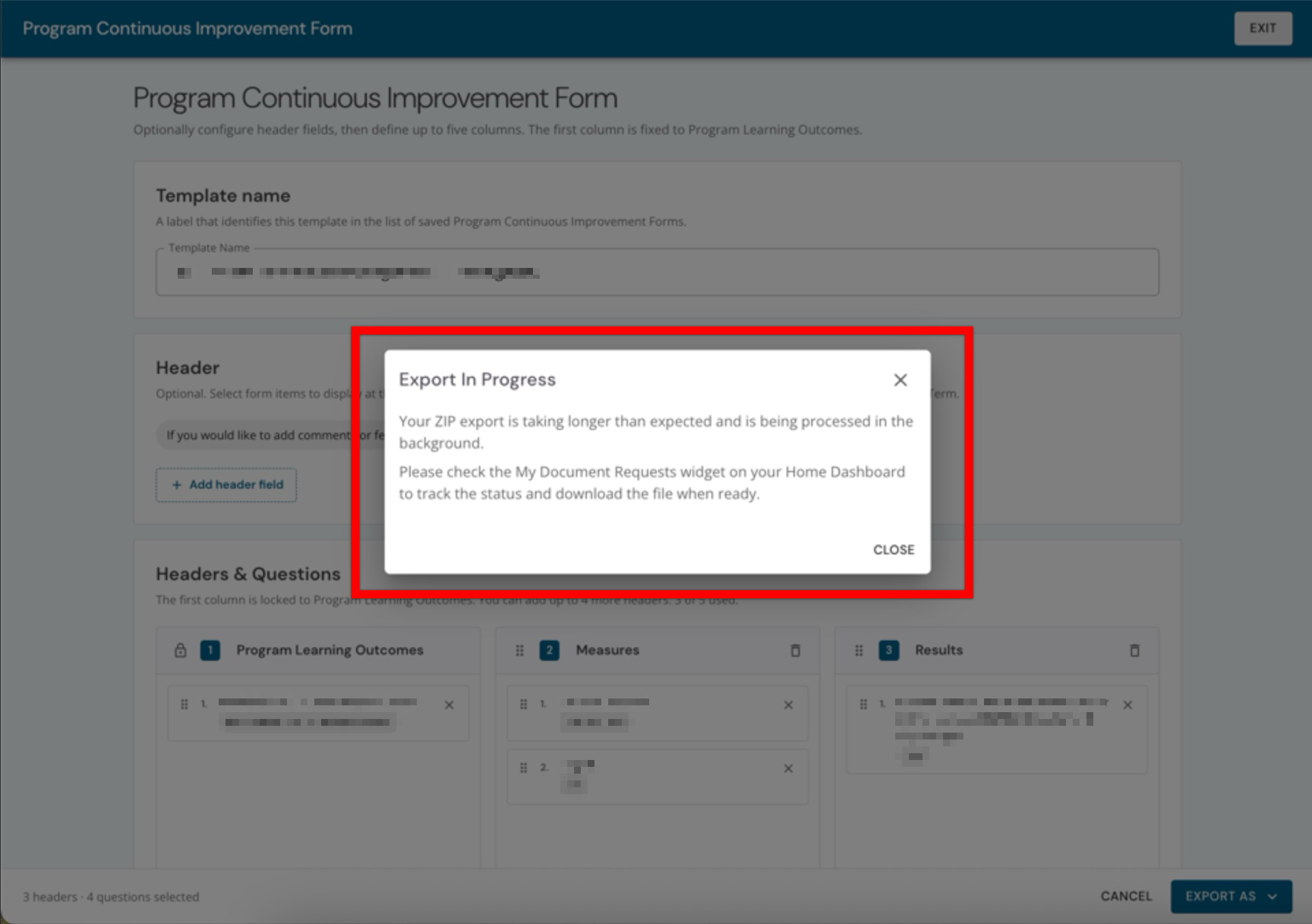
To better support large-scale data collection efforts, the PDF/DOC export task has been converted into an asynchronous background process. When a large export is initiated, the platform now processes the request in the background while displaying Export In Progress messaging. Users can continue working in other areas of the platform while the export file is generated. This change prevents platform timeouts during heavy processing, ensuring that even the largest data collections can be exported successfully.
Data Collection Report Creation
Report creation for data collections has been updated with several user interface improvements to provide a more intuitive and descriptive configuration experience:
-
Clearer Search & Filtering: The search box helper text has been updated to reflect its broader utility. Filter chips now accurately represent actual question types (e.g., Single Line Text, Dropdown), and ambiguous Short vs Long categorization has been removed.
-
Improved Guidance: Section descriptions have been rewritten to explicitly list supported form item types (such as Text/Memo and Relational Data Nested questions) and clarify which fields are typically used for program-level identification.
-
Updated Terminology: Section 2 has been renamed from Headers & Questions to Report Columns & Questions to better align with the resulting export structure.
These updates make it easier for administrators to accurately configure high-volume exports and understand exactly which data points will be included in their reports.
Data Collection Workflows
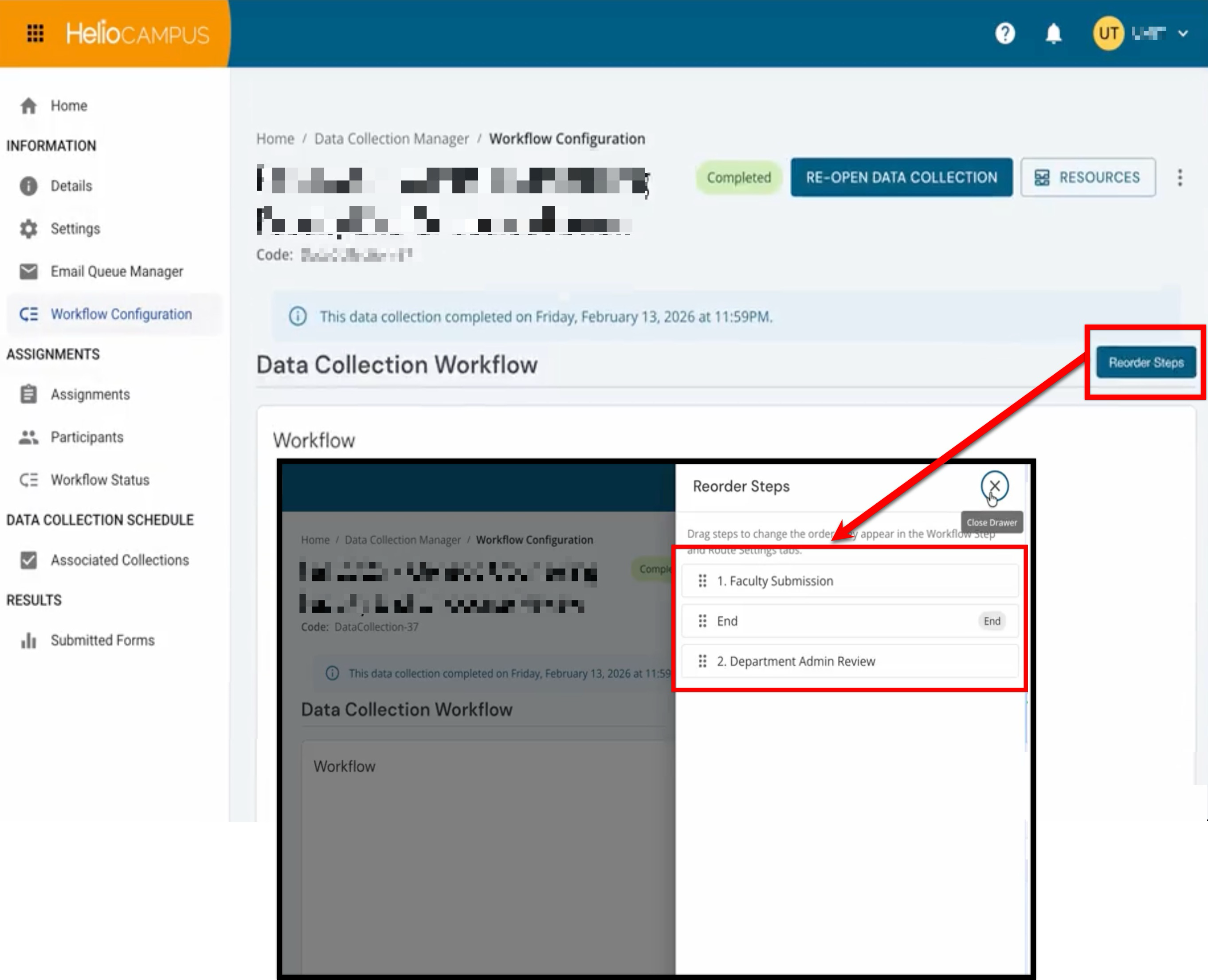
To improve overall usability and provide a more intuitive administrative experience, key terminology and accessibility constraints across the Data Collection workflow builder, notification engine, platform emails, and form reporting have been updated to use clearer, less technical language. This terminology update ensures consistency across the entire collection lifecycle, reducing operational friction when designing workflows, configuring automated notifications, and reviewing completion status reports. Additionally, administrators and coordinators now have the ability to adjust workflow step sequences directly without requiring HelioCampus assistance. Learn more.
Data Sets
The Program Assessment Results by Student data set has been enhanced to better support parent and child course sections. The new Enrolled_Course_Section and Enrolled_Course_Section_Code columns have been added to allow users to distinguish between a parent section where data is rolled up and the specific child section where a student was originally enrolled. When a student is enrolled in a child section whose data has been rolled up to the parent, the enrolled section (child section) and parent section (Course_Section) values will differ, making it easy to distinguish where the student's enrollment originated. When a student is enrolled in the parent section, the new enrolled columns will match the Course_Section column.
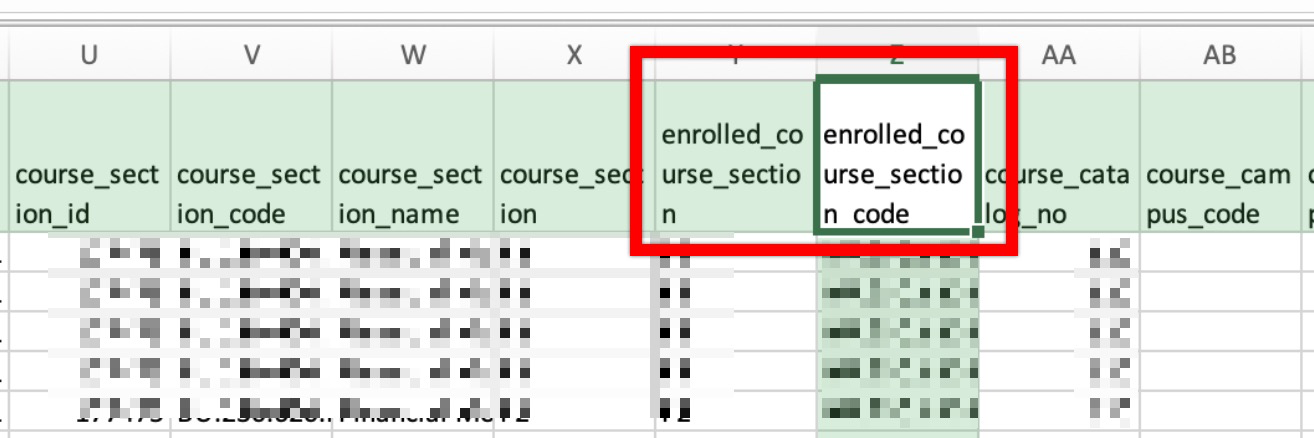
This enhancement provides Institutions with greater transparency into parent and child associations, enabling more accurate disaggregation of assessment results by actual student enrollment and supporting more precise reporting at the section level. Learn more.
Data Warehouse Documentation
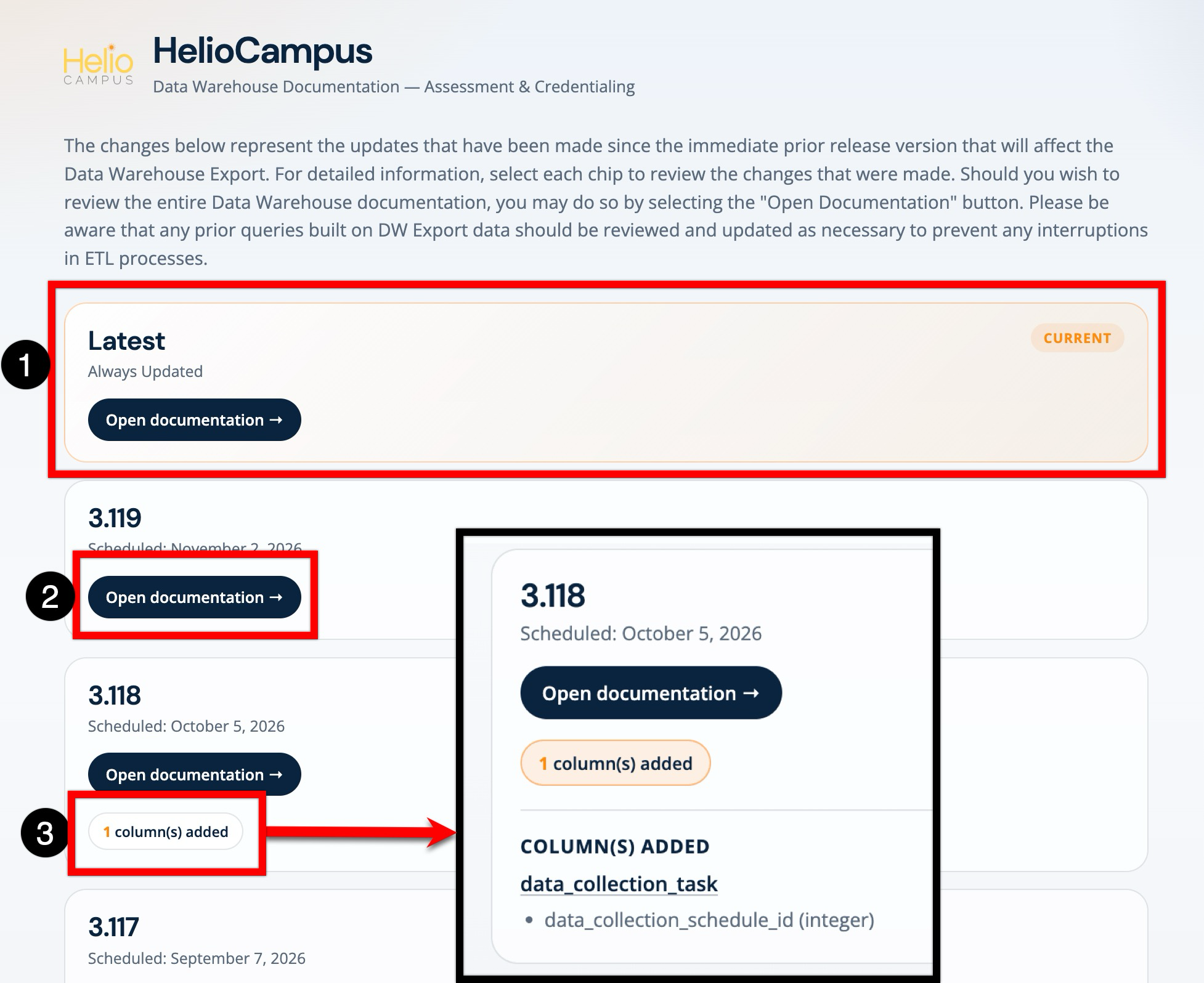
The generation and publishing of Data Warehouse (dbt) documentation is now fully automated, eliminating manual compilation and server uploads. Under the new automated workflow, documentation is updated and published automatically every two weeks across the three most recent platform versions, alongside a dedicated "latest" documentation set on the brand new Data Warehouse Documentation site. The Latest section (1) provides access to the most current Data Warehouse documentation and is updated automatically with each release. By release version, clicking Open documentation (2) lets users review the complete Data Warehouse documentation for that version. Change summary chips identify updates included in each release, such as added columns (3). Selecting a chip displays additional details about the change. This enhancement ensures that technical administrators and institutional data teams always have immediate, reliable access to up-to-date schema definitions and data model metadata. Learn more.
Email Queue Manager
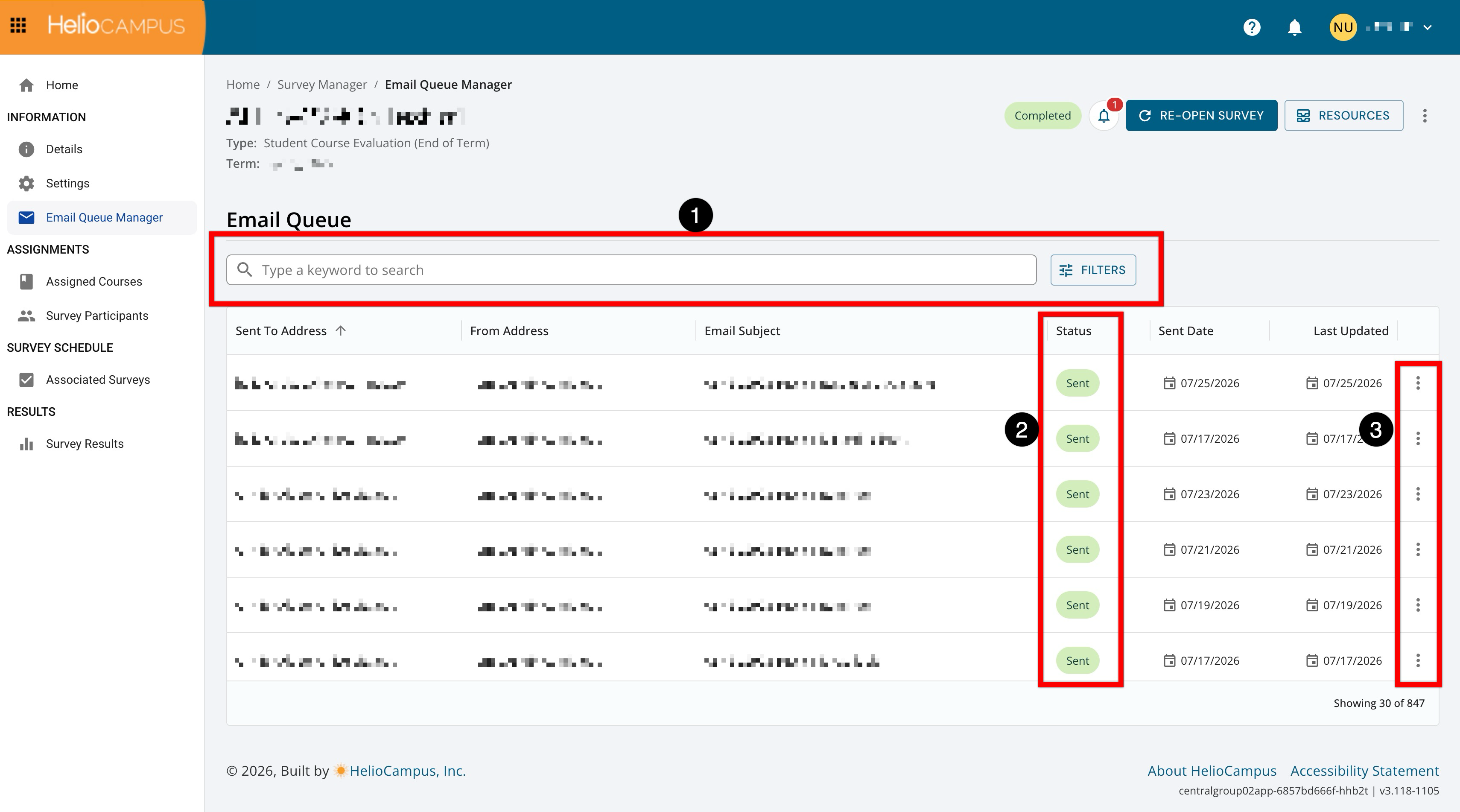
The Email Queue Manager page for surveys has been updated with an improved user interface. Search functionality is available, and clicking the Filters option enables filtering by status (1). The Status column (2) displays the delivery state for each email, indicating sent status. The Actions menu (3) provides actions for each email depending on status. Learn more.
Improved Session Handling
Platform session management has been redesigned to be less disruptive for active users with the following enhancements. These improvements significantly reduce the risk of losing unsaved work on long forms due to background session expiration.
-
Multi-Tab Support: Platform activity is now tracked at the session level rather than per browser tab. When multiple tabs are open, staying active in only one tab will keep the session alive across all tabs, preventing unexpected logouts from idle background tabs.
-
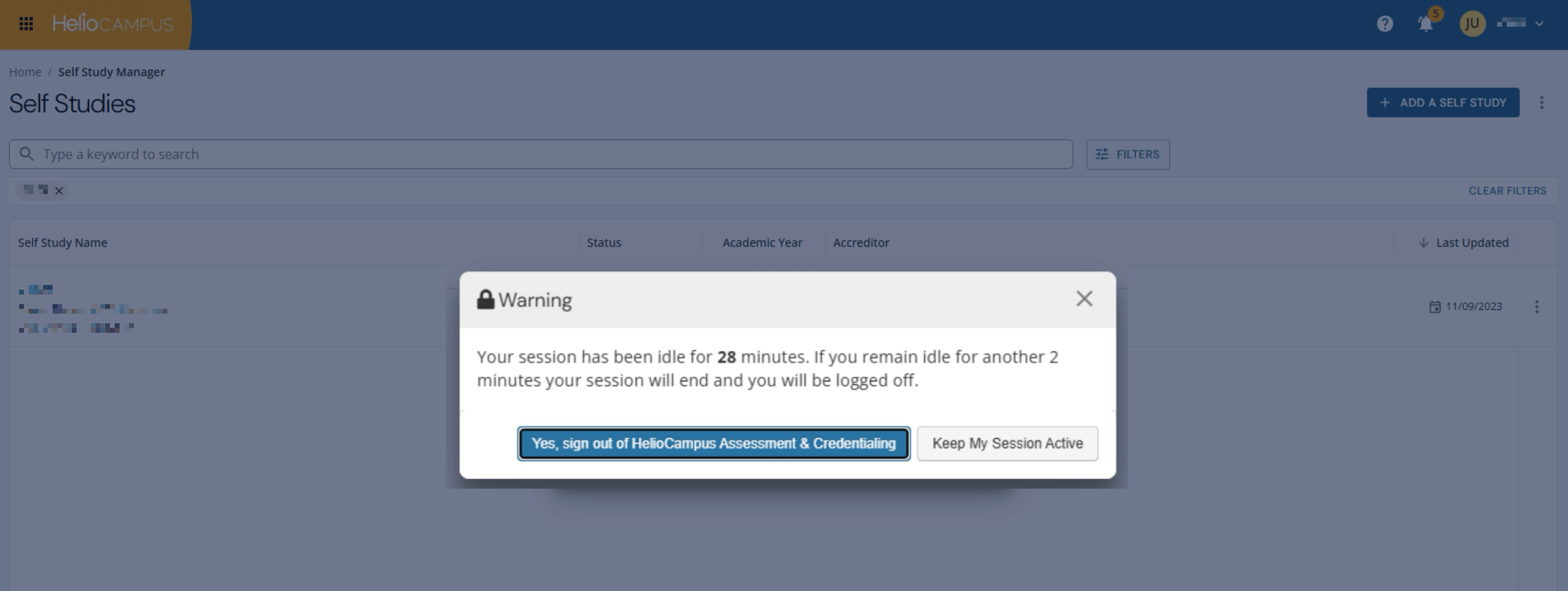
Inactivity Warnings: Instead of an immediate logout, the platform will now display a warning dialog when a session is nearing its 30-minute inactivity limit. Users can choose to acknowledge the dialog to reset the timer and continue working.
Juried Assessment Adjudicators
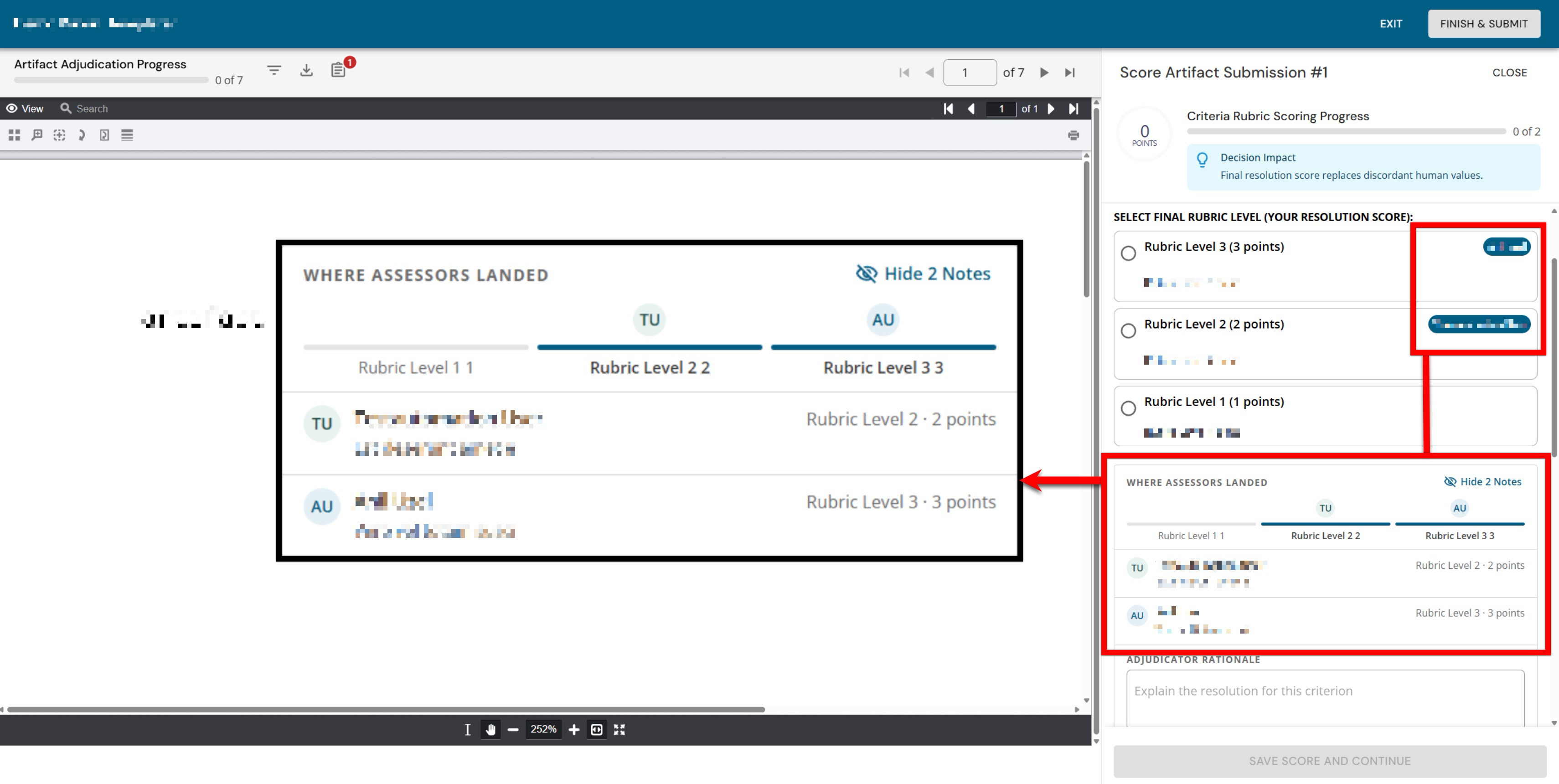
Adjudicator workflows now benefit from improved scoring transparency during artifact adjudication. Notes entered by Assessors during artifact evaluation are now preserved and displayed directly to Adjudicators alongside previous Assessor scores. When an artifact is routed to an Adjudicator, a new Where Assessors Landed section appears below the rubric levels, displaying the rubric selections made by each Assessor along with any notes provided during scoring. If notes are present, a Show/Hide Notes toggle is available to collapse or expand the notes view as needed. If no notes were submitted by Assessors, only the rubric scoring selection is displayed. This enhancement provides Adjudicators with direct access to Assessors' qualitative feedback and rationale, supporting more informed and efficient adjudication decisions. Learn more.
Juried Assessment Assessor Roles
The list of user roles eligible to be selected as Assessors and Adjudicators for Juried Assessments has been refined to ensure only appropriate administrative and instructional staff are assigned to these tasks. Selection is now limited to the following:
-
Course Coordinators
-
Course Section Directors
-
College Administrators
-
Department Administrators
-
Institution Administrators
-
Instructors
-
Program Coordinators
-
Teaching Assistants
This update streamlines the user search when setting up assignments and prevents accidental assignment of roles that typically do not perform assessment reviews, such as students or survey-specific admins. Learn more.
Juried Assessment Results by Outcome Report
The Juried Assessment Results by Outcome report has been updated with significant parameter improvements to enhance usability, reduce confusion, and align with conventions used across other report categories:
-
Include/Exclude Percentage Scored has been renamed to Include Percentage Scored to more accurately describe its function.
-
Artifact Type parameter has been repositioned to appear before course-related parameters. This change introduces intelligent conditional behavior:
-
When External Upload is selected as the sole artifact type, the following parameters are automatically deactivated and display "N/A," since externally uploaded artifacts are not tied to a specific section.
-
Campus
-
Delivery Mode
-
Course/Co-Curricular Activity
-
Instructor
-
Course/Co-Curricular Section
-
Submission Type
-
-
When LMS is selected (alone or in combination with External Upload), all course-related parameters remain active.
-
-
Instructor has been moved to appear before the Course/Co-Curricular Section parameter. Selecting an Instructor now filters the available course sections, consistent with the behavior in survey and other report categories.
-
A new Delivery Mode parameter has been added immediately following the Campus parameter. Both Campus and Delivery Mode values are dynamically filtered based on earlier selected parameters.
-
The Educational Experiences parameter has been removed. This parameter previously populated educational experience categories from the program hierarchy, which caused confusion. Removing it simplifies the parameter panel without impacting report functionality.
-
Course has been renamed to Course/Co-Curricular Activity, and Course Section has been renamed to Course/Co-Curricular Section. Both parameters now display the course or section code as the primary value, with the name as a secondary value (e.g., BIO 101 – Intro to Biology).
These enhancements provide more meaningful identifiers consistent with other reports in the platform. Learn more.
The Learning Journey
The Learning Journey has been updated to ensure that all content remains fully visible and usable when the browser is zoomed up to 400%. Previously, at high zoom levels on smaller viewports, the header section could overlap the main content area, making it difficult or impossible for users to read or interact with dashboard content without horizontal scrolling or manual repositioning. With this improvement, the layout now adapts responsively to the available viewport at magnification levels up to 400%, maintaining a logical content sequence and preventing overlap between navigation elements and the main content region. This enhancement aligns with WCAG 2.2 Accessibility Standards, ensuring users who rely on browser zoom or magnification tools can access their Learning Journey without losing information or functionality. Learn more.
Learning Journey Engagement by Student Report
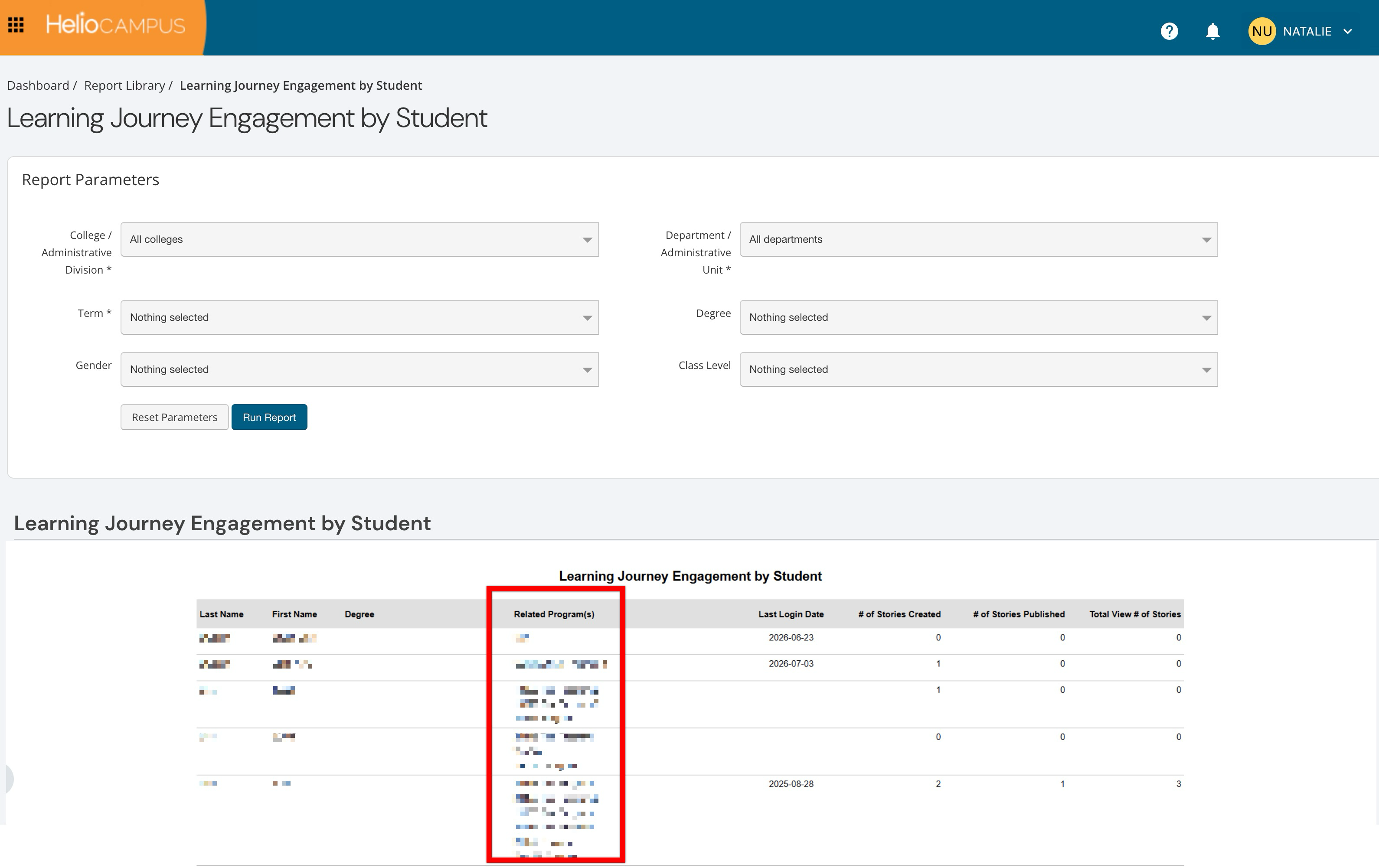
The Learning Journey Engagement by Student report has been updated to better support completion-based journeys that are not associated with a specific program. Previously, the report required a Program parameter, which limited its usefulness for Institutions using newer completion-based journey configurations that operate independently of the program hierarchy. With this update, the Program parameter has been removed entirely, allowing users to generate the report without selecting a program.
The report output has also been restructured for clarity. The former Program column has been renamed Related Program(s) and moved after the Degree column. If a student has one or more related programs, they appear in this column, with line breaks separating each value. If a student does not have a related program, the column displays N/A. Additionally, students who previously appeared across multiple rows (one per associated program) now consolidate into a single record per student, eliminating data duplication and providing a cleaner view of engagement data. All changes are reflected in CSV, PDF, Excel, and Word exports, ensuring consistency between the on-screen report and downloaded files.
LMS LTI Integration
Students accessing the platform via LMS LTI integration will now see a newly designed, dedicated full-screen landing page when the Learning Journey is enabled. This update streamlines student navigation by replacing the previous LMS main menu with an intuitive, centralized dashboard tailored to student learning outcomes and progress tracking. The new interface provides immediate access to core experience details, including course overviews, item count metrics, faculty information, syllabus access, and Course Learning Outcomes (CLOs). Dedicated tabs allow students to seamlessly navigate between To-Do and Completed tasks, skills with detailed assessment performance summaries, and earned badges. To enhance readability and usability, list-based sections (including CLOs, tasks, and skills) feature collapsible content areas.
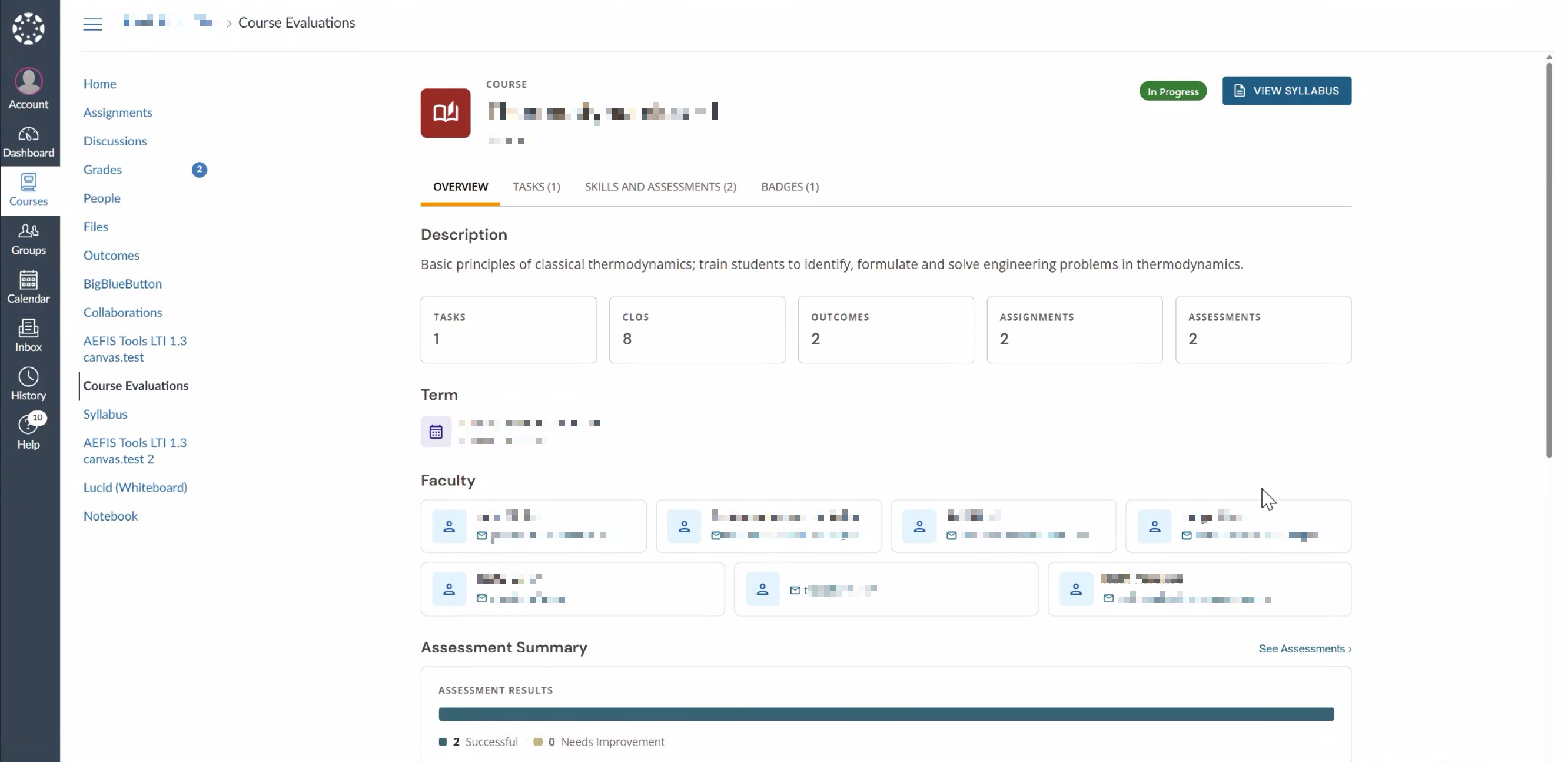
This full-screen landing page is displayed exclusively to users assigned student-level roles (Student and CLR Student). Faculty members and users with combined faculty and student roles will continue to land on the standard course section views, ensuring that instructor workflows and administrative functionality remain unchanged. Learn more.
Program/Course Assessment Analysis Report
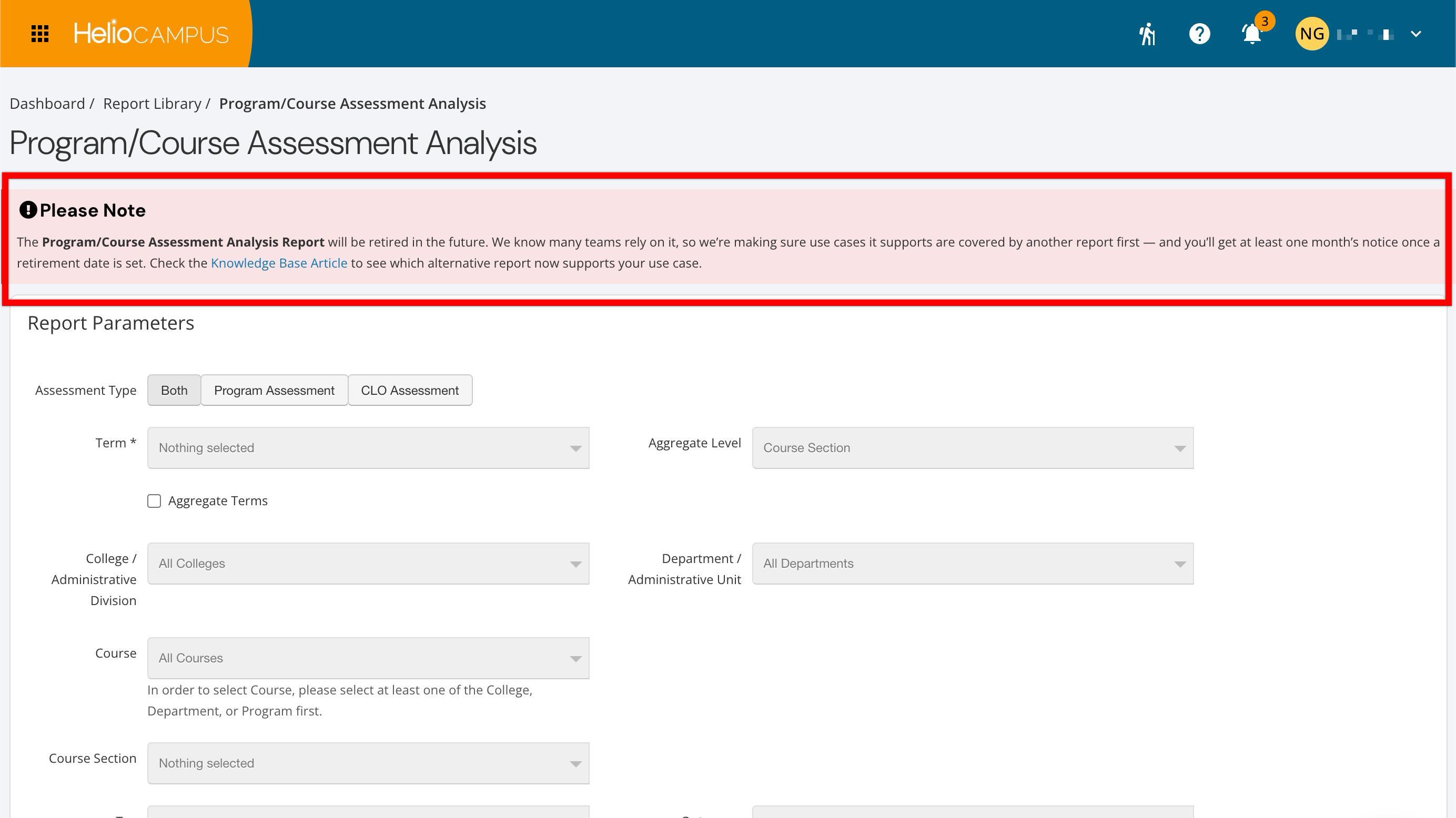
To help Institutions proactively transition reporting workflows and avoid disruptions, the informational banner added to the Program/Course Assessment Analysis has been updated with retirement notice details and a link to the updated article for support using alternative reporting options. Learn more.
‘Please Note: The Program/Course Assessment Analysis Report will be retired in the future. We know many teams rely on it, so we’re making sure use cases it supports are covered by another report first — and you’ll get at least one month’s notice once a retirement date is set. Check the Knowledge Base Article to see which alternative report now supports your use case.’
Program Enrollment Audit
The Program Enrollment Audit report now includes a pre-calculation step that evaluates the total number of records before rendering results. If the expected result count exceeds the platform's display threshold, a message informs the user that the report cannot be populated because of the data volume. This prevents high-volume queries from causing performance errors or timeouts during report generation. The CSV and Excel export options remain fully available regardless of the record count, ensuring that users can still retrieve and work with large data sets offline even when on-screen rendering is not supported. This approach balances performance with continued access to raw data for high-volume reporting needs, helping Institutions avoid unexpected errors with broad parameter selections while preserving full data accessibility through export. Learn more.
Self Studies
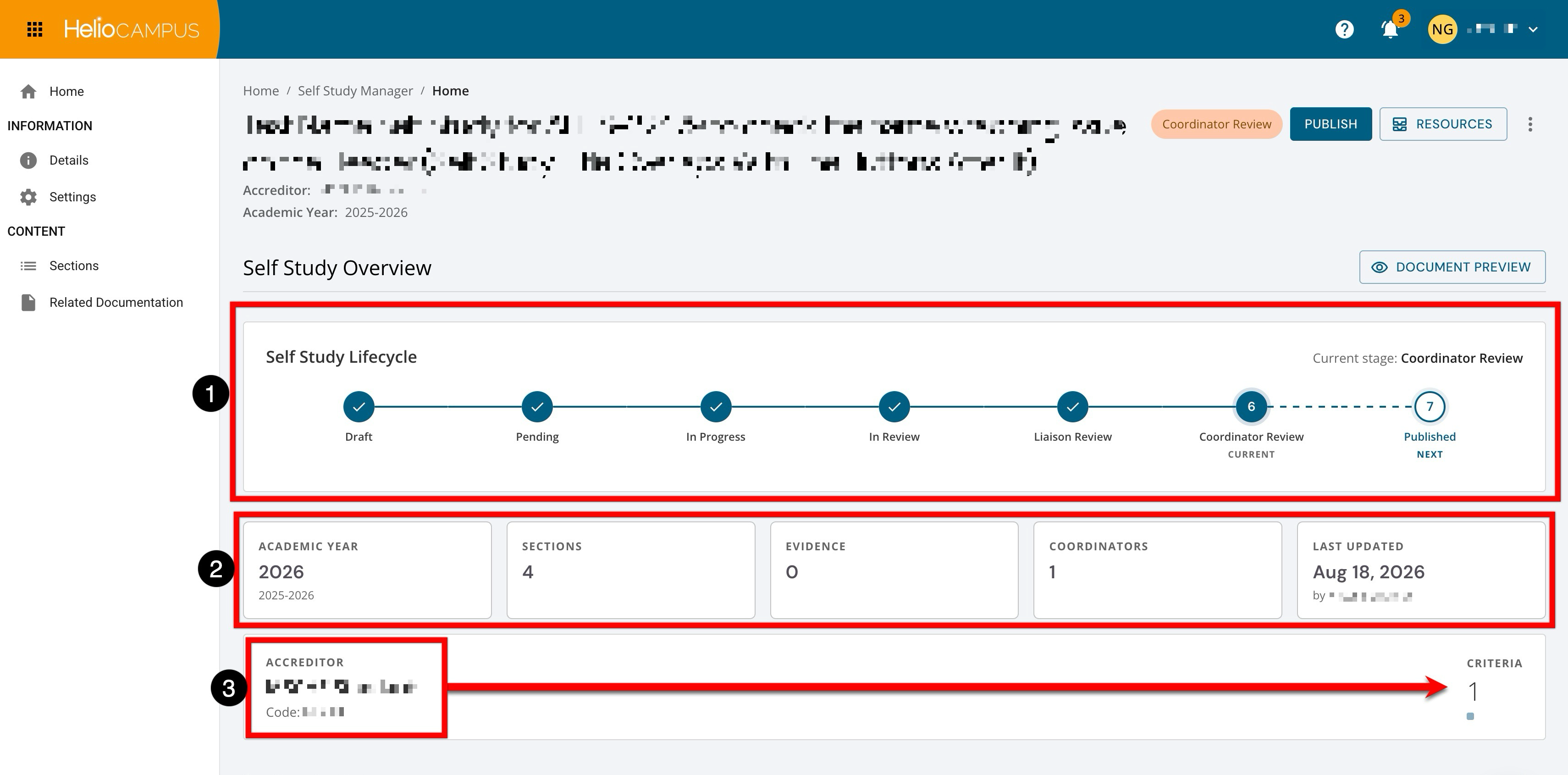
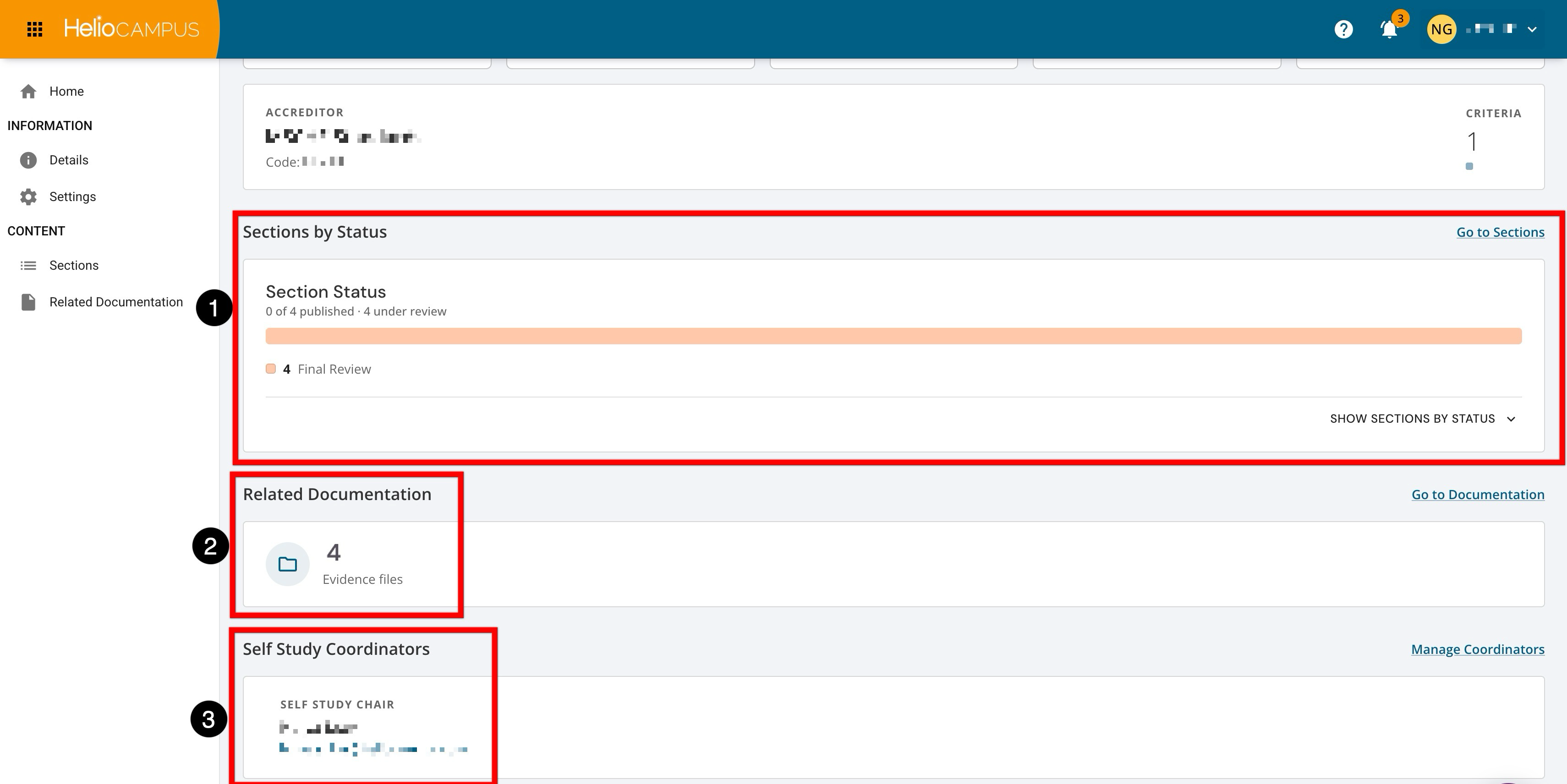
The Self Study Manager and related sub-pages have been updated with a redesigned Homepage and several usability improvements across the Related Documentation, Details, and Sections pages. The Homepage has been enhanced with a modernized interface that presents key self study information in a more visual, structured layout. Learn more.
The updated homepage includes the following areas:
-
Self Study Lifecycle (1): A visual timeline displaying all selected stages of the self study, highlighting the current stage and indicating the next step in the process. Only stages selected for the self study are shown.
-
Summary Statistics (2): At-a-glance cards displaying the academic year, total section count, evidence count, coordinator count, and the date the self study was last updated.
-
Accreditor Information (3): Displays the accreditor name, code, and total count of available criteria.
-
Sections by Status (1): A visualization summarizing sections by their current status, with the ability to expand and view a listing of individual sections grouped by status. When rubric scoring is enabled, an additional visualization of rubric scoring progress is also displayed.
-
Related Documentation (2): A summary of all related documentation with a count grouped by file type.
-
Coordinators (3): A listing of all self study coordinators with a link to manage assignments.
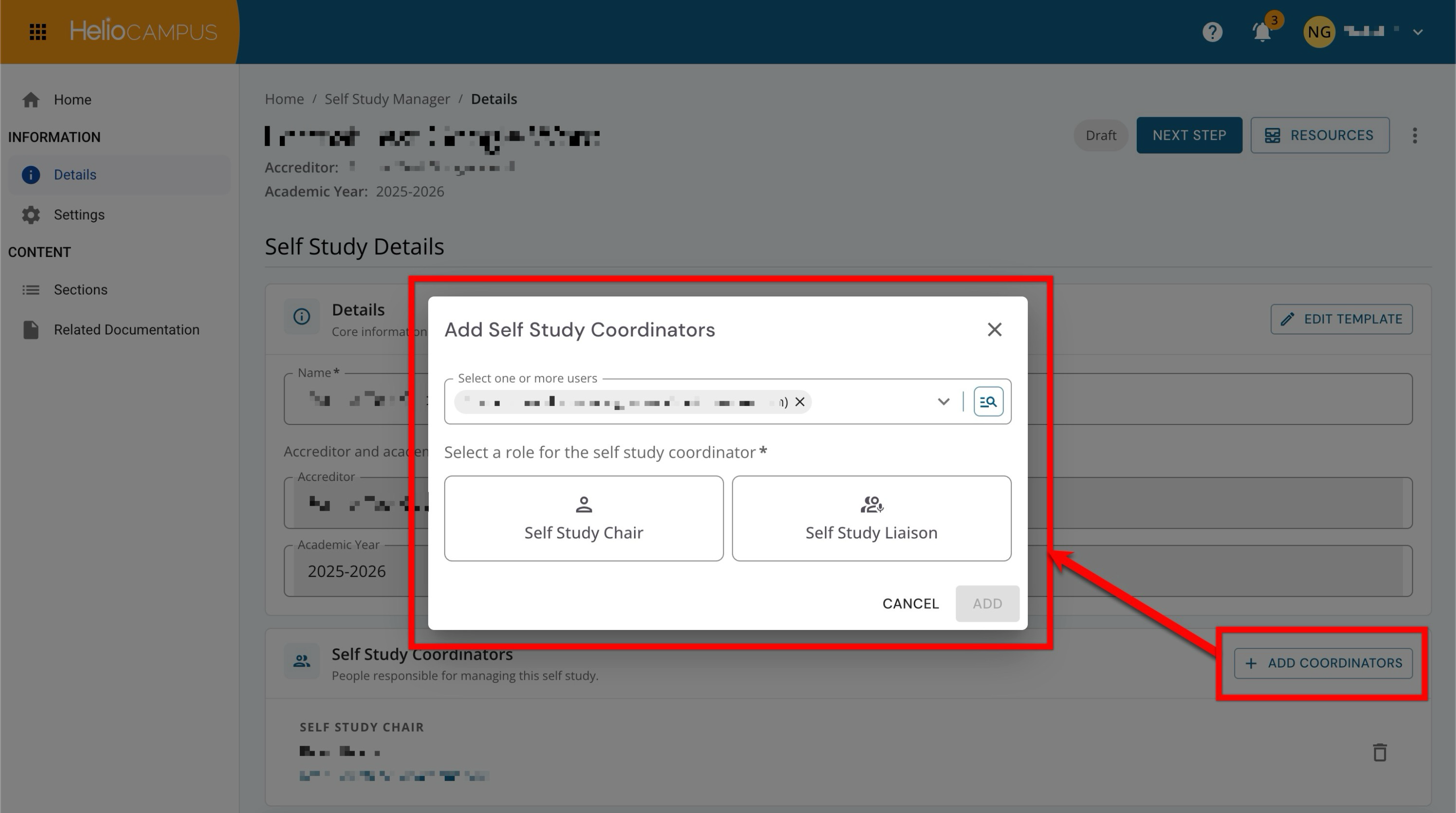
When adding coordinators on the Details page, a role is no longer automatically pre-selected. Users must now explicitly select a role before confirming the assignment, reducing the risk of unintended role assignments.
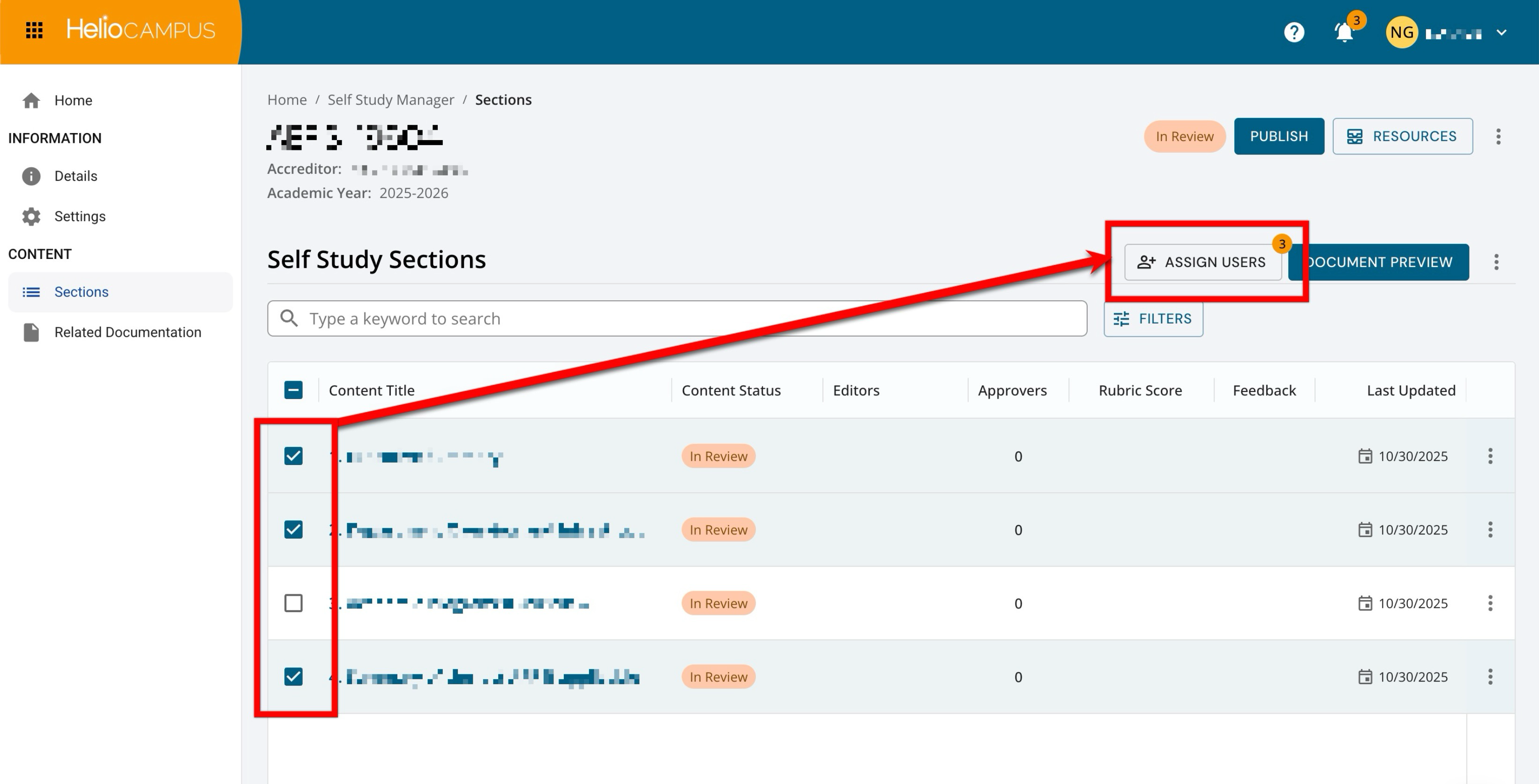
The Sections page now supports bulk user assignment. Users can select one or more sections using multi-select checkboxes and then assign editors or approvers to all selected sections in a single action using the new Assign Users button. This enhancement reduces repetitive configuration when the same users need to be assigned across multiple sections.
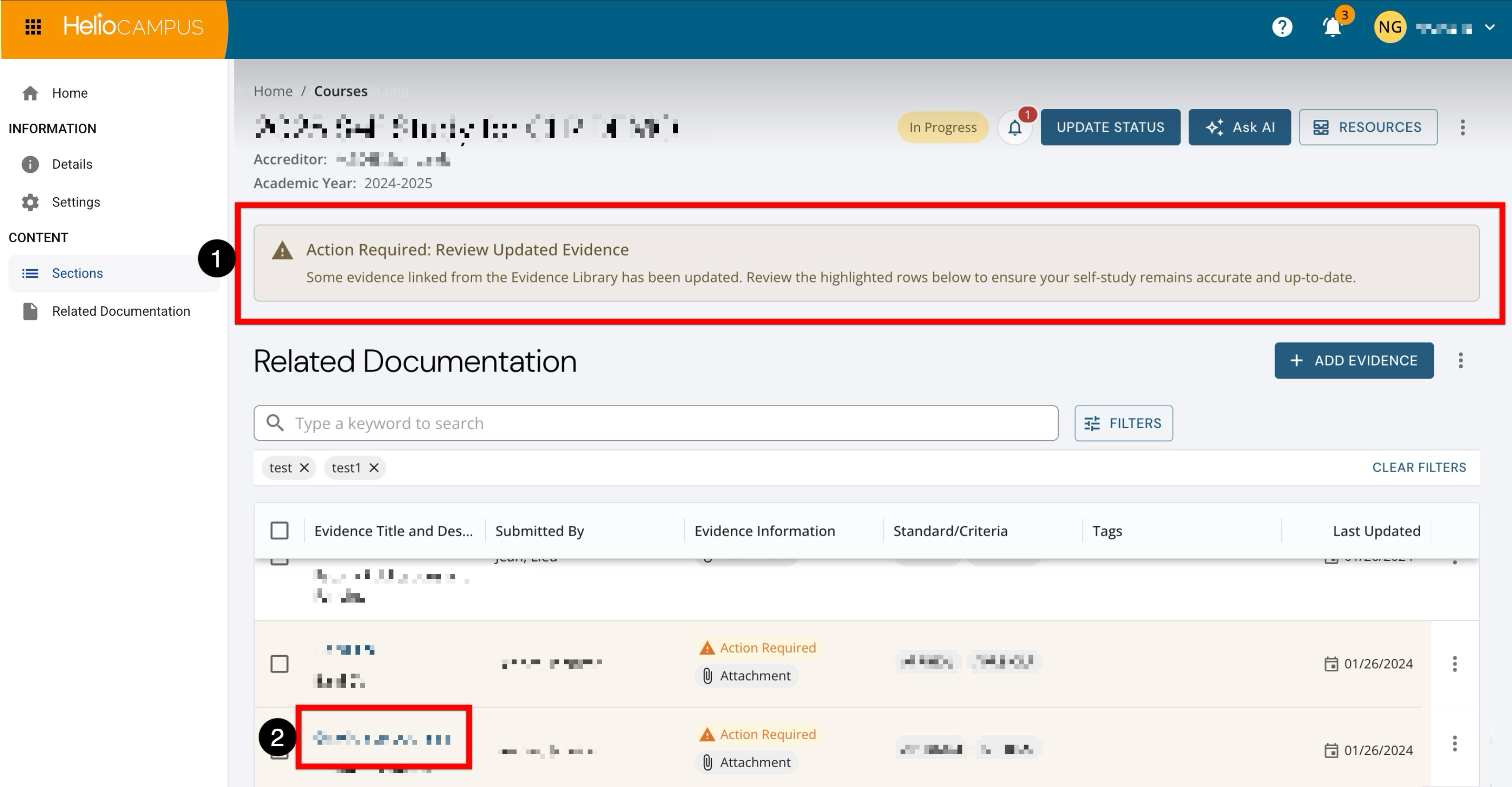
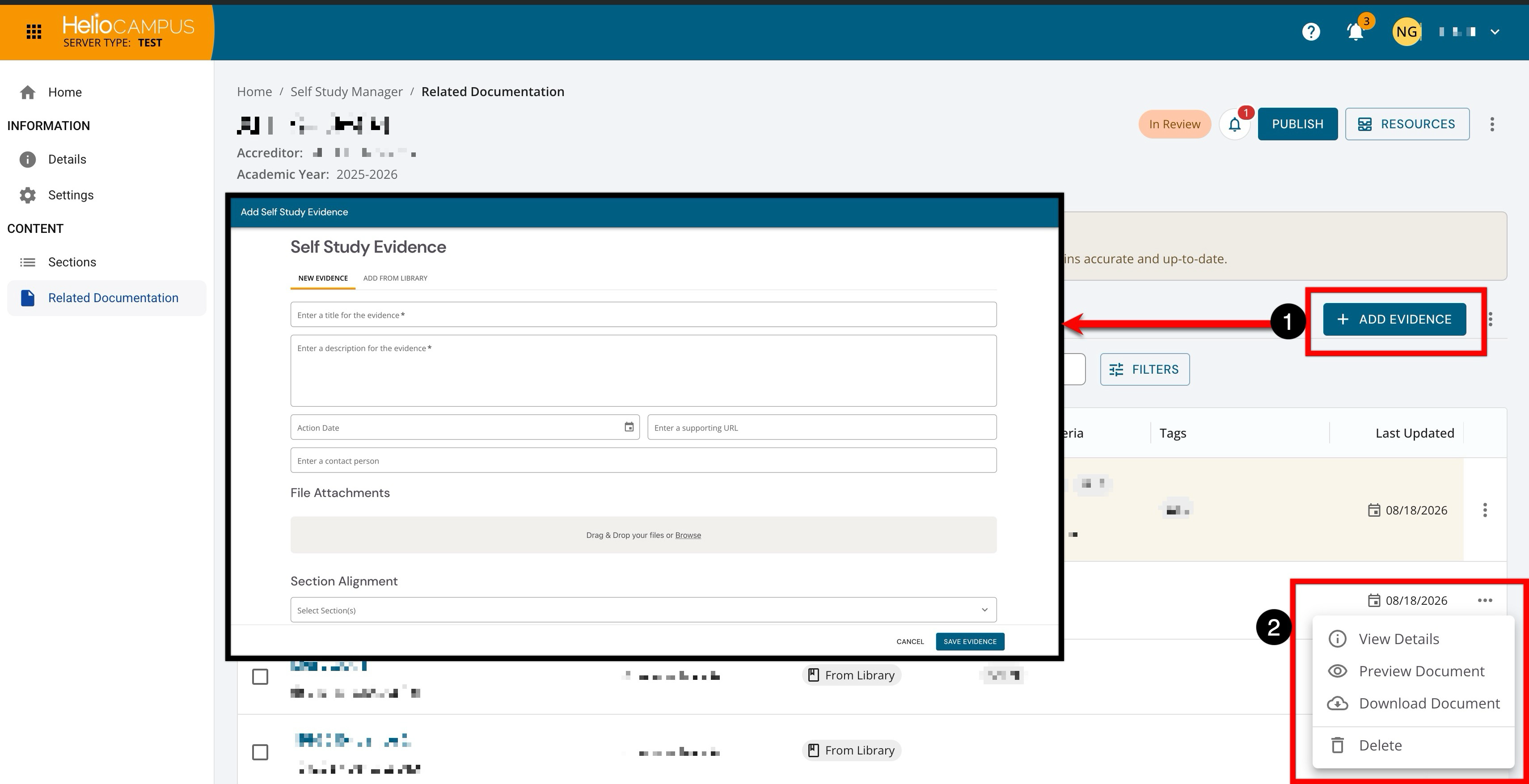
The Related Documentation page now displays an action required banner (1) when evidence requires review, ensuring users are immediately aware when attention is needed. Evidence titles are now clickable (2), and selecting a title opens the Edit drawer or the View Details drawer, as applicable based on status, reducing the number of clicks needed to interact with the related documentation.
The form for creating or editing related documentation has been updated to a full-page layout, replacing the previous side-drawer panel (1). The new full-page layout provides more working space and includes an improved footer bar that displays real-time validation messaging, alerting users to missing required fields or formatting errors before submission. Additionally, uploaded evidence files can now be deleted after they have been saved (2), resolving a previous limitation where file attachments could not be removed once created.
Self Study Document Validation
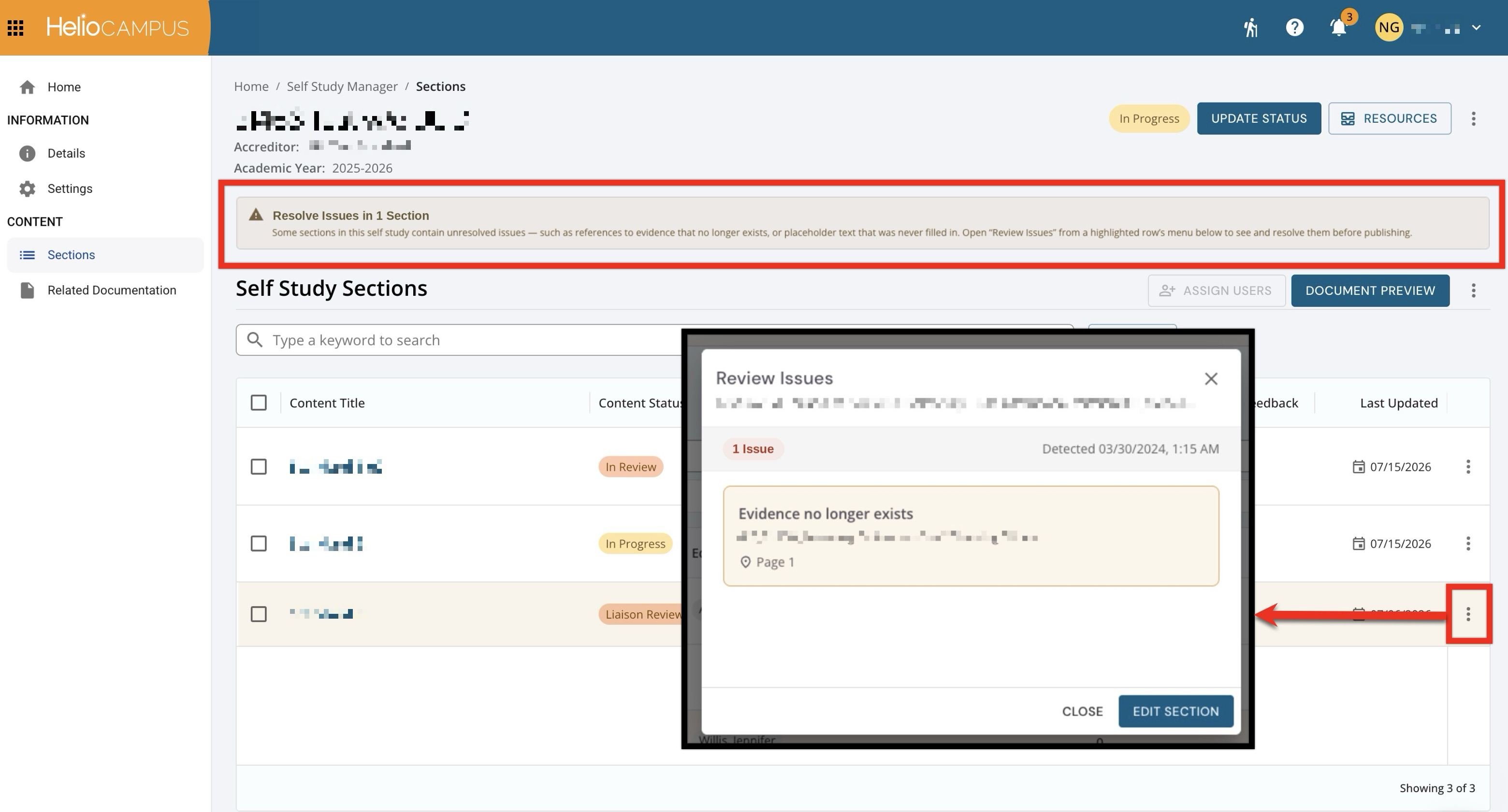
The Self Study feature has been updated with an enhanced document validation and alert framework designed to identify and surface document issues during template processing and output generation. Previously, syntax errors, missing evidence references, or formatting inconsistencies within self-study sections could cause export failures or unexpected document behavior without clear diagnostic feedback. With this enhancement, the platform automatically evaluates self-study templates and individual section content, capturing validation errors directly into a structured validation record.
To support quick visual identification and resolution, a new warning banner accompanied by row highlighting immediately alerts users to sections requiring attention. Additionally, corresponding action items are generated for self-study sections with flagged issues, enabling document owners to navigate directly to the affected content and resolve errors before final export. Together, these improvements strengthen document integrity, streamline self-study drafting and review, and prevent export bottlenecks for Institutions preparing self-study materials for accreditation. Learn more.
Self Study Evidence
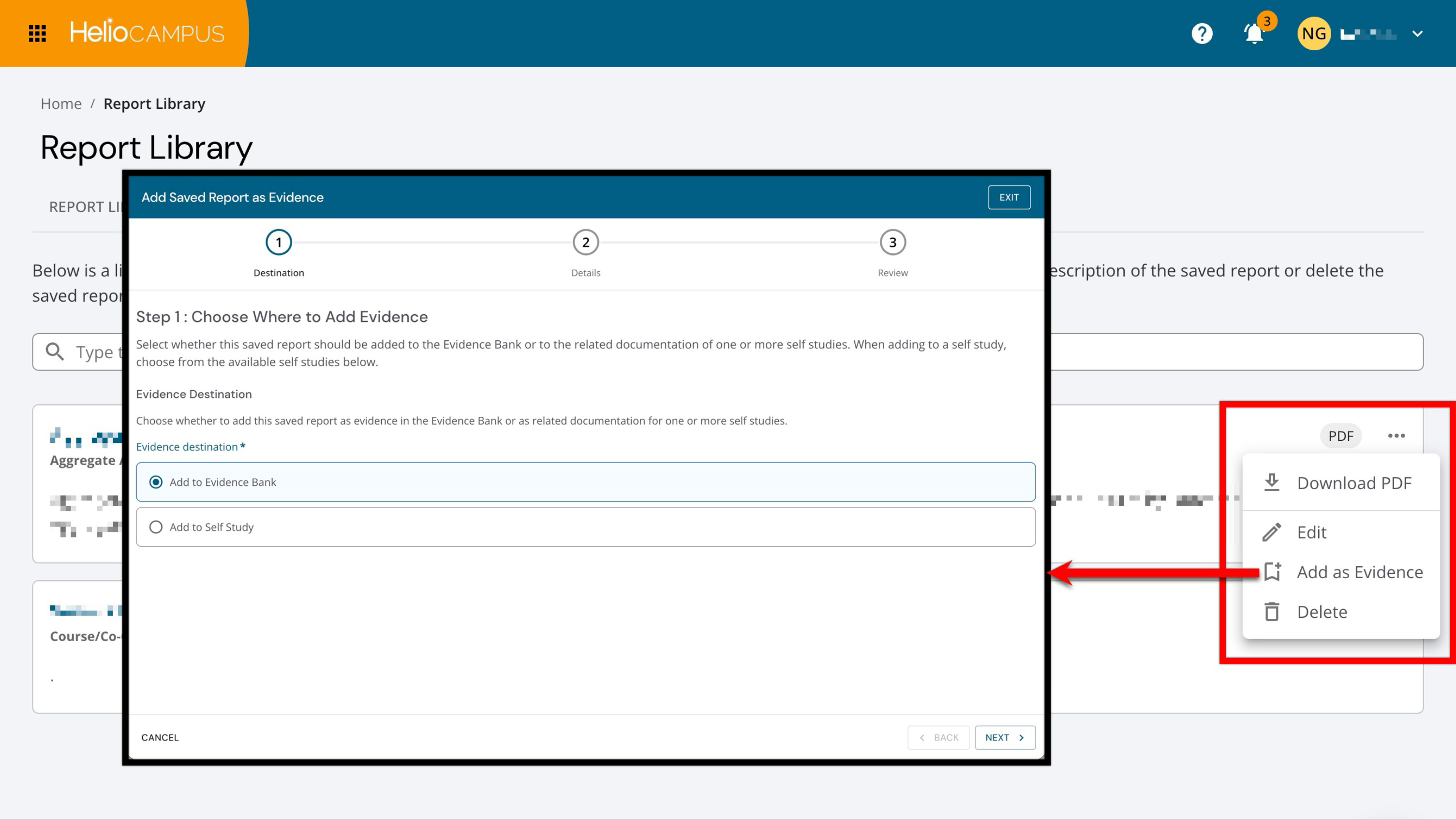
Users can now add a saved PDF report as evidence directly from the My Saved Reports page, streamlining the process of attaching platform-generated report artifacts to a Self Study or the Evidence Bank. A new Add as Evidence option is available in the More Options menu for saved PDF reports. When selected, a full-page wizard guides users through the evidence creation process, offering the choice to save the report as evidence to the Evidence Bank or to the Related Documentation of one or more self studies. This option is available only for saved PDF reports; saved report parameters without a generated PDF do not display the Add as Evidence action.
When adding evidence to a Self Study, the wizard shows only self studies the user can access and excludes published self studies. After selecting a self study, users complete the standard evidence form fields with the saved report PDF automatically attached as the evidence artifact. Users can also save to the Evidence Bank during this process. Once saved, the evidence follows existing workflows and appears in the selected self study's Related Documentation.
This enhancement reduces manual steps for users who previously needed to download a report, navigate to a self study, and upload the file separately, enabling a seamless, end-to-end workflow for attaching report-based evidence directly to accreditation and program review documentation. Learn more.
Self Study Manager
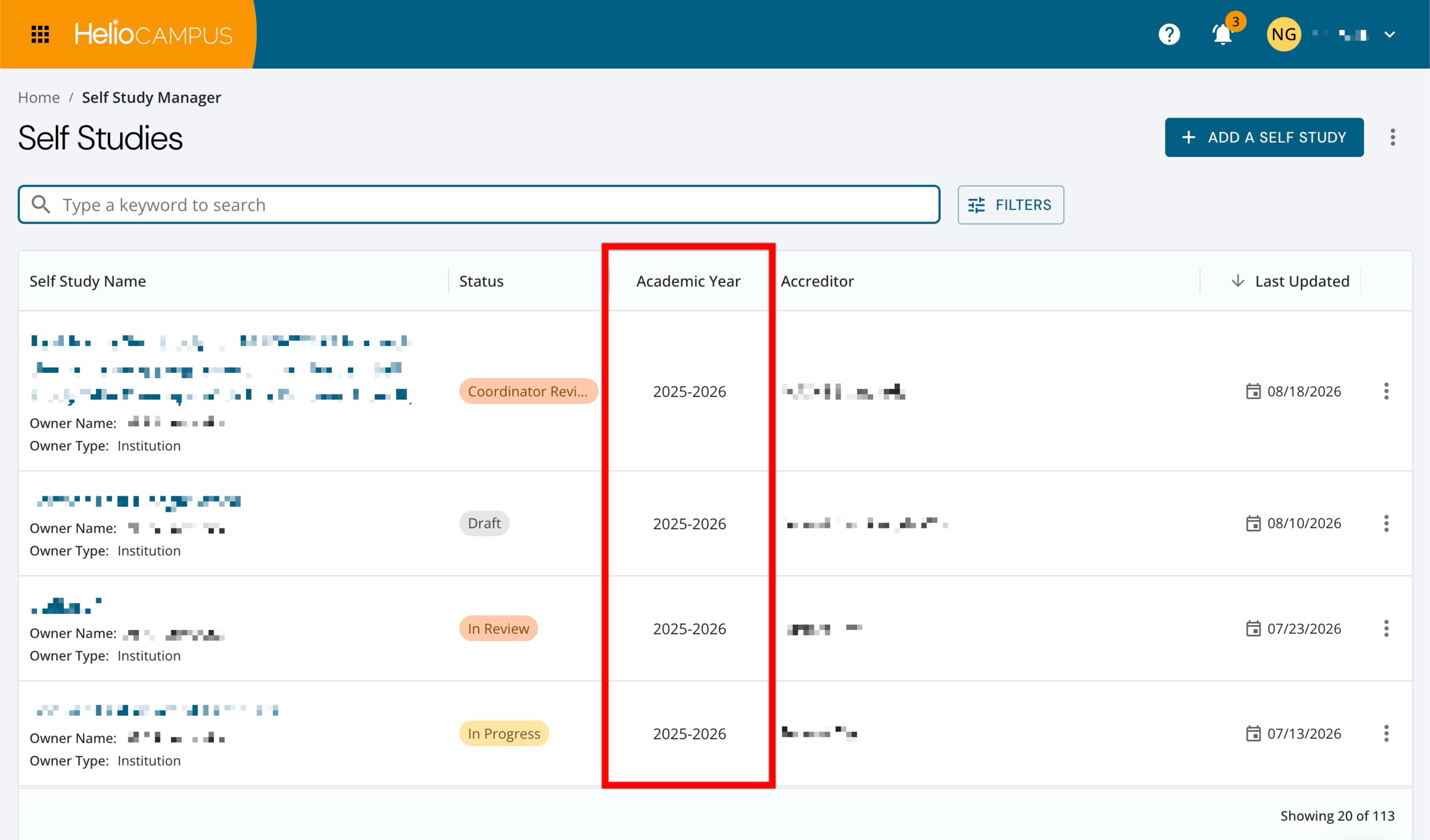
The Academic Year column on the Self Study Manager has been updated to match the naming convention used on the Self Study Homepage. Previously, the manager list displayed the start year (e.g., 2025), while the homepage showed the academic year name (e.g., 2026). These views are now aligned to ensure consistent identification of self study records across the platform. Learn more.
Strategic Plan Objectives
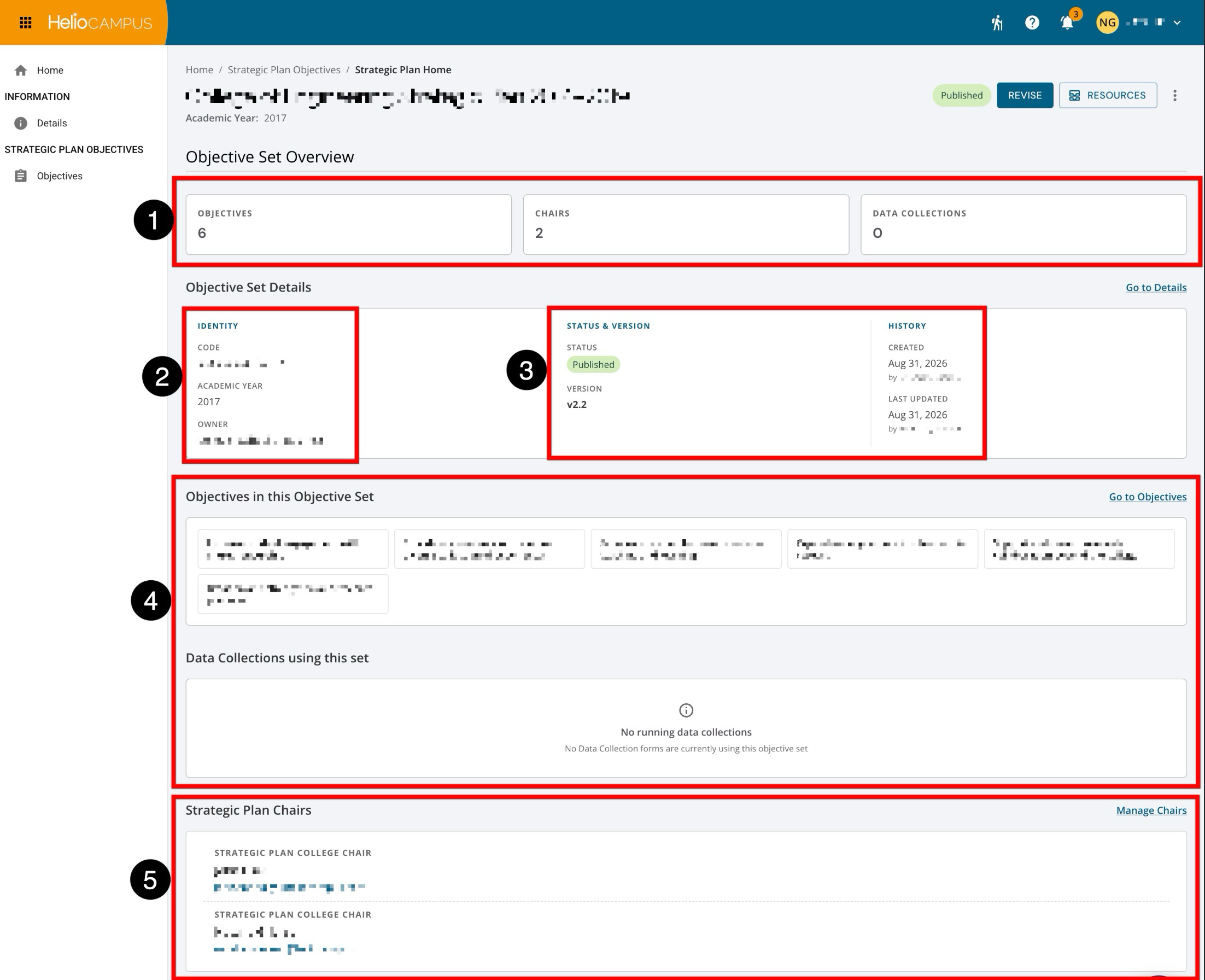
The Strategic Plan Objectives inner pages have been updated with an improved user interface. The updated pages deliver a streamlined experience for managing strategic plan objectives. The new Homepage provides an at-a-glance overview of key metrics for quick review. Summary cards now display the total number of objectives, chairs, and associated data collections (1). Additional information is organized into distinct sections, including identifying details such as code, year, and owner (2), as well as status, version, and history details (3). Further details on the objectives and associated data collections are included (4) as well as users added as Strategic Plan Chairs (5).
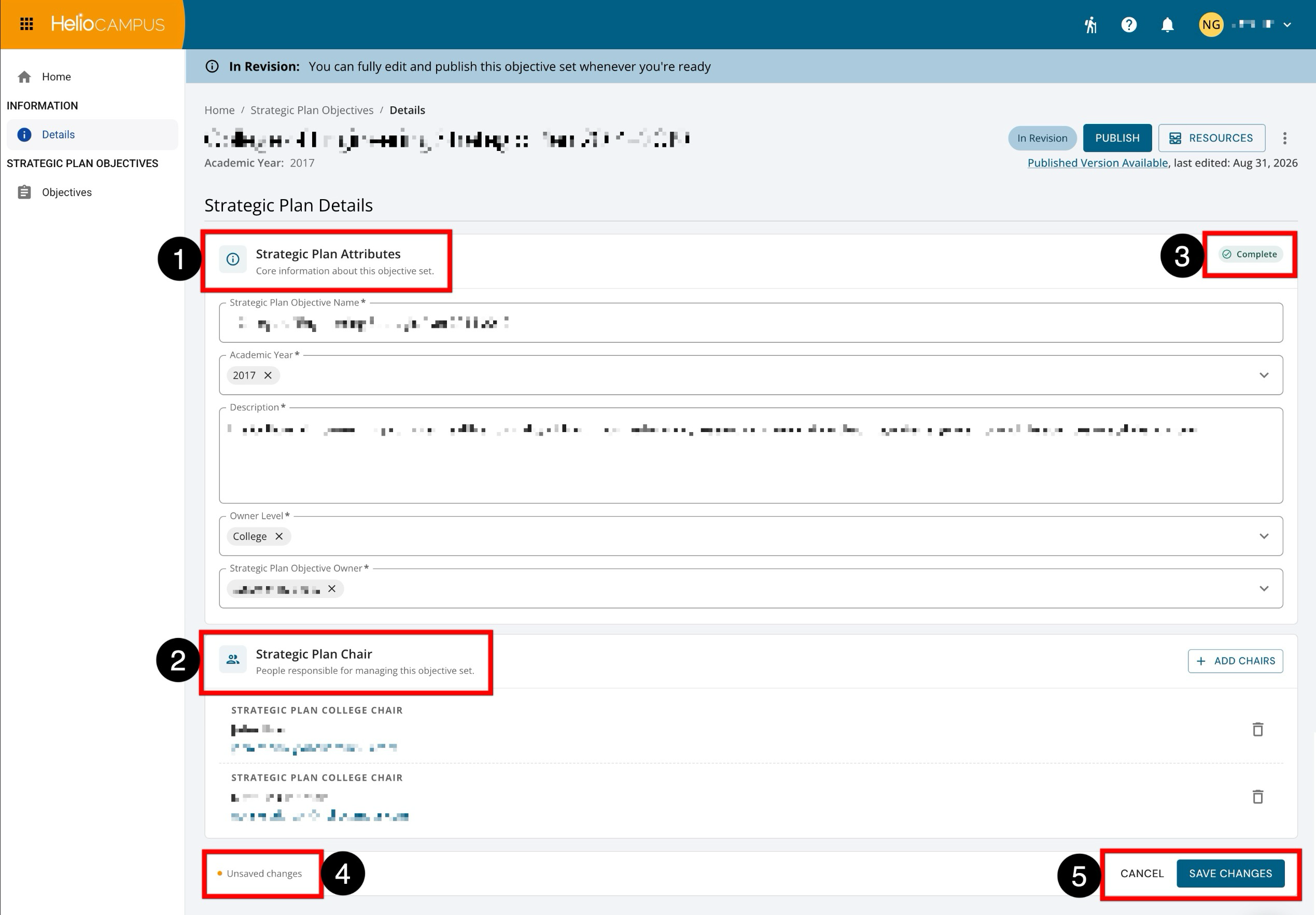
The Details page has been updated with a clearer, more guided layout for editing strategic plan information. The page now separates editable information into focused sections where users can review and update the plan attributes (1) and manage Strategic Plan Chairs (2). Each section now includes a completion indicator (3), making it easier to confirm whether required information has been provided. When edits are made, an unsaved changes indicator appears (4), and users can either cancel or save their updates using the persistent action buttons at the bottom of the page (5).
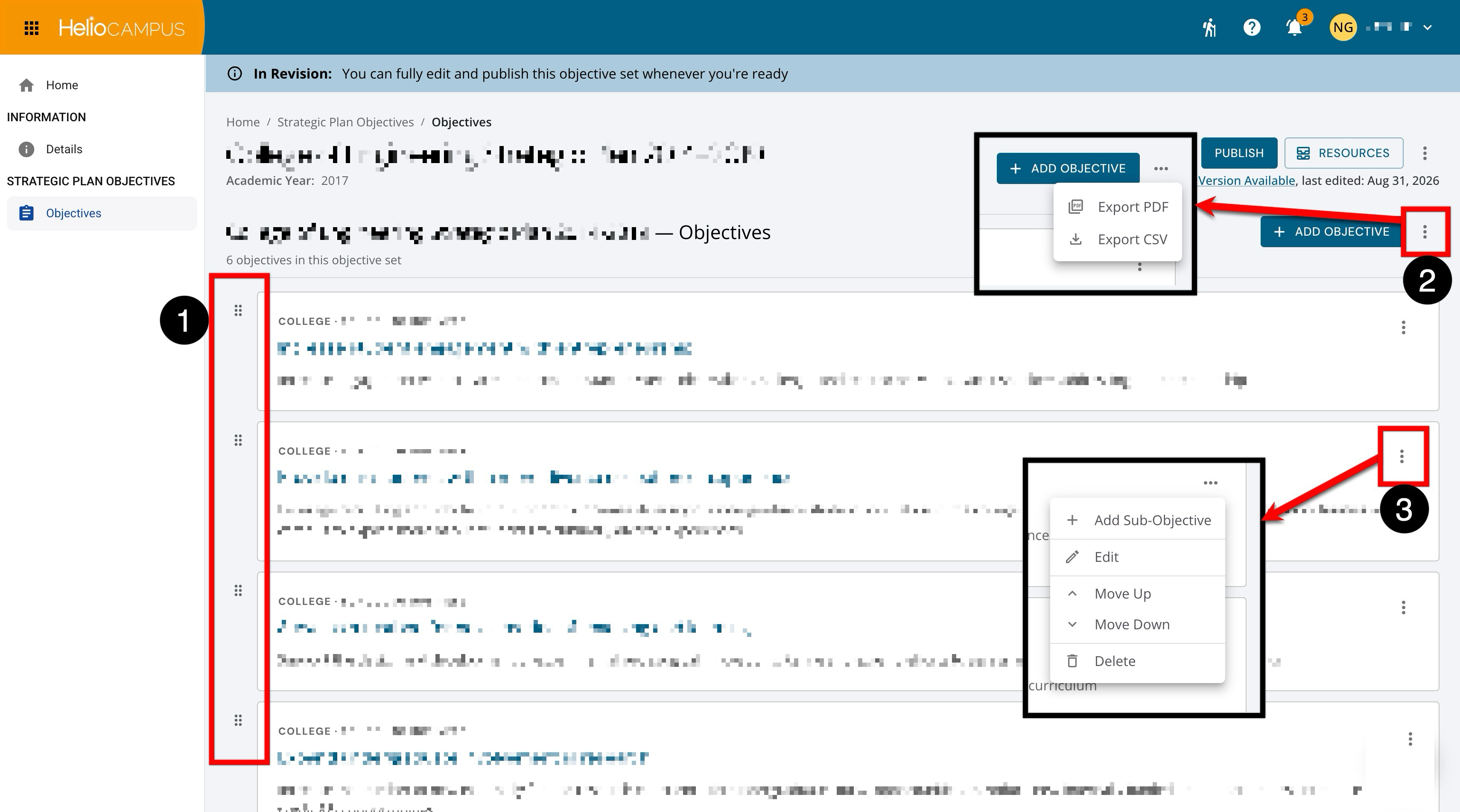
The Objectives page has been updated to make managing objectives clearer and more efficient. Objectives are now displayed in a streamlined list view with drag-and-drop functionality, allowing users to quickly review and reorder objectives (1). A page-level actions menu is available for broader actions, including importing and exporting the objective set to CSV (2). Each objective includes an actions menu, where users can add sub-objectives, edit, copy, reorder, or delete an individual objective as needed (3).
Student Course Evaluation Results by Instructor Report
The Student Course Evaluation Results by Instructor report header now displays the course section title alongside the existing course section code. Previously, the report header only displayed the section code value (e.g., "BIO 100 001"), which could make it difficult to quickly identify the subject area being evaluated without cross-referencing other sources. With this improvement, the full section title now appears in the report header alongside the code, providing immediate context and making it easier for faculty and administrators to identify and distinguish reports at a glance.
Surveys
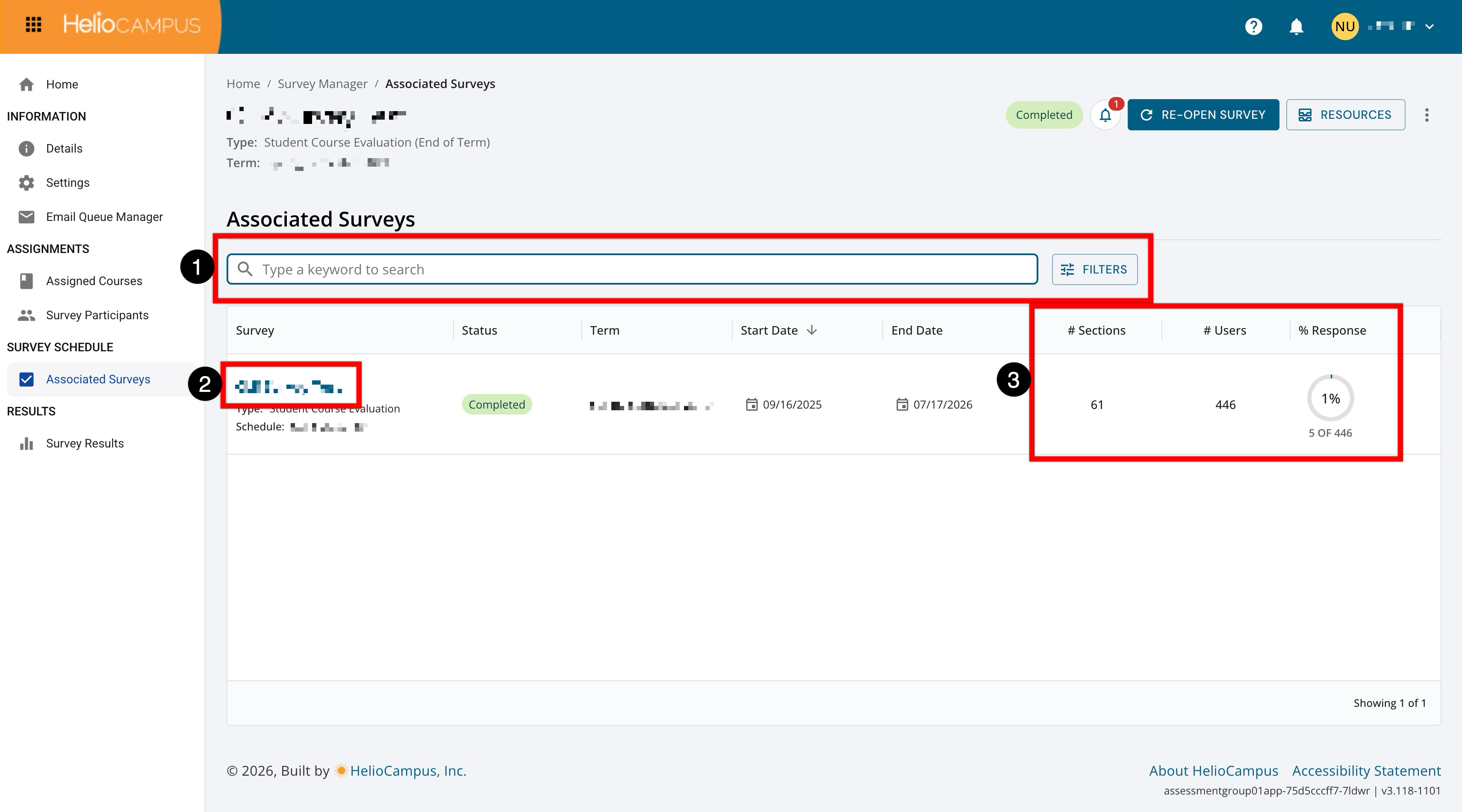
The Associated Surveys page for surveys has been updated with an improved user interface. Search functionality is available, and clicking the Filters option enables filtering by status (1). Clicking a survey name (2) automatically navigates to that survey's homepage. The total number of included sections and associated users (survey participants) is easily visible, along with an indicator showing the overall response rate for a survey (3). This response rate is displayed for each associated survey; this includes how many assigned users have completed/responded compared with the total number of users assigned to that survey. Learn more.
Survey Assigned Courses
The Assigned Courses page within survey instances has been updated with an improved user interface to better handle bulk operations more efficiently. Previously, selecting all course sections and clicking Assign/Unassign could fail to complete when processing a high volume of sections. With this enhancement, bulk operations that exceed a performance threshold are now processed in the background, ensuring that all assignment changes are applied successfully regardless of the number of course sections involved.
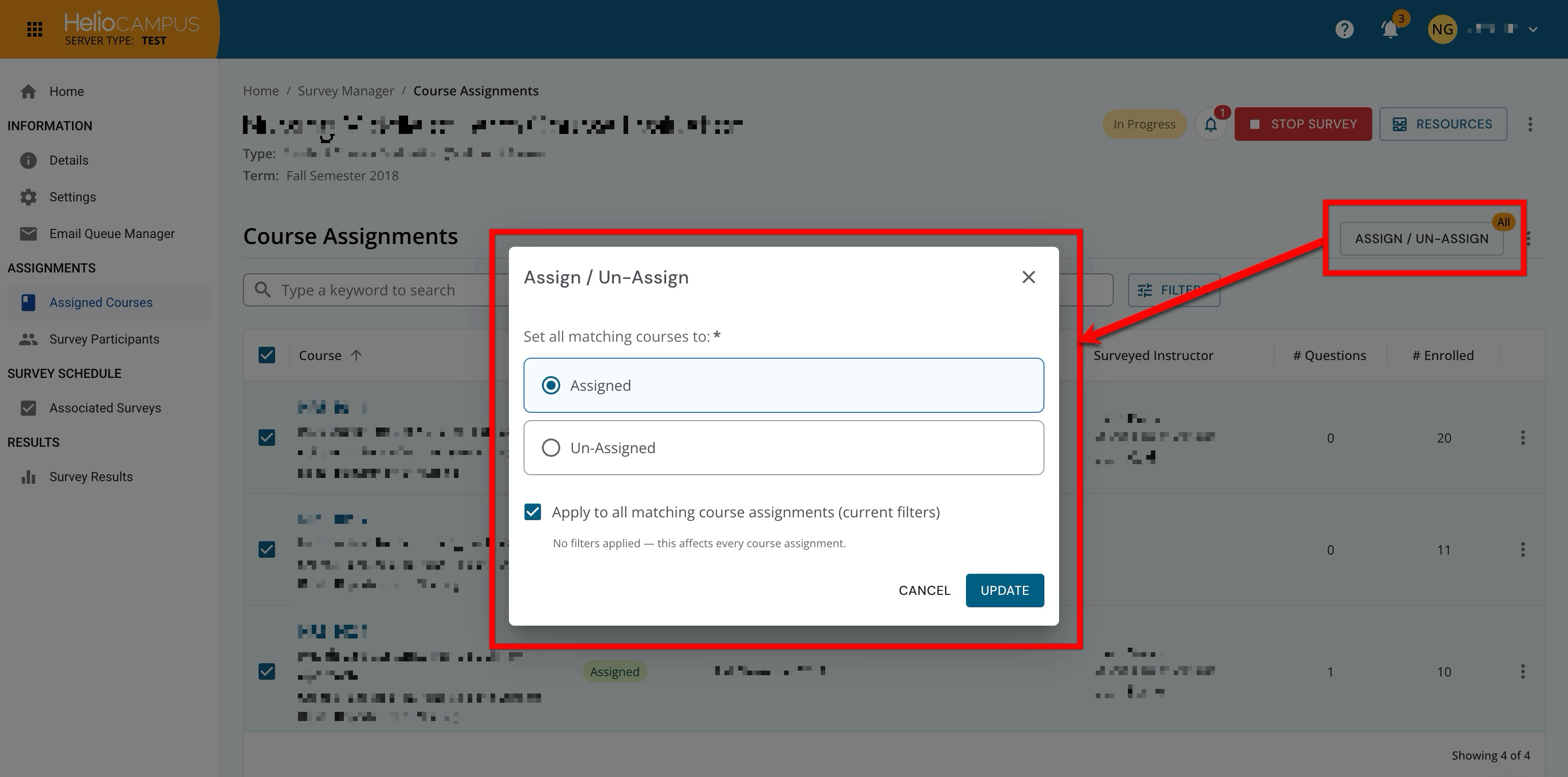
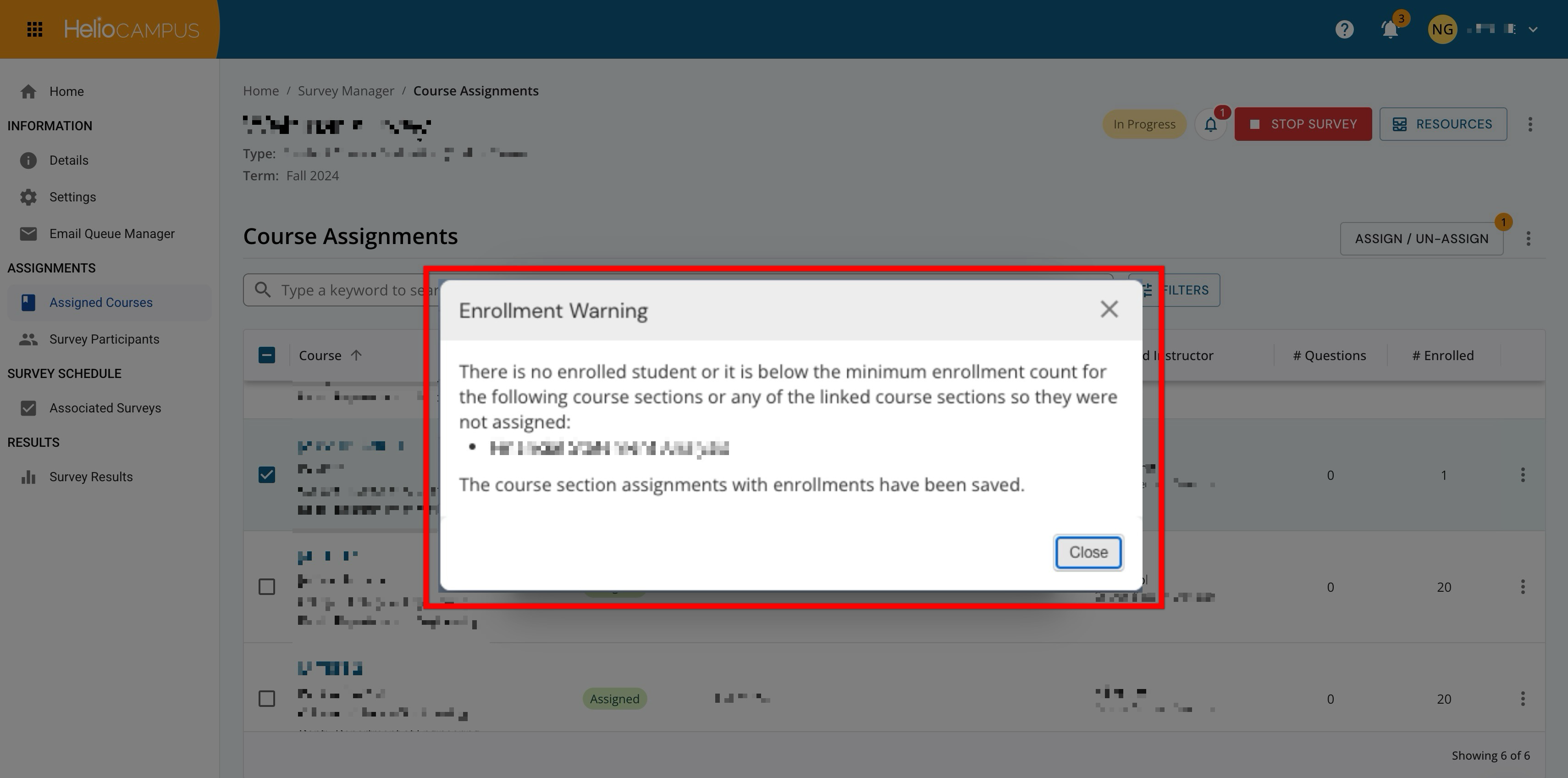
Additionally, when enrollment does not meet the requirements for survey assignment, an enrollment warning displays to indicate sections skipped due to zero student enrollment. These improvements provide a more reliable, transparent, and consistent experience when managing survey course assignments at scale. Learn more.
Survey Participants
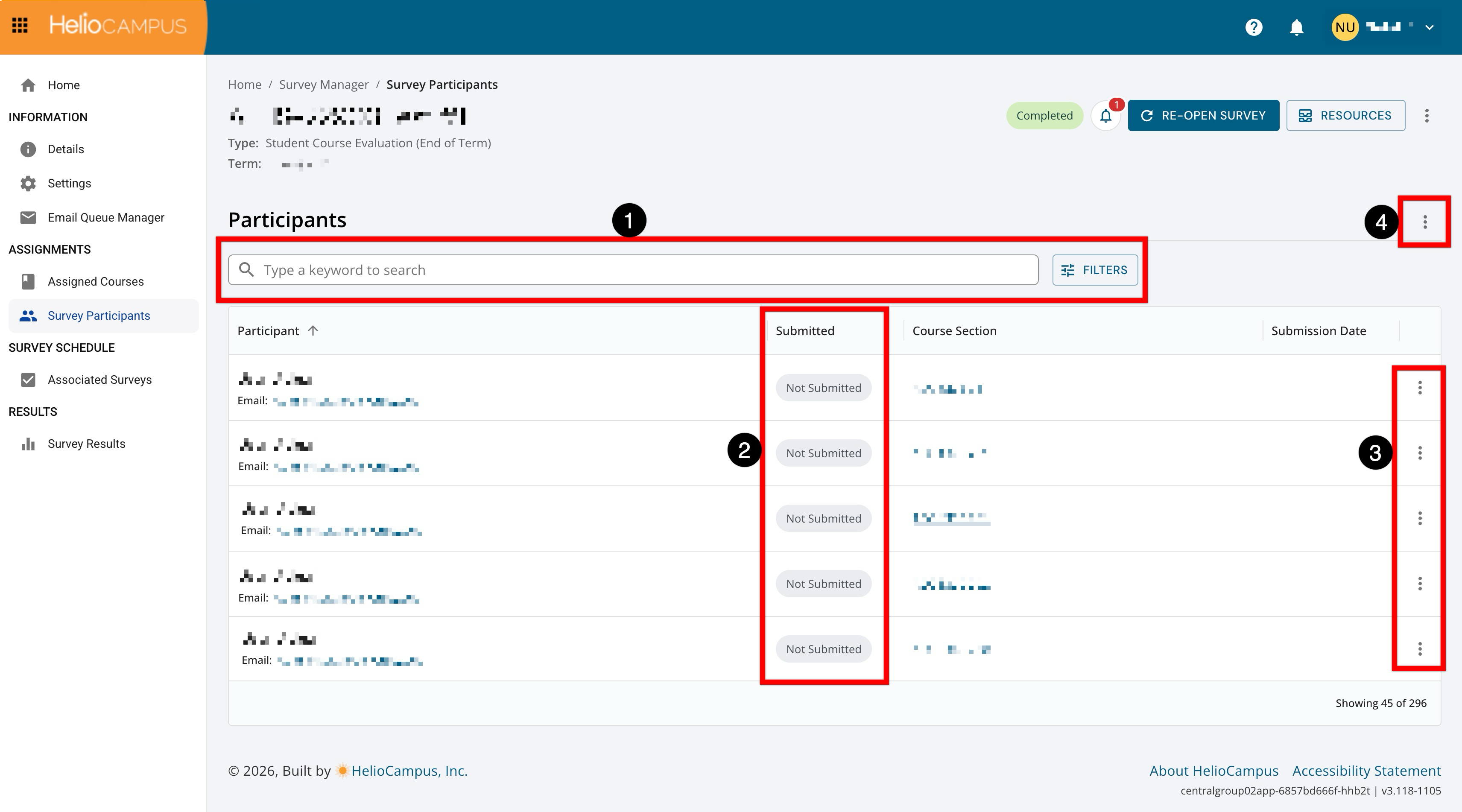
The Participants page for surveys has been updated with an improved user interface. Search functionality is available, and clicking the Filters option enables filtering by status (1). The Submitted column (2) displays status chips for each participant, making it easier to identify participant completion status at a glance. Each participant row includes an Actions menu (3) with options based on survey status, participant status, survey type, and user permissions. The page-level Actions menu (4) provides bulk or global actions that apply to the participant list as a whole, rather than to an individual participant, and options depend on the survey status, type, and user permissions. Learn more.
Survey Results
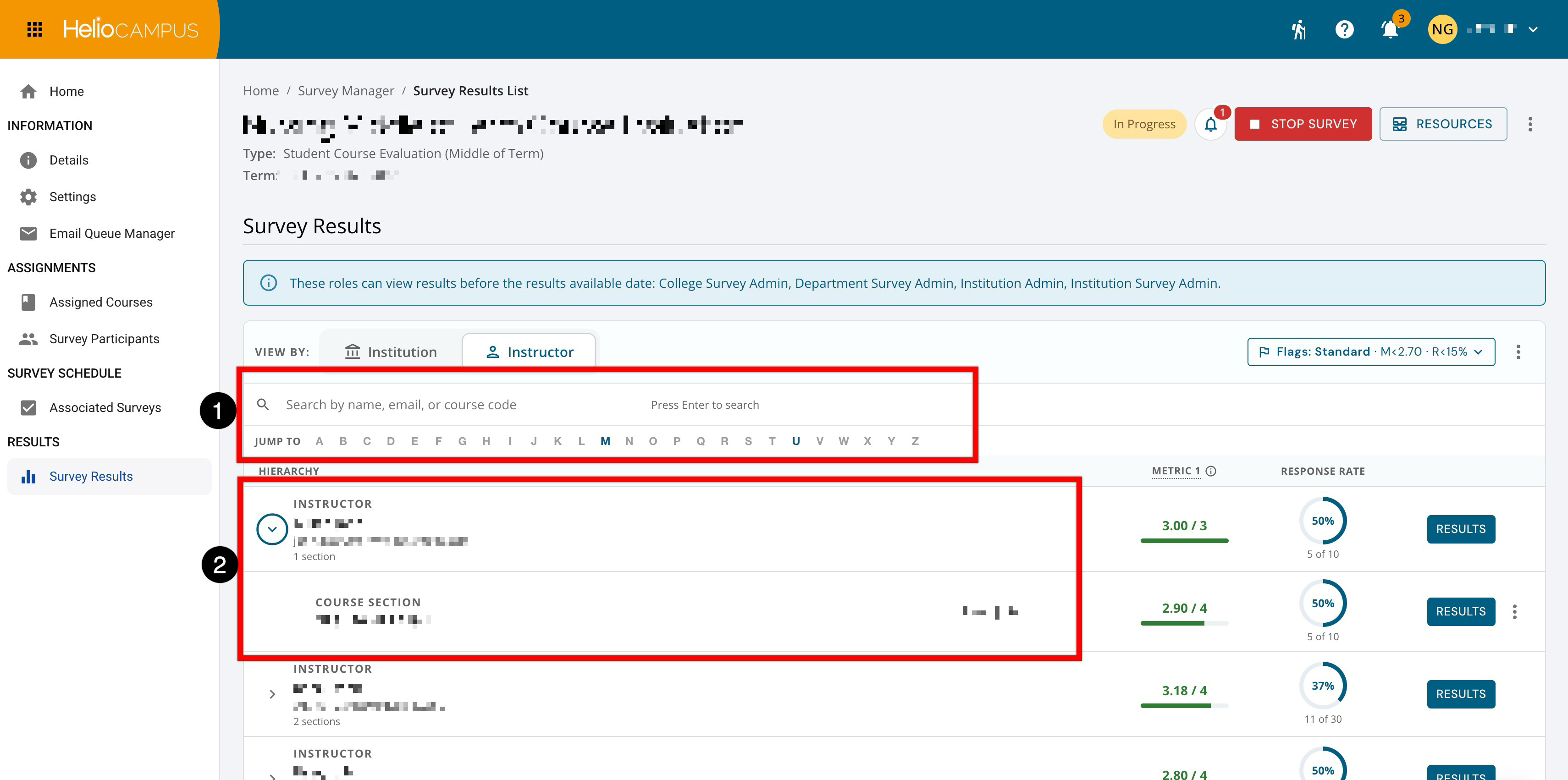
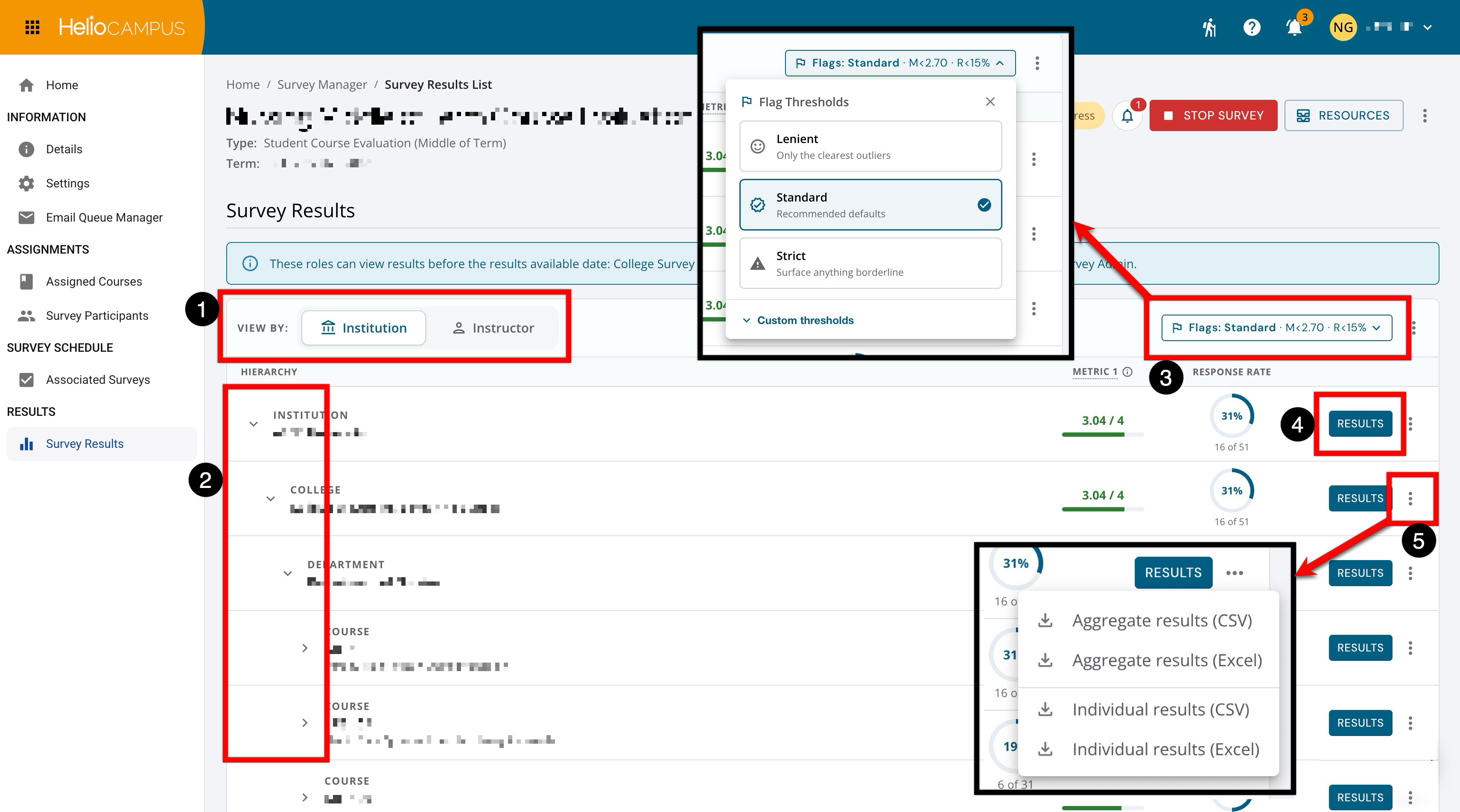
The Survey Results page has been updated with an improved user interface. To support large survey populations, data now loads progressively as users expand each level rather than loading the entire results tree at once. This new loading approach reduces initial page load demand while allowing users to drill into only the areas they need to review.
Results can be viewed by Institution hierarchy or by Instructor, depending on the user's role and permissions (1). The Institution view organizes results by hierarchy level, including Institution, College, Department, Course, and Course Section, which can each be expanded (2). A new Flag Thresholds control allows users to identify results that fall below configured metric or response-rate thresholds. Rows that meet the flag criteria are identified using icon and text indicators so flagged results are not communicated by color alone are WCAG 2.2 AA accessible. Each row with available responses includes a Results button (4) that opens the detailed aggregate or individual results view while preserving the user's place in the results tree. Rows also include an export options menu when results are available (5), allowing users to download aggregate or individual results in CSV or Excel format.
The Instructor view provides search tools for locating specific instructors by name, email, or course code (1), along with an alphabetical jump bar for quickly moving through the instructor list. Expanding an instructor row displays the associated course sections beneath that instructor (2), allowing users to review instructor-level and section-level metrics in the same view. Each instructor and course section row displays the applicable metric score, response rate, and available Results actions so users can quickly access detailed survey feedback from the instructor-focused hierarchy. These updates provide a more modern, responsive, and accessible survey results experience, making it easier for Institutions to review results across hierarchy levels, identify areas needing attention, and export result data for further analysis. Learn more.