
Learn more about these enhancements by watching the 3.117 Release Webinar and reviewing the supporting slide deck.
Release Timeline
-
Training Sites: August 3, 2026
-
Production Sites: September 2026
Adjudicator Distribution
When a Juried Assessment transitions from Pending Scores to Adjudicator Review status, discordant submissions are now automatically distributed evenly across all assigned adjudicators. With this improvement, the platform calculates a balanced allocation so that each adjudicator receives an approximately equal number of discordant submissions to review. Corresponding action items are automatically created for each adjudicator based on their assigned submissions, allowing them to navigate directly to the artifact scoring and adjudication screen. Only submissions in a discordant state are included in the distribution; non-discordant submissions are unaffected. This enhancement streamlines the adjudication workflow for Institutions using multiple adjudicators, ensuring a fair and efficient review process that reduces bottlenecks and helps assessment teams complete adjudication more quickly. Learn more.
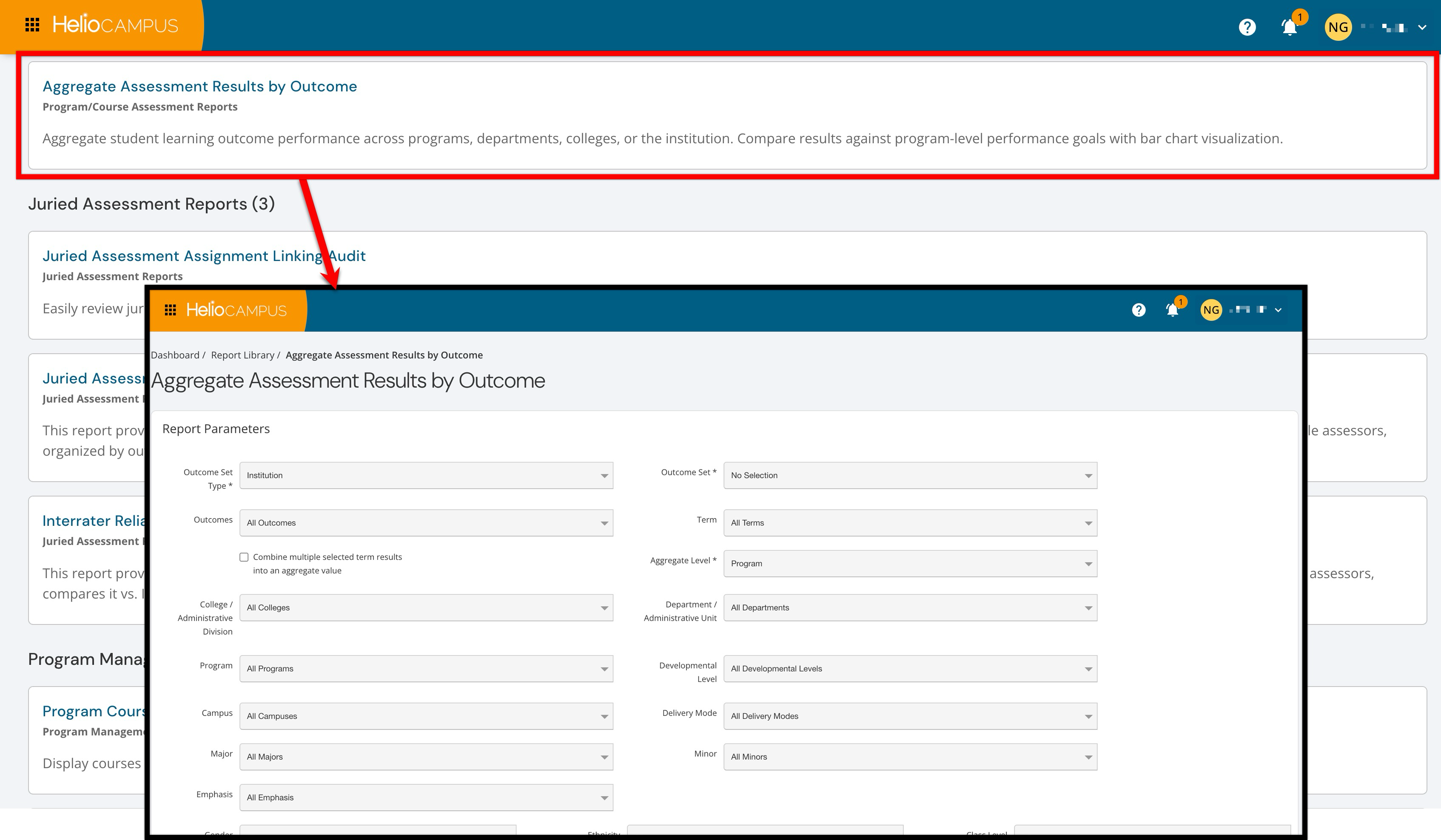
Aggregate Assessment Results by Outcome
The new Aggregate Assessment Results by Outcome report is available in the Program/Course Assessment Reports category of the Report Library. This report aggregates student learning outcome performance across programs, Departments, Colleges, or an Institution. Results can be compared against program-level performance goals with bar chart visualization. Learn more.
Assessment Analysis by Course/Co-Curricular Learning Outcome Report
The Assessment Analysis by Course/Co-Curricular Learning Outcome report now includes a new Performance Goal Analysis column that displays goal attainment data directly alongside assessment results.
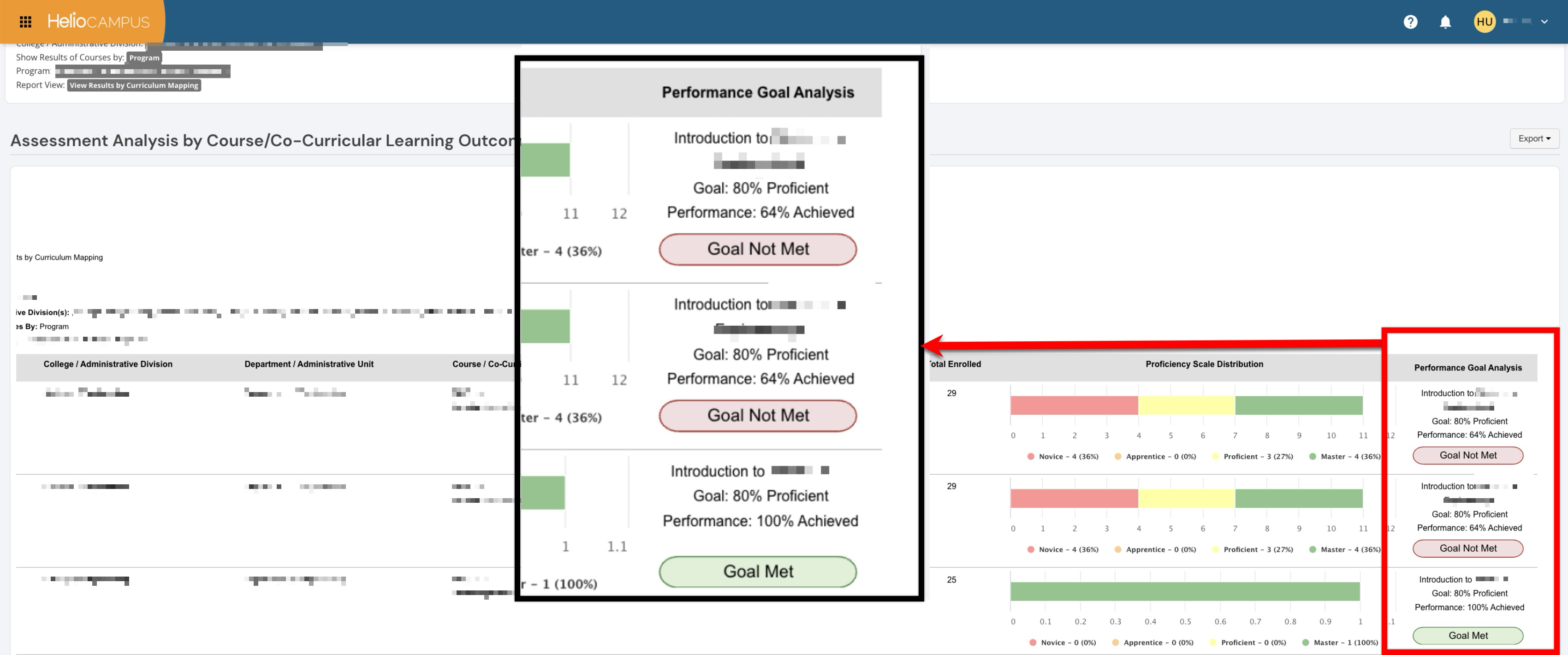
The display of this column differs based on how results are being viewed:
-
Viewing Results by Curriculum Mapping: The column displays the course or program name, the configured goal threshold and level, the actual performance level achieved, and a clear Goal Met or Goal Not Met indicator with color-coded formatting for quick visual identification.
-
Viewing Results by CLO: Each performance goal associated with the outcome is displayed separately, so if multiple programs have different expected thresholds or levels, each appears in its own row on the graph, providing a complete and transparent view of attainment across all mapped programs and a clear Goal Met or Goal Not Met indicator with color-coded formatting for quick visual identification.
This enhancement has also been applied to CSV and Excel exports, ensuring that performance goal data is available for offline analysis and reporting. Together, these improvements give Institutions a more complete picture of outcome attainment relative to established goals, supporting continuous improvement planning and accreditation evidence directly from within the report. Learn more.
Assessor Scores Data Set
The Assessor Scores data set has been enhanced to include a new File Name column, positioned immediately to the right of the existing Artifact ID column. This column displays the file name of the artifact associated with each scored submission, including both externally uploaded artifacts and artifacts pulled from the LMS. Additionally, the following column headers have been updated to use clearer, more consistent terminology:
-
Rubric Criteria Points has been renamed to Criteria Level Points
-
Rubric Criteria Level has been renamed to Rubric Criteria Name
This improvement makes it easier for Institutions to identify which scores correspond to which artifact directly within the data set export, eliminating the need to cross-reference artifact IDs that are not visible in the platform UI. Learn more.
Data Collection Submitted Forms
A new Program Continuous Improvement Form export option is now available from the Data Collection Submitted Forms page under the Export menu. This feature enables Institutions to generate structured, multi-column reports from submitted form data, organizing assessment outcome question responses into a customizable table format for program review and continuous improvement documentation.
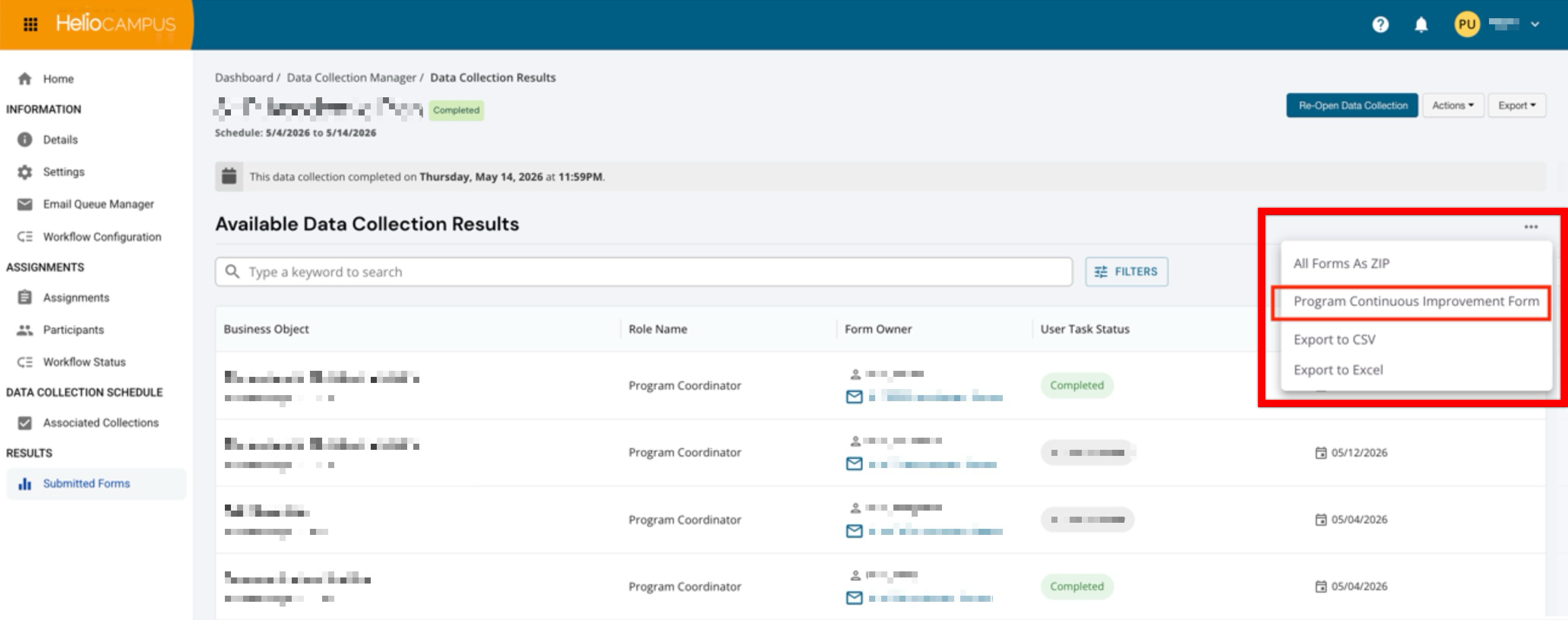
When selecting the Program Continuous Improvement Form export option, a guided wizard launches that walks the user through configuring the report structure. Users can designate question(s) to populate the report header, define up to five column headers with custom names, and specify which form questions should populate each column. Once configured, the platform generates a pre-structured report that organizes submitted form data into the defined table layout. Both PDF and CSV export formats are supported, and exports are designed to meet WCAG 2.2AA accessibility standards. Importantly, the wizard supports exporting multiple program forms within the same data collection in a single session, reducing the need for repetitive configuration when working across programs.
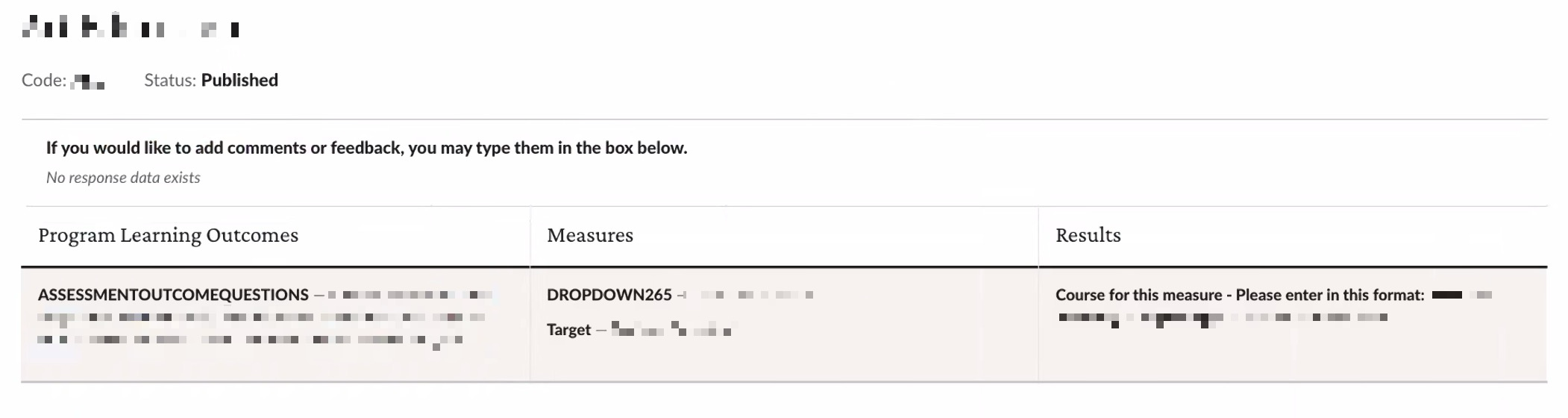
This enhancement gives Institutions greater flexibility in how they present and share submitted form data for accreditation, program review, and continuous improvement purposes—eliminating the need for manual reformatting and enabling standardized reporting directly from the platform. Learn more.
Dropdown Form Items
Dropdown form items across data collection forms and syllabus pages have been updated with visual improvements for a cleaner, more accessible selection experience. Dropdowns now use a standardized, trimmed width rather than stretching the full width of the form, and long option text wraps naturally within the dropdown boundary to eliminate the need for horizontal scrolling. For multi-select dropdowns, a checkmark indicator now appears to the left of each selected option, making it immediately clear which items have been chosen without requiring users to scroll or search for confirmation. These changes improve readability, reduce visual clutter, and ensure that selection states are easy to identify at a glance, particularly for dropdowns with lengthy option values. Learn more.
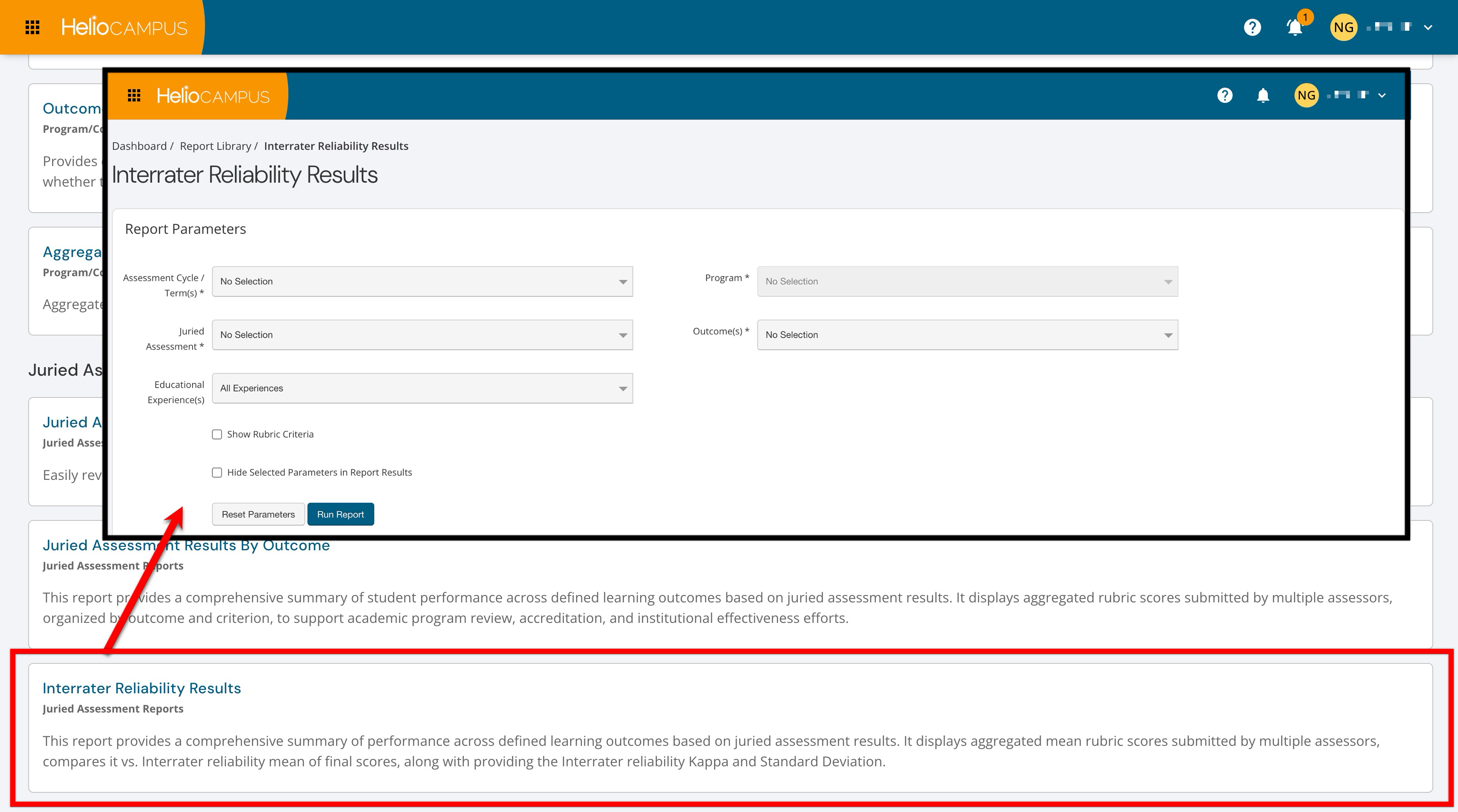
Interrater Reliability Results Report
The new Interrater Reliability Results report is available in the Juried Assessment Reports category of the Report Library. This report provides a comprehensive summary of performance across defined learning outcomes based on Juried Assessment results. It displays aggregated mean rubric scores submitted by multiple Assessors, compares them to the Interrater Reliability mean of final scores, and provides the Interrater Reliability kappa and standard deviation. Learn more.
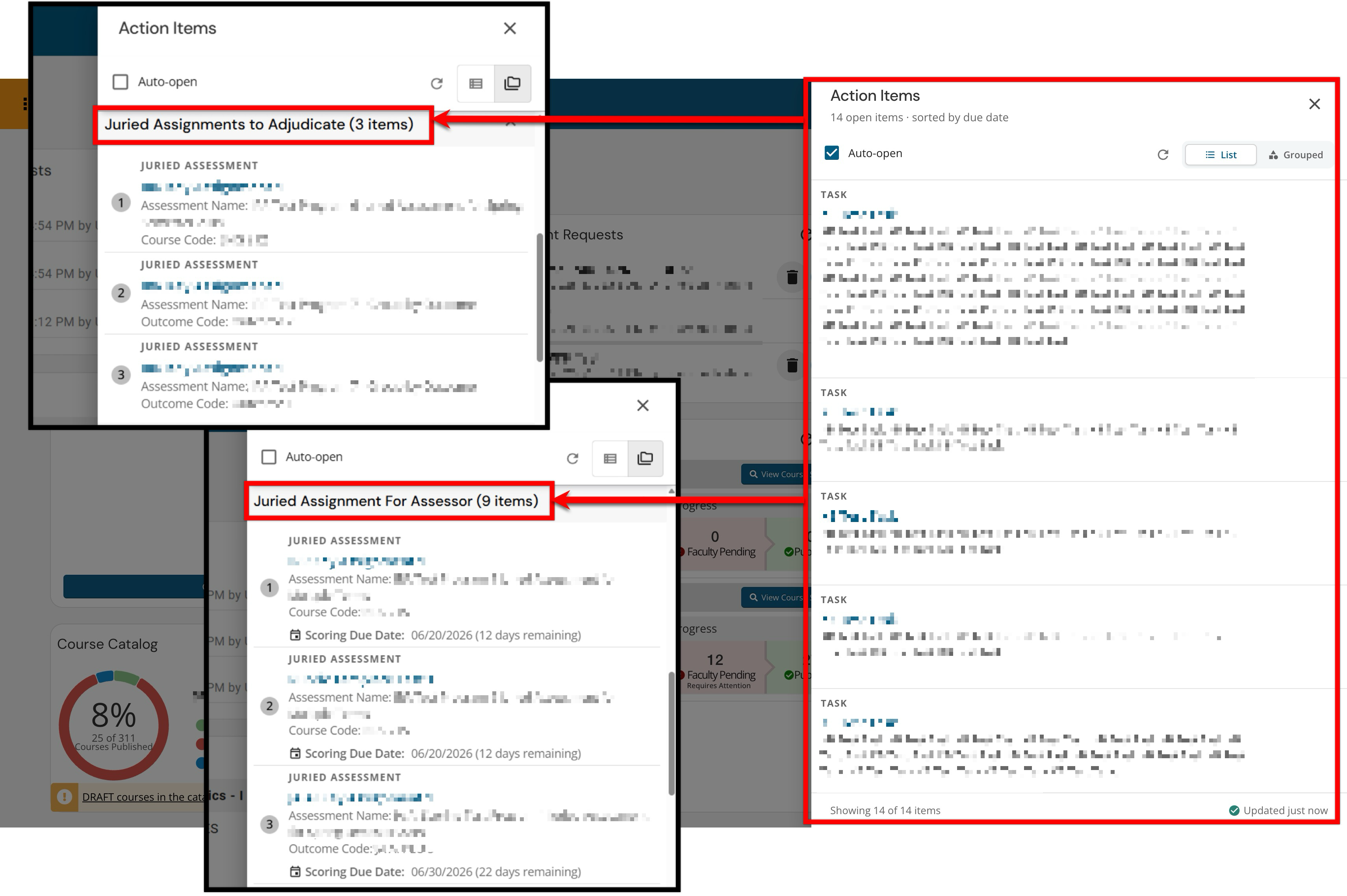
Juried Assessment Action Items
Juried Assessment action items for both assessor scoring and adjudicator review now display the assessment name as an additional subtitle beneath the existing rubric title and course/outcome code. Previously, when multiple Juried Assessments shared the same rubric and course or outcome code, it was difficult to distinguish which action item belonged to which Juried Assessment. With this update, the assessment name is clearly visible on each action item, making it easier to identify and act on the correct item. This improvement reduces confusion and helps faculty and administrators navigate their action item lists more efficiently. Learn more.
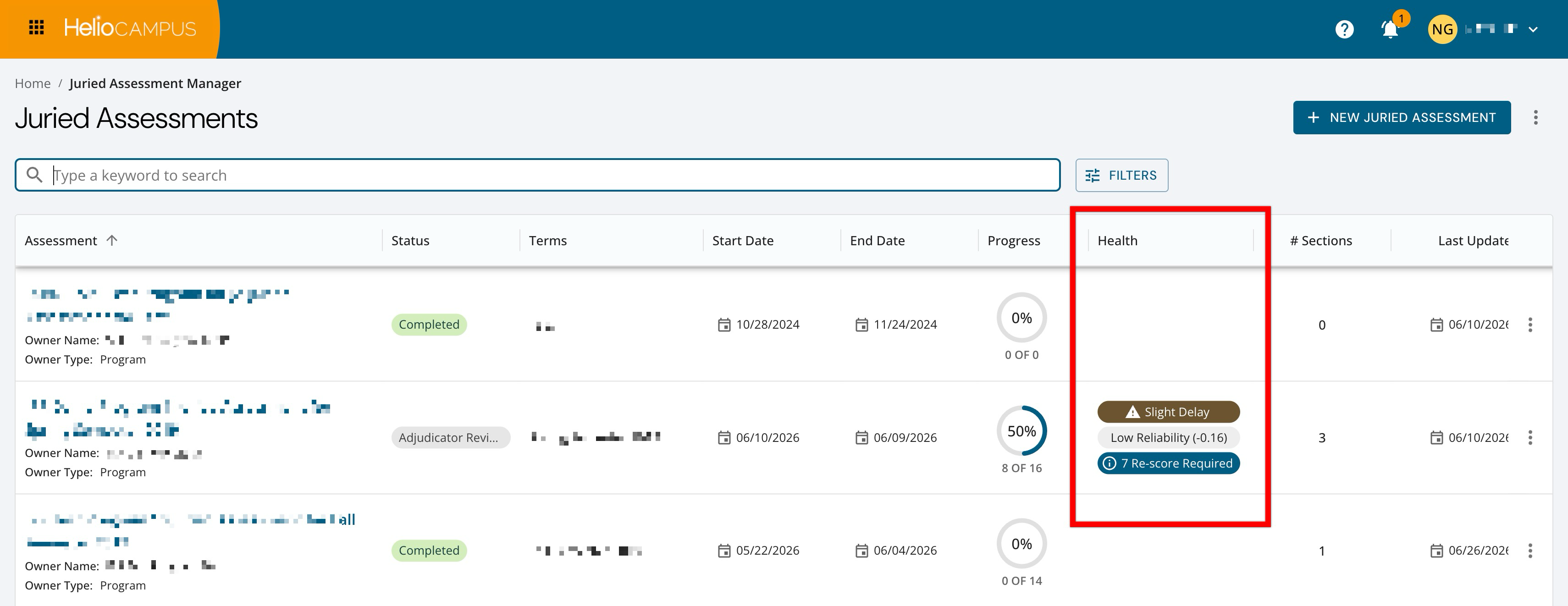
Juried Assessment Health
A new Health column on the Juried Assessment Manager provides multiple at-a-glance indicators for active or in-progress Juried Assessments. This column is tied to Inter-rater Reliability (IRR) functionality and only displays when IRR is enabled for an assessment. This column displays status indicators that help administrators monitor scoring progress and scoring reliability. These indicators are intended to highlight assessments that may need attention, such as those falling behind schedule, showing low scoring agreement among assessors, or requiring re-scoring. Types of indicators can include:
-
Pace Risk: Shows whether scoring progress is on track relative to the time elapsed during the assessment period.
-
Low Reliability: Indicates that assessor agreement is below the expected reliability threshold. This indicator displays when the Kappa value is below 0.60.
-
Re-score Required: Indicates that one or more artifacts require re-scoring, typically due to reliability or agreement issues that need additional assessor review.
This new column helps administrators quickly identify Juried Assessments that need attention, allowing them to intervene earlier, support consistent scoring, and keep the assessment process moving toward completion. Learn more.
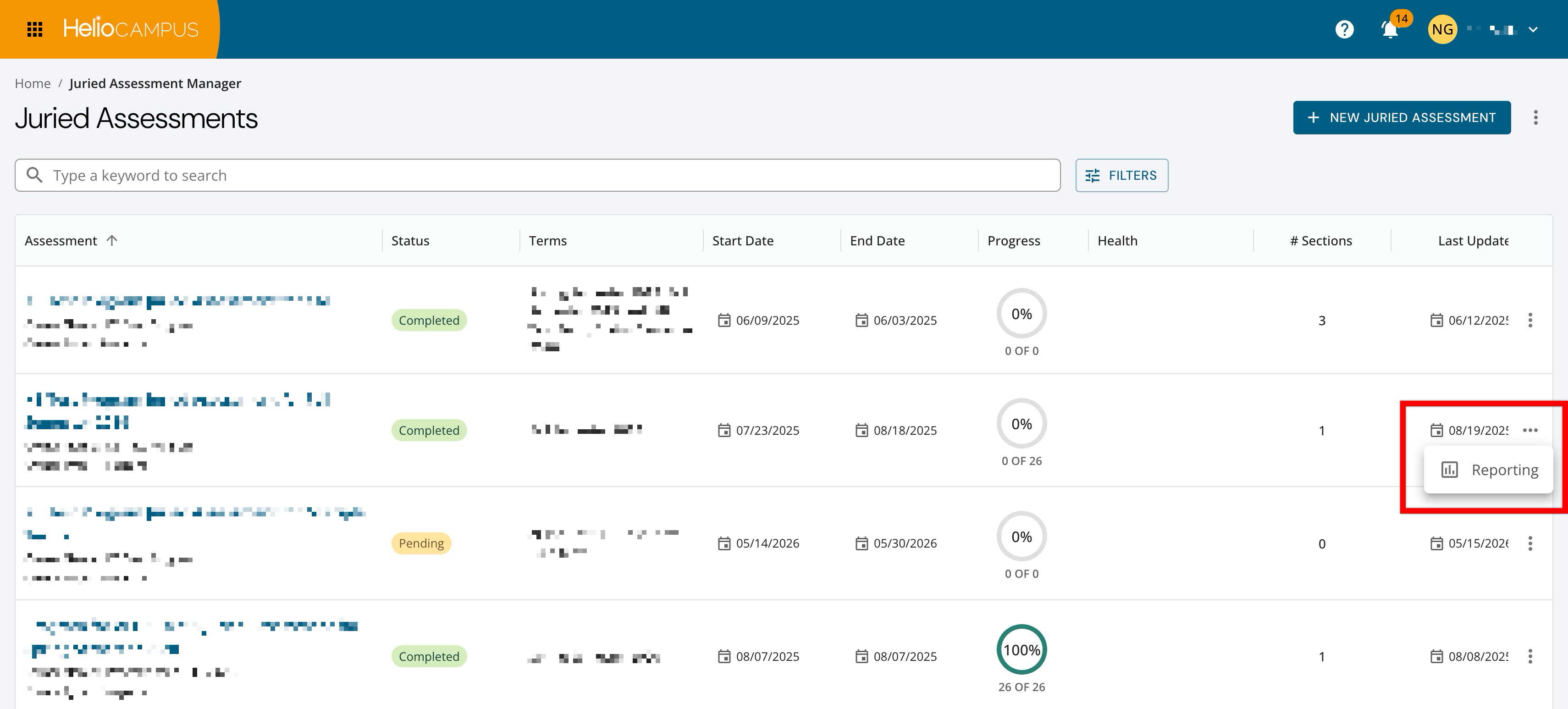
Juried Assessment Manager
The Juried Assessment Manager now includes a new More Options menu providing a Reporting option. Previously, navigating to Reporting required users to access the homepage for an assessment, then select the page from the left-hand navigation menu. With this enhancement, users can access reporting metrics directly from the Juried Assessment Manager, reducing clicks and streamlining the reporting workflow. Learn more.
If Inter-Rater Reliability has not been enabled for an assessment, a message will appear informing the user that the setting is currently disabled.
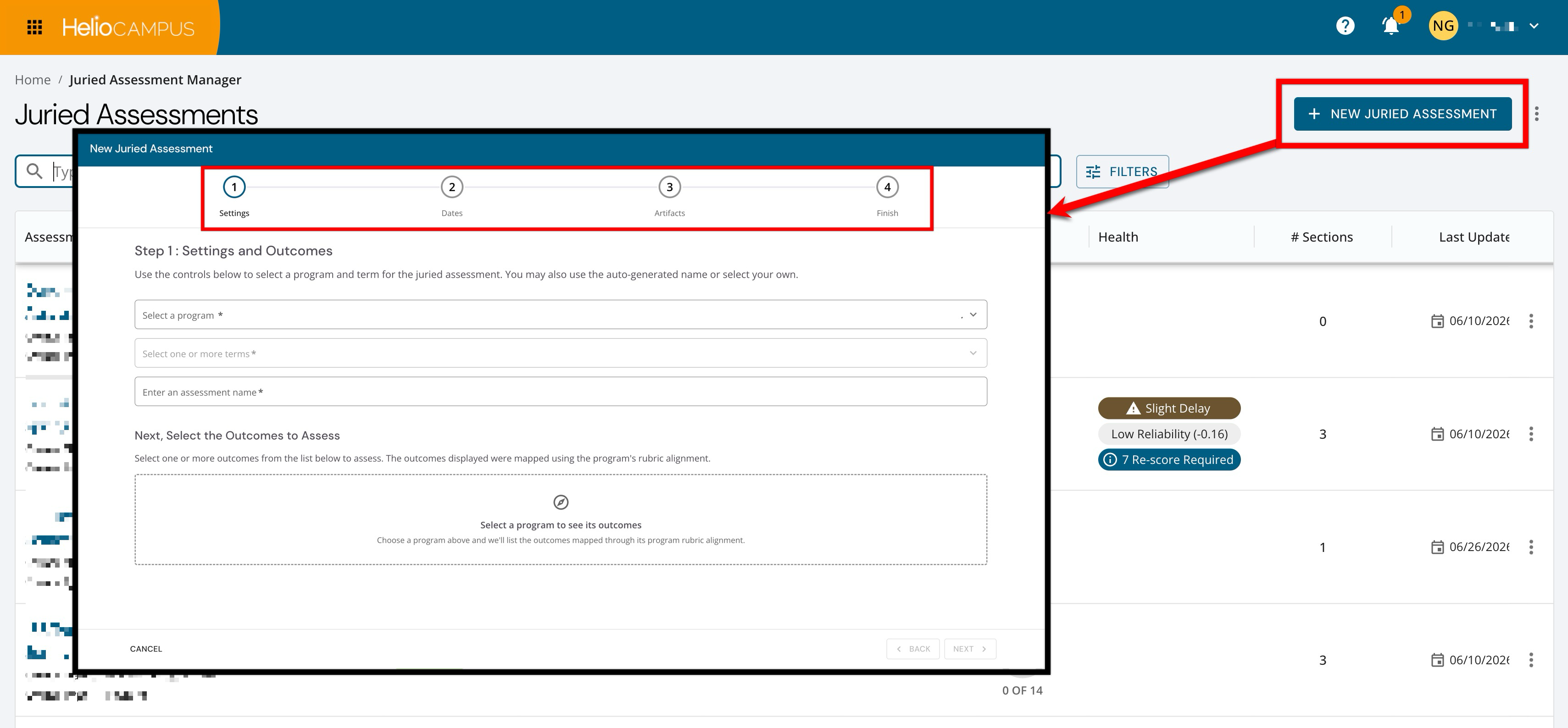
Additionally, the creation wizard for Juried Assessments has been updated with a modern, full-screen interface that replaces the previous side-drawer panel. This expanded layout provides more working space when configuring a new assessment, making it easier to review and complete each step without feeling constrained by a narrow panel. In addition to the layout change, the wizard has been streamlined by combining the first two steps into a single step, reducing the total number of steps from five to four. The previous Step 1: Program and Term Selection and Step 2: Outcome Selection have been consolidated into a single Step 1: Settings. The remaining steps are unchanged. These improvements reduce the number of clicks required to create a juried assessment and provide a clearer, more spacious workspace while maintaining all existing functionality. Learn more.
Juried Assessment Reporting Export
The Juried Assessment Reporting page now includes a CSV export that provides Institutions with a downloadable, structured record of all scoring and validation data for assessments using Inter-Rater Reliability (IRR). The export is accessed by navigating to the Reporting page of a Juried Assessment. The exported file contains one row per artifact-criteria pair. Each row's status reflects the current validation state of the scored artifact:
-
Stable Consensus when evaluators agreed on the performance level
-
Discordant Value Identified when the spread between assessed scores requires adjudication
-
Confirmed Technical Failure when a valid score could not be recorded.
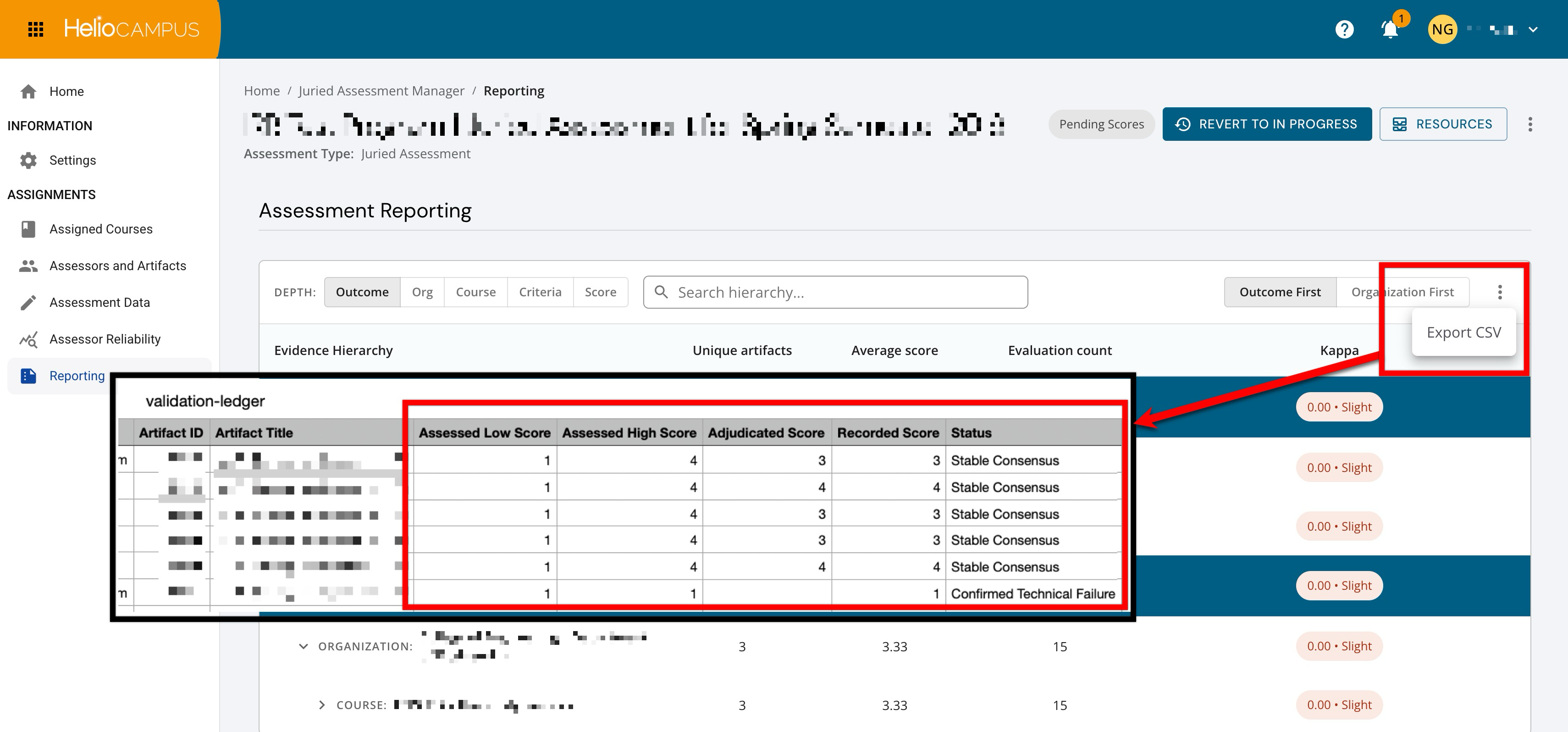
This export provides assessment teams with a comprehensive, portable, artifact-level view of scoring reliability, making it easier to analyze inter-rater agreement, verify adjudication outcomes, and support accreditation reporting without manual data compilation. Learn more.
The reporting CSV is available only when Interrater Reliability (IRR) is enabled via the assessment Settings page.
Juried Assessment Scoring Permissions
The Discard and Replace action in Juried Assessment is now restricted to Assessment Admins. Previously, assessors could discard and replace artifacts during scoring; this option has been removed from the assessor view and is now available exclusively to Assessment Admins through the Review Artifacts screen. Assessors who encounter an unscorable artifact can flag it for review, and an adjudicator will determine the appropriate resolution. This change strengthens the integrity of the scoring workflow by ensuring that artifact disposition decisions are made by authorized administrators, reducing the risk of accidental or premature artifact removal during the assessment process. Learn more.
Juried Assessment Scoring Queue Notifications
Two new email notifications have been introduced to keep Assessors informed when their scoring queue status changes.
-
Assessor Paused Scoring Queue: When an Administrator pauses an Assessor's scoring queue, the Assessor automatically receives a notification that their queue has been paused and is directed to contact their Juried Assessment Administrator with any questions.
-
Assessor Re-enabled Scoring Queue: When the queue is re-enabled, the Assessor receives a notification confirming that scoring has resumed and reminding them of their scoring due date.
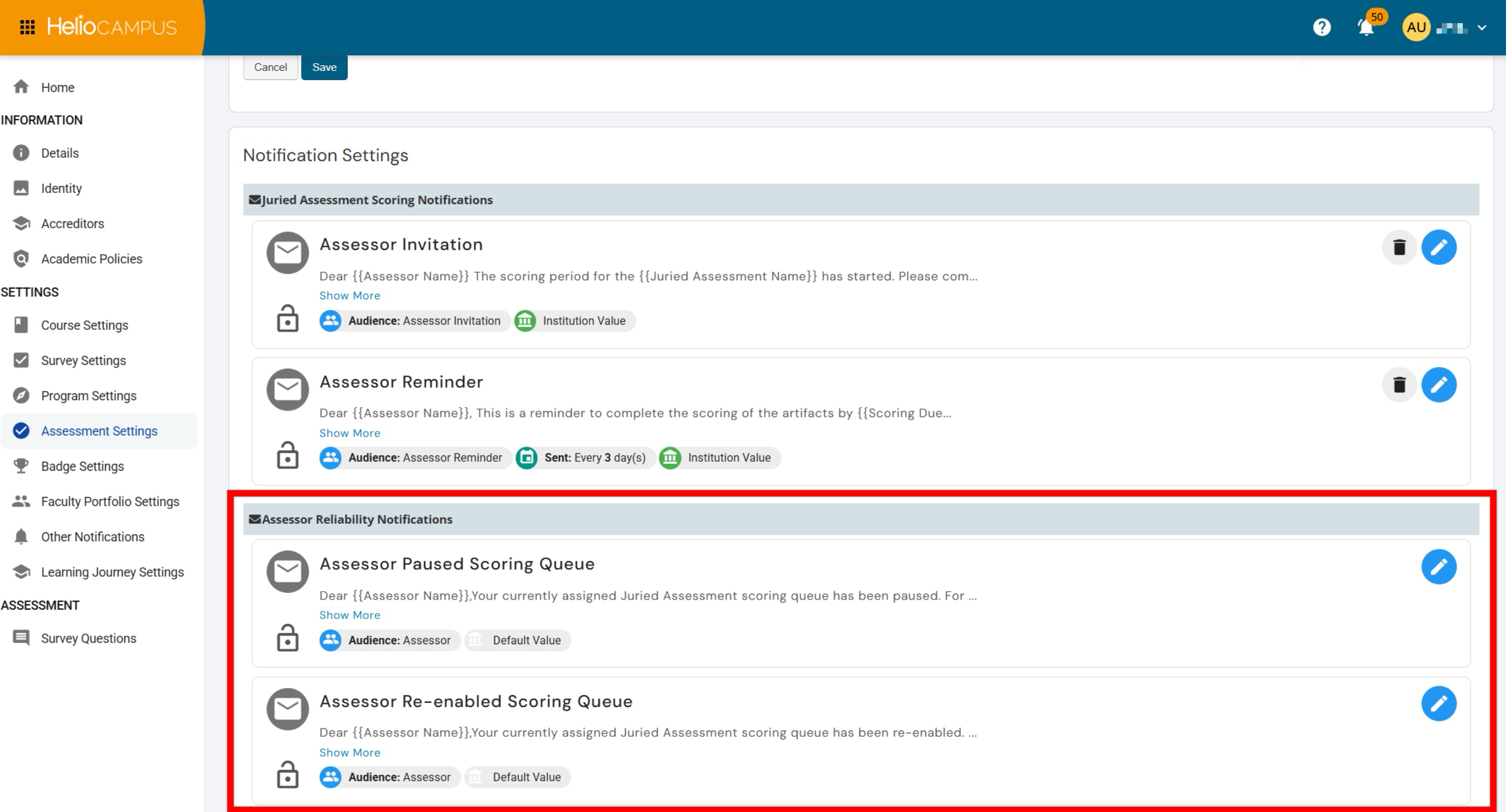
Both notifications are sent automatically upon the pause or re-enable action and can be customized or disabled through Organizational Hierarchy → Assessment Settings or within an individual Juried Assessment → Settings page. As part of this improvement, the manual "Notify" action previously available on the Assessors data table has been removed, ensuring assessors receive timely, purpose-specific communications rather than a generic reminder email. This enhancement provides clearer communication to assessors about their scoring responsibilities, reduces administrative overhead, and ensures assessors are never left unaware of changes to their queue status. Learn more:
-
Organizational Hierarchy Assessment Settings
Learning Journey Evidence Details
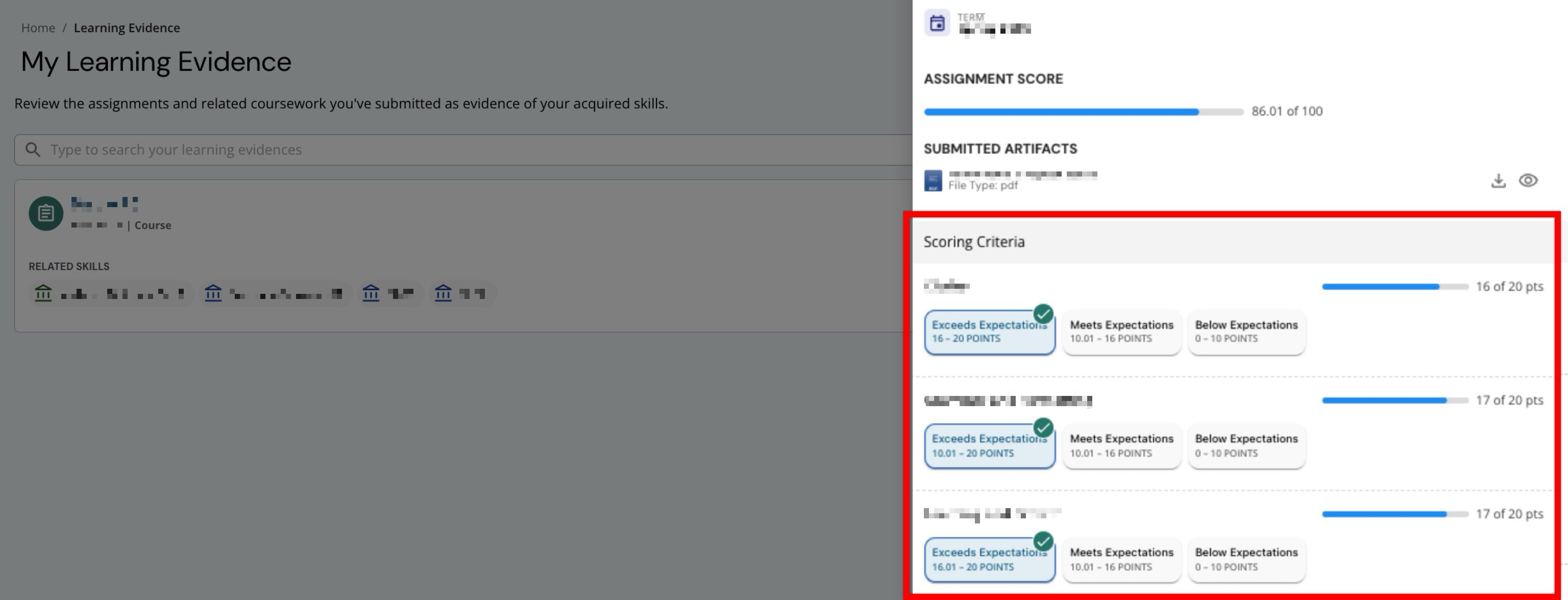
The Evidence Details view within the Learning Journey has been updated to correctly display rubric range information and assignment rubric grades. Previously, when viewing evidence for rubric-scored assignments, the details did not accurately reflect the configured rubric ranges or the corresponding grades the student earned. With this improvement, details now surface the correct rubric range values for all supported rubric types, including point rubrics, point rubrics with an NA option, range rubrics, and range rubrics with an NA option, ensuring that students and administrators see an accurate representation of scoring criteria and achievement. This correction provides a more complete and transparent view of assessment performance within the Learning Journey, helping students better understand how their work was evaluated against established rubric criteria. Learn more.
Learning Journey Experiences
The Experiences details drawer now displays CLO assessment badges alongside completion badges. Previously, the details drawer only showed badges earned through course or activity completion. With this enhancement, any badge awarded through a CLO assessment is also surfaced in the same location, along with its associated assertion details and the CLOs that were assessed. This update provides students and administrators with a more complete view of earned credentials directly from the Experiences page, eliminating the need to navigate to the Badges page separately to see assessment-based achievements.
Learning Journey Self-Issued Evidence
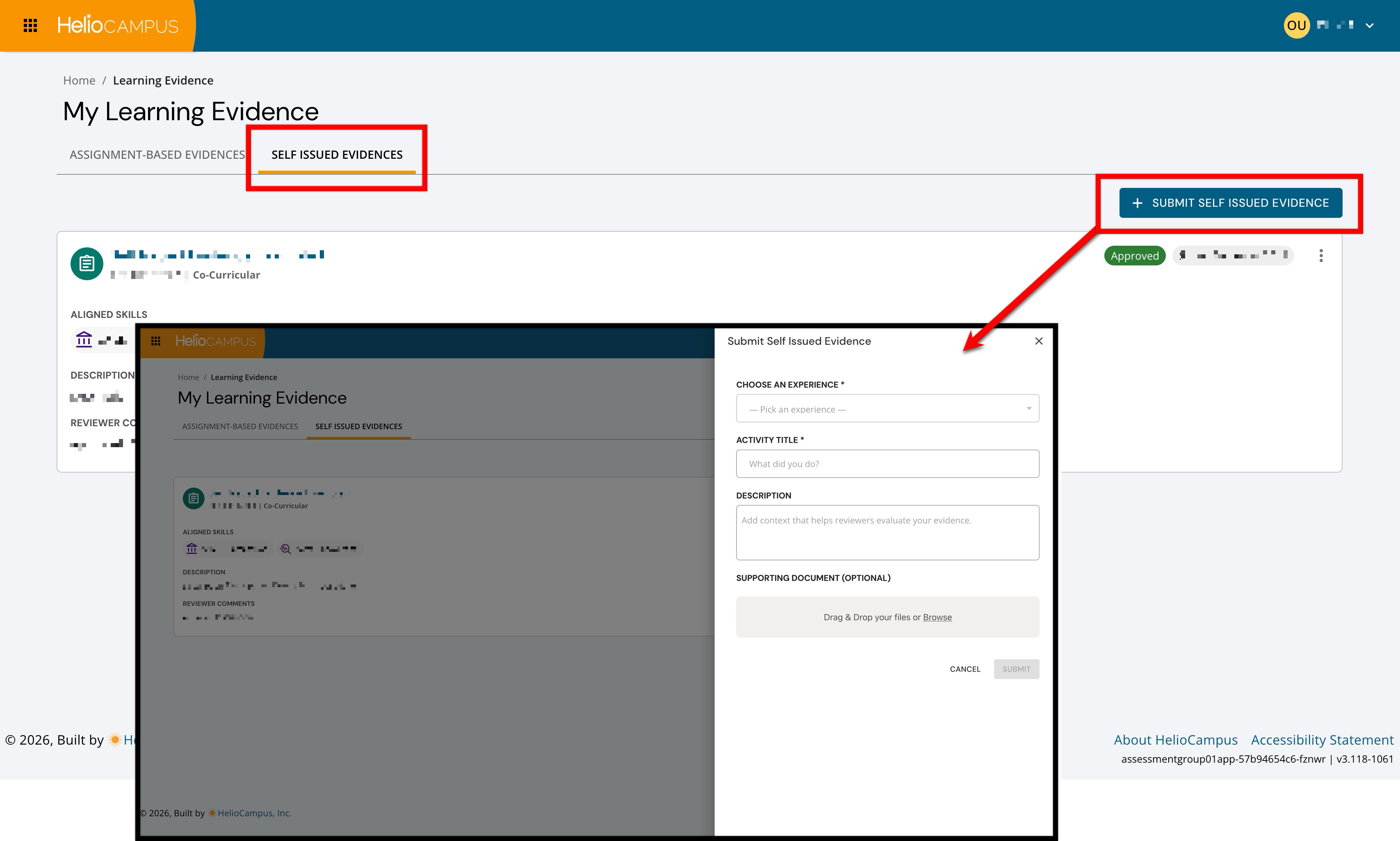
The Learning Journey has been enhanced to allow students to submit self-issued evidence to identify and document meaningful learning, accomplishments, or activities tied to their completed experiences and align that evidence to relevant learning outcomes, skills, or institutional competencies. For students, self-issued evidence provides greater ownership of their Learning Journey by allowing them to document accomplishments, connect experiences to demonstrated skills, and tell a more complete story of their growth. For Institutions, this creates a scalable, reviewable workflow for capturing additional evidence of learning, supporting richer competency records, more complete student portfolios, and a clearer view of how students are engaging with curricular and co-curricular experiences.
With this enhancement, students can submit evidence directly from the Learning Evidence page and associate it with a related experience. Submitted evidence is routed to the appropriate experience Instructor as an action item for review to approve or deny the evidence and, when needed, adjust the aligned outcomes before approval. Approved self-issued evidence can appear in the student’s Comprehensive Learning Journey and stories, helping students present a more complete and personalized record of learning beyond institution-created or assignment-based evidence alone.
This enhancement matters because meaningful learning often happens across a broader range of academic and co-curricular activities than traditional assessment workflows may capture. By giving students a structured way to propose evidence and connect it to outcomes, Institutions can recognize student learning more holistically while still maintaining review and approval controls. Learn more.
Learning Journey Settings Enhancements
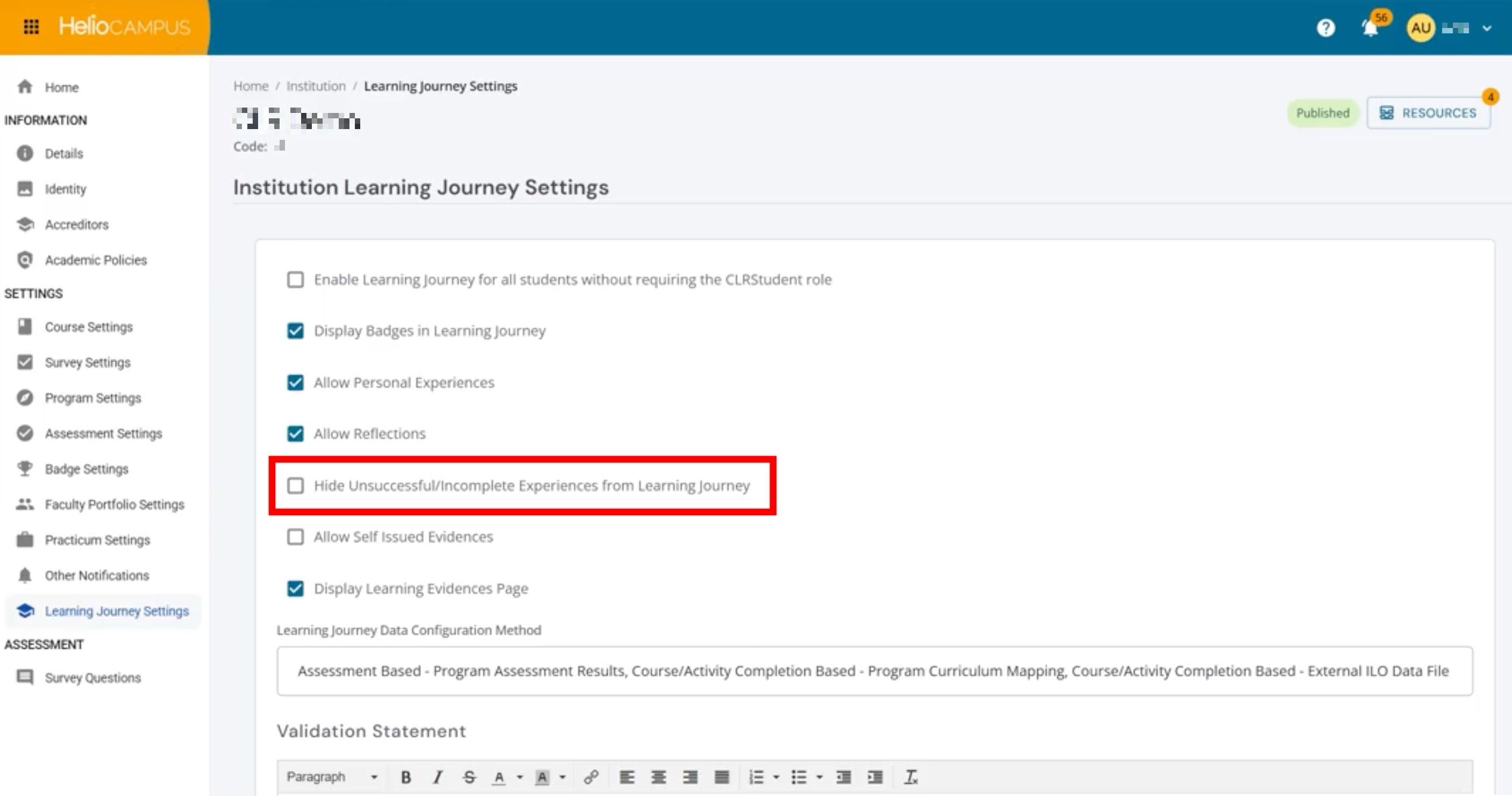
Institutions can now choose whether their completion-based Learning Journey is filtered to display only courses and co-curricular activities mapped to institutional competencies and to filter CLOs accordingly. By default, this setting is disabled for all Institutions.
This new completion-based filtering functionality is configured by HelioCampus. To learn more, please contact Support.
Additionally, a new setting is now available under Institution > Learning Journey Settings. When Hide Unsuccessful/Incomplete Experiences from Learning Journey is enabled, it automatically filters out unsuccessful or incomplete experiences from the Learning Journey. By default, this setting is disabled for all Institutions.
-
Enabled: Unsuccessful experiences are hidden from the Experiences, Skills, Stories, and Comprehensive Learning Journey pages and dashboard widgets, ensuring that only successful or in-progress experiences are visible to students.
-
Disabled: All experiences, regardless of completion status, are displayed across all Learning Journey locations.
These enhancements provide Institutions with greater control over how the Learning Journey filters and displays student data, reducing reliance on configuration changes and enabling faster, more flexible decisions. Learn more.
Outcome Assessment Summary Report
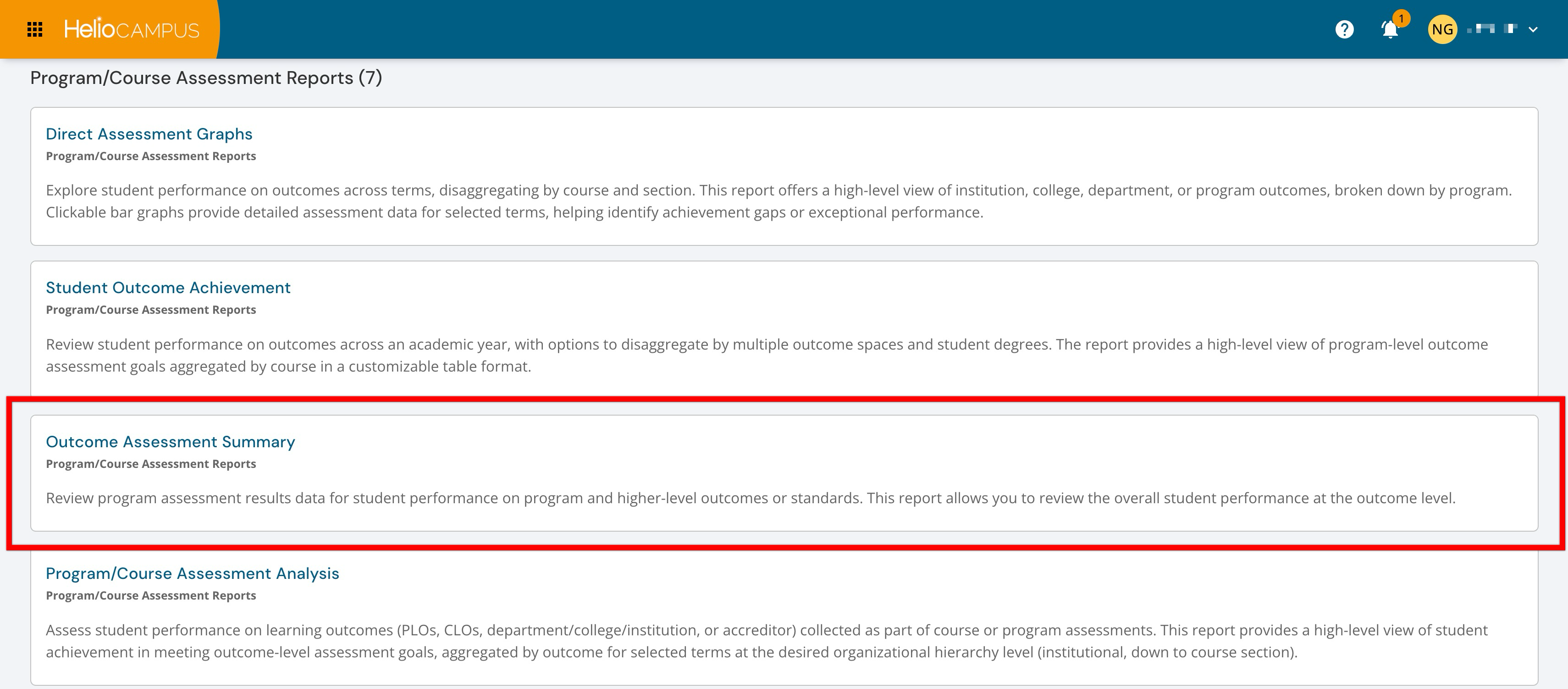
The description of the Outcome Assessment Summary report has been updated to more clearly communicate its purpose and scope.
‘Review program assessment results data for student performance on program and higher-level outcomes or standards. This report allows you to review the overall student performance at the outcome level.’
This updated language provides a more accurate summary of the report's functionality, helping users quickly understand that the report focuses specifically on program assessment results and outcome-level student performance. Learn more.
Outcomes Library
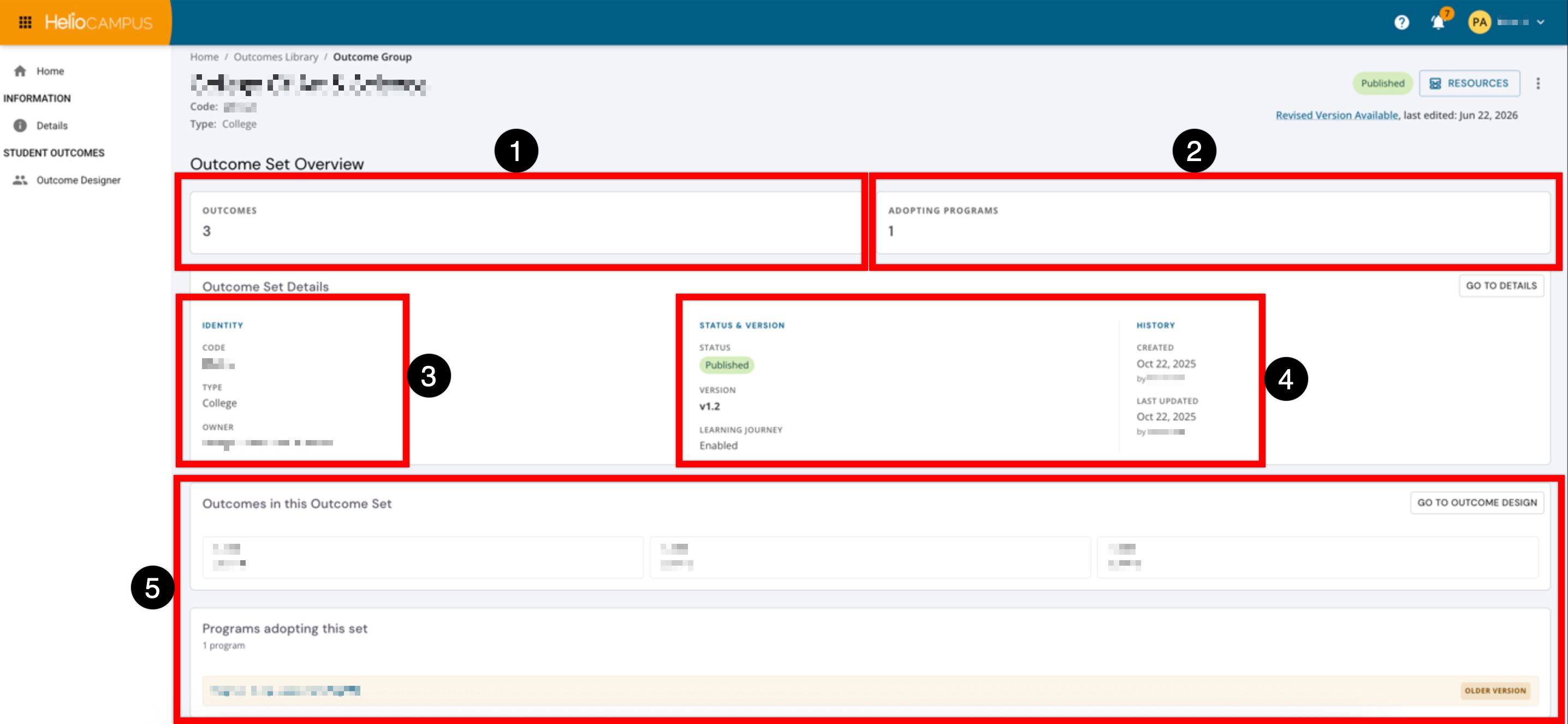
The Outcomes Library inner pages have been updated with an improved user interface. The updated pages deliver a streamlined experience for managing outcome sets. The new Homepage provides an at-a-glance overview of key metrics for quick review. Summary cards now display the total number of outcomes in the set (1) and the number of programs currently associated with it (2). Additional outcome set information is organized into distinct sections, including identifying details such as code, type, and owner (3), as well as status, version, and Learning Journey availability (4). Further details on the outcomes included in the set and the programs associated with it are also available (5).
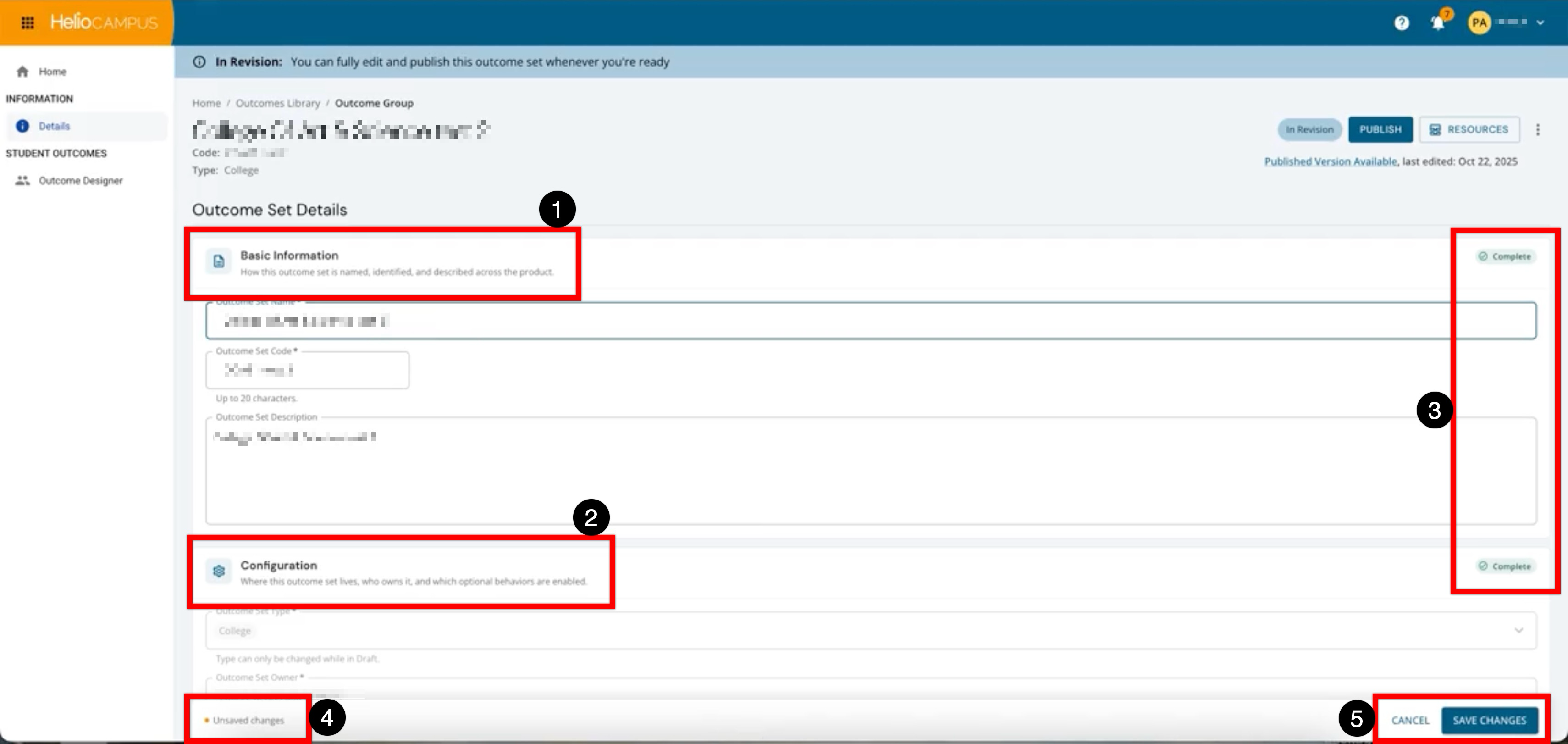
The Details page has been updated with a clearer, more guided layout for editing outcome set information. The page now separates editable information into focused sections where users can review and update the outcome set details (1) review the type, owner, and related settings (2). Each section now includes a completion indicator (3), making it easier to confirm whether required information has been provided. When edits are made, an unsaved changes indicator appears (4), and users can either cancel or save their updates using the persistent action buttons at the bottom of the page (5).
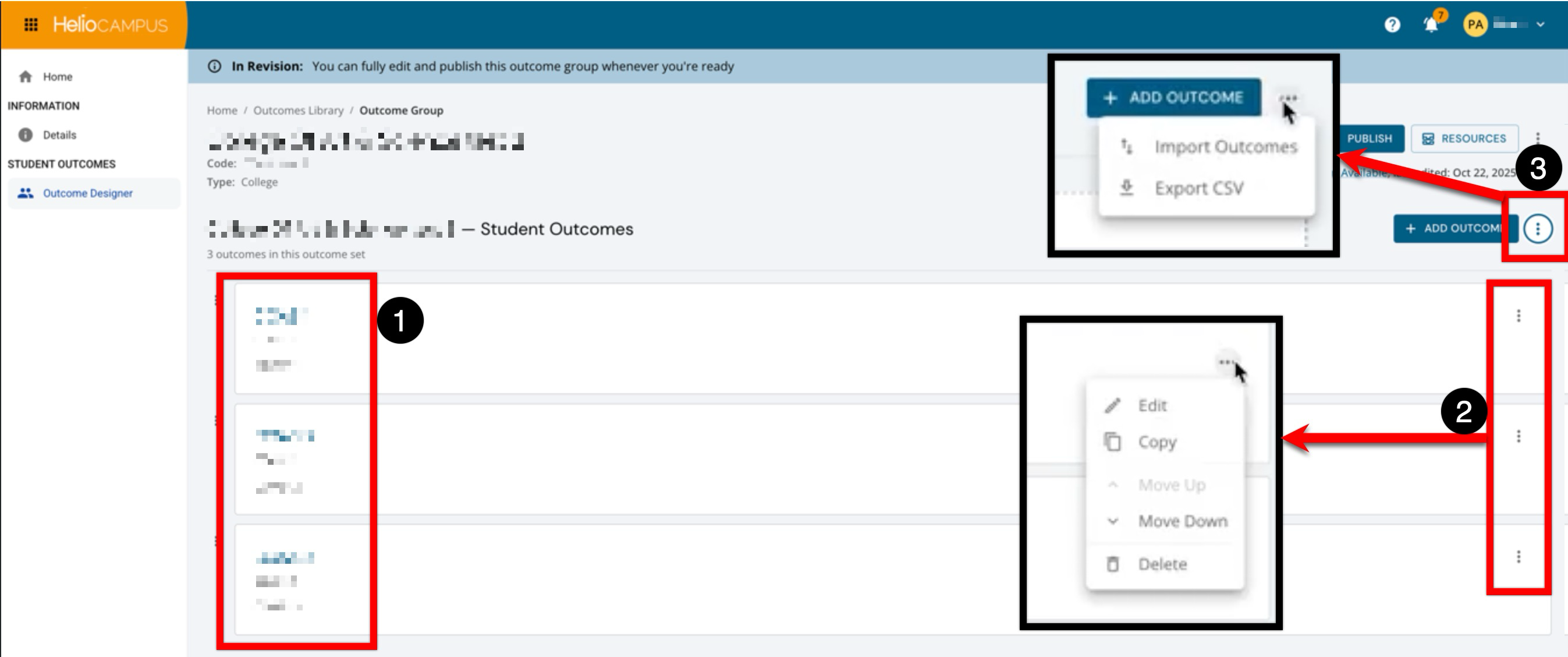
The Outcome Designer page has been updated to make managing outcomes within an outcome set clearer and more efficient. Outcomes are now displayed in a streamlined list view, allowing users to quickly review the outcomes included in the set (1). Each outcome includes an actions menu, where users can edit, copy, reorder, or delete an individual outcome as needed (2). A page-level actions menu is also available for broader outcome set actions, including importing outcomes and exporting the outcome set to CSV (3).
PII Redaction
Access to this new setting is controlled through HelioCampus enablement. To learn more, please contact Support.
PII redaction in Juried Assessment is now managed through its own dedicated setting independent of AI Scoring feature scoring enablement. Previously, PII Redaction was included with the same setting as AI Scoring, requiring Institutions to enable AI functionality to use PII Redaction. With this update, PII Redaction can be enabled or disabled separately, giving Institutions more granular control over privacy features without requiring the activation of AI capabilities. A new Enable PII Redaction setting is now available in Assessment Settings at all levels of the hierarchy, Program Settings, and Juried Assessment Settings.
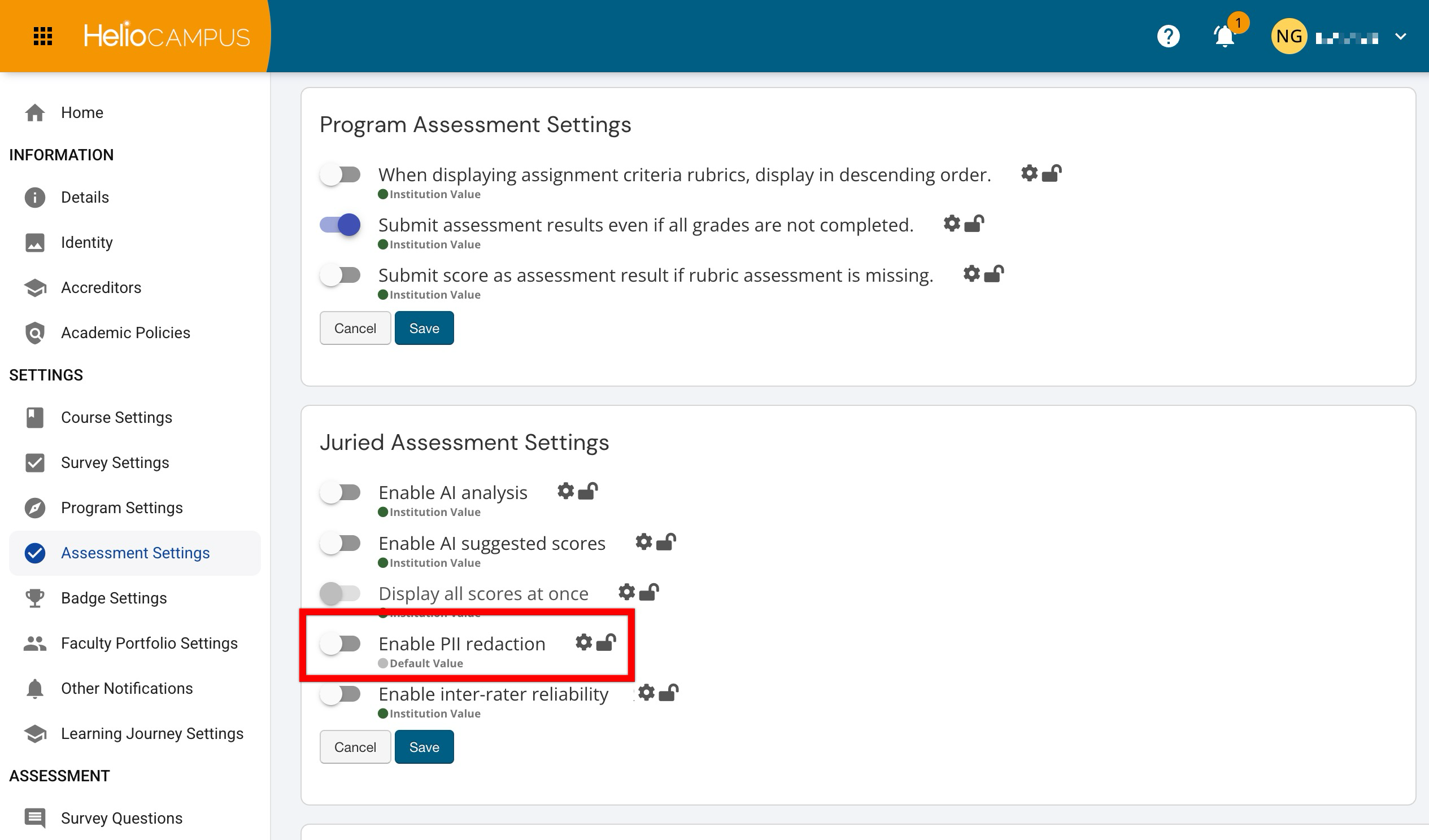
This hierarchical approach ensures that Institutions can apply PII Redaction broadly or selectively based on organizational needs, with settings at lower levels inheriting from or overriding parent-level configurations. Enabling this setting allows Institutions to redact personally identifiable information (PII) regarding the student, Instructor, or course in Juried Assessment. This change reduces unnecessary feature dependencies, supports Institutions that want to protect student and faculty privacy without enabling AI-assisted scoring, and provides a clearer, more flexible configuration experience for administrators managing Juried Assessment settings. Learn more.
Report Accessibility
All platform reports have been updated to meet WCAG 2.2 AA accessibility standards, delivering a more inclusive and standards-compliant experience across every report category. PDF exports now include tagged document structure, embedded accessible fonts, document metadata (title, author, and language), semantic headings, and proper table markup where supported. These improvements ensure that reports are more compatible with assistive technologies such as screen readers and that exported PDFs meet baseline requirements for institutional accessibility compliance. Reports that use HTML-to-PDF rendering, such as the Course Section-Survey Assignment Audit, have also been improved by adding structured heading elements, semantic table markup, and clean, print-ready layouts.
These enhancements help Institutions meet accessibility obligations, support users who rely on assistive technologies, and ensure that report exports can be confidently shared in environments that require accessibility standards. Learn more.
Restoring Unscorable Artifacts
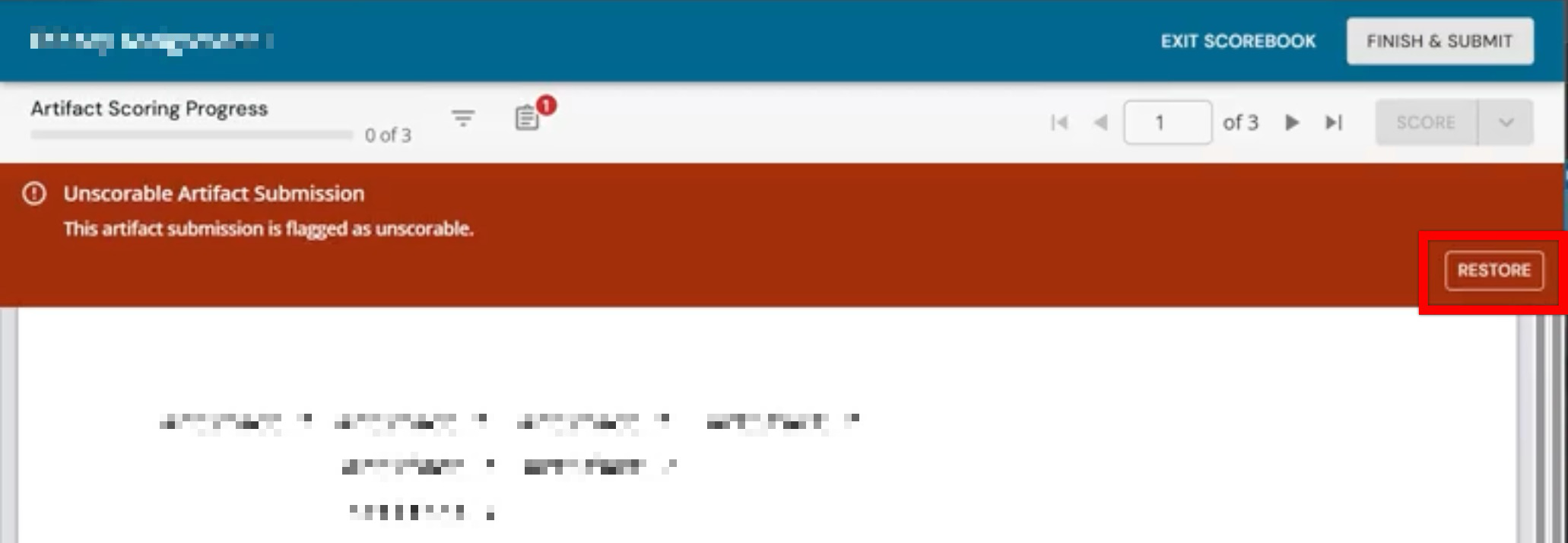
Assessors can now restore artifacts that they previously marked as unscorable. A new Restore option appears for unscorable artifacts, allowing Assessors to reverse the discard decision and resume scoring, provided they have not yet finished and submitted their scores. This brings the Assessor scoring process in line with the same restore capability already available in the Adjudicator scoring process. This provides Assessors more flexibility to correct unintended unscorable decisions without needing Adjudicator intervention. Learn more.
Rubric Terminology Alignment
Terminology across the program-level Key Assignment Linking page and related Juried Assessment workflows has been updated for clarity and consistency with the new Juried Assessment Rubrics library. These updates ensure that language across Juried Assessment workflows is consistent, reducing confusion for faculty and administrators when configuring assessments, managing rubrics, and reviewing scoring artifacts.
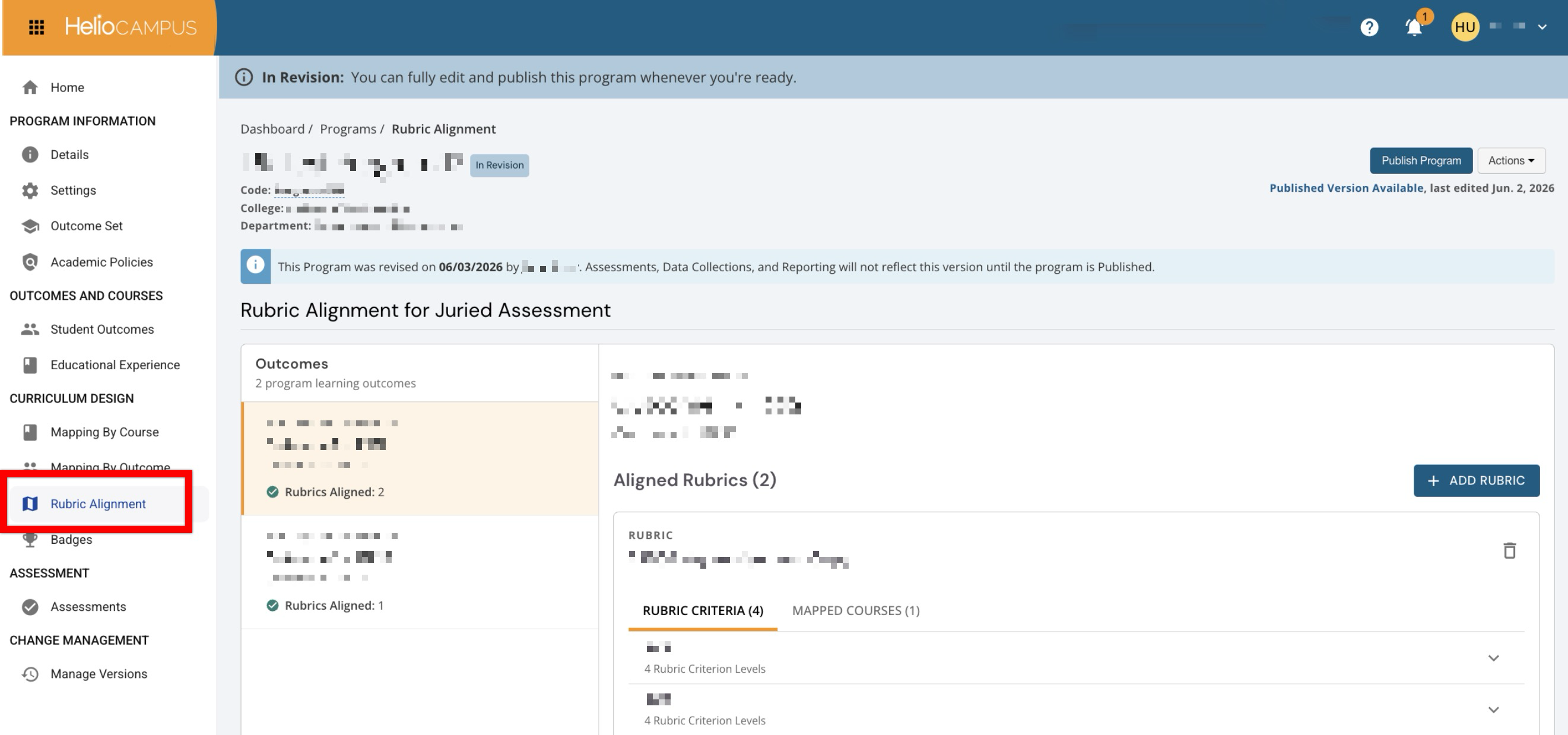
The page formerly titled Key Assignment Linking is now titled Rubric Alignment, and references throughout the page have been updated accordingly. References to courses mapped to outcomes in the curriculum map now use ‘Mapped’ to clarify the distinction. Additionally, all instances of ‘Rubric Template' have been replaced with 'Rubric’ across page headers, action buttons, creation and editing drawers, full-screen views, and error/confirmation messaging. While scheduling a Juried Assessment, ‘Key Assignment’ phrasing has been removed, and the Assignment Name column on the Assessors and Artifacts page has been retitled to Rubric. Learn more.
Self Study Rubric Scoring
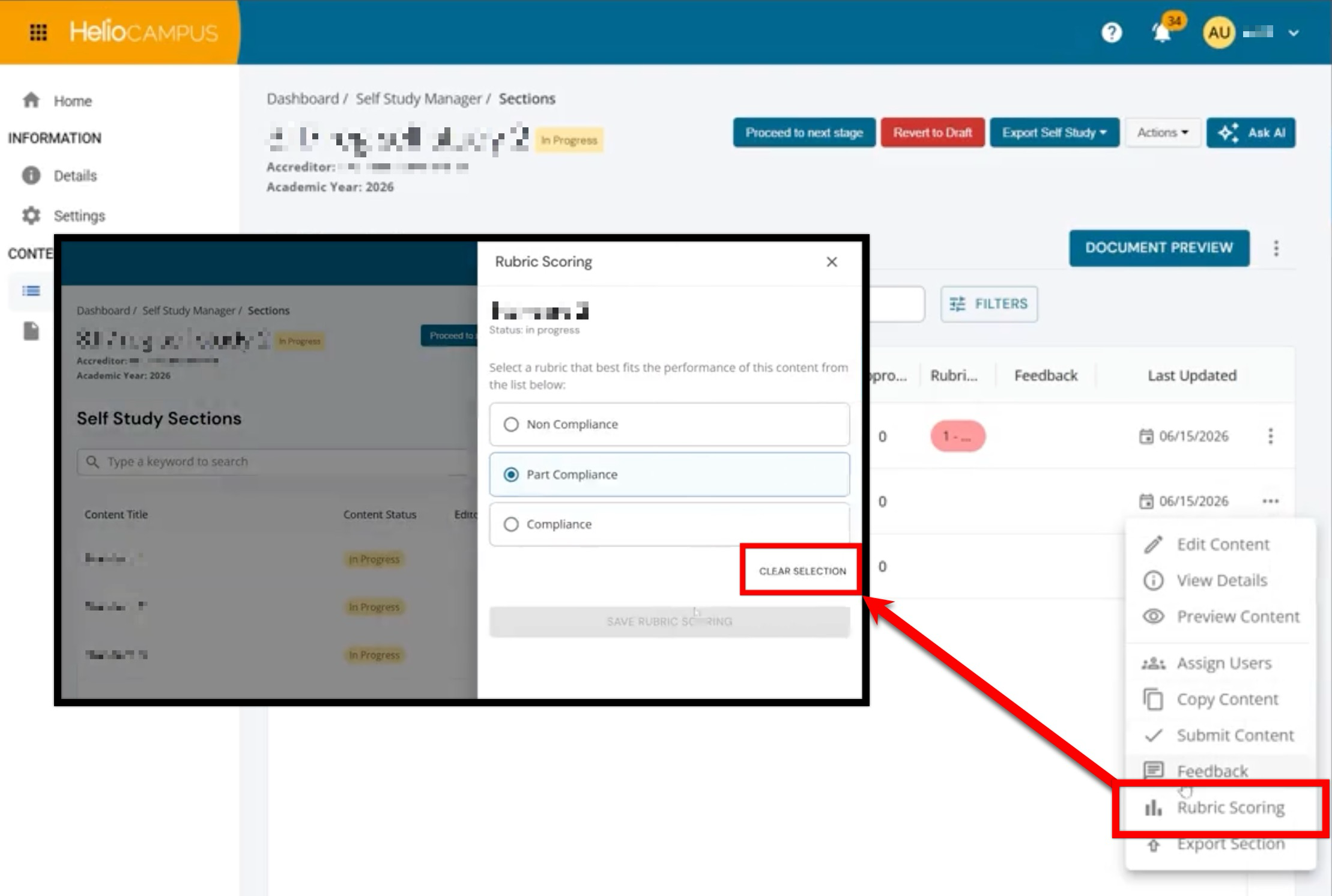
The rubric scoring drawer in self study sections has been enhanced to support deselecting a previously selected rubric level. Previously, once a criteria level selection was made, there was no way to clear that selection. These updates provide greater flexibility when scoring rubrics in self study sections, allowing users to correct accidental selections or reset criteria without needing to navigate away from the scoring drawer. A new Clear Selection option now appears when a rubric level is selected (1); clicking it removes the selection and resets the criteria to an unscored state. Additionally, users can click a previously selected score option to deselect it directly. Learn more
SIS Integration
The Student data file has been expanded to support seven new optional demographic fields:
-
Pell Eligibility
-
First-Generation Status
-
Transfer Credits
-
Cohort Year
-
Gateway Course Status
-
Primary Language
-
Veteran
All new fields are optional and will not affect existing imports if left unpopulated. This update lays the foundation for more meaningful, equity-focused reporting and supports deeper analysis through both platform reports and AI-driven queries. Learn more.
Standards Library
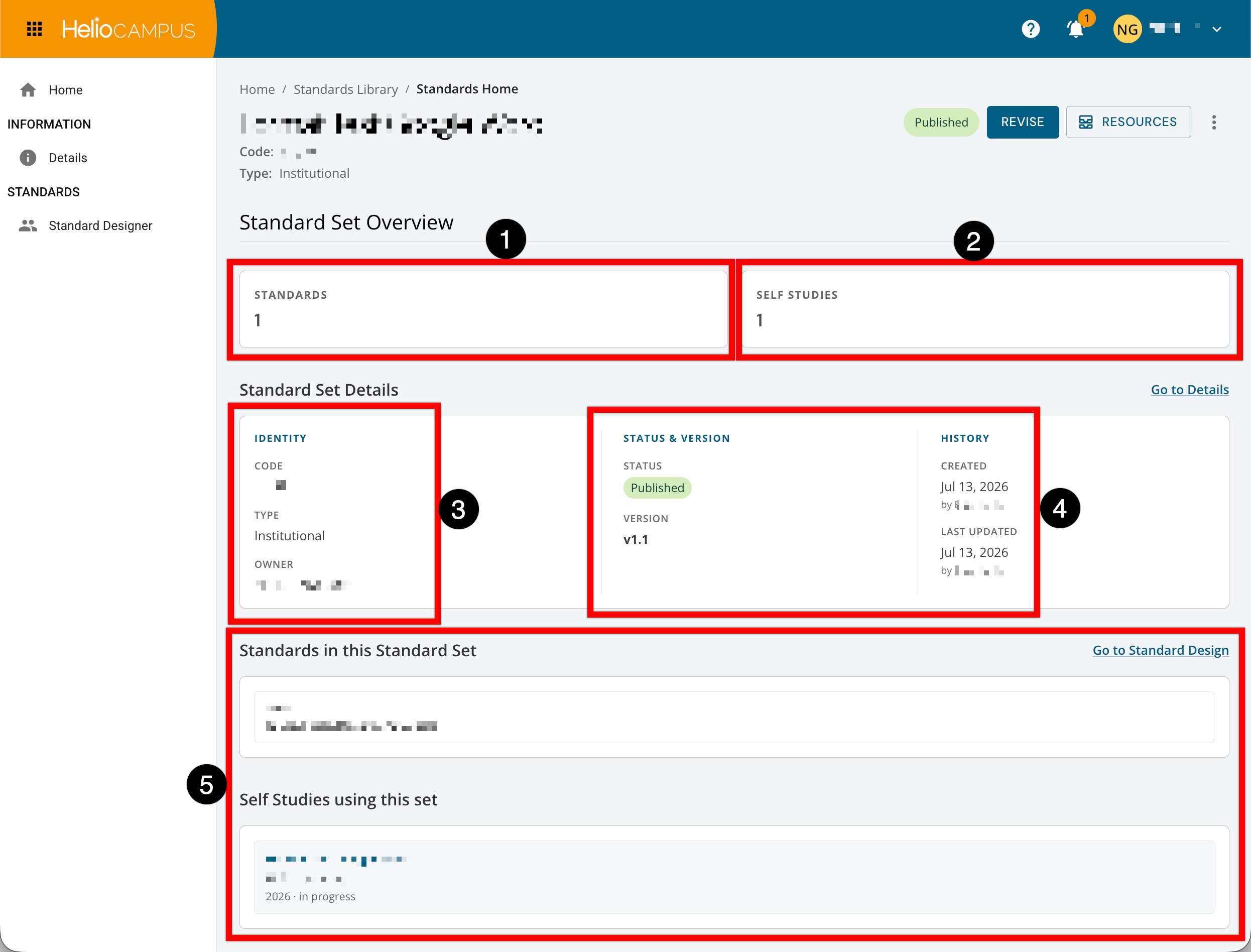
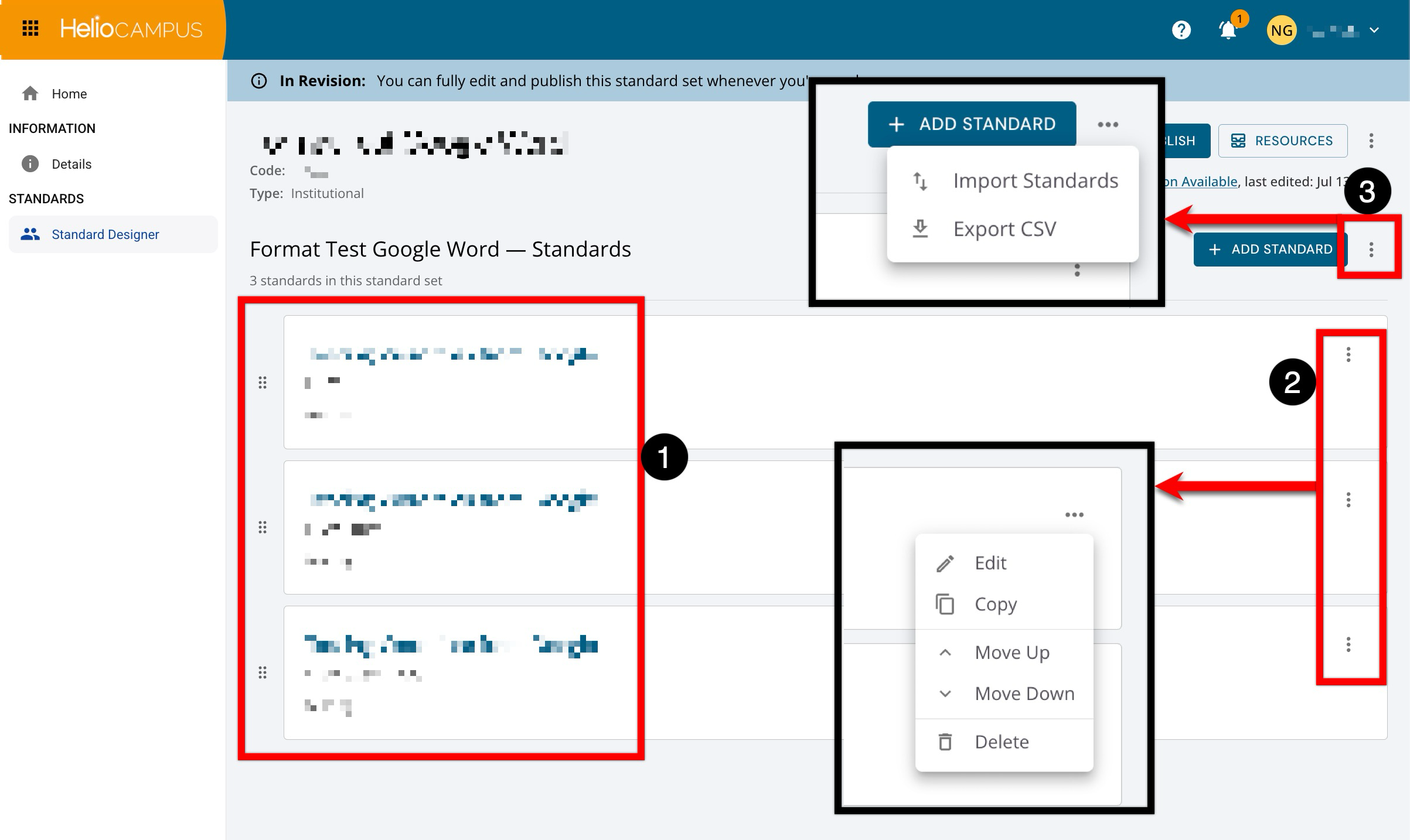
The Standards Library sub-pages have been updated with an improved user interface. The updated pages deliver a streamlined experience for managing standards sets. The new Homepage provides an at-a-glance overview of key metrics for quick review. Summary cards now display the total number of standards in the set (1) and the number of programs currently associated with it (2). Additional standard set information is organized into distinct sections, including identifying details such as code, type, and owner (3), as well as status, version, and historical record of creation and edits (4). Further details on the standards included in the set and the self-studies associated with it are also available (5).
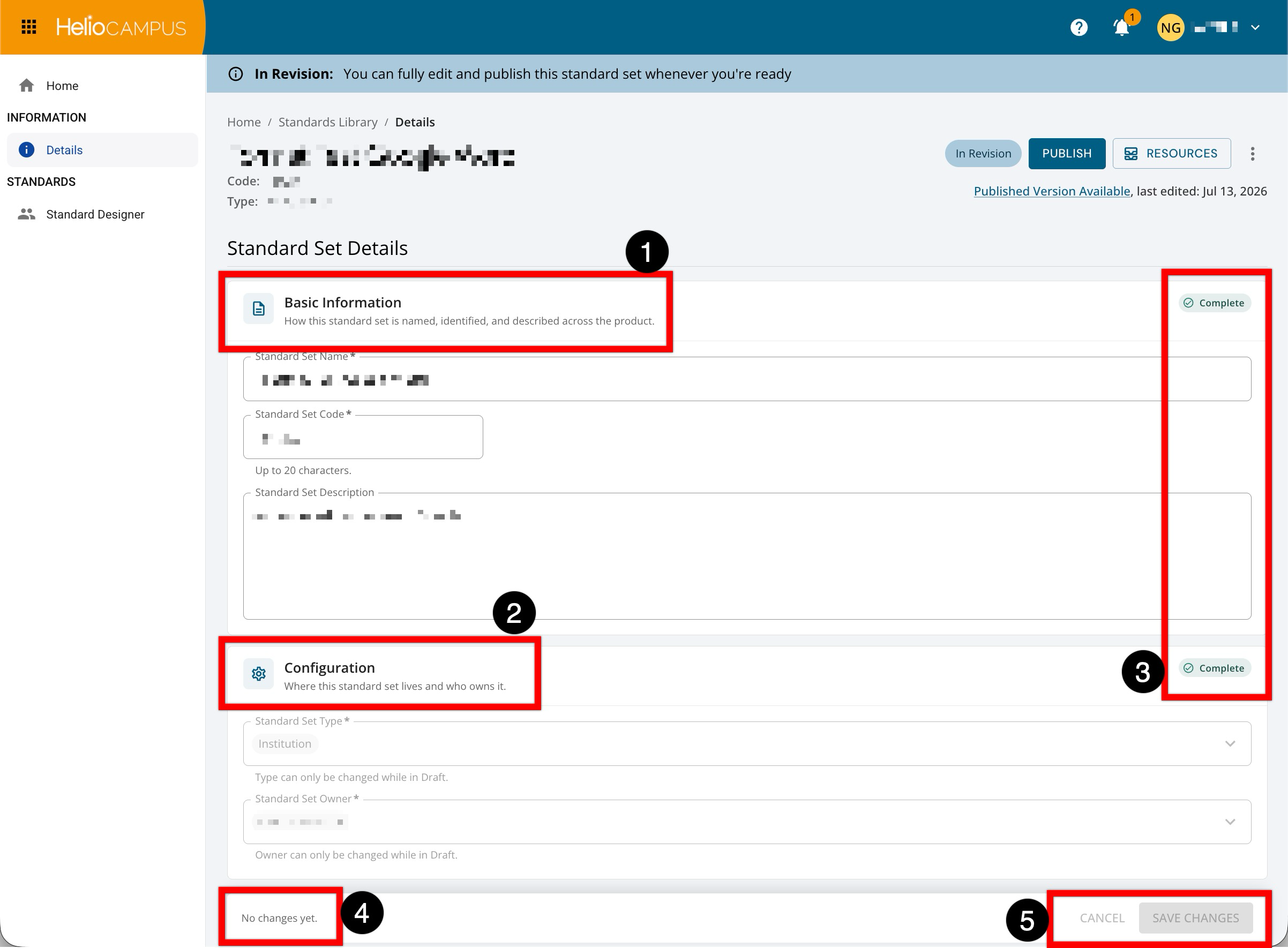
The Details page has been updated with a clearer, more guided layout for editing standards set information. The page now separates editable information into focused sections where users can review and update the standard set details (1) and review the type and owner (2). Each section now includes a completion indicator (3), making it easier to confirm whether required information has been provided. When edits are made, an unsaved changes indicator appears (4), and users can either cancel or save their updates using the persistent action buttons at the bottom of the page (5).
The Standard Designer page has been updated to make managing standards within a standards set clearer and more efficient. Standards are now displayed in a streamlined list view, allowing users to quickly review the standards included in the set (1). Each standard includes an actions menu, where users can edit, copy, reorder, or delete as needed (2). A page-level actions menu is also available for broader standards set actions, including importing and exporting the set to CSV (3). Learn more.
User Roles
Two new roles are now available for Institutions that need to delegate data collection oversight at the college or department level without granting broader administrative permissions. Each role is scoped to the business objects at its respective organizational level.
-
College Data Collection Admin
-
Department Data Collection Admin
These roles provide access only to the following:
-
Document Requests
-
Data Collections
-
My Forms dashboard widget
-
Report Library > Data Collection Category Reports.
Importantly, these roles do not grant edit access to the underlying college or department business objects; instead, they receive only the permissions necessary to view and manage data collection activities within their scope and associated with their user role. This allows Institutions to distribute day-to-day data collection administration more precisely across their organizational hierarchy, empowering college and department-level coordinators to monitor form submissions and run relevant reports without the risk of unintended changes to core institutional records. Learn more.