The Juried Assessment Manager is the central workspace for managing Juried Assessment workflows. It’s used to coordinate scoring activities where reviewers evaluate evidence using defined criteria—supporting structured calibration, consistent scoring, and clear documentation of how ratings were produced. User role permissions for this page are as follows:
-
College Admin
-
Department Admin
-
Institution Admin
-
Program Coordinator
|
|
|---|---|
|
1 |
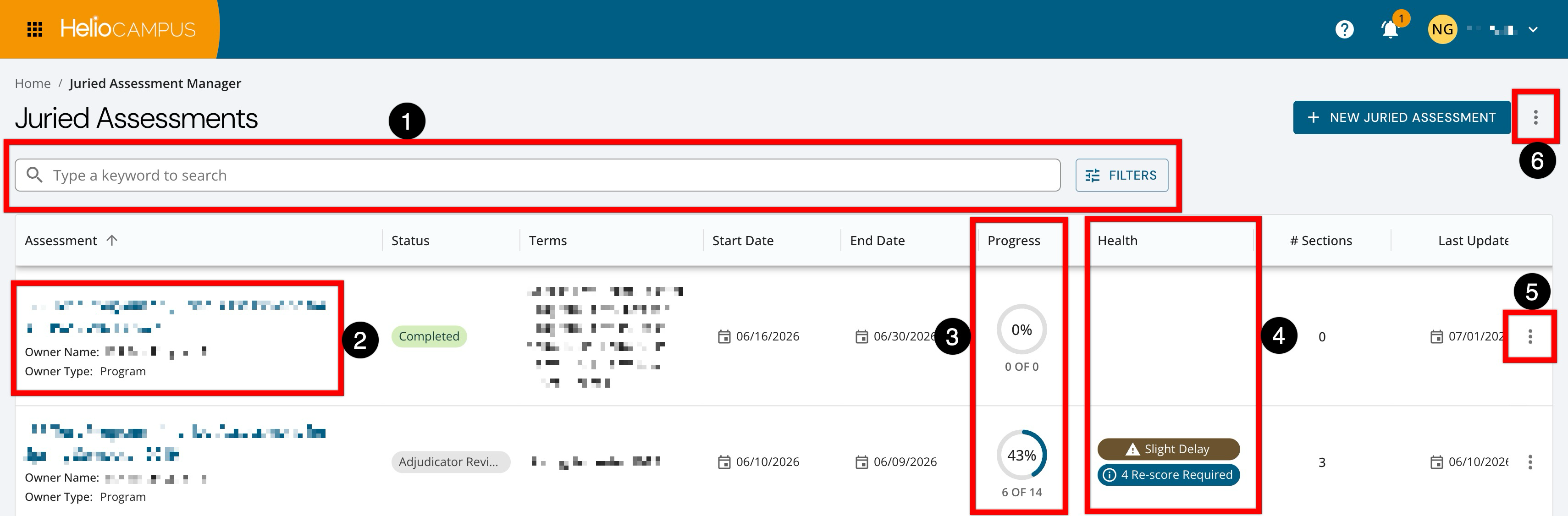
Search functionality is available, and by clicking the Filters option, specific filters can be applied. Once filters have been applied, they will display below the search bar and can be removed individually (1) or in bulk (2). 
|
|
2 |
This column identifies the assessment name and owner context. Clicking an assessment's name navigates to the assessment homepage. The owner and naming conventions are driven by program configuration and the assessment setup used when the Juried Assessment was created/scheduled. |
|
3 |
The scoring completion for the assessment is displayed as a percentage, along with the scored vs. total count. This reflects the artifact-scoring activity recorded for the assessment (i.e., how many artifacts have been fully scored vs. the total artifacts in scope). The total count of artifacts is driven by how the Juried Assessment is configured and populated (e.g., artifact selection/import rules and any artifact management decisions made within the assessment). |
|
4 |
Provides at-a-glance risk indicators for active/in-progress Juried Assessments; the column may be empty for assessments that are pending, completed, or otherwise inactive. |
|
5 |
When Inter-Rater Reliability is enabled for a given, selecting Reporting navigates directly to the Reporting page for a Juried Assessment. |
|
6 |
The manager view can be exported to CSV format. |
Juried Assessment Homepage
|
|
|---|---|
|
1 |
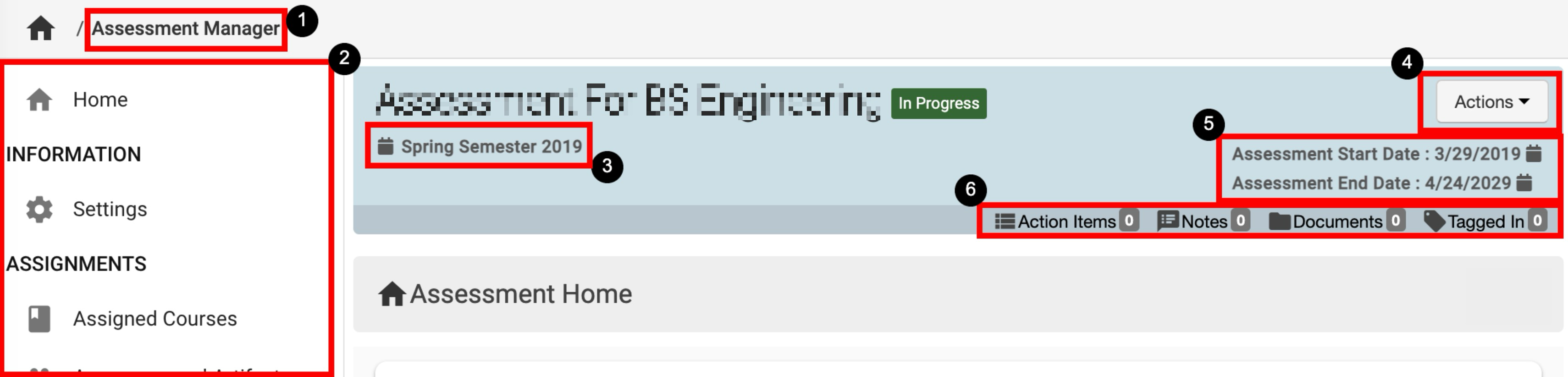
Assessment Manager can be clicked to return to the manager view to select a different Assessment. |
|
2 |
The left-hand menu can be used to navigate various assessment settings. |
|
3 |
The Term that the Assessment applies to is displayed on all pages when viewing an Assessment. |
|
4 |
The Actions drop-down menu is available on all pages when viewing an Assessment:
|
|
5 |
The Assessment start and end dates are displayed on all pages when viewing an Assessment. When Assessments are created, the end date defaults to the last day of the next term, although end dates can be manually altered. |
|
6 |
The count of action items, notes, documents, and locations where the Assessment has been tagged are displayed. This information can be viewed in more detail by scrolling to the bottom of the Assessment Homepage. Users can click each tab to view existing items and click the Add button to attach new items, notes, documents, and tags. 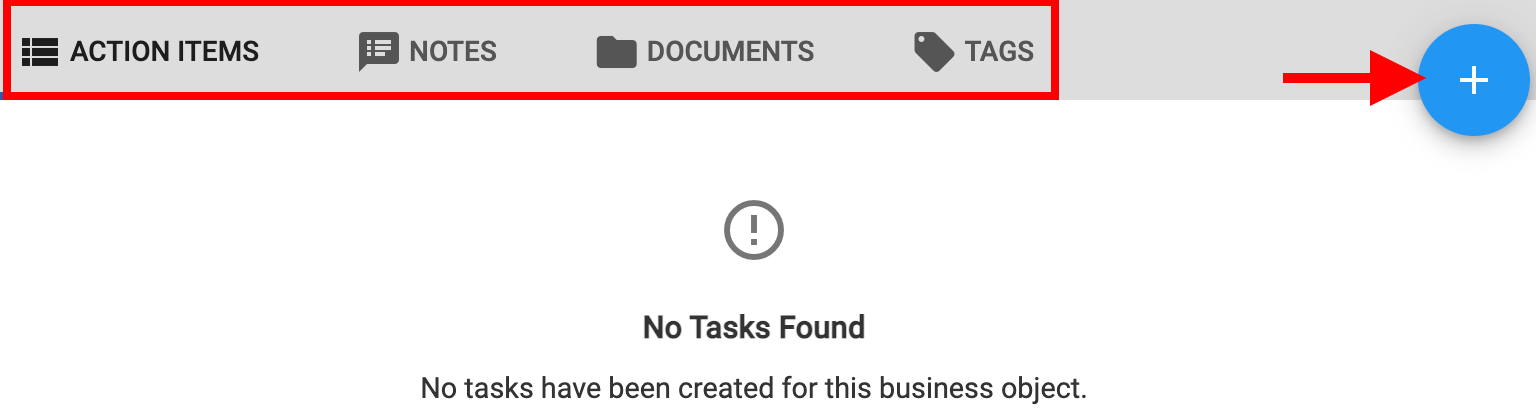
|
Juried Assessment Health
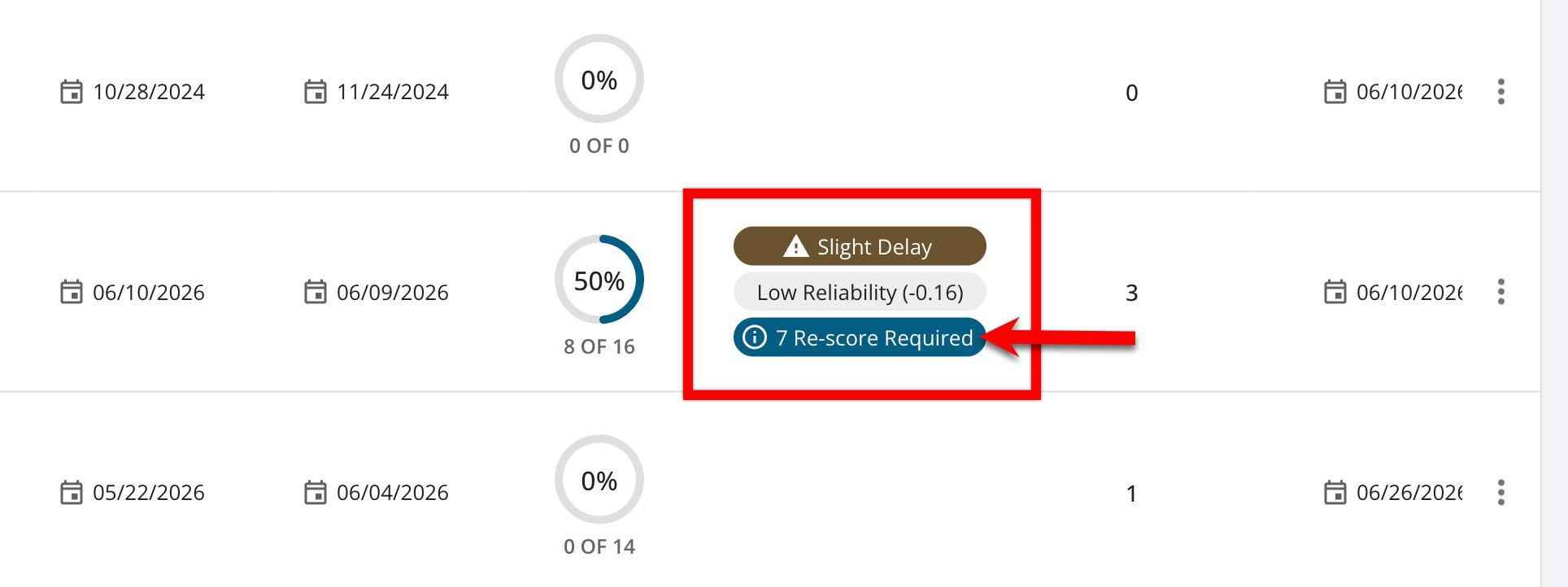
The Health column provides multiple at-a-glance indicators for active or in-progress Juried Assessments. It is tied to Inter-rater Reliability (IRR) functionality and only displays when IRR is enabled for an assessment. This column displays status indicators that help administrators monitor scoring progress and scoring reliability. These indicators are intended to highlight assessments that may need attention, such as those falling behind schedule, showing low scoring agreement among assessors, or requiring re-scoring. Types of indicators can include:
-
Pace Risk: Shows whether scoring progress is on track relative to the time elapsed during the assessment period.
-
Low Reliability: Indicates that assessor agreement is below the expected reliability threshold. This indicator displays when the Kappa value is below 0.60.
-
Re-score Required: Indicates that one or more artifacts require re-scoring, typically due to reliability or agreement issues that need additional assessor review.
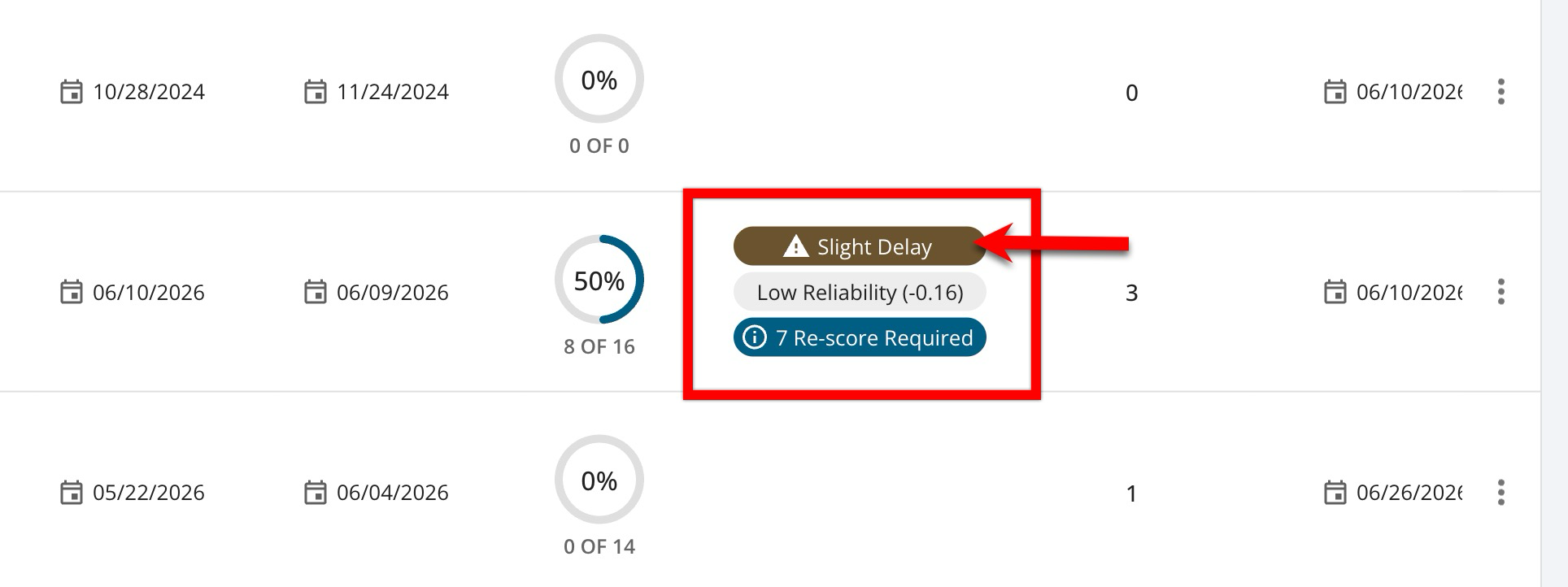
The pace risk indicator compares the percentage of graded artifacts against the percentage of elapsed time in the assessment period. Indicators include:
|
Status |
Description |
|---|---|
|
On Track |
Scoring progress is equal to or ahead of the elapsed assessment timeline. |
|
Slight Delay |
Scoring is behind the expected pace by up to 10%. |
|
Critical |
Scoring is more than 10% behind the expected pace. |
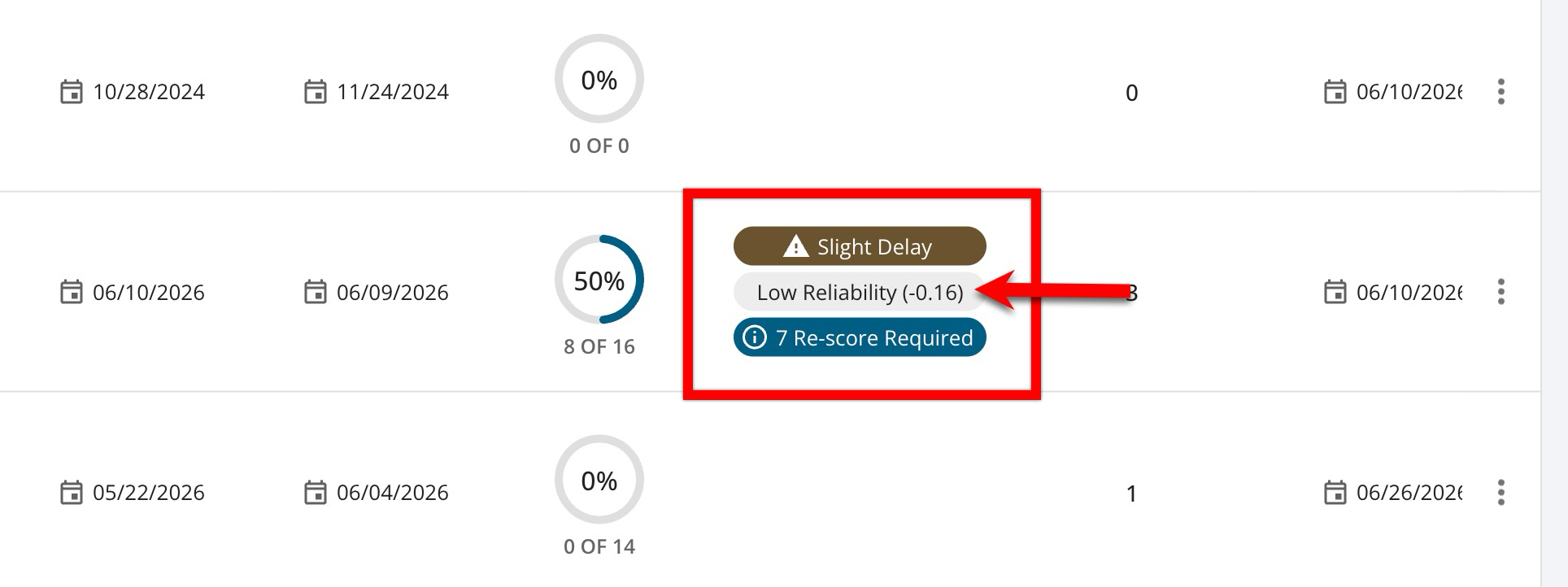
The reliability indicator appears when assessor agreement falls below the acceptable threshold. Reliability is measured by evaluating the level of agreement between assessors. When the Kappa value is below 0.60, the Health column displays a Low Reliability indicator with the Kappa value in parentheses, such as Low Reliability (0.55). If the Kappa value is 0.60 or higher, the indicator is hidden.
The re-scoring indicator identifies assessments where artifacts may need additional scoring attention. When displayed, the indicator includes the number of artifacts requiring re-scoring, such as 3 Re-score Required. This helps administrators quickly identify assessments that may require follow-up with assessors, adjudicators, or other scoring participants before the assessment can be considered complete.