
Release Timeline
-
Training Sites: November 2, 2026
-
Production Sites: December 7, 2026
Learn more about release enhancements by registering for the bi-monthly webinar series. After registering, enrollment continues automatically for all future webinars, and no re-registration is necessary! Although enrollment continues automatically, attendance at every release webinar is not mandatory; please attend when scheduling allows.
AI User Roles
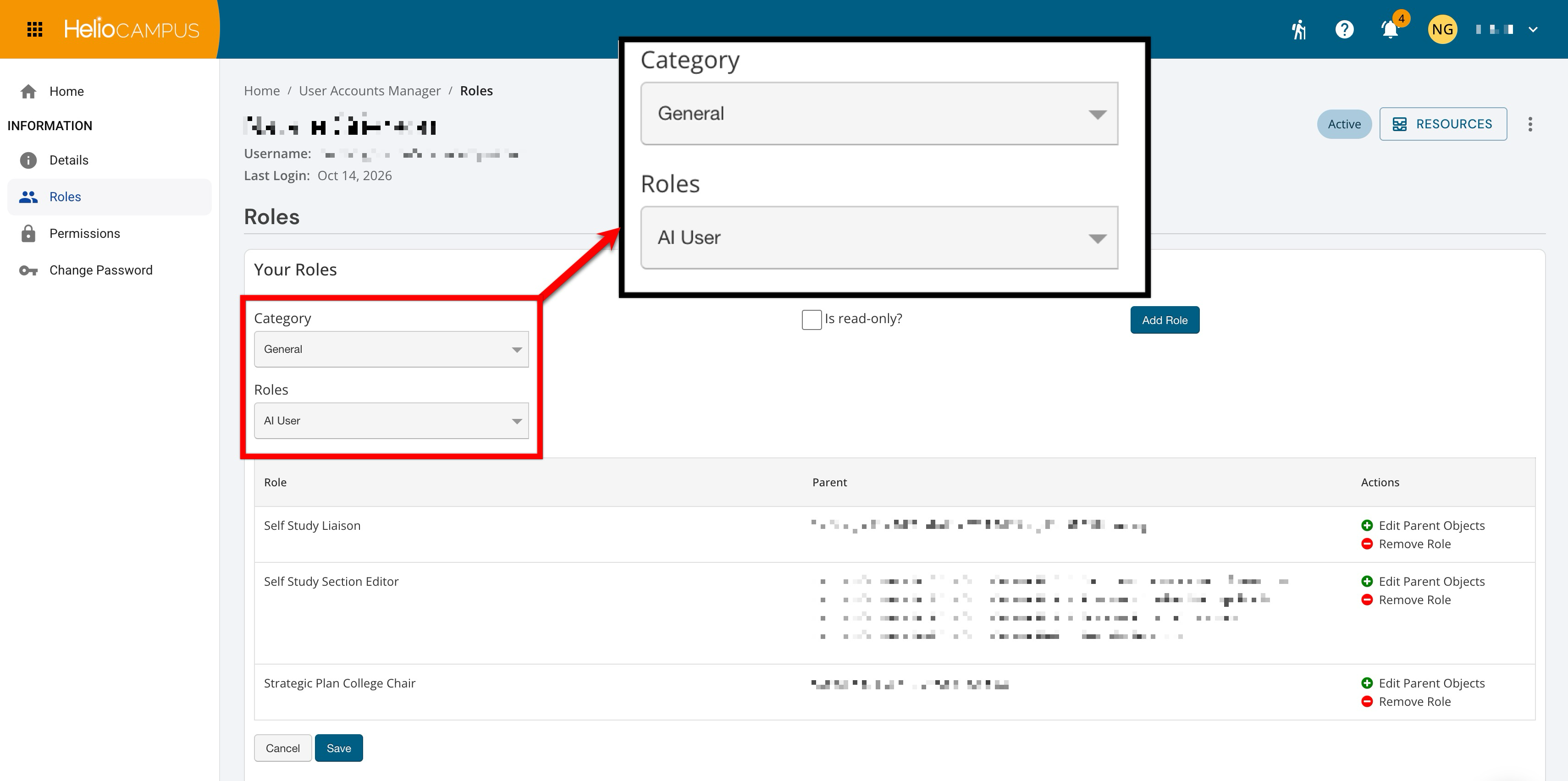
A new AI User role replaces separate, feature-specific AI roles, such as Survey AI, Data Collection AI, Self Study AI, and Evidence Bank AI, with one consistent way to manage access across HelioCampus AI capabilities. When assigned, the role gives users access to the AI-powered features available to their Institution, but only within the areas they can already access. The AI User role doesn't grant access to any content on its own. For example, a user without access to a data collection won't gain access to it just by having the role. Administrators can assign, remove, and update the role through the existing role management experience, making it easier for Institutions to manage AI access directly without contacting HelioCampus.
This improvement simplifies administration, reduces confusion, and creates a scalable foundation for future AI features. Instead of tracking multiple AI-specific roles, Institutions can manage one clear permission that works across all AI experiences. Learn more.
If a user account was assigned a legacy AI role such as Survey AI User, the user will be auto-updated to the new AI User role. No manual intervention is needed to reconfigure roles.
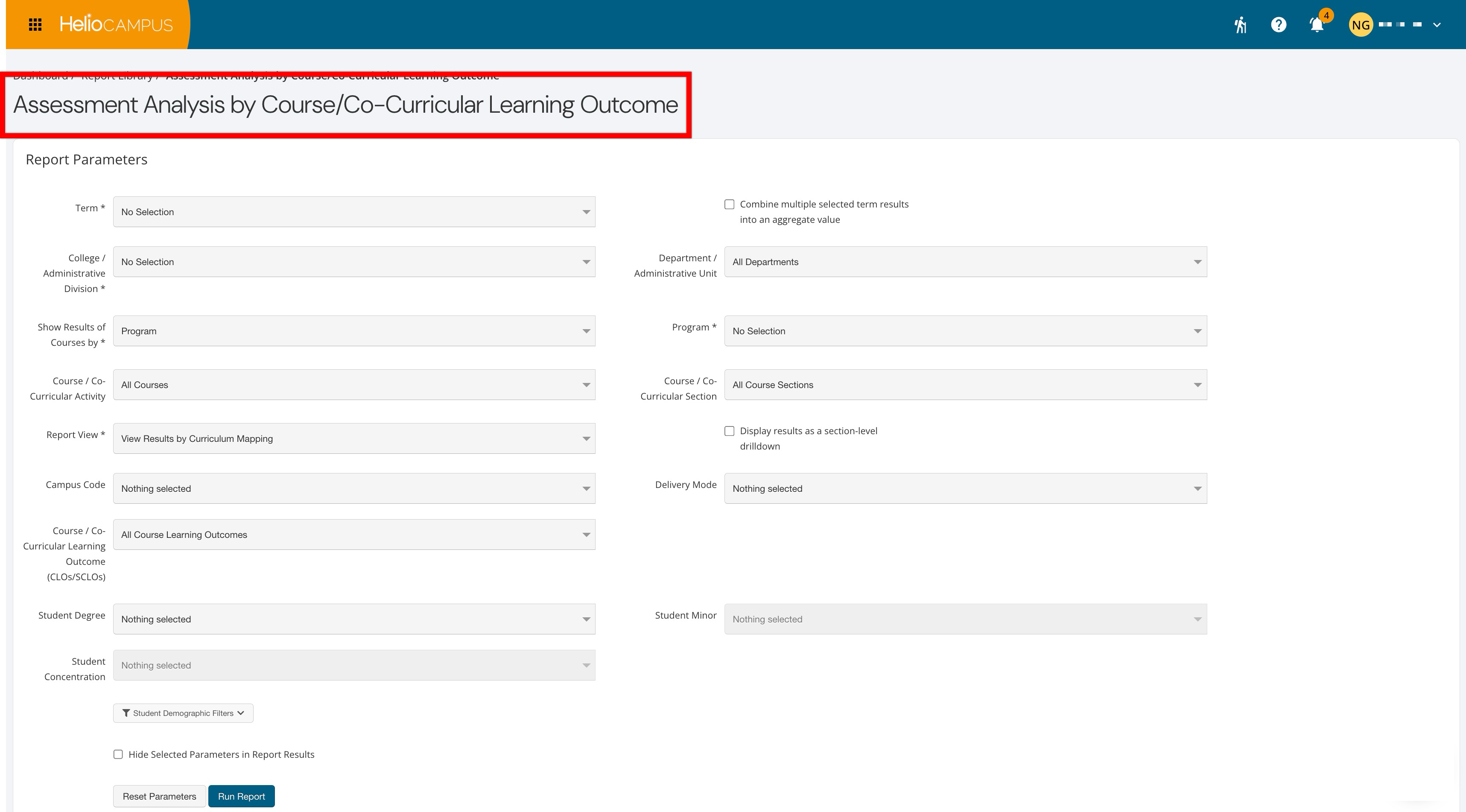
Assessment Analysis by Course/Co-Curricular Learning Outcome Report
Instructors and Course Section Directors can now access and run the Assessment Analysis by Course/Co-Curricular Learning Outcome report. Access is limited to the course sections they're assigned to. Results are available as a course-level aggregate that combines their common sections, and as a section-level drilldown with a separate record for each section. Learn more.
Aggregate Assessment Results by Outcome Report
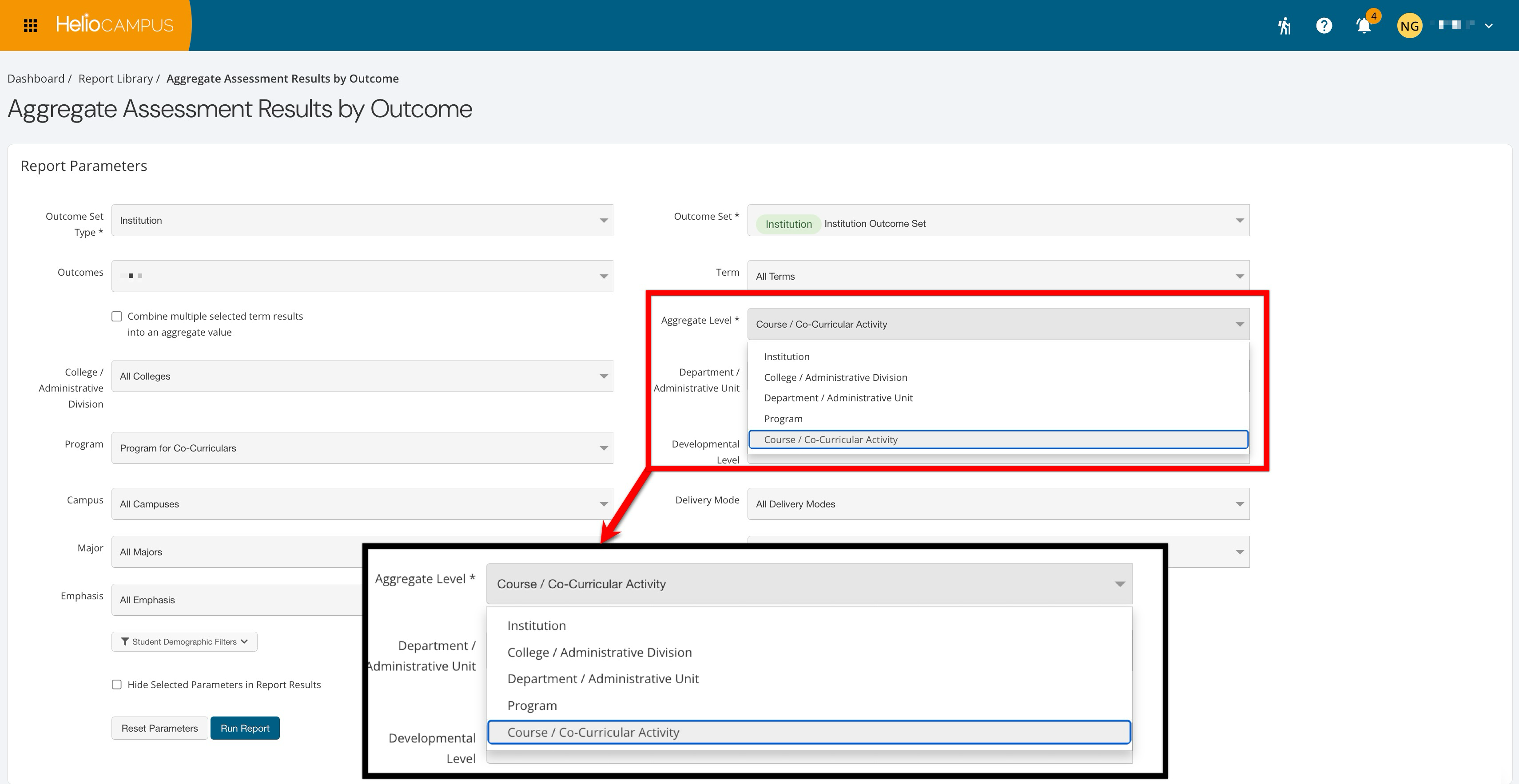
The Aggregate Level parameter in the Aggregate Assessment Results by Outcome report now includes a Course/Co-Curricular Activity option. Previously, the lowest available aggregate level was program. Users can now review outcome results at the course or co-curricular activity level. Learn more.
Assignment Reports
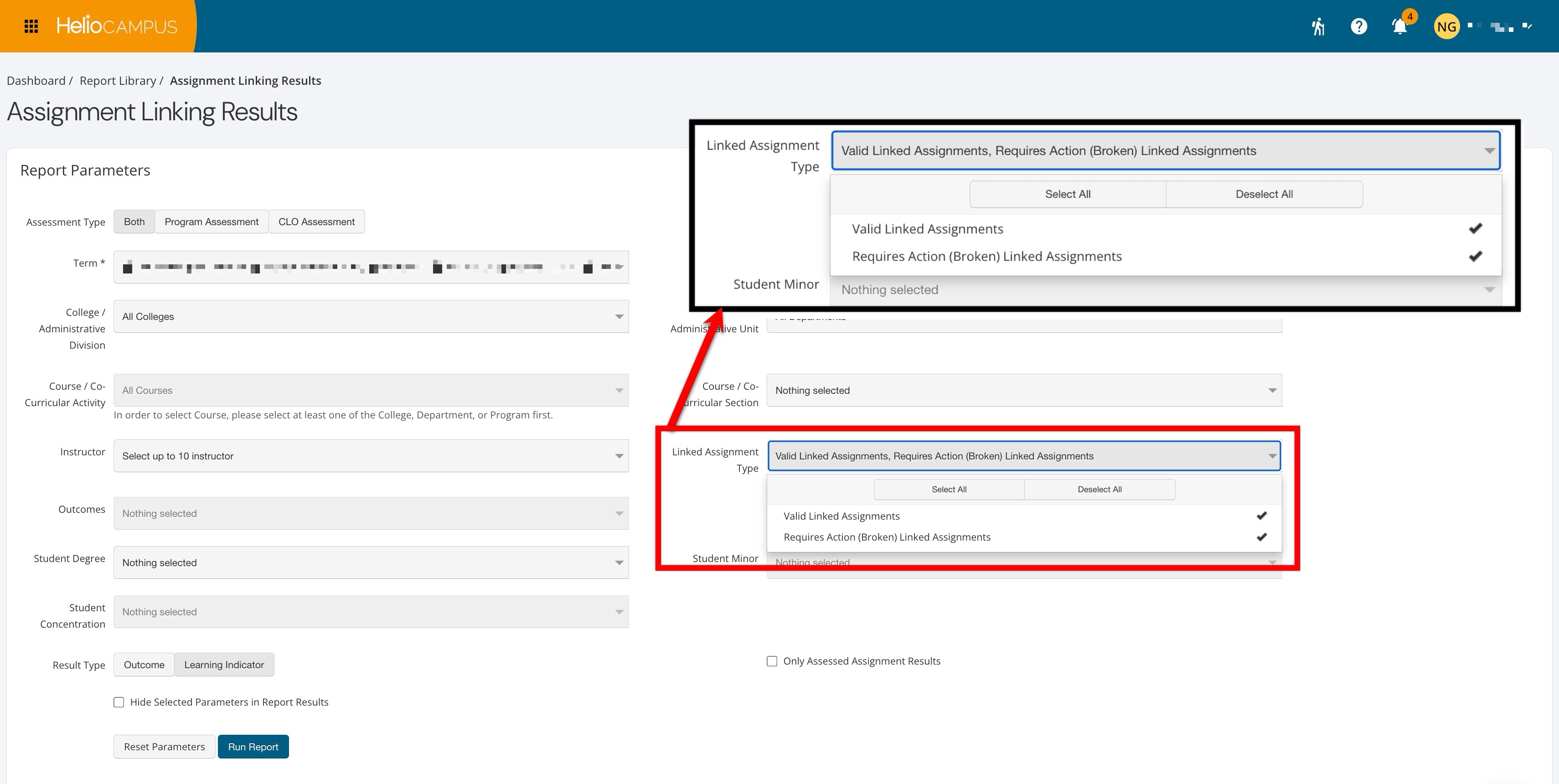
Assignment reports have been updated to make assignment linking clearer and more flexible. The Linked Assignment Type parameter is now multi-select, replacing the previous Both option with explicit selections for each linked assignment type. This helps users build more precise reports, reduces ambiguity in report criteria, and makes it easier to understand which assignment relationships are included in the results.
The report output also has a new Assignment Link Status column showing Linked, Unlinked, or Broken Link for each assignment. Column headers now show whether values come from HelioCampus or the LMS, so platform statuses such as In Progress aren't mistaken for LMS statuses. All changes also appear in report exports.
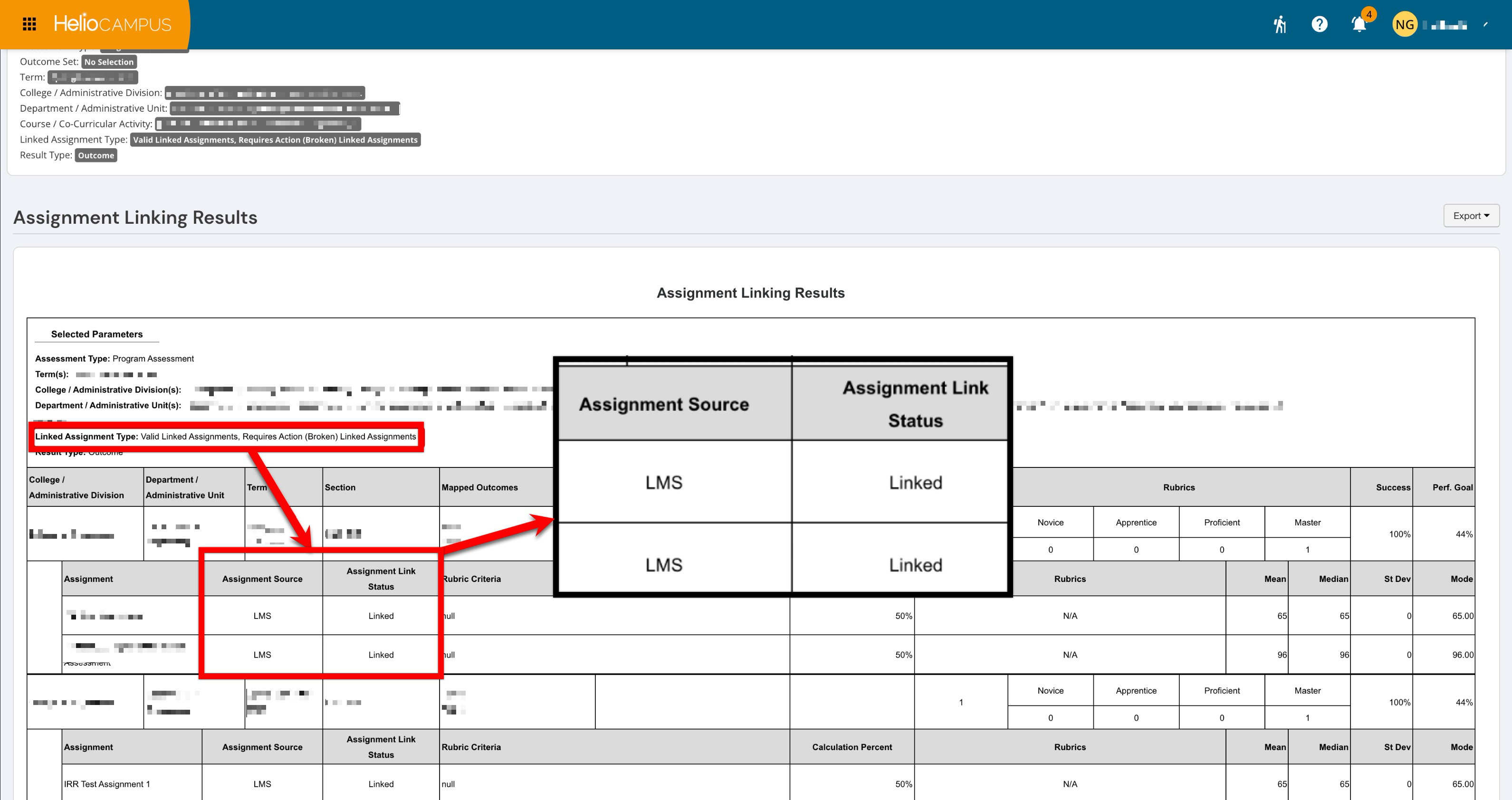
These enhancements have been implemented for all reports in the Assignment Reports category of the Report Library:
Data Collection Schedules
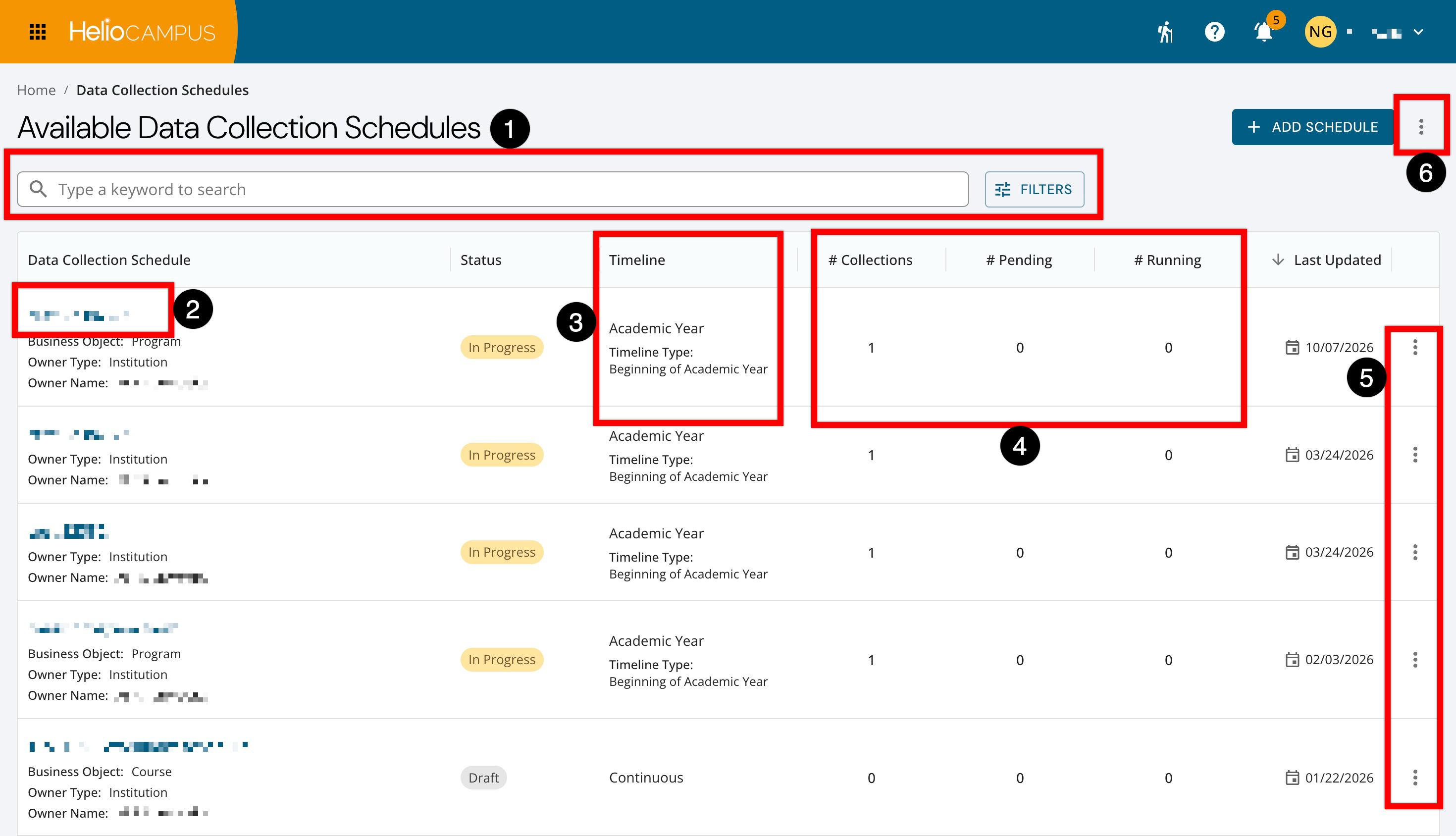
The Data Collection Schedules Manager has been updated with a new and improved interface. Search functionality is available, and clicking the Filters option enables filtering by status (1). Clicking the name of a collection schedule opens the Homepage for that schedule (2). Timeline details are surfaced for a quick glance (3), and the total count of collections associated with a schedule is displayed along with the counts of pending or currently in-progress collections (4). Expanding the Actions menu for a collection displays quick navigation to the Data Collection Manager (5), and the More Options menu provides page-level export functionality (6). Learn more.
Data Collection Workflows
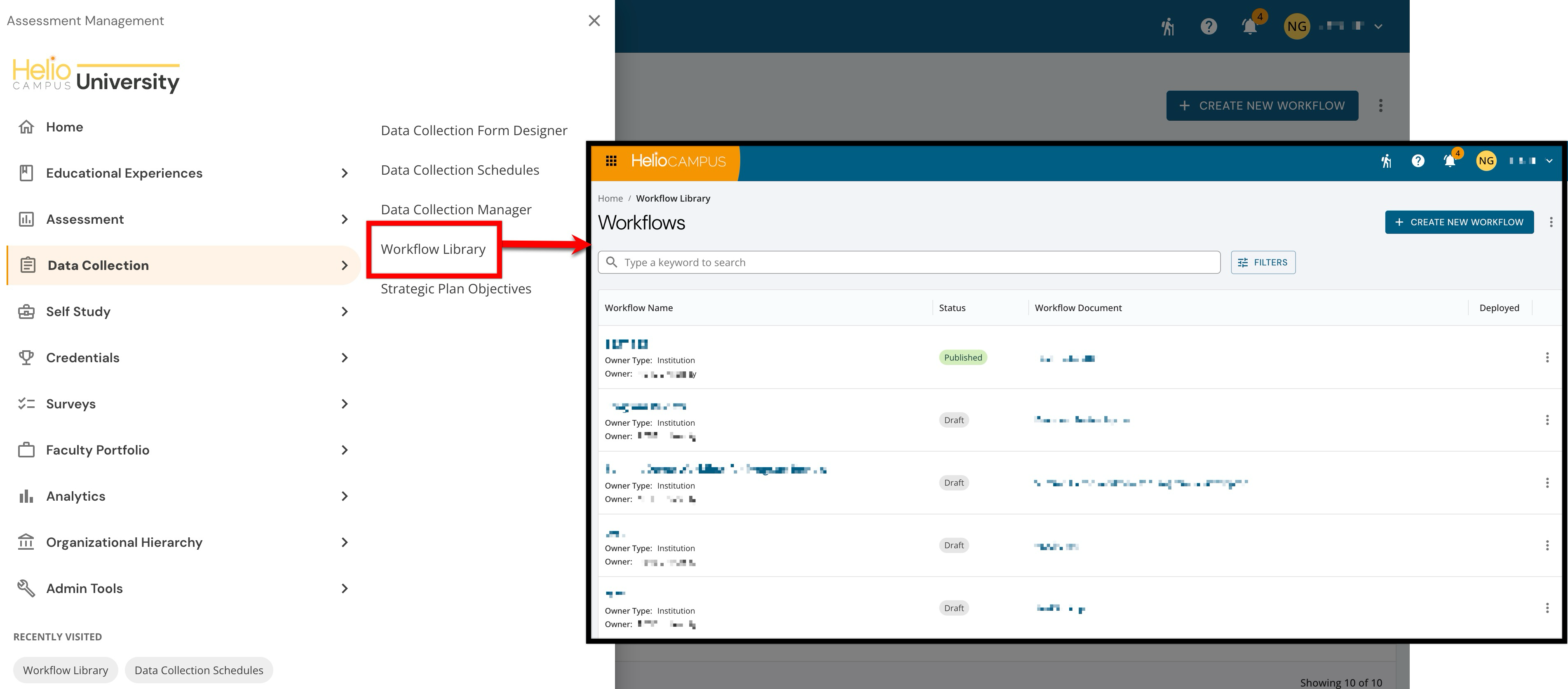
The data collection Workflow Library is now available to Institution Admins, giving teams a powerful new way to take ownership of their data collection processes. This change is a major step forward for institutional autonomy. Previously, only HelioCampus administrators could access this functionality. Now, Institutions can design and maintain their own data collection workflows. This change reduces turnaround time and enables faster responses to process changes, keeping data collection aligned with internal governance and operational needs.
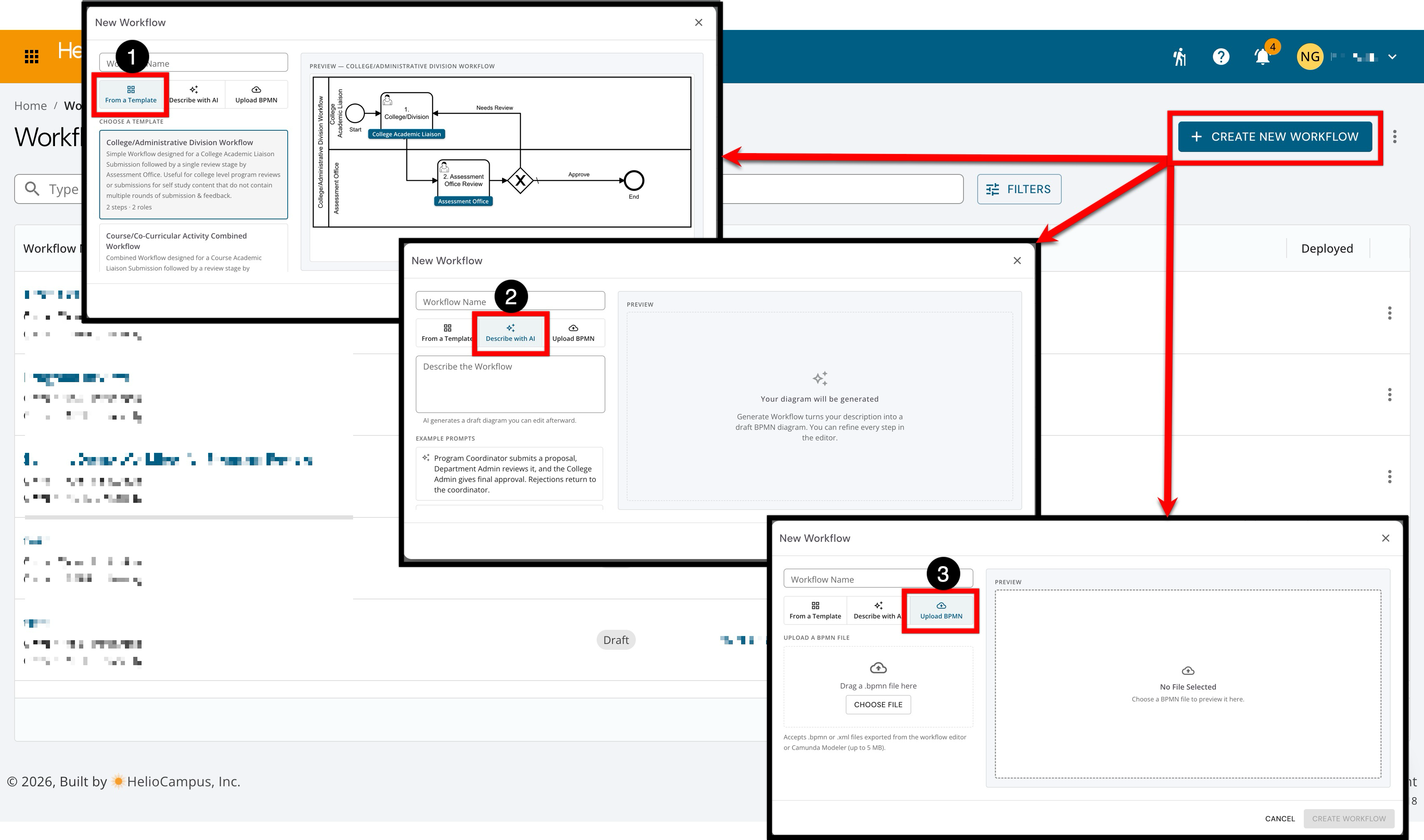
Workflow creation supports multiple starting points. By clicking Create New Workflow, workflows can be created from a prebuilt template, generate a draft workflow with AI, or import an existing workflow file:
-
From a Template (1): Start with a prebuilt workflow template and customize the steps, roles, and settings to match an institution’s process.
-
Describe with AI (2): Describe the workflow in plain language and use AI to generate a draft workflow diagram that can be reviewed and adjusted before saving.
-
Upload BPMN (3): Import a .bpmn or .xml workflow file, preview it, and confirm when you’re ready to replace the current draft. Use this option to move a workflow from a training site to production without rebuilding it.
Once created, collection workflows use only two statuses: Draft and Published. Draft workflows can be edited or deleted, while published workflows can now only be edited by unpublishing them back to Draft if changes are needed. Learn more.
Data File Support for Course Evaluation Exclusions
The Enrollment and Co-Curricular Enrollment data files now support a new optional Exclude Course Evaluation Results field (true/false).
-
True: Students marked TRUE can still complete and submit their course evaluations, but their responses are left out of survey results aggregate pages at all levels and all survey reports.
-
False: Students marked FALSE are included in survey results aggregate pages at all levels and all survey reports.
If excluding students drops a section below the minimum response threshold, that section's results are hidden from faculty view. Files without this field continue to process normally. Learn more.
Export Messaging
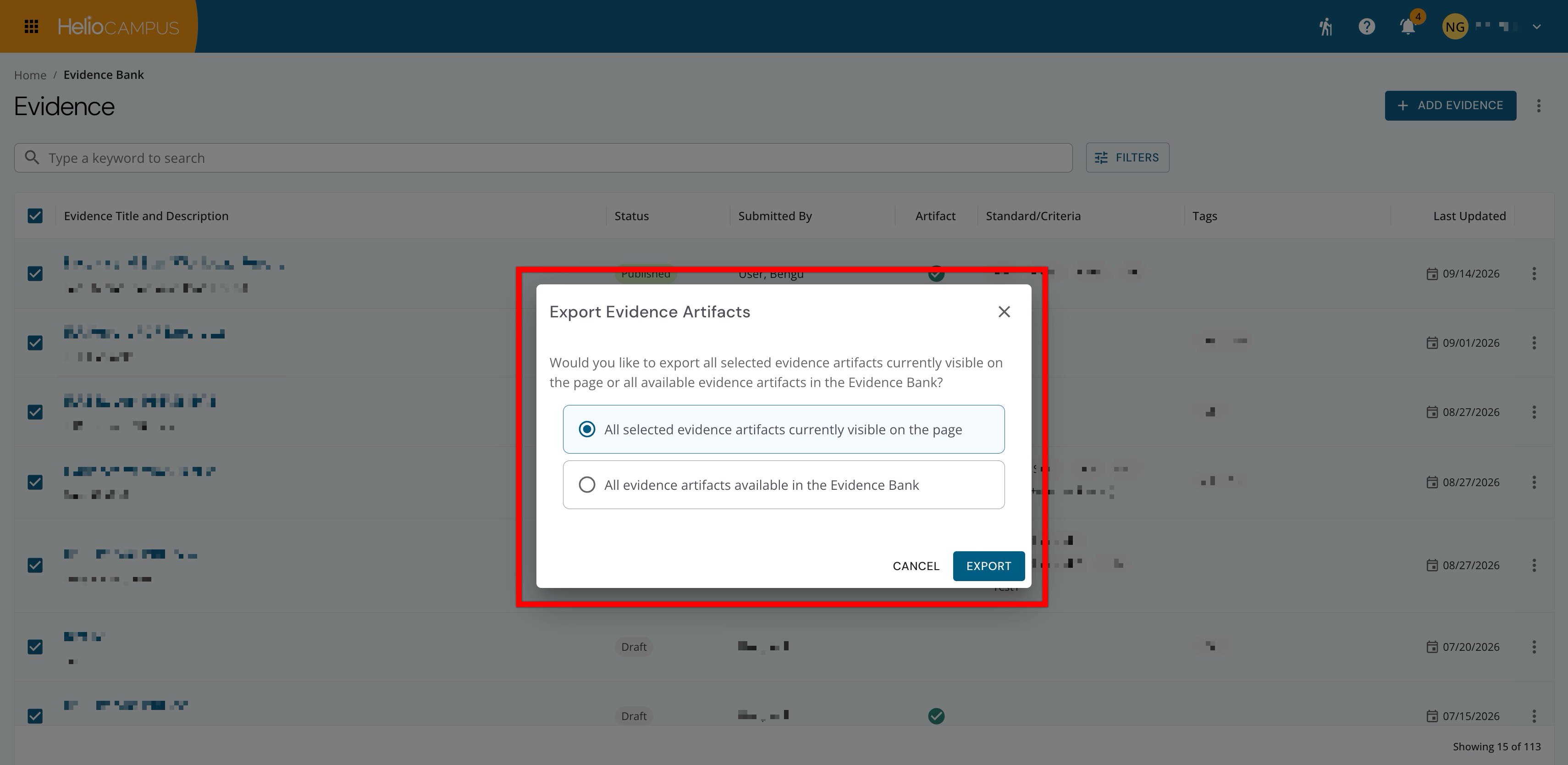
Export messaging has been clarified for exports from the Evidence Bank and the Related Documentation page. When exporting from a self study's Related Documentation page, users now choose between two options:
-
All selected evidence artifacts currently visible on the page: Exports only the evidence artifacts selected in the current view, based on the filters and results visible on the page at the time of export.
-
All evidence artifacts available in this Self Study: Exports every evidence artifact associated with the self study, including artifacts that may not be visible in the current filtered page view.
Messaging for exports that take longer than expected has been reworded to ask users to name the export file before selecting Export. Users can keep working elsewhere, and the finished export appears on the dashboard in My Document Requests. Learn more.
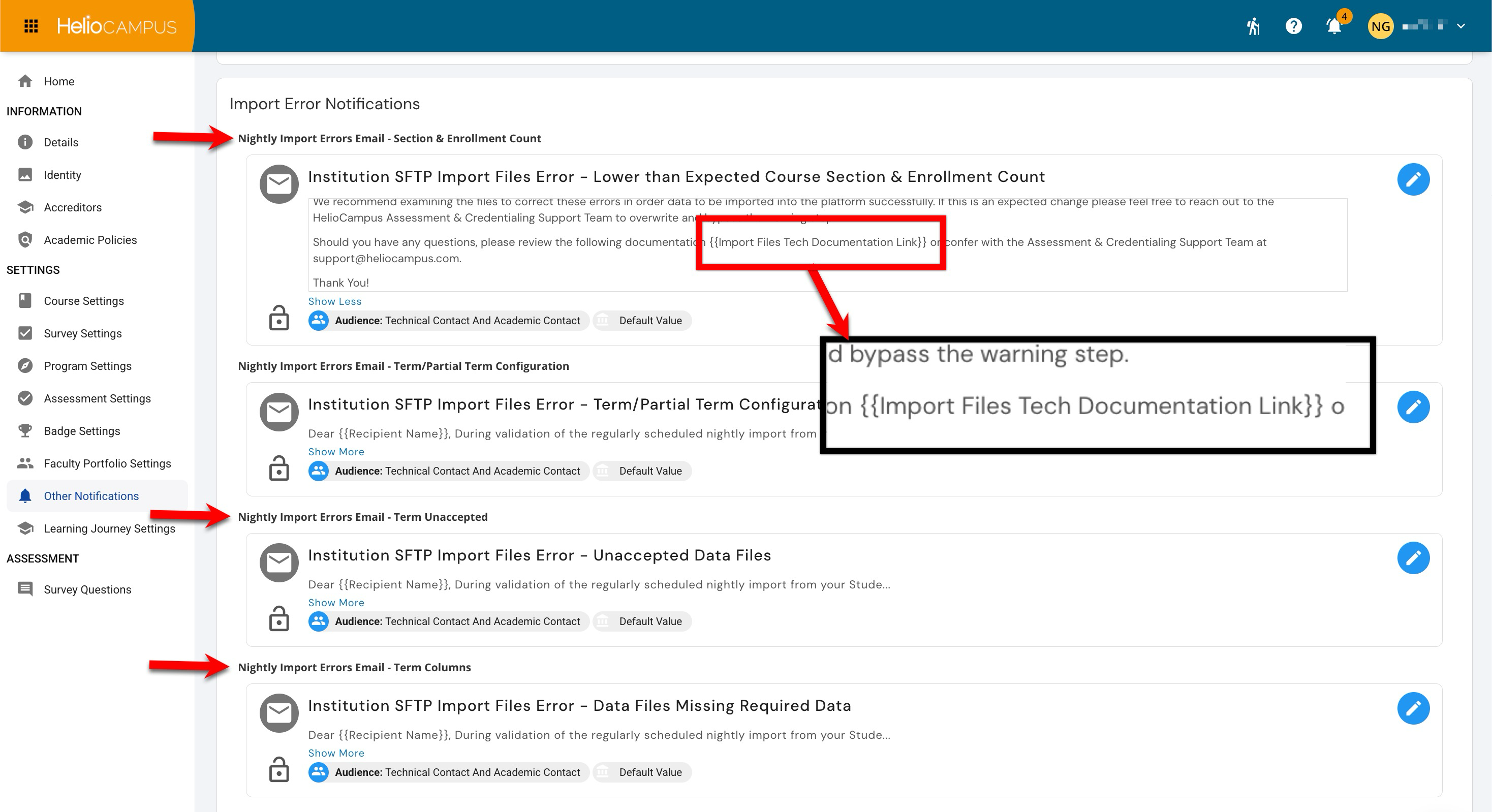
Import Error Notifications
The {{Import Files Tech Documentation Link}} dynamic text in import error notifications now links to the Data File Specification and Review Guide. Users who get an import error notification are now taken directly to the current file specifications to help fix data file issues. Learn more.
Juried Assessment Assessors and Artifacts Improvements
Several updates have been made to improve how Juried Assessment teams track artifact status, interpret completion, and review scoring outcomes.
-
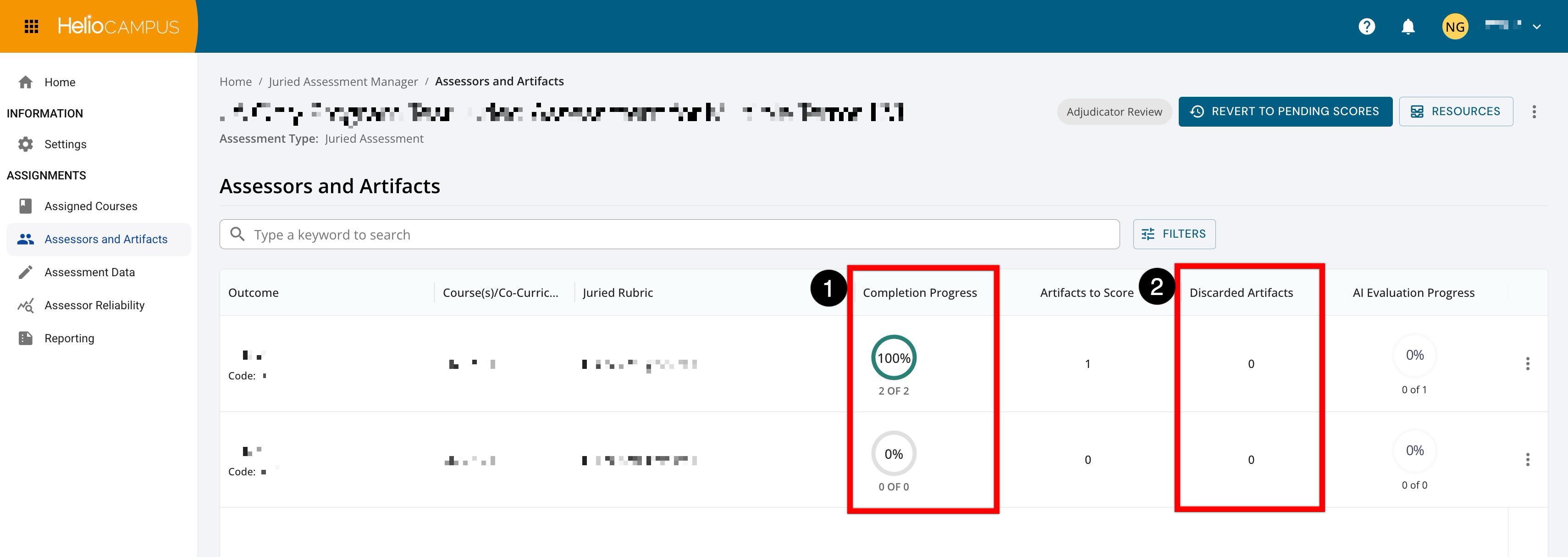
Scoring Progress has been renamed Completion Progress, since unscoreable artifacts count toward completion. Additionally, the Discarded Artifacts count on the Assessors and Artifacts page now includes artifacts an administrator discards during an in-progress Juried Assessment, and unscoreable artifacts an Adjudicator discards during adjudication review.
-
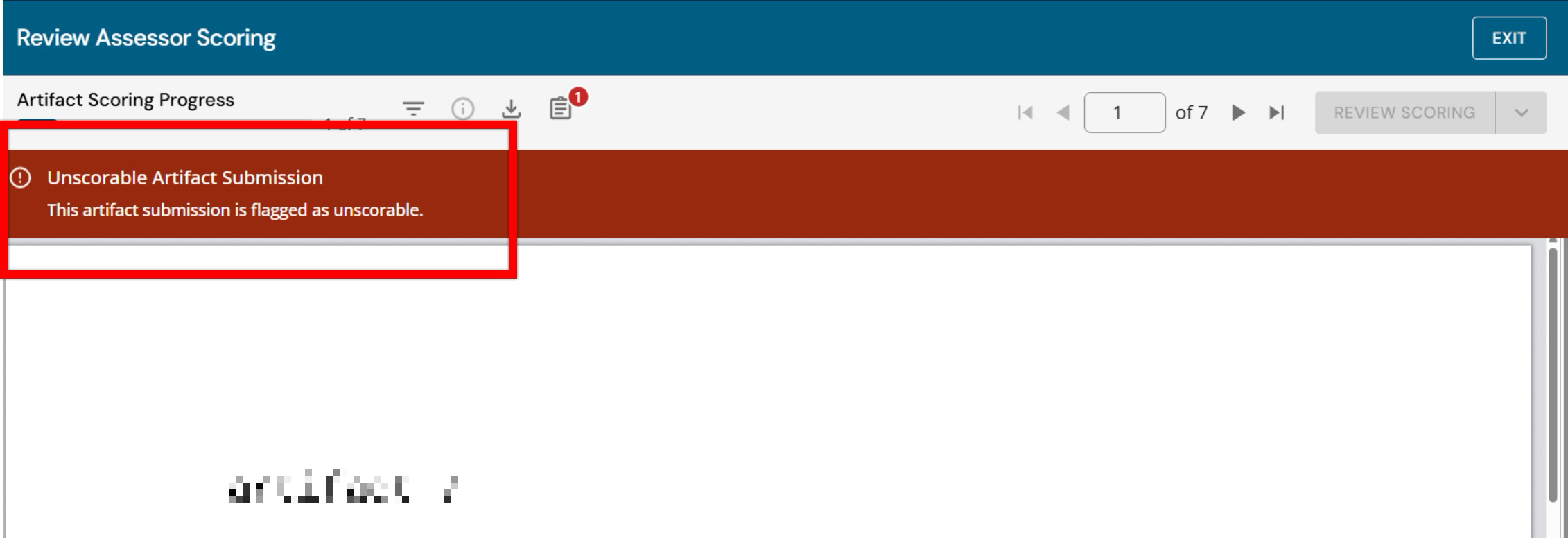
The unscoreable banner now also appears when reviewing scoring from the Assessors and Artifacts page.
-
The Reporting page Average Score column header has been renamed IRR Average Score.
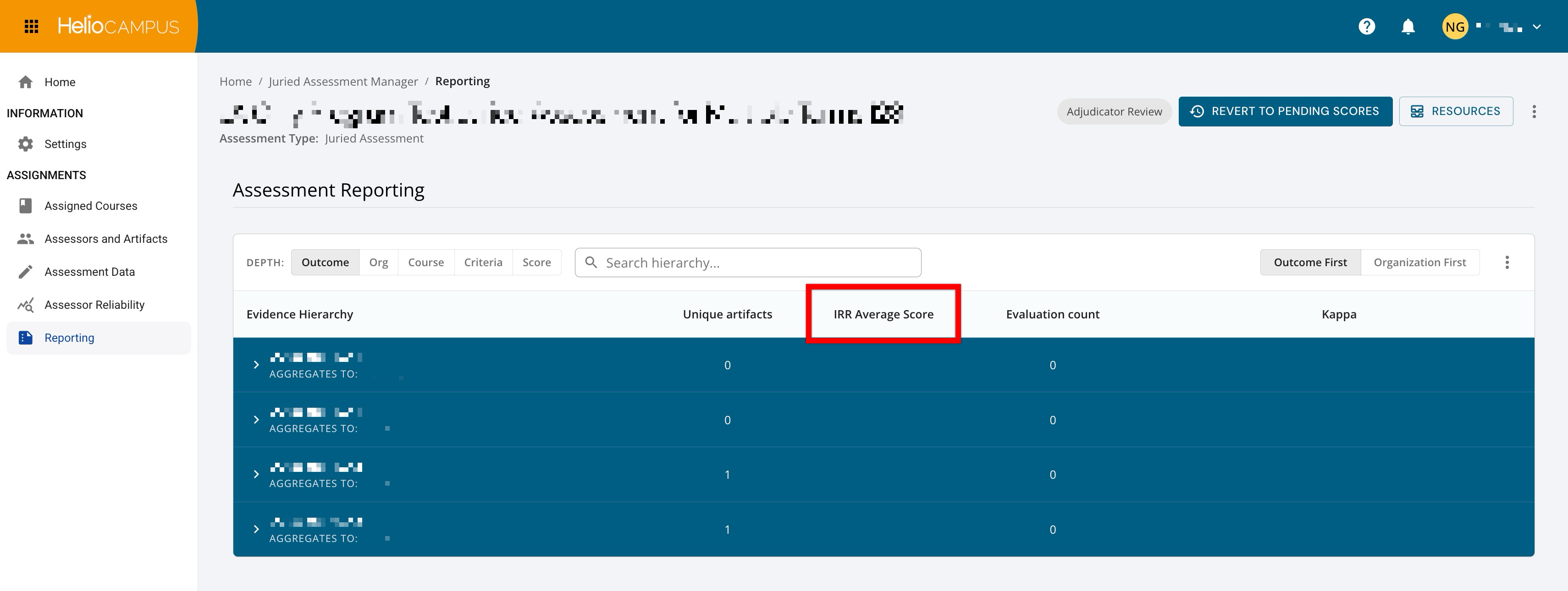
These changes give administrators, assessors, and adjudicators a clearer view of which artifacts are completed, discarded, or marked unscoreable, helping teams monitor progress more accurately and complete reviews with greater confidence. Learn more.
Juried Assessment Assigned Courses
The Assigned Courses page in Juried Assessments now has a Term filter. Many Institutions don't include the term in course titles, which made it hard to tell which sections belonged to which term. With this update, administrators running a Juried Assessment across an academic year can easily select the sections or courses they need from each term. Learn more.
Juried Assessment Scoring Panel
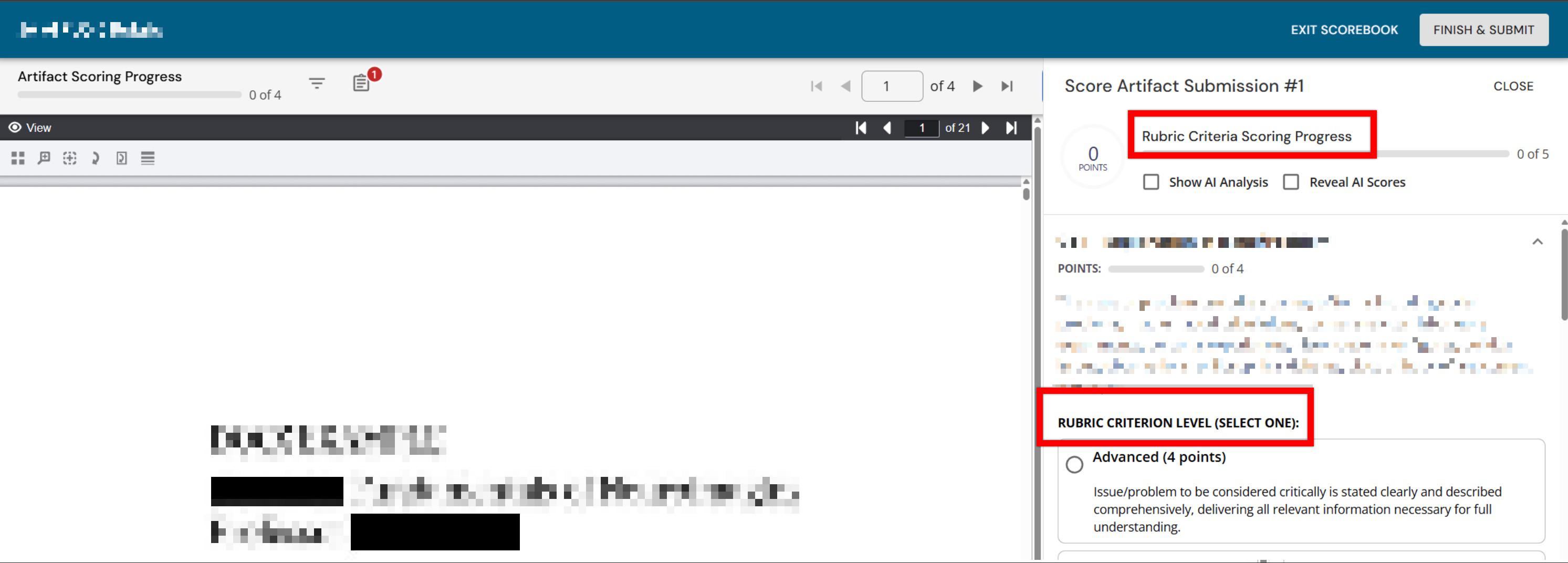
The language on the Juried Assessment scoring panel is clearer and more consistent: The panel title now shows the outcome name (e.g., Critical Thinking Rubric) instead of the course name, since rubrics align to outcomes. Criteria Rubric Scoring Progress has been renamed Rubric Criteria Scoring Progress, and Scoring Rubrics has been renamed Rubric Criterion Level to match the rubric creation wizard. Learn more.
Learning Journey Experiences
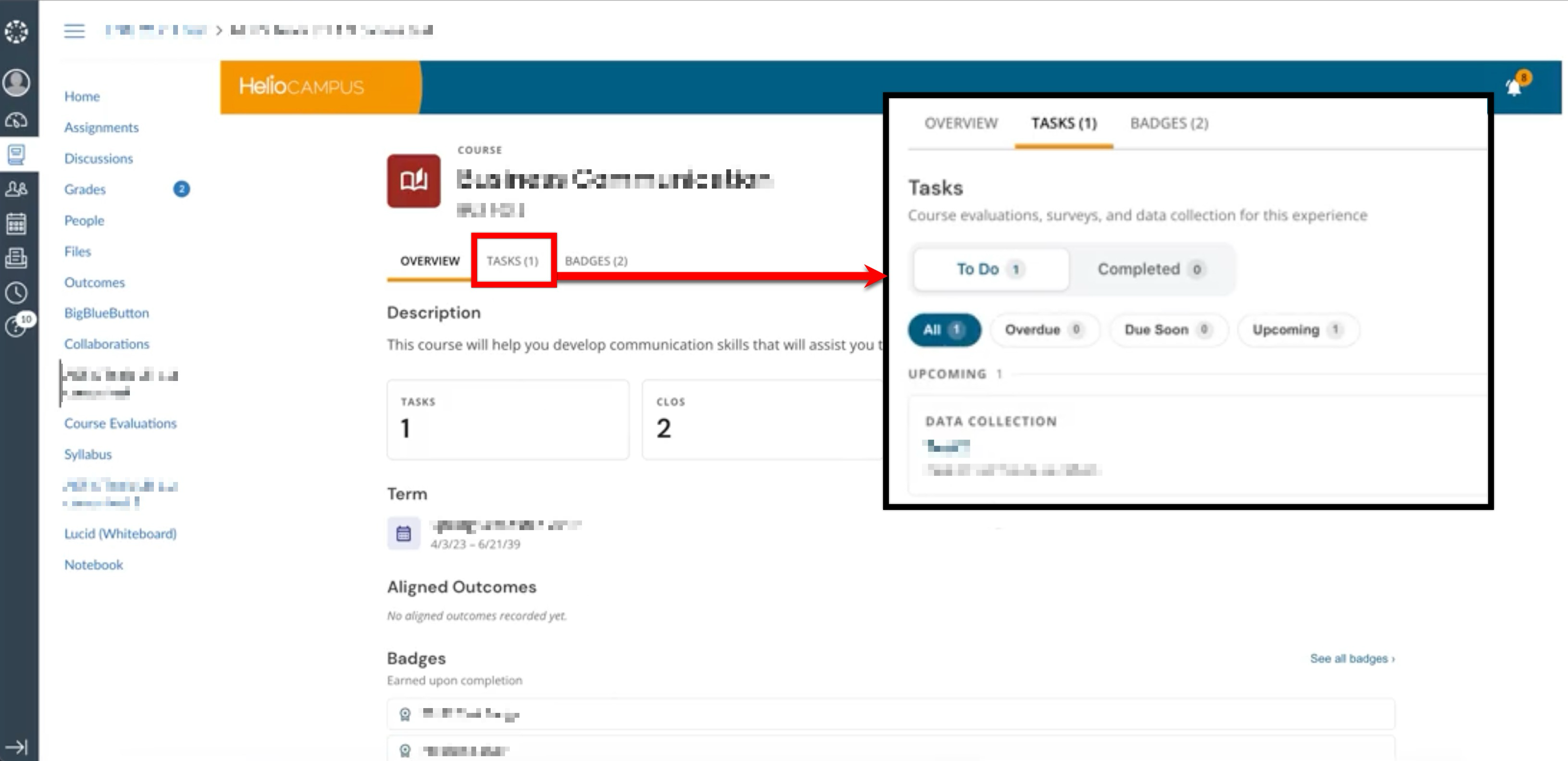
The Experiences page now opens experience details in a new full-screen view instead of the previous side drawer. The full-screen view includes a Tasks tab and a count card that show only the tasks for the selected experience. Previously, Students had to search the full Action Items list to find tasks for a particular course or co-curricular activity. To make it easier for students to see what needs their attention, outstanding tasks such as course evaluations are now more visible for each experience.
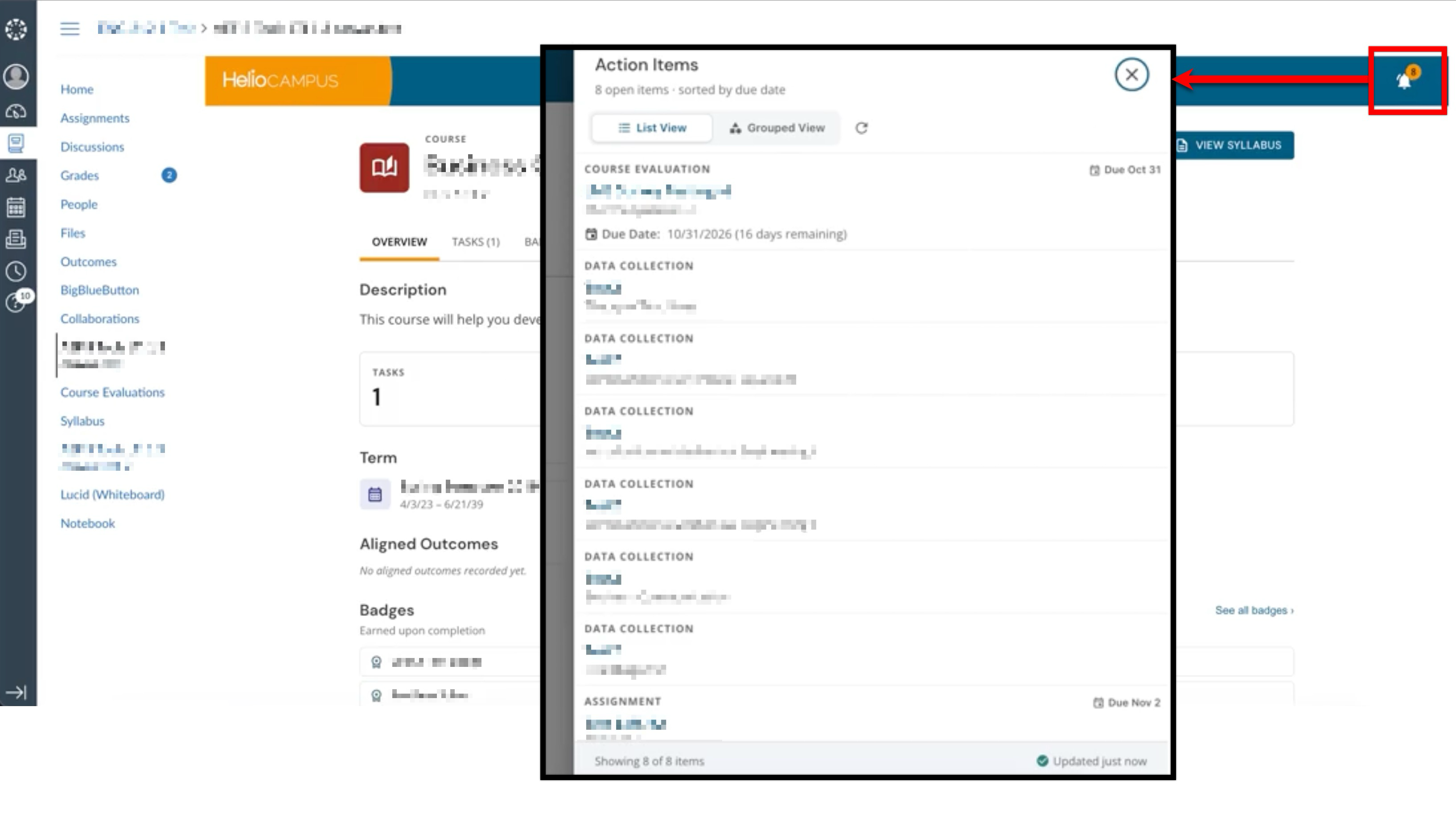
The Action Items menu has also been added to the full-screen view. Students can open their complete list of assigned action items across all experiences without leaving the Learning Journey. When students access the platform through LMS LTI integration, the Action Items menu now appears on all Learning Journey pages. Previously, it appeared only on course full-page views. These enhancements give students a consistent, focused view of each experience while keeping all assigned tasks one click away. This helps raise completion rates for course evaluations and other required activities. Learn more.
This action items view is only visible when accessing the platform via the LMS, when Institutions have the Learning Journey enabled, and when students have the CLR Student user role assigned.
Learning Journey Story Sharing
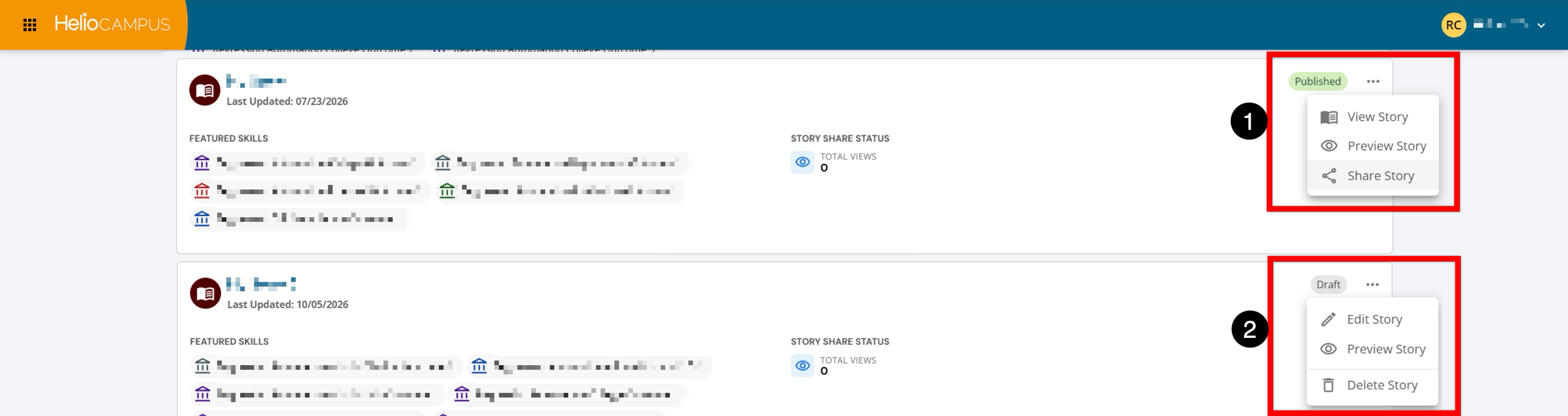
External share links can now be created for Learning Journey stories in Published status (1), both in the story editor and in the Story Manager. This gives students a simple way to share a stable, polished version of a story without exposing work that is still in progress. Because draft stories keep updating as Learning Journey data changes, external links cannot be shared (2). This matters because it reduces the risk of outdated or unintended draft content circulating, and makes it easier to celebrate student outcomes with a consistent record. Learn more.
Platform Performance
Performance improvements have been made to reduce load times on several high-volume pages. Users working with large amounts of data should see faster page loads and fewer delays. This work represents an important first step in an ongoing effort to strengthen platform performance. HelioCampus continues to conduct comprehensive audits and address remediation needs across the platform. Institutions interested in the affected pages, please contact Support.
Program Assessments
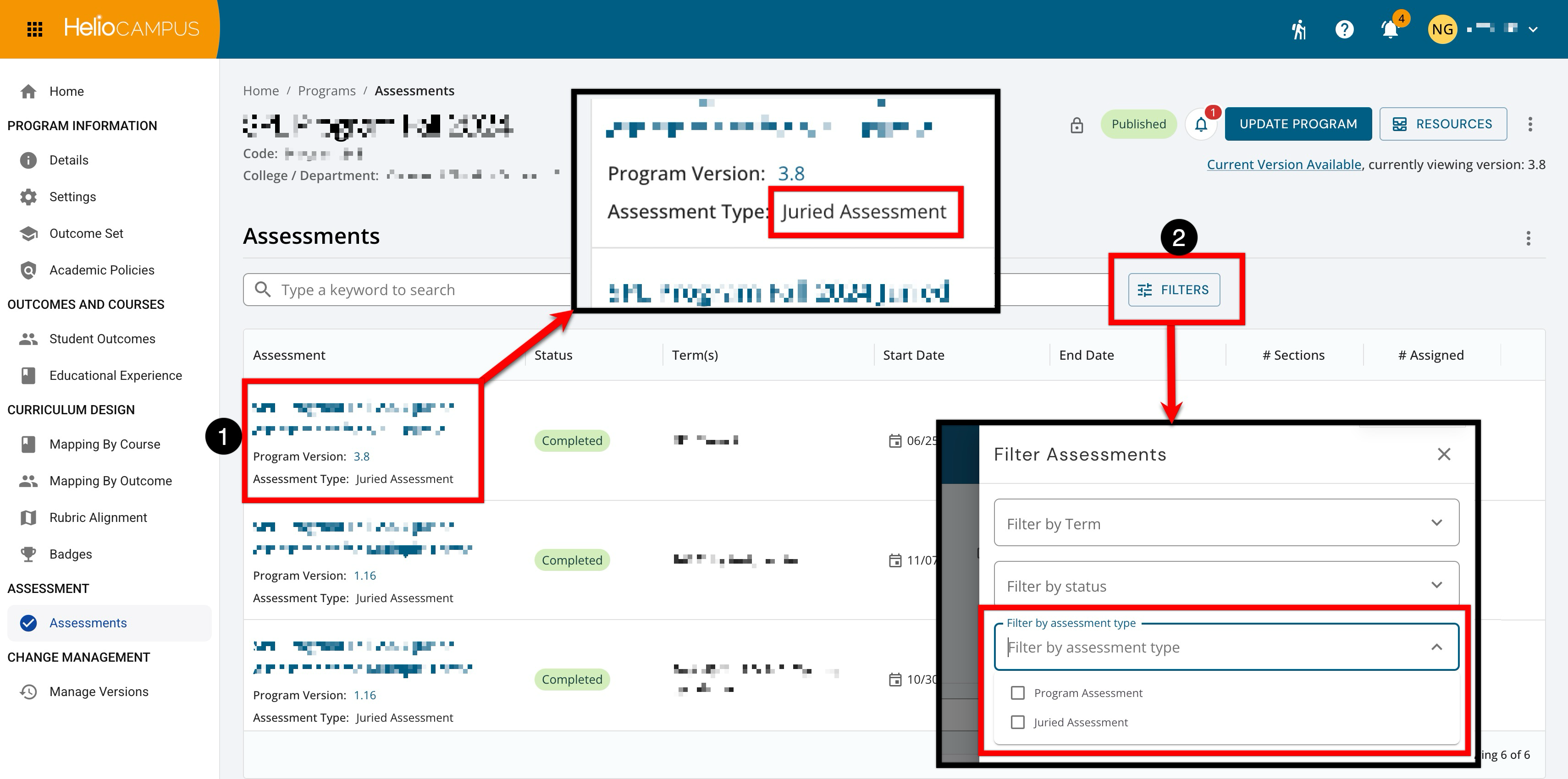
The program Assessments page now shows each assessment's type below the program version in the first column (e.g., Assessment Type: Juried Assessment) (1). A new Assessment Type quick filter lets users narrow the list to Program Assessments or Juried Assessments (2). This builds on the previous page redesign and makes it easier to tell assessment types apart now that programs can run both types at once. Learn more.
Self Study Status Updates
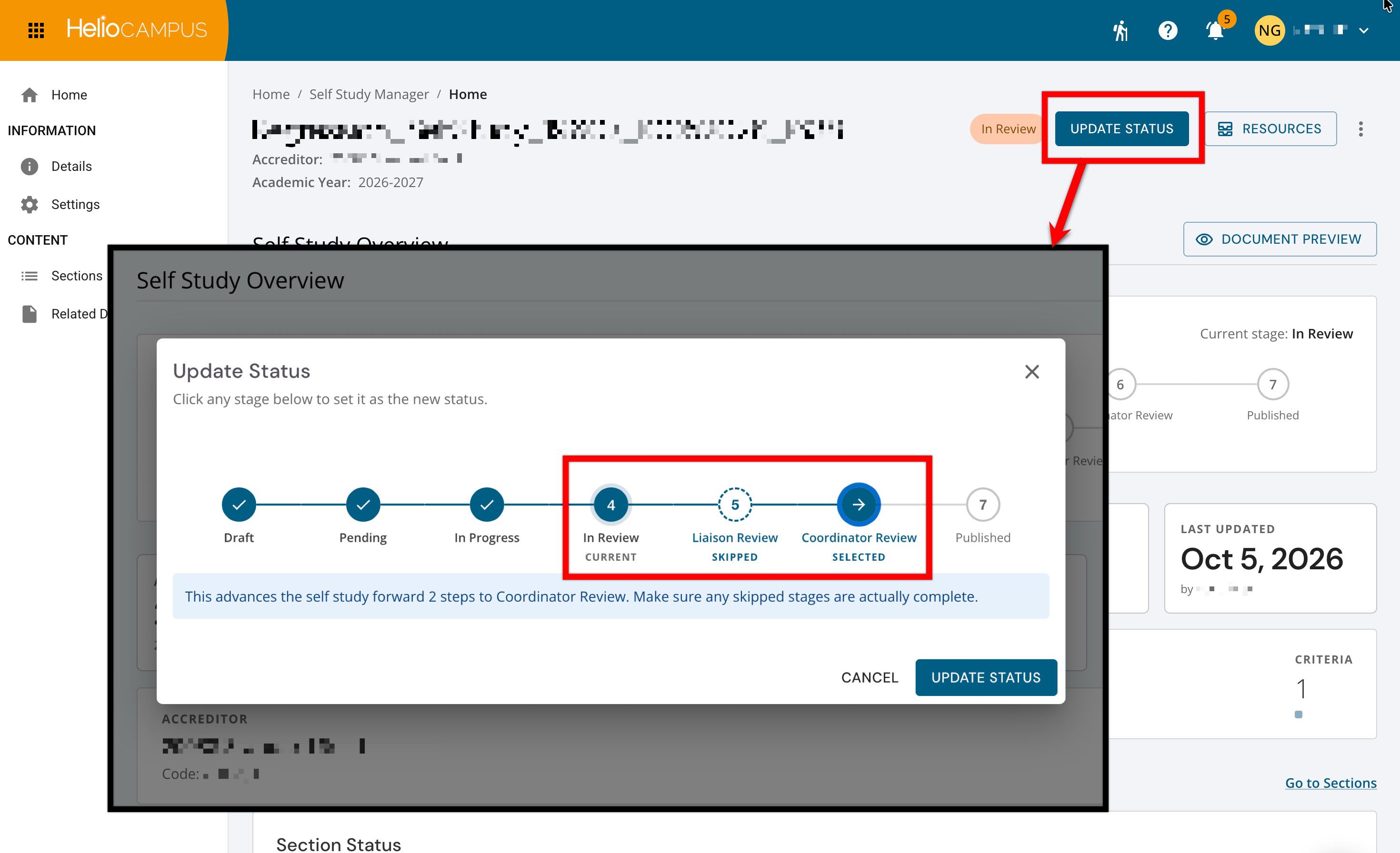
Authorized users can now move a self study, and one or more of its sections, to any stage other than the current one, including earlier stages. A new Update Status button is now available on the self study Homepage, letting users change the status of an entire self study.
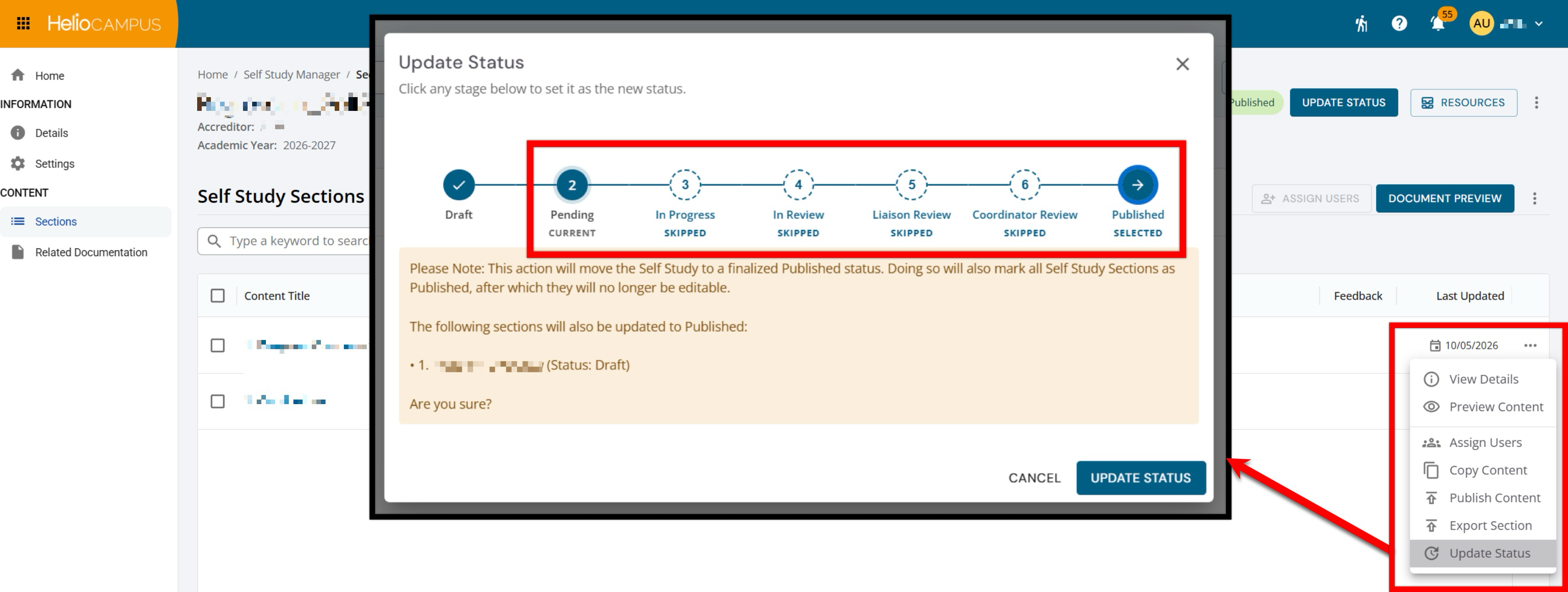
The same new functionality is also available in the section-level Actions menu by selecting Update Status. Together, these enhancements are available to Institution Administrators, Self Study Chairs, Self Study Institution Chairs, and Self Study Liaisons. Related action items and notifications are generated after a self study or self study section status changes. These enhancements provide self study administrators greater flexibility to respond to changing review needs and keep each self study aligned with its progress without requiring manual workarounds. Learn more.
Survey Assignment Audit Report
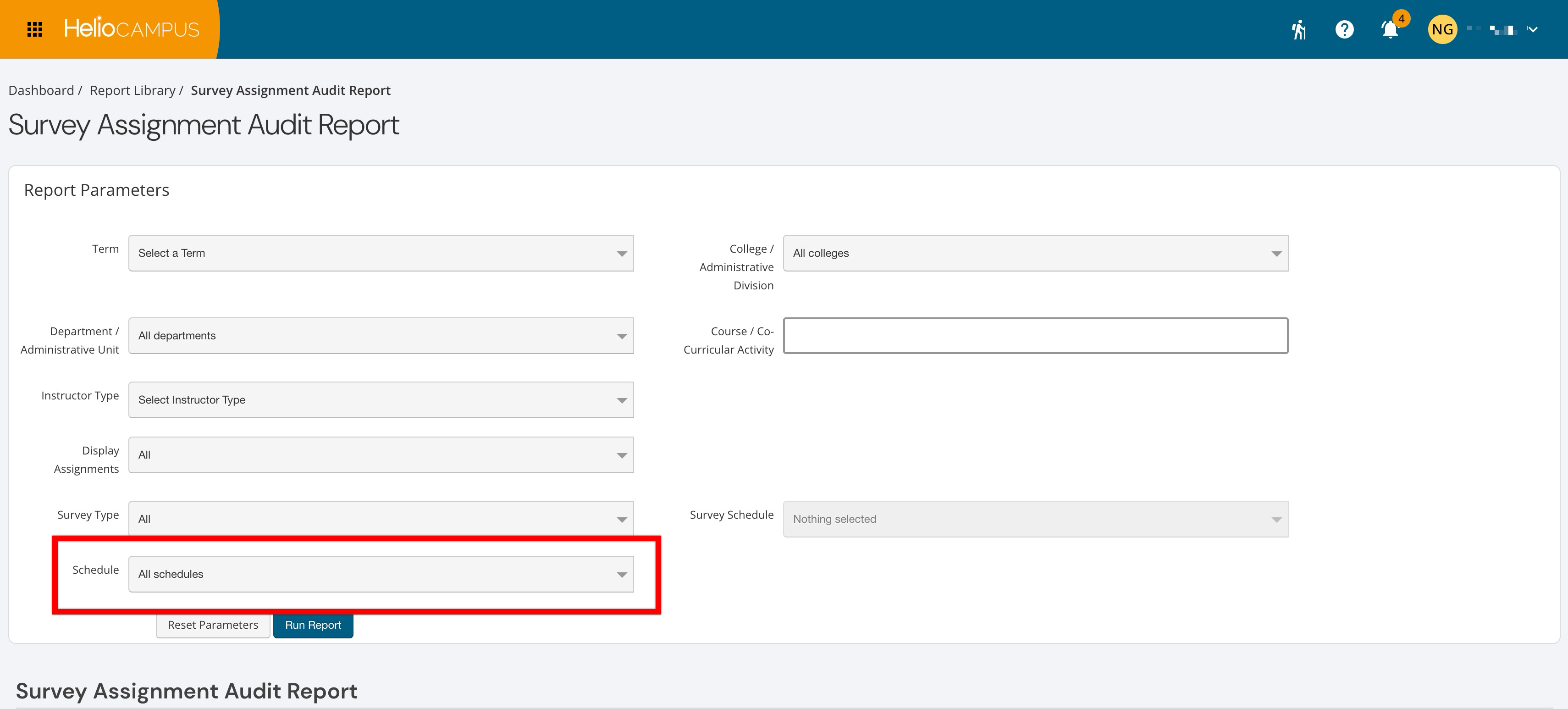
The Survey Assignment Audit report now includes an optional Schedule parameter, making it easier to filter audit results by the schedule associated with each course section. The parameter pulls its options from the schedule value in the Course Section data file and displays them as Schedule Code – Schedule Description, so users can quickly identify the right schedule when running the report.
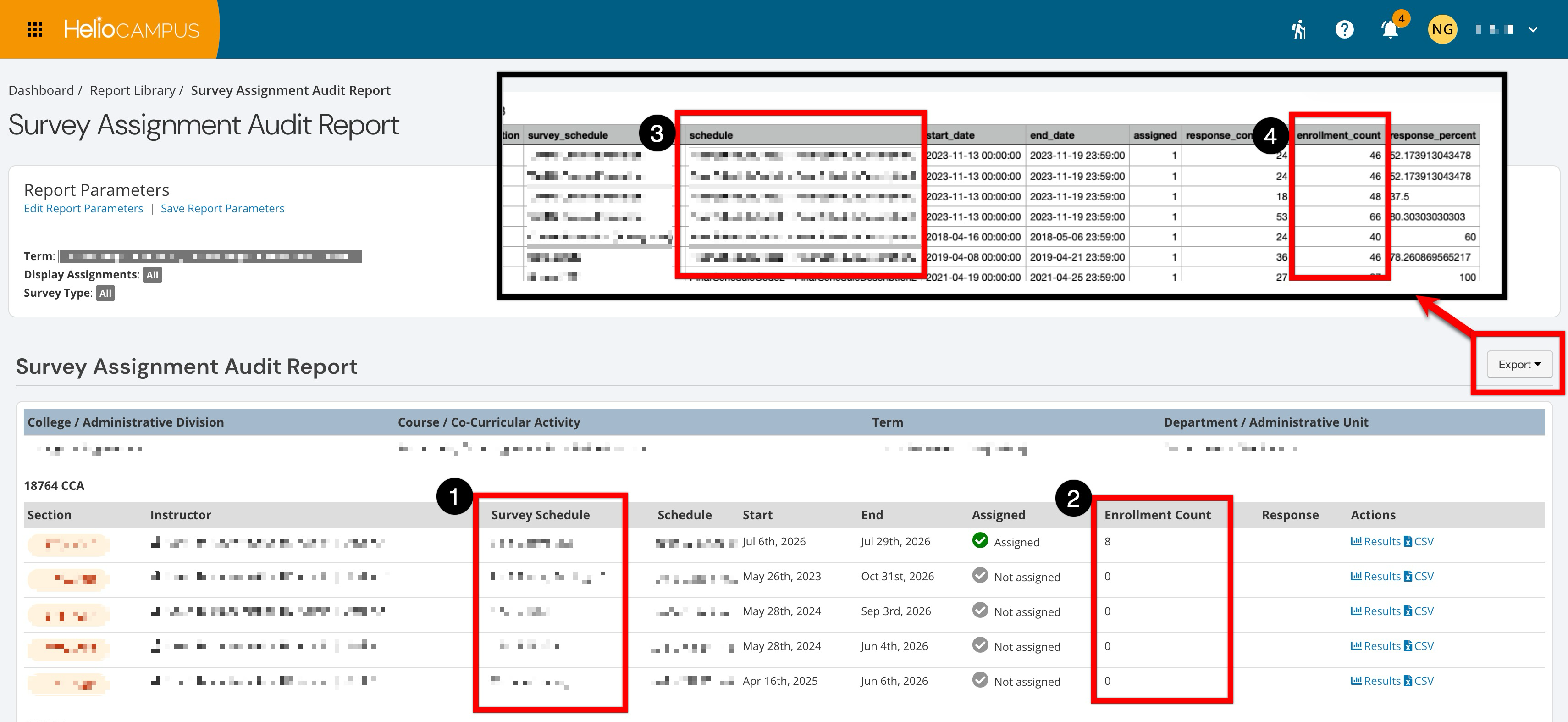
The report output now adds two columns for each section: Schedule (or N/A if no schedule is available) (1) and Enrollment Count (2). In the raw data export, a Schedule column (1) has been added, and RESPONSE_TOTAL has been renamed Enrollment_Count (2). This enhancement helps teams more easily validate survey assignments by schedule, compare participation across sections, and reconcile report results with source data using clearer enrollment information.
Survey Participant Groups
Survey administrators can now add additional include groups to an already started course evaluation survey instance. This gives Institutions more flexibility to expand a survey’s scope after the survey instance has already started, without recreating the survey instance from the beginning. Include group additions are supported when a course evaluation survey instance is in Pending, Active, or In Progress status. This update supports additions only; removing include groups or updating exclude groups is not supported.
After an include group is added, the group appears as Pending while the platform processes the change in the background. For survey instances in Pending or Active status, the assigned courses list is updated after processing is complete. For survey instances already In Progress, the platform updates assigned courses and creates the needed survey forms, action items, and email notifications for newly included students. Because this processing happens asynchronously, updates may take a short time to appear across survey pages. Learn more.
Survey Details
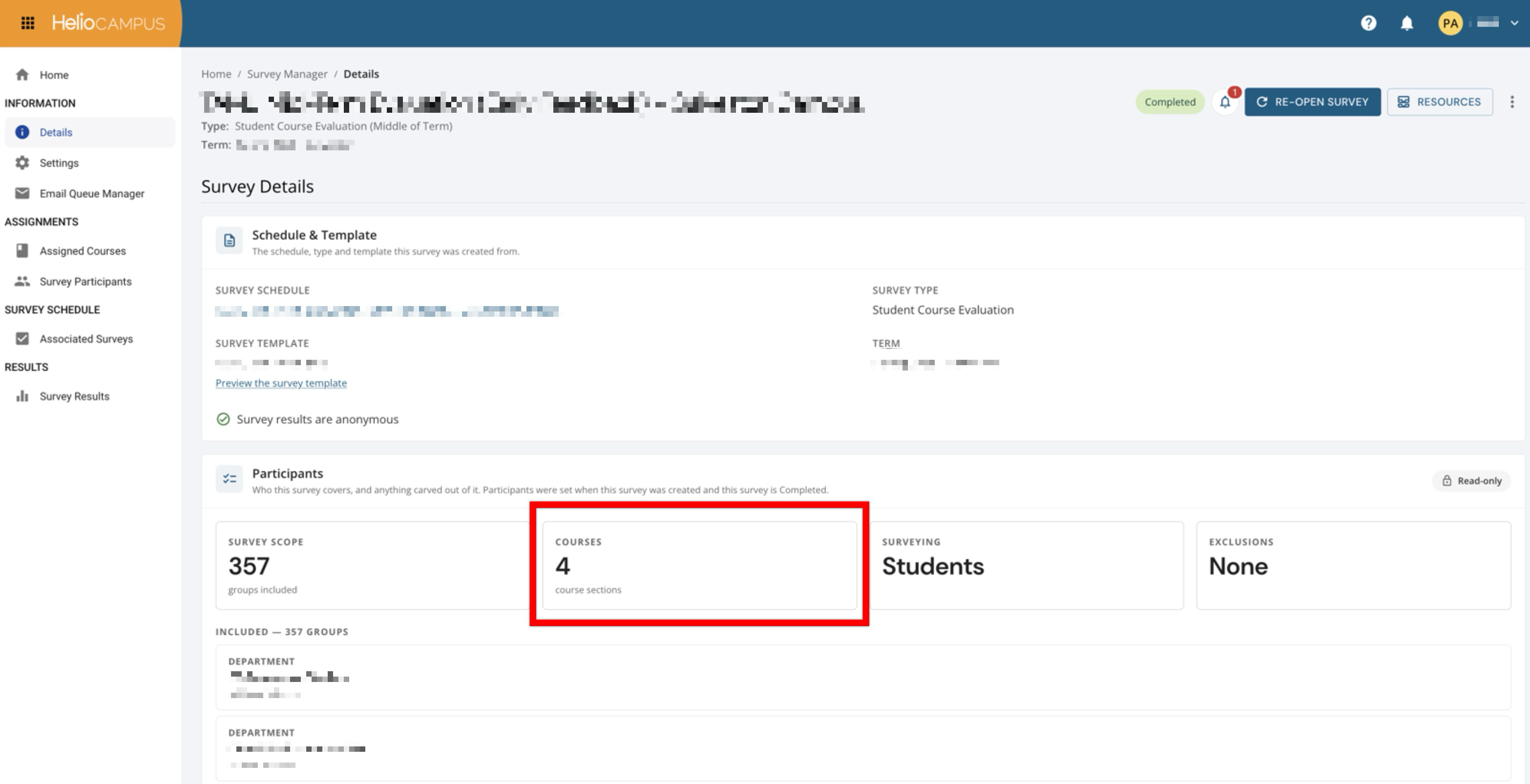
The Participants section of a survey instance's Details page now includes a new summary card that shows the number of courses in the survey scope. Previously, the Survey Scope summary card showed only how many groups were included (for example, 1 group included) and didn't show how many courses those groups covered. The new Courses card shows the total number of courses the survey covers based on the associated schedule's include and exclude groups. With both counts side by side, survey managers can quickly check how far a survey reaches before launching, monitoring, or reviewing it. Learn more.
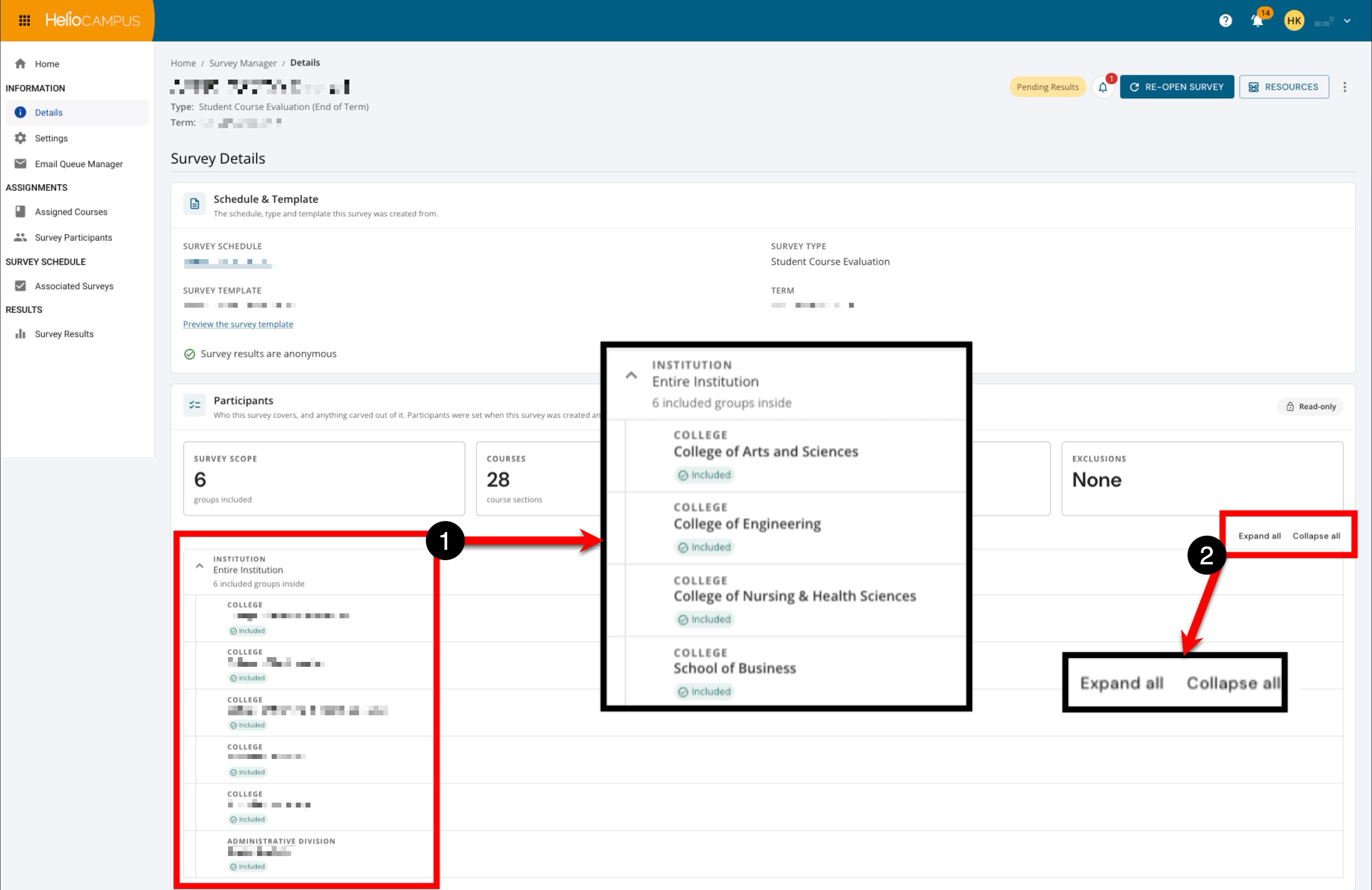
The Details page now includes a nested view of participants, making it easier to review included units in a survey instance from one place. Users can expand participant groups to see the nested units included in each group and participant counts (1). Expand/Collapse All functionality is available for quick access (2). This builds on the survey scope improvements from previous releases by giving survey managers a clearer, more detailed view of who is included before launching, monitoring, or reviewing a survey. Learn more.
Survey Results
The Survey Results page has been further optimized, building on the progressive loading introduced in the v3.118 release. Previously, users with department, course, or section-level roles experienced much longer load times on large surveys because the platform checked access separately for each item in the results tree. Permission checks are now handled more efficiently, reducing repeated access lookups and improving performance as survey result sets grow. As a result, these users should see faster load times and a smoother experience when reviewing large survey results, helping them get to insights more quickly. Learn more.