
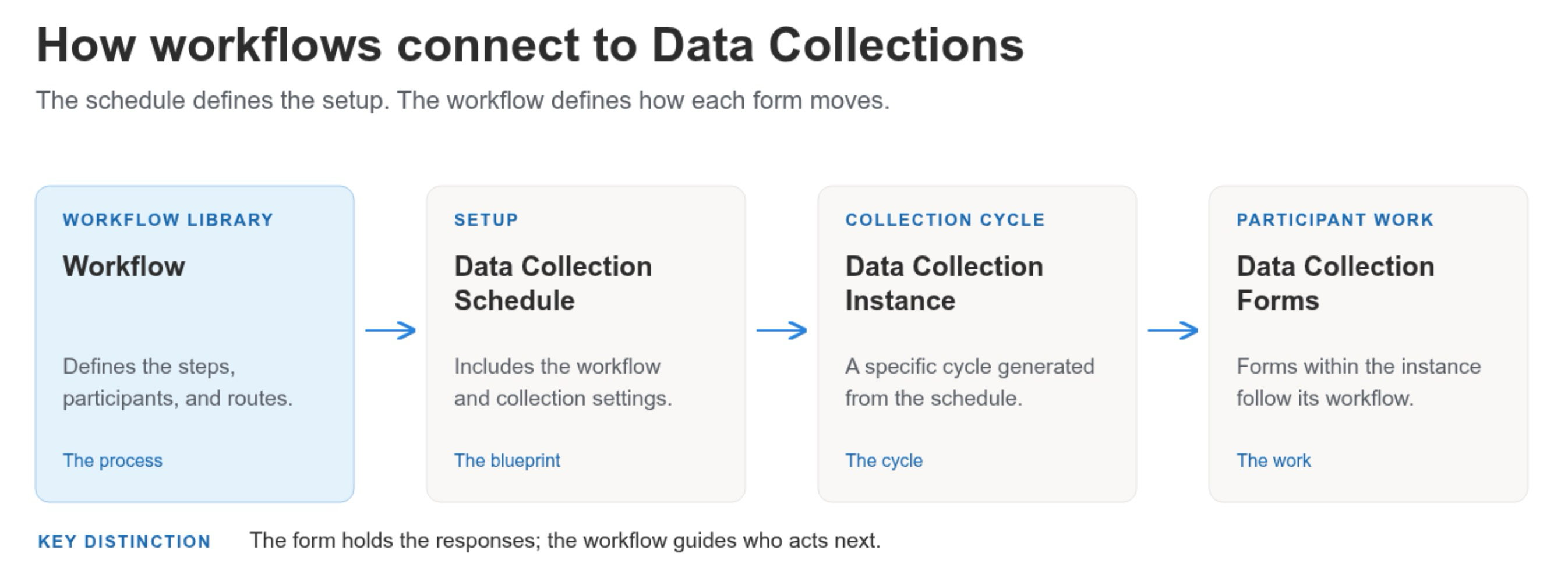
The Workflow Library is the central place to access and manage workflows used in data collections. A workflow defines the steps a collection form moves through, who acts at each step, and where the form can go next. Workflows help Institutions coordinate multi-step data collection processes, and only Institution Admins can access the Workflow Library.
Downstream & Cross-Platform Impacts
-
Review Order: Workflow changes can alter which participant reviews a form first, next, or last.
-
Role Responsibilities: Updates to workflows may change which roles are expected to act at each step.
-
Form Routing: Editing workflow steps or routes can change the path a form follows, including where it goes for approval or revision.
-
Notifications & Action Items: Workflow steps connect participants to their assigned work through action items and configured email notifications. When changing steps or routes, review stage-specific notification settings so messages remain aligned with the intended actions and recipients.
-
Progress Monitoring: Changes to the review path may affect how administrators interpret workflow progress and identify outstanding work. After a change, review affected forms to confirm where follow-up is needed.
Considerations
-
Workflow Requirements: Does the data collection process require a workflow? If the process only need to support submission and administrators can run a report on the submission, then a workflow may not be necessary.
-
Workflow Structure: Workflows can only be linear. Review the step order, assigned roles, and routes before you start using or changing a workflow.
-
Workflow Inclusion: Consider who should be included in the workflow. If a user shouldn’t see individual forms, edit forms, or receive notifications, they should likely not be included in the workflow and can instead run reports.
Best Practices
-
Map the intended steps and routes before creating a workflow.
-
Check that each step has the correct role and that its available routes support the intended process.
-
Before using a new workflow, test the expected paths, including review, approval, and any return-for-revision routes, to confirm forms reach the intended participants.
-
Coordinate significant changes with the teams and participants who use the collection.
-
HelioCampus recommends creating this on the training site and testing the flow internally before importing for full launch in the production site
Workflow Library
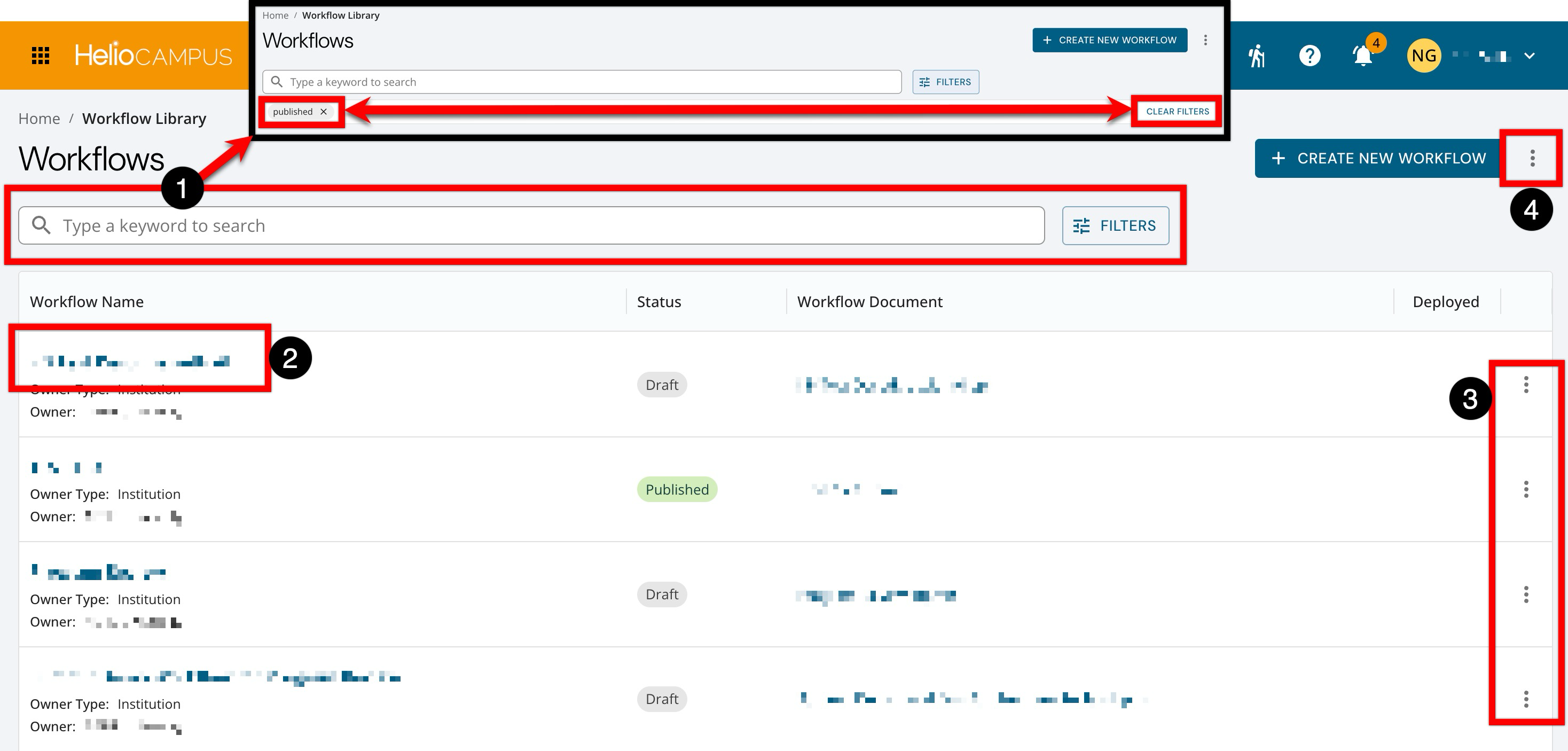
The Workflow Library Manager displays available workflows, including their names, ownership details, status, associated workflow documents, and deployment information. Search functionality is available, and by clicking the Filters option, specific filters can be applied and removed (1). Clicking a workflow name (2) will display the Homepage. Expanding the Action menu (3) provides actions for that individual workflow depending on the workflow status. Expanding the More Options menu (4) provides page-level export functionality.
Workflow Home
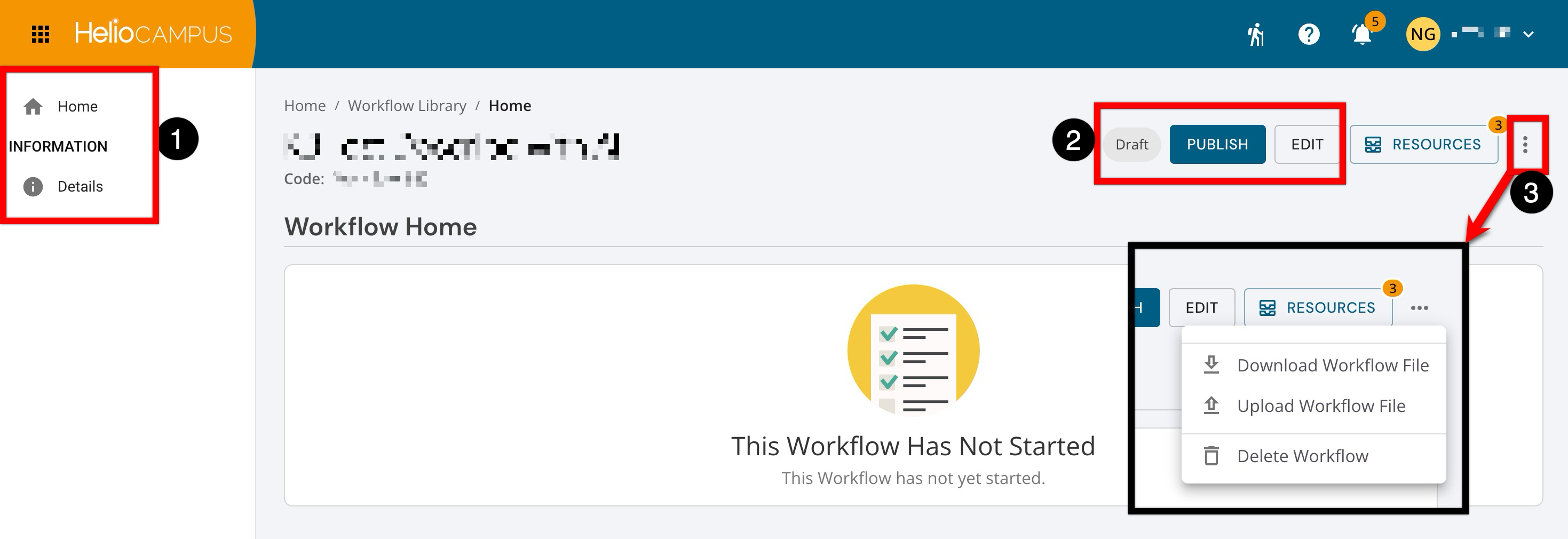
Use Home and Details in the left-hand navigation (1) to move between the workflow’s overview and detail pages. The Homepage displays the selected workflow’s general information and, depending on the status, related actions (2). Expanding the More Options menu (3) displays download functionality and the option to delete a workflow.
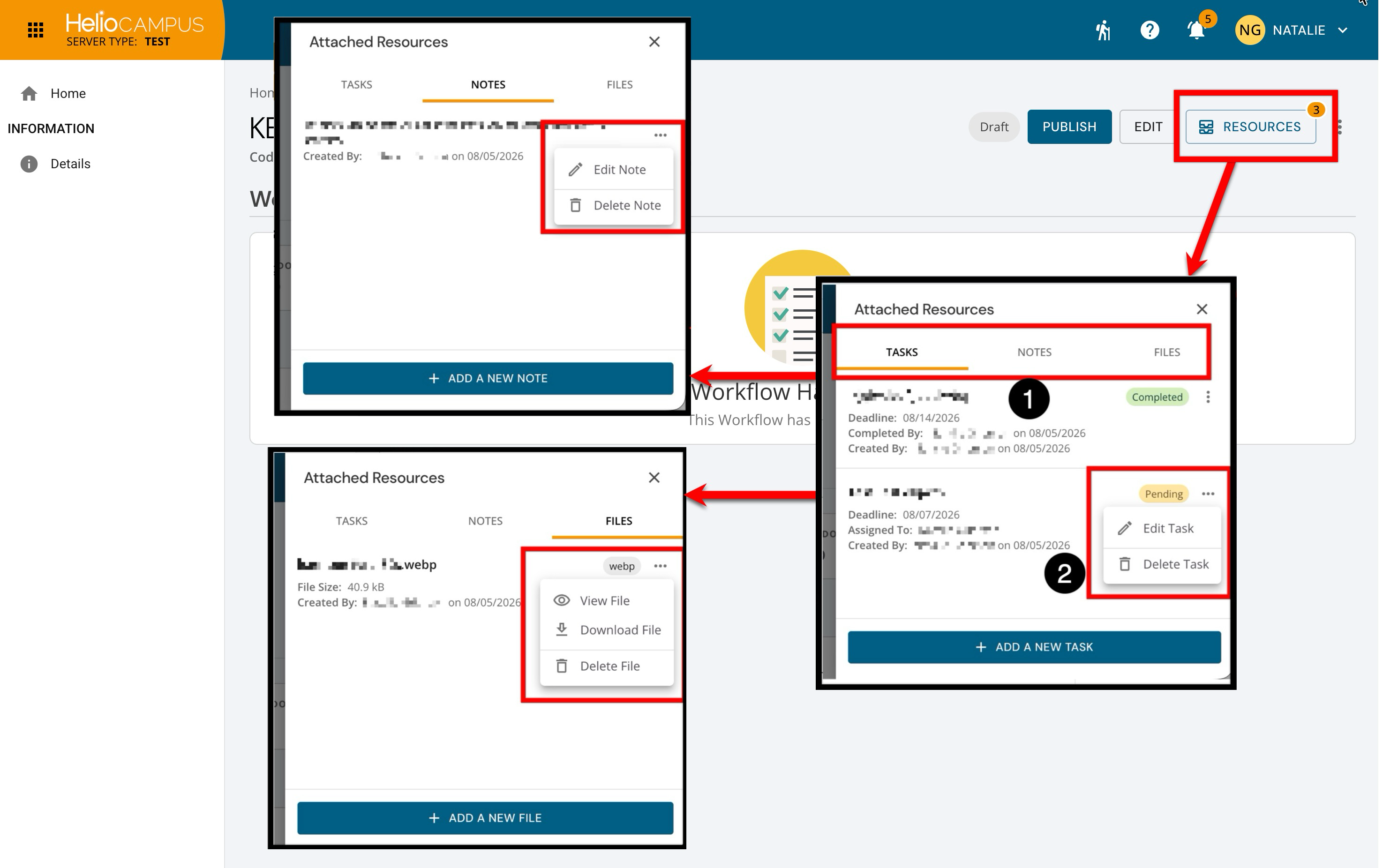
By clicking the Resources button, workflow-specific attachments can be accessed in a centralized drawer with organized tabs for tasks, notes, and files (1), with options to view, edit, or delete, as applicable, by resource type (2). Users can add new resources quickly through the action buttons at the bottom of each tab.
-
Tasks: Displays tasks assigned to the selected workflow, with creation and assignment details, due dates, status indicators to track progress, and options to edit or delete tasks.
-
Notes: Provides quick access to all associated notes with timestamps and creation details, with options to edit or delete notes.
-
Files: Displays all attached documents and media, with options to view, download, or delete them.
Workflow Statuses
Product Tip
A workflow’s status is separate from the progress of forms associated with that workflow. Use a collection’s Workflow Status page to monitor forms as they move through the configured steps.
|
Status |
Details |
|---|---|
|
Draft |
The workflow is being prepared for publishing. Edits can be made as needed before publishing via the Homepage. 
|
|
Published |
The workflow has been published. Edits can no longer be made unless the workflow is unpublished via the Homepage. 
|