
Release Timeline
-
Training Sites: June 1, 2026
-
Production Sites: July 2026
Learn more about release enhancements by registering for the v3.116 Release Webinar! After registration, enrollment automatically continues for all future webinars—no re-registration is necessary! Although continued enrollment is automatic, attendance in every release webinar is not mandatory; please attend when scheduling allows.
Action Items
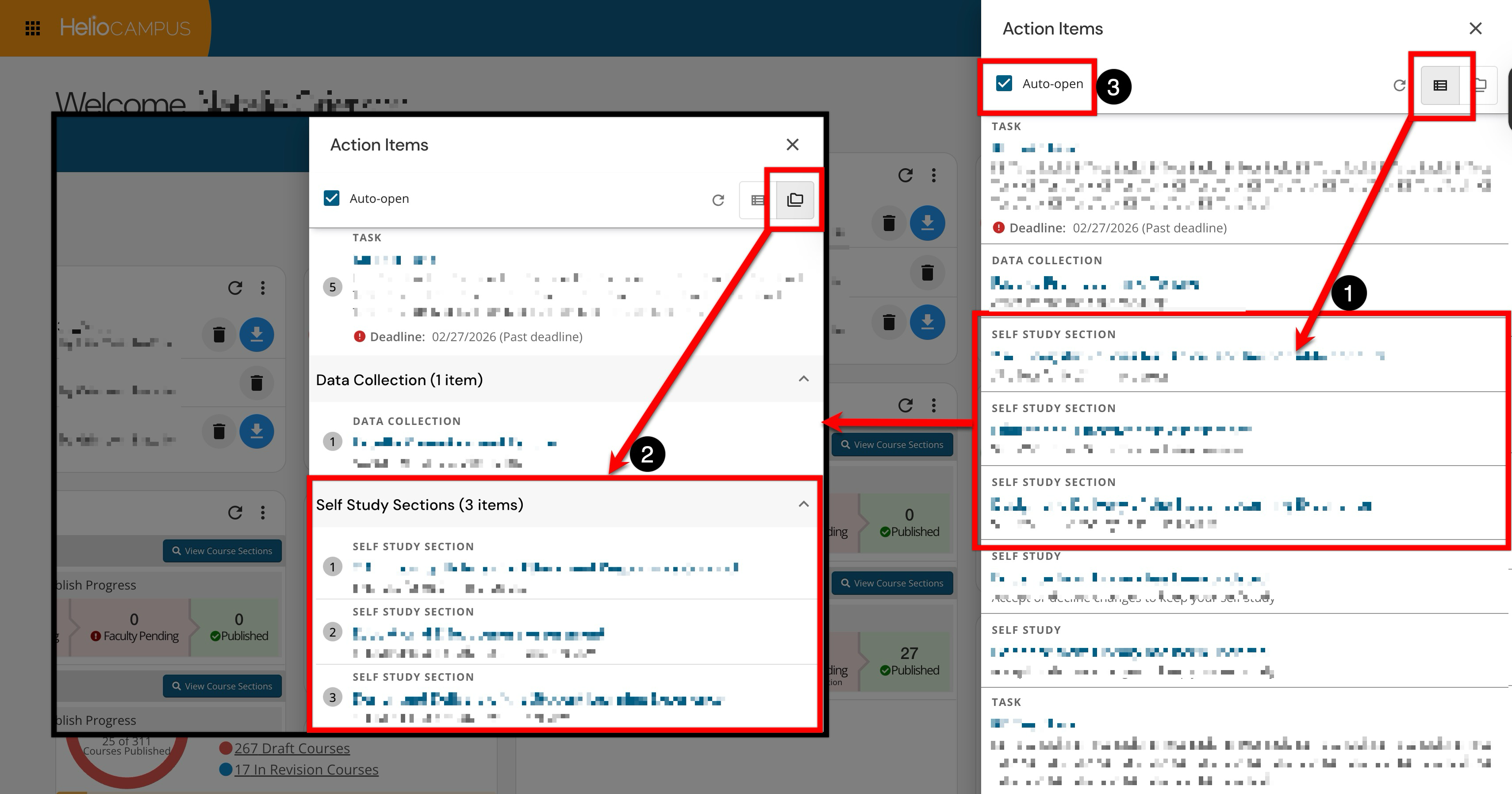
The Action Items notification drawer, accessed via the bell icon in the top navigation bar, has been fully redesigned with a modern, responsive interface. The updated drawer provides a streamlined way to view and act on all pending action items directly from the dashboard. Action items can be arranged individually (1) or grouped by feature/functionality (2). Additionally, a new, enabled-by-default auto-open preference checkbox is available directly on the drawer(3), allowing users to have their action items automatically displayed upon logging in to the platform. This update delivers a faster, more intuitive way to stay on top of outstanding work, reducing the number of clicks needed to complete tasks and helping faculty, students, and administrators manage their responsibilities more efficiently. Learn more.
Ask AI
Access to Ask AI functionality is controlled through Institution enablement and role-based permissions. To learn more and enable AI functionality, please contact Support.
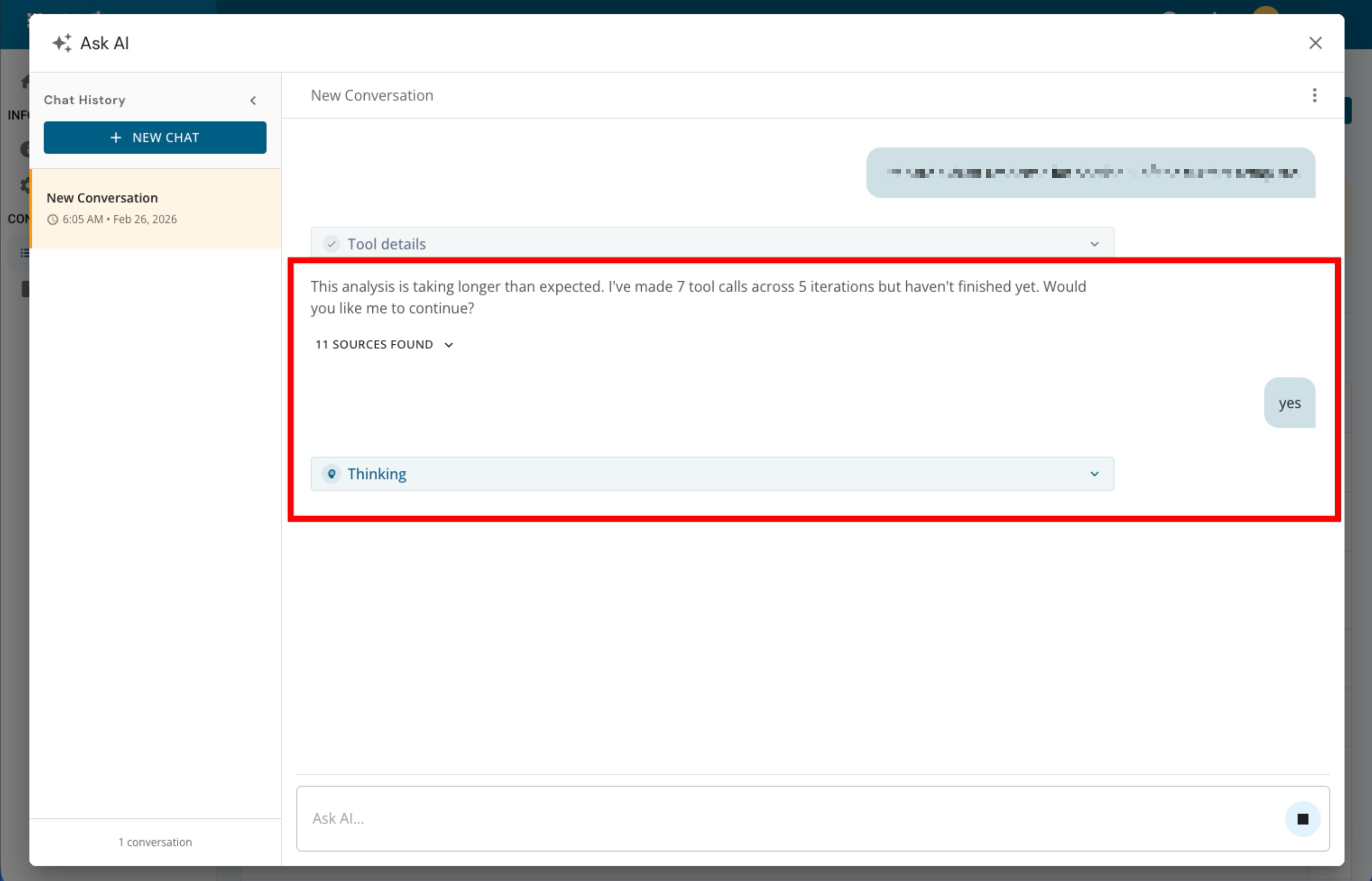
Ask AI now provides clearer, more helpful feedback when a request takes longer than expected. Instead of stopping or providing an incomplete response, the AI will return a structured status update that summarizes what was completed, what is still pending, and why the task paused—so users can more easily decide how to proceed.
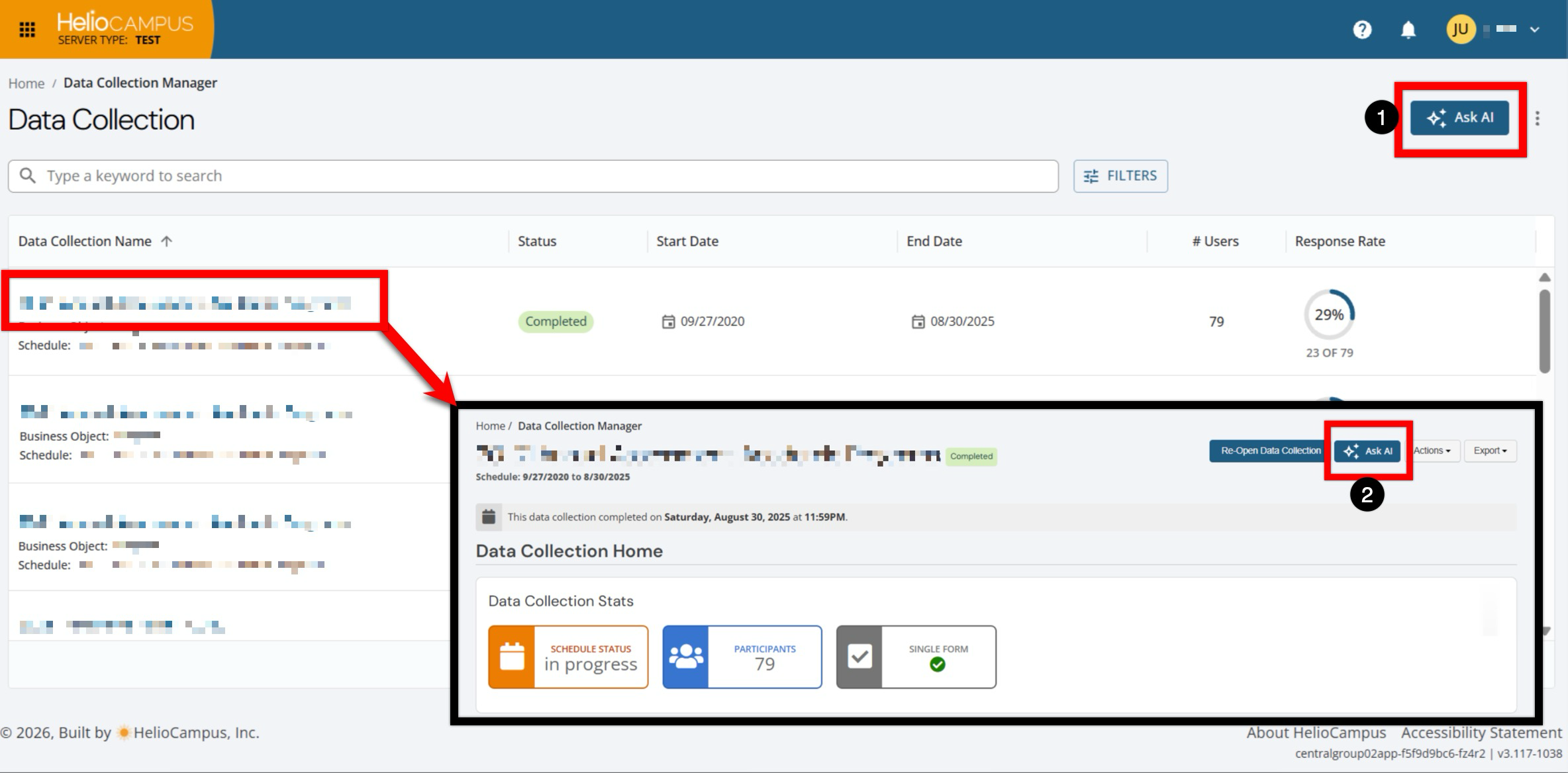
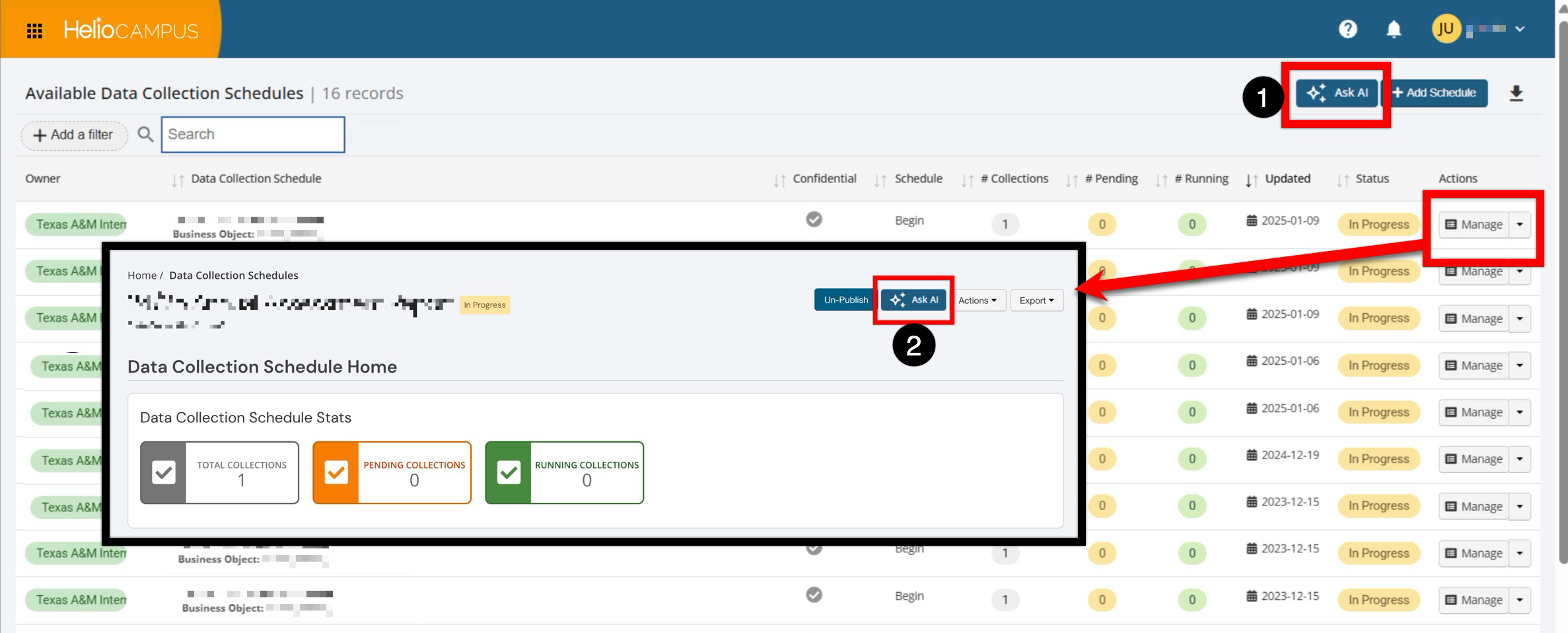
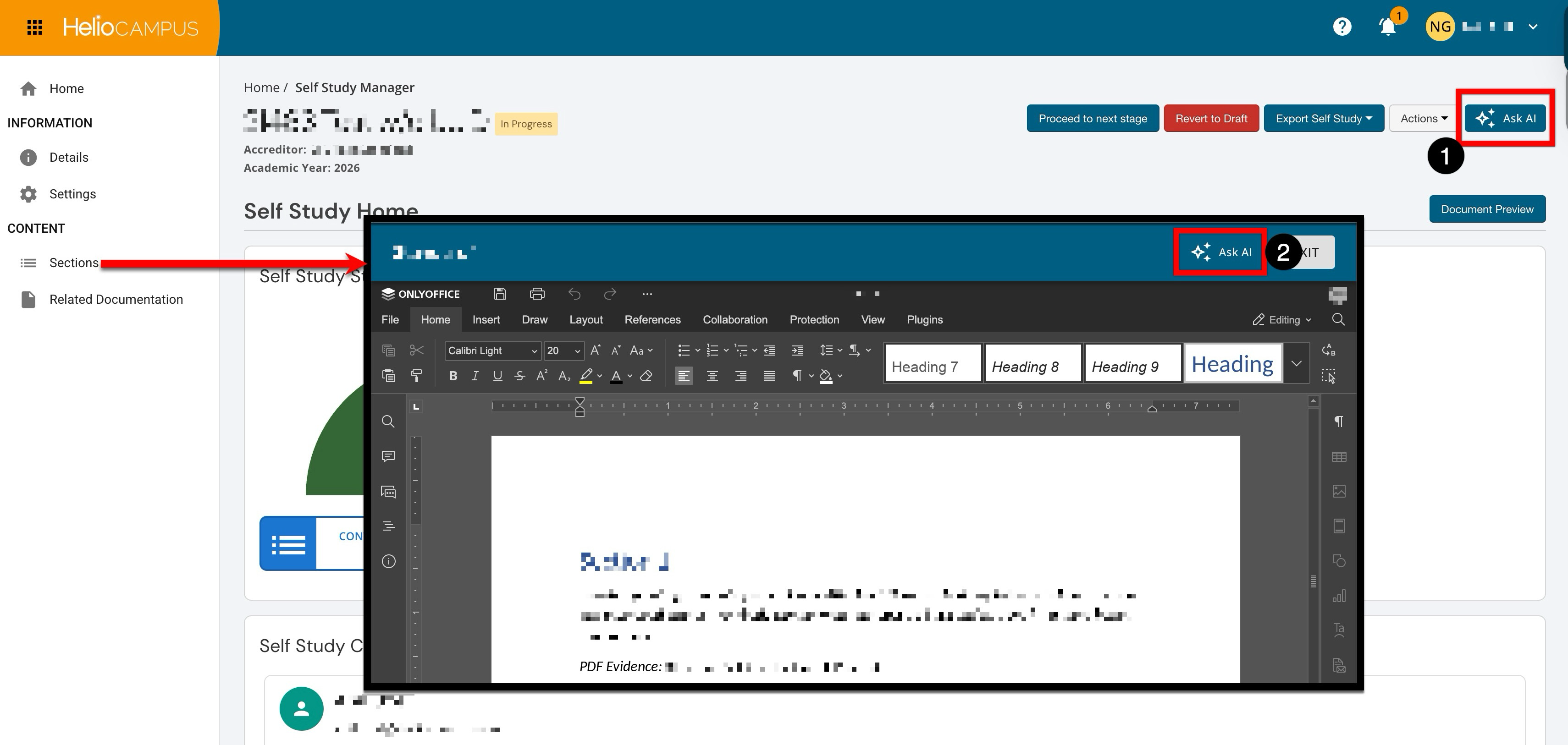
As part of the ongoing effort to expand Ask AI functionality, Institutions can now use Ask AI for Data Collection instances and schedules, and self study section content. To better analyze data, helping users interpret submissions, identify themes and gaps, and summarize what has been provided across participants and workflow steps, Ask AI can be used from the following locations
-
Data Collection Manager (1) and instance homepage (2)
-
Data Collection Schedule Manager (1) and schedule homepage (2)
-
Self Study Homepage (1) and self study sections (2)
Assessment Manager
As part of ongoing efforts to make assessment workflows clearer and easier to manage, the Assessment Manager has been split into two distinct pages. This change allows each assessment type to have its own purpose-built workspace, reducing confusion and making it easier for users to find the functionality they need. Navigation and labeling within the platform have been updated to reflect these two distinct managers, making it clearer where to perform specific assessment tasks. By separating assessment types into two clearly defined manager pages, users can work more efficiently and with less confusion, quickly locating the right tools for their task. This leads to faster setup, fewer errors, and a more intuitive experience for faculty and administrators involved in different types of assessment.
-
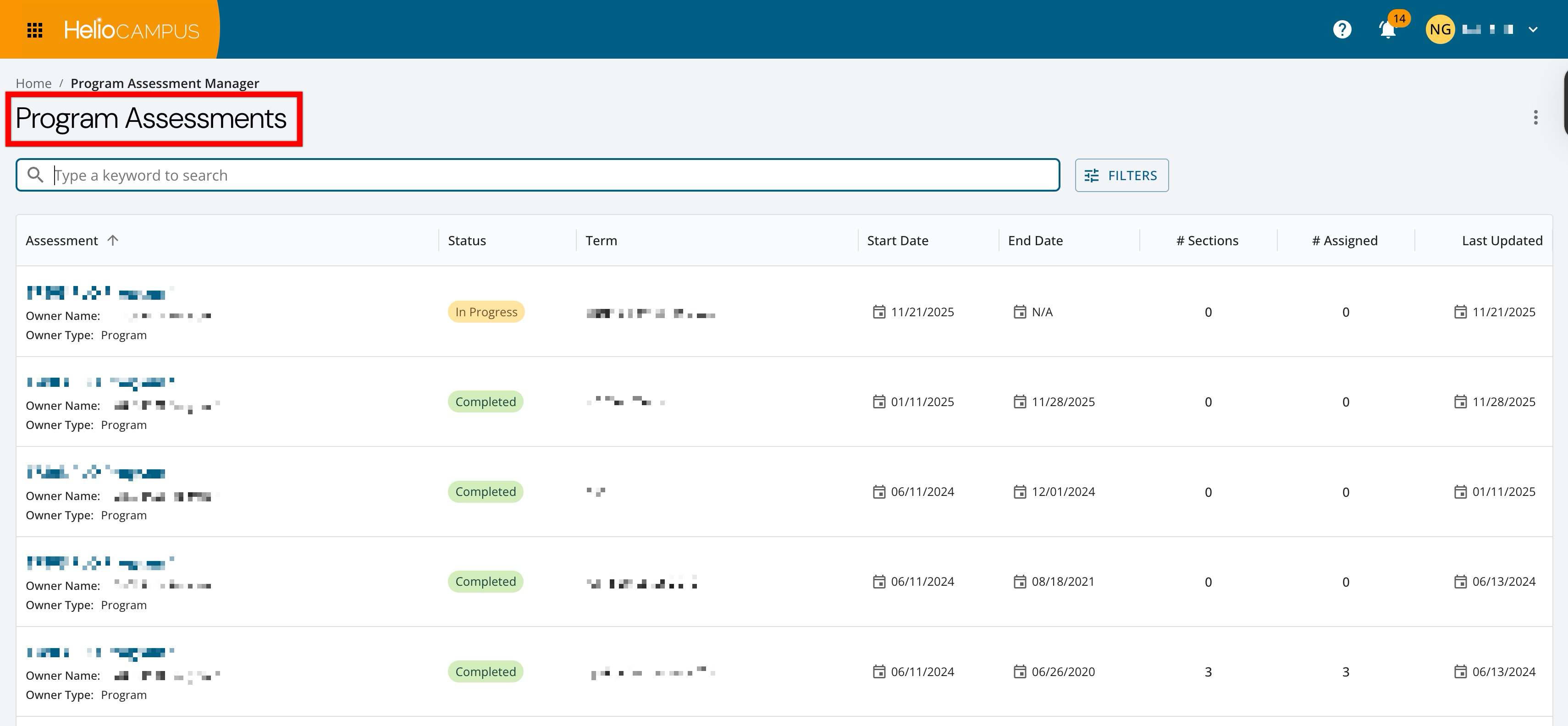
Program Assessment Manager: Focused on program-level assessment activities, tracking, and reporting. Learn more about the Program Assessment Manager.
-
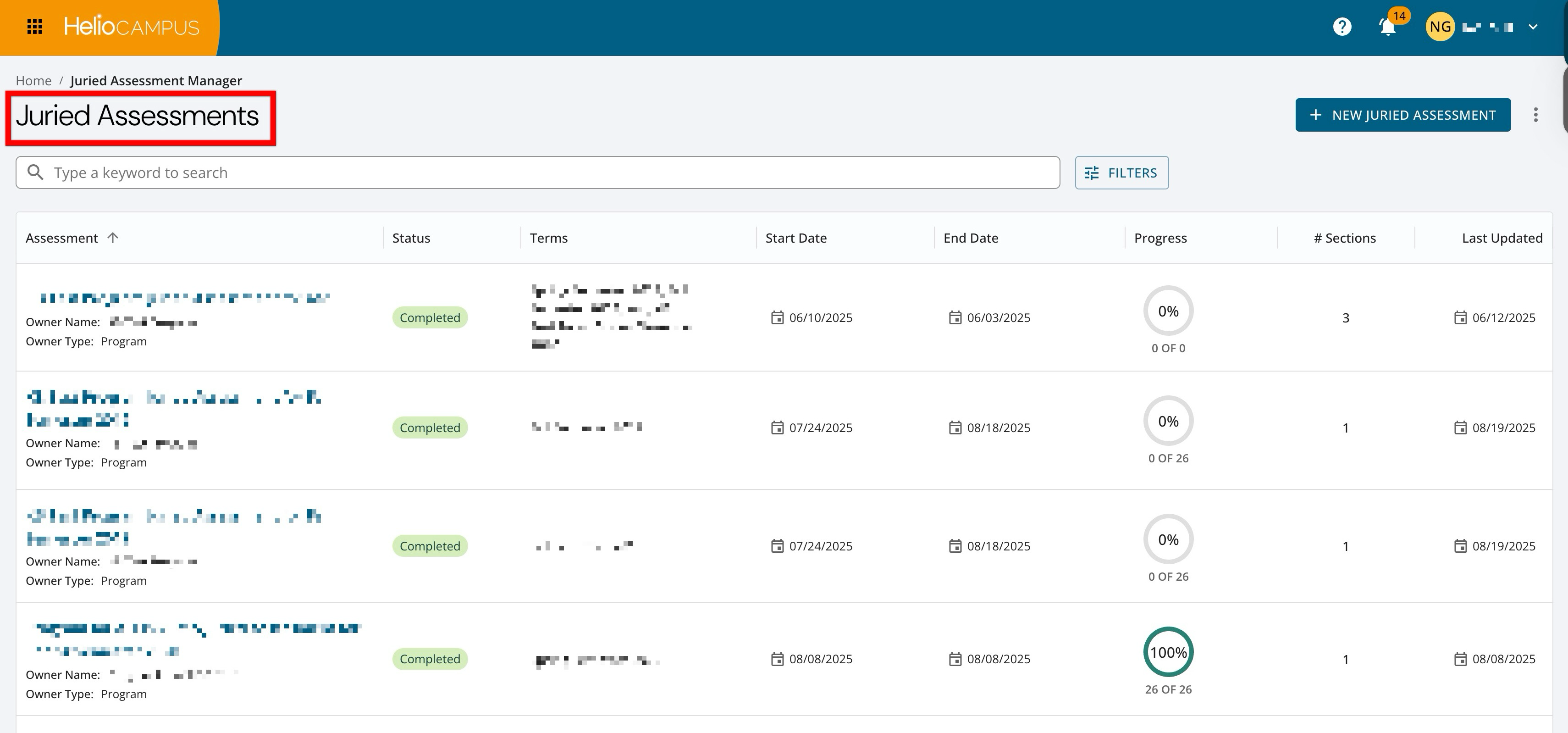
Juried Assessment Manager: Dedicated to managing Juried Assessments, including relevant setup and review workflows. Learn more about the Juried Assessment Manager.
Assignment Submission & Scores Analysis Data Set
A new Assignment Submission & Scores Analysis data set has been added under the Assignments & Submissions category in Data Set Manager. This new data set provides a comprehensive CSV export of assignment, submission, scoring, and student attributes (including gender, ethnicity, degree, emphasis, and major) for a selected term, college, and department. The data set organizes results at the student-per-assignment level and includes information about assignment submission status, scoring, assessors, linked programs, learning outcomes, and related assessment details. Now, Institutions can perform deeper, self‑service analyses of submission patterns and scoring behaviors without needing custom data pulls. Learn more.
Bulk Publishing
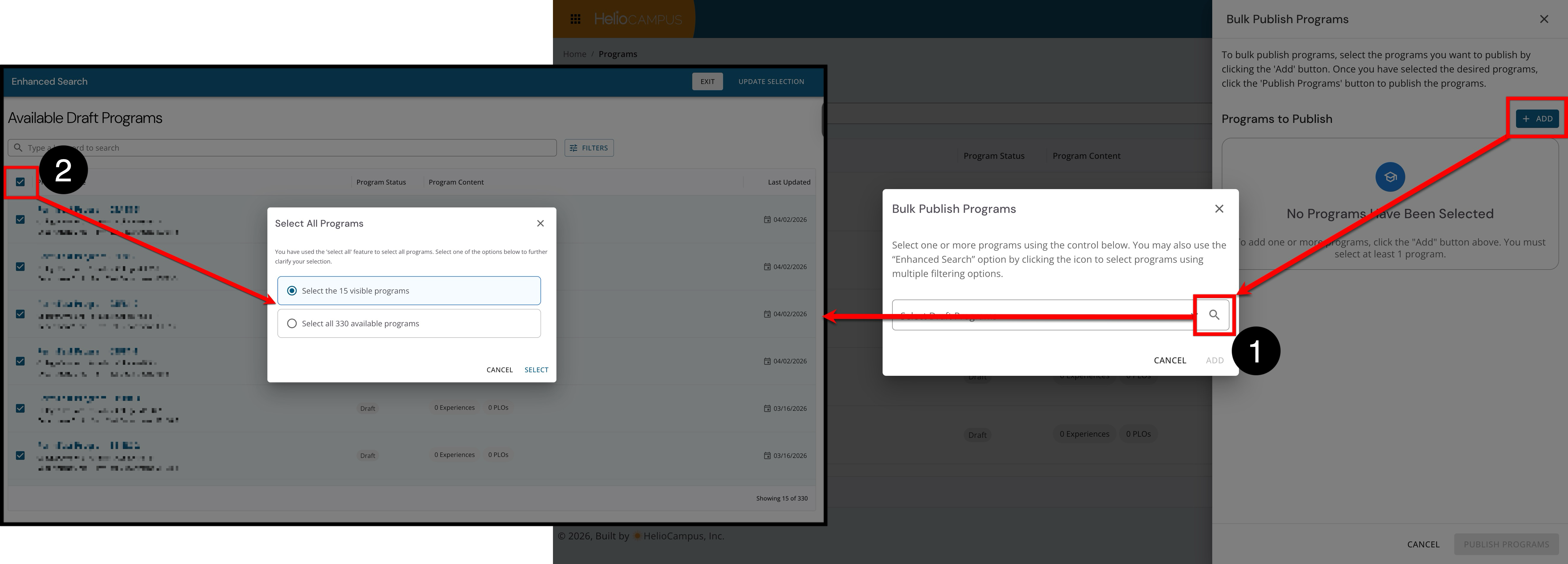
Bulk publishing for programs and terms now offers an intuitive 'select all' option that aligns with platform selection patterns. Now, when using enhanced search (1) and selecting more than 15 draft or in‑revision terms/programs (2), users are prompted to clarify whether they want to select all existing records that match the criteria or only the currently visible records. This enhancement reduces the risk of unintentionally publishing the wrong scope of terms or programs, improves clarity for administrators working with large sets of draft items, and streamlines bulk publishing workflows by enabling high‑volume updates to be faster and more reliable. Learn more:
Dashboard Widgets
The Course Evaluation Forms and the Learning Journey Task widget have been updated to accurately reflect section-level details rather than course-level information. Previously, survey form headers displayed course-level data, which could cause confusion when multiple sections existed under the same course. With this improvement, the survey form header now consistently displays the correct section name and code across all form submission views and previews, and the Learning Journey Task widget has been updated to display the section name and code together for clear identification.
Data Collection Forms
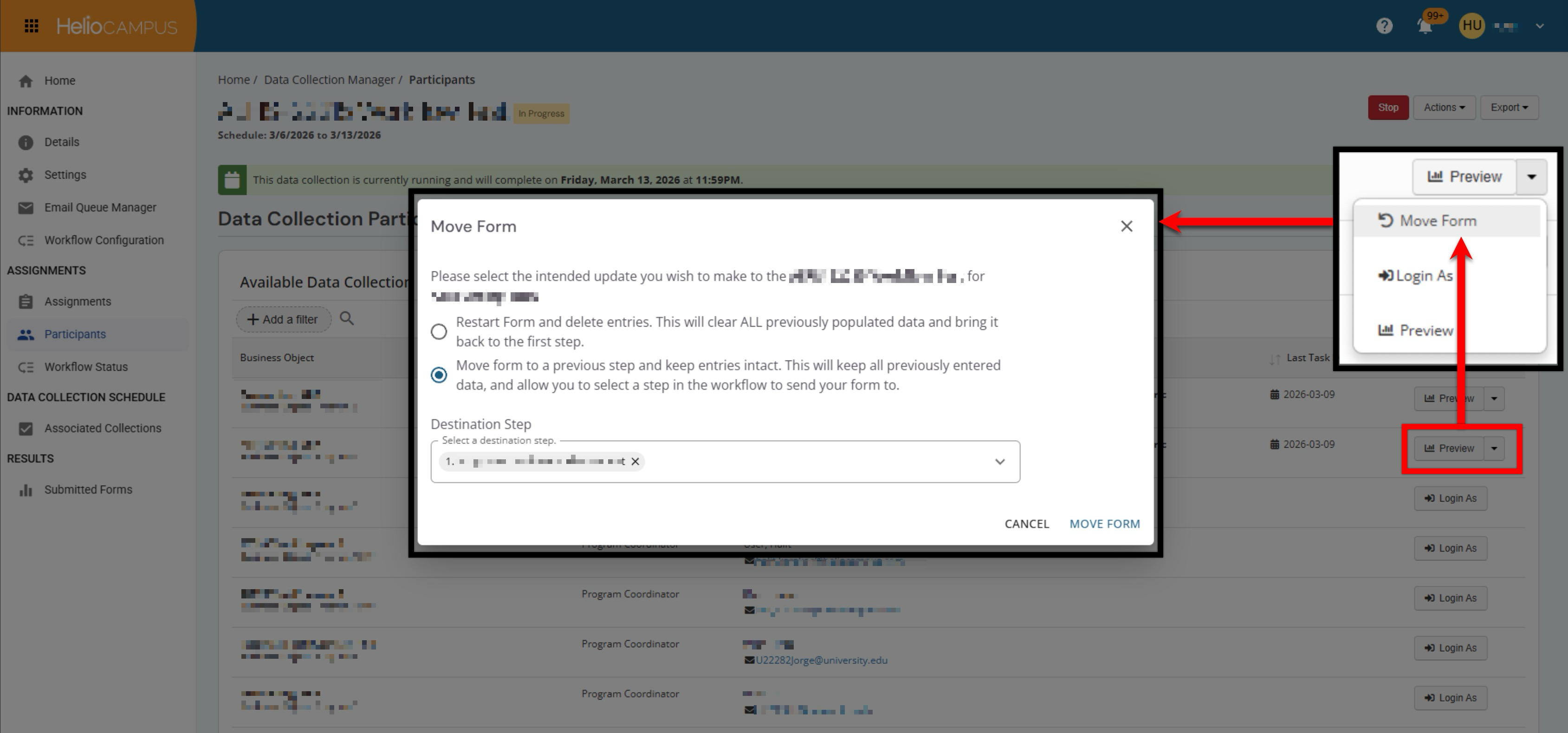
The former Reset Form action has been renamed to Move Form, with updated options that more clearly distinguish behavior for workflow and non‑workflow collections. Admins can now move forms back to step 1 (with either a blank form or existing entries preserved) or revert them to an earlier step in the workflow, even after reaching an end stage. Additionally, completed forms can now be restarted, either preserving existing entries or clearing them. These enhancements give users clearer expectations about what will happen when moving or restarting forms, while allowing Institutions to correct timing or process issues without forcing users to re-enter content that remains accurate.
Data Collection Workflows
The Workflow Status and Participants pages have been enhanced to provide Institution Admins with greater flexibility and control in managing forms within complex workflows. A new zoom-and-pan capability has been added to the workflow diagram, making it easier to view and navigate intricate workflows without being constrained by screen size. When a data collection does not use a workflow, the Workflow Status tab is automatically hidden to reduce visual clutter and prevent confusion for users. In addition, an “Edit Form” action is now available from both Workflow Status and Participants pages, allowing users to open an editable version of a form at its current step—whether in progress, in an end stage, or even after the overall data collection instance is completed—while maintaining appropriate role-based restrictions. Together, these improvements aim to streamline approvals and ensure that late corrections are accurately reflected in analytics with minimal administrative overhead.
Evidence Changes
The platform now automatically publishes real-time event notifications when changes are made to evidence, evidence documents, self study content, or self study content documents. This includes create, update, and delete operations performed across the Evidence Library, Related Documentation, and self study sections. With this enhancement, downstream functionality, such as Ask AI, can immediately detect and respond to changes. Learn more.
Institution Import Notifications
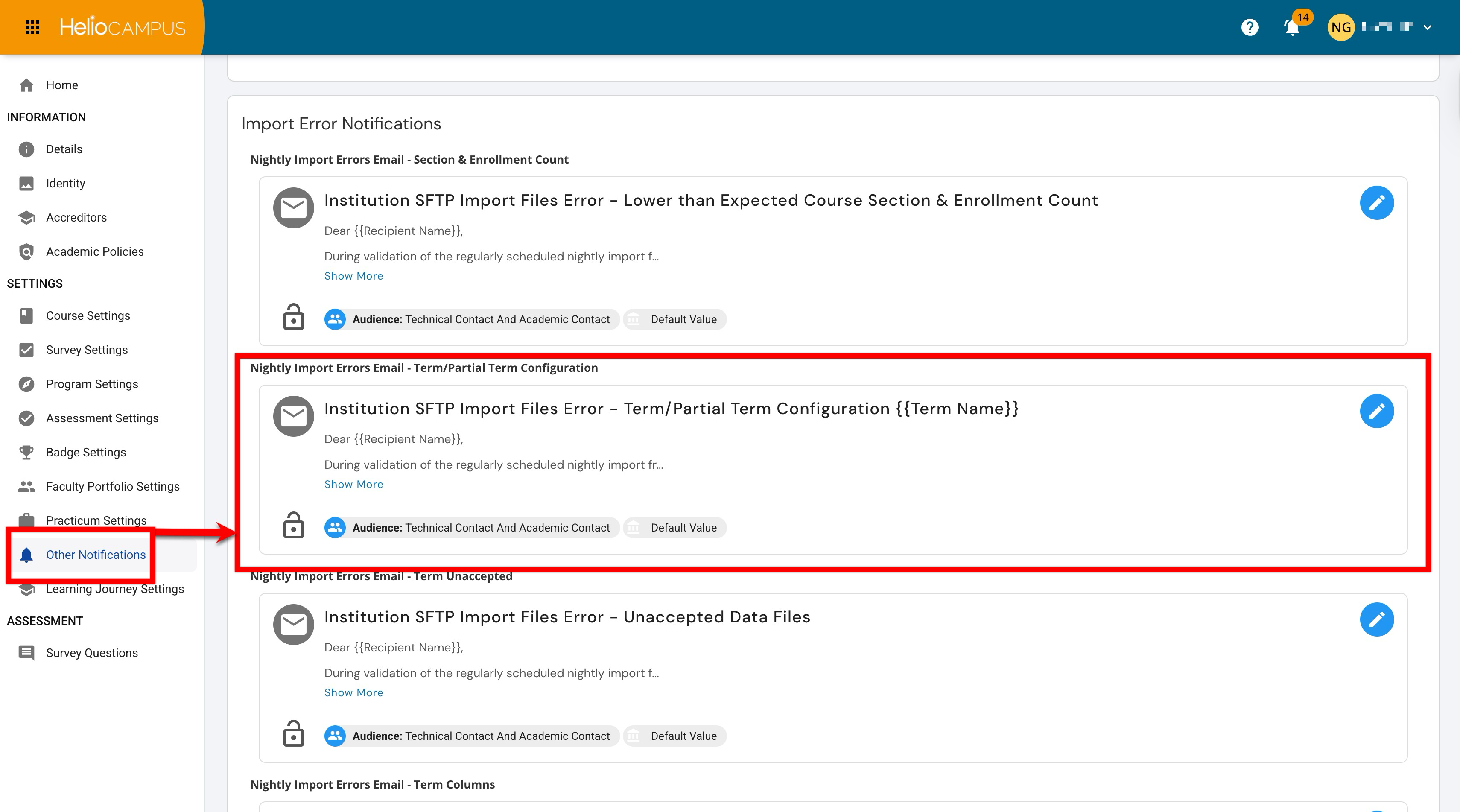
The nightly Term Creation import error notification has been updated and expanded to cover both term and partial term configuration issues encountered during SFTP file imports. The email’s header and subject line now clearly reference “Term/Partial Term Configuration,” and the message body explains, in plain language, the primary reasons files may fail to process. The notification now consistently surfaces detailed file-level error information and provides direct guidance on resolving configuration mismatches. These improvements enabled Institutions can diagnose and correct configuration problems more quickly, reducing back‑and‑forth and import delays. Learn more.
Juried Assessment Assignment Linking Audit
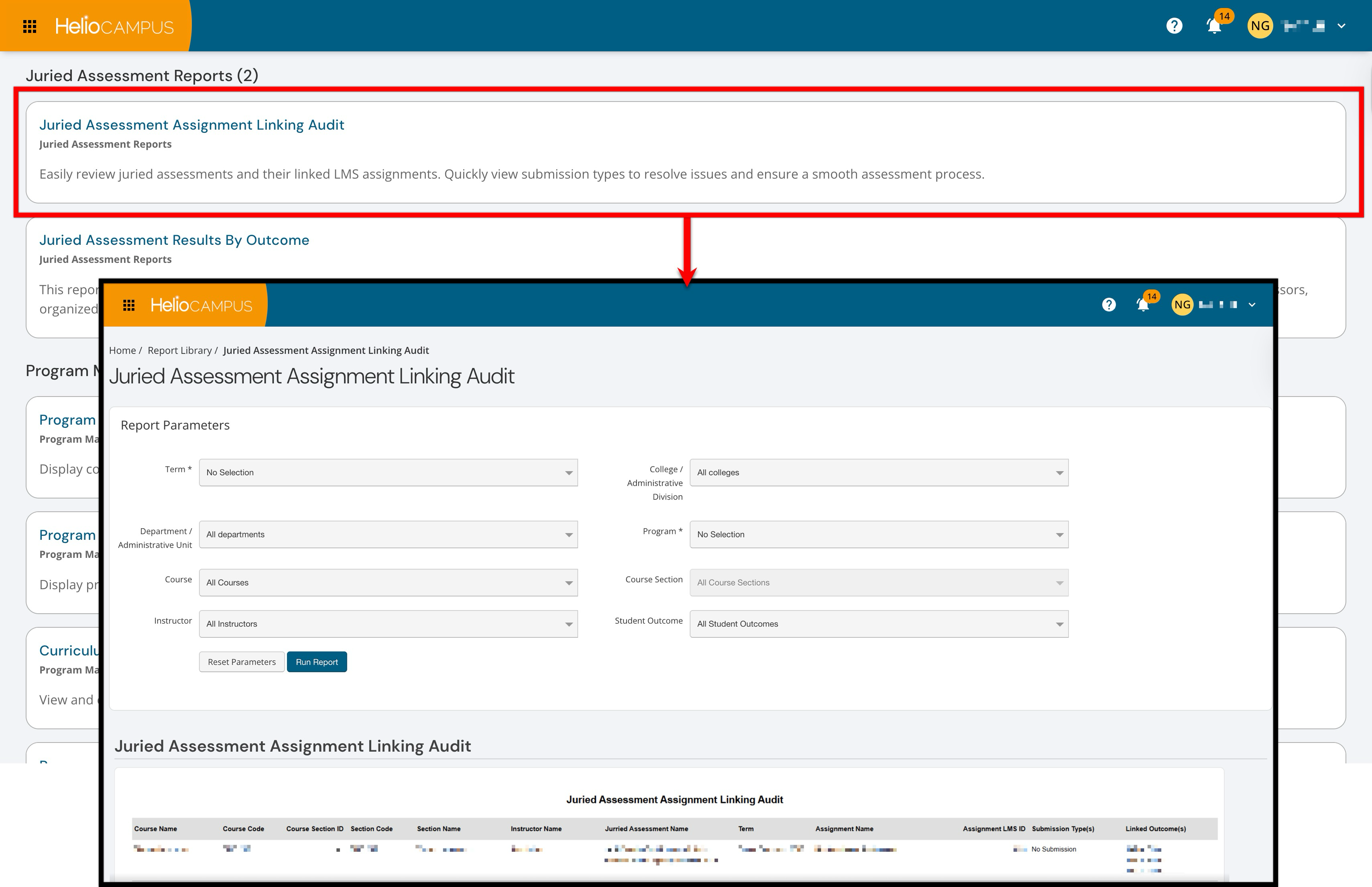
The Juried Assessment Assignment Linking Audit report has been enhanced to display all assignment linkings, even when there are no associated artifact submissions, rather than limiting results to linkings with existing submissions. As a result, Institutions gain a more accurate understanding of how assignments are linked for assessment, helping reduce missed or misinterpreted linkages during setup and review and improving the overall quality of assessment data. Learn more.
Juried Assessment Results
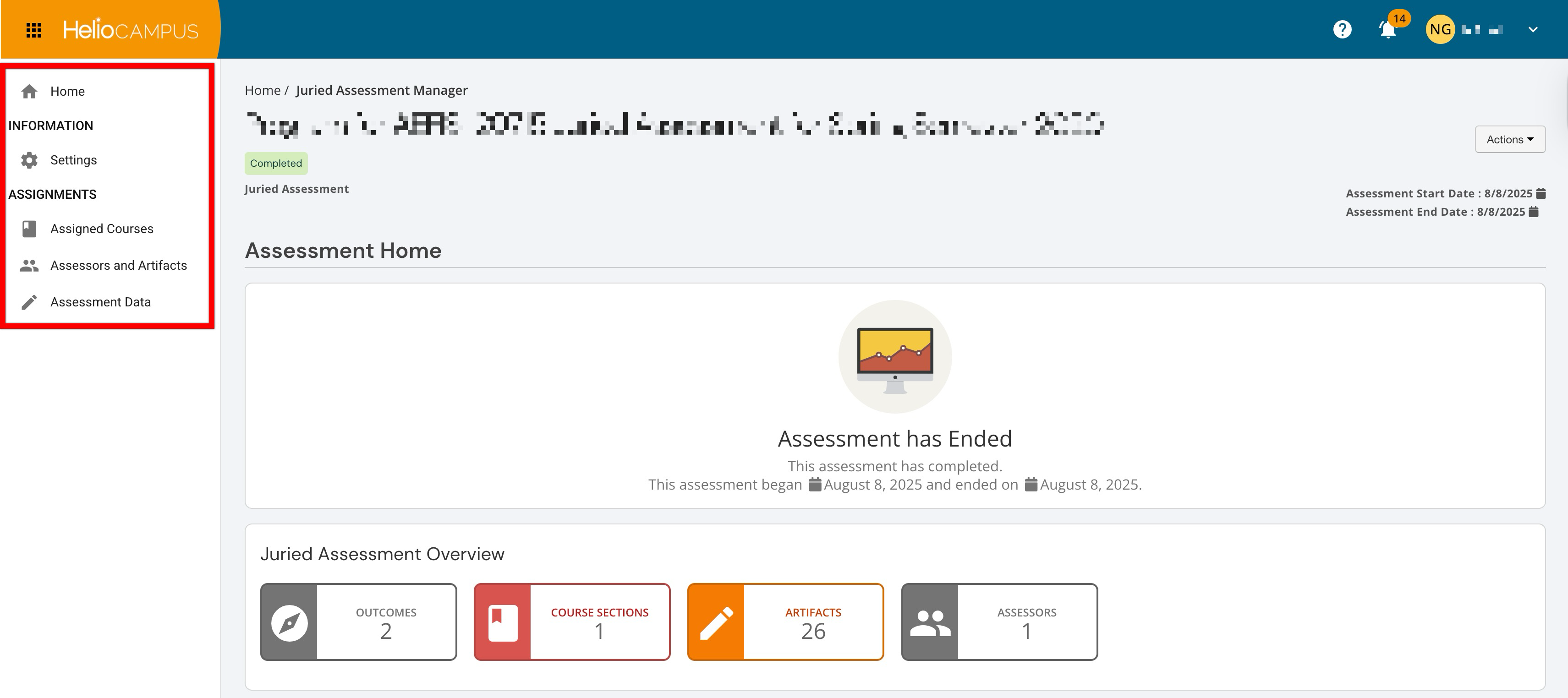
The Assessment Results page no longer appears when viewing the homepage or related subpages. This change more accurately reflects the intended workflow for Juried Assessments, helping users get to the right data faster and reducing confusion. Juried Assessment results and scoring remain fully available through more appropriate reporting tools:
-
Use the Juried Assessment Results by Outcome report to analyze performance by outcome. Learn more.
-
Use the Assessor Scores data set for detailed scorer‑level information and custom analysis. Learn more.
-
Use the Assessor Scoring Progress data set for detailed scoring progress analysis. Learn more.
Juried Assessment Rubrics
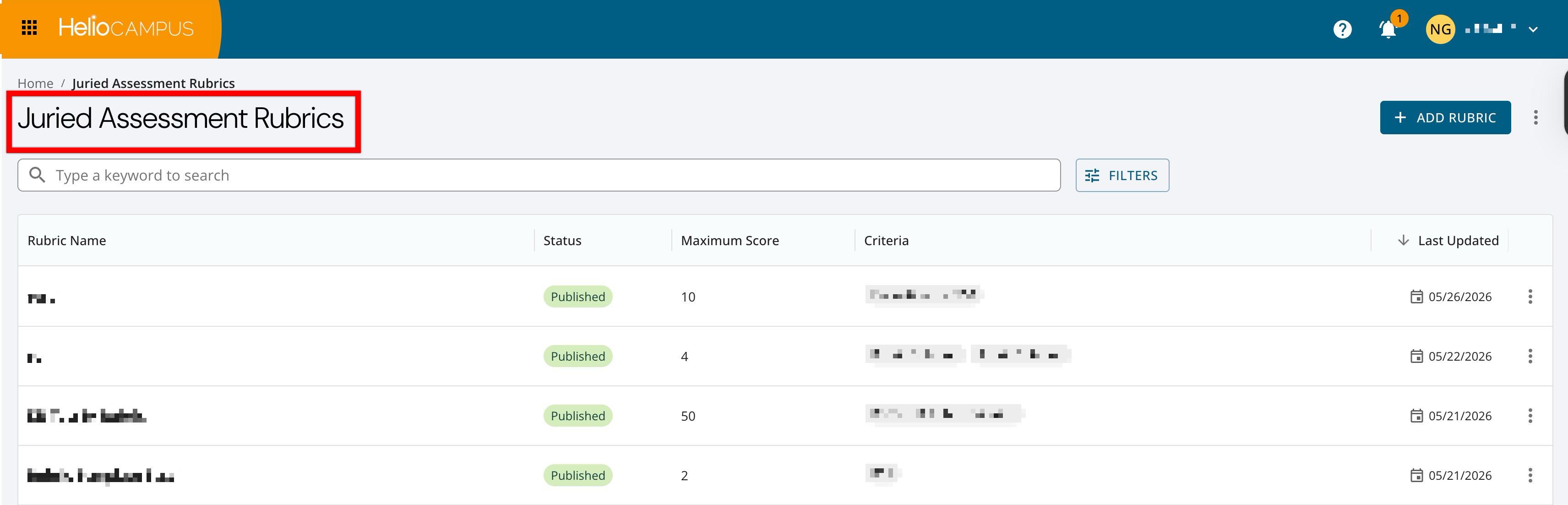
A new platform page titled “Juried Assessment Rubrics” is now available for creating and managing Juried Assessment-specific rubrics in a centralized location. Using standardized rubrics makes it easier to organize and maintain consistent scoring language across Juried Assessments. The Juried Assessment Rubrics page is accessed by navigating to Main Menu > Assessment > Juried Assessment Rubrics. Learn more.
Key Assignment Template Rubric Criteria
Terminology and on-screen messaging used when creating and editing Juried Assessment rubric criteria have been updated to ensure clearer, more consistent language across the Key Assignment Designer, Rubric Criteria Library, and related linking workflows. Changes include updated headings and helper text, more precise error messages (for example, clarifying when a rubric criterion name or level details are required), and consistent button labels. These updates reduce confusion when building and managing rubrics, help Institutions model correct assessment terminology for faculty and reviewers, and make it easier to understand and resolve errors when configuring Juried Assessment assignments. Learn more:
Learning Journey New Completion and Hybrid Methods
Until now, Learning Journey implementations have only supported providing students with assessment results based on data as evidence of their verifiable skills. Institutions can now customize whether to show assessment results-based data, course or co-curricular completion, or both, providing Institutions with expanded flexibility in deciding how best to implement their Learning Journey.
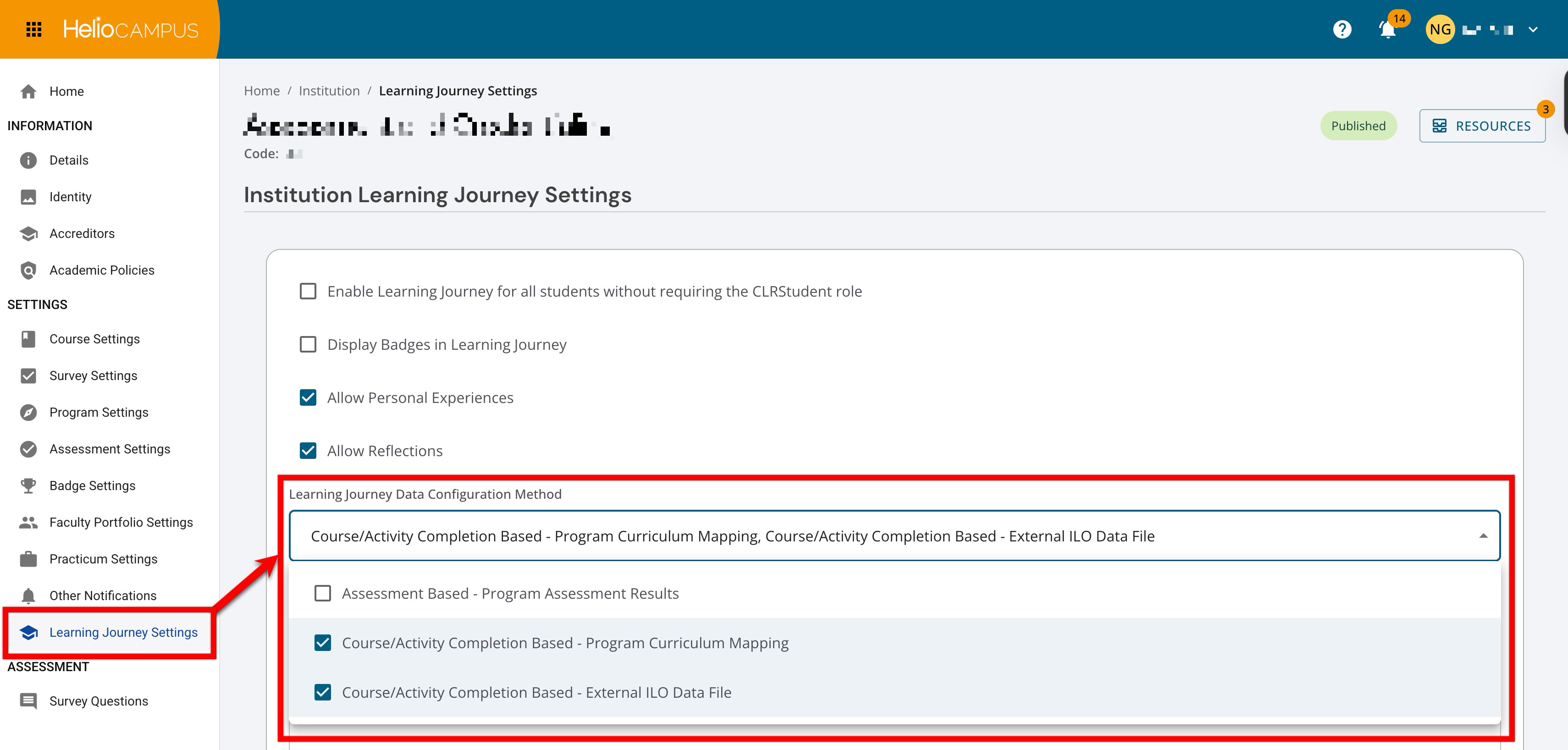
The Learning Journey has been enhanced to support completion-based data and provide Institutions more control over how student skills are populated and displayed. The platform now supports completion-based results derived from ILO → CLO mappings (including institutions that do not use a parent/child ILO structure) as well as Program (PLO/Outcome Set) → Course and Program → CLO mappings, making it easier to reflect both curricular and co-curricular completion as meaningful skills. A new setting under Institution → Learning Journey Settings allows administrators to enable or disable multiple data sources, including assessment-based program assessment results, course/activity completion via program curriculum mappings, and course/activity completion via external ILO–CLO files.
When a data type is enabled or disabled, the student’s learning journey will update immediately. These enhancements give Institutions more flexible implementation options, better alignment with diverse outcome and curriculum models, and a cleaner, more controlled experience for students, who will see their journeys more accurately reflect the Institution’s preferred evidence of learning. Learn more.
Learning Journey Experiences
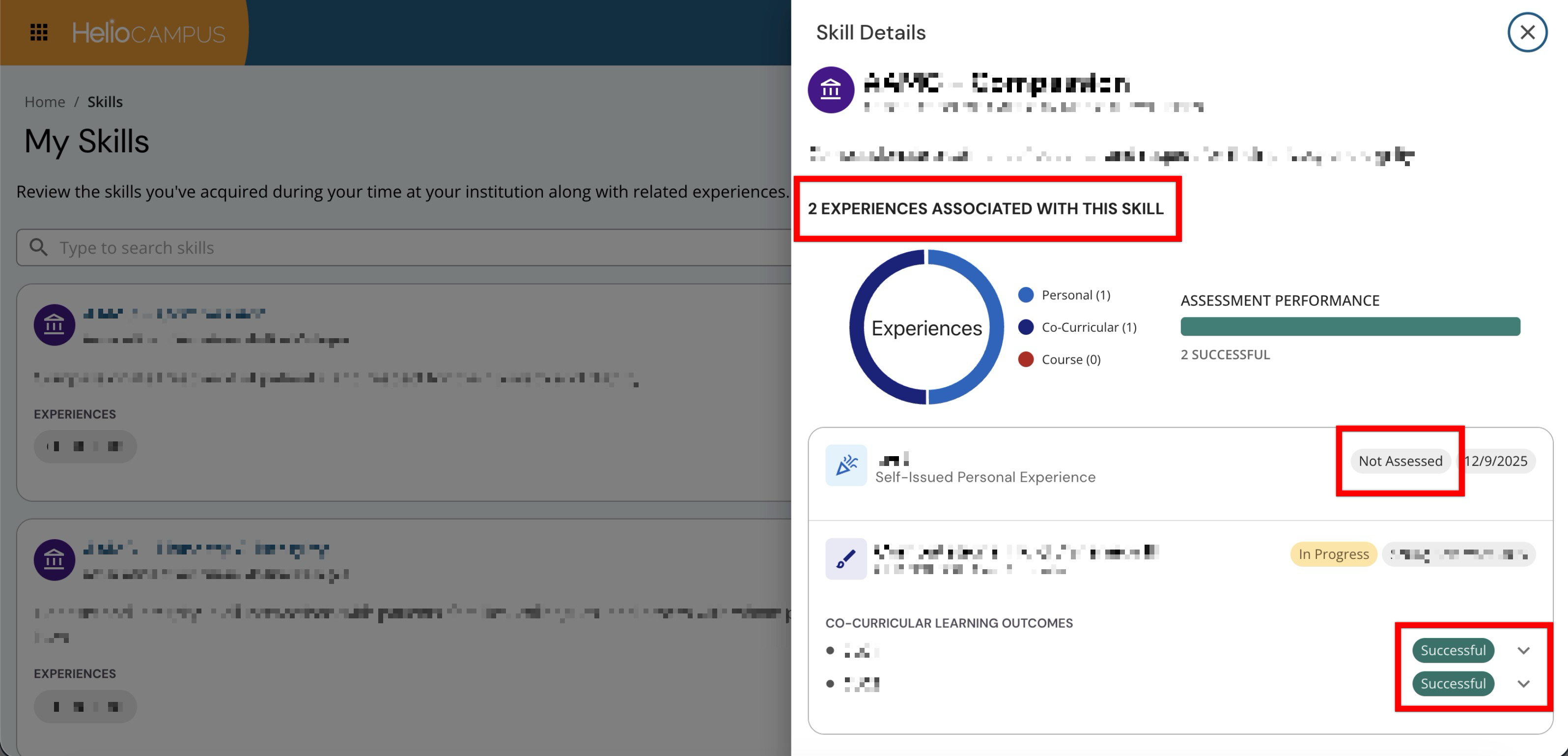
Learning Journey language has been updated to clarify an experience's association(s) and assessment status, including a new indicator for non‑assessed experiences. With this enhancement, users can quickly distinguish between experiences that contribute to assessment evidence and those that reflect only participation. Learn more.
Learning Journey Related Outcomes
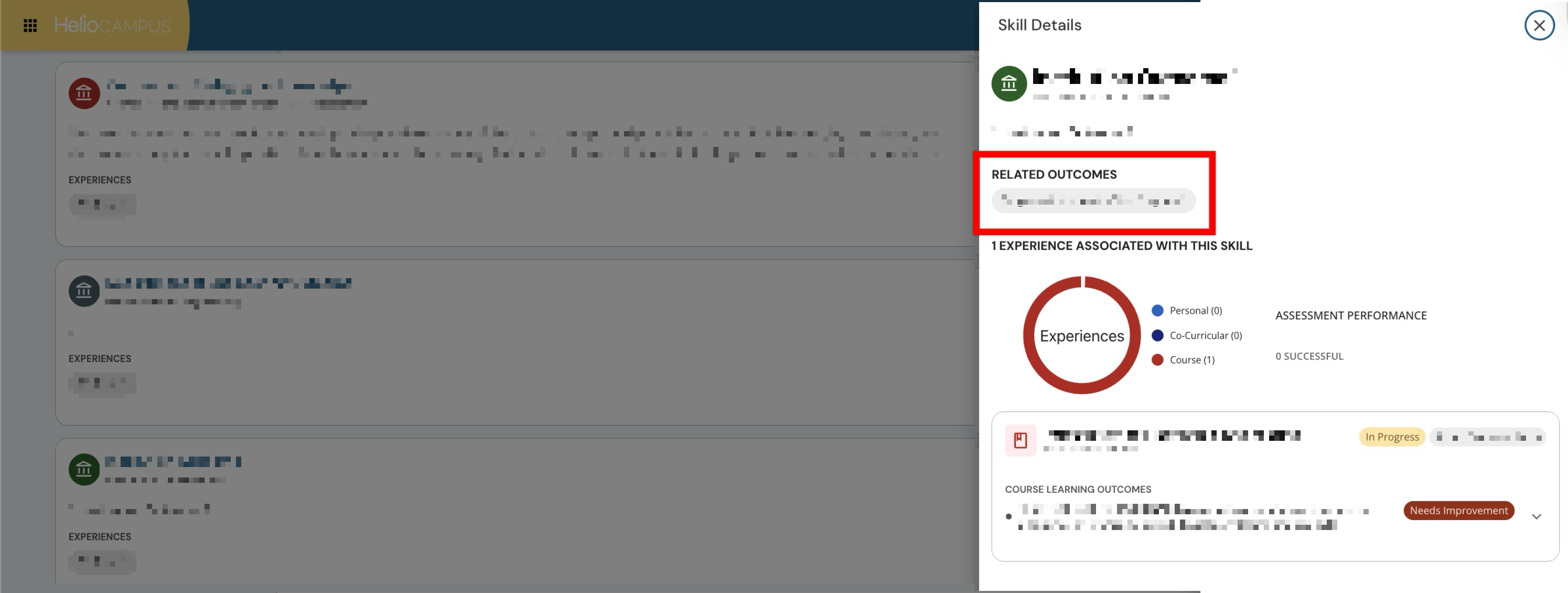
The Learning Journey has been enhanced to display related outcome sets as skills throughout the platform. Previously, only directly mapped outcomes appeared as skills in the Learning Journey. With this improvement, when an outcome set is enabled for display in the Learning Journey, any outcomes related to it will now also surface as skills — providing a more complete and accurate picture of student competency development. This enhancement applies across all relevant Learning Journey pages, including Skills, Experiences, Stories, Learning Journey, Personal Experiences, and Search for Experiences. Students and stakeholders will now see a holistic view of skill attainment that reflects both direct and related outcome mappings, eliminating the need for manual cross-referencing and ensuring that Learning Journey data fully represents the depth of curricular alignment. Learn more.
Outcomes Assessment Summary Report
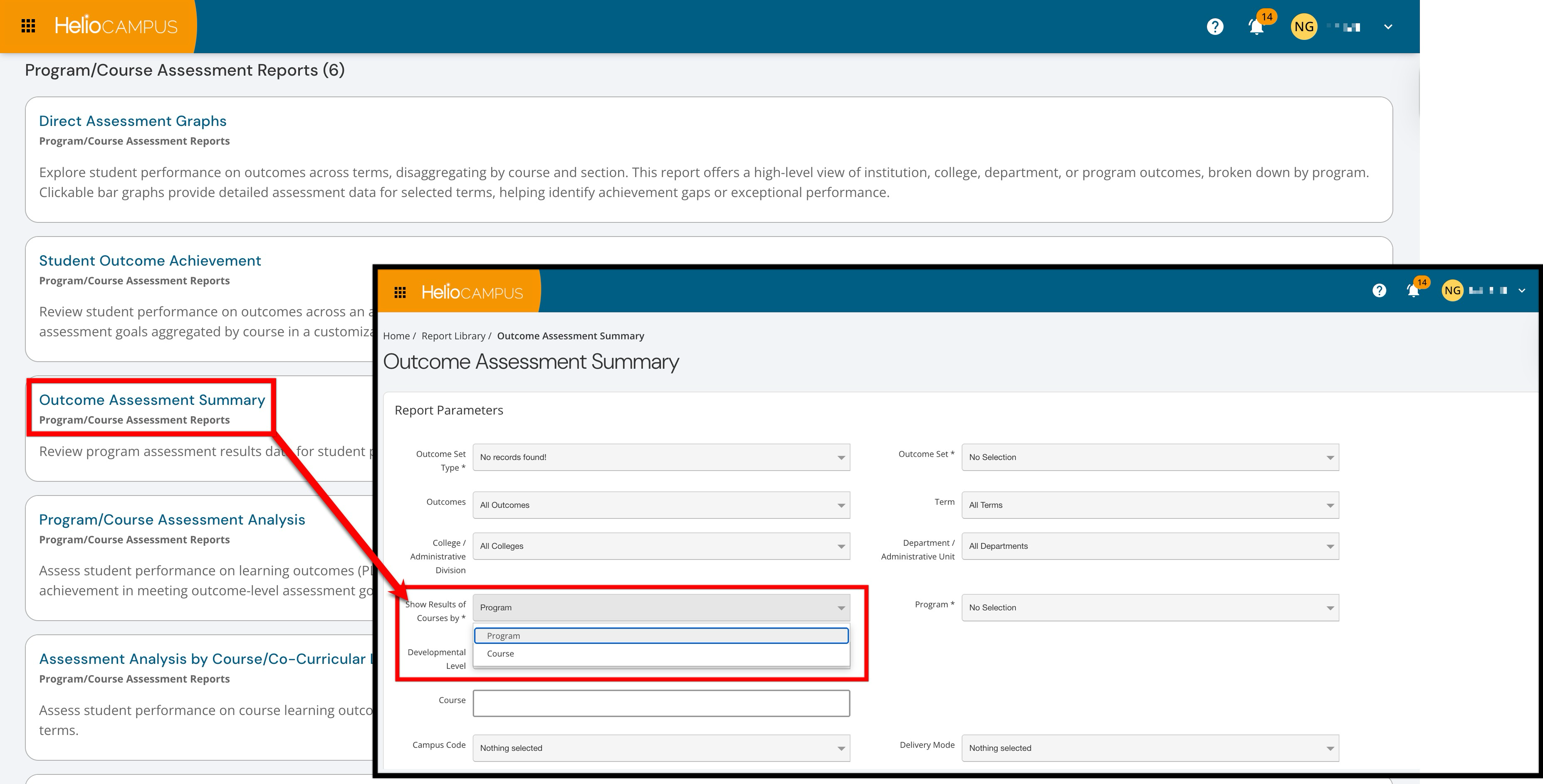
The Outcomes Assessment Summary report now includes a new required Show Results of Courses by parameter, allowing users to view assessment results either by program or by course, with downstream filters automatically narrowed based on selections. Once configured, a secondary parameter becomes available for program selection. Program Coordinators can access this report with the parameter locked to “Program,” while other administrative roles can use both parameter options. Additionally, the Course parameter now only lists courses with assessment data, helping users focus on actionable results. These changes make it easier and more accurate to analyze outcomes at the appropriate level, improve data integrity for departmental and college reporting, and streamline the workflow for program-level assessment oversight. Learn more.
Program/Course Assessment Analysis Report
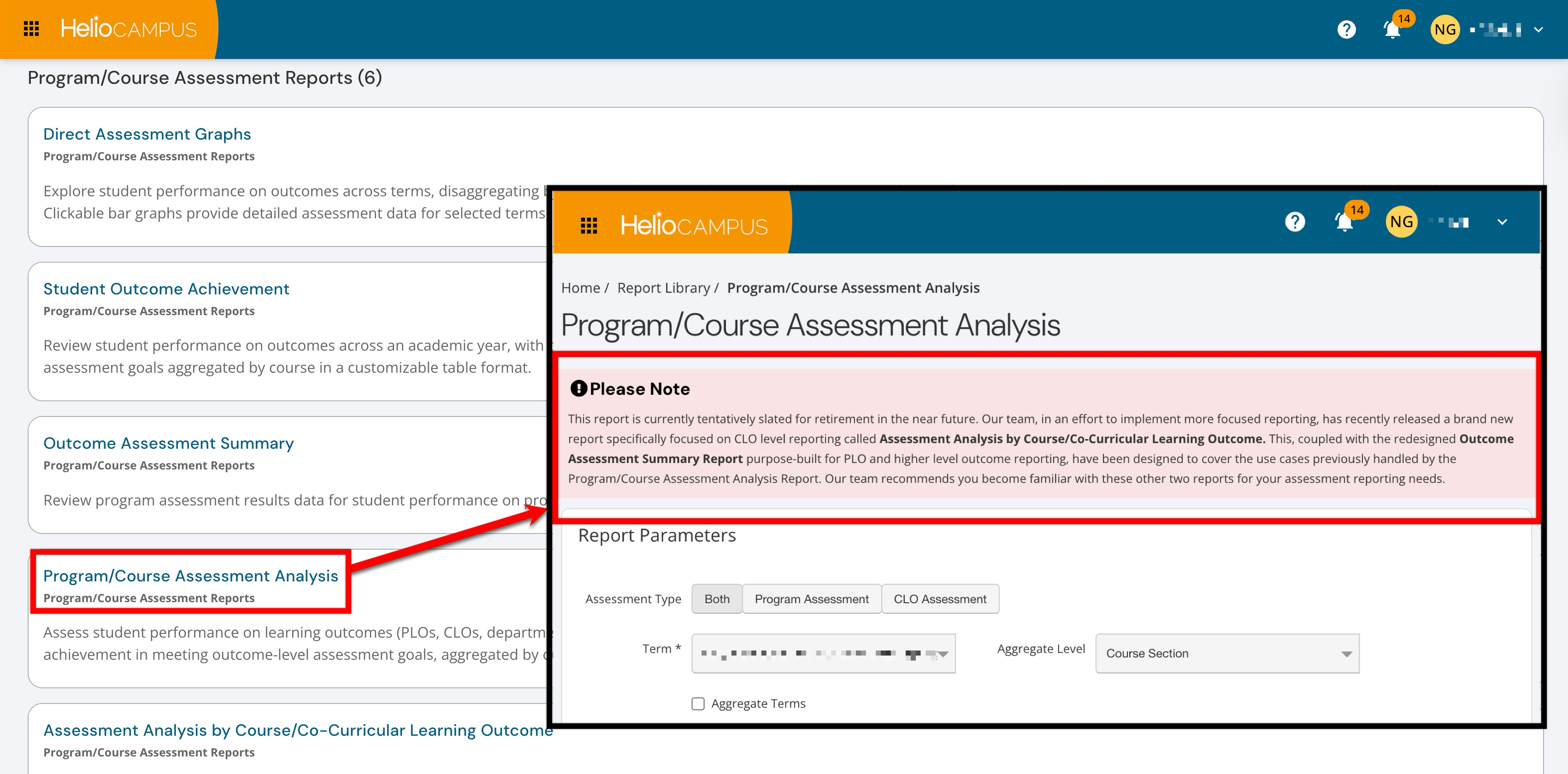
To help Institutions proactively transition reporting workflows and avoid disruptions, an informational banner has been added to the Program/Course Assessment Analysis report to notify users of its future retirement. The banner directs users to the newer, more focused reports now available for assessment analysis:
-
Assessment Analysis by Course/Co-Curricular Learning Outcome: Offers a high-level view of student achievement on CLOs for selected terms. Learn more.
-
Outcome Assessment Summary: Disaggregates student learning outcomes performance by student attributes and/or major/degree program. Learn more.
Program Educational Experiences
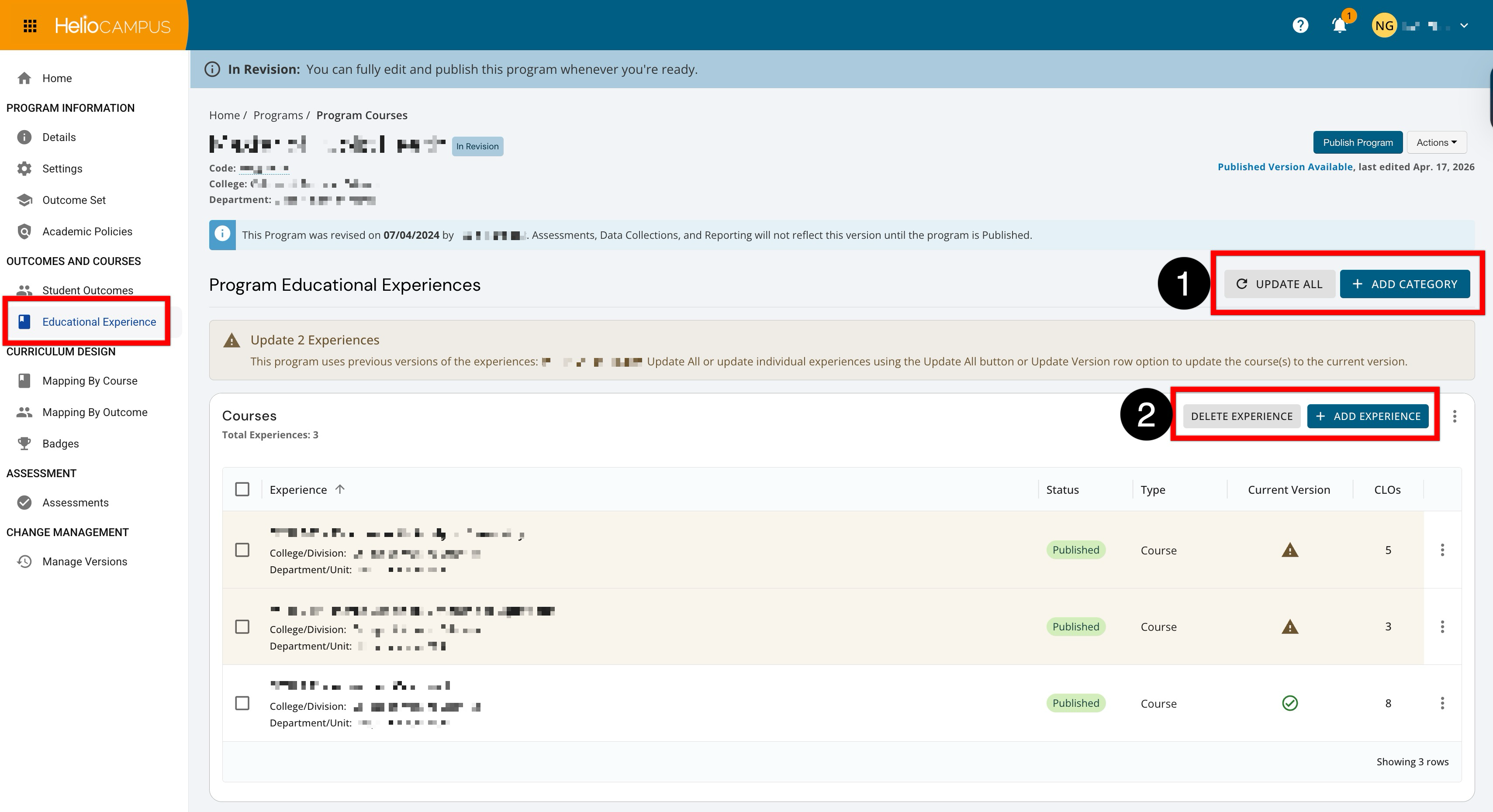
The program-level Educational Experiences page has been updated with an improved user interface. Using Update All (1) updates all experiences to the most current available version in one step, instead of updating them individually. By selecting Add Category (1), new categories (sections) can be created to organize experiences. Further management per category is available, where experiences can be added or deleted (2).
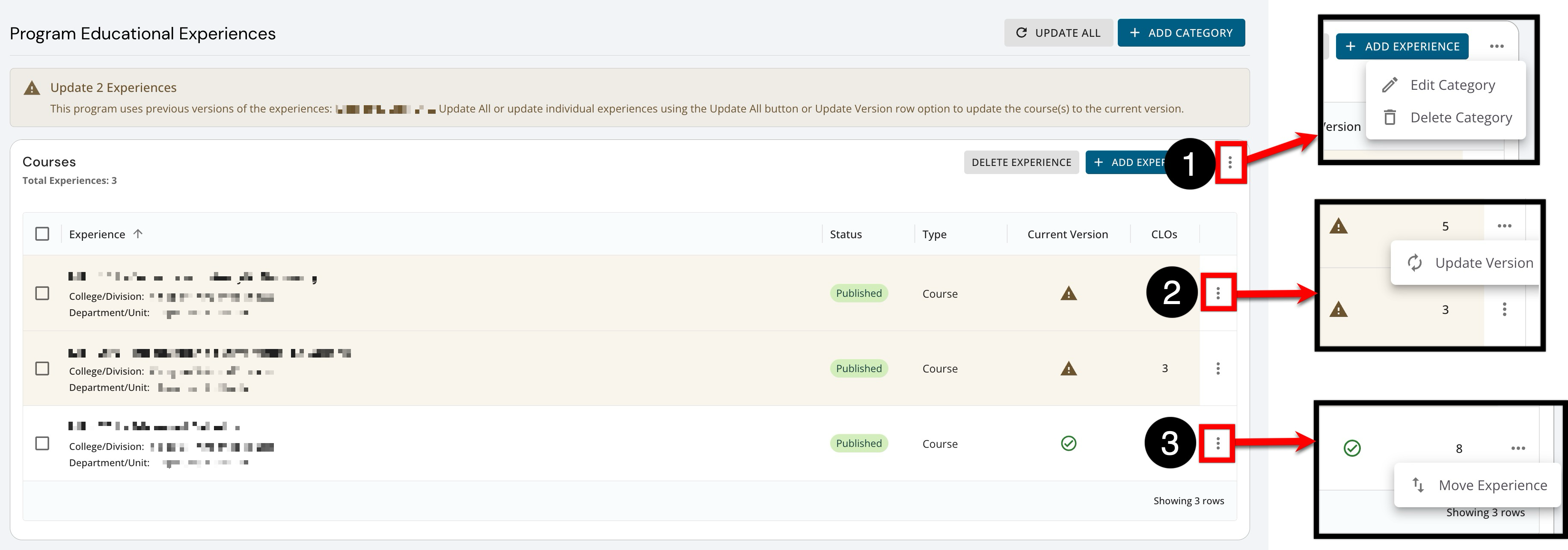
Use the category menu (1) to manage the category itself. From here, edits can be administered to the category name/settings, or categories can be deleted. When an experience shows an update indicator, Update Version (2) replaces the currently linked experience version with the latest available version. This helps keep program requirements aligned with the most up-to-date course/experience details. By choosing Move Experience (3), an experience can be relocated to a different category or reordered within a category. This is useful for reorganizing the program without removing and re-adding items. Learn more.
User Impersonation
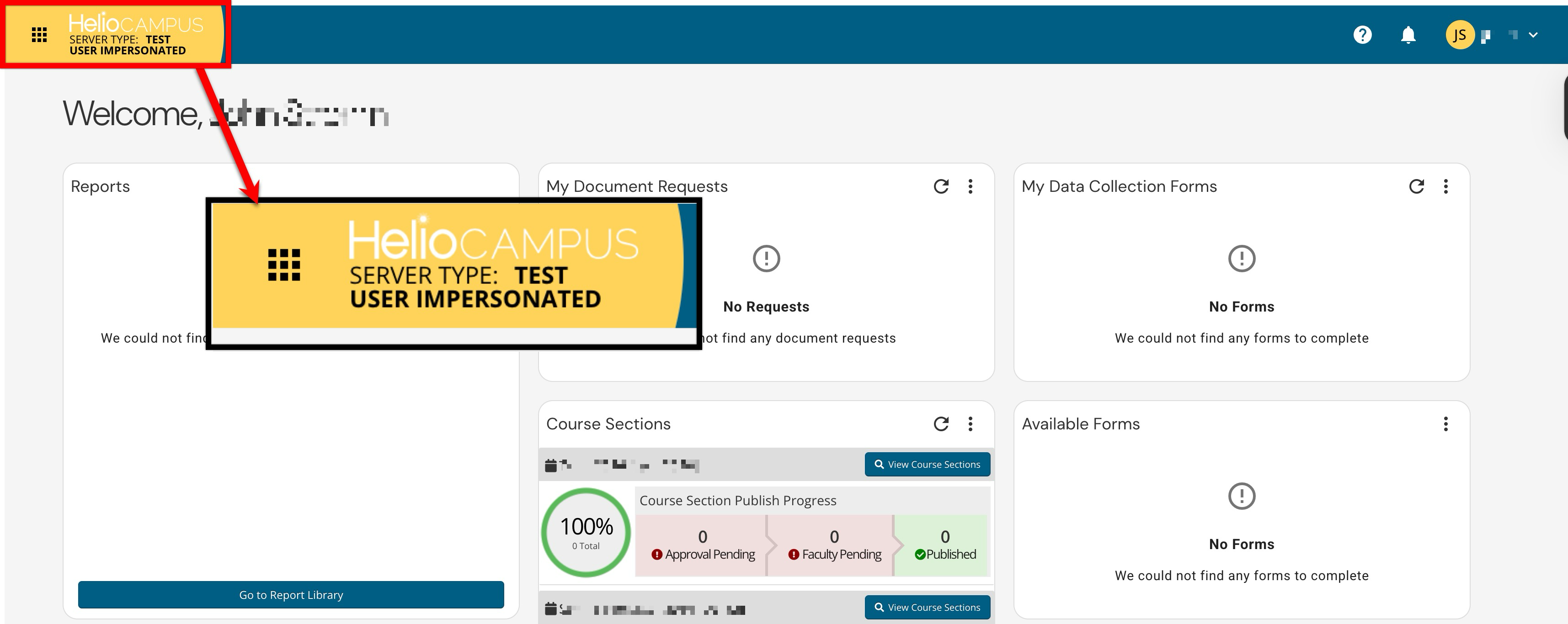
A banner now displays to indicate when an administrator is impersonating another user. For non-production environments, the banner includes both the impersonated user notice and server information; for production sites, the banner is displayed without server details. This enhancement helps prevent confusion or unintended changes while working under another user’s account, improving both administrative safety and overall user awareness. Learn more.
User Roles & Permissions
Data Collection‑specific roles have been adjusted to focus on managing forms rather than editing the underlying business objects associated with those forms. Institutions can now delegate data collection administration without unintentionally granting broad edit access to courses, programs, and other core records. Learn more.