
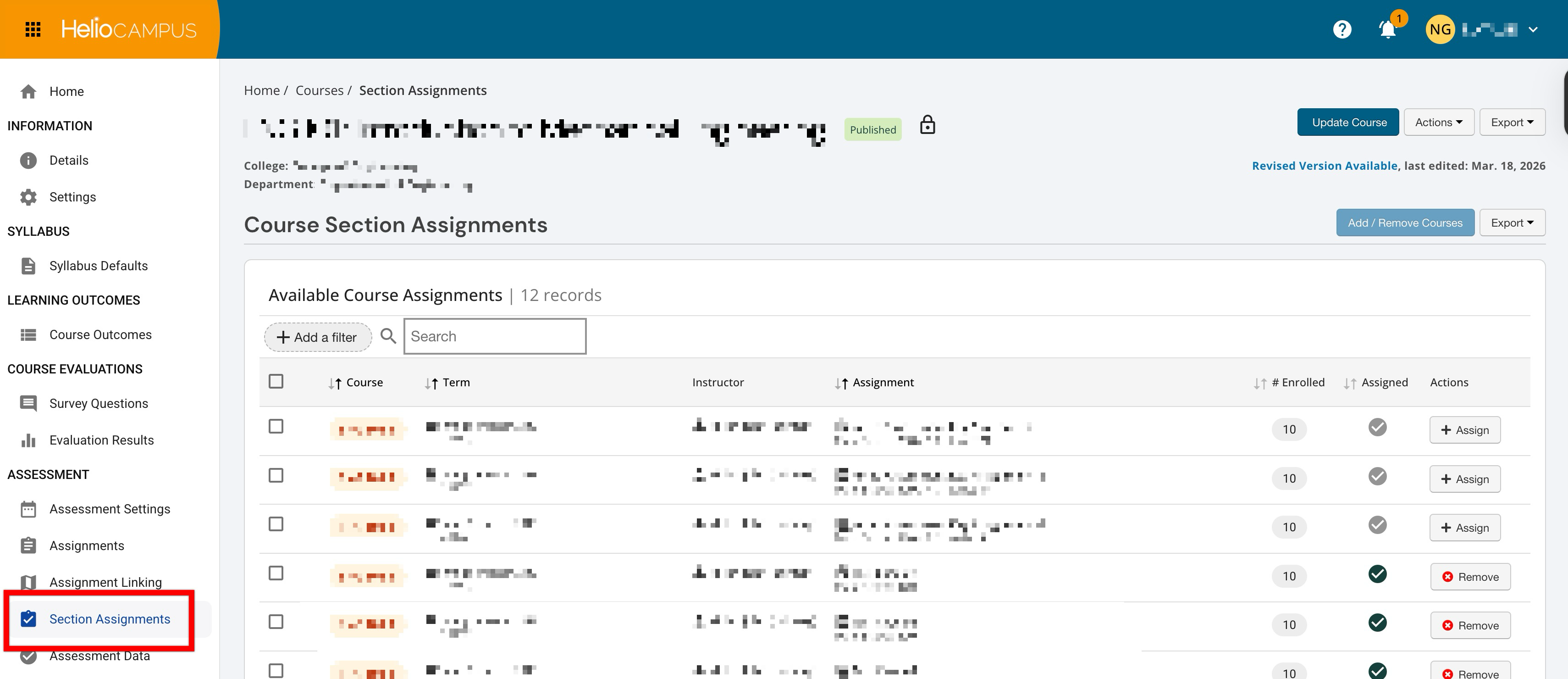
The Section Assignments page provides a consolidated view of all assignment templates for sections associated with a specific course or co-curricular activity. It allows administrators and coordinators to see which sections have assignments and to manage assignment distribution at scale by assigning or unassigning assignment templates to individual sections or to multiple sections in bulk. This page is accessed from the left-hand menu and operates at the course or co-curricular levels, cascading downward into all associated sections. User role permissions for this page are as follows:
-
College Admin
-
Course Coordinator
-
College Course Designer
-
Department Course Designer
-
Course Section Director
-
Dean
-
Department Admin
-
Department Committee
-
Institution Admin
-
Instructor
-
Preceptor
Users without edit permissions will see this page as read-only, with no action buttons or checkboxes, but will still have access to export options.
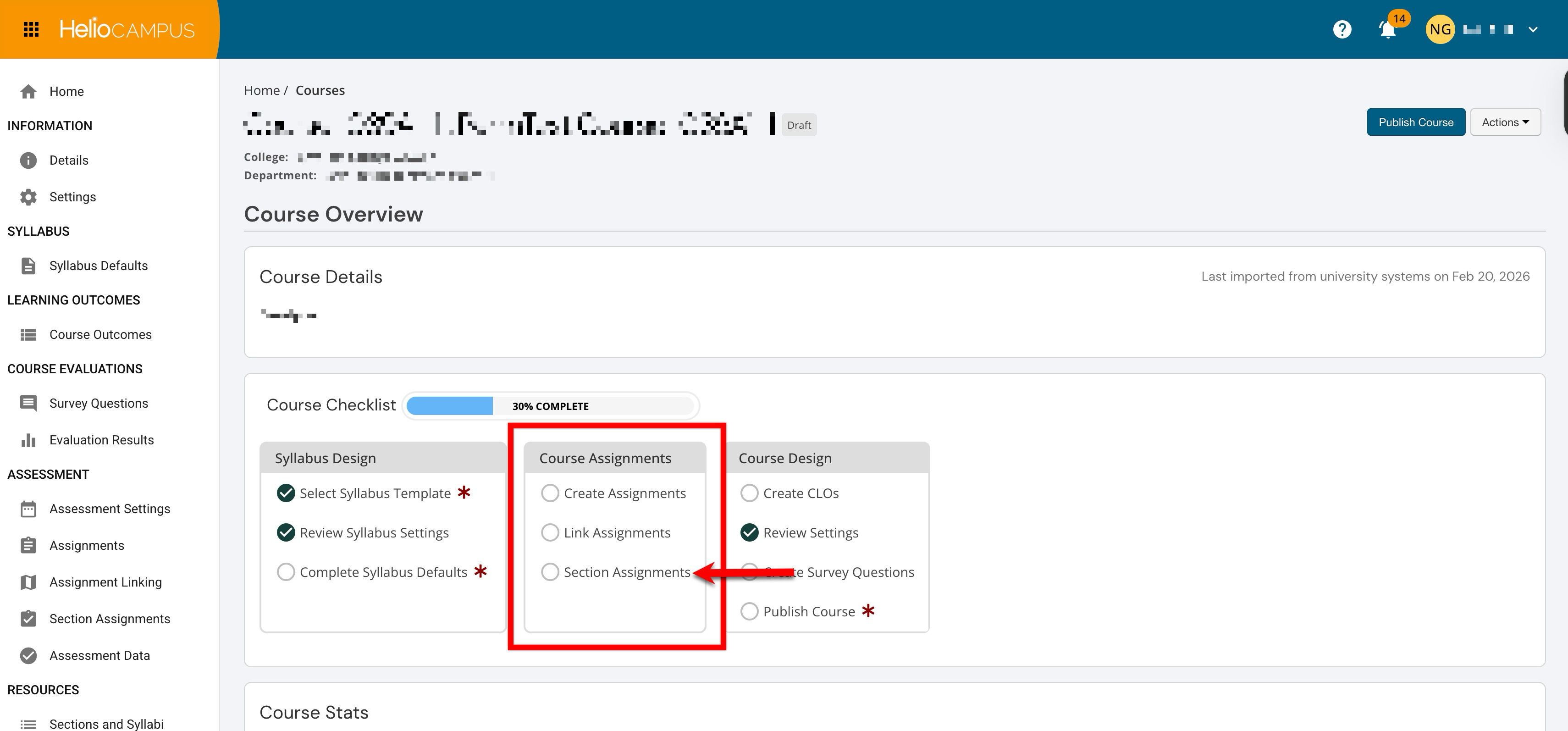
The homepage checklists for courses or activities display a completion indicator for this page. Clicking Section Assignments from the checklist will automatically navigate to the page.
The Section Assignments page is part of a three-step assignment workflow:
|
|
Course/Activity Page |
Purpose |
|---|---|---|
|
1 |
Assignments |
Create and manage assignment templates for a course or co-curricular activity. |
|
2 |
Assignment Linking |
Link assignment templates to outcomes. Assignment linking can be performed before or after section assignments are configured. |
|
3 |
Section Assignments |
Distribute (assign) the linked assignment templates to individual sections. Section template assignments can be configured before or after assignment linking is performed. |
This page should not be confused with the Assignments page accessible from within an individual course section.
|
|
Course/Activity → Section Assignments |
Section → Assignments |
|---|---|---|
|
Level |
Course/activity-level: looks across all child sections |
Section-level shows assignments for one section |
|
Purpose |
Manage which sections have which assignment templates assigned |
Manage, score, and track individual assignments |
|
Actions |
Assign/Un-assign templates to sections |
Create assignments, publish, start, import scores, sync with LMS |
Page Navigation
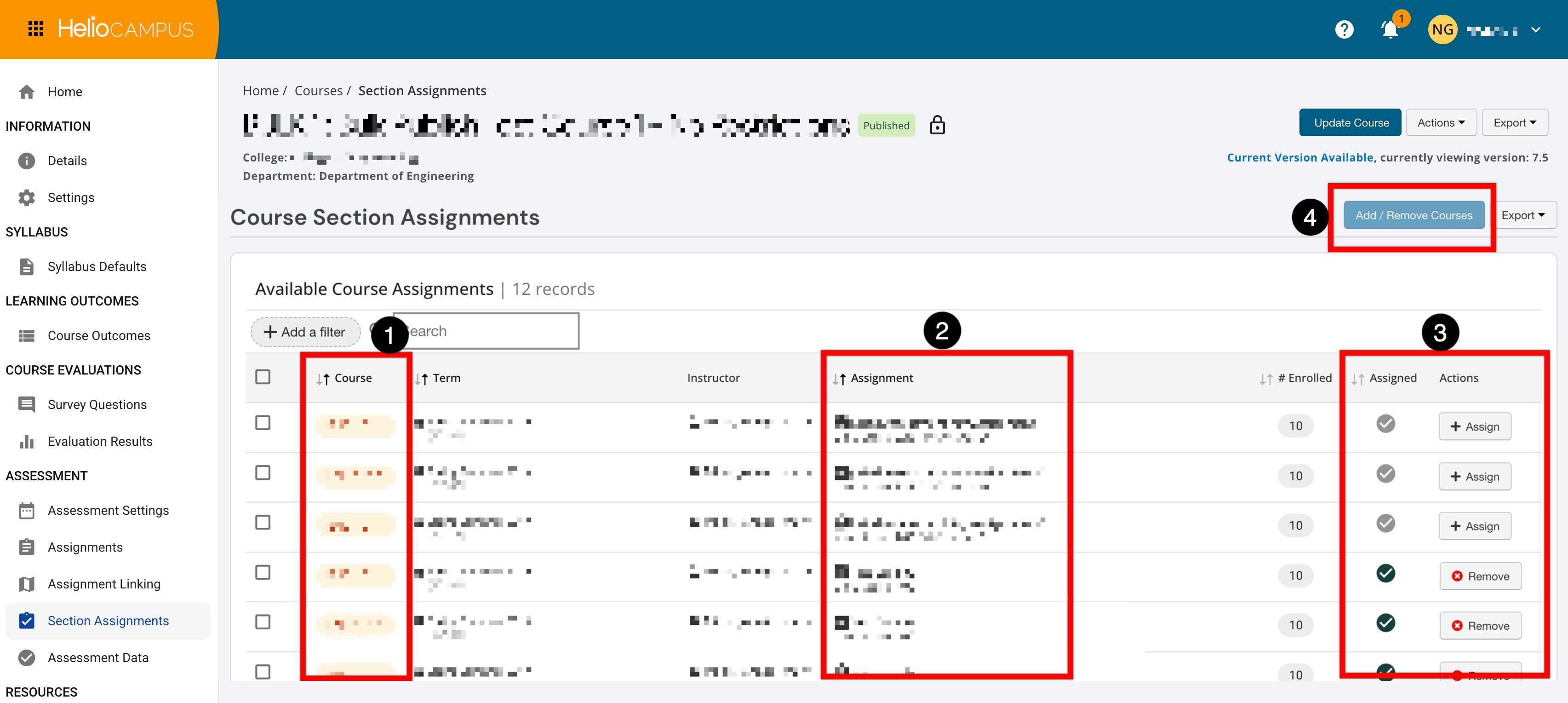
|
|
|---|---|
|
1 |
The course or co-curricular section code is a hyperlink that navigates to that section's homepage. |
|
2 |
The assignment template name, along with the maximum score and the number of criteria (if any rubric criteria exist). |
|
3 |
A status indicator displays whether an assignment is currently assigned (green check) or not assigned (muted check) to a section. The Assign and Remove buttons are available for managing individual assignments. |
|
4 |
When one or more assignments have been selected with the checkboxes, they can be assigned or removed in bulk by clicking Add/Remove Courses. |
Considerations
-
Assignment Records Across The Platform: The Section Assignments page is a section-level management screen, so changes made here affect how a section is connected to assignment records across the platform. Before adding or removing assignments, confirm that the correct course/activity and section are being updated; this is especially important when sections have similar names across terms.
-
Removing Assignments: Assignment records may be shared, reused, or referenced elsewhere (for example, across reporting, outcomes alignment, or evaluation workflows), so removing an assignment from a section usually changes availability/visibility in section-specific contexts.
Best Practices
-
When making changes, filter and search first to narrow the list to only the intended assignments to update, then select records. For larger updates, make changes in smaller batches (for example, by course, assignment type, or date range) so it’s easier to validate the results and roll back if needed.
-
Prefer the bulk add/remove action when there is a clear, consistent update to apply to multiple assignments, and use the per-row assign/remove actions for one-off fixes. After updating, spot-check a few assignments in the list to confirm the Assigned status reflects what was intended, and verify the section’s assignment list aligns with the syllabus or instructional plan for that term.
-
If a revised version(s) is present, confirm whether a published version or an in-revision version is being edited, and coordinate changes so they don’t conflict with other updates (such as course detail edits, roster changes, or term rollovers).
-
Large changes can make it harder to diagnose why data in a report or dashboard changed, so batching and spot-checking help preserve a clear “what changed and why” trail.
Downstream Impacts
-
Reporting and Analytics: Section-level assignment-based reports may change when assignments are added/removed, which can impact totals, completion rates, and comparisons over time.
-
Outcomes and Assessment Tracking: If assignments are used as evidence for learning outcomes or assessment mappings, removing an assignment from a section can disrupt expected coverage or reduce the number of artifacts available for analysis.
-
Instructor and Staff Workflows: The set of assignments available for section-specific actions (review, scoring, analysis, etc.) may change, potentially impacting what Instructors or coordinators can see or do for a section.
-
Data Consistency Across Terms: If assignments are reused across courses/terms, inconsistent section assignment linking can create confusing differences between sections that are supposed to be configured similarly.