
The refresh functionality pulls the latest available assignments from the connected LMS into a course section for assignment linking. LMS assignments may not appear immediately if a course, section, assignment, grading, or other information in the LMS or platform is incomplete or has recently changed. Before performing the checks detailed below, confirm the following:
-
The correct section is being viewed in the platform.
-
The Refresh LMS Assignments functionality has been used, allowing the assignment list to update.
-
LMS assignments may take several minutes to appear after the refresh.
-
-
The section is linked to the correct LMS course shell, and the assignment is available there.
-
The appropriate role-based access has been assigned in both the platform and the LMS.
Where Refreshing Happens
-
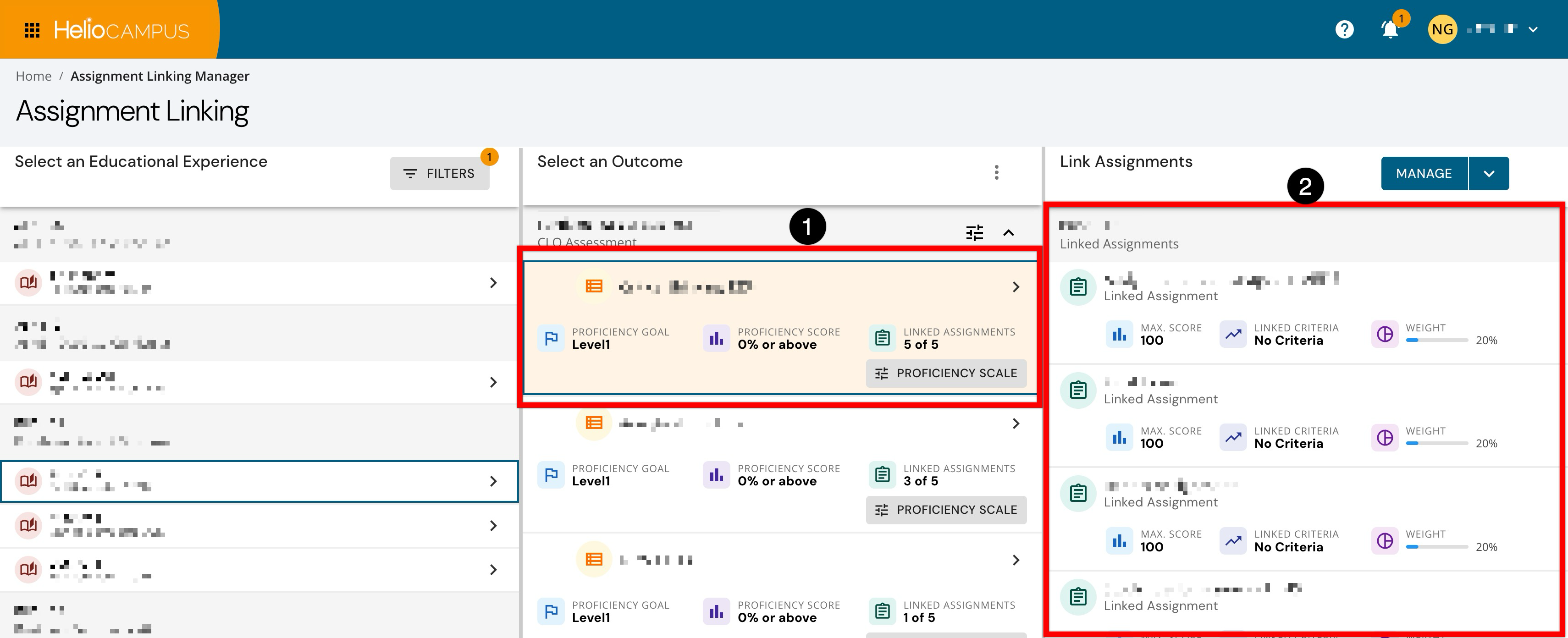
Assignments can be refreshed per outcome with the Assignment Linking Manager by selecting an outcome (1), which automatically refreshes linked LMS assignments (2).
-
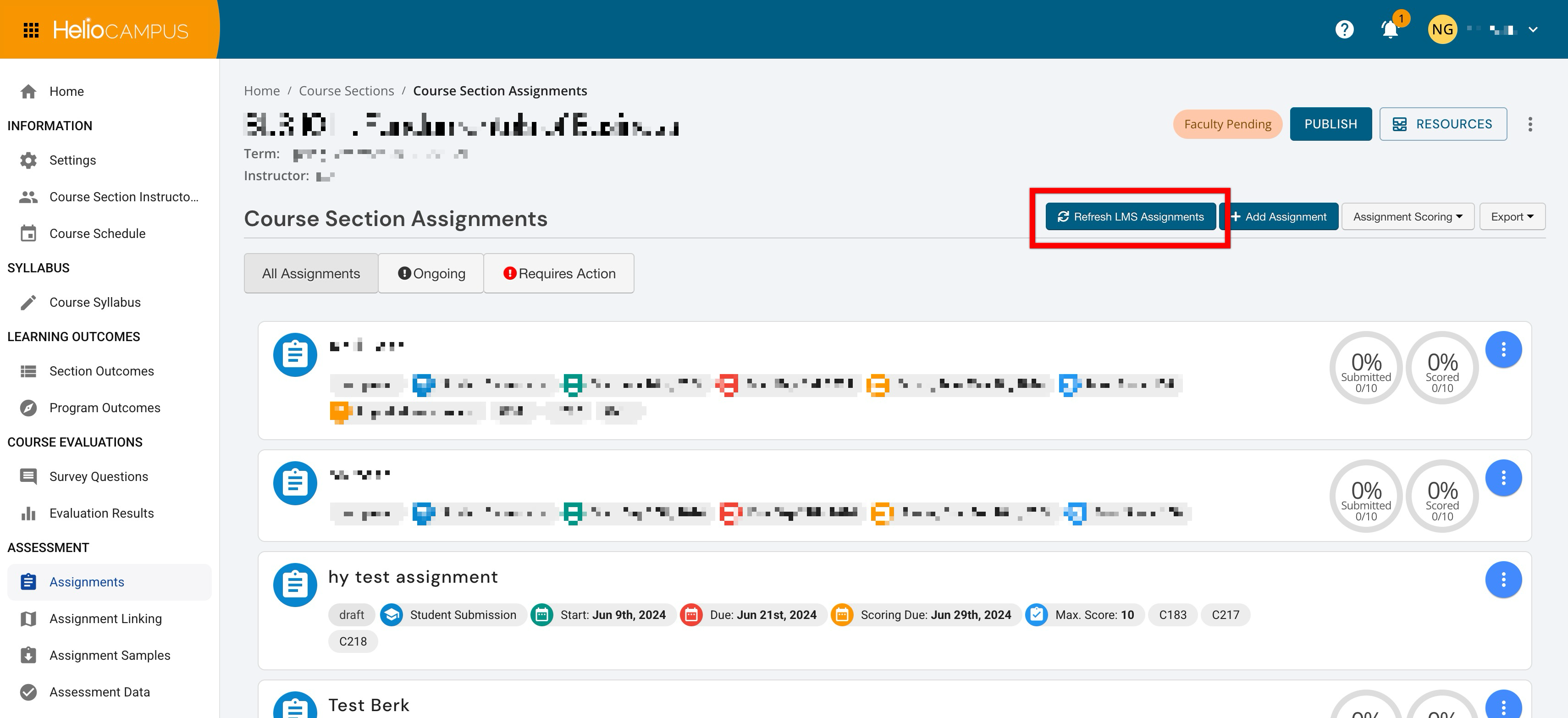
Assignments can be refreshed for each course section on the Assignments page by clicking Refresh LMS Assignments.
-
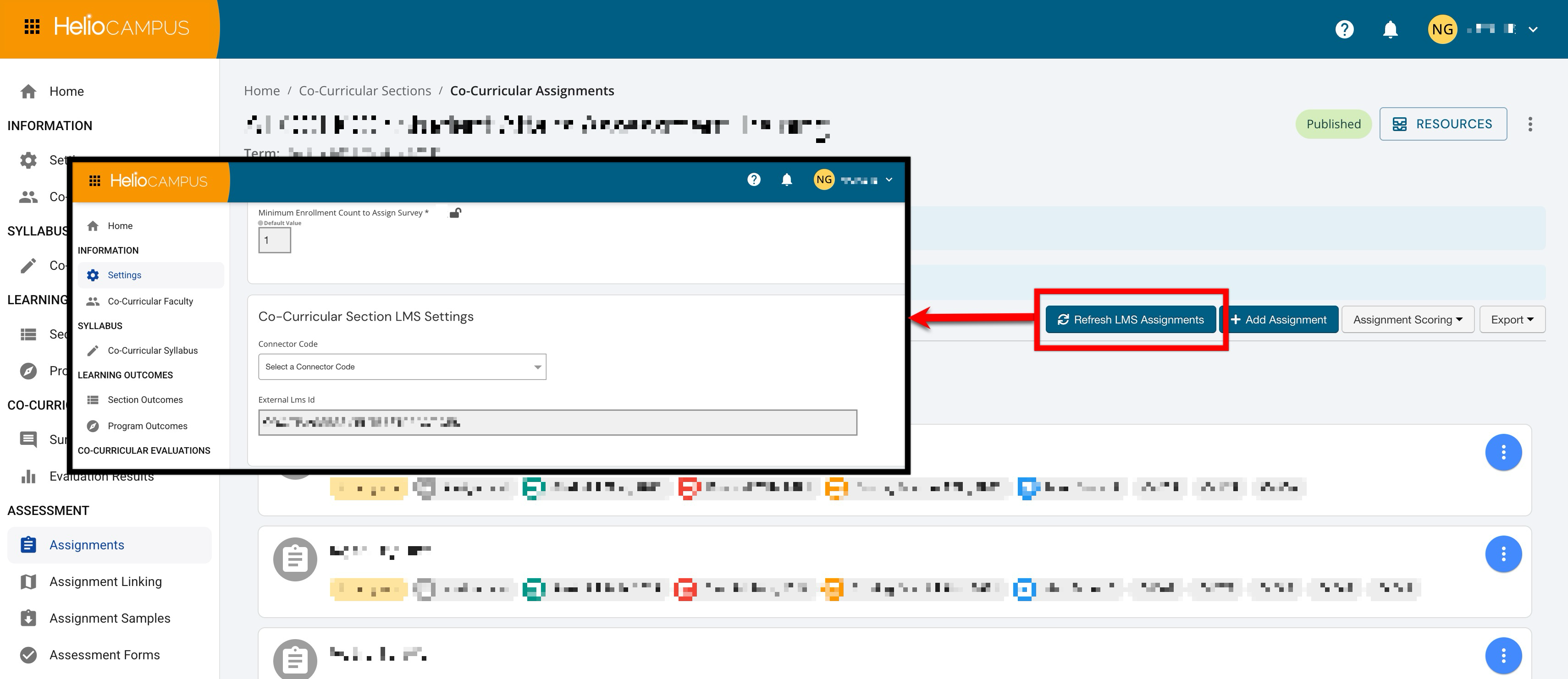
After configuring Co-Curricular Section LMS Settings, assignments can be refreshed for each co-curricular section on the Assignments page by clicking Refresh LMS Assignments.
When to Submit a Support Ticket
Submit a support ticket after all check items in this article have been completed and the LMS assignment still does not appear or continues to return an error. Include the following information in the ticket:
-
Institution name
-
LMS name
-
Course name and course ID
-
Section name and section ID
-
LMS course site URL
-
Assignment name
-
Screenshot of the assignment in the LMS
-
Screenshot of the course section in the platform
-
Screenshot of the error message, if applicable
-
Whether the course is cross-listed
-
Whether the assignment was recently created, edited, published, or moved
-
Approximate date and time when the refresh was performed
Check 1: Connection and Authorization
If there is no Refresh LMS Assignments option, or clicking it displays a sign-in/authorization screen, or nothing syncs. Confirm that the section is linked to an LMS course, complete any authorization prompts, and confirm that the course can be opened directly in the LMS. Consider the following:
-
The Refresh LMS Assignments option only appears when the section has an LMS connection configured. If there is no button, the section is not connected to an LMS course.
-
If refreshing redirects to the LMS to log in or grant access, the LMS session has expired or was never authorized. Complete the authorization, then return to the platform and refresh the page.
-
The refresh functionality performs as the user with their LMS-access. If the user can’t see the assignments in the LMS, the refresh won’t see them either.
Check 2: Course and Section Status
If LMS assignments do not appear or an error message is displayed, first confirm that the course and sections are active. If the section is inactive, not yet available, or connected to the wrong LMS course shell, LMS assignments may not appear when refreshed. Check the following:
-
The section exists in the expected academic term.
-
The section is active or in progress.
-
The section is associated with the correct course.
-
The section is associated with the correct LMS course shell.
Check 3: LMS Assignment Availability
In the LMS, confirm that the assignment is visible and available to users. If an assignment is unpublished or restricted in the LMS, it may not appear in the platform after refreshing LMS assignments. Check the following in the LMS:
-
The assignment is published.
-
The assignment is available for the correct course or section.
-
The assignment has not been restricted; hiding assignments from students in the LMS does not prevent them from being displayed in the platform.
-
The assignment has a valid due date, availability, or release settings.
-
The assignment is assigned to the correct students or section.
-
The assignment is not limited to a different section, group, or course shell.
Check 4: Grade Availability in LMS
LMS assignment syncing depends on the assignment and grade information available from the LMS. If the assignment does not appear in the LMS gradebook or does not have a valid score, it may not appear as expected in the platform. Check the following:
-
The assignment appears in the LMS gradebook.
-
The assignment has a valid point value or maximum score.
-
Grades are available for the assignment if results are expected.
-
The assignment is not configured to prevent grade data from being shared; hiding assignments from students in the LMS does not prevent them from being displayed in the platform.
-
Check 5: Assignment Type and Score Settings
Some LMS assignment settings can prevent an assignment from being used for assessment or linking. If the assignment appears in the platform but displays an error or warning, review the assignment's LMS score and publishing settings. Review the assignment in the LMS and confirm:
-
The assignment has a valid maximum score.
-
The assignment is not configured as a non-graded item.
-
The assignment is not a draft or unpublished item.
-
The assignment type is supported for syncing.
-
The assignment is not missing required grading settings.
Check 6: Cross-listing or Section Changes
Cross-listing or recently changed section structures can affect where assignments appear and where they need to be refreshed. When cross-listing exists, assignments may need to be refreshed or managed from the parent section, depending on how the LMS structure is configured. Check the following:
-
The section has not been cross-listed, merged, or moved in the LMS recently.
-
The assignments are being refreshed from the correct parent or child section.
-
The LMS assignment is in the section linked to the platform.
-
The assignment is available to the specific section being assessed.
-
Any recent cross-listing updates have been reflected in both the LMS and the platform.
Check 7: Automatic Refresh
If the section already has one or more linked assignments, LMS assignments may also be refreshed automatically by batch processes. If there are no linked assignments in the section, users may need to manually select Refresh LMS Assignments to retrieve the latest LMS assignment list.
Frequently asked questions
Why do assignments appear for one person but not another? Or, why does the platform display “could not find an active course related to your section”?
The LMS sync reads courses in which the user holds an Instructor-level role. If enrolled only as an observer, Teaching Assistant (without grading access), or not enrolled in that LMS course, the course may not be visible during the refresh. Confirm the Instructor/teacher role in the LMS course is assigned. If not, ask the LMS course owner to grant appropriate access, or have someone with Instructor access run the refresh.
Why does the assignment appear with an unexpected status (e.g., “pending” instead of “in progress”), or do the dates look wrong?
The refresh reads the assignment’s start/unlock date, due date, and, where applicable, end/grading date from the LMS. The assignment’s status is derived partly from these dates. For example, a published assignment whose start date is in the future may appear as pending rather than in progress; once the start date has passed, a subsequent refresh moves it to in progress. Blank or misconfigured availability dates in the LMS can cause an assignment to display with an unexpected status. In the LMS, verify the start/unlock and due dates. Correct them, then refresh to update the status.
Why don't I see a newly created LMS assignment?
The assignment may not be published, may not be available to the correct section, may not have valid grading settings, or may not have synced yet. Confirm the assignment is published and visible in the LMS, then refresh in the platform.
Why does the assignment appear in the LMS but not in the platform?
The LMS assignment may be associated with a different section, restricted to a specific group, unpublished, missing a valid score, or affected by cross-listing. Confirm that the assignment is available in the LMS course shell connected to the section.
I changed an assignment in the LMS and refreshed the page, but the change didn’t come through. What’s causing the delay?
A normal refresh will not overwrite assignments that are already Completed or in Pending Scores status. This protects scoring work that’s already in progress or done. As a result, edits made in the LMS to an assignment that’s already been scored in the platform won’t appear with a standard refresh. If LMS changes must be pulled into an already-scored assignment, please contact Support.
Why do I receive an error after selecting Refresh LMS Assignments?
An error may occur if the LMS assignment, course, section, grading setup, or cross-listing structure is incomplete or unavailable. Review the troubleshooting checklist to confirm the section status, assignment availability, gradebook setup, and LMS course shell.
Do LMS assignments appear immediately after refreshing?
Not always. LMS assignments may take several minutes to appear after refreshing. If the assignment does not appear immediately, wait briefly and refresh the page.
What should I check for when looking at cross-listed courses?
Confirm whether the section is a parent or child section in the LMS. If the assignment belongs to a parent section, changes may need to be made or refreshed from the parent section before the assignment appears for the child section.
Can unpublished LMS assignments be synced?
Unpublished or draft assignments may not appear as expected. Publish the assignment in the LMS and confirm that it is available to the correct course/cou-curricular or section before refreshing.
Why is grade data missing for an LMS assignment?
Grade data may be missing if the assignment is not included in the LMS gradebook, does not have a valid maximum score, has not been graded, or is configured to prevent grade data from being shared.