
To perform assignment linking at the course or co-curricular activity levels, navigate to the course or activity homepage and select Assignment Linking from the left-hand menu. To ensure term-to-term consistency and avoid broken links, assignment names for linked assignments should not be changed from term to term.
To ensure assessment of CLOS, courses not included in a program should not be mapped to its PLOs. Once links are created between the course assignments and Course Learning Outcomes (CLOs), the platform will automatically enable assessment of those CLOs scheduled to run from the start of the term until the last day of class in the following term.
Product Tip
Assignment Linking can occur at all the following levels of the platform:
-
Assignment Linking Manager
-
Courses
-
Course Sections
-
Co-Curricular Activities
-
Co-Curricular Sections
-
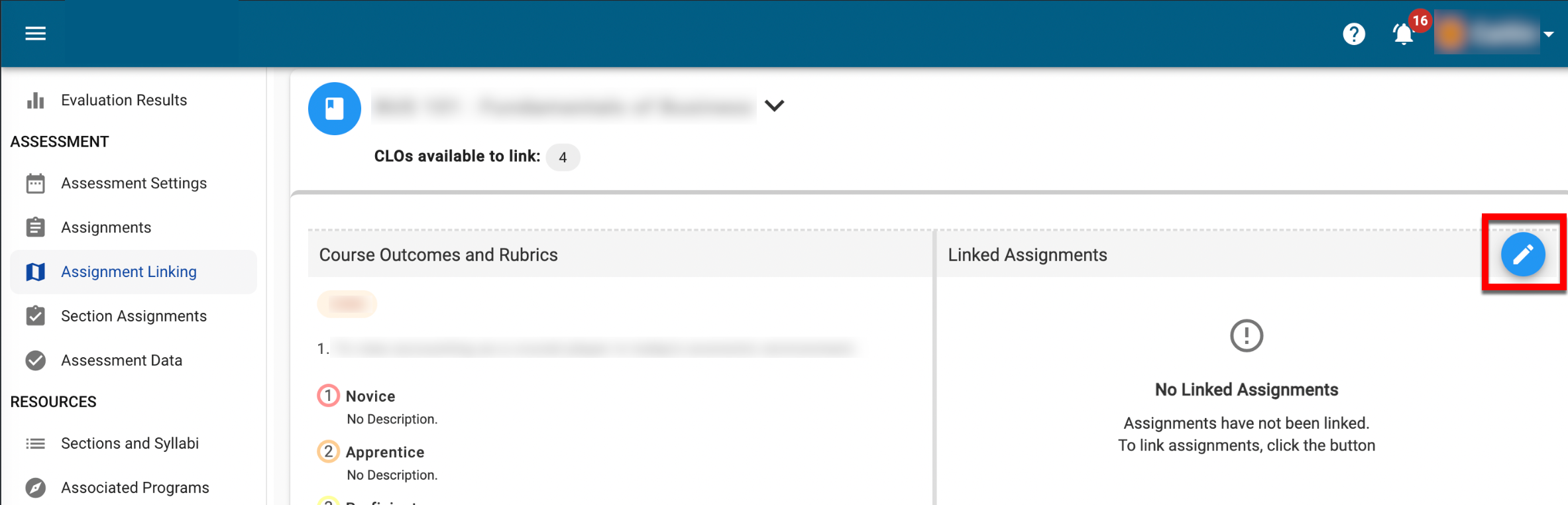
Identify the outcome to either link available assignments or review previously linked assignments. Click the pencil to select available assignments.
-
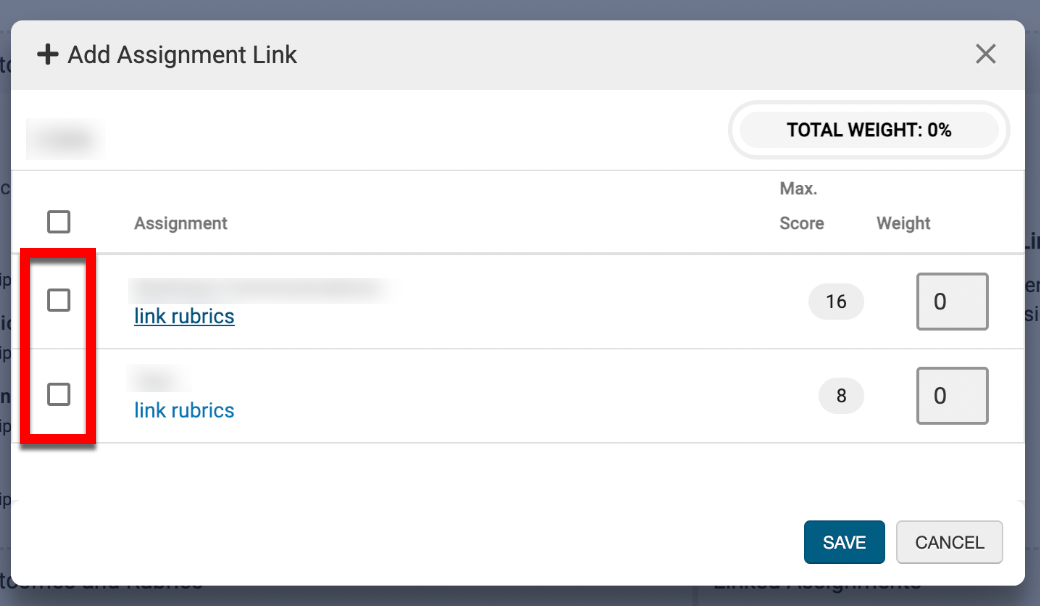
The pop-up will populate with a list of all course or activity assignments. Check the box next to each assignment to link assignments to the selected outcome.
Product Tip: Assignments from the Learning Management System (LMS) will not be displayed for Course Level Assignment Linking.
-
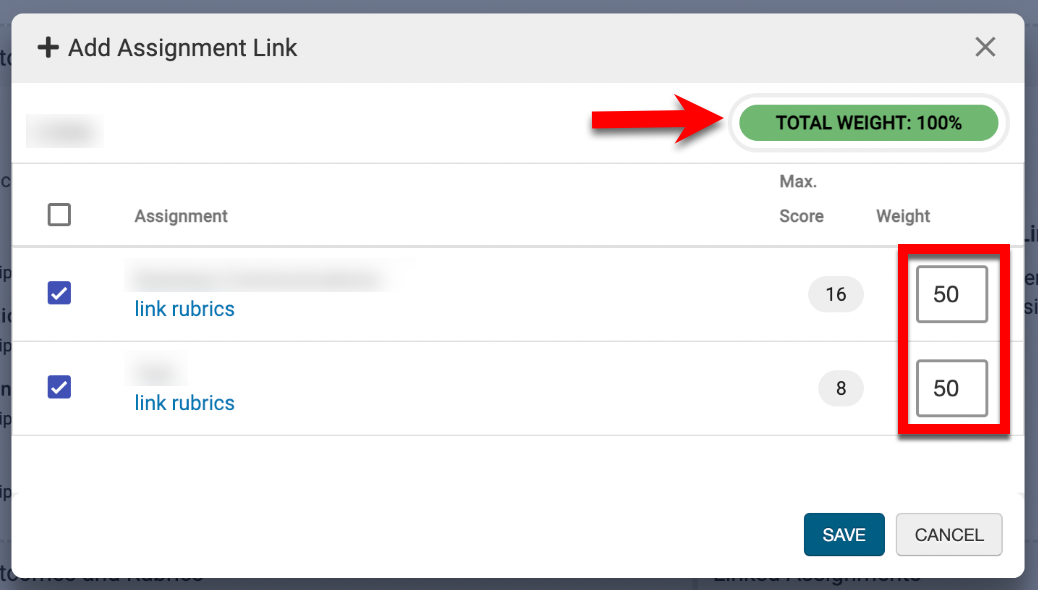
The individual weight allocated to each assignment will be automatically calculated, although assignment weights can be distributed manually as needed. If the total weight of all selected assignments does not equal 100%, the Save Links button will remain unavailable until it does.
-
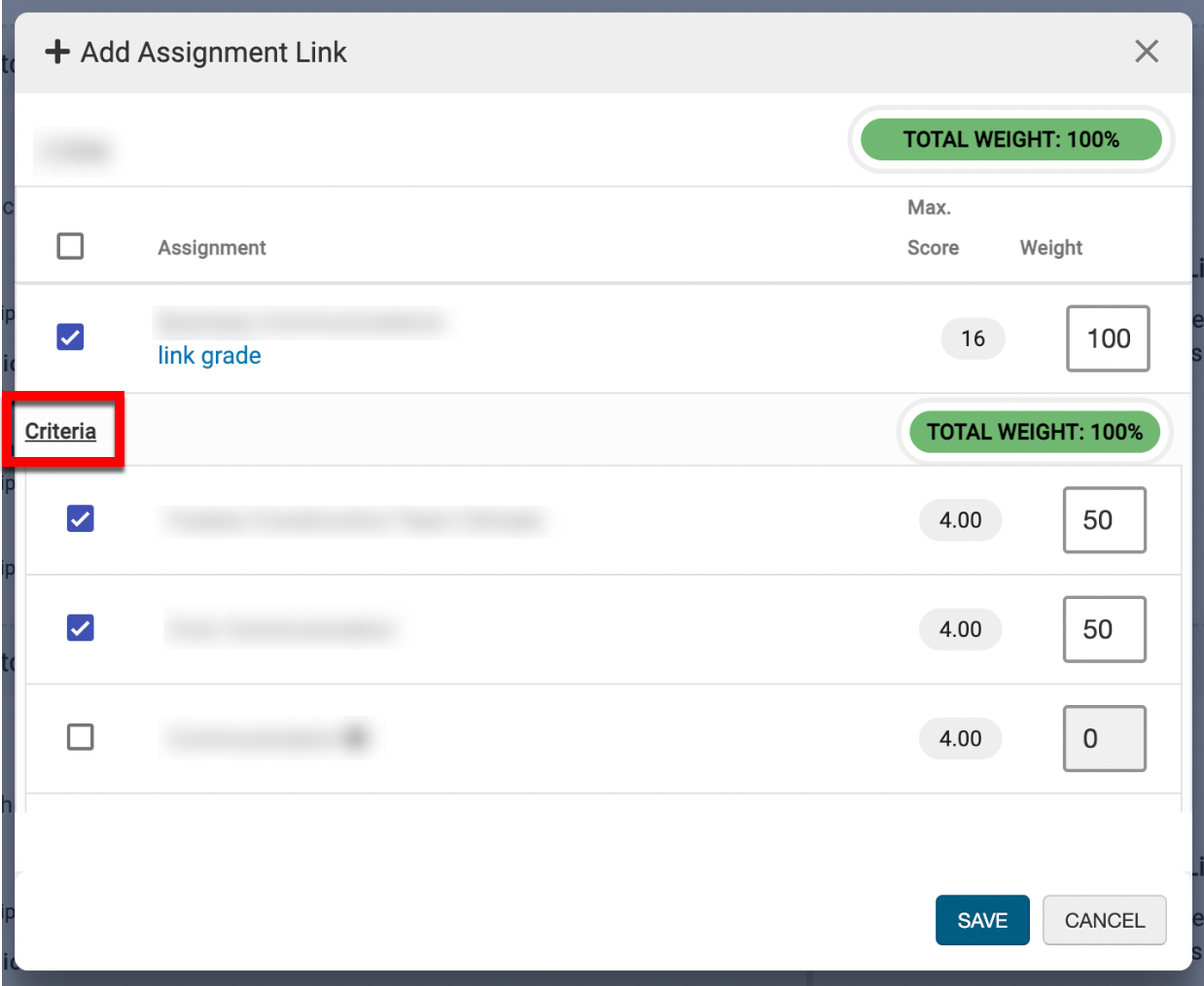
If an assignment contains rubric criteria or quiz questions, clicking Criteria^ will display associated rubric criteria or quiz questions available for linking to the outcome. Once criteria/quiz questions have been selected, individual weights allocated to each criterion will be automatically calculated, although criterion weights can be distributed manually as needed.
-
-
To complete assignment linking, click Save to link the assignment(s) and/or rubric criteria to the selected outcome.