
This page is used to create assignment templates where students are scored directly on rubric criteria in the associated course or co-curricular section. Rubric criteria provide a framework for scoring assignments; they’re helpful for Instructors during grading and valuable to students for understanding the assignment's expectations. User roles with assignment adding and editing capabilities include:
-
College Admin
-
Course Coordinator
-
Department Admin
-
Institution Admin
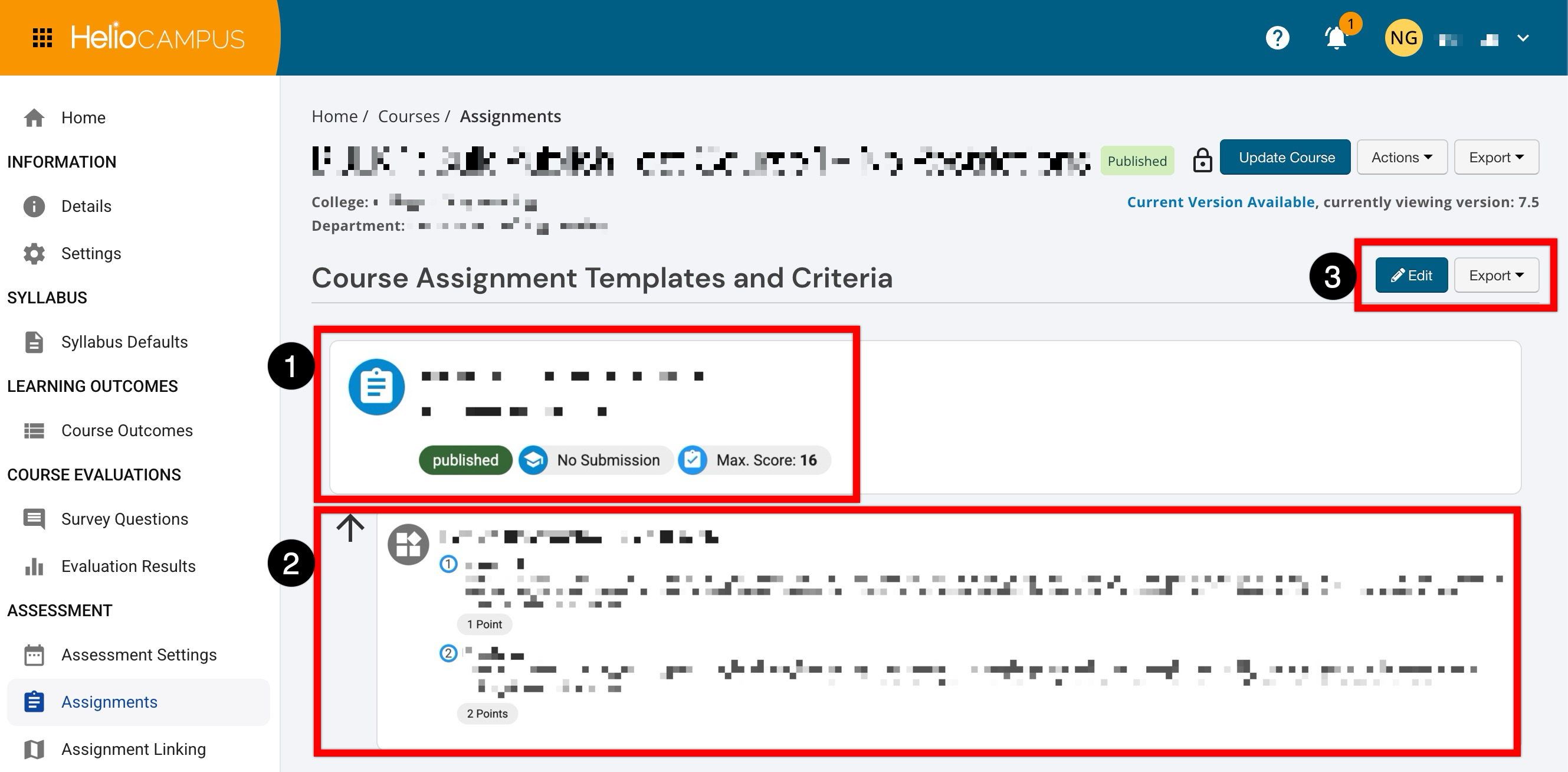
Once assignment templates are added, the assignment information, including the name and description, is displayed along with the assignment status, type, and maximum score (1). Displayed directly beneath each template is the rubric criteria name, description, and point value (2). Assignment templates can be added, edited, or removed by clicking Edit (3), and can be exported to CSV and PDF formats or printed by expanding the Export dropdown (3).
Assignment Types
Student Submission
This assignment type allows students enrolled in course or co-curricular sections to submit artifacts directly to the platform for scoring. When adding this assignment type, offsets must be configured to determine the assignment start, due, and scoring due dates.
No Submission
This assignment type enables instructors to score students during observation when no student artifact is submitted (e.g., by viewing a student's presentation or performance). It may be scored directly in the scorebook or updated using the import/export scores by Excel spreadsheet option. When adding this assignment type, offsets must be configured to determine the assignment start and scoring due dates.
Import Scores
This assignment type allows for the absence of a start date, due date, or grading due date, and assessment data is imported into the platform only via a CSV/Excel template.
Adding New Assignment Templates
Assignment templates can be added when a course or activity is in Draft, In Revision, or Published status.
-
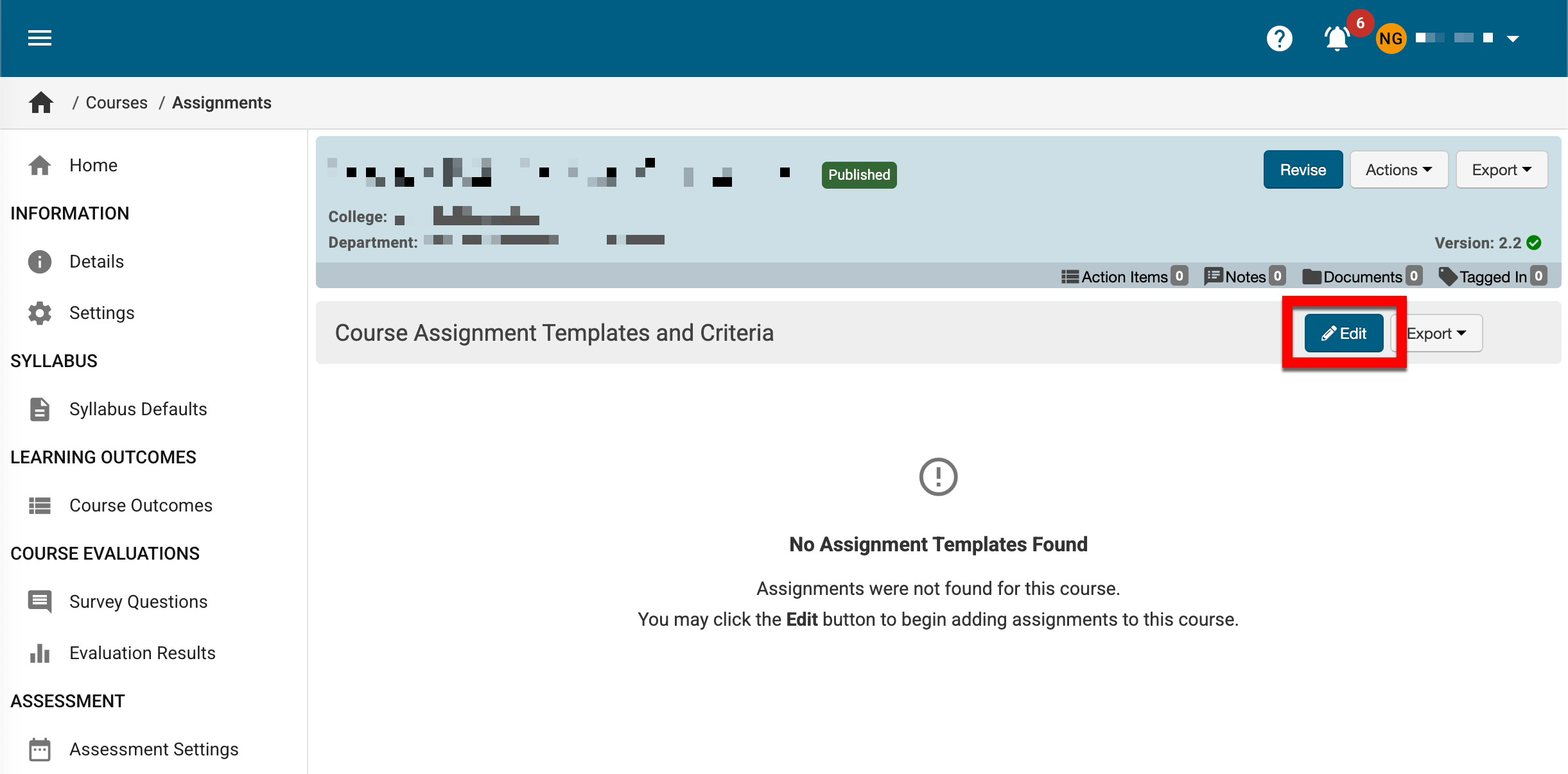
To add new assignment templates, navigate to the course or activity homepage and select the Assignments page from the left-hand menu. On the Assignments page, click Edit.
-
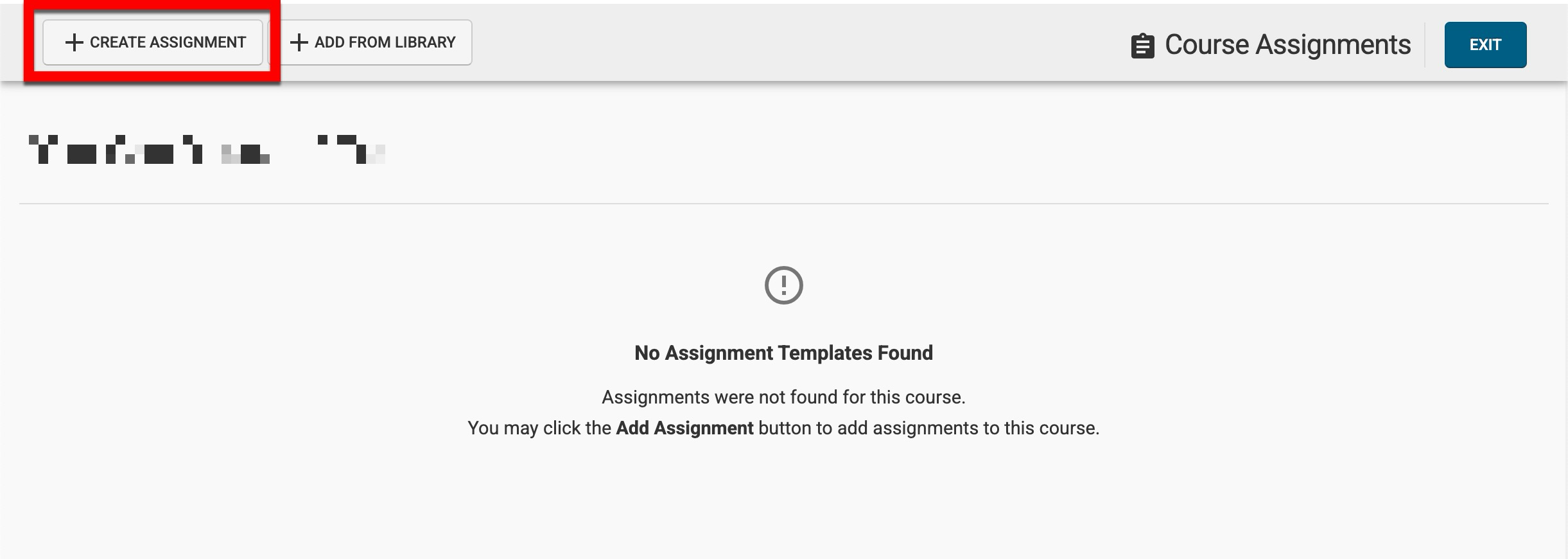
From the designer, click Create Assignment.
-
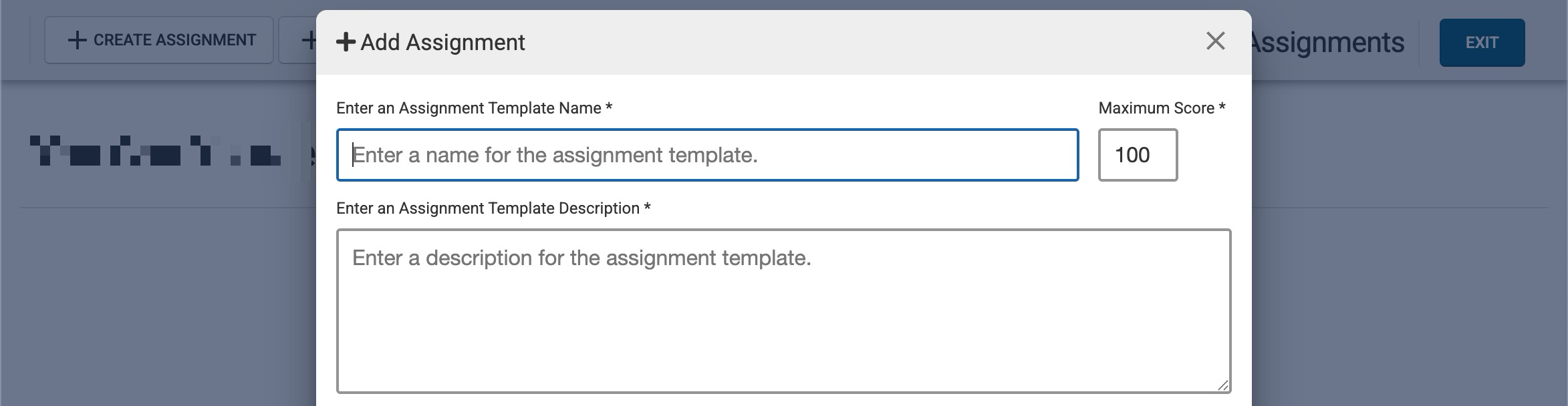
Enter a name and description for the new assignment template via the Add Assignment pop-up. By default, the Maximum Score is set to 100; this is the highest score students can achieve on the assignment.
-
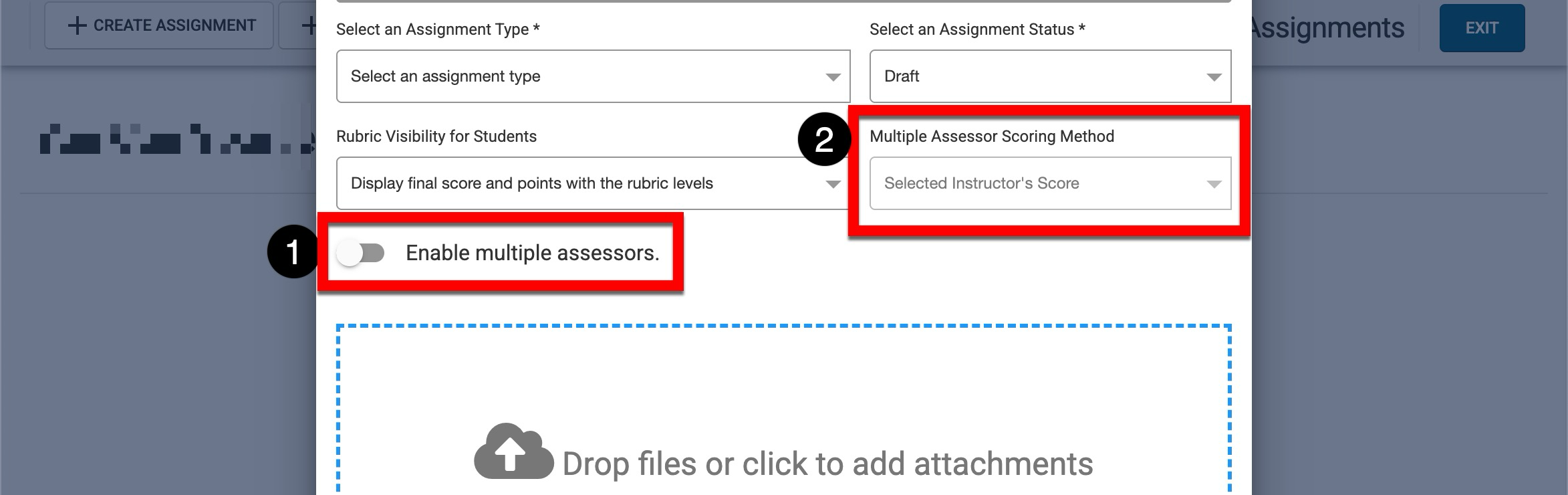
Select the assignment type and status (1); the assignment template can be created in Draft or Published status. If a template is created in Published status, edits cannot be made post-creation, and rubric criteria cannot be added. The Rubric Visibility for Students drop-down controls when students will see their final score and whether rubric levels and point values are displayed with it.
-
Display final score and rubric points to students with the rubric level: Upon completion, scored students will be able to see their final score, the total points they achieved for each rubric criterion, and the details of the rubric criteria.
-
Display only the rubric levels: Upon completion, scored students will see their final score and the rubric level they achieved; no points will be displayed.
-
Do not display the rubric levels: Upon completion, only the final score will display to scored students; neither the rubric levels nor the points will be displayed.

-
By default, multiple assessors are disabled for new assignment templates (1). When enabled, the scoring method for all assessors can be configured (2):
-
Selected Instructor’s Score: When this option is selected, multiple assessors functionality must also be enabled and configured for each assignment, for each associated section. The score configured by the Instructor in Section Assignments > Assignment Homepage > Details will be used as the student's final score.
-
Average Score of All Assessors: All assessors' scores will be averaged to determine the final score for the assignment.
-
Best Score From All Assessors: The highest score among all assessors will be the final score assigned to the student.
-
-
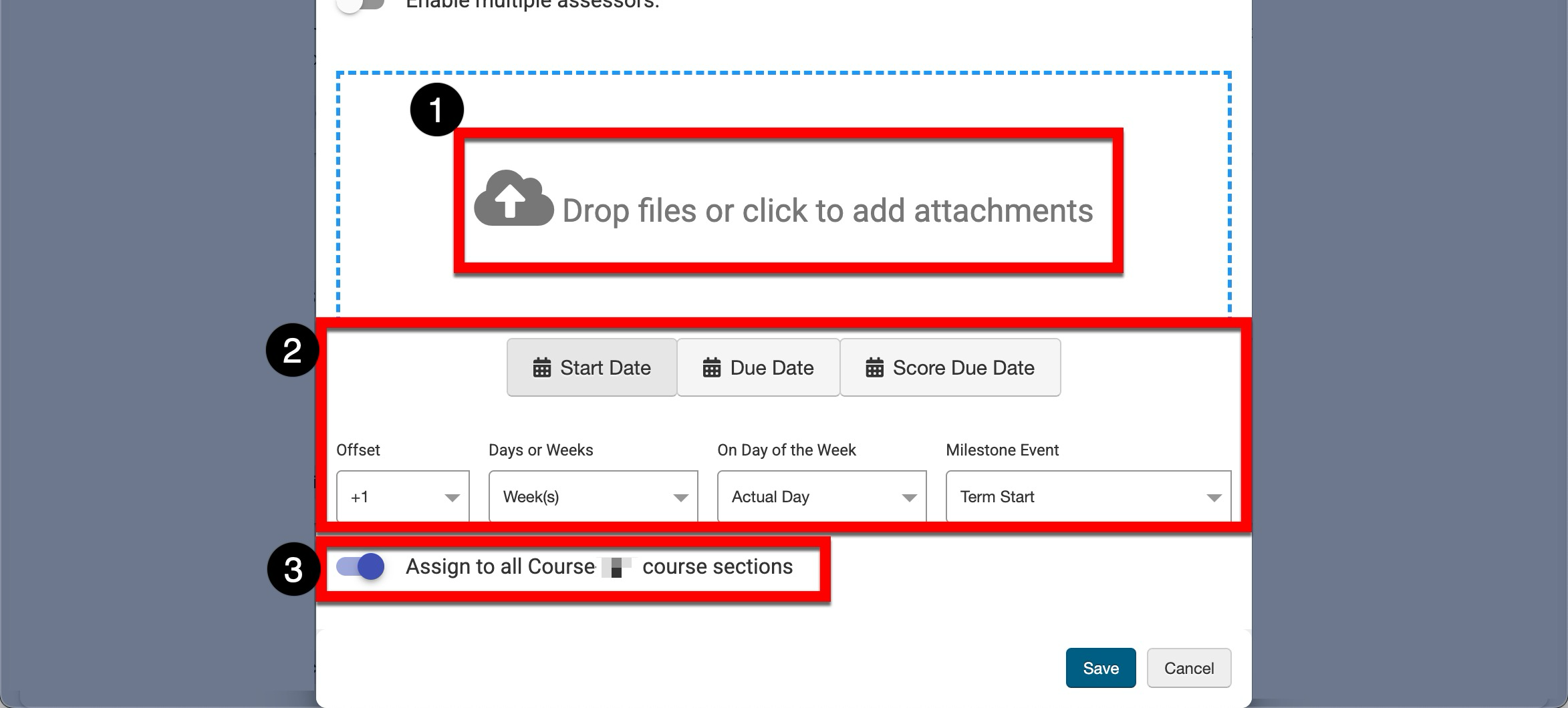
File attachments can be added by clicking the File Attachments section to open a file explorer or by dragging and dropping the attachment to the File Attachments section (1). By selecting each tab, offsets can be configured to determine the assignment template start, due, and scoring due dates as applicable for the assignment type (2). By default, new assignment templates will be assigned to all associated sections (3). Learn more about configuring offsets.
-
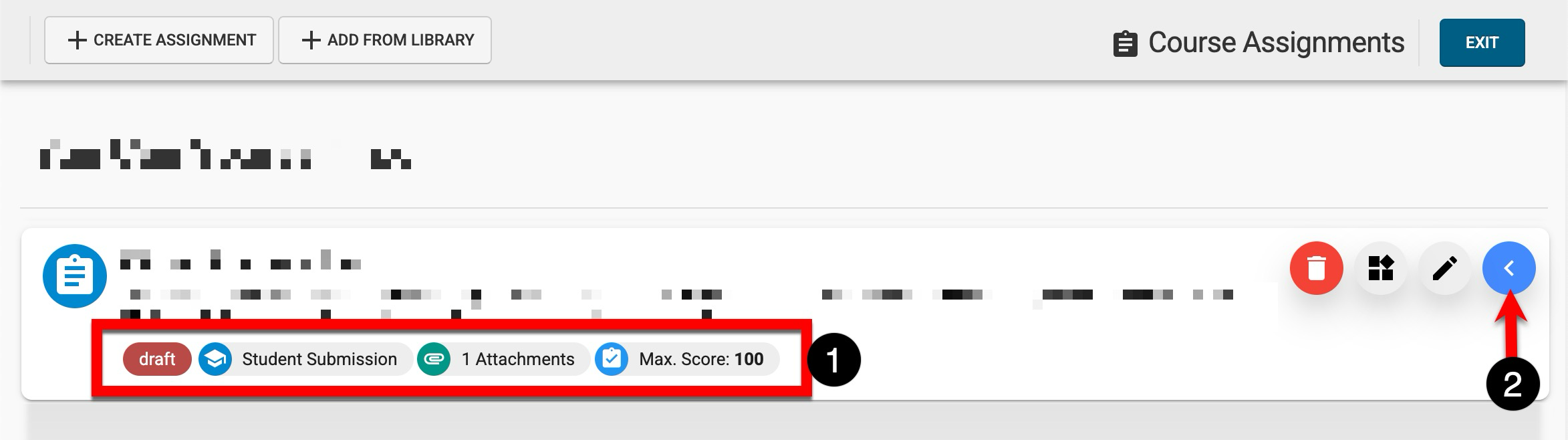
Once a new assignment template has been created and saved, it will display in the designer. Along with the title and description, general assignment information is also displayed. Templates in Draft status can be edited, have rubric criteria managed, or be deleted (2); assignments in Published status can only be deleted.
-
-
Adding Key Assignments as Assignment Templates
Key assignments can be used as assignment templates when a course or activity is in Draft, In Revision, or Published status.
-
To add a key assignment as an assignment template, navigate to the course or activity homepage and select the Assignments page from the left-hand menu. On the Assignments page, click Edit.
-
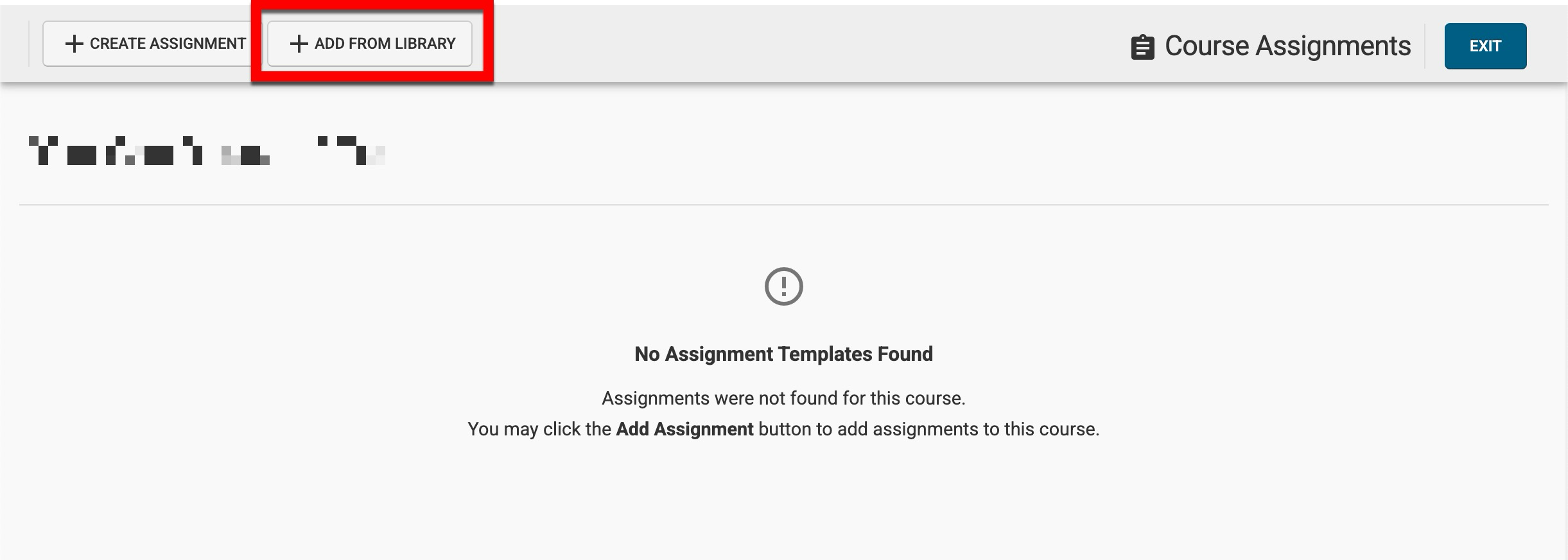
From the designer, click Add From Library.
-
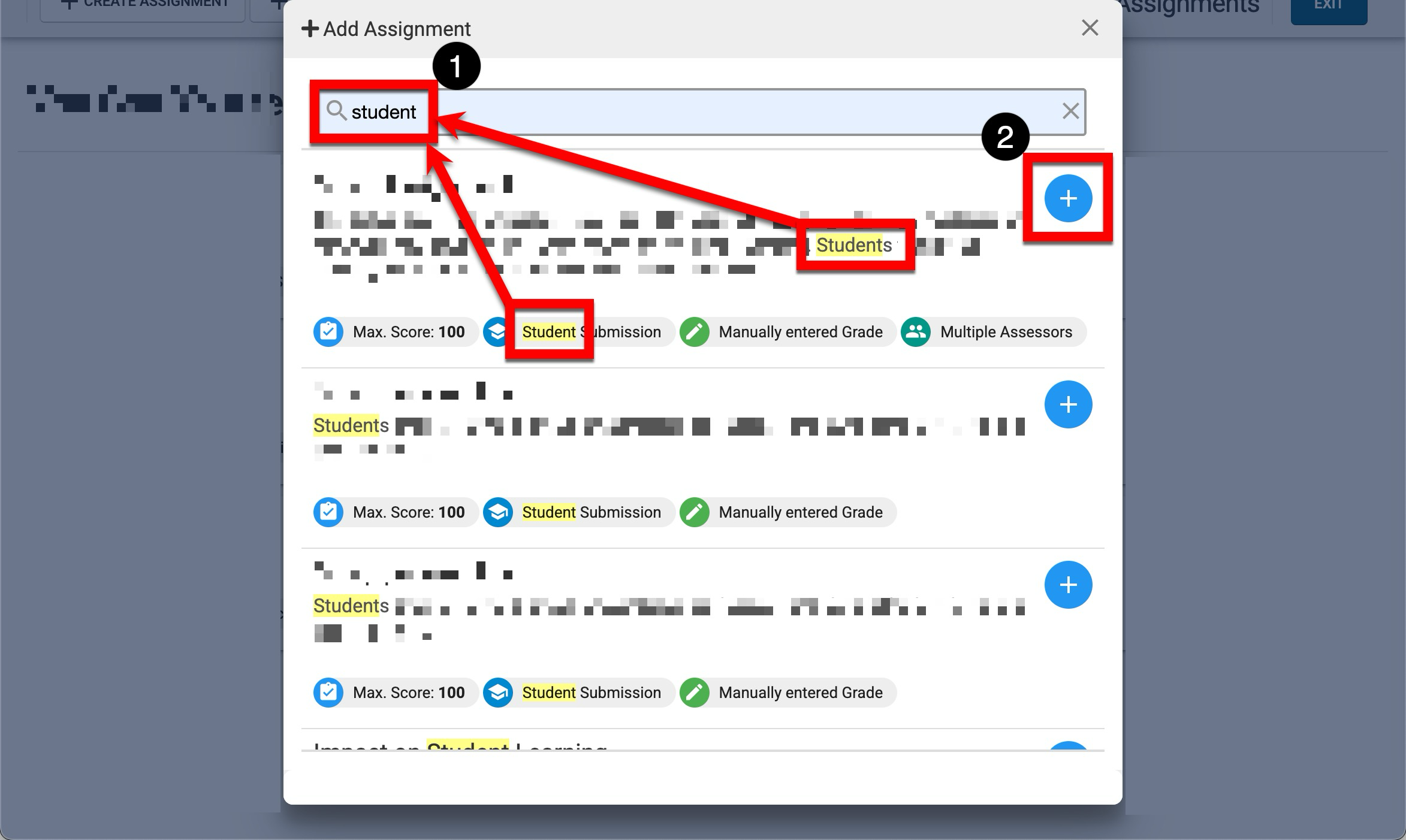
Keywords can be used to locate key assignments, and the keyword(s) will be highlighted in the responses (1). To add a key assignment, click the add option (2).
-
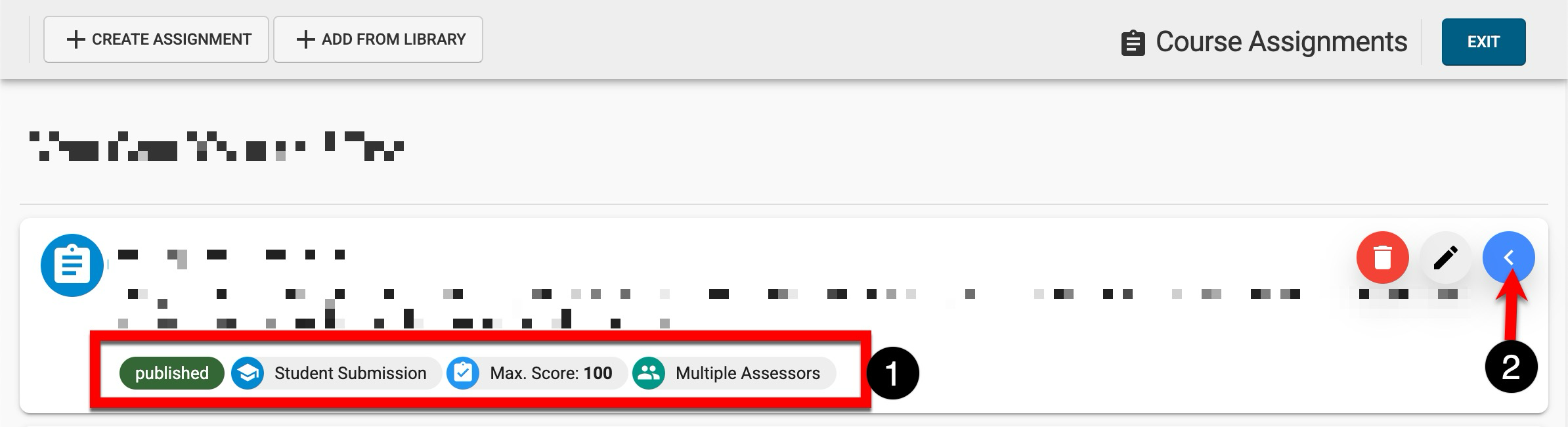
Once a key assignment has been added as an assignment template, it will display in the designer. Along with the title and description, general assignment information is also displayed (1). Key assignments added as assignment templates will be automatically in Published status and can only be deleted (2).
-