Assign or Remove Individually
-
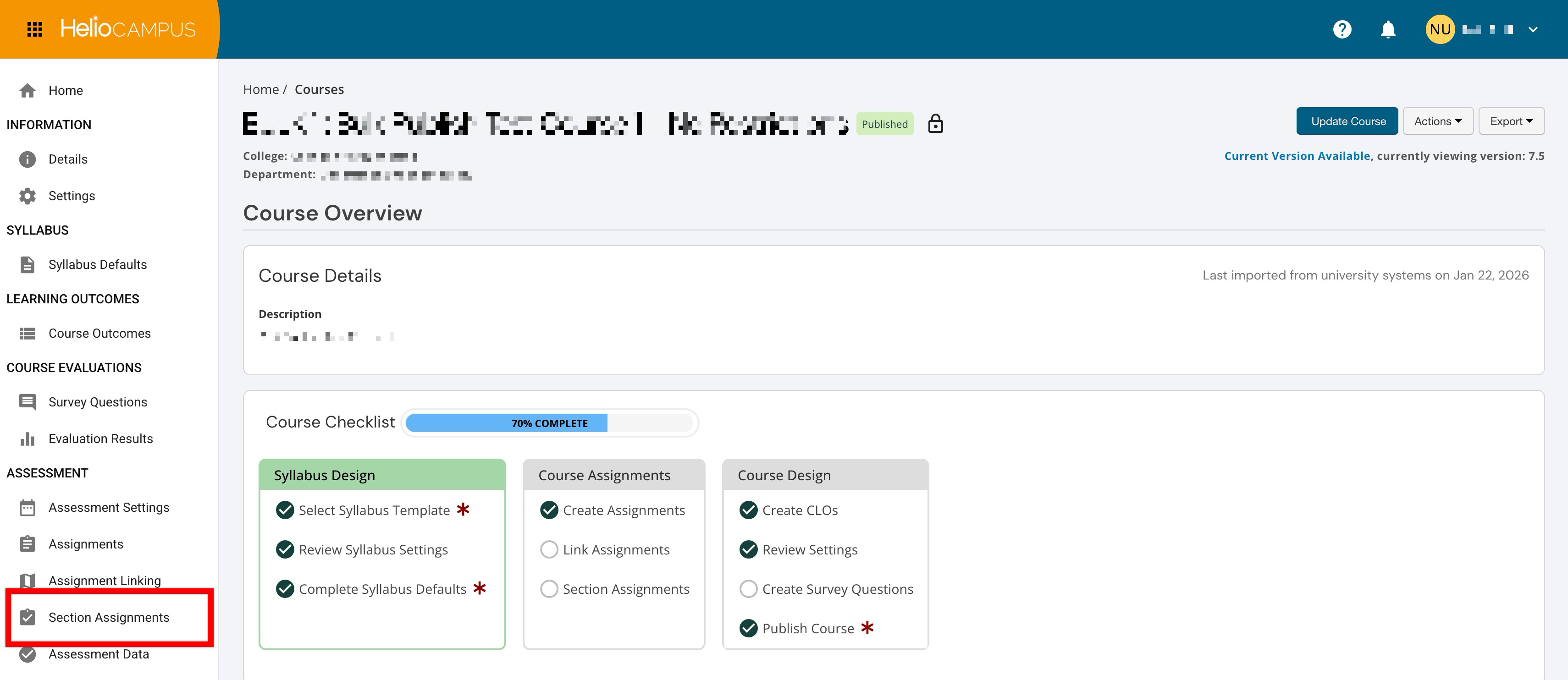
From the course or co-curricular homepage, select Section Assignments from the left-hand menu.
-
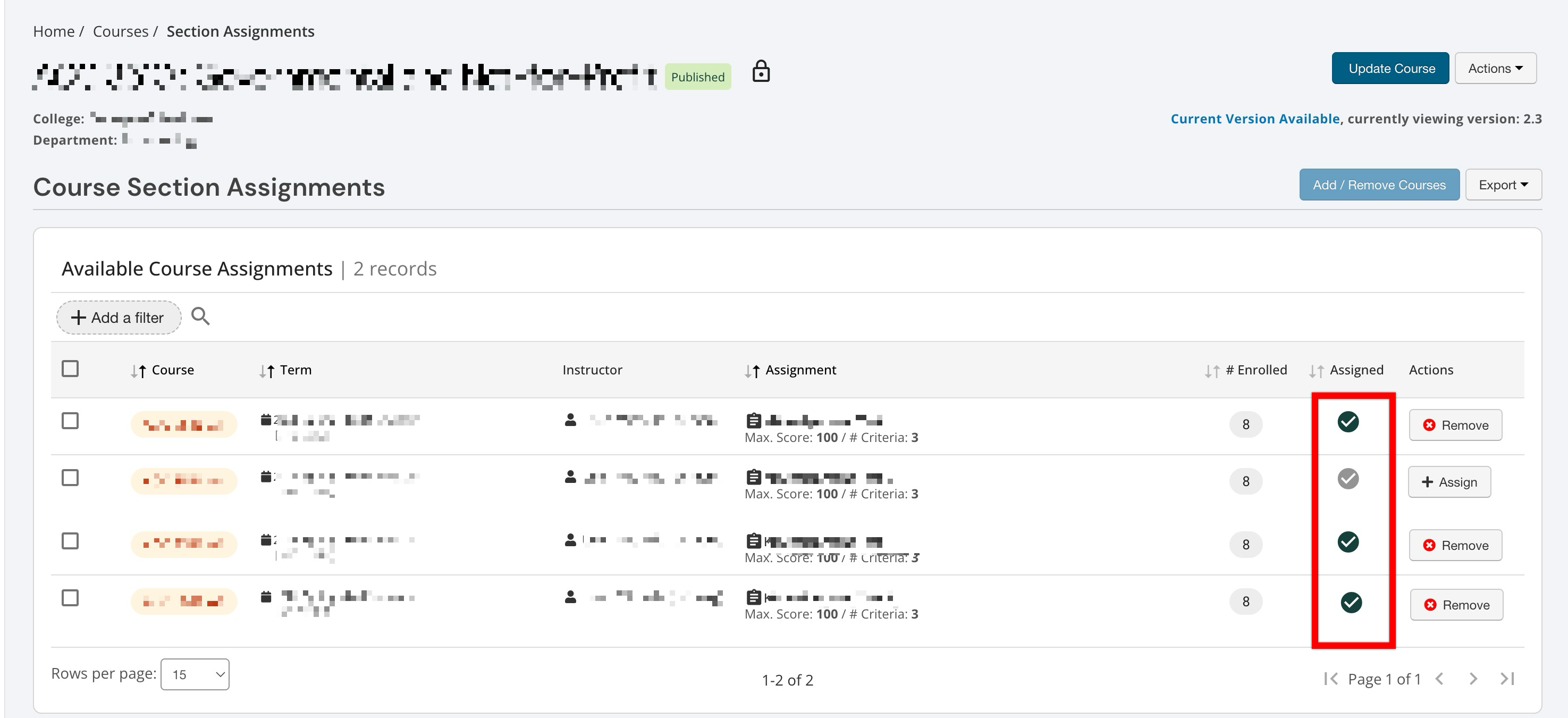
Locate the assignment row that needs to be removed or assigned. A status indicator displays whether an assignment is currently assigned (green check) or not assigned (muted check) to a section.
-
For each assignment row, users with edit permissions can click Remove or Assign, as applicable.
-
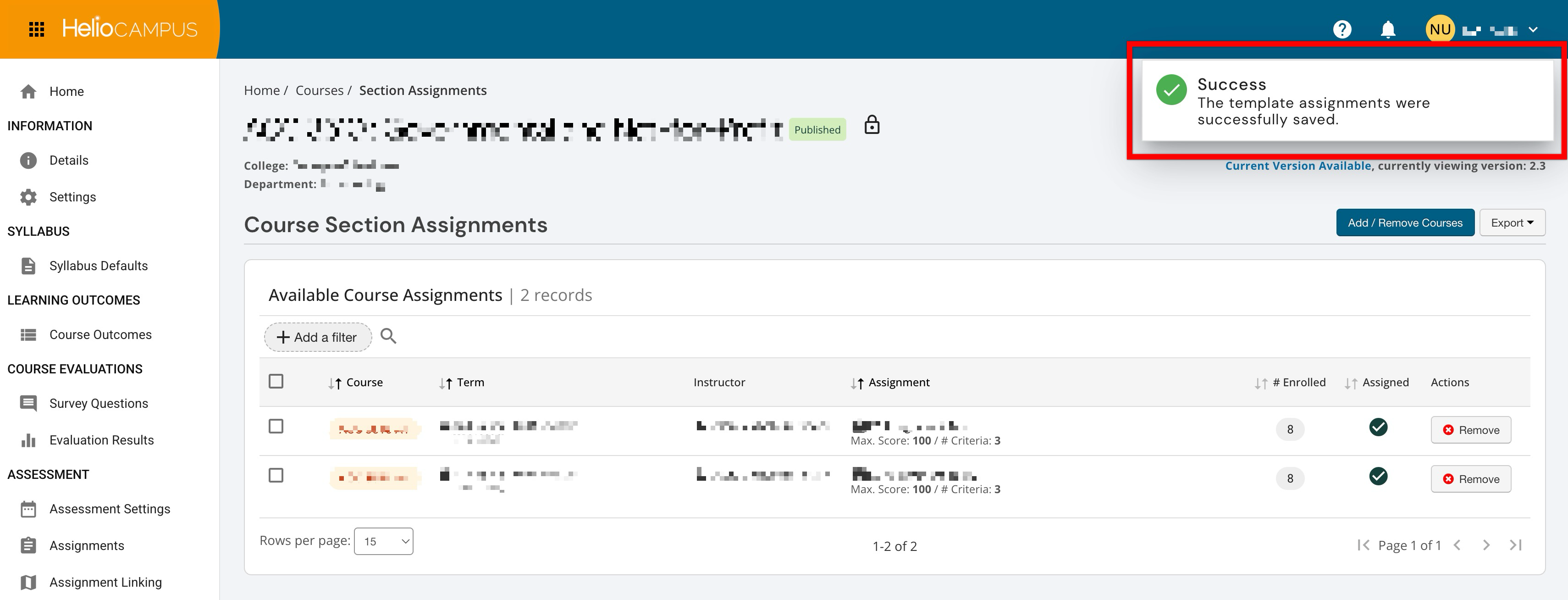
Assign: Visible when an assignment is not assigned. Clicking immediately assigns the assignment template and updates the Assigned column to a green check.
-
Remove: Visible when an assignment is currently assigned. Clicking immediately removes the assignment and updates the Assigned column to a muted check.
💡 Product Tip: If a section is a parent section with linked child sections, clicking Assign or Remove will prompt a confirmation warning that the action will affect all linked sections and indicate how many will be impacted.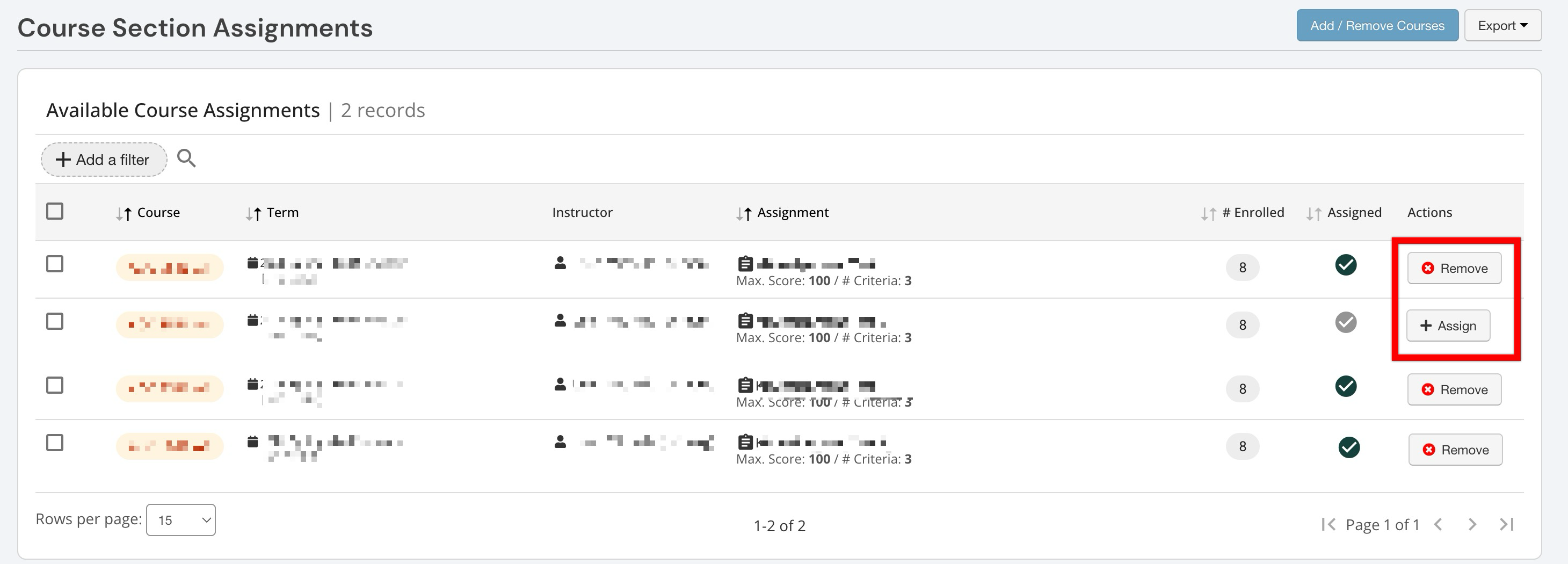
-
Assign or Remove In Bulk
-
From the course or co-curricular homepage, select Section Assignments from the left-hand menu.
-
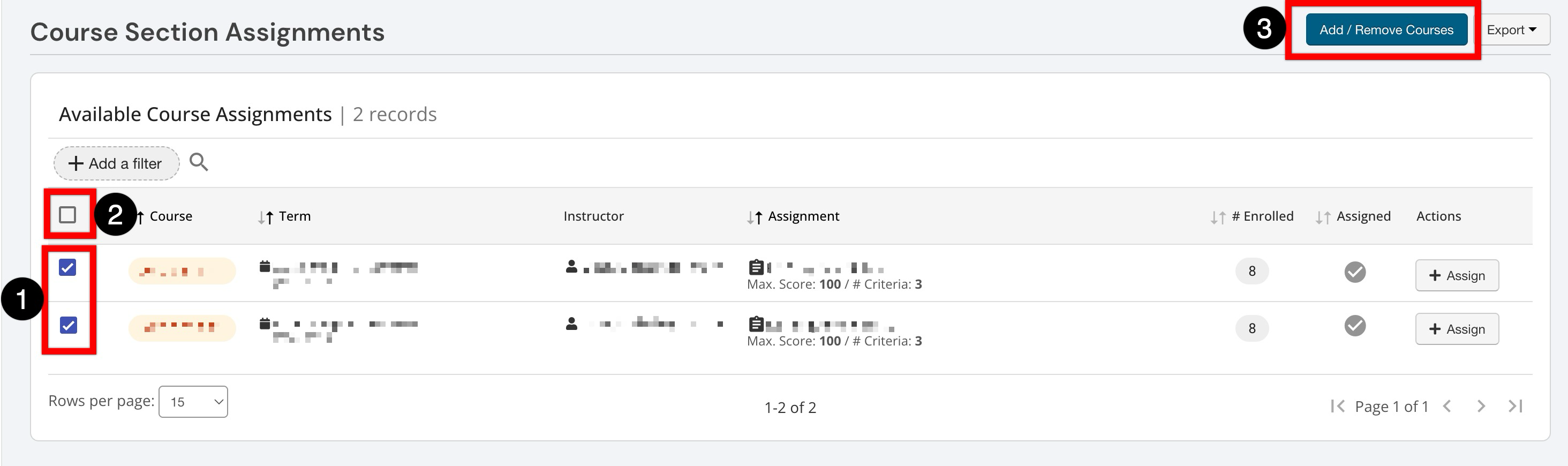
Users with edit permission can select one or more rows using the checkboxes (1); a Select All checkbox is available in the table header to select all visible rows (2). Once at least one row is selected, click Add/Remove Courses in the header.
-
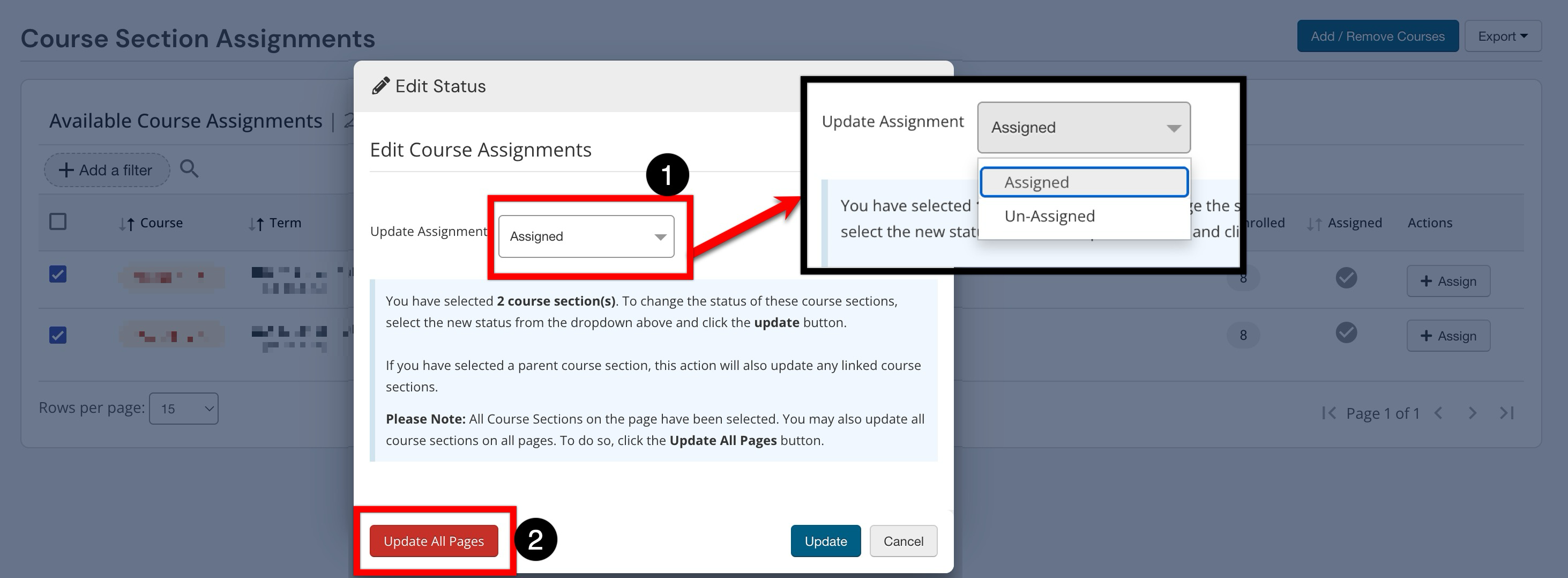
Choose either Assigned or Un-Assigned from the dropdown (1). If all rows on the current page were selected, an additional Update All Pages option appears (2). Clicking this optionally applies the assignment change across all matching sections (including those on other pages), respecting any active filters.
-
Clicking Update or Update All Pages will apply the assignment change across sections.