Video Resources: Building configuration logic for Questions.
Use Cases
|
Standard Course Evaluation Items Across Departments |
|
Institution-level questions can be used to ensure core course evaluation items (for example, overall course experience and learning environment) are asked consistently across all departments. This supports cleaner reporting because the same questions are used across many surveys and terms. When these questions are rolled into templates via placeholders, units can still add local questions without losing institutional consistency. This approach is especially useful when multiple colleges and departments need to compare results using shared metrics. |
|
Consistent Institution-level Compliance or Accreditation Questions |
|
Standardized questions can be used to ensure required items for accreditation, governance, or internal policy are included across relevant surveys. Standardizing these questions helps maintain continuity of evidence over time, even when templates or local question sets change. |
Considerations
-
Notifications: Notification configuration and offsets should be reviewed when survey configuration changes.
-
Survey Statuses: Update rollup questions when survey instances are in Pending status, or when there are no active instances. Survey statuses can limit the ability to add new questions for a given period.
-
Rollup Question Application: Decide whether published rollup questions should apply to active/in-progress surveys or only future surveys (based on institutional policy and survey timing).
-
Templates: To display inherited questions in a template, the template must include the Rollup Questions Placeholder question type. If a placeholder is not included, the inherited questions will not appear, even if they exist at a higher level.
-
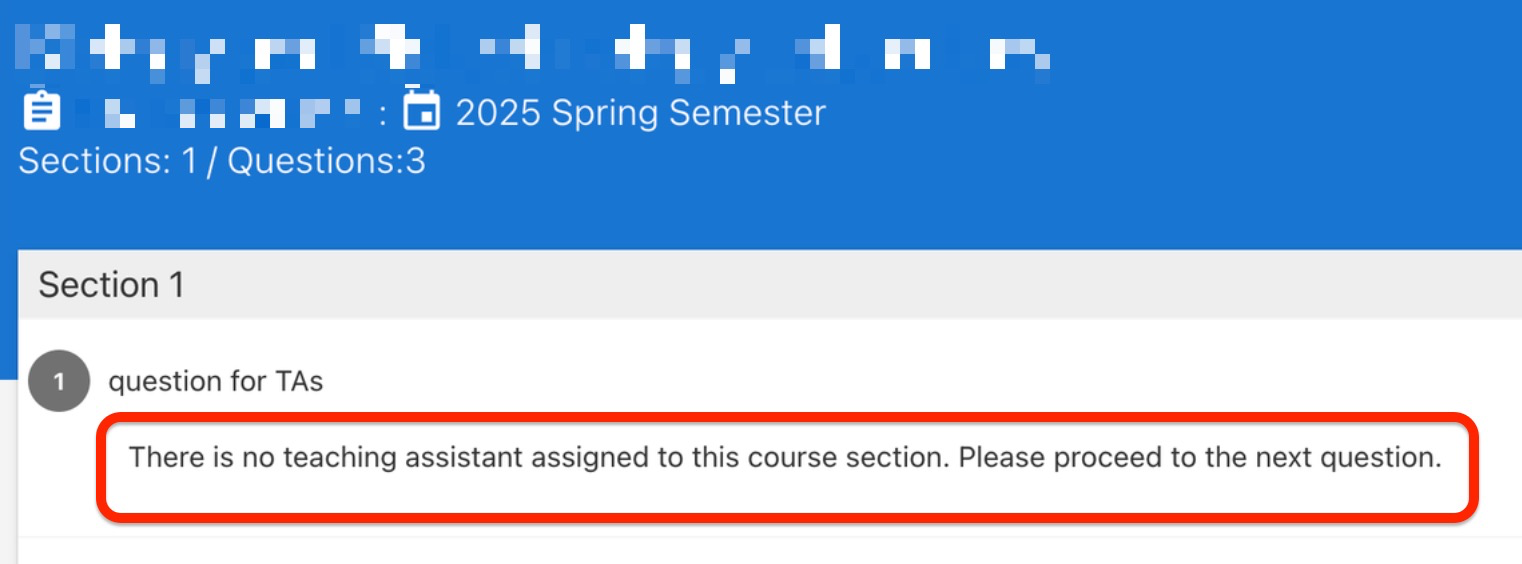
Teaching Assistants: For the Instructor Text/Memo and Instructor Multi-Choice question types, when the Include dropdown is configured as Teaching Assistant and some of the surveyed course sections do not have an assigned assistant, students in those sections will still see the question. However, no answer options will be available for the question, and the following warning will be displayed. If a survey form is previewed on the Survey Participants page, answer options will appear as available for selection, but this is only for preview purposes.
Downstream Impacts
-
Revising Questions: When questions are revised and published, updates apply moving forward and will not affect historical survey data. This helps maintain a stable survey experience for surveys already in progress while still allowing improvements over time.
-
Publishing Impacts: Publishing questions can change what will appear in future surveys that use the updated questions. Evaluate timing carefully when surveys are already running.
Question Navigation
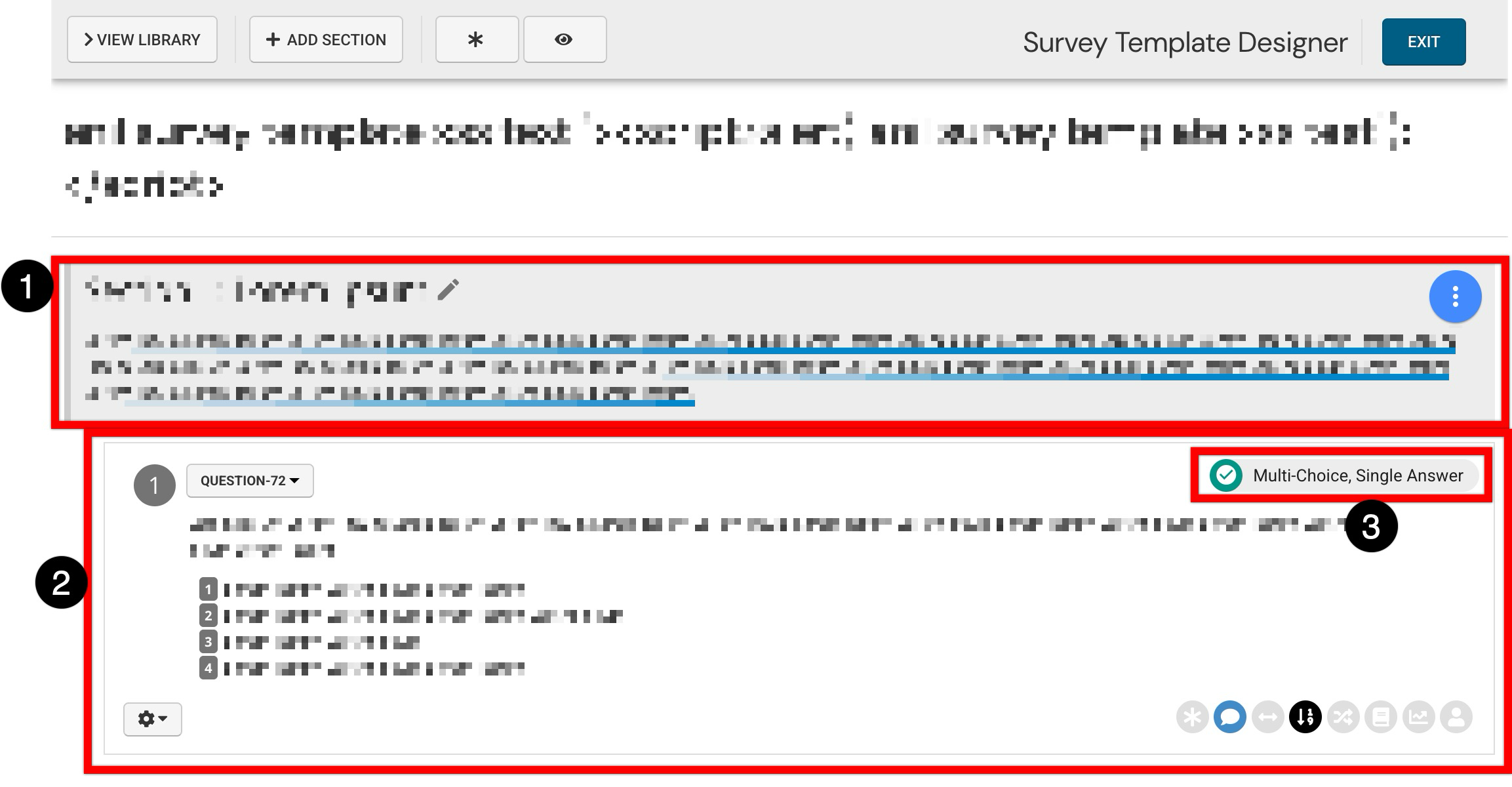
Within a template body, content is organized into sections, and questions are then added to sections. A section (1) groups related questions under a shared heading, helping keep longer templates easier to scan and maintain. Each question is displayed as its own question card (2), allowing users to review the prompt and answer choices together and confirm the question is placed in the correct sequence within the section. The question type indicator (3) (for example, Multi-Choice, Single Answer) indicates the question type and how responses will be collected.
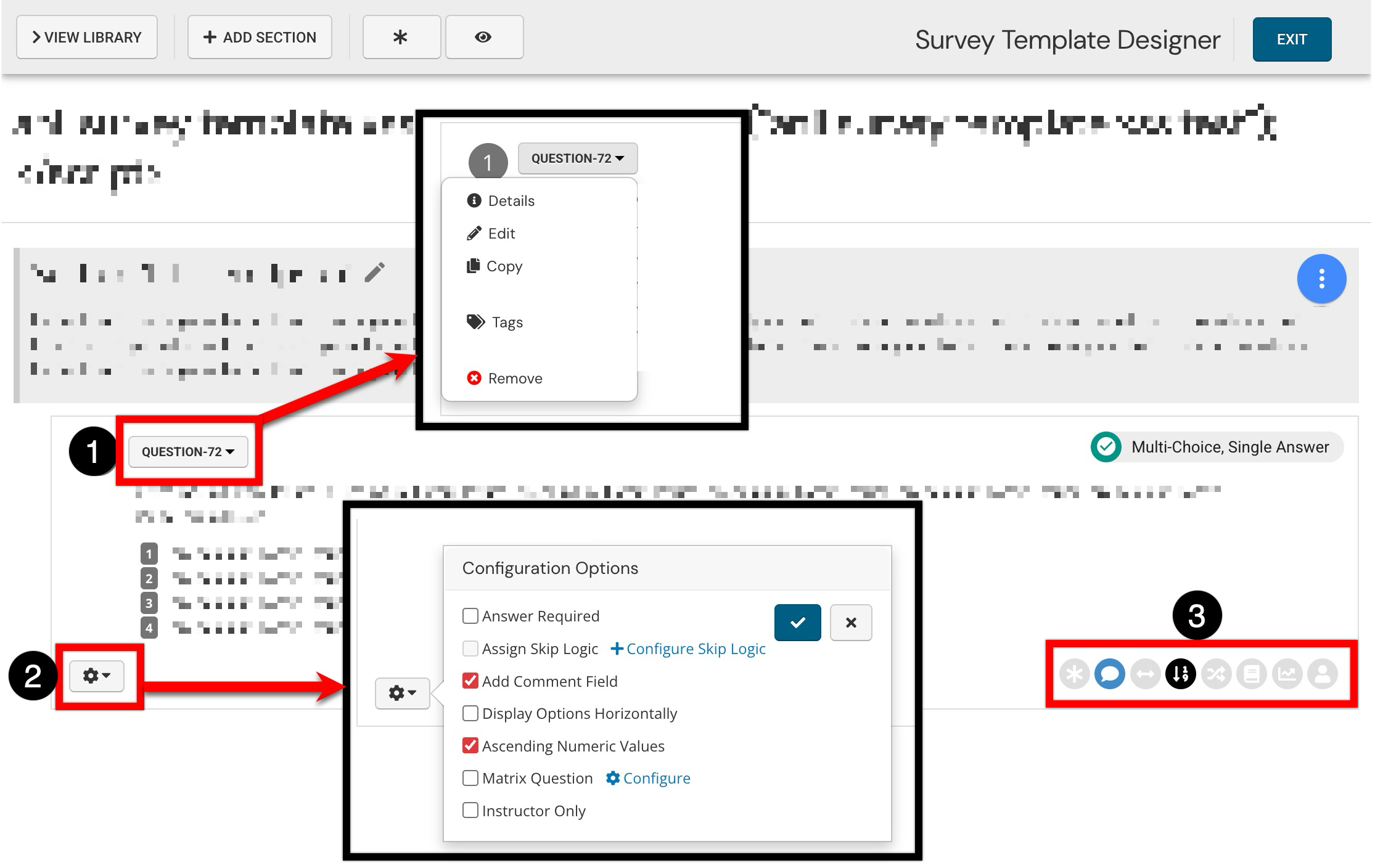
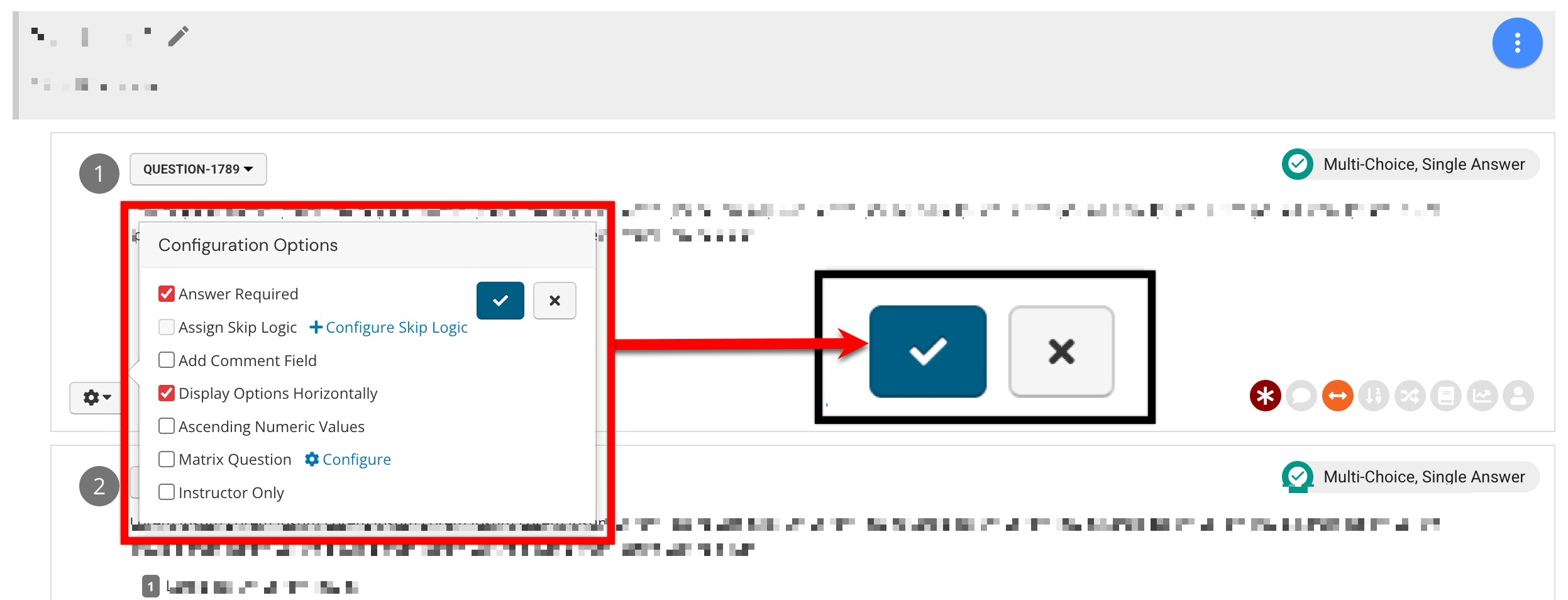
Questions can be managed and configured using the controls shown for each question. The question drop-down (1) provides quick access to question-level actions such as viewing details, editing the question, copying it for reuse, applying tags, or removing it from a template. The gear icon opens the Configuration Options panel (2), where configurations can be enabled and saved to control how a question functions within a template. The icon toolbar (3) provides quick identification for common question configurations, making it easier to confirm at a glance which configurations are applied.
Saving Configuration Options
After a configuration option has been enabled or disabled, Save must be clicked before closing the Configuration Options menu.
Configuration Icon Quick Reference
|
Option |
Identification |
Description |
|---|---|---|
|
Required |

|
The participant must answer this question |
|
Has Comment |

|
Adds a free-text comment field below the question |
|
Horizontal Layout |

|
Displays options horizontally instead of vertically |
|
Ascending |

|
Controls ascending vs. descending value order |
|
Instructor Only |

|
The question only appears on the Instructor's own section evaluation (not aggregated) |
|
Metric |

|
Associates the question with a named metric for institutional benchmarking |
|
Skip Logic |

|
Conditional show/hide of other questions based on selected answer |
|
Save to Question Library |

|
Saves the question to the shared Question Library for reuse across templates |
Saved to Question Library
When a question is created, the option to save it to the Question Library for reuse can be enabled. When a question has been added to the library, edits made to it in a template will not affect the question in the library.
Template Metric
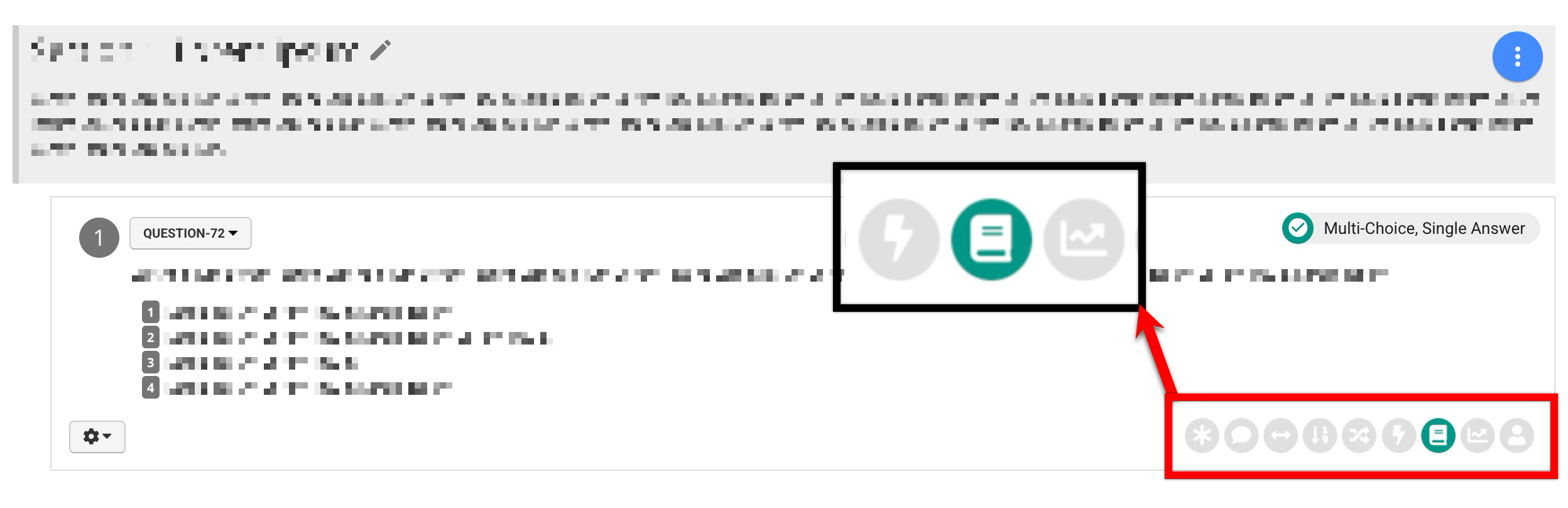
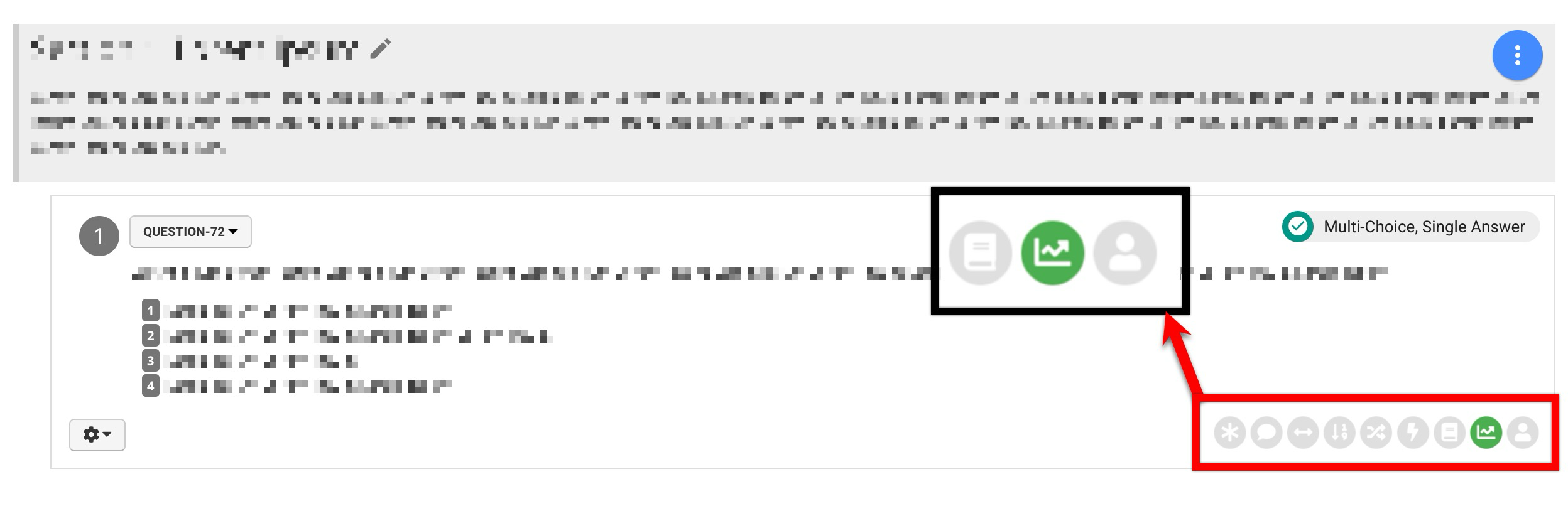
Metrics can be configured to define how questions are scored. Survey metrics provide a quick aggregate of one or more Multiple Choice Single Answer or Instructor Multiple Choice question types. Survey administrators can set up a threshold or goal for each metric created.
Answer Required
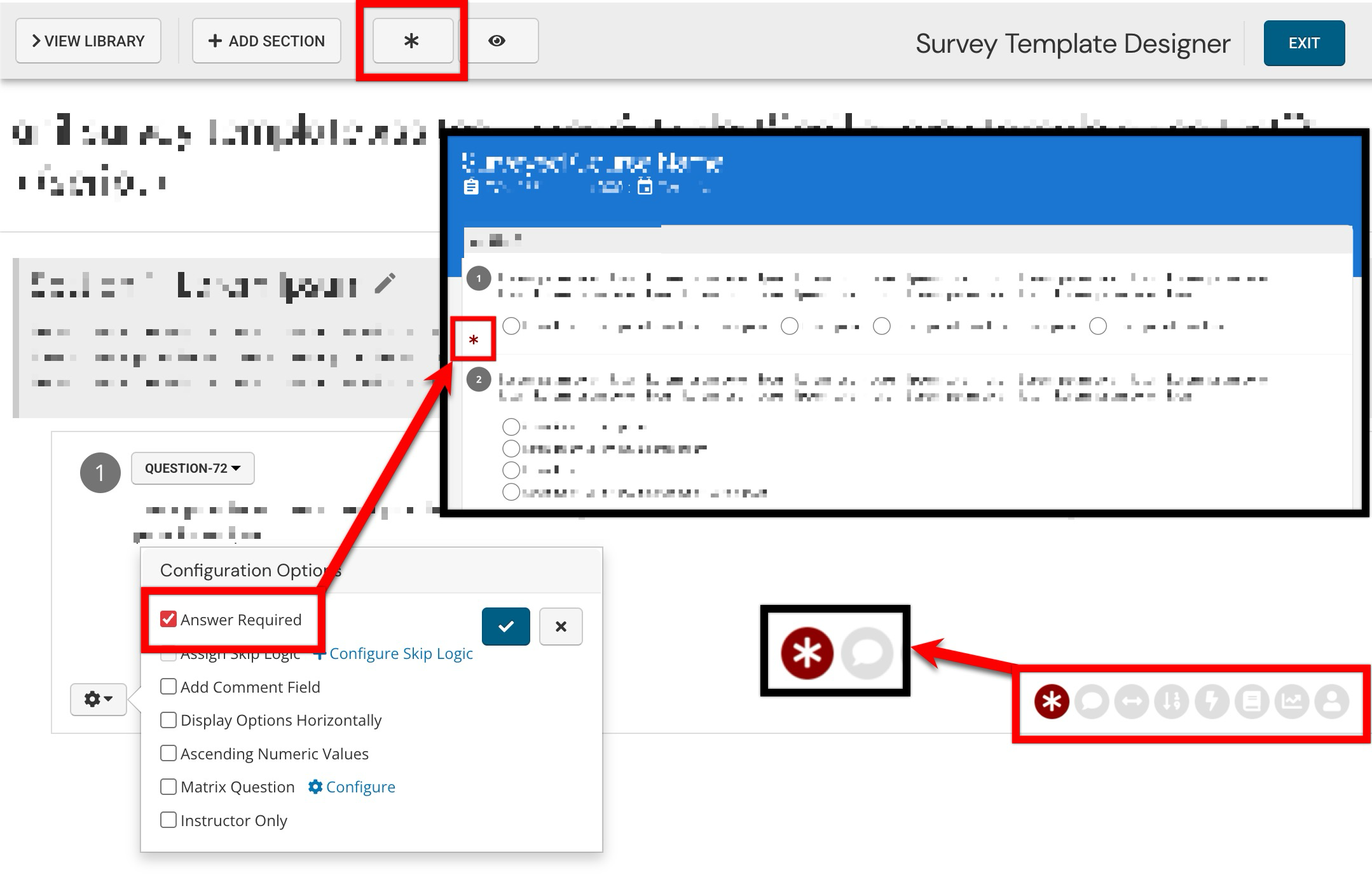
Enabling Answer Required will mark a question as required for survey participants. To mark all questions as required, click the asterisk at the top of the designer.
Assign Actions (Skip Logic)
Enabling Assign Actions allows skip logic to be applied to a question, e.g., the question(s) a survey participant sees next are based on how they answer the current question. By clicking the Add Skip Logic button (1), a single selection of an answer option (2) can be made, and multiple questions to display next can then be chosen (3). Multiple skip-logic configurations can be added to a single question.
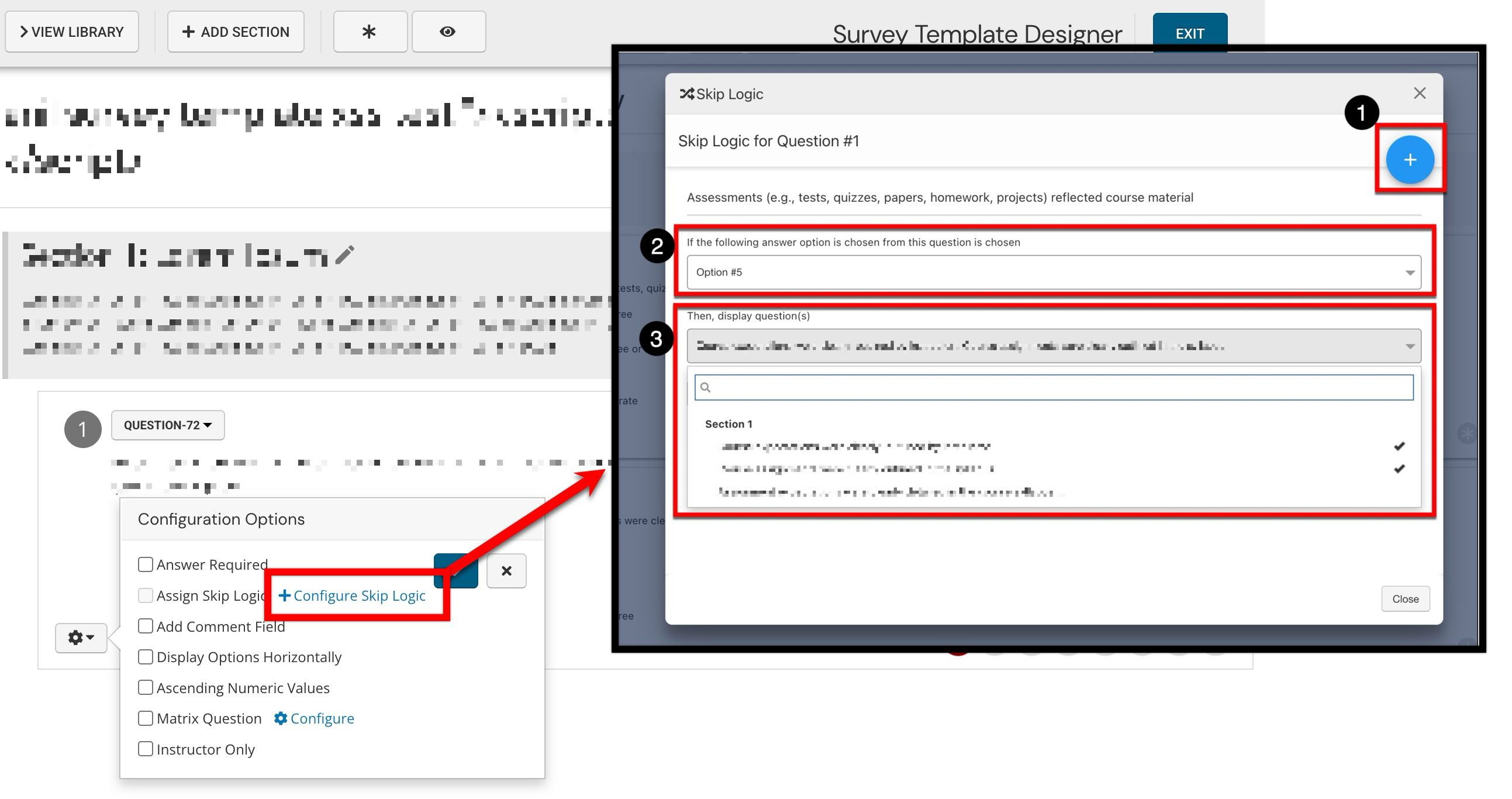
If a question is configured with skip logic and some of the answer options included in the logic are deleted and then recreated, the platform will not automatically update the actions associated with the now-deleted answer options, nor will it alert users to update actions associated with a deleted and recreated answer option. For example, if all answer options for question 6 have actions assigned to auto-display questions 7 or 8 based on the answer to question 6. If questions 7 or 8 are deleted and recreated, the assigned actions for question 6 must be updated to ensure the actions occur correctly.
Add Comment Field
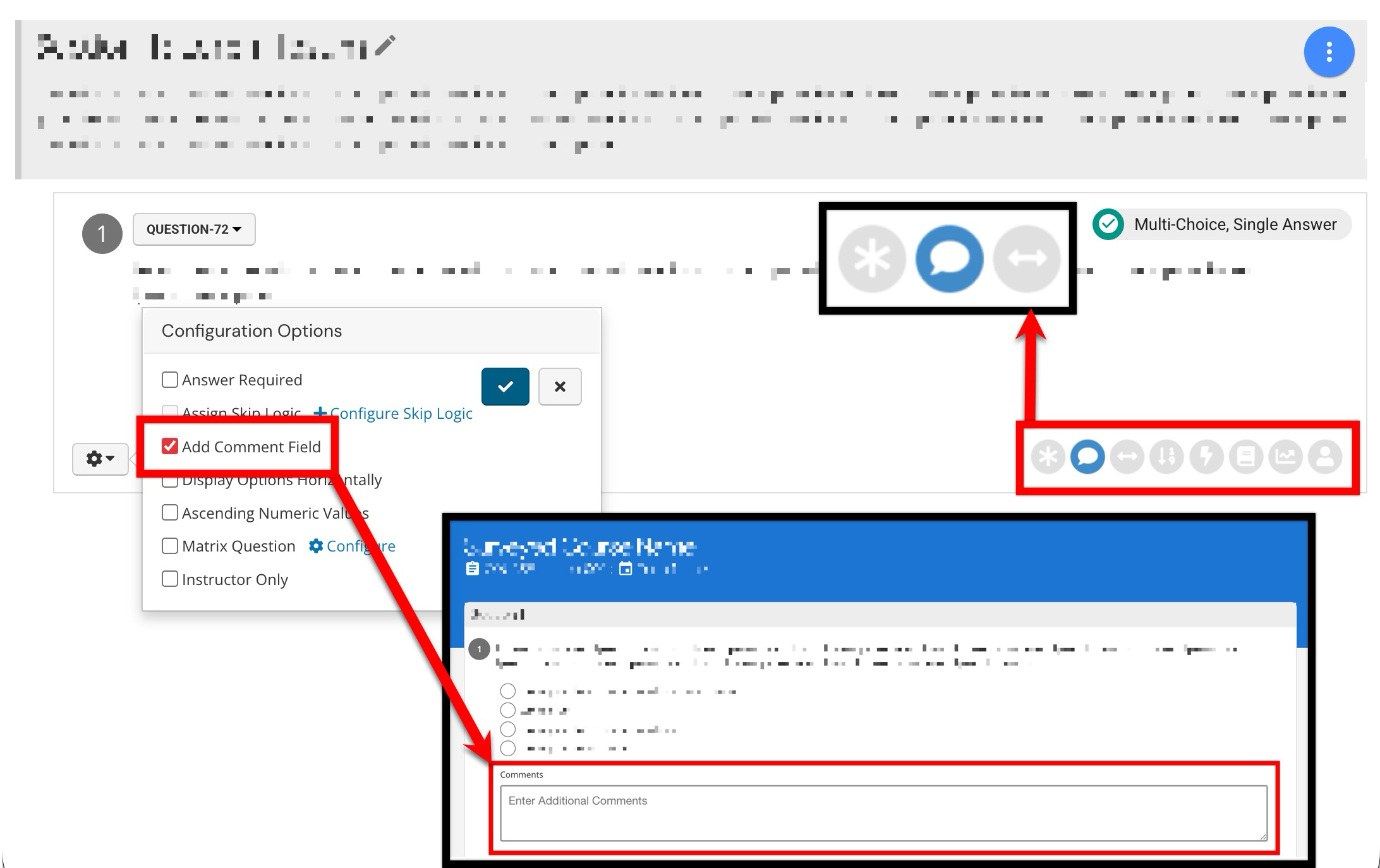
To allow a comment field for a question, the Add Comment Field option can be enabled. This will allow participants to add a comment in addition to answering the question.
Display Options Horizontally
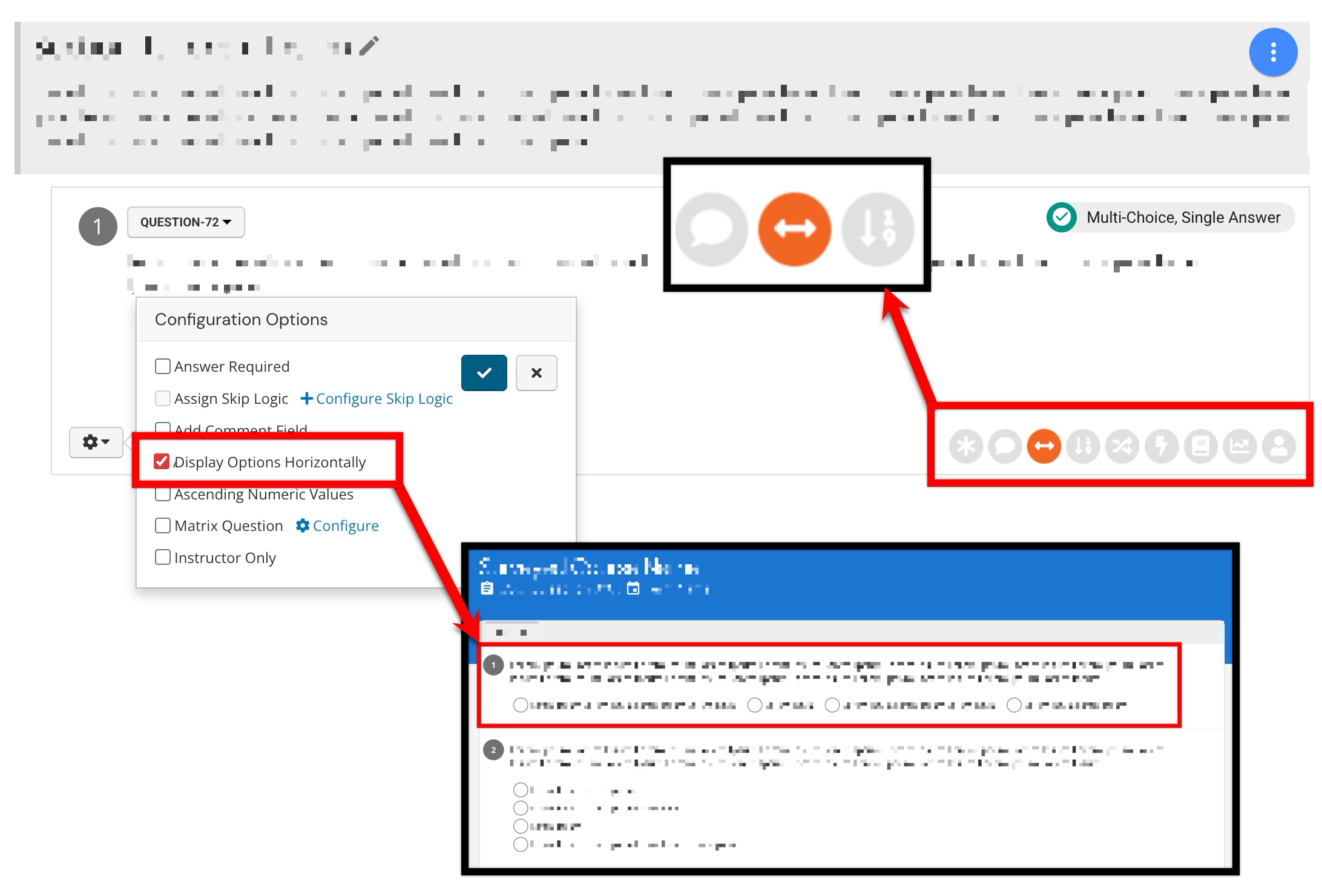
By default, answer options are displayed vertically. To display answer options horizontally rather than vertically, enable Display Options Horizontally.
Ascending Numeric Values
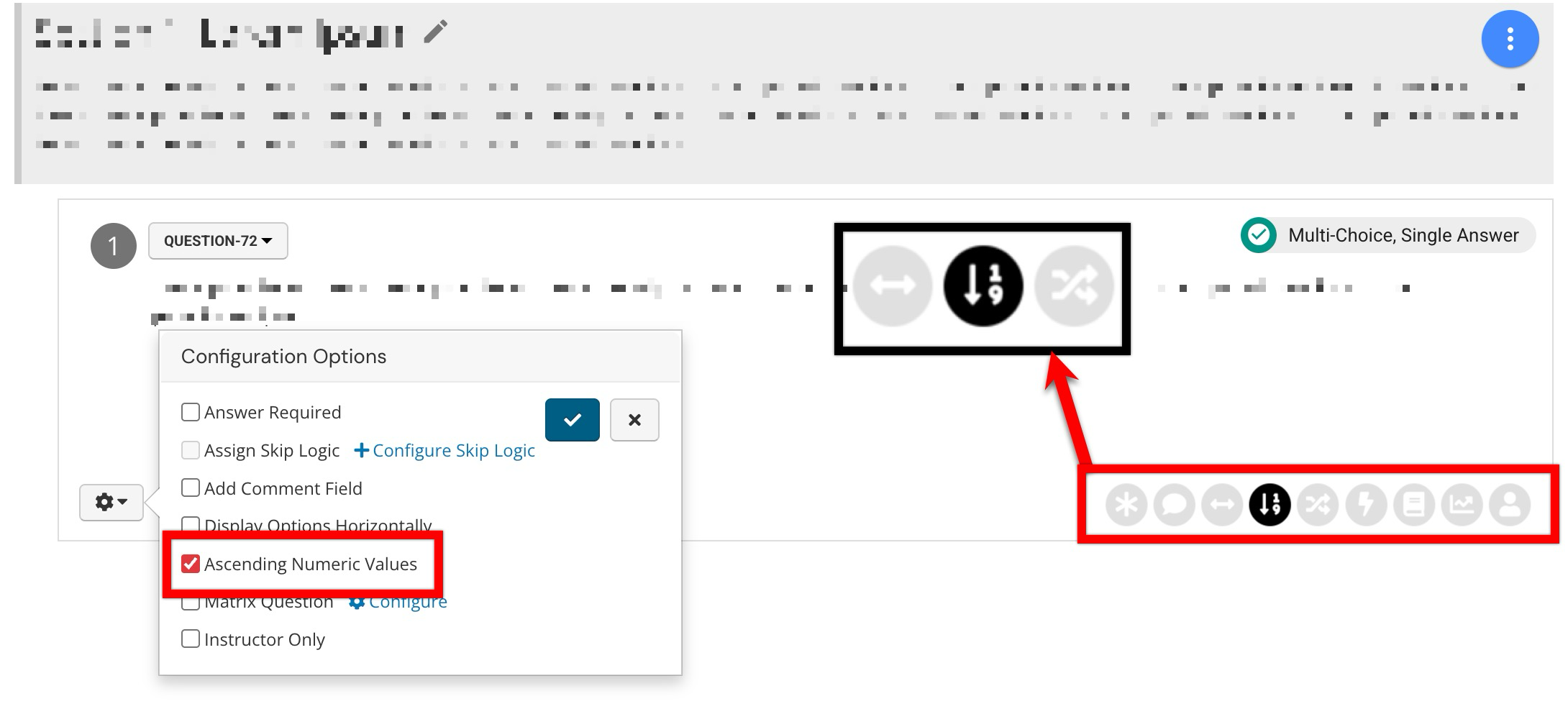
To reverse the display order of answer options, enable Ascending Numeric Values. By default, answer options are displayed in descending order (1, 2, 3…). When enabled, the display order will reverse to ascending order (…3, 2, 1) rather than the default descending order.
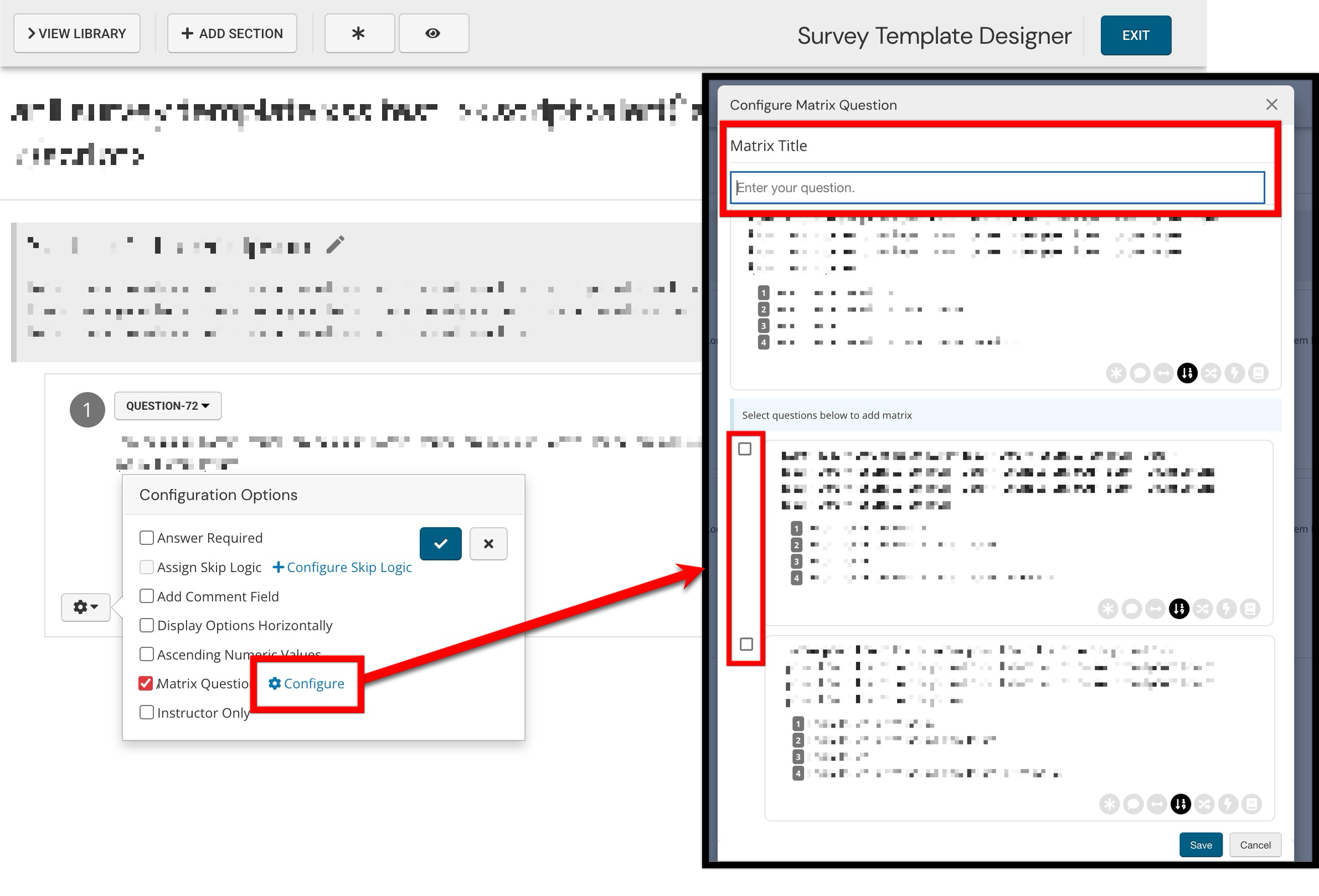
Matrix Question
To configure a question as a matrix question, enable the Matrix Question option; at least two questions are required to create a matrix question. A matrix question is a series of related questions arranged in a grid, allowing participants to respond to multiple questions. Click Configure, then in the Configure Matrix Question pop-up, set a title for the matrix and select the checkbox to include questions.
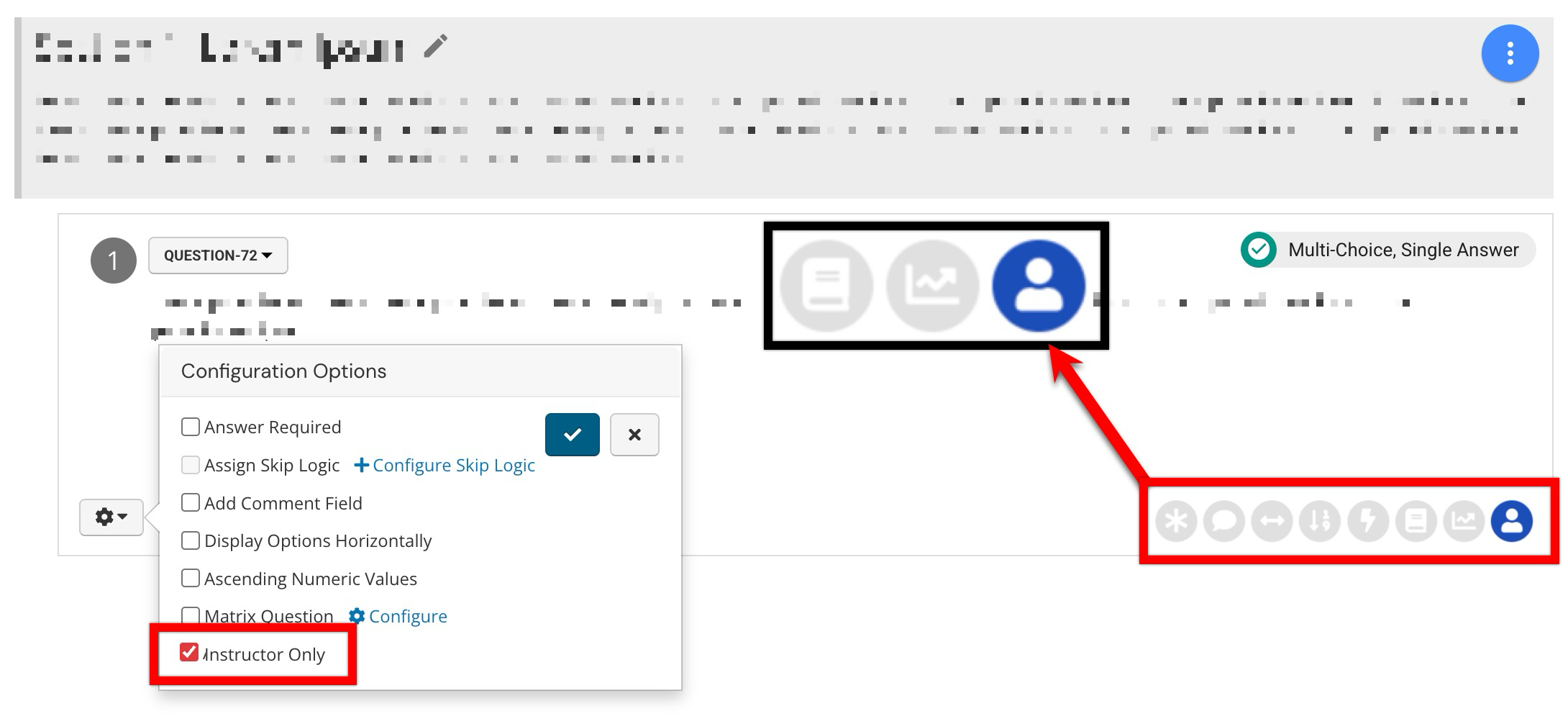
Instructor Only
When Instructor Only is enabled, question results are visible only to the Instructor; Institution Admins will be unable to see them.