
This process applies to:
-
Institutions implementing Canvas with HelioCampus for the first time
-
Institutions with an existing Canvas integration. Canvas Data 2.0 works alongside the Canvas application programming interface (API) integration, not in place of it. The API Developer Key, service account, API scopes, and service role permissions stay the same and are still required.
⚠️ Institutions with an existing quiz synchronization process must continue using it until HelioCampus confirms the transition to Canvas Data 2.0.
This guide explains how a Canvas Administrator establishes the connection, how HelioCampus activates data retrieval, and how Institutions confirm that New Quizzes data appears in the appropriate course section in the platform. HelioCampus uses Canvas Data 2.0 (CD2), also known as the Instructure Data Access Platform (DAP), to retrieve Canvas New Quizzes data. This connection supplies quiz, question, and student result data for assessment activities in HelioCampus. The process includes two distinct milestones:
-
Credential Setup: The Canvas Administrator creates and verifies a Canvas Data 2.0 Partner Key. Instructure then shares the credentials directly with HelioCampus by using the Instructure Partner key type.
Creating the key does not complete the integration; Institutions must wait for HelioCampus confirmation before relying on New Quizzes data for assessment activities.
-
Integration activation: HelioCampus configures the connection, runs the initial import, and confirms completion with the Institution.
If issues or concerns are encountered during this process, please contact Support.
Roles and Responsibilities
The Institution and HelioCampus share responsibility for establishing and validating the connection.
|
Role |
Responsibility |
|---|---|
|
Canvas Administrator |
Confirms Identity Services access, creates the partner key, completes email verification, and manages key renewal. |
|
Institution Data Feed Owner |
Confirms that the Course Section data feed includes the correct Canvas Course SIS ID in |
|
Institution Administrator |
Coordinates setup with HelioCampus, identifies a course section for validation, and checks the imported quiz data. |
|
HelioCampus Implementation or Support Team |
Coordinates activation, retrieves the partner credentials, configures the connection, runs the initial import, and confirms completion. |
|
Instructure |
Provides Identity Services, verifies the key creator, and delivers partner credential access to HelioCampus. |
Prerequisites
-
Canvas Administrator Access: An Institution member must be able to log in to Canvas as an administrator and access the email account associated with the Canvas account, because Instructure sends a verification code to the associated email.
-
Identity Services Access: The Institution appears in the Institution search at identity.instructure.com. If it does not, the administrator should contact Canvas Support or their Canvas Customer Success Manager to have it added.
-
Canvas Integration: The Learning Tools Interoperability (LTI) 1.3, API Integration, and API Authorization steps in the Canvas Integration Guide are complete or in progress.
-
Course Section Data Feed: The Course Section Data File in the Institution's nightly data feed includes the Course Student Information System (SIS) ID in the ExternalLmsId field.
-
Data Readiness: HelioCampus uses course identifiers to associate Canvas data with the correct HelioCampus course section. The Institution’s nightly Course Section feed must include the Canvas Course SIS ID in the ExternalLmsId field. The Institution’s data feed owner should confirm that the identifier in the feed matches the Course SIS ID in Canvas. A valid Canvas Data 2.0 key grants access to data, but it doesn't resolve missing or mismatched course identifiers.
Integration Process Overview
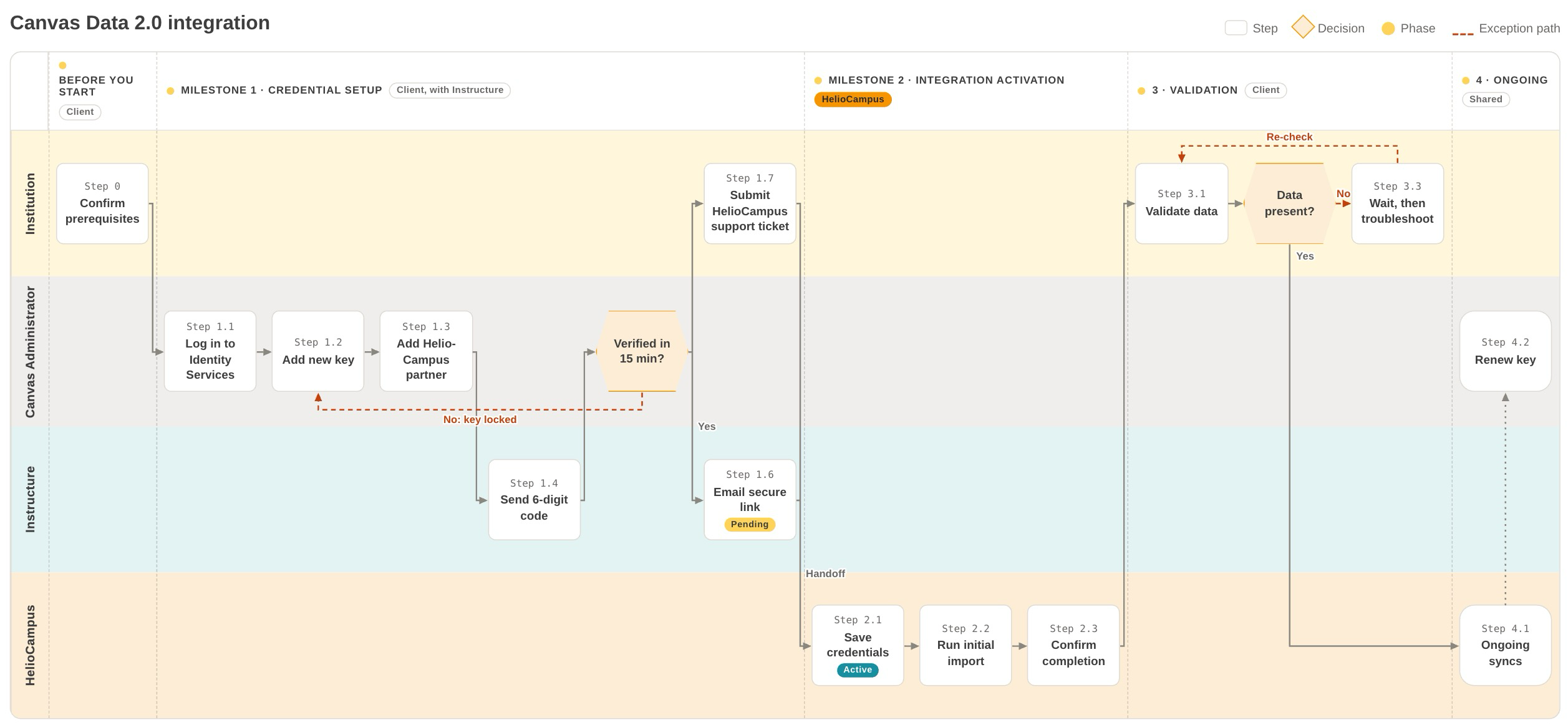
The Institution and HelioCampus complete the integration in the following sequence. The Institution does not copy or transmit the Client ID or Secret during this process.
-
Create and Verify the Key: The Canvas Administrator selects HelioCampus as the Instructure partner and enters
integrations@heliocampus.comas the partner email. -
Instructure Shares Credential Access: After the Canvas Administrator completes verification, Instructure sends HelioCampus a secure link.
-
Institution HelioCampus Access: The Institution submits a support ticket to confirm that HelioCampus received the secure link from Instructure.
-
HelioCampus Configures Connection: The HelioCampus team retrieves the credentials and enables Canvas Data 2 for the institution.
-
HelioCampus Completes Initial Import: HelioCampus will confirm when the Institution can begin validation.
-
Institution Validation: The Institution Administrator checks a known New Quizzes assignment in a linked HelioCampus course section.
What to Expect After Integration
-
Initial Full Import: HelioCampus retrieves a complete snapshot of quiz and question data. This happens once, and how long it takes depends on how much quiz data the Institution has; it can take several hours or more.
-
Ongoing Syncs: After the initial import, each scheduled sync retrieves only data that changed in Canvas since the previous sync.
-
New Quizzes and Submissions: Items created or submitted after the initial import appear after the next scheduled sync, not instantly.
Canvas Data 2.0 Integration
A Canvas Administrator completes the following steps to create and share the Canvas Data 2.0 API Key required for secure data access. This process ensures the key is generated correctly and made available to the appropriate team members before they continue with the remaining setup. If the Institution already syncs quiz data, it continues to use the current process until HelioCampus confirms Canvas Data 2.0 is enabled.
Additional Resource: Instructure - How do I generate a Canvas Data 2.0 API key?
-
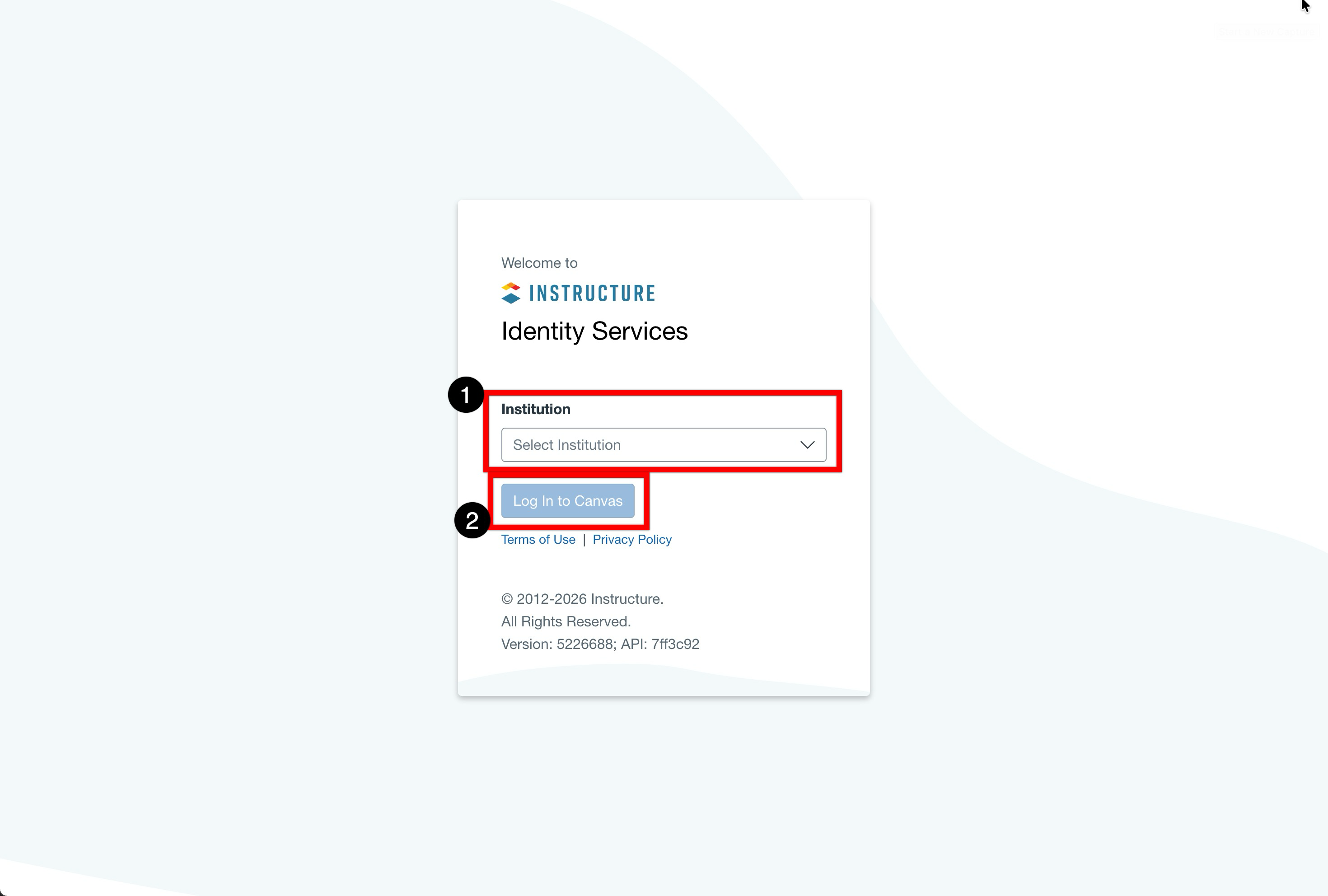
Navigate to identity.instructure.com and, in the Institution drop-down menu, search for and select the Institution, and click Log In to Canvas.
-
When prompted, click Authorize to give Identity Services access to the Institution's account.
-
-
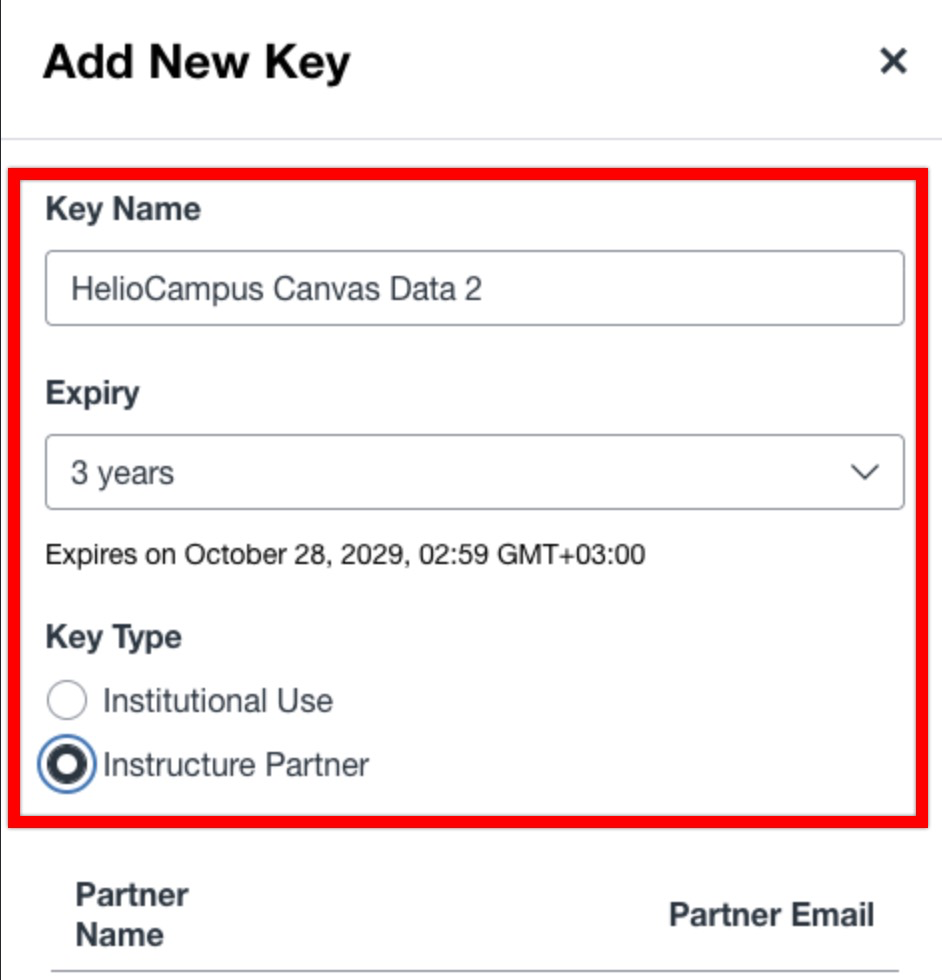
Click Add New Key. Complete the fields as noted below:
-
Key Name: Only Canvas Administrators can see the key name. HelioCampus suggests using HelioCampus Canvas Data 2 as the key name
-
Scope: If prompted, choose Canvas Data 2.0.
-
Expiry: Select the longest option available.
-
Key Type: Select Instructure Partner.
-
-
Click Add New Partner. In the Select Partner drop-down menu, select HelioCampus, and in the email field, enter
integrations@heliocampus.com. Click Submit.
⚠️ Use integrations@heliocampus.com exactly. This mailbox is dedicated to receiving Canvas Data 2.0 credentials. Do not use support@heliocampus.com or an individual HelioCampus team member’s address.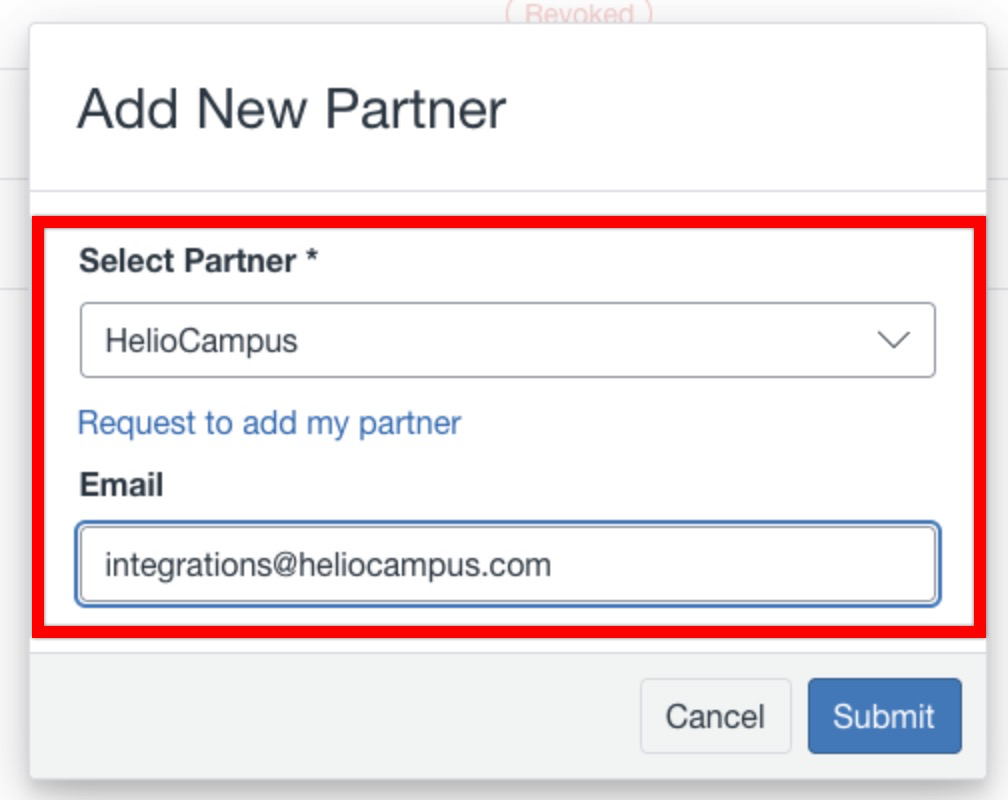
-
After the key is created, Instructure sends a six-digit verification code to the email address of the Canvas account. Enter the code in the 6-digit code field and click Verify.
⚠️ Verify within 15 minutes. Each code is valid for five minutes, and Resend code can be used up to three times. A key that is not verified within 15 minutes of creation is permanently locked, and a new one will need to be created. Instructure does not send anything to HelioCampus until verification is complete.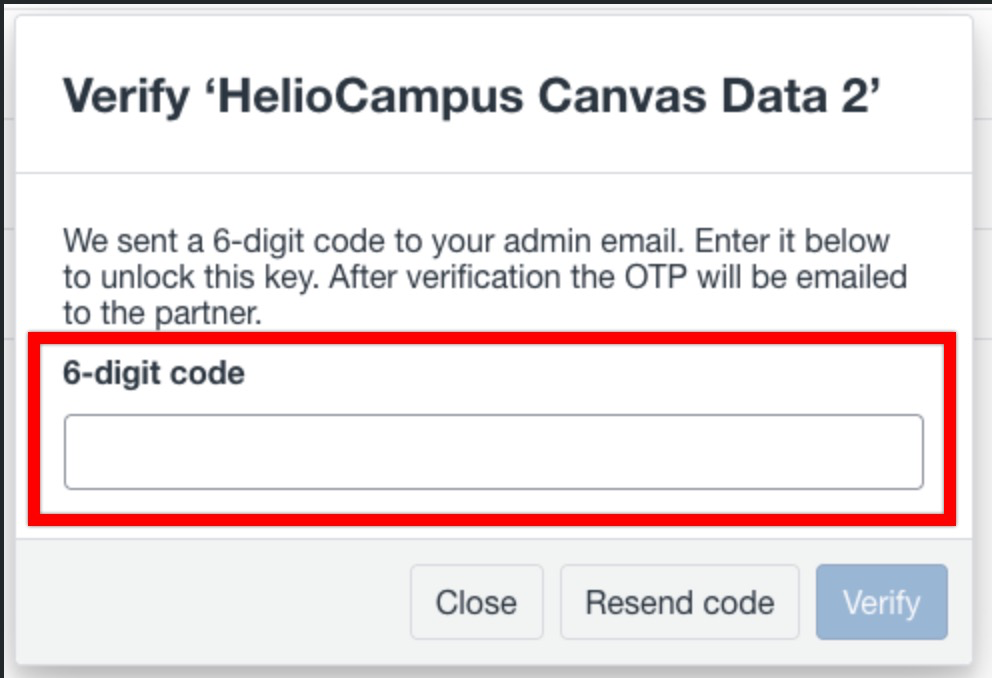
-
Once verified, the key appears on the Keys page with HelioCampus listed as the partner.

-
Once your key is verified, let HelioCampus know that Instructure has sent the secure link. How you do this depends on where you are in your HelioCampus journey:
-
Clients in implementation: Email your Implementation Project Manager to confirm that HelioCampus received the secure link from Instructure.
-
Clients in service: Submit a support ticket to confirm that HelioCampus received the secure link from Instructure.
-
-
After key verification, the status shows as Pending on the Keys page. The status changes to Active once HelioCampus receives the credentials email from Instructure and saves the credentials. The Institution does not need to take any action while the key is Pending.

-
HelioCampus will enable Canvas Data 2.0 for the Institution and run the initial import. HelioCampus will advise the Institution once the import is complete. Institutions should not rely on New Quizzes data in the platform until confirmation is received from HelioCampus.
Integration Verification
After HelioCampus confirms that Canvas Data 2.0 is enabled, Institutions should verify that New Quizzes data imports into the platform as expected by identifying a Canvas course that:
-
Contains a New Quizzes assignment with graded student submissions.
-
Corresponds to a course section in HelioCampus.
-
Uses the matching Course SIS ID in the Course Section feed.
-
In Canvas, navigate to the course with a New Quizzes assignment with graded student submissions that is linked to a HelioCampus course section.
-
Log in to the platform and navigate to the Assessment Data page for the course section opened in Canvas.
-
Confirm the quiz appears with its questions and that student results are present.
-
-
If data is missing, the initial import may still be in progress. Wait for the next scheduled sync, then check again. If data is still missing after the sync, review the Troubleshooting section of this article.
Key Expiration and Renewal
If the key expires or is revoked, HelioCampus can no longer retrieve quiz data through Canvas Data 2.0. To avoid a gap in data retrieval:
-
Record the key’s expiration date in the calendar when it’s created.
-
Before it expires, create a new key and contact Support to let HelioCampus know.
-
Keep the old key active until HelioCampus confirms the new key is working.
Troubleshooting
If none of these symptoms apply, please contact Support and include the Canvas URL and the affected course section. Do not include Canvas Data 2.0 credentials in the ticket.
|
Symptom |
Likely Cause |
What to Do |
|---|---|---|
|
The Institution does not appear in the Identity Services search |
The Institution is not in Instructure’s account domain lookup |
Contact Canvas Support or the Canvas Customer Success Manager to add it. |
|
HelioCampus does not appear in the Select Partner drop-down menu |
The search term does not match, or the partner list did not load |
Type HelioCampus in the drop-down menu to search for it. If it still does not appear, submit a support ticket to Canvas Support. Do not select a different partner. |
|
The verification code wasn’t received, or it expired |
Each code is valid for five minutes |
Check the spam folder, then click Resend code (up to three times). If more than 15 minutes have passed since the key was created, it is locked, and a new key must be created. |
|
The key still shows a Pending status |
Verification was not completed, or HelioCampus has not yet retrieved the credentials |
Did not complete verification: If it has been less than 15 minutes since the key was created, click the View icon and complete verification. Otherwise, revoke the key and create a new one. Completed verification: No action is needed. The key changes to Active once HelioCampus saves the credentials. |
|
HelioCampus advises it has not received the credentials |
Integration verification was not completed, or the partner email was entered incorrectly |
In Identity Services, click the View icon for the key and click Resend to Partner. If the partner email is wrong, revoke the key and create a new one using |
|
Quiz data is missing after HelioCampus confirms Canvas Data 2.0 is enabled |
The initial import is still running, or the Canvas course is not matched to a HelioCampus course section |
Wait for the next scheduled sync. Then confirm that the Course SIS ID in Canvas matches the ExternalLmsId in HelioCampus, as described in the Canvas Integration Guide troubleshooting section. |
|
Quiz data stopped syncing after the key expired, or after it was revoked or deleted |
The key HelioCampus uses is no longer valid |
Create a new key and notify HelioCampus via a support ticket. |
|
“Invalid Access Token” error when refreshing assignments |
The Canvas API authorization has expired. This is separate from Canvas Data 2.0. |
Follow the steps in the Canvas Integration Guide troubleshooting section. |
Quick Reference
|
Where to create the key |
|
|
Scope |
Canvas Data 2.0 |
|
Expiry |
Longest option available |
|
Key Type |
Instructure Partner |
|
Partner |
HelioCampus |
|
Partner email |
|